





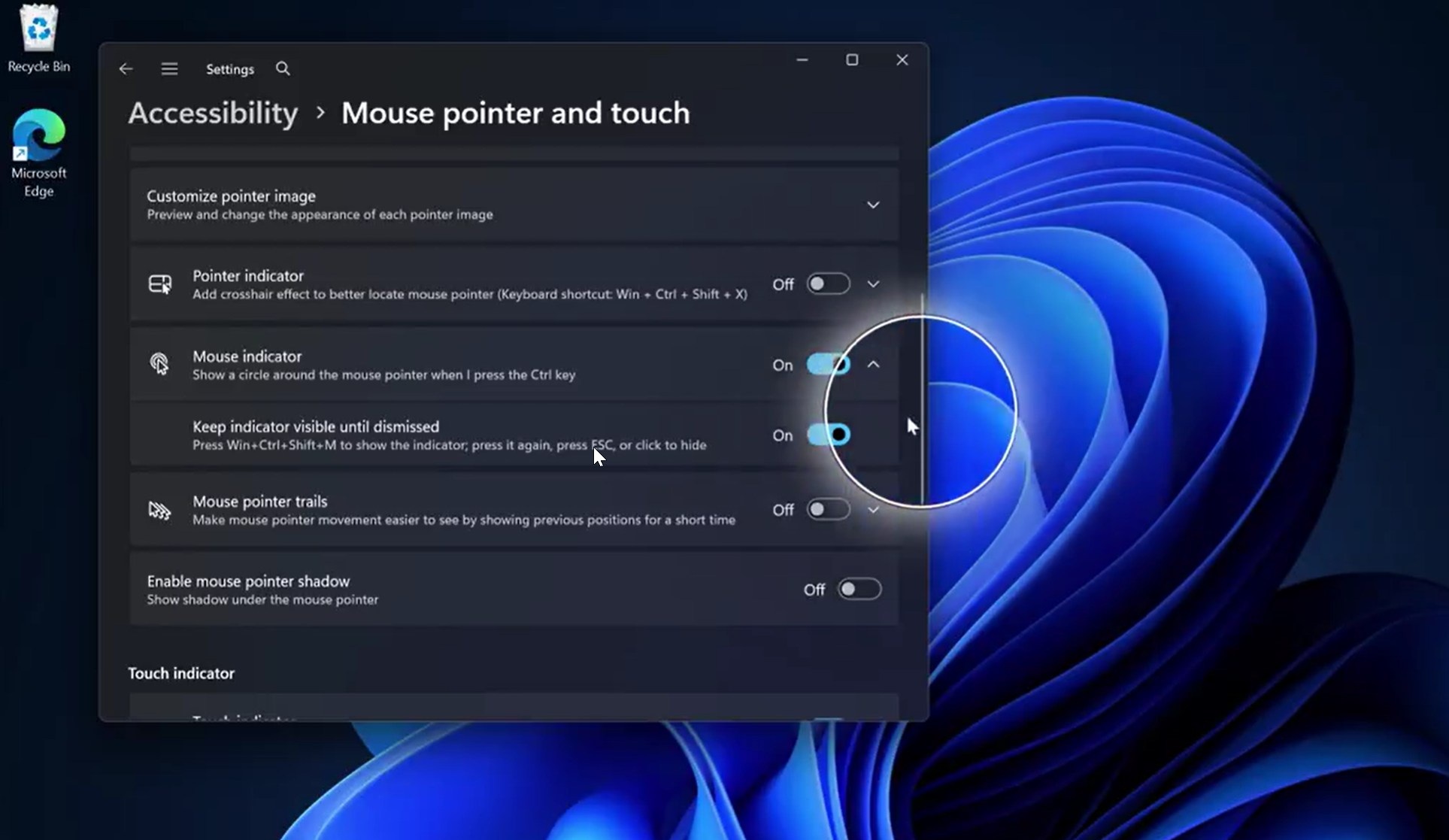
In the 90s, if you couldn’t find the cursor on Windows, you’d rely on the trailing feature and move your mouse around to locate it. In the early 2000s, Microsoft added a feature that lets you press Ctrl to find the cursor, and it became more widely used with Windows XP. That feature has largely remained unchanged, but it’s now being modernized in Windows 11.
If you’re unfamiliar with the feature I’m talking about, open Windows Settings, go to Accessibility, and open the Mouse pointer and touch page. Finally, look for the “Mouse Indicator” toggle and turn it on. Now, press the Ctrl key, and you’ll notice that Windows uses a circle animation to highlight where your cursor is.
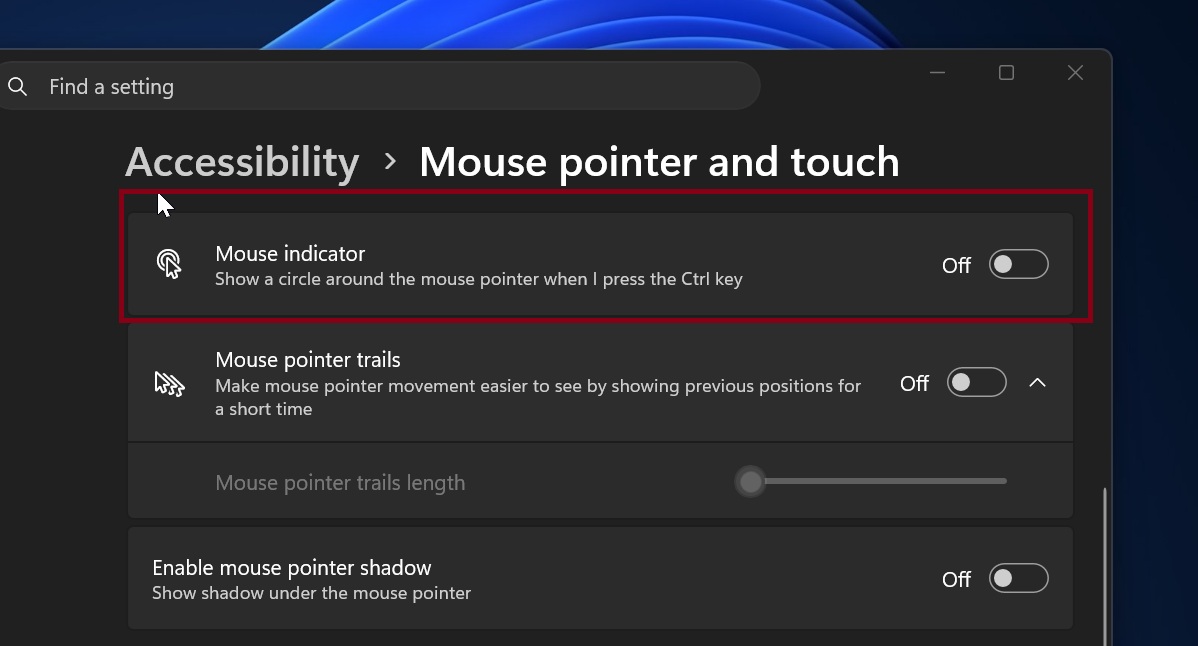
It works well enough, although it’s a bit buggy, but it gets the job done: helping you locate your cursor. I used to rely on it often on my 30-inch monitor until I downloaded PowerToys.
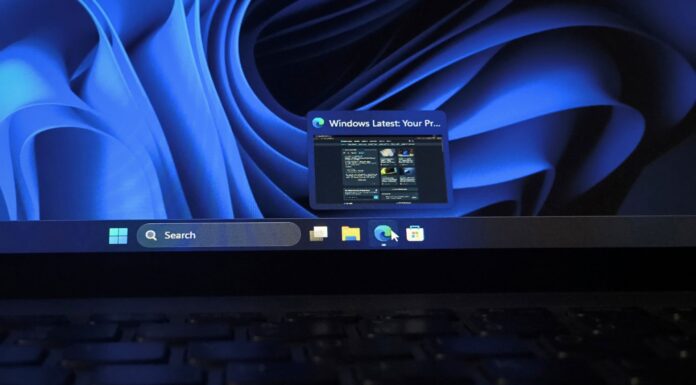
Microsoft PowerToys has a similar feature, but it’s far more useful because it dims the entire screen except for the area where the cursor is hiding, and it can be dismissed with Esc.
Now, as PhantomOfEarth found, Microsoft appears to be adding a PowerToys-like Mouse Indicator experience to Windows 11, and it’s built using modern code.
The modernized Mouse Indicator still opens using the Ctrl key and replaces the legacy implementation. Apart from looking better and feeling more modern, it also introduces an optional feature called “Keep indicator visible until dismissed.”
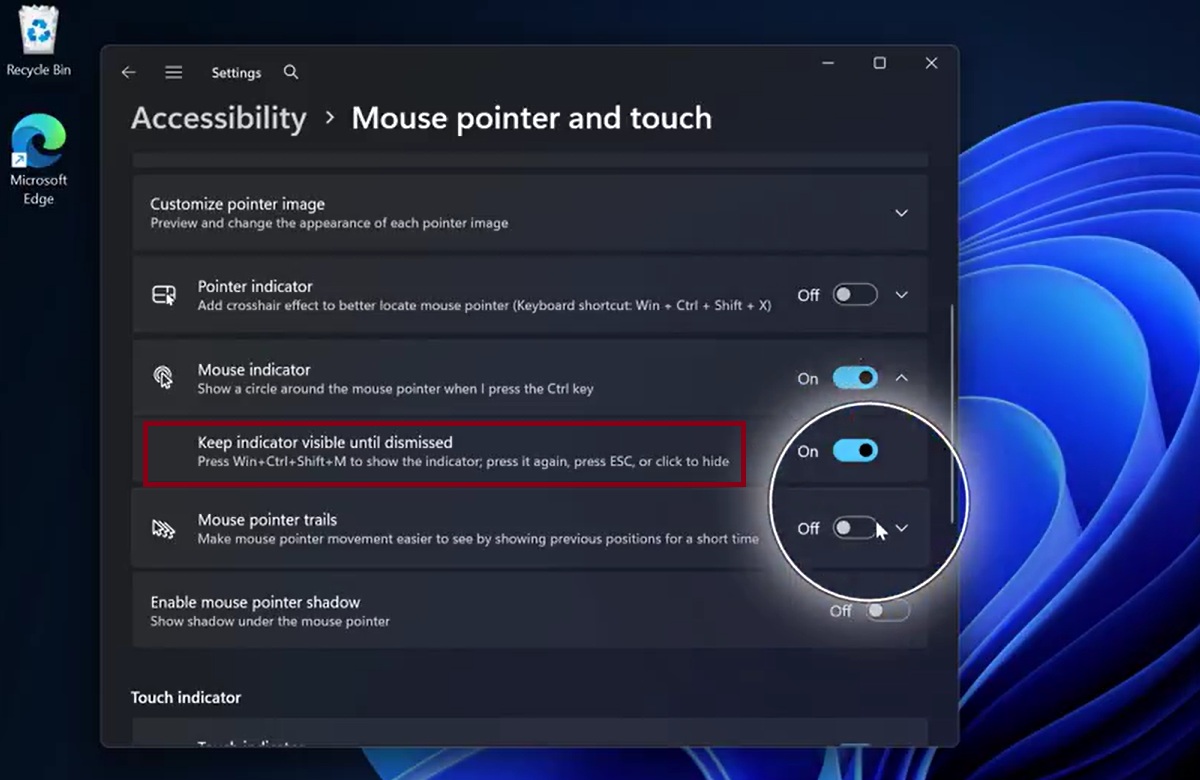
This means that if you press Win+Ctrl+Shift+M instead of just Ctrl, the mouse indicator won’t disappear until you press the shortcut again, press Esc, or click to hide it.
I also noticed that the animation is much smoother, and it’s likely to improve further as it gets closer to the production build.
Microsoft recently promised that it would modernize more corners of Windows 11, but a modern Mouse Indicator was not something I expected. If the company is going after features this small, I wouldn’t be surprised if Windows 11 starts looking much more polished and consistent in terms of UI/UX compared to its predecessors.
The only issue is that most of these improvements are not widely available outside the Windows Insider Program, so the general perception is that nothing is really changing. However, that’s not exactly true. More and more parts of Windows 11 are getting a modern touch, including dialogs like AutoPlay.
Microsoft is modernizing multiple features of Windows 11
AutoPlay, which appears when you connect a device to your PC, such as a phone, and lets you choose what to do with it, such as opening its internal storage, has received a completely new look:
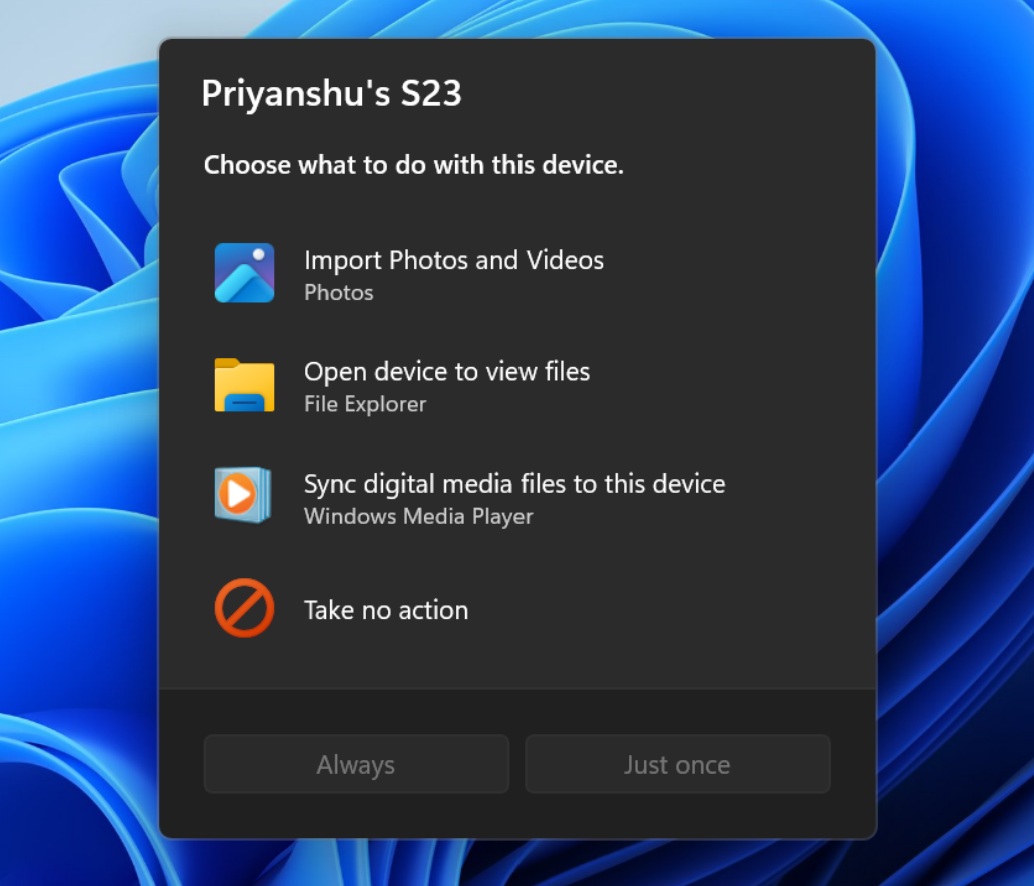
AutoPlay was last updated in Windows 8, and that change actually made it worse because Microsoft removed the ability to remember your preference. Right now, when you connect a device, you see a pop-up in the top-right corner, but regardless of whether you choose File Explorer or another option, you’ll be asked again the next time you reconnect the device.
The new WinUI-based AutoPlay dialog is more responsive, faster, and consistent with the rest of Windows 11. It also lets you remember your preference, and if you miss the alert, you don’t have to unplug and reconnect your device. The AutoPlay dialog is now available from the Notifications Center as well.
Properties sheet is getting modern in Windows 11
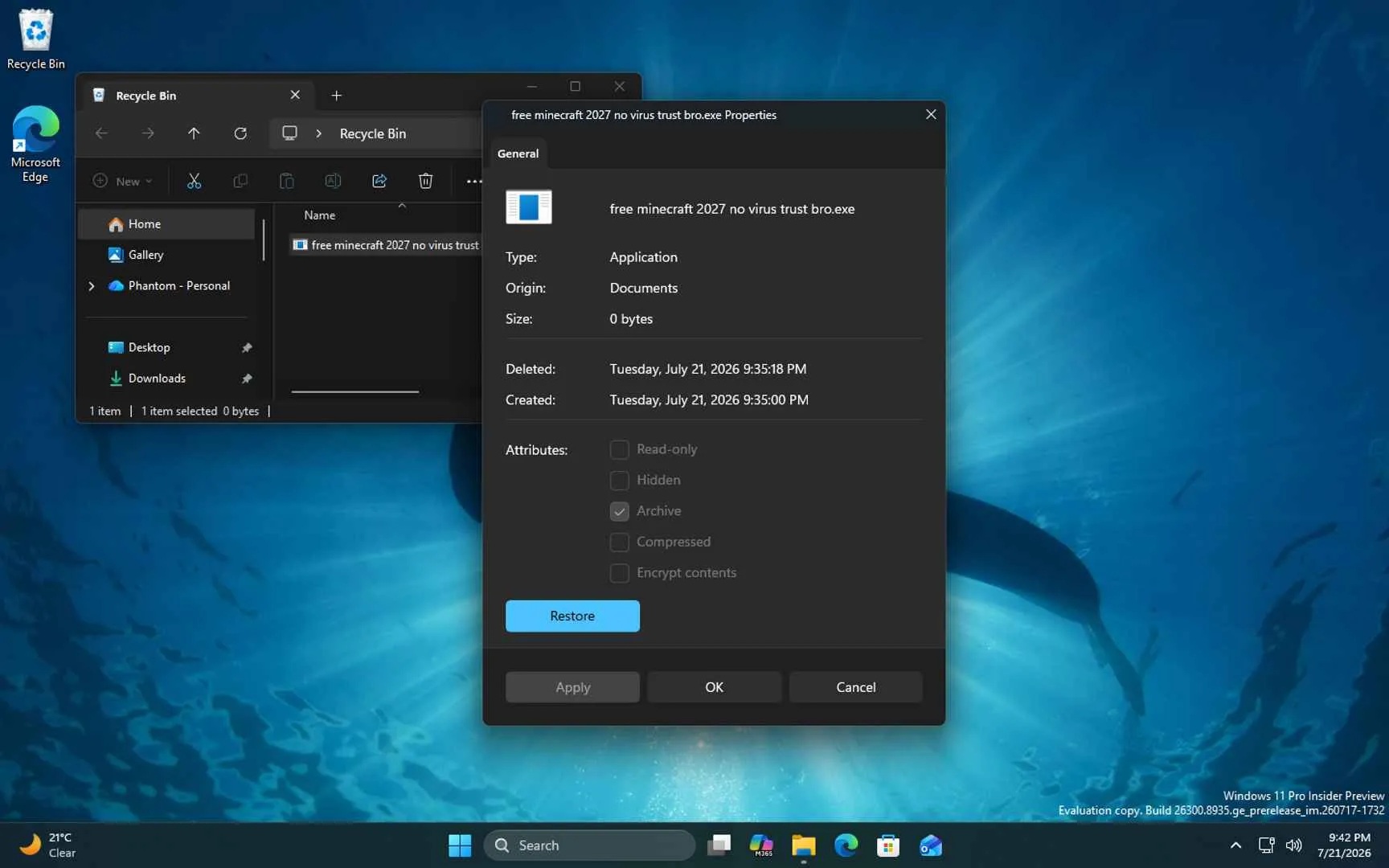
Another feature getting a modern makeover is the Properties sheet, which is one of the most frequently used legacy parts of Windows. It’s the dialog that appears when you right-click almost anything and select Properties.
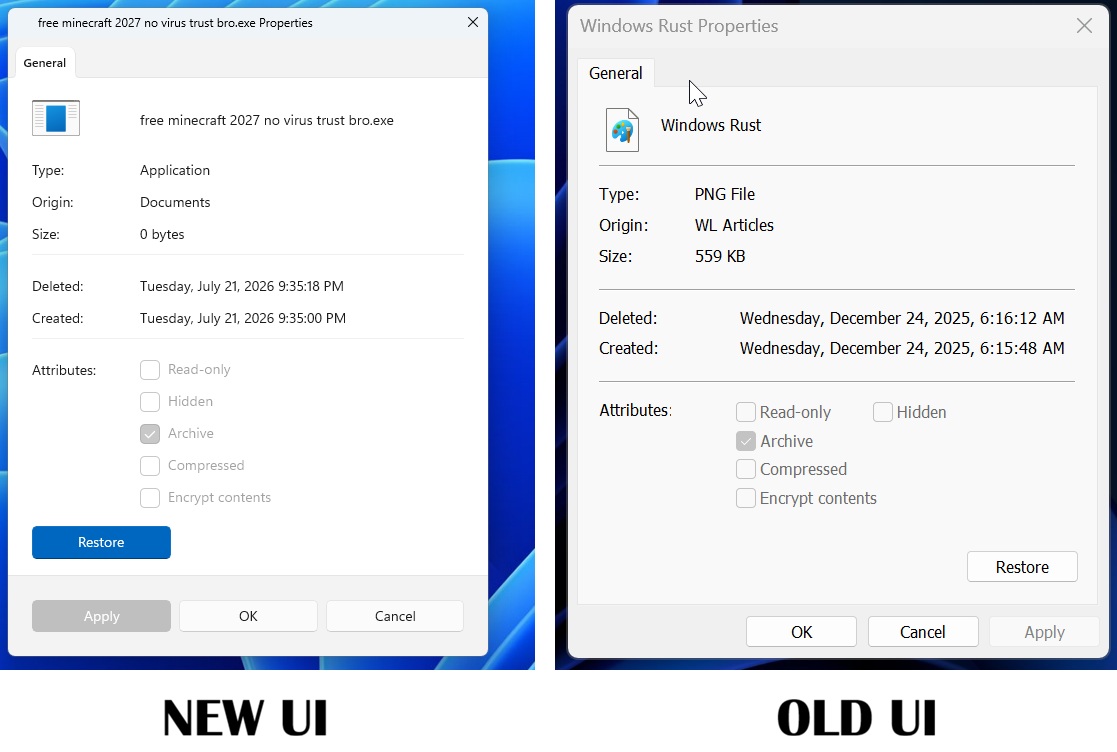
The Properties sheet is now being redesigned with modern WinUI, bringing support for display scaling, dark mode, and a design that better matches the rest of the Windows interface.
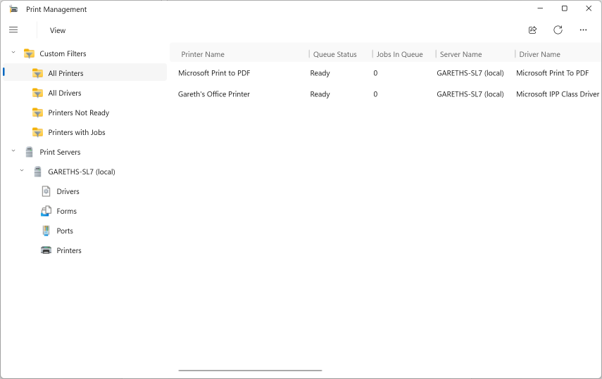
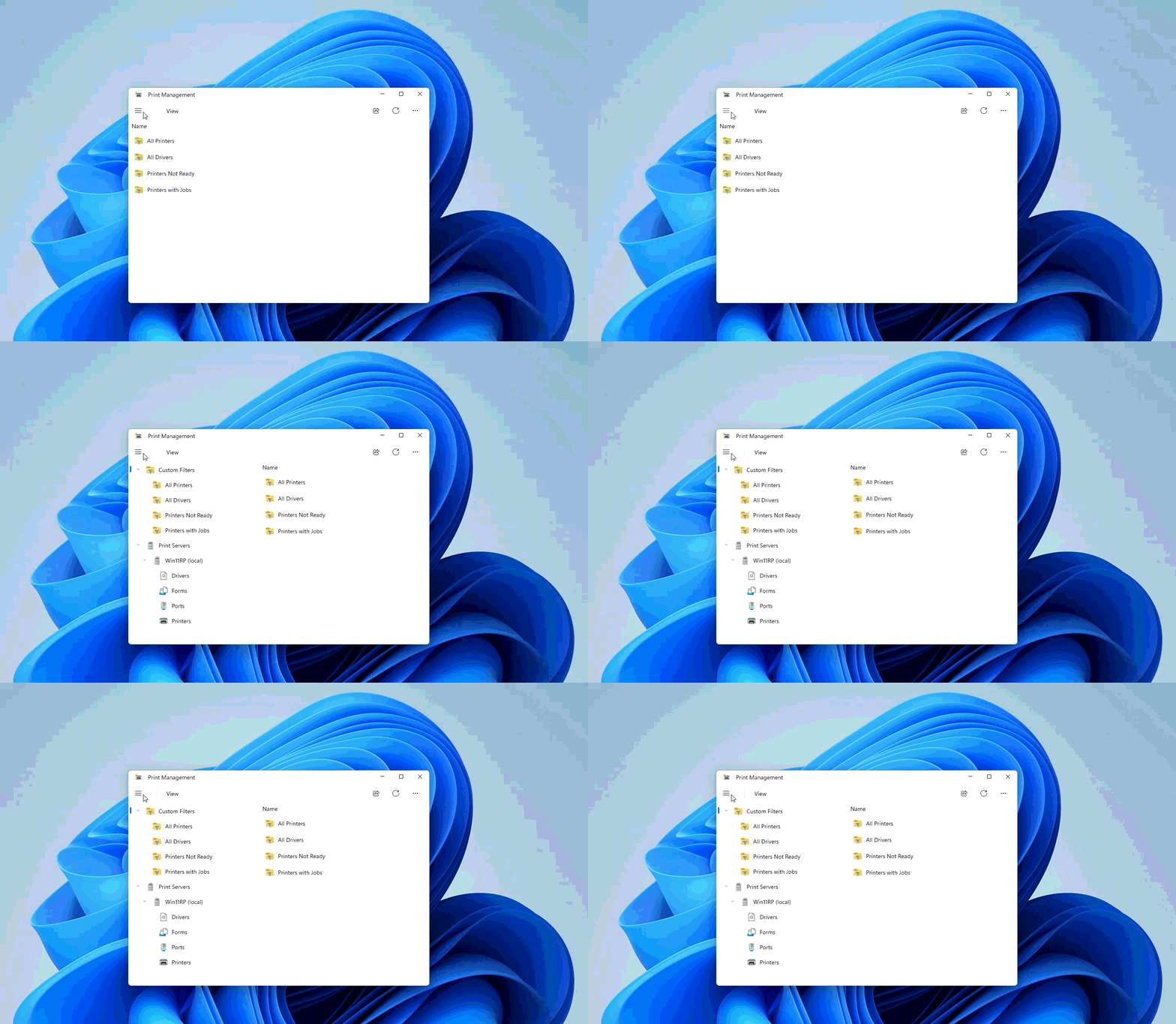
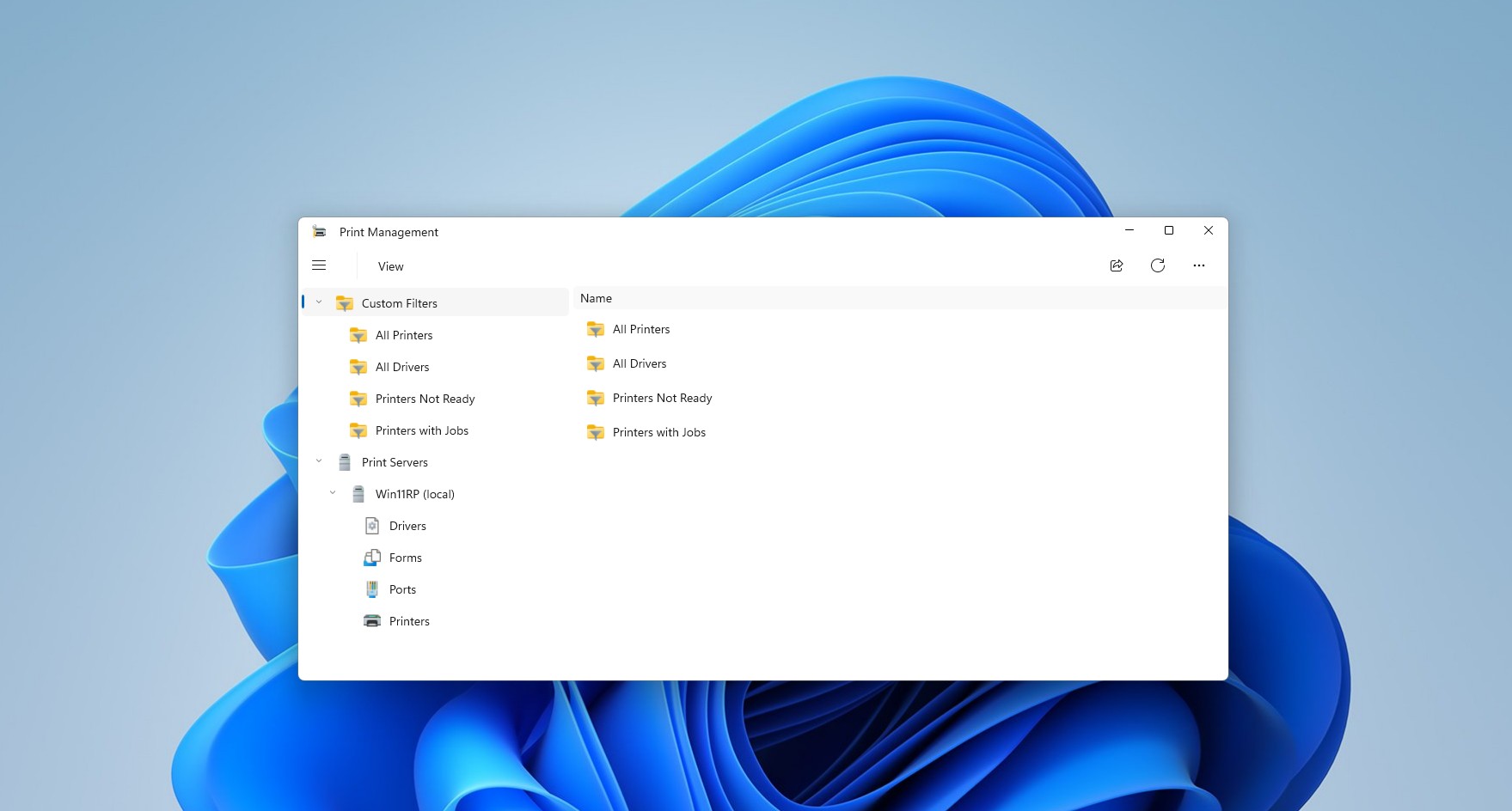
Last but not least, Microsoft is also rolling out a modern Print Management app for Windows, and we expect it to reach production builds in the coming weeks.
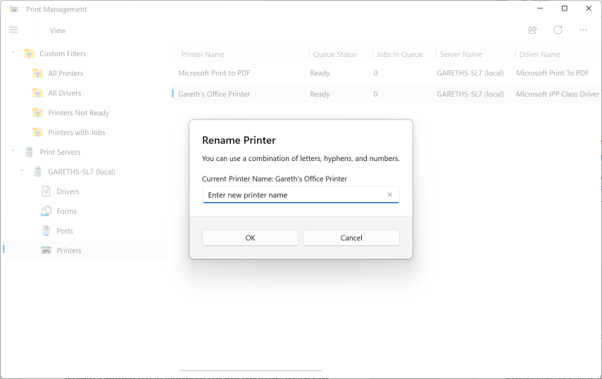
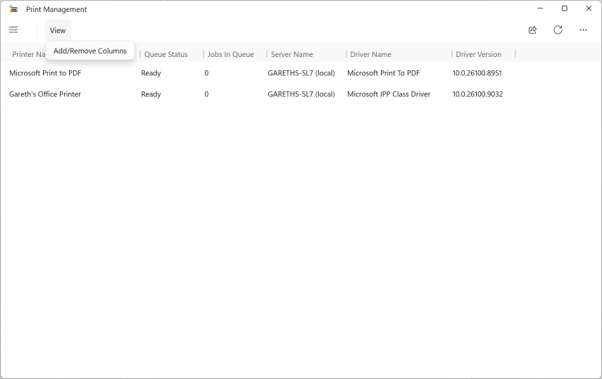
We’re witnessing a major shift in Microsoft’s strategy toward Windows. The operating system, which was supposedly put on the back burner after the exit of key executives like Panos Panay, is now being rebuilt with a focus on consistency and modern design. To me, that suggests Microsoft is finally listening to feedback from Windows users.