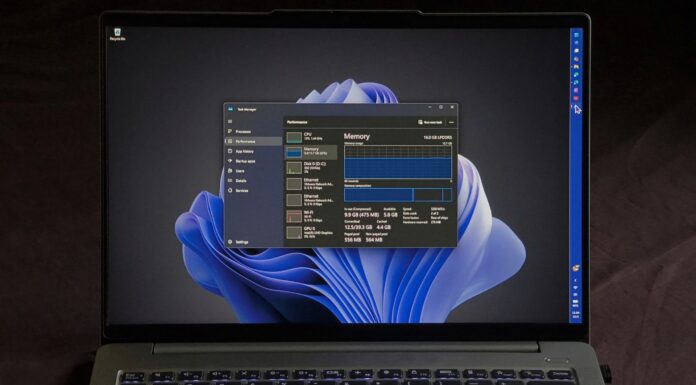









Bad past incidents can lead to good outcomes, and one of the best examples is the new recovery tools in Windows 11. After major issues in 2025 and earlier, Microsoft pledged to make it easier to recover a broken PC, creating features like Point-in-Time Restore, which will now be enabled by default for everyone in Windows 11 26H2.
In an updated support document, Microsoft said it’ll turn on “Point-in-Time Restore” by default for PCs running Windows 11 26H2 or newer.
“Starting with Windows 11, version 26H2, it will be enabled by default,” the company noted. However, you shouldn’t wait for the feature to be automatically enabled. You can manually turn on Point-in-Time Restore today because it’s one of those features that could save you on a D-Day!
What is Point-in-Time Restore, and why is it being enabled by default?

Microsoft began testing Point-in-Time Restore late last year, and it started shipping to everyone earlier this year. This feature creates backup points for your PC, so you can go back in time and restore an older state of Windows, including your apps, settings, and files.
The idea is somewhat similar to the Windows XP-era System Restore, but Point-in-Time Restore goes much further. Windows automatically creates a backup point and lets you restore your previous system state without connecting to the internet.
That means, unlike reinstalling Windows from the cloud, Point-in-Time Restore focuses on restoring what was previously installed on your PC, and it doesn’t require an internet connection.
How does Point-in-Time Restore work?
Point-in-Time Restore is based on a feature called “Volume Shadow Copy Service (VSS),” which is used to create backup snapshots of files and volumes, even while you’re actively using an app or file.
Using VSS, Windows 11’s new recovery feature can back up your system state at fixed intervals, so you can go back to an earlier point when something goes wrong.
Point-in-Time Restore can bring back the following data:
- Operating system files, including the exact build and state of Windows 11.
- Installed programs.
- Configured settings, including your desktop background or accent colour.
- Account data, if you had a local account.
- All other local user accounts.
Windows retains these backups for up to 72 hours, and a fresh backup is created automatically.
But why not just use the existing System Restore?
Windows 11 still comes with the good old System Restore, so some of you may wonder why you need Point-in-Time Restore and whether System Restore is no longer good enough.
System Restore is perfectly fine, but it’s not the same as Point-in-Time Restore.
While System Restore can restore Windows system files, drivers, certain programs, and Registry settings, it does not cover your personal images or documents. It’s also not designed to be a complete emergency recovery feature. We typically create a System Restore point when we know we’re about to make a major change, such as installing drivers that could cause issues.
Point-in-Time Restore is much broader because it captures far more of the system state automatically.
How to enable Point-in-Time Restore in Windows 11
Point-in-Time Restore is gradually becoming available on Windows 11 PCs, and Windows 11 26H2 will enable it by default on eligible devices. But you don’t have to wait, as there’s no harm in using the feature now if it’s already available on your PC.
You can turn it on by following these steps:
- Open Settings > System > Recovery.

Now, scroll down and select the Point-in-Time Restore option. Finally, turn on Point-in-Time Restore if it hasn’t already been enabled automatically.
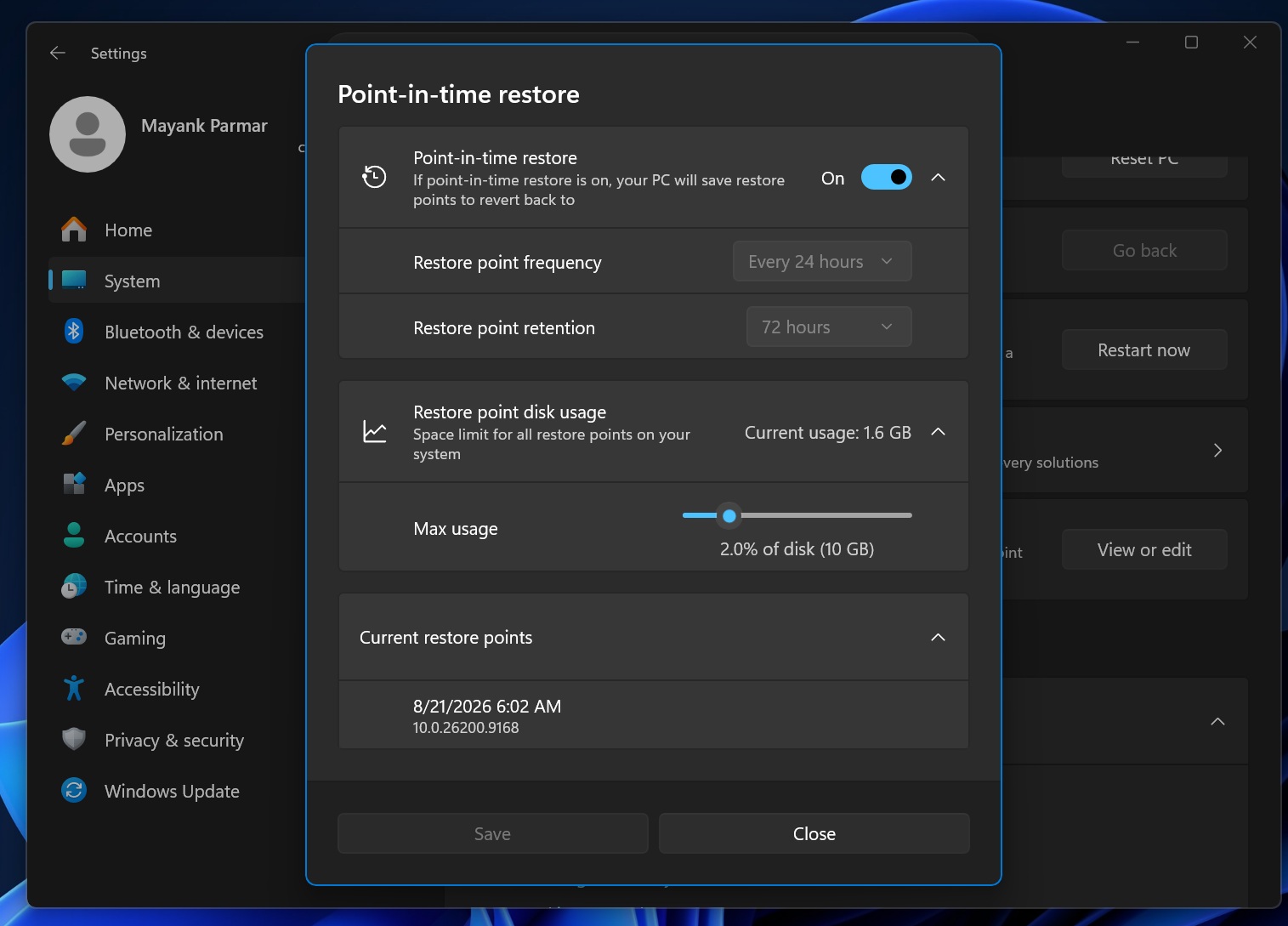
Restore points are created once every 24 hours, and you cannot change the frequency unless you’re using Windows 11 Enterprise. For some reason, consumers are locked out of changing these settings, and it’s also not possible to increase the retention period beyond 72 hours.
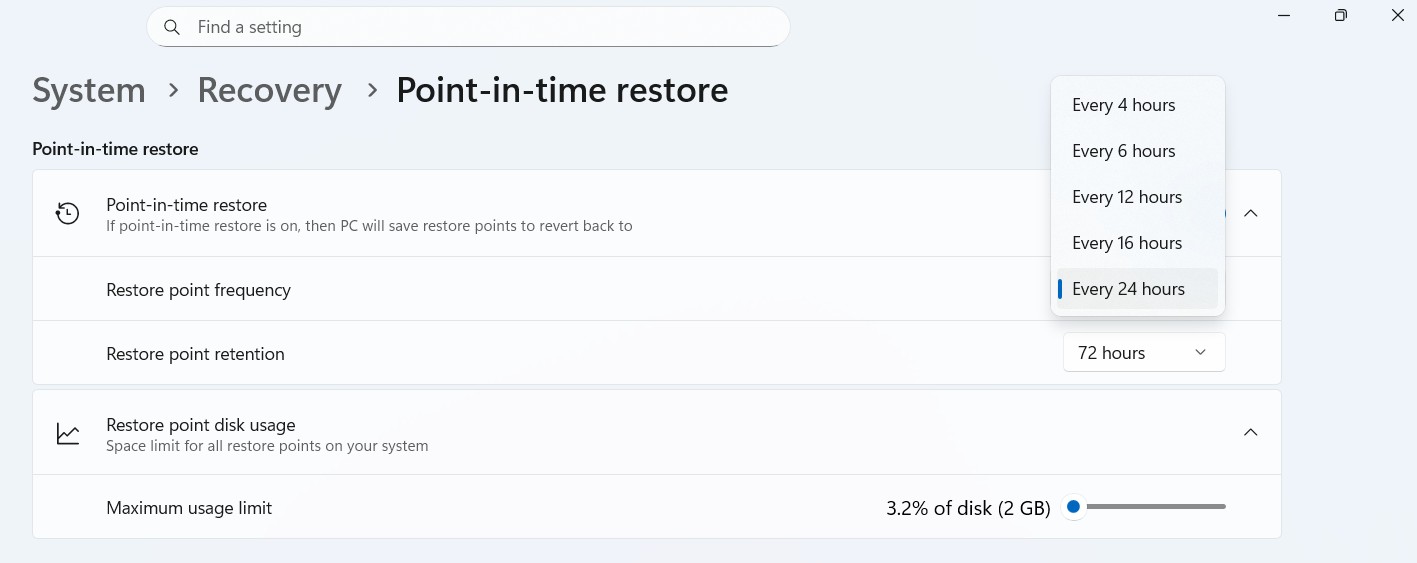
On the other hand, enterprises have more options, including creating backups every four hours:
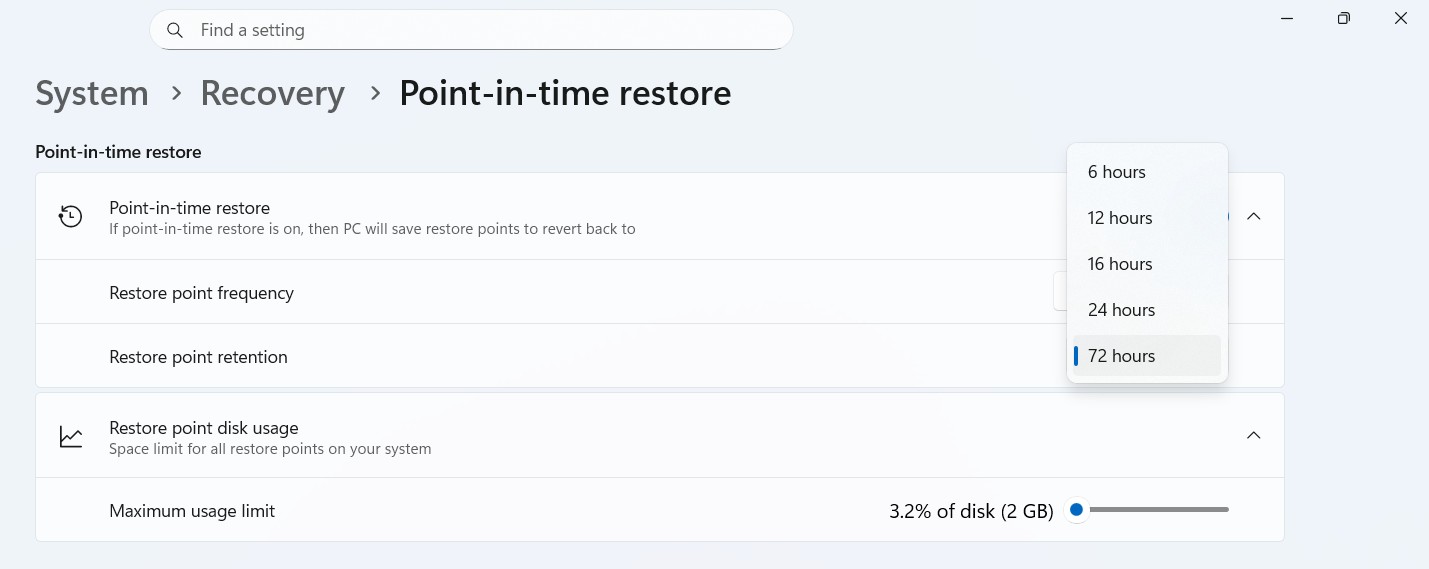
Enterprises can also choose a shorter retention cycle if storage is a concern:
Speaking of storage, Windows 11’s Point-in-Time Restore can use up to 50GB of storage, but there’s a “Maximum usage limit” slider that lets you limit how much space it can consume.
Microsoft will automatically enable Point-in-Time Restore if your PC meets the requirements
As I noted above, Point-in-Time Restore will be enabled by default when Windows 11 26H2 rolls out, but only if your PC meets certain requirements.
For example, the Windows OS volume needs to be 200GB or larger. If it’s smaller, the feature won’t be automatically enabled, although you can still turn it on manually.
For enterprises, admins can use Group Policy to block the feature, but it’ll otherwise be enabled by default on eligible systems as well.
Windows 11 26H2 is set to begin rolling out by late September/early October 2026, and we’re expecting it to hit the Release Preview Channel within the next few weeks. That would be the final stage of testing ahead of the public rollout.