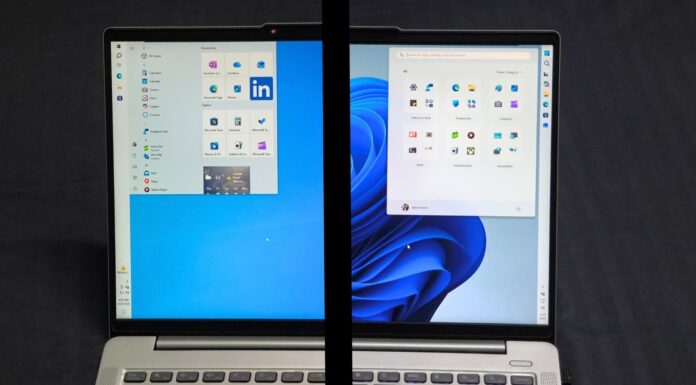









Windows 11’s Point-in-time restore feature, which is one of the easiest and fastest methods for system recovery, just arrived in the June 2026 optional update KB5095093, but the feature can use up to 50GB of your precious disk space.
Point-in-time restore becomes necessary when your PC is stuck in a boot loop, and you need to get back to a working state without reinstalling Windows from scratch. Once you understand what it buys you, 50GB starts to look very reasonable.
The feature is arriving for all Windows 11 PCs in the July 2026 Patch Tuesday security update, and can be switched on by default, depending on your disk volume. So, this is your early look at what is coming.
What is Point-in-time restore in Windows 11?
Point-in-time restore is a full-system recovery feature built into Windows 11, available across Home, Pro, and Enterprise editions. It automatically creates snapshots of your entire OS volume at a set interval and stores them locally on your PC.
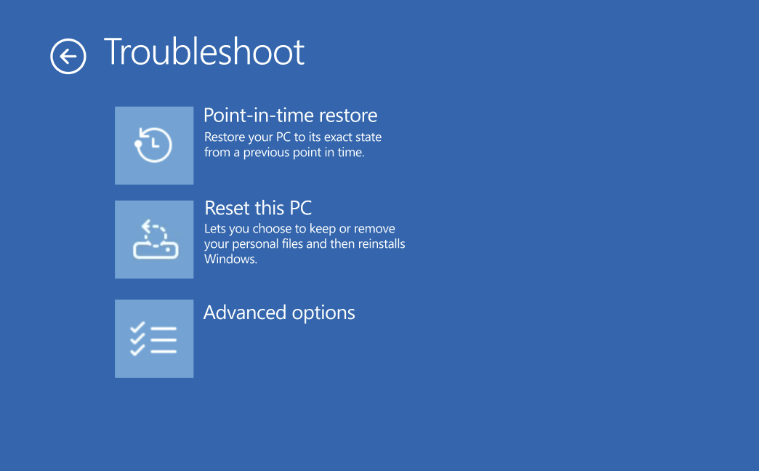
If something breaks, you boot into the Windows Recovery Environment, pick a snapshot from before the problem started, and Windows rolls everything back to that state.
The feature uses Windows’ Volume Shadow Copy Service (VSS), which has been part of Windows since XP and is already used by backup software.
How much storage does Point-in-time restore use on Windows 11
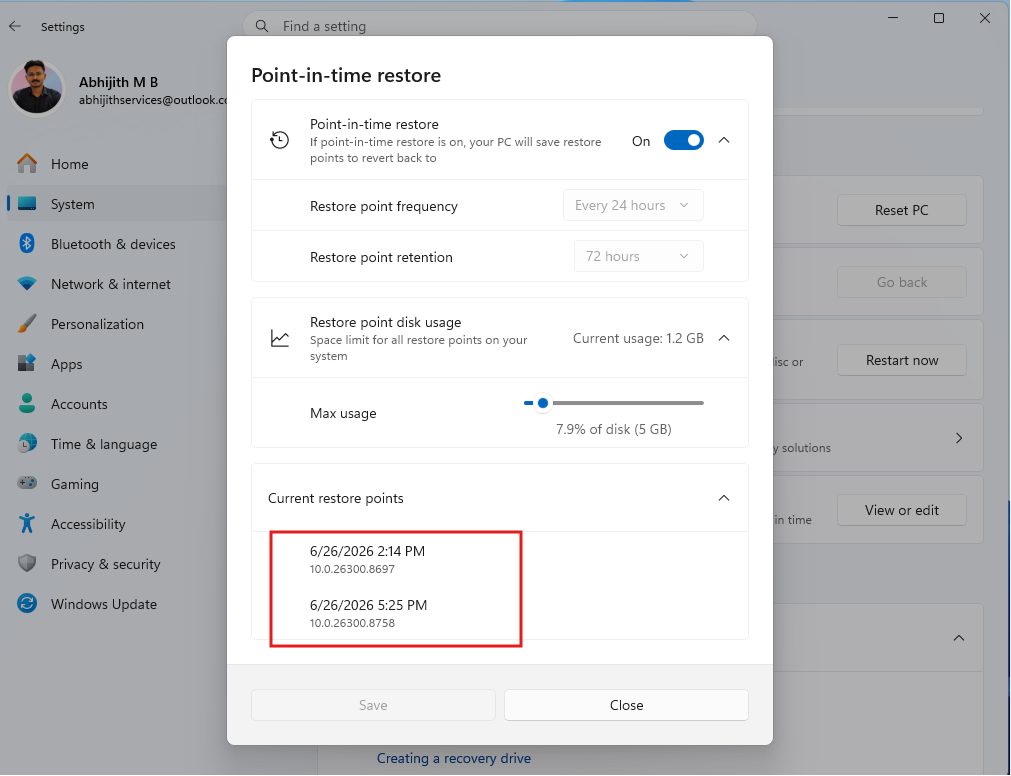
According to Microsoft’s documentation, the storage limit defaults to 2% of your disk size, with a floor of 2GB and a hard ceiling of 50GB. On a 2.5TB drive, 2% lands at 50GB. On a 512GB drive, it works out to around 10GB. On a 256GB drive, roughly 5GB. The 50GB number applies only to large drives.
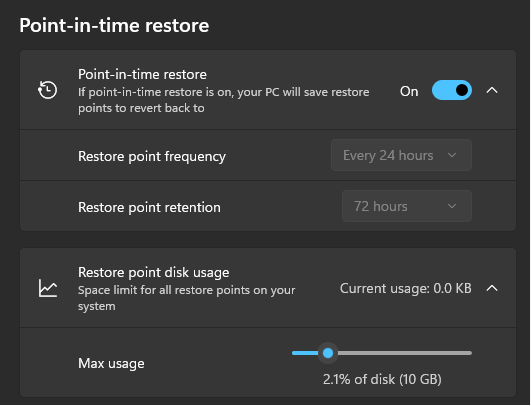
Critically, that space is not pre-reserved or partitioned off. VSS only consumes free disk space as restore points are written, up to the configured maximum. If your snapshots total 8GB, the remaining headroom is untouched and is available to your system and apps like any other free space. Microsoft also integrates Point-in-time restore storage with Windows’ existing reserved storage system, which further reduces the net impact on your available disk space.
Restore point frequency and retention settings
By default, a new restore point is created every 24 hours in the background, without interrupting your work. On Windows Home and unmanaged Pro, you can adjust this from Settings, but you cannot change the frequency or retention period, as those controls are reserved for Enterprise IT admins via Intune and CSP policies.
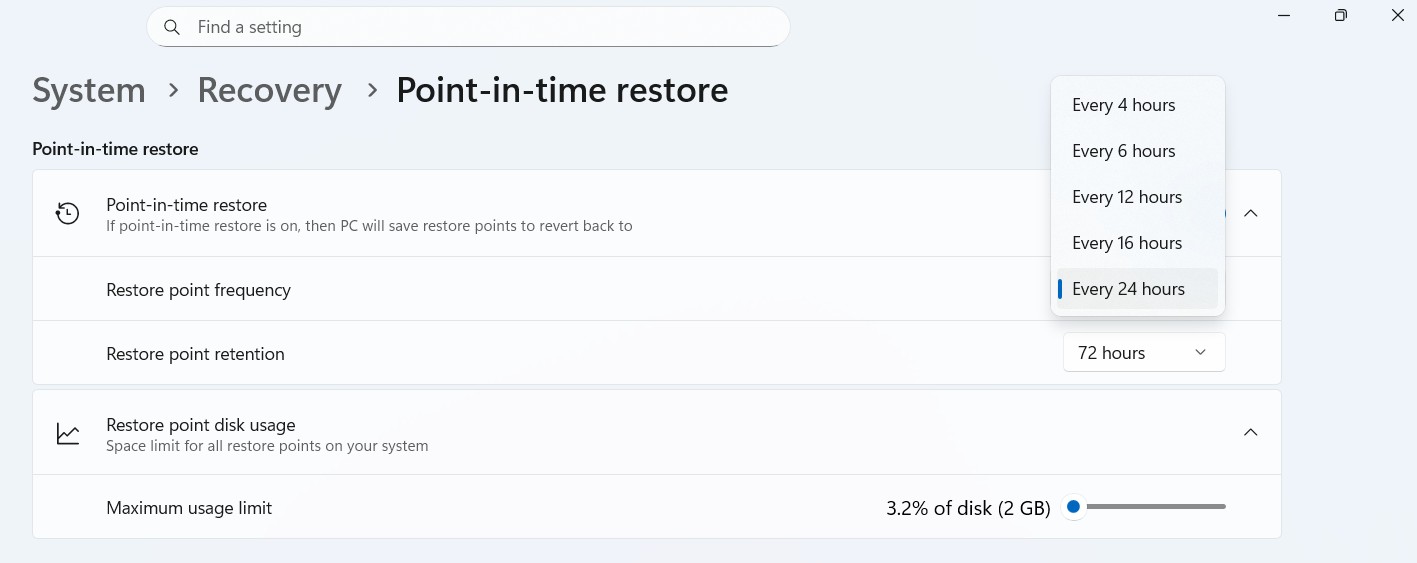
The restore point retention is set to 72 hours by default, meaning snapshots are kept for up to 3 days before being automatically deleted. Enterprise admins can configure frequency to as low as every 4 hours, with options for 6, 12, and 16 hours. Retention can similarly be shortened to 4, 6, 12, 16, or 24 hours. The maximum usage slider, which controls the storage ceiling, is configurable on all editions, including Home and Pro.
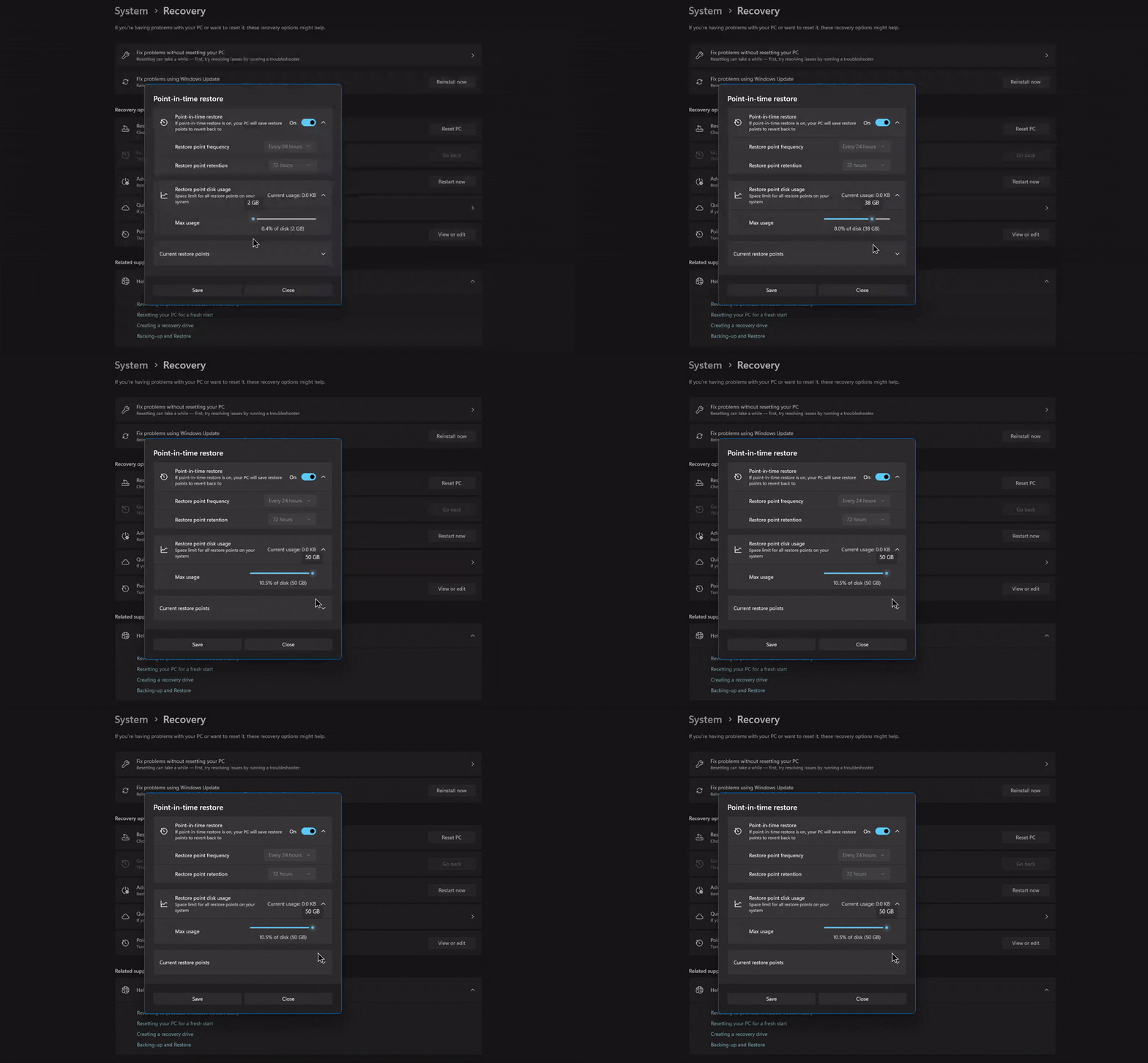
When you first enable the feature, Windows does not wait for the 24-hour mark. A restore point is scheduled promptly if none exists, with timing based on boot state and the most recent restore point available.
When Windows automatically removes restore points
Restore points are deleted automatically when they exceed the 72-hour retention window, when the configured VSS storage limit is reached, or when free disk space on the OS volume drops to 20GB or below. At that threshold, Windows removes snapshots from oldest to newest to avoid competing with critical system operations. VSS only checks the 20GB buffer at the cadence of the restore point frequency, not continuously.
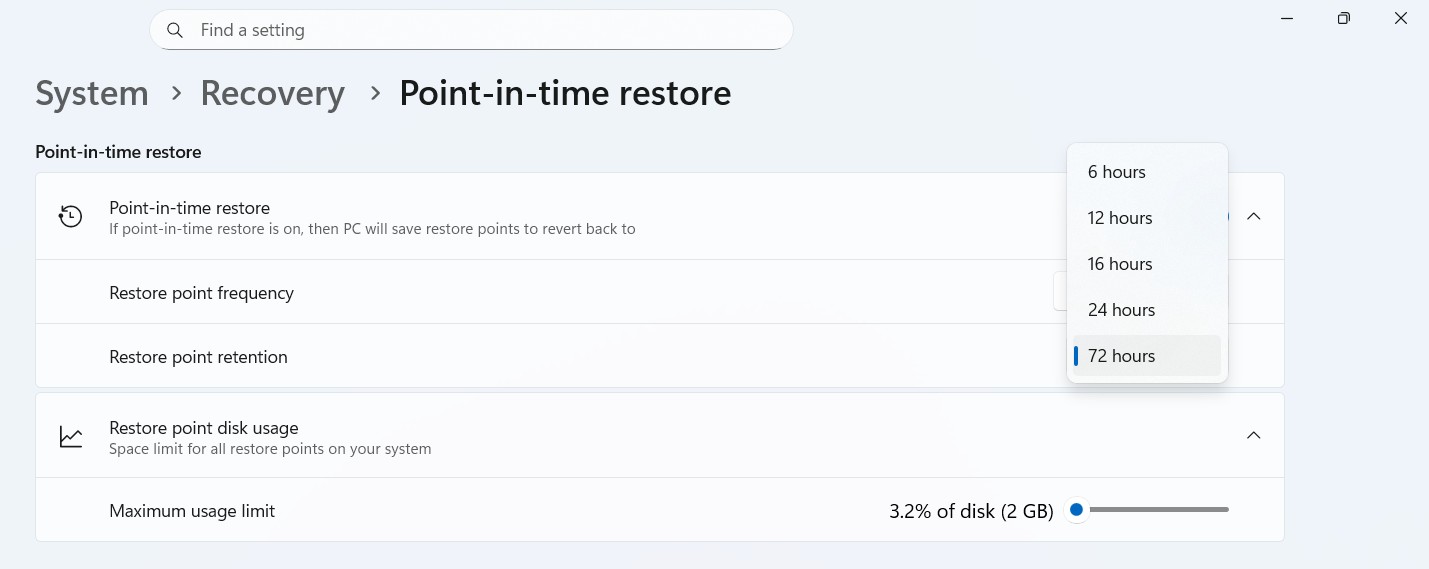
If VSS hits a condition where it cannot preserve data, such as a full disk, memory allocation failure, or write errors, all existing restore points are wiped at once. There is also a minimum free space requirement to run a restore. Your drive must have at least as much free space as the combined size of all existing restore points.
Is Point-in-time Restore tuned on by default?
Only devices with an OS volume of 200GB or larger will have the feature switched on automatically. On smaller drives, the feature is off by default, but you can still enable it manually in Settings if you want it. So, if you are running Windows on a 128GB SSD, the feature will not silently eat into your storage without you opting in first.
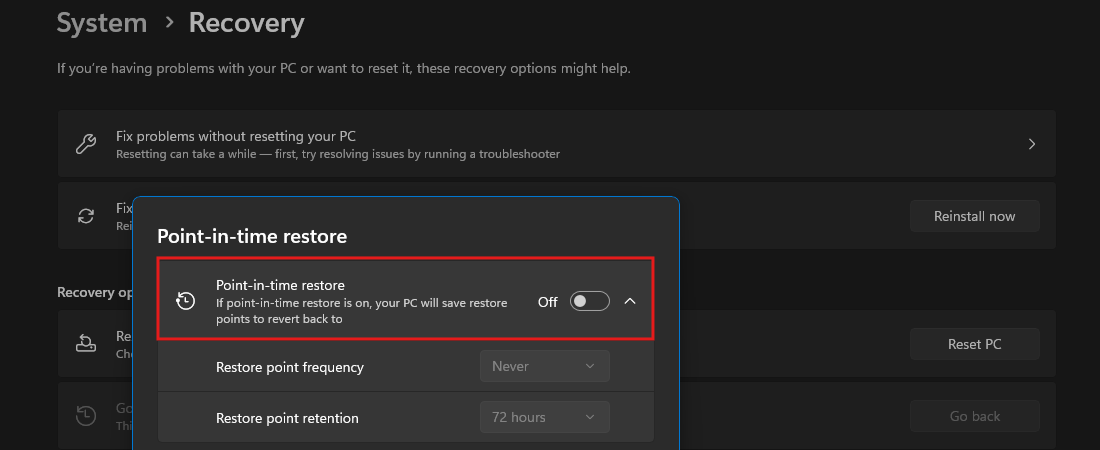
For enterprise-managed devices, meaning domain-joined PCs or machines enrolled in Intune, the feature is off by default until Windows 11 version 26H2. IT admins can push it via the Recovery CSP. For everyone else on Home and unmanaged Pro with a drive of 200GB or above, it is on after the June optional update or the July Patch Tuesday.
How to use Point-in-time restore to recover Windows 11
To enable Point-in-time restore, go to Settings > System > Recovery, and click View or edit next to Point-in-time restore. Approve the UAC prompt, and you will see the toggle along with the frequency, retention, and maximum disk usage sliders.
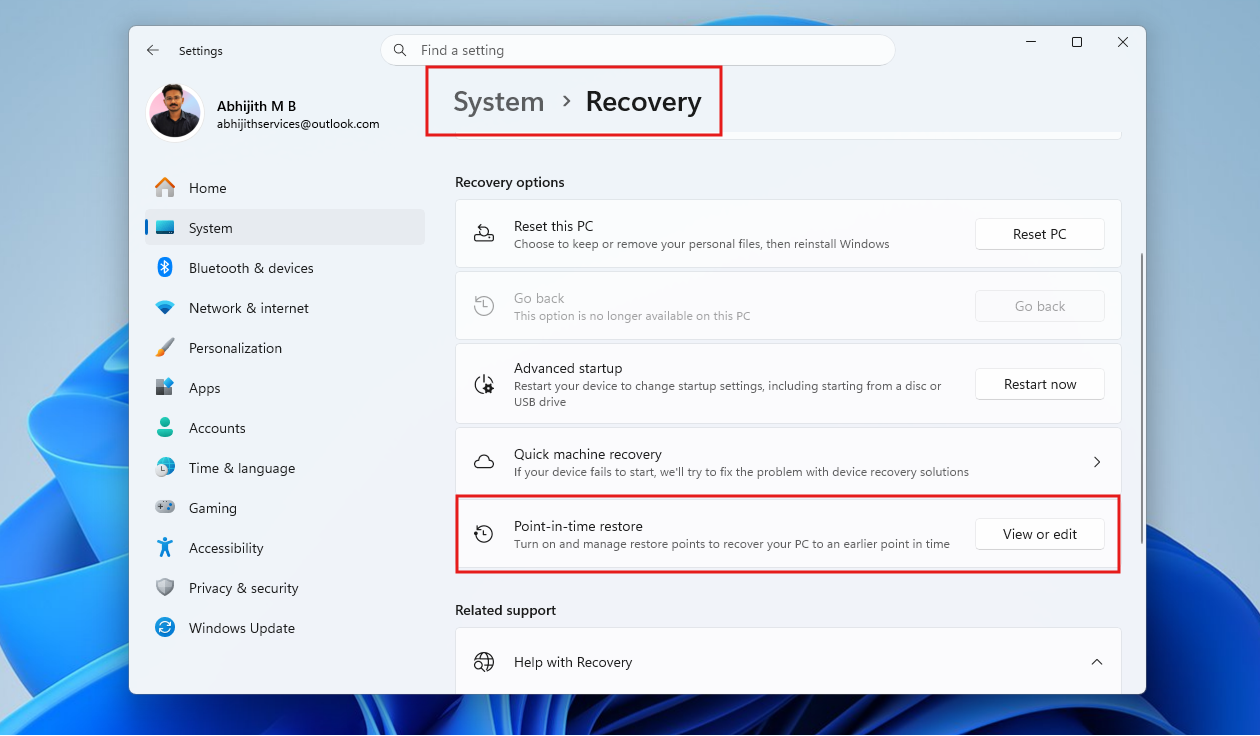
Since the first restore point is created in the background, there is no progress indicator or notification. Microsoft does not give any signal that a snapshot has been taken, as it is designed to happen silently without interrupting your work. The best approach is to enable it, let your PC sit for a while, and then check the restore point list the next time you open the settings page.
From our hands-on testing of Point-in-time restore in November 2025, the recovery process runs entirely through the Windows Recovery Environment (WinRE), which is intentional. By the time you need to restore, Windows itself may not be in a bootable state.
Normally, or should I say abnormally, if Windows fails to boot three times in a row, it drops you into WinRE automatically, which is where you’ll see the option to select Troubleshoot and choose Point-in-time restore.
You can also test the feature with a manual restore by entering WinRE by going to Settings > System > Recovery, and clicking Restart now under Advanced startup.
From the WinRE menu, go to Troubleshoot and select Point-in-time restore.
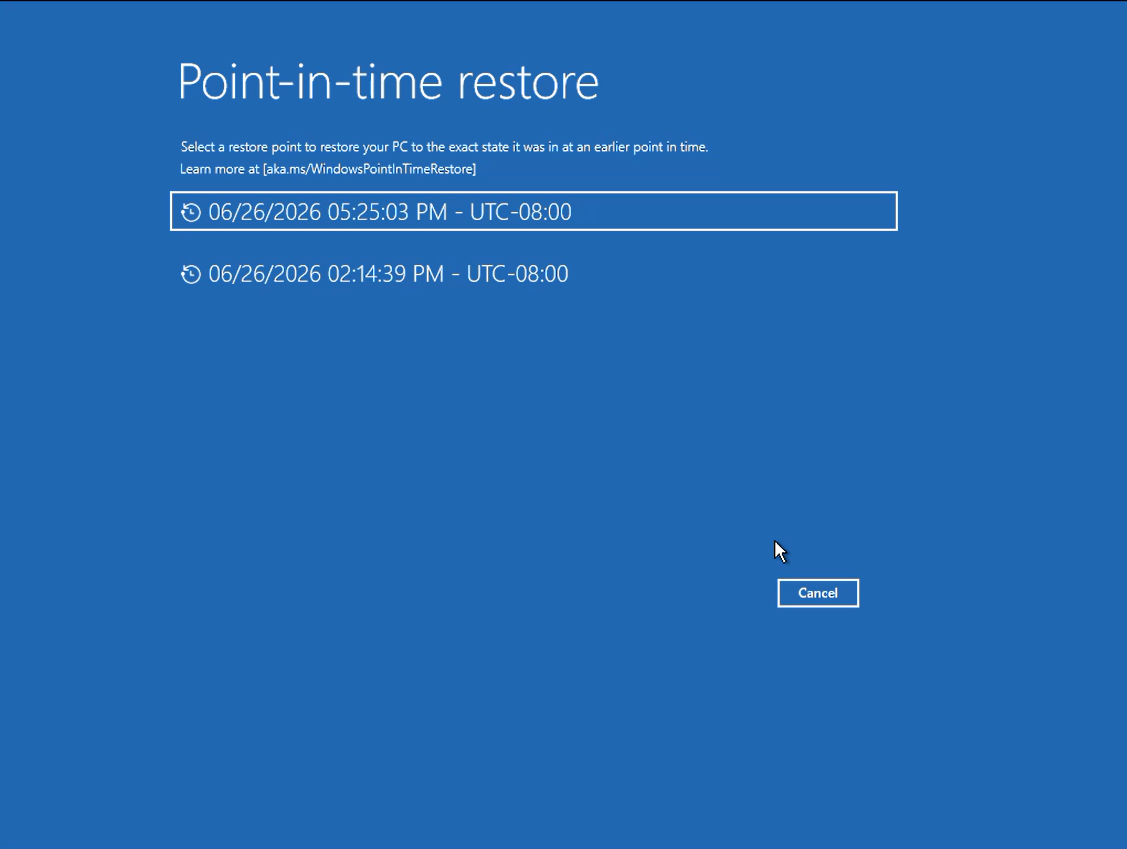
If your drive is encrypted with BitLocker, WinRE will ask for your recovery key before proceeding. You can find it at account.microsoft.com/devices/recoverykey if it was saved to your Microsoft account. After that, Windows shows a list of available restore points with timestamps. Pick the one that predates the problem, click Continue to acknowledge the data loss warning, confirm your selection, and click Restore.
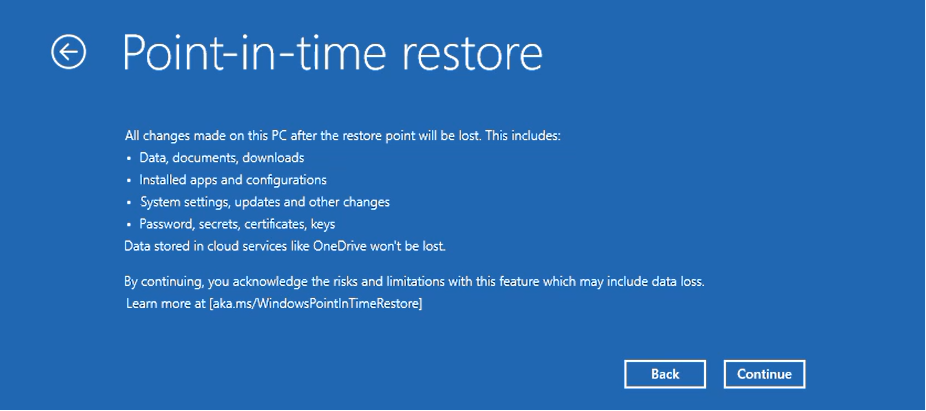
In our testing, a full restoration on a lightly loaded system took around 30 minutes. After the restore completes, the PC boots back into Windows 11 with every app, setting, and file from before the restore point intact, with no apps or user data from before that snapshot missing.
Limitations of Point-in-time restore in Windows 11
The restore only applies to the OS volume. Secondary drives and partitions are untouched. Files synced to OneDrive or other cloud services before the restore point are unaffected, though a post-restore sync conflict may appear in OneDrive and can be resolved by rebuilding the local cache.
Restoring after a Windows edition change, for example, upgrading from Home to Pro and then rolling back to a Home-era snapshot, can break the installation. Files encrypted with EFS (Encrypting File System) may also prevent restoration.
And since restore points are created on a schedule, there is no guarantee a snapshot was captured at the exact moment you need. If your PC was off or asleep at the scheduled time, that snapshot does not exist.
A needed feature in Windows 11 that still breaks too often
Microsoft is doing real work to make Windows more stable. The company launched the Driver Quality Initiative at WinHEC 2026, committing to a cleanup of the Windows Update driver catalog to stop bad drivers from reaching consumer machines. Microsoft also confirmed it would stop downgrading graphics drivers through Windows Update, which was a long-standing frustration.
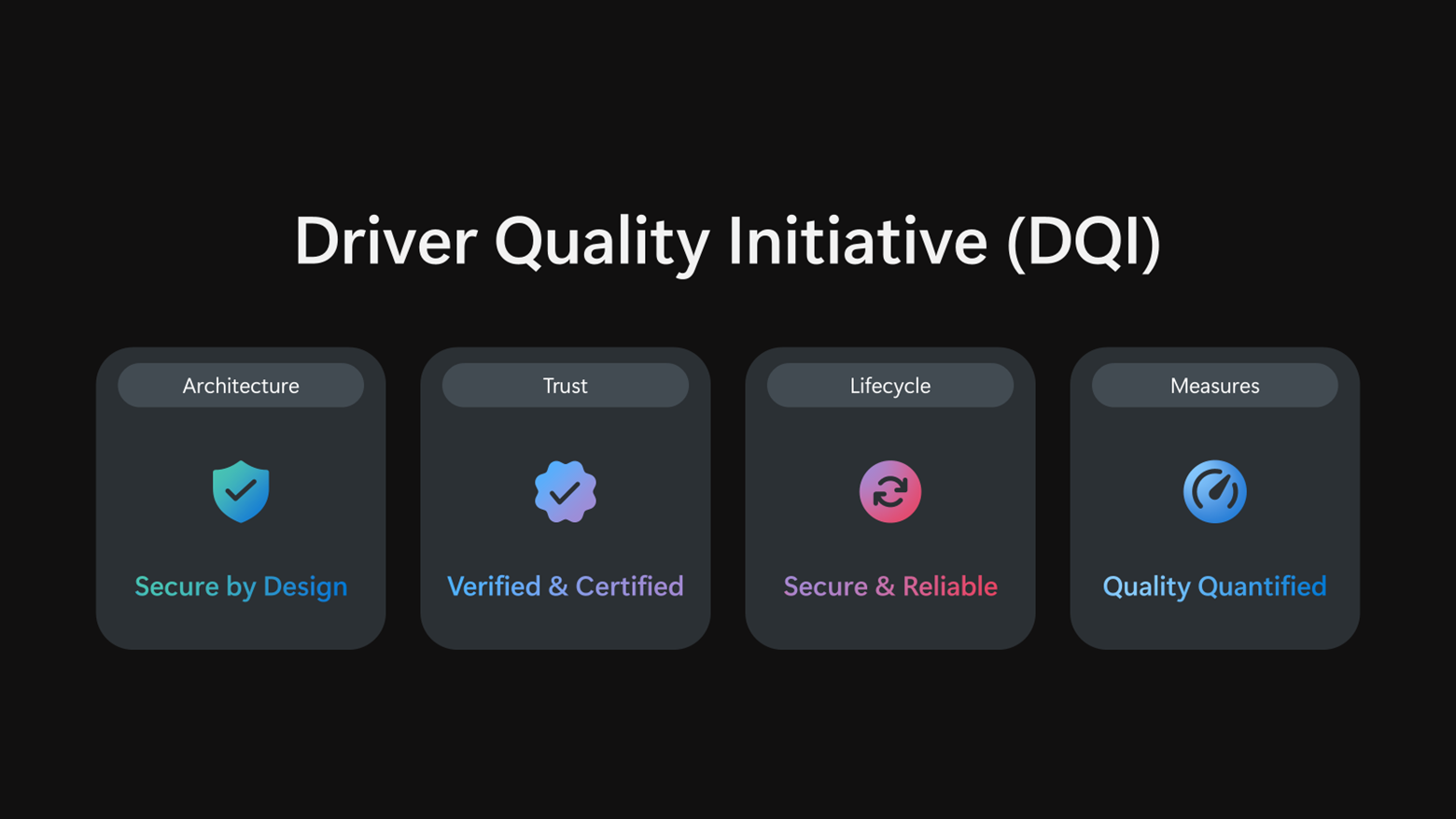
But hardware partners are still a wildcard, though. HP’s BIOS updates bricked enterprise PCs with BitLocker loops earlier this year, and the June 2026 update caused boot failures on some HP hardware.
On the Apple side of things, they have only a very limited number of hardware configurations, which they control end-to-end. Windows runs on hardware from hundreds of manufacturers, with firmware written by teams Microsoft cannot vet individually. Perfect stability on every configuration is not a realistic expectation.
Yes, we are at a time when memory prices are through the roof, but 50GB of storage as the upper bound for a feature that saves your entire PC from a bad update is a reasonable ask.