





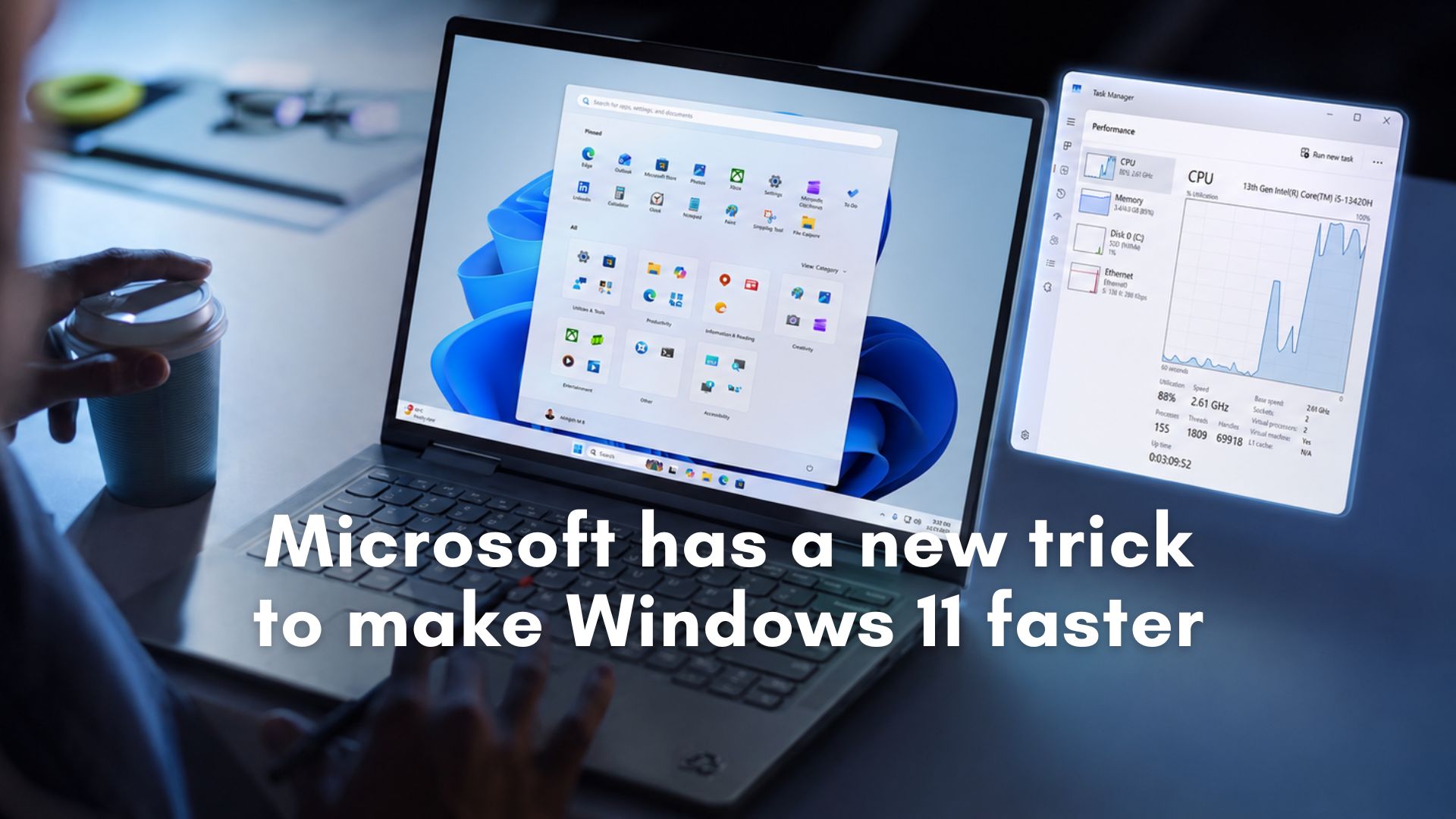
If you have watched any of the viral videos showcasing the new MacBook Neo, you have probably noticed how snappy macOS is when compared to Windows 11. When a Mac user clicks an app, it opens instantly. When a Windows 11 user clicks the Start menu, there is usually a microscopic, yet incredibly frustrating, micro-stutter before the UI renders.
Microsoft wants to change this by using what your PC already has at its disposal…the CPU.
Microsoft watcher Zac Bowden and phantomofearth noticed that the company is currently testing a major performance upgrade for Windows 11 called the “Low Latency Profile“.
This background feature is designed to eliminate UI lag by automatically maxing out your CPU frequency in short bursts (1 to 3 seconds) whenever you initiate a high-priority task, such as opening an app or clicking a system flyout like the Start menu, or right-clicking to see a context menu.
The boost can result in up to 40% faster launch times for in-box apps like Edge and Outlook, and up to 70% faster responsiveness for the Start menu and context menus. It also reportedly improves the launch speed of the most common third-party applications.
Currently, the user will have no control over the feature, and because the CPU spikes are so brief, the impact on battery life and CPU temps is reportedly minimal. Note that the feature is still in early testing in the Windows Insider Program and is subject to change.
Although Low Latency Profile sounds like a brute-force method, it is actually a highly sophisticated addition to the OS scheduler. I decided to test the feature myself to see if it works, and the results are quite promising.
How I enabled and tested the Low Latency Profile
While Microsoft hasn’t officially announced the feature yet, the code already exists in the latest Windows Insider builds. It doesn’t work all the time, and there is still room for improvement.
To put the Low Latency Profile to the test, I set up a purposefully constrained environment. I used a Virtual Machine (VM) running on an Intel 13th Gen i5-13420H, limited to just dual-cores and a measly 4GB of RAM. I wanted to see if this feature could salvage a genuinely laggy, low-end experience.
First, I tested the VM without the feature enabled. As expected, opening the Start menu, File Explorer, Edge, and Outlook felt sluggish. While I noticed some minor CPU utilization spikes when clicking these apps, the processor was nowhere near maxing out its available clock speeds. The OS was casually taking its time to launch the software.
In the video above, the delays that you see are typical of my VMs.
Then, I enabled the feature and rebooted my PC.
The difference was noticeable. When I clicked the Start menu, it opened instantly. This is the first time that in my VM, the Start menu shows up this fast. It’s almost as responsive as my main PC.
I then monitored the Task Manager while opening heavily used in-box apps. When I launched Microsoft Edge, the CPU spiked to 96%, opened the browser window instantly, and dropped back down to 17% (and lower) within three seconds.
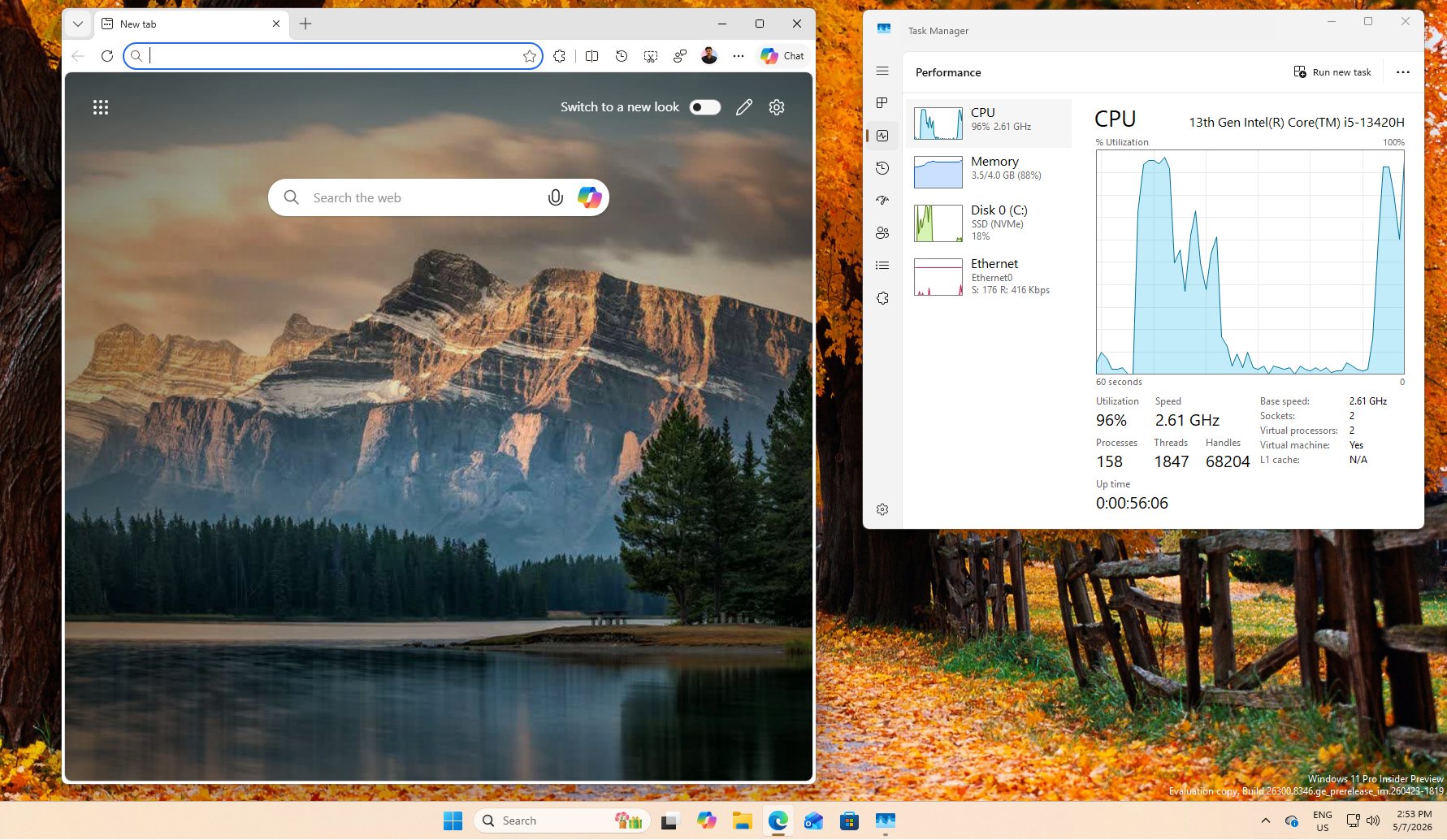
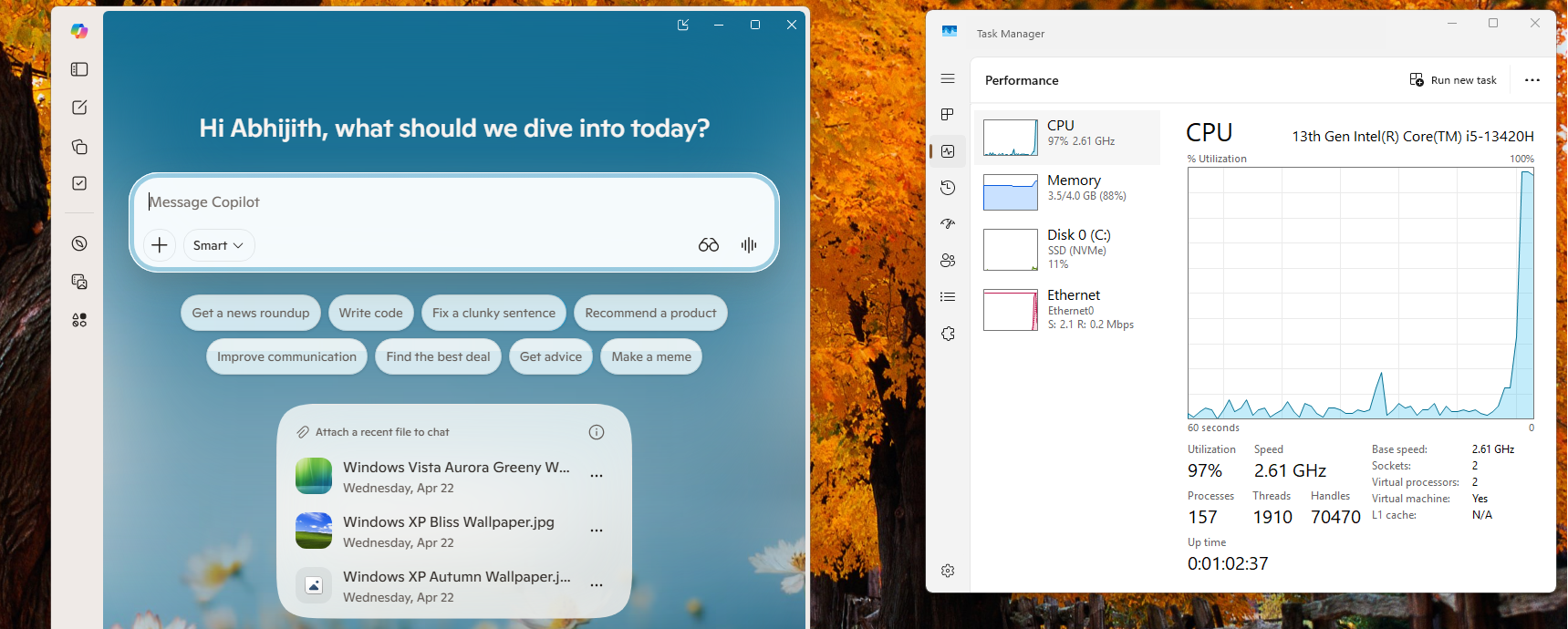
I saw identical behavior with Outlook, where the CPU hit 97% for a brief window before resting back at 3%. Even Microsoft’s Copilot app exhibited this aggressive 96% launch spike, resulting in a much faster load time.
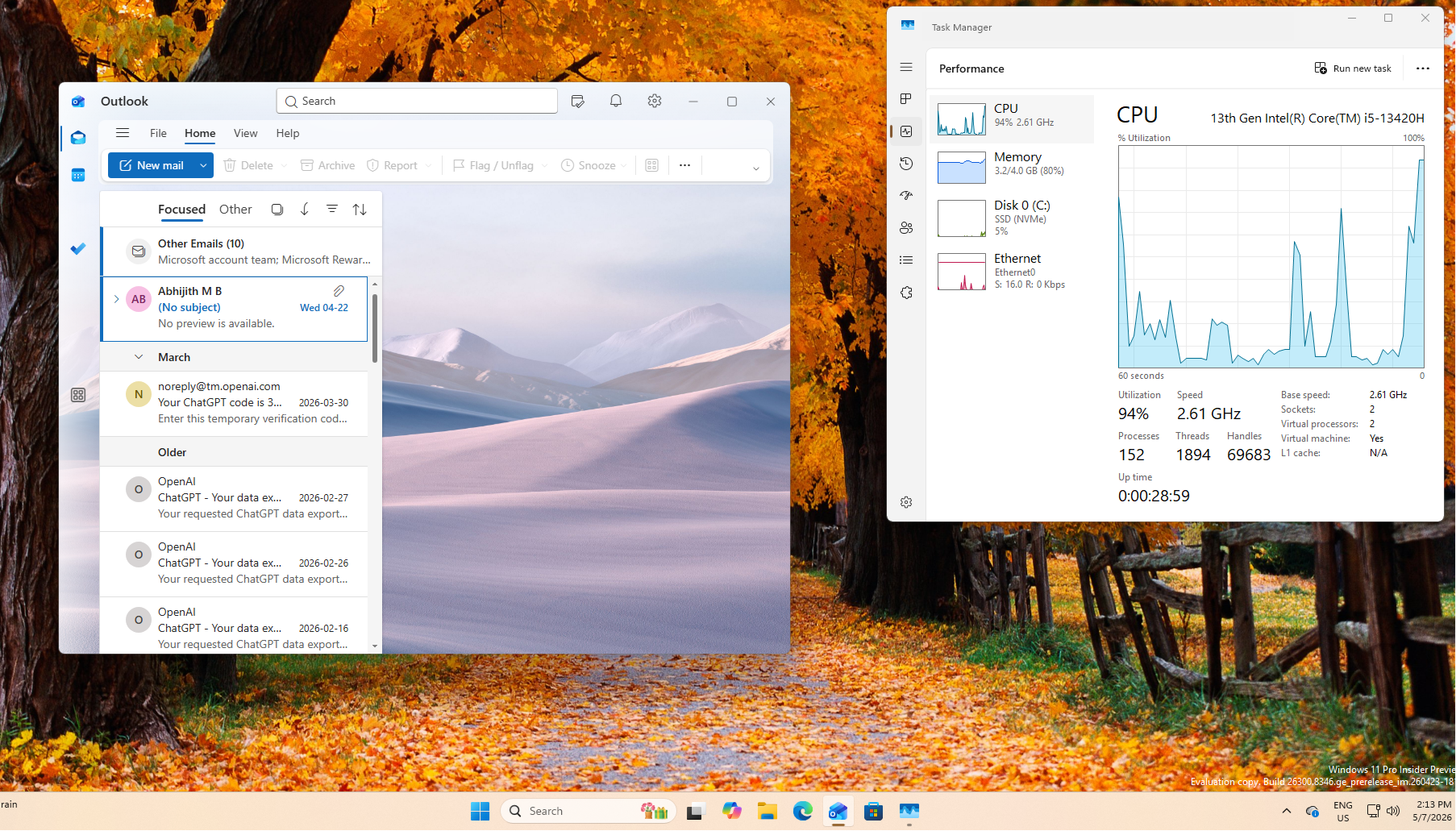
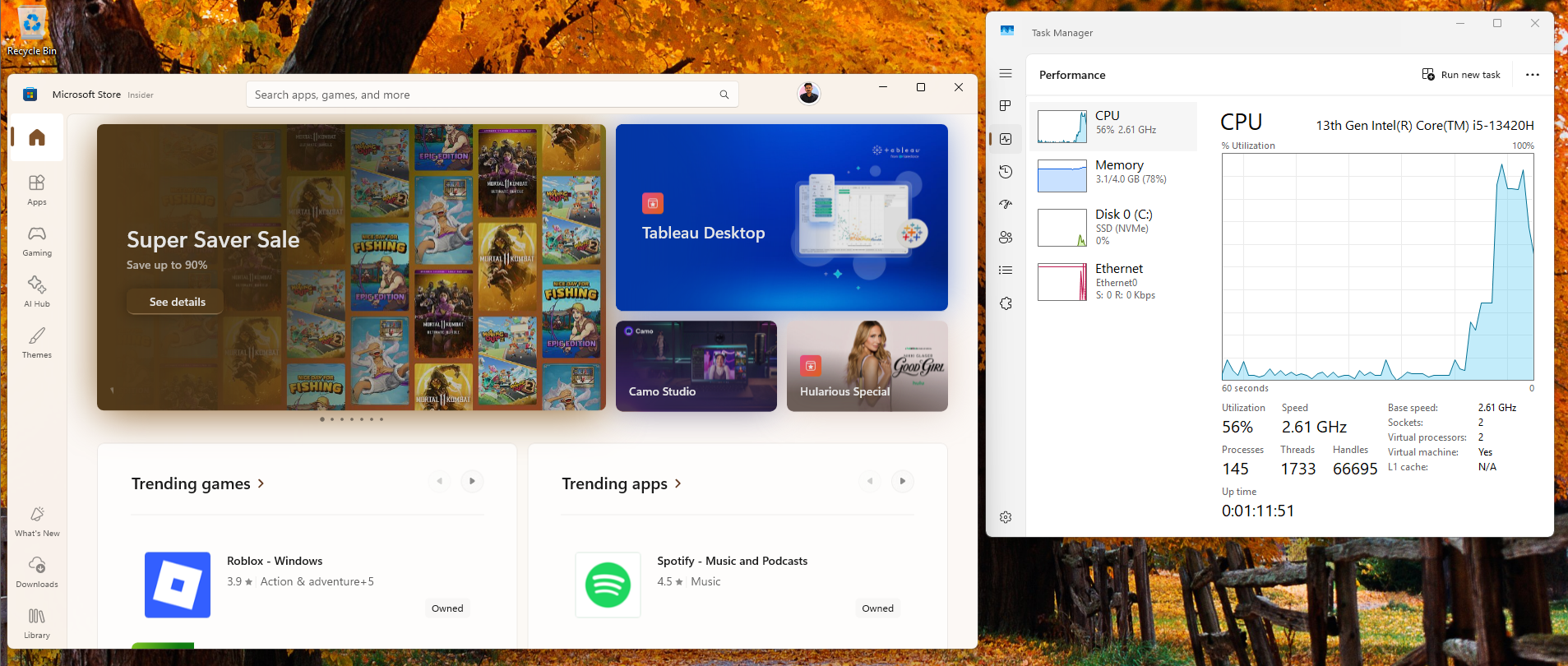
I booted up my secondary VM running the standard Release Preview build (without the feature enabled) to compare them side-by-side. The standard VM always exhibited a noticeable delay that I have come to expect. The Experimental VM with the Low Latency Profile enabled felt responsive because the OS wasn’t waiting for the CPU to slowly ramp up to the required speeds. In the video below, the Outlook app is clicked on both VMs at the same time.
Note that opening and closing the same app multiple times will cause different results. Also, as the feature is in the testing stage, trying it out yourself may not show the same results as mine.
I couldn’t get the boost to trigger for the Settings app or other apps, but the good news is the feature is still in early testing and tweaks are being made to the frequency and duration of the boost.
The video below shows a proper look at how fast the PC has become after enabling Low Latency Profile:
How risky is spiking CPU to the max for Low Latency Profile?
As with anything that Microsoft does these days, when this news broke out, several users on social media criticized Microsoft, claiming this was a lazy fix. One user likened it to “flooring my accelerator as I leave my driveway,” while another accused Microsoft of using “NOS instead of throwing the junk out of the trunk.”
Of course, Microsoft should optimize the bloated Windows 11 code instead of aggressively overclocking the CPU to brute-force past the lag.
However, this criticism fundamentally misunderstands how modern operating systems and CPU schedulers interact. The Low Latency Profile isn’t a replacement for optimization. It is a necessary architectural catch-up.
When you launch an application, you are initiating the OS has to allocate memory, load frameworks, and render the initial UI. Historically, the Windows scheduler slowly ramps up CPU clock speeds as demand increases. This gradual ramp-up is what causes the micro-stutter. By the time the CPU reaches its maximum frequency, the app has already finished loading, and the extra power is wasted (this is obviously an oversimplification).
How Low Latency Profile works?
The Low Latency Profile introduces a concept similar to “Race to Halt” (or “Race to Sleep”). By instantly spiking the CPU to its maximum frequency for 1 to 3 seconds, the processor completes the heavy lifting of the app launch in a fraction of the time, allowing the CPU to return to its low-power idle state much faster. Because the burst is so short, Microsoft expects the impact on battery life and thermals to be minimal.
Interestingly, every other modern operating system uses its own version of this feature.
Android utilizes Dynamic Performance Frameworks (ADPF) to allow performance-intensive apps to dynamically communicate their power and thermal needs directly to the hardware and kernel-level AutoFDO compiler optimizations to reorganize code and make executions inherently more efficient.
Apple’s macOS uses deep Quality of Service (QoS) classes to instantly assign user-initiated UI interactions to the highest-performance silicon cores available.
Windows is now finally adopting the same mobile-first responsiveness paradigms that make iPads and MacBooks feel so fast.
Low Latency Profile will be a game-changer for budget PCs
I feel the most important takeaway from this leak is that Microsoft is not just relying on the Low Latency Profile to fix Windows 11.
Microsoft’s new power management technique is part of the “Windows K2” internal initiative, where Microsoft has committed to improving overall OS responsiveness. As we have heavily documented over the past month, Microsoft is actively replacing legacy Windows 95-era code with native WinUI 3, rewriting the classic Run dialog to load in just 94ms, and delivering sweeping foundational fixes to File Explorer.
The Low Latency Profile is designed to work alongside these architectural optimizations. When you combine deeply optimized, lightweight native code with a scheduler that instantly provides maximum CPU power on click, you get a compound effect.
Based on my testing with a highly constrained, dual-core VM, the results are undeniable. This feature is going to be an absolute game-changer for budget laptops and low-end Windows 11 PCs. Powerful desktop rigs might not notice a massive difference, but for the millions of users running entry-level hardware, Windows 11 is finally about to feel fast.
As the MacBook Neo brought about a new performance benchmark in the budget PC segment, Microsoft is on the right track to make Windows 11 as fast and efficient as its late siblings.