



Microsoft recently released Windows 11 KB5089573 (Build 26200.8524) optional update, and buried inside the lengthy release notes is a major performance upgrade. While the company simply calls it a “[General Performance]” improvement, we know this is the highly anticipated CPU boost feature internally codenamed “Low Latency Profile.”
According to the official changelog released on May 26, 2026, Microsoft notes: “[General Performance] This update accelerates app launch and core shell experiences such as Start menu, Search, and Action Center.”
We already reported that Windows 11 Low Latency Mode is rolling out in June 2026 with the mandatory security update. But as we said, the CPU boost feature will be available in the optional May update as well, so if you’re eager enough to enable it, go to Settings > Windows Update > Advanced options > Optional updates and just select the update to install it.
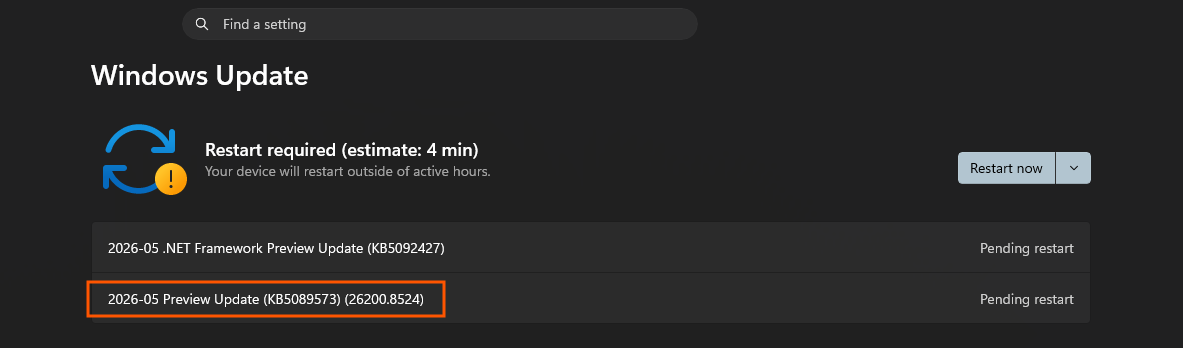
However, due to Microsoft’s Controlled Feature Rollout (CFR) strategy, the new performance boost may not be activated straightaway even after you install the Windows 11 KB5089573 optional update. Your PC has definitely downloaded the underlying code, but Microsoft often keeps the activation switch turned off for a subset of users to monitor stability.
Fortunately, you do not have to wait for Microsoft to flip the switch remotely. You can manually force the feature on right now using a popular third-party utility called ViveTool.
Note: The Low Latency Profile currently only makes OS flyouts, such as the Start menu, Notification Center, right-click menu, and other areas, load faster. It does not allow your apps to launch faster. That change will roll out in the next update.
How to enable Low Latency Profile in Windows 11
Before you proceed, you need to be sure you have already installed the May optional update.
To verify if the May 2026 optional update is installed, open Settings > System > About, and check the build number. If it’s Build 26200.8524 / 26100.8524 or newer, you’re eligible for Low Latency Profile improvements. Also, the Low Latency Profile does not require any special hardware, but it’s more impactful on budget/low-end PCs.
Now, follow these steps to activate Windows 11’s CPU boost feature:
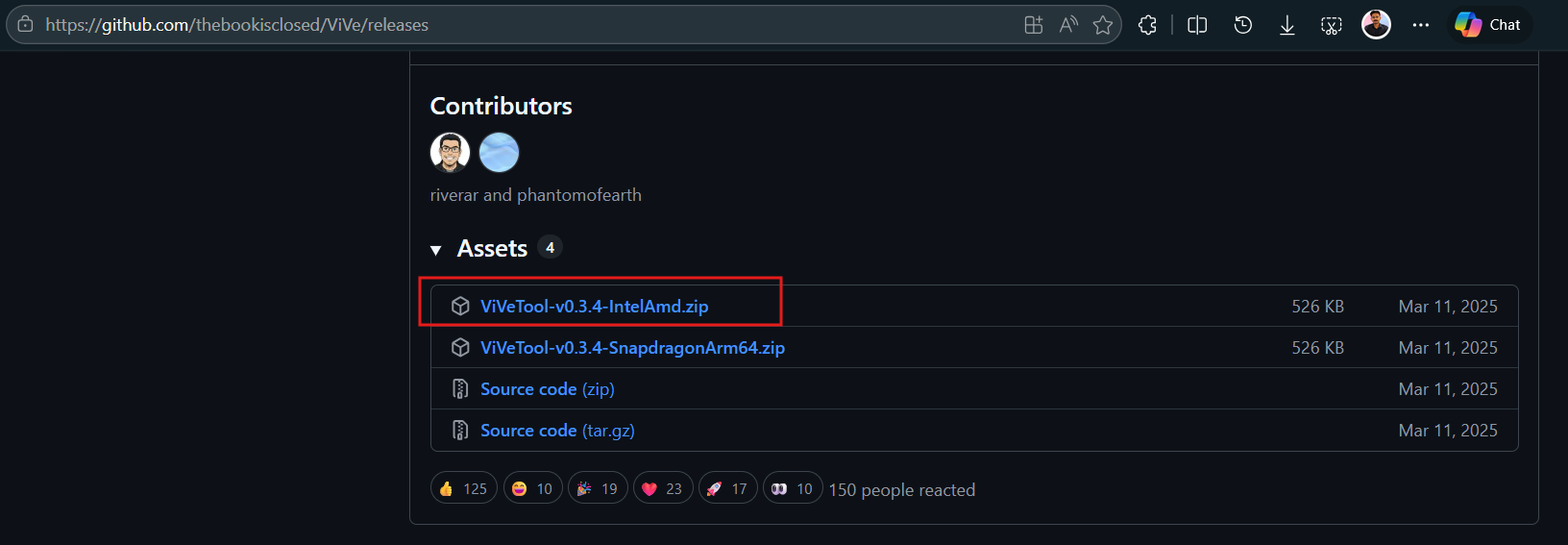
- Get ViveTool by going to the official ViveTool GitHub repository and downloading the latest .zip release.
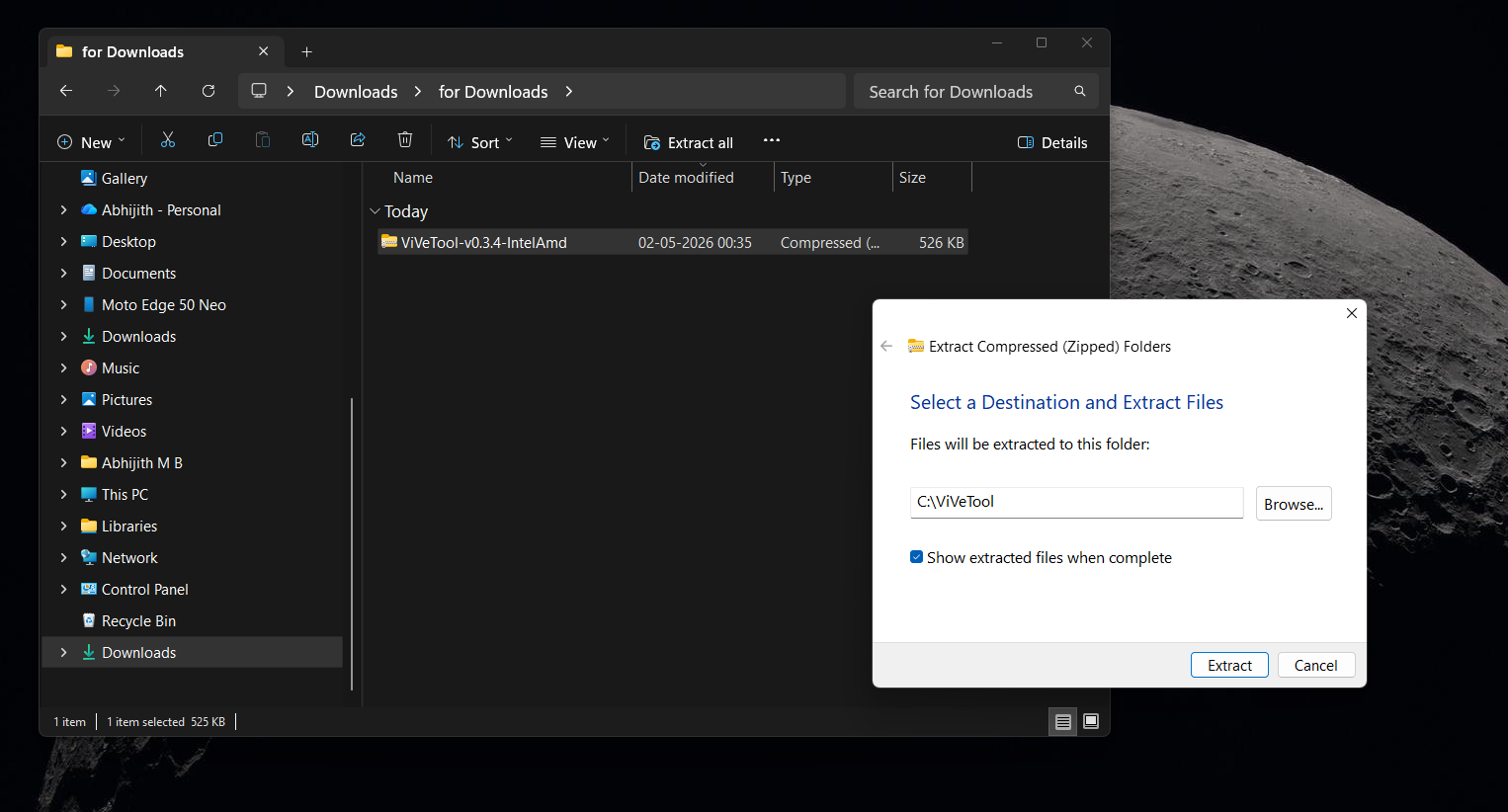
- Extract the contents to a convenient folder. For ease of use, I created a folder called ViveTool directly on my C drive and extracted the files there.
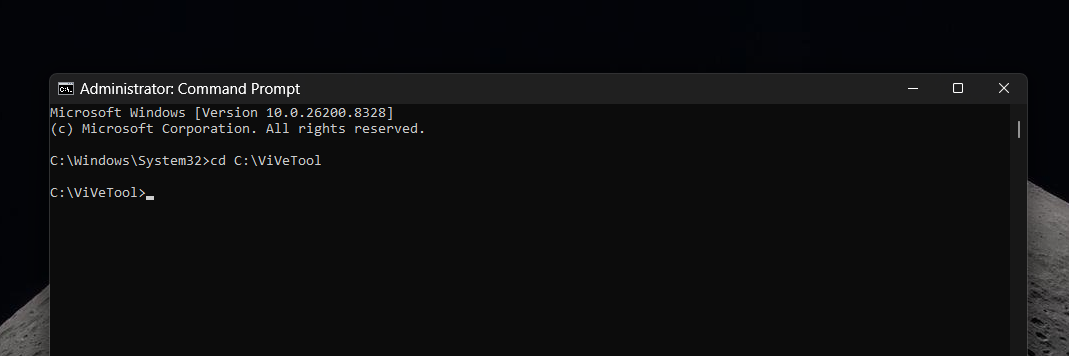
- Click the Start menu, type “cmd“, right-click on Command Prompt, and select Run as administrator.
- Type cd C:\ViveTool and press Enter.
- Type the following command to activate the feature and press Enter:
vivetool /enable /id:58989092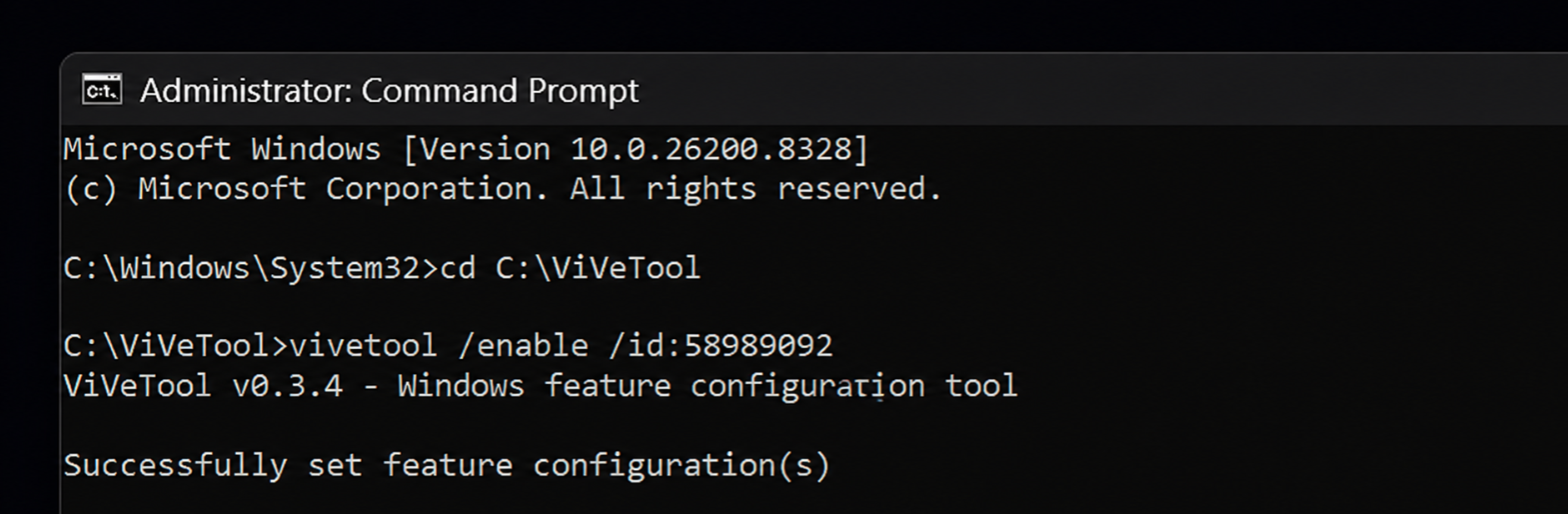
- Restart your PC to apply the changes.
Note: The command uses /enable to turn the feature on. If you ever want to revert the changes, you can repeat the process using /disable instead. This only works for now, and once the feature officially becomes default on your device, you won’t be able to turn it off.
Ideally, we shouldn’t have to enable features manually. Since Microsoft already has a vibrant Insider community, all testing should occur earlier, and deployment should begin now. Many users have complained that they still haven’t received features rolled out in the April 2026 updates. And since Low Latency Profile is, by definition, just a CPU boost, it should have already arrived by now.
How do you verify if the Low Latency Profile is working?
Windows 11 does not include a toggle to enable or disable the Low Latency Profile. Instead, the feature is enabled by default on all PCs once it rolls out with the May 2026 Update, or if you enable it using the bypass method mentioned above.
As a result, the only way to verify whether the Low Latency Profile is working is to compare performance before and after the feature is enabled. Check if the Start menu, Action Center, and Search load faster than before.
We can’t rule out a placebo either, so you can also try checking CPU usage before and after Low Latency Profile is enabled:
No CPU boost before Low Latency Profile is enabled:
On the top right side of the screen recording, you can see that the CPU has not reached peak utilization while opening the Start menu or Action Center. I have checked it multiple times to be sure.
After enabling Low Latency Profile using the bypass method given above, I opened the Start menu and Action Center:
CPU utilization peaks while opening the Start menu after Low Latency Profile is enabled:
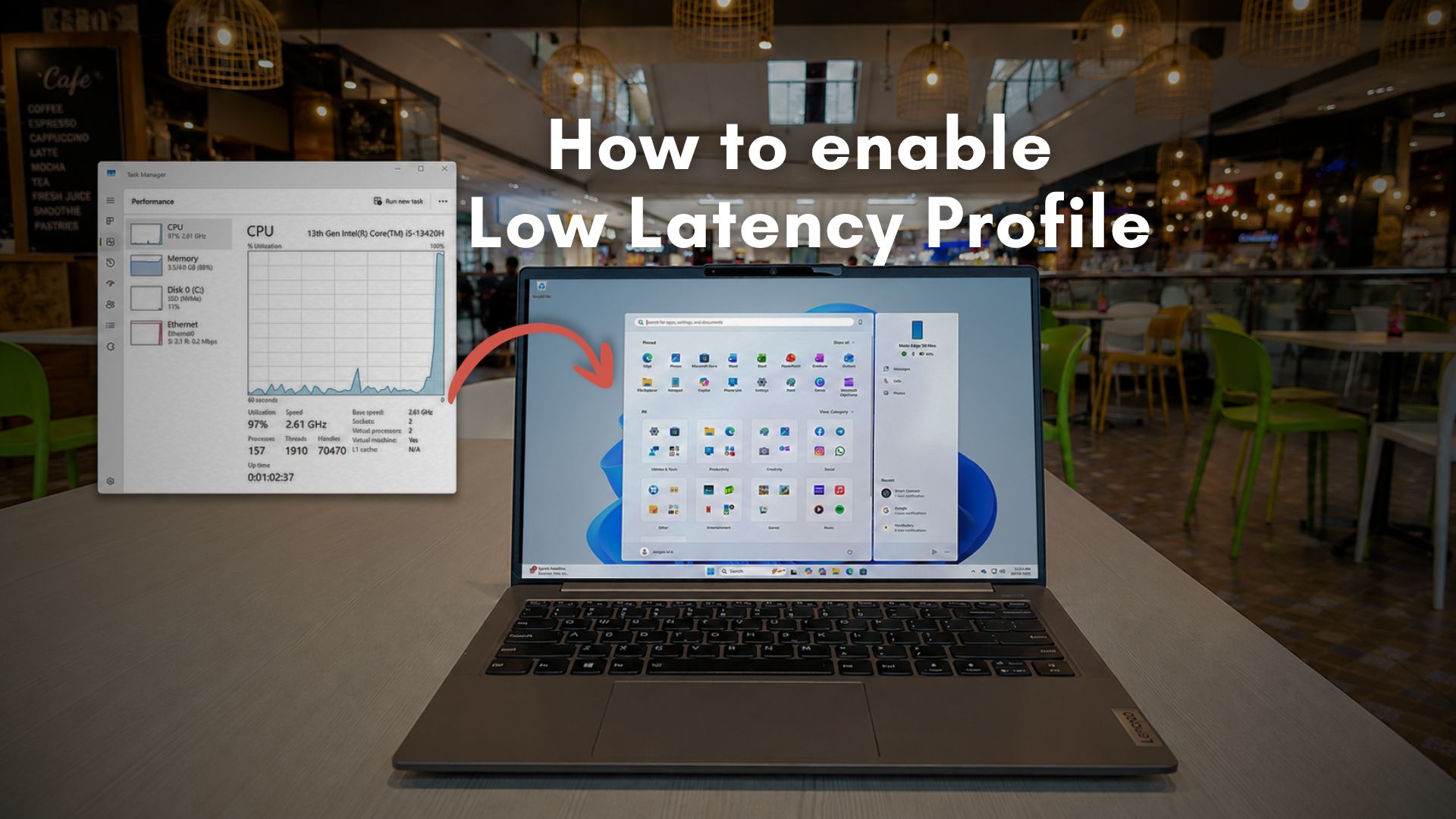
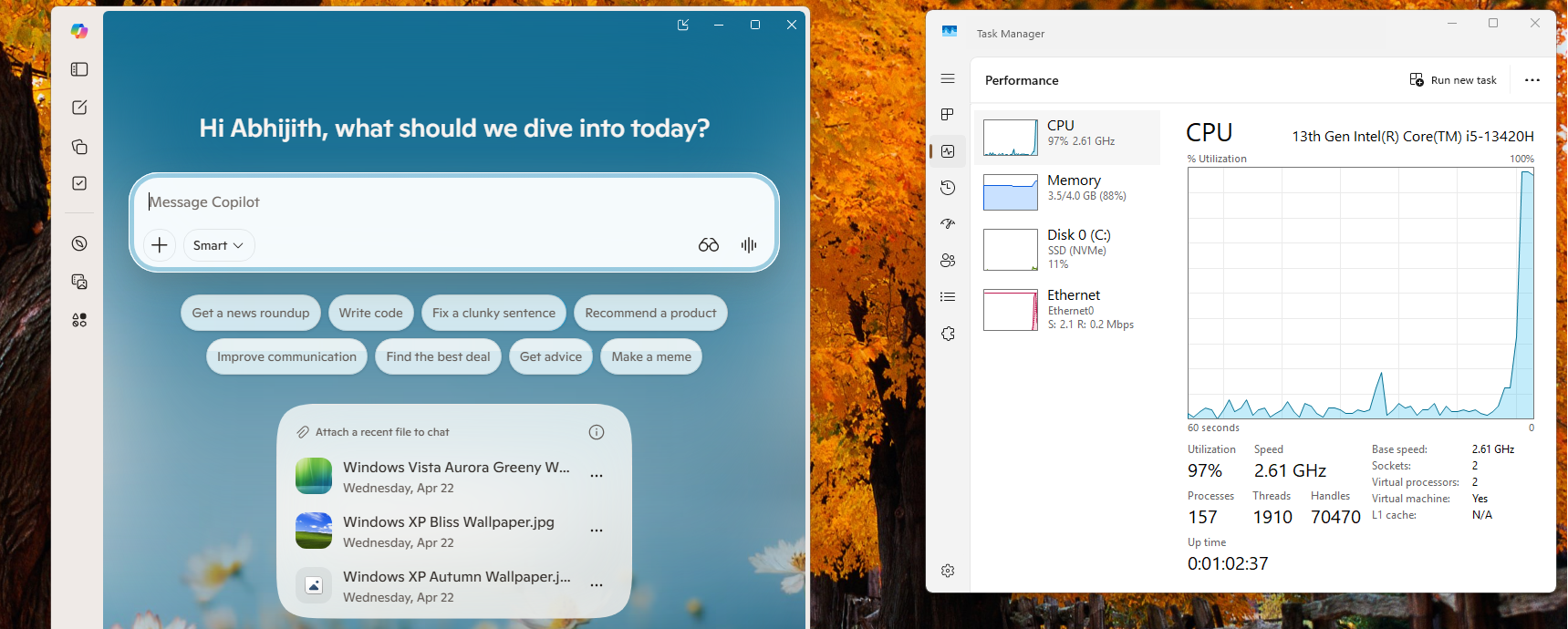
As you can see on the top right side, CPU utilization jumps to 100% in the P cores on my Intel Core i5 13420H, and then falls to normal levels in a second or two, which essentially confirms the presence of Low Latency Profile.
CPU reaches 100% while opening the Action Center after Low Latency Profile is enabled:
Here, too, you can see that the CPU utilization reaches 100% while opening the Action Center and then falls to normal levels almost immediately.
I have done these tests several times, and after seeing the CPU boost for the Start menu and Action Center only after enabling the feature, it is clear that my system has Low Latency Profile enabled.
Microsoft mentioned General Performance improvements to only the Start menu, Action Center, and Windows Search, so as of now, there is no speed boost while opening inbox apps or third-party apps.
Hands-on: UI smoothness over raw speed (for now)
I previously tested Low Latency Profile in a highly constrained environment, and the CPU Boost feature worked well enough that I felt it could make budget PCs usable. It was a dual-core virtual machine limited to 4GB of RAM. But even then, some actions felt surprisingly responsive because the OS was no longer waiting for the CPU to slowly ramp up to the required speeds.
Before enabling Low Latency Profile CPU boost:
Yes, you have to be eagle-eyed enough to see the micro-strutters and occasional jitters. But it’s safe to say that most people have first-hand experience with the stuttery Start menu!
But now, after running before-and-after screen recordings on a regular, full-powered daily-driver PC with this new May optional update, the results are slightly different, but I like it.
After enabling Low Latency Profile CPU boost:
The changes may look minute in the screen-recording, but it is definitely noticeable in the real world.
Opening the Start menu is less choppy than before. The Action Center glides onto the screen smoothly, and the notorious rendering delay when bringing up the right-click context menu looks to be significantly reduced. As the official release notes specifically highlight “core shell experiences,” it appears the Low Latency Profile is currently prioritizing OS fluidity over speeding up inbox or third-party app launches.
Either way, since my regular PC wasn’t slow in the first place, it now feels more premium because of the extra smoothness. Also, I didn’t notice any heating or battery drain during my testing.
The needless controversy behind Windows 11’s CPU boost
When news of this CPU-spiking feature first broke, several users on social media heavily criticized Microsoft, claiming that artificially boosting the processor was a “lazy fix” to cover up poorly optimized code.
However, Microsoft stepped in to clarify the engineering behind it, and we agree. Scott Hanselman defended the technology by explaining the concept of “Race to Sleep.” By instantly spiking the CPU to its maximum frequency for a brief 1 to 3 seconds during a UI interaction, the processor completes the heavy lifting in a fraction of the time, allowing it to return to its low-power idle state much faster.
Hanselman pointed out that Apple uses similar hardware-level scheduling tricks on macOS to make the operating system feel buttery smooth.
Because of this initial public backlash, it makes sense that Microsoft chose to quietly label the feature as “General Performance” in the changelog rather than explicitly announcing the “Low Latency Profile” by its internal codename or sharing specific speed improvement metrics.
What’s next for Windows 11 performance improvements?
Windows 11 desktop still hasn’t quite reached the flawless 120fps smoothness of modern-day smartphones. This update is a massive step in the right direction. And most importantly, this CPU boost is just one half of a much larger strategy.
As Microsoft commits to native UI for Windows 11, the company is replacing heavy web frameworks with lightweight native code, including in the Start menu. So, when you combine native optimizations with the immediate power delivery of Low Latency Profile, pretty soon, Windows 11 will feel as fast and premium as we expect.