







Windows 11 KB5094126 is now rolling out with Low Latency Profile, Shared audio, Secure Boot certificate update, and more. June 2026 Patch Tuesday is available via Windows Update. If that fails, you can use Update Catalog, as Microsoft has posted direct downloads for KB5094126 offline installers (.msu).
KB5094126 is a mandatory update for Windows 11, and it’s rolling out as part of the June 2026 Patch Tuesday cycle. Today’s patch shows up as “2026-06 Security Update (KB5094126) (26200.8655)” on systems with version 25H2. In the case of Windows 11 24H2, it bumps the OS to Build 26100.8655 with no visible difference.
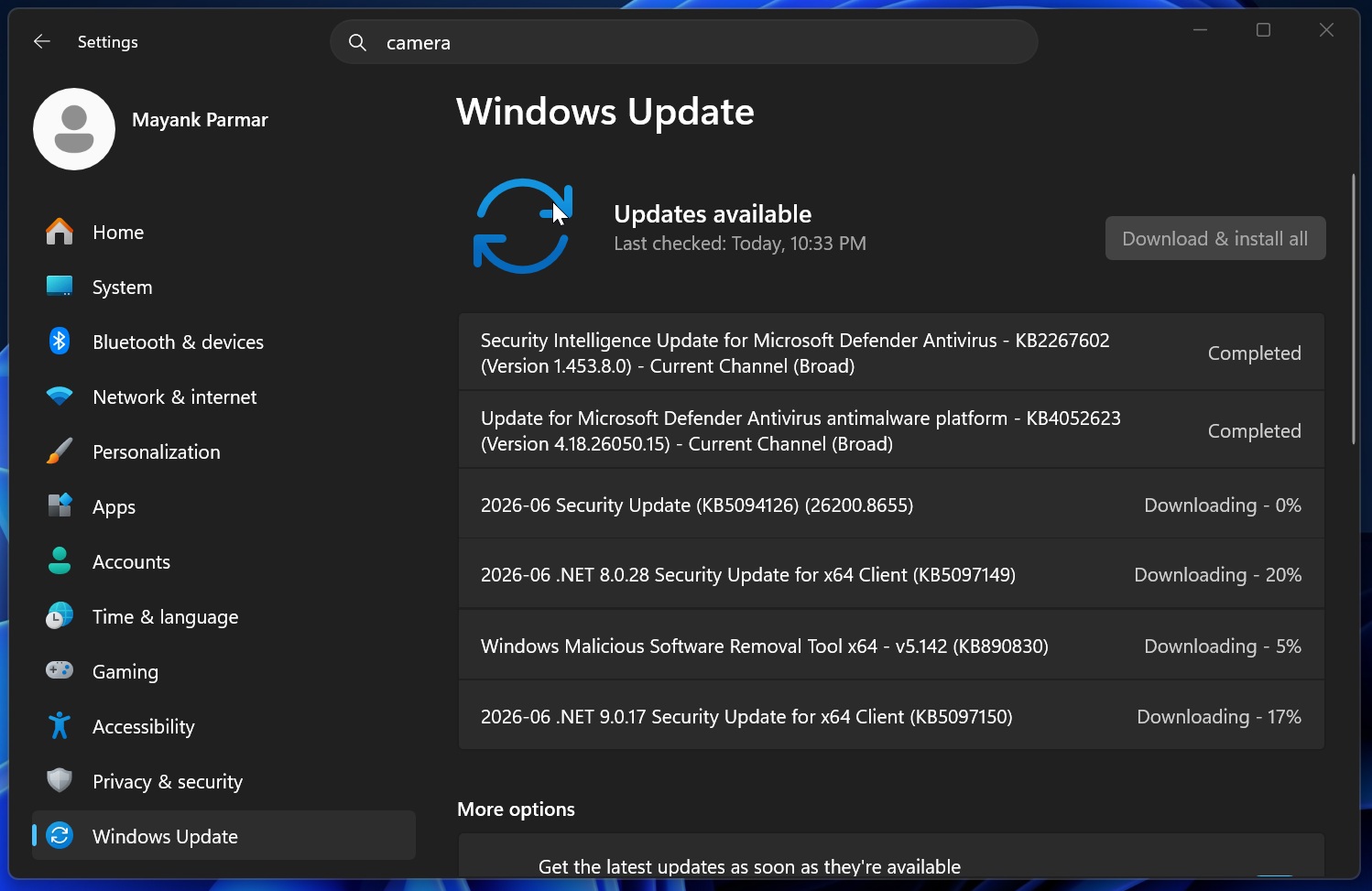
June 2026 Update downloads and installs automatically unless you’ve paused Windows Updates manually. For advanced users, Microsoft is testing a new feature that would allow you to pause Windows Updates for as long as you want, but that improvement isn’t available with today’s release. It’s stated that it will arrive in a future update.
In addition to the cumulative update, Microsoft has posted .NET updates, which can improve security and performance/overall experience of all apps written in .NET:
- 2026-06 .NET 8.0.28 Security Update for x64 Client (KB5097149)
- 2026-06 .NET 9.0.17 Security Update for x64 Client (KB5097150)
There’s also an update “Windows Malicious Software Removal Tool x64 – v5.142 (KB890830),” which is rolled out almost regularly.
Download Links for Windows 11 KB5094126
Windows 11 KB5094126 Direct Download Links: 64-bit and ARM-64 | This opens Update Catalog, where you can download the .msu offline installer of the June 2026 Update, but that’s required only when Windows Update is either failing or you own multiple PCs. Also, updates downloaded via Update Catalog are huge in size, well above 5GB.
I made a table that lists the size of the June 2026 Update for Intel/AMD and ARM systems:
| Build Number | Size | OS Version | Architecture |
|---|---|---|---|
| 26200.8655 | 5383.7 MB | Windows 11 25H2 | x64-based |
| 26200.8655 | 5383.7 MB | Windows 11 25H2 | arm64-based |
| 26100.8655 | 4799.2 MB | Windows 11 24H2 | x64-based |
| 26100.8655 | 4799.2 MB | Windows 11 24H2 | arm64-based |
To download Windows 11 Build 26200.8655, open Settings > Windows Update and check for updates. This is the recommended method.
What’s new in Windows 11 Build 26200.8455 (25H2) / Build 26100.8455 (24H2)?
Microsoft told me that nearly all features and improvements in the June 2026 update are rolling out gradually, so you won’t see the changes immediately.
1. Microsoft says Secure Boot is rolling out to more PCs
In a statement to Windows Latest, Microsoft confirmed that Windows 11 KB5094126 unlocks the Secure Boot certificate update for more eligible PCs. Until now, Secure Boot has been rolling out gradually, which is not a bad thing, as Microsoft wanted to ensure that it doesn’t accidentally break PCs, but the slow rollout means some PCs still don’t have it.
I’m told that the vast majority of PCs will automatically receive the Secure Boot certificate update today, but it’s worth noting that this only applies to supported PCs. That means if you own a PC that does not have Secure Boot / TPM or firmware support, it will not receive the Secure Boot certificate.
You can verify the current status of the Secure Boot certificate by going to Windows Security > Device Security. Scroll a bit, and you’ll find a Secure Boot section where Windows clearly flags the current status.
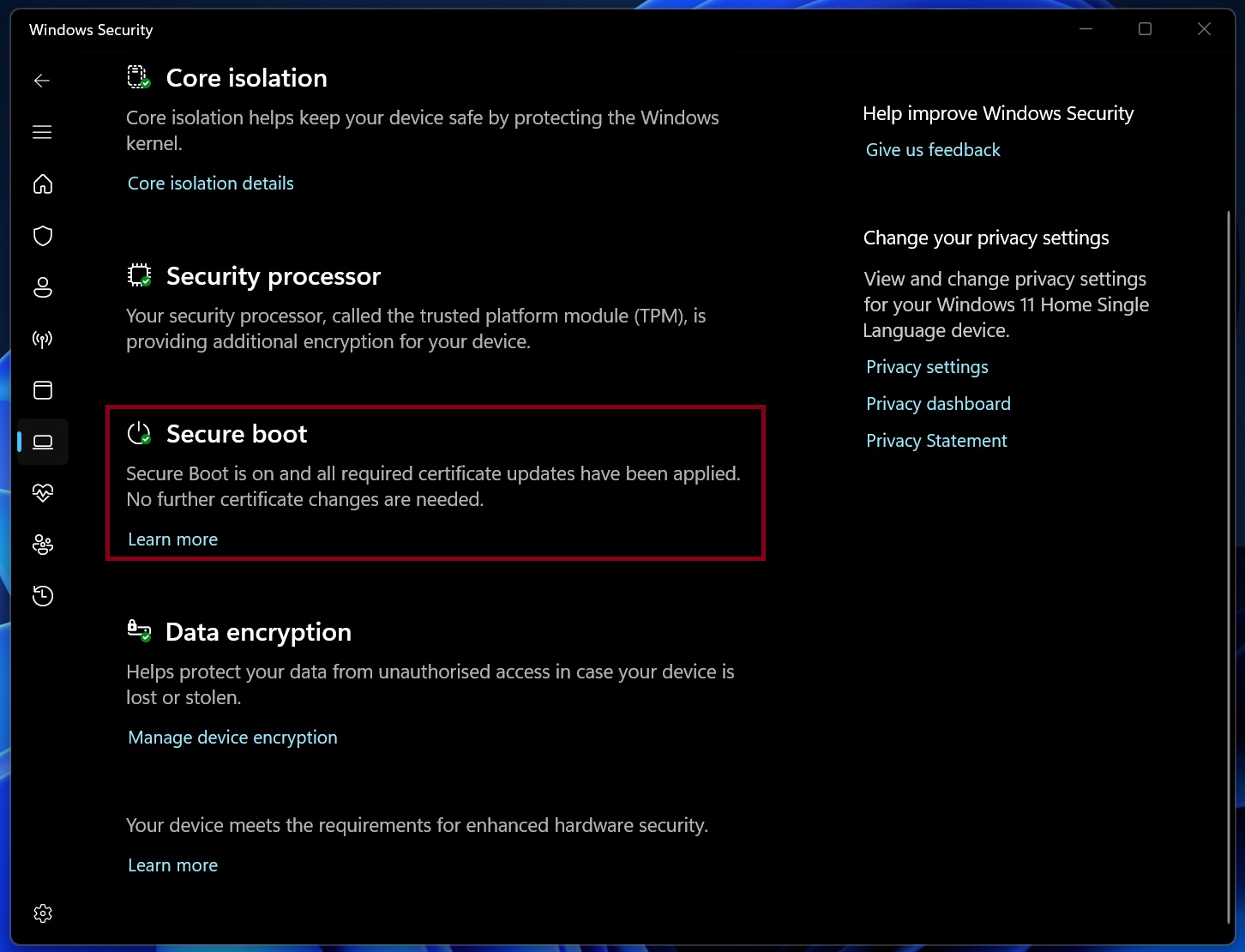
On my PC, Windows Security reports that Secure Boot is on, and all required certificates have been applied.
“No further certificate changes are needed,” an alert in Windows Security reads. And if you see the above message, it means you don’t have to take any action. You’re sorted.
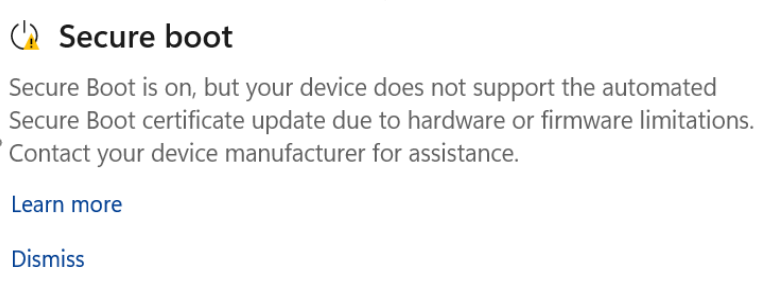
However, you might see a yellow alert indicating that Windows warns the device does not support the automated Secure Boot certificate update due to hardware or firmware limitations.
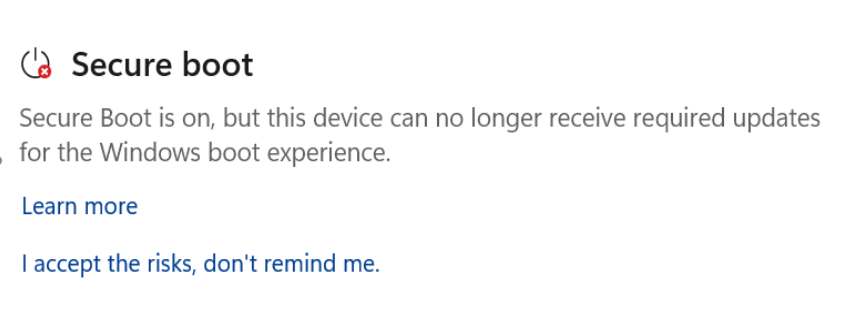
There’s also a red alert where Windows says it cannot install required updates for the Windows boot experience, and you need to either accept the risks or continue seeing the warning.
As Windows Latest previously found, Secure Boot certificate updates are failing across older PCs due to firmware limitations, and if your PC is affected, you need to contact your OEM.
You’ll need an updated BIOS/UEFI for your PC for Secure Boot certificates to be applied. In all other scenarios, Secure Boot updates will fail, but that does not mean Windows will not boot properly. Secure Boot ensures that only the PC’s boot loaders load trusted files when the PC boots, so it’s not affected by malware.
Windows will continue to run normally, and unless you install shady apps, you’ll most likely not run into major security issues even if you don’t have an updated Secure Boot certificate, but it’s recommended to have one.
Microsoft has also posted a detailed FAQ covering all questions around Secure Boot.
2. Low Latency Profile begins rolling out
Windows 11 has been testing a feature called “Low Latency Profile” for the past few months, and it’s finally rolling out to everyone with Windows 11 KB5094126. It was first rolled out to the public with the May 2026 optional update, but now it’s heading to everyone with a mandatory security update (June 2026).
Of course, it’s still being rolled out gradually, which means Low Latency Profile won’t show up immediately. You also can’t go to Settings to verify if the feature is turned on automatically. It’s something you can only observe by comparing the before and after performance of your PC.
Low Latency Profile boosts CPU frequency for a few seconds (1 to 3) to make your PC run faster. If the gradual rollout includes your PC, Microsoft will automatically turn on Low Latency Profile, which will allow the Start menu, Notification Center, or Quick Settings to load faster.
For example, when you open the Start menu, it maxes out your CPU frequency to load the UI quickly.
This means the Low Latency Profile can successfully eliminate UI lag, and it does not affect the overall performance of the system as it runs briefly. Low Latency Profile currently boosts performance when you:
- Open the Start menu, Quick Settings, Notifications, Windows Search, and other flyouts.
- Right-click on the desktop and in File Explorer.
Microsoft is also testing the Low Latency Profile for apps, which would allow you to launch apps faster instead of looking at their splash screen (app logo).
You can verify if Low Latency Profile is working by monitoring your CPU frequency in a third-party app or Task Manager. And if it’s turned off, you can forcefully turn it on using a third-party open-source app called ViveTool, which is mostly safe to use. You can follow our guide that explains how to turn on Low Latency Profile.
It’s also worth noting that Low Latency Profile’s impact is barely noticeable on high-end PCs, as they’re already faster.
3. Shared audio support in Windows 11
Windows 11 KB5094126 finally rolls out the Shared Audio feature, and it works similarly to iOS’s audio sharing. When you turn on Shared audio via Quick Settings in Windows, you can connect two Bluetooth devices and share the system’s audio to the two connected devices.
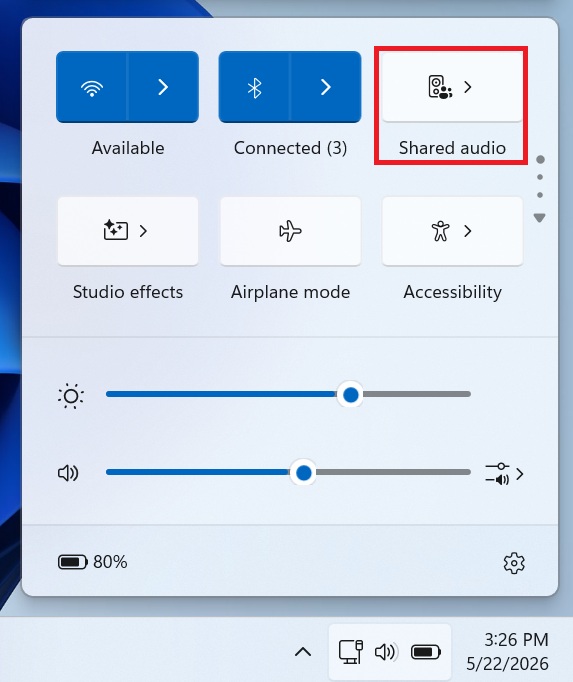
Right now, Windows does not allow you to play audio via two connected Bluetooth devices, but that changes with today’s update, and it’s all possible due to Bluetooth LE audio technology.
In our tests, Windows Latest found the Shared audio feature to be really smooth, and it addresses several use cases. For example, you can watch a movie with your friend or family together
If you want to use Shared audio, make sure your PC supports Bluetooth LE. You can verify if Bluetooth LE is supported natively on your PC by going to Settings > Bluetooth & Devices > Devices (click on one of the paired headsets), and there you’ll find a toggle called “Use LE Audio when available.”
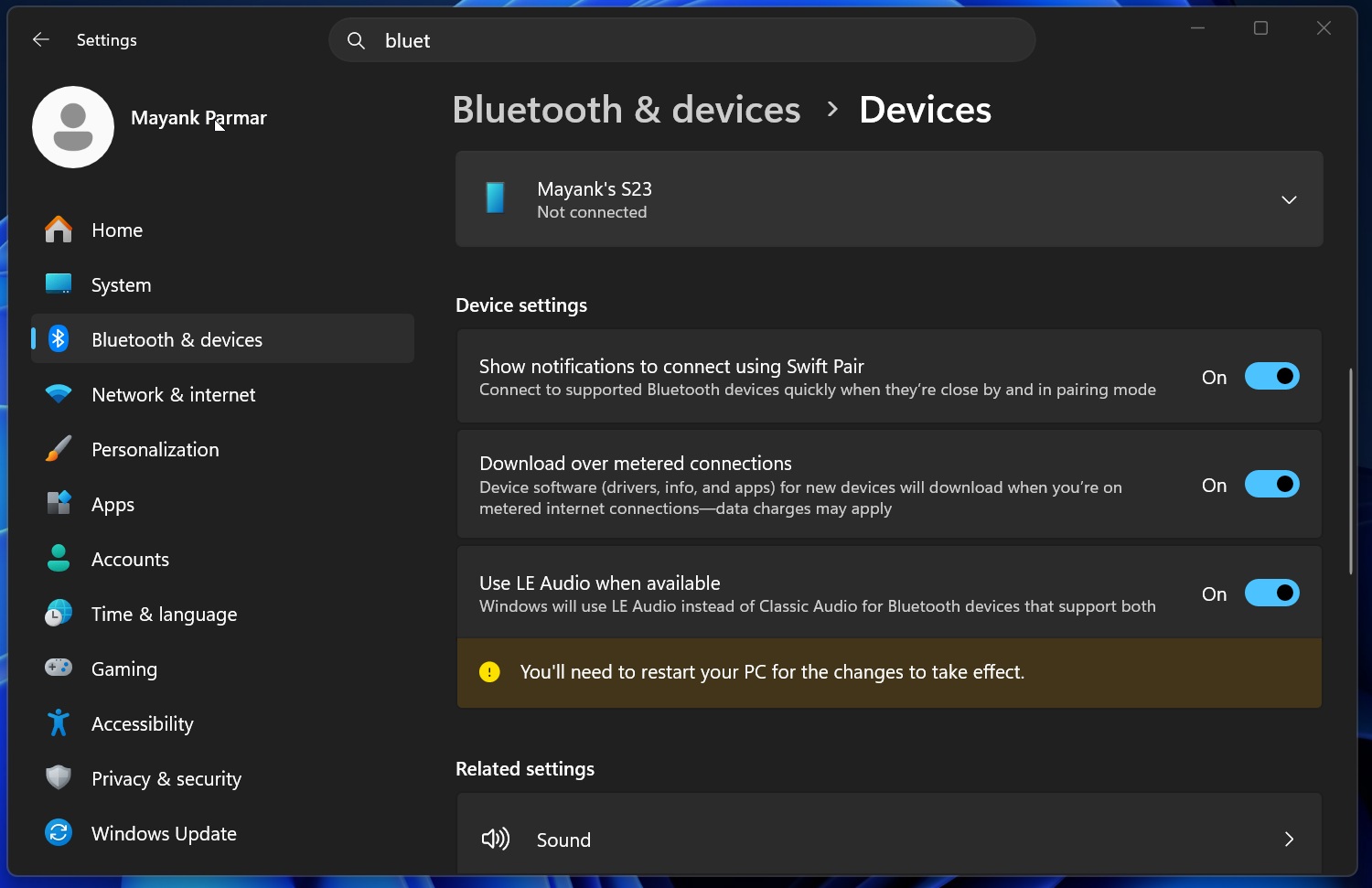
“Windows will use LE Audio instead of Classic Audio for Bluetooth devices that support both,” the description reads.
This toggle has been present before the Windows 11 KB5094126 update and it verifies if Bluetooth LE is supported on your PC.
If you’re lucky and have access to gradual rollout features, you’ll find a new toggle for Shared Audio and its panel inside Quick Settings.
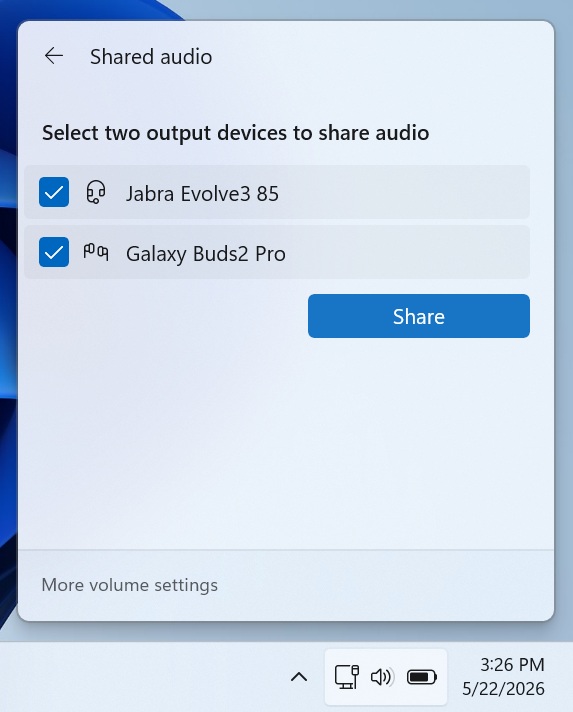
In Quick Settings, tap Shared audio, then select two supported devices to start sharing audio wirelessly. You can always click on Stop sharing to pause audio sharing and default to one audio device.
My tests found that Shared audio works with any Bluetooth audio device, including headsets, speakers, and hearing aids.
4. Multiple apps can now use the camera
Windows has always prevented you from accessing the camera (webcam) across multiple apps, so if you open Teams and switch on your camera, you can no longer use it in another app like Google Chrome, Meet, or even the Windows Camera app.
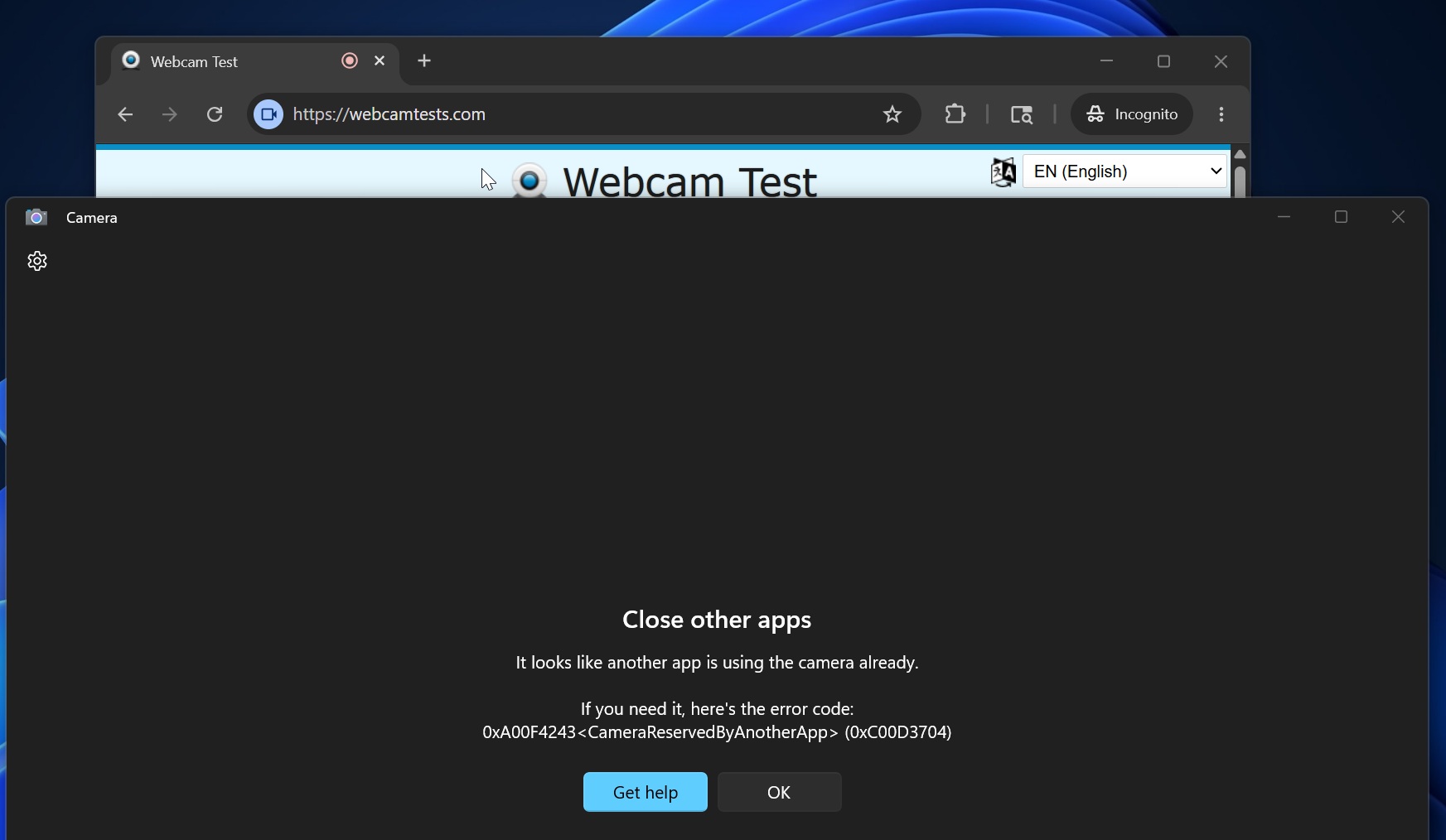
That’s because Windows Camera API limits camera access to a single app, but today’s update (Windows 11 KB5094126) adds support for multiple cameras. However, the multiple-apps camera mode is turned off by default.
If you want to use multi-app camera mode, open Settings > Bluetooth & devices > Camera, and turn on “Allow multiple apps to use camera.”
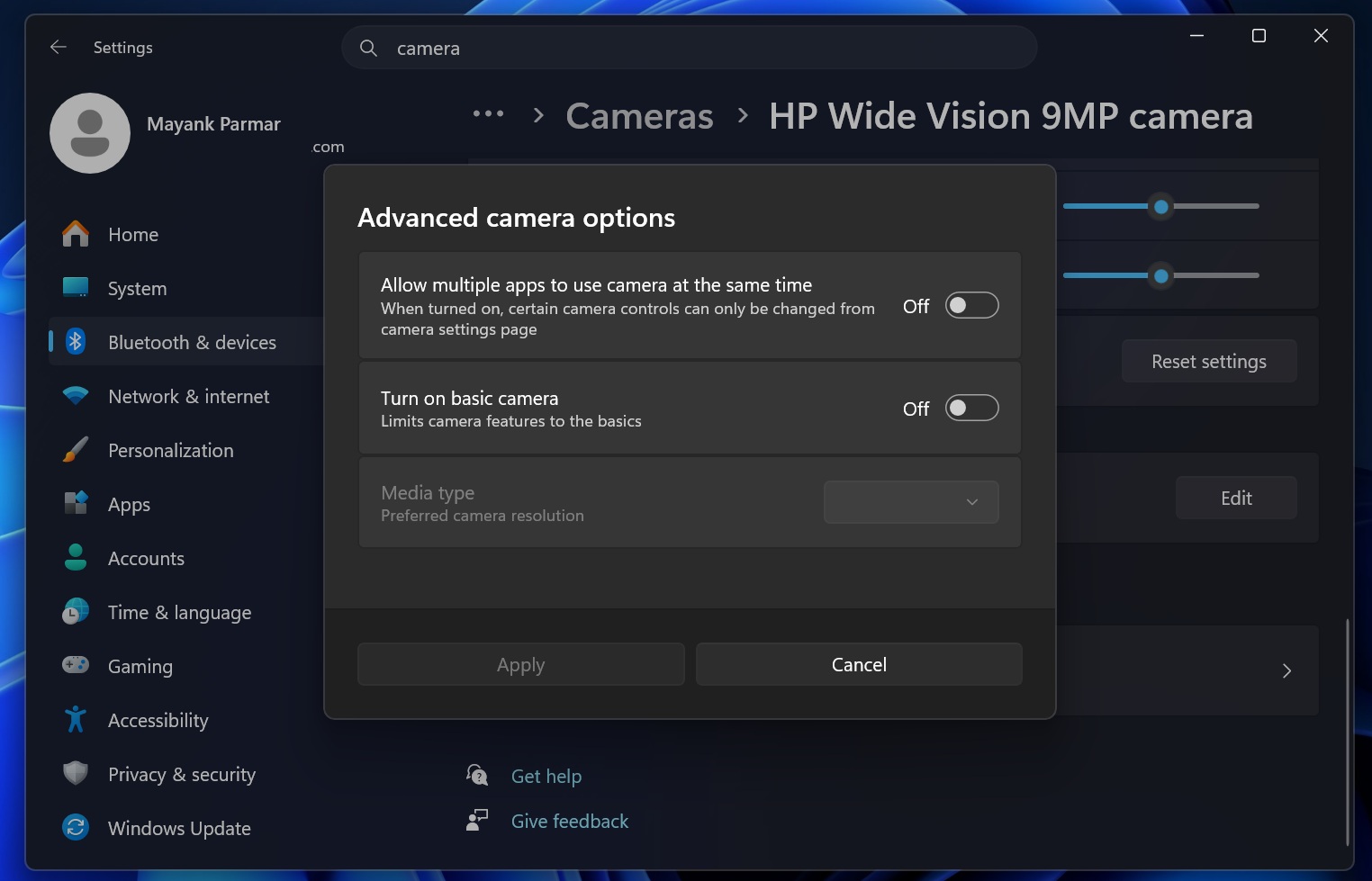
Multiple apps support for the camera is indeed a great improvement, but it’s not the only new change rolling out today.
As you can see in the above screenshot, Microsoft has also added a “basic camera” tool to help you troubleshoot camera issues. This is handy when you don’t know whether a driver is causing camera issues or the webcam hardware has run into problems.
5. Windows Setup now allows you to choose a friendly name for user name folder
If you use a Microsoft account to set up Windows 11, you need to enter your email address during the setup screen. At that point, Windows also asks you to name your PC, but it does not let you choose a username for the user folder. That changes today, as Microsoft is finally adding the ability to choose a custom name for your user folder.
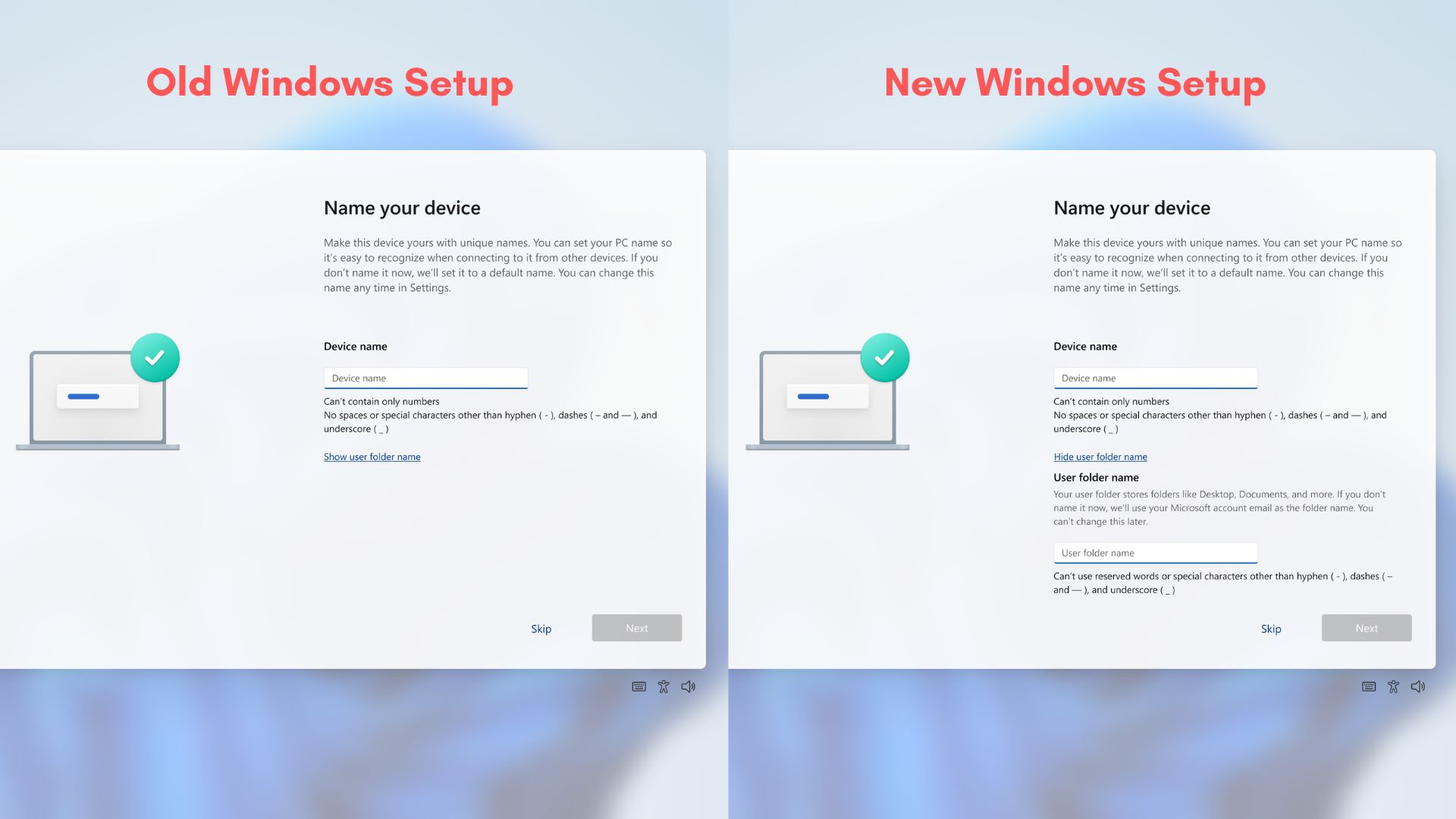
Right now, if you go to the Users folder on the system drive, you’ll notice that the user folder name is based on the first five characters of your email address. It’s not user-friendly, and it’s also annoying because the first five letters of an email are not always the best names.
With support for a custom name, you can now select your own user folder name during setup.
However, Microsoft still does not let you easily change the default user folder name on existing Windows installs. Today’s update only affects new Windows installs.
Other improvements are rolling out with Windows 11 KB5094126
Today’s update also comes with dozens of other improvements, including a better Magnifier that announces commands like zoom in or out when you’re using it with a screen reader. It also makes explorer.exe more stable and patches issues with Windows Hello.
Here’s the full list of improvements and fixes in Windows 11 KB5094126
- Task Manager now lets you better understand NPU usage with two new optional columns – NPU and NPU Engine on the Processes, Users, and Details pages.
- Windows now accurately picks an accent color from your wallpapers when you choose that option in Personalization settings. Also, Wallpaper changes now do not suddenly change when you reboot or upgrade Windows.
- Windows Search now works better by prioritizing files with as few as two characters and showing local results above web.
- UAC prompt now appears only when you open the temporary files section in Settings > System > Storage.
- The touch keyboard is now more reliable, and the clipboard history opens a bit faster after the update.
Last but not least, Microsoft Store should now download your apps or games faster and manage bandwidth usage better.
As for new problems, Microsoft said it’s not aware of new issues in the June 2026 Update for Windows 11.