






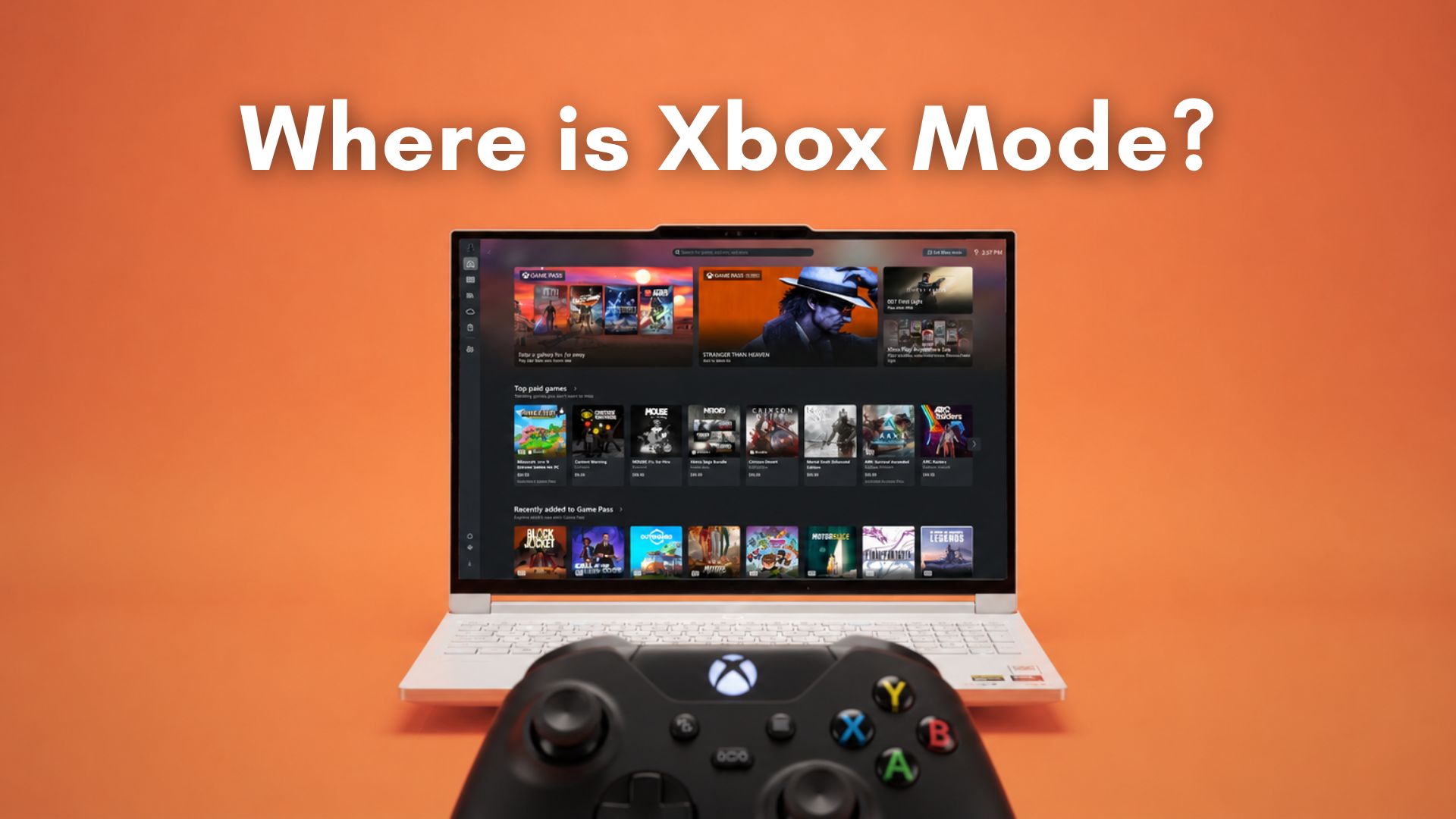
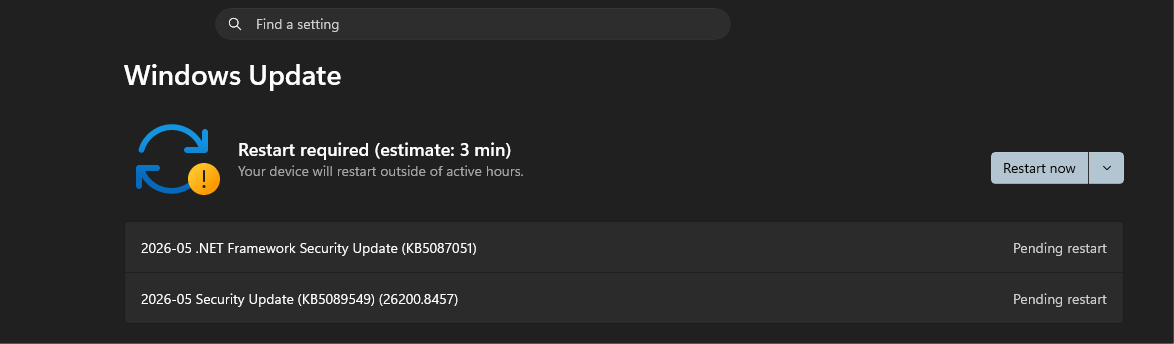
The May 2026 Patch Tuesday update is officially live. Microsoft is currently rolling out Windows 11 KB5089549 to all eligible PCs, laptops, and tablets globally. As we detailed in our comprehensive breakdown of the Windows 11 May 2026 update, this mandatory release is packed with highly anticipated quality-of-life improvements, File Explorer fixes, and performance boosts.
However, the absolute star of the show for PC gamers is the introduction of “Xbox Mode”, which already arrived on some PCs with the April 30 optional Windows 11 update.
But there is a catch. If you just rushed to install the May 2026 update and are frantically pressing buttons to launch the new console dashboard, you might be staring at a standard Windows desktop. Microsoft has quietly warned users that, despite being included in today’s patch, Xbox Mode is not going to show up for everyone right away.
Here is everything you need to know about the new Xbox mode, my personal experience testing it, and why Microsoft is making you wait.
What is Xbox Mode, and who is it for?
Originally, Xbox mode was known internally as the “Full Screen Experience” (FSE). It started as an experimental interface designed purely for handheld gaming PCs, like the ASUS ROG Ally. However, Microsoft quickly realized that a controller-optimized interface is desperately needed across the entire PC ecosystem.
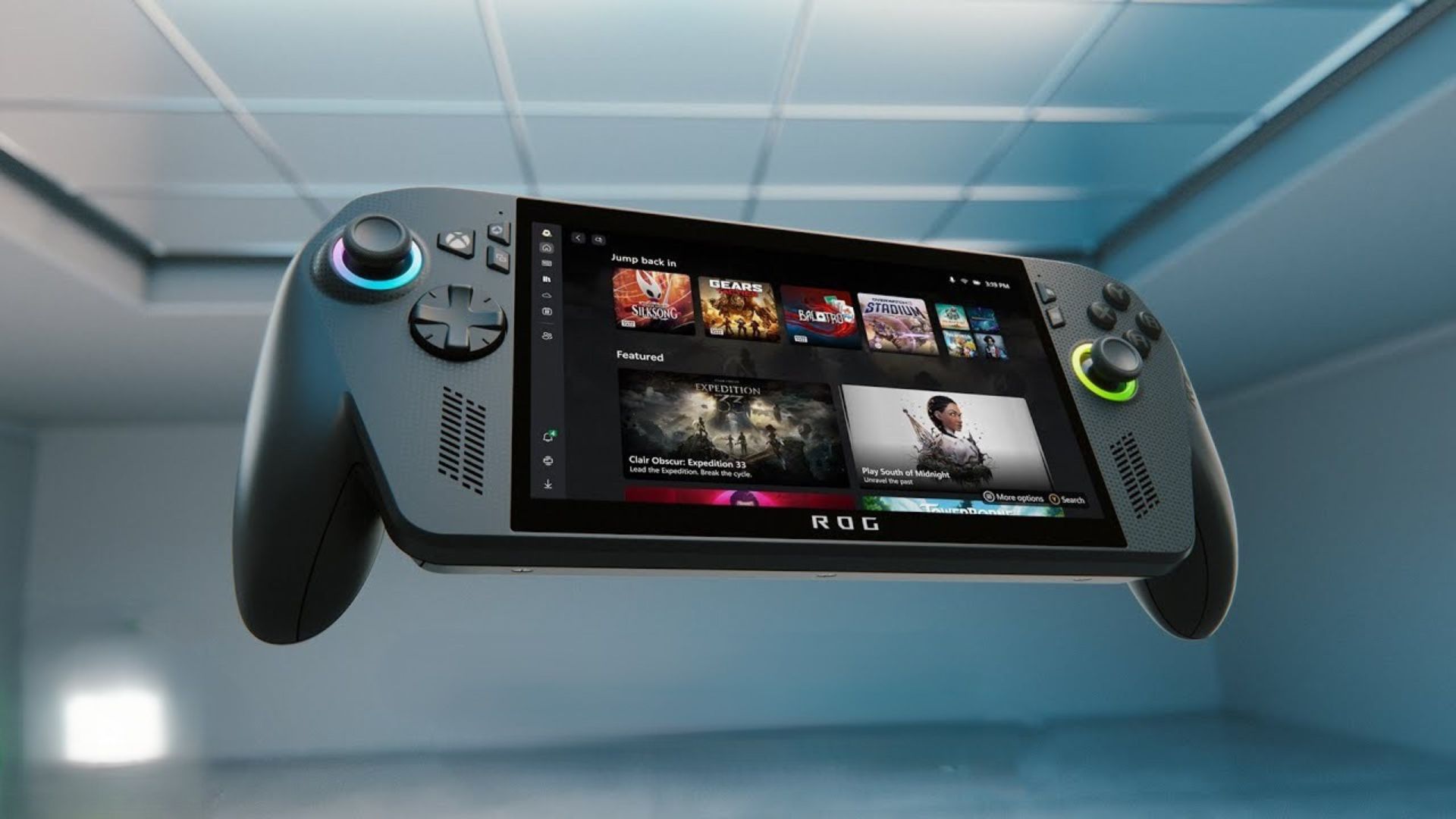
Xbox Mode fixes the difficulty of navigating the standard Windows 11 desktop with a joystick.
When activated, Xbox Mode takes over the Windows 11 UI. You won’t see the taskbar, and notifications will be muted. You will be presented with a gorgeous, controller-optimized dashboard that looks incredibly similar to the interface found on the Xbox Series X and Series S consoles.
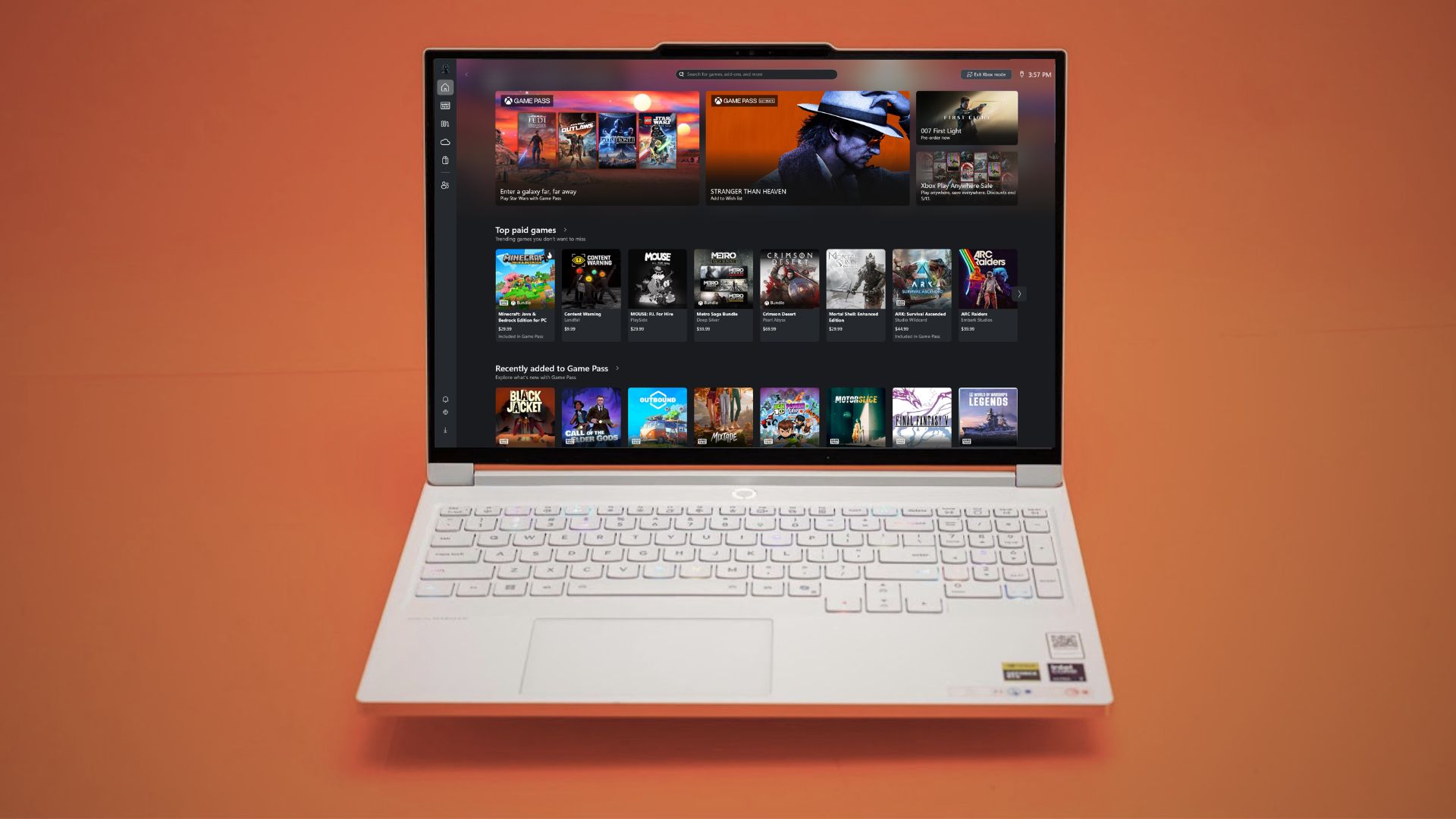
Microsoft says Xbox Mode is a streamlined, full-screen, controller-first interface that puts your games front and center while minimizing background distractions.
It is also an aggregated game library. You won’t have to click through the desktop to open Steam, then Epic Games, and then the Xbox app, as Xbox Mode pulls your entire installed catalog into one easily navigable grid.

Why don’t you see Xbox Mode after the May 2026 update?
If Xbox Mode is so groundbreaking, why is it hidden after installing the KB5089549 update?
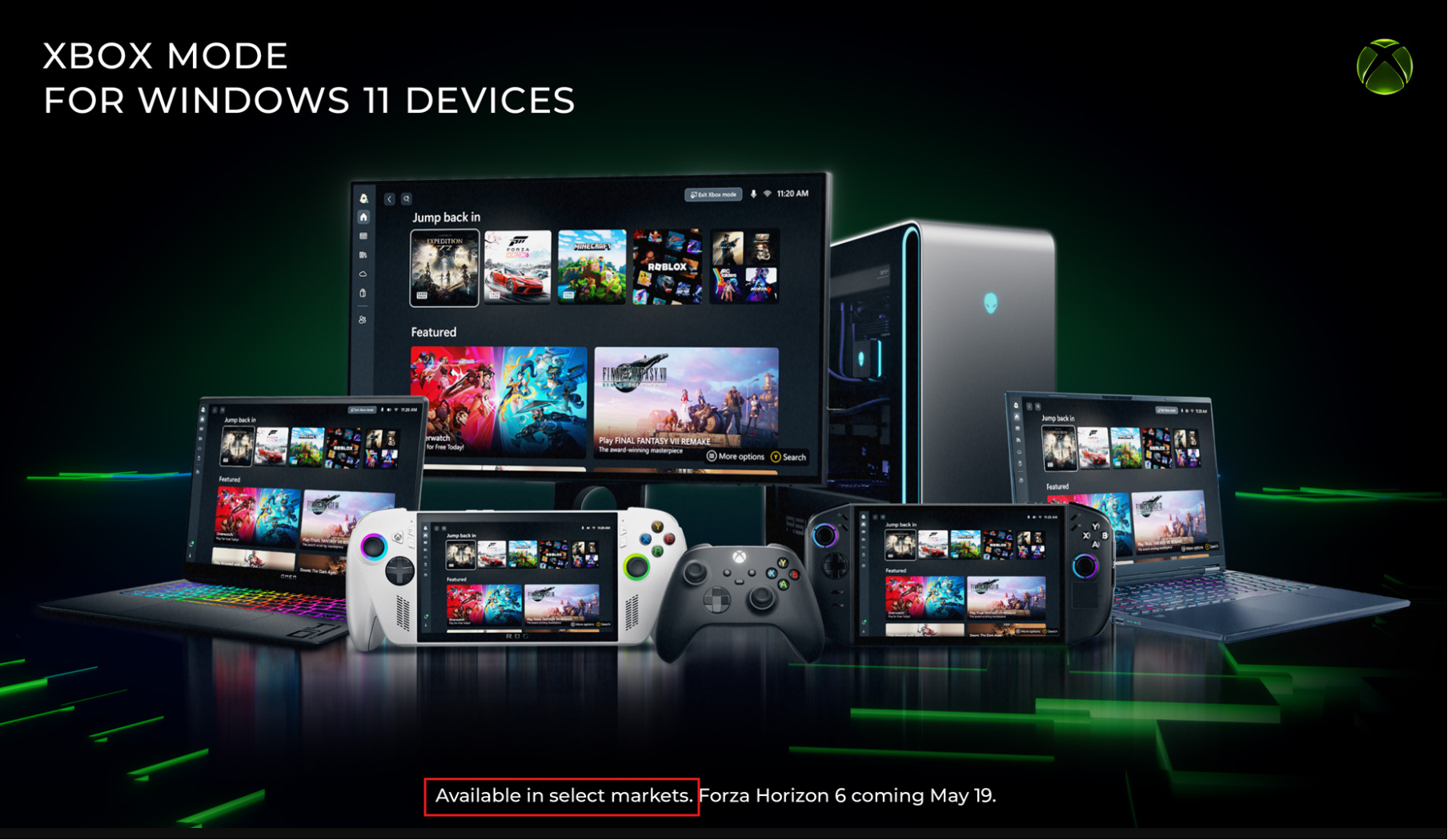
In a dedicated blog post published on April 30, Jason Ronald (Vice President of Next Generation, Xbox) and Ian LeGrow (Corporate Vice President, Windows + Devices) stated, “Some players in select markets will be able to download the Xbox mode experience today, with availability expanding to more players in those markets over the next several weeks.”
- First, the feature is geographically locked to select markets during its initial phase, although Microsoft has not provided a definitive list of supported countries.
- Second, Microsoft is using Controlled Feature Rollout (CFR), which means the code for Xbox Mode is currently dormant on your PC after installing the May update. However, Microsoft keeps the feature hidden behind a server-side switch. They slowly enable the feature for a small subset of users, monitor telemetry data for critical bugs or crashes, and then gradually expand the rollout.
I tested Xbox Mode, and it changes everything
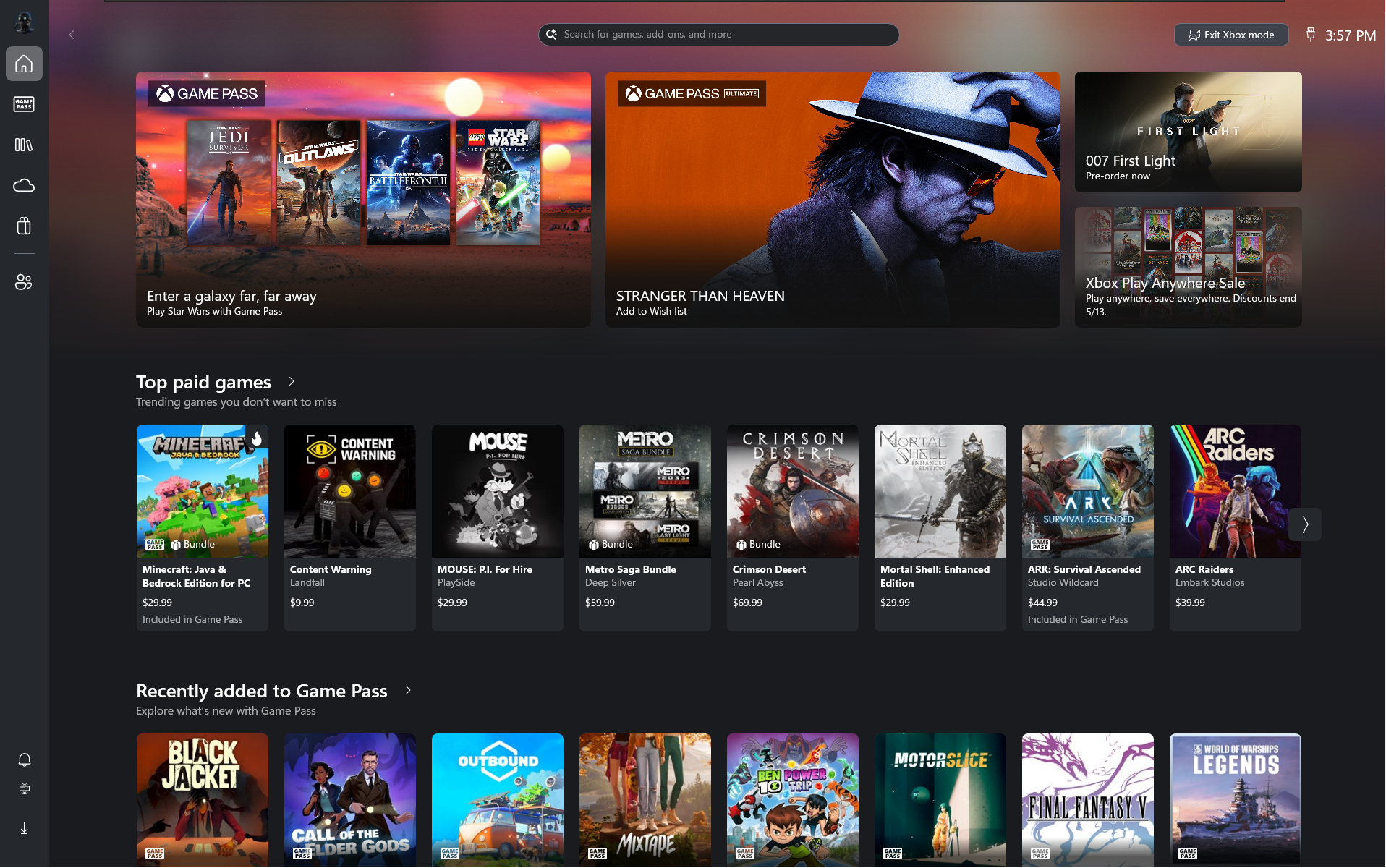
Because I closely monitor Windows Insider builds and hidden feature flags, I have been testing this interface for a while now. When I first tested the early version of the console-style gaming interface in March, the menus were a bit different. Today, the version shipping in the May update feels remarkably polished.
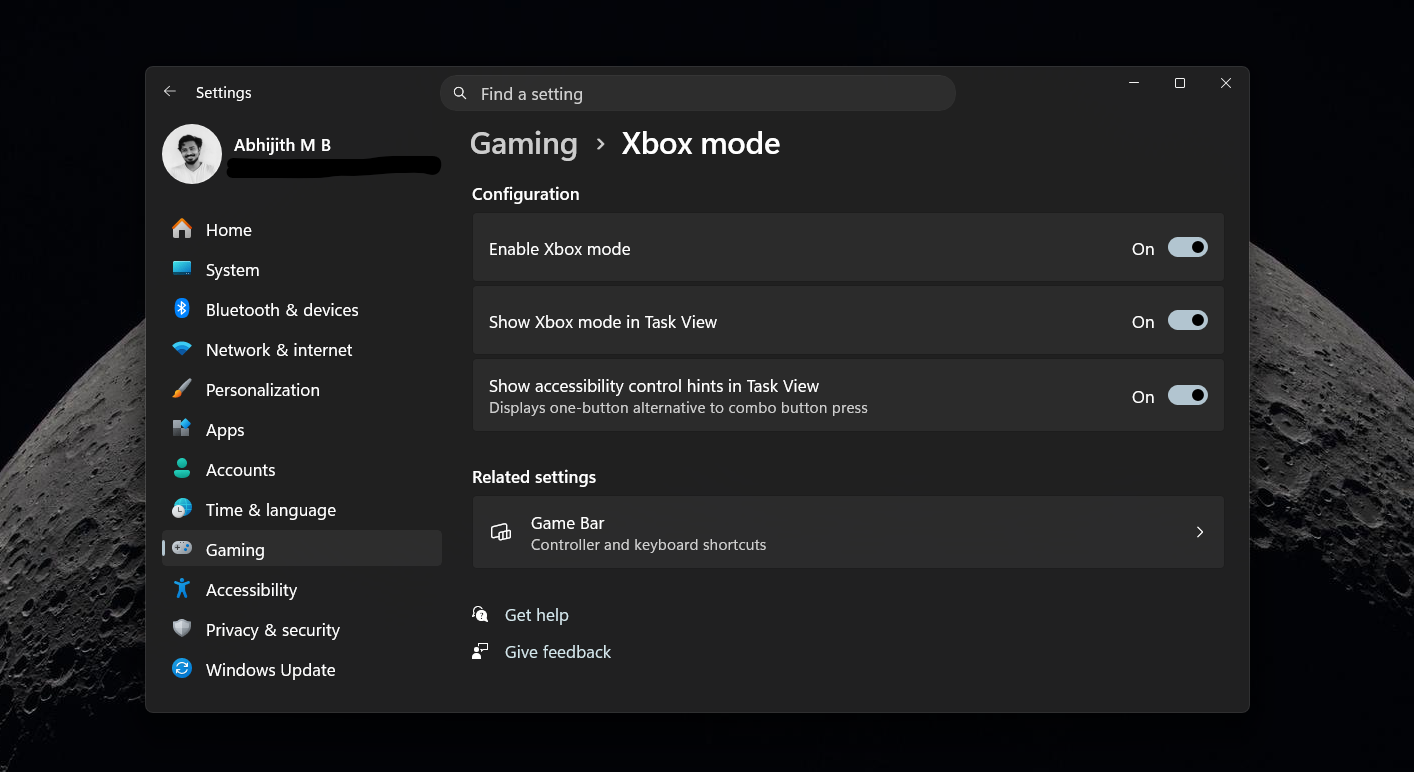
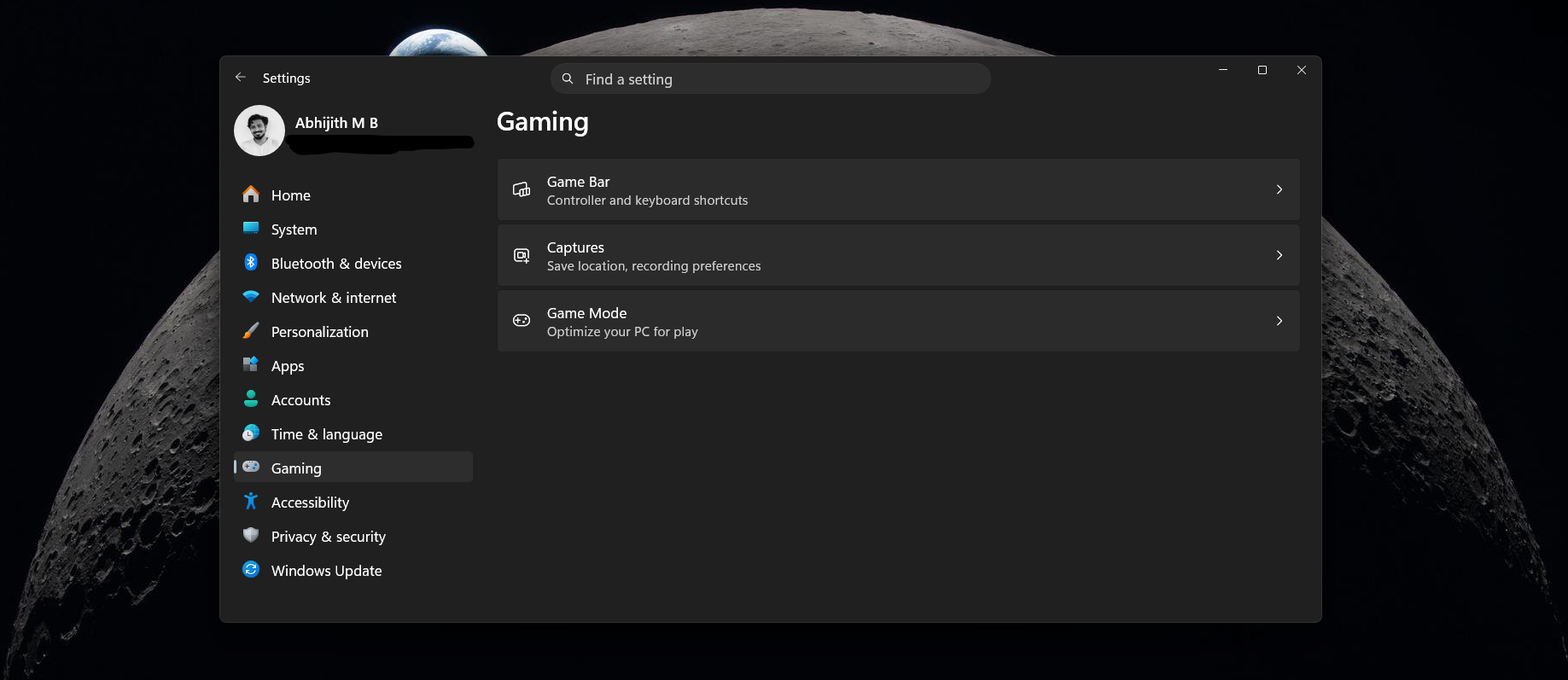
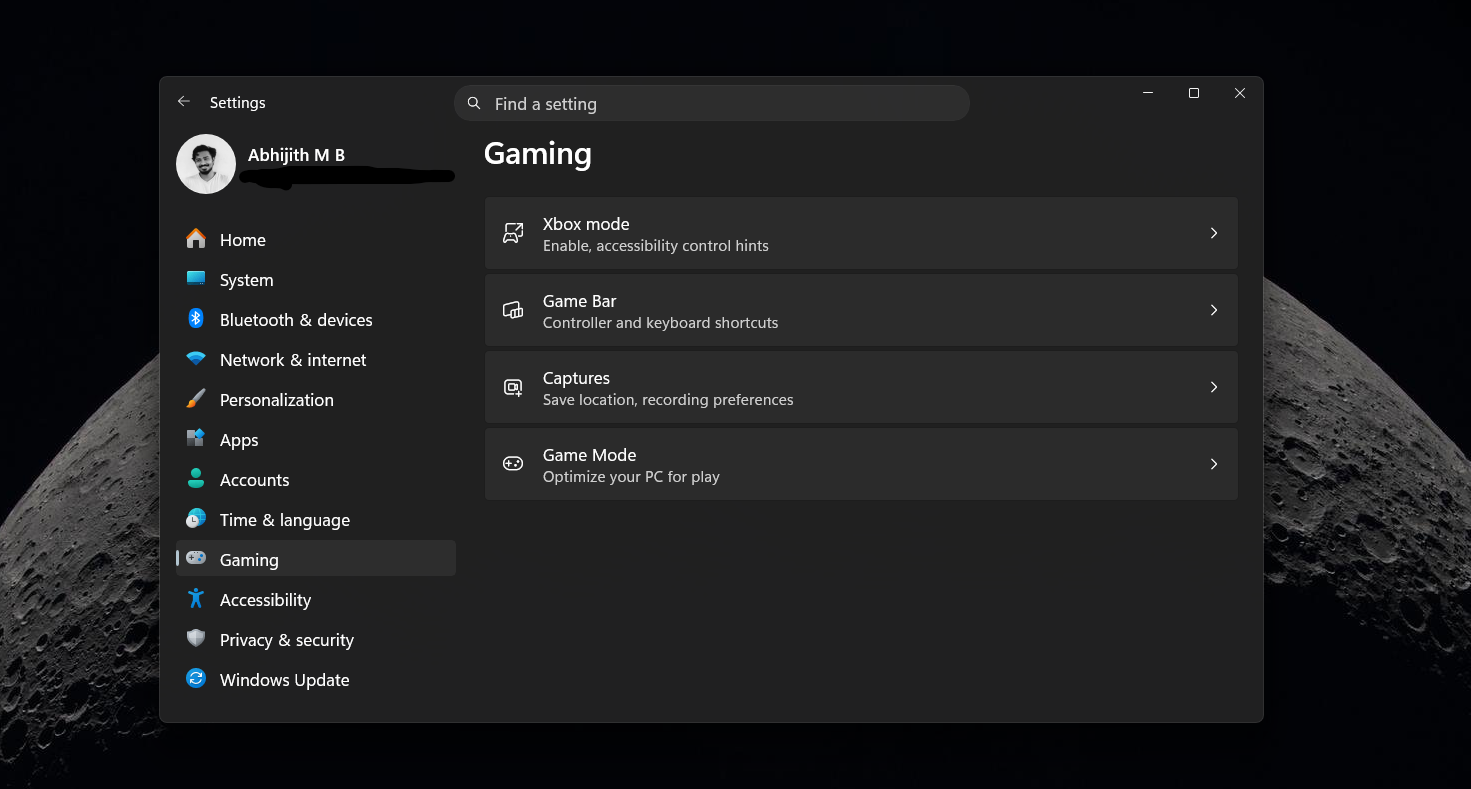
First, make sure you have turned on the Xbox Mode by going to Settings > Gaming > Xbox mode > Enable Xbox mode
Once activated, you can enter Xbox Mode by clicking a dedicated toggle in the Xbox app or pressing the Windows logo key + F11 on your keyboard.
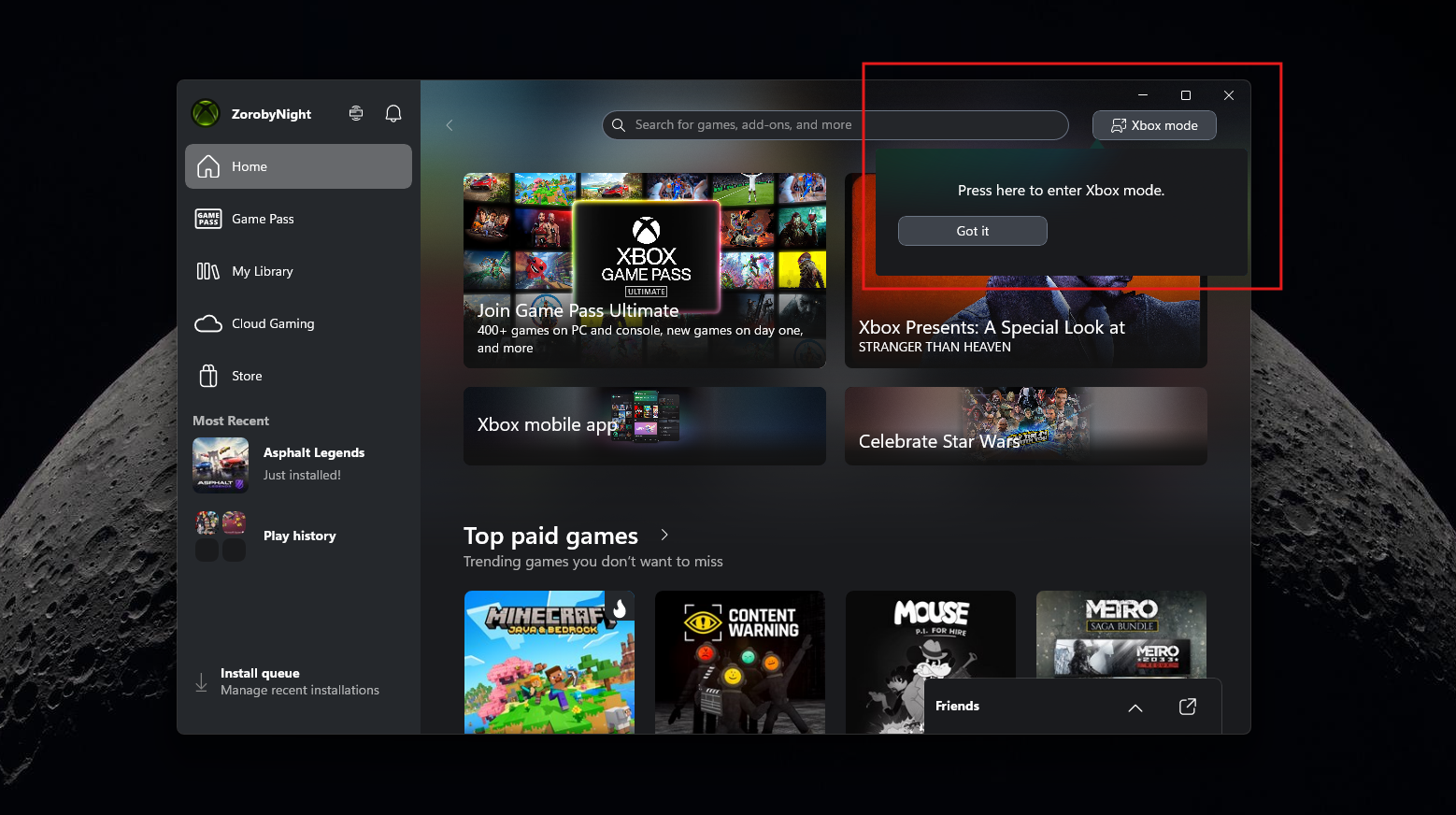
In case it wasn’t clear already, you will definitely need a controller to use Xbox mode on your laptop or desktop setup, and Microsoft also reminds you of that.
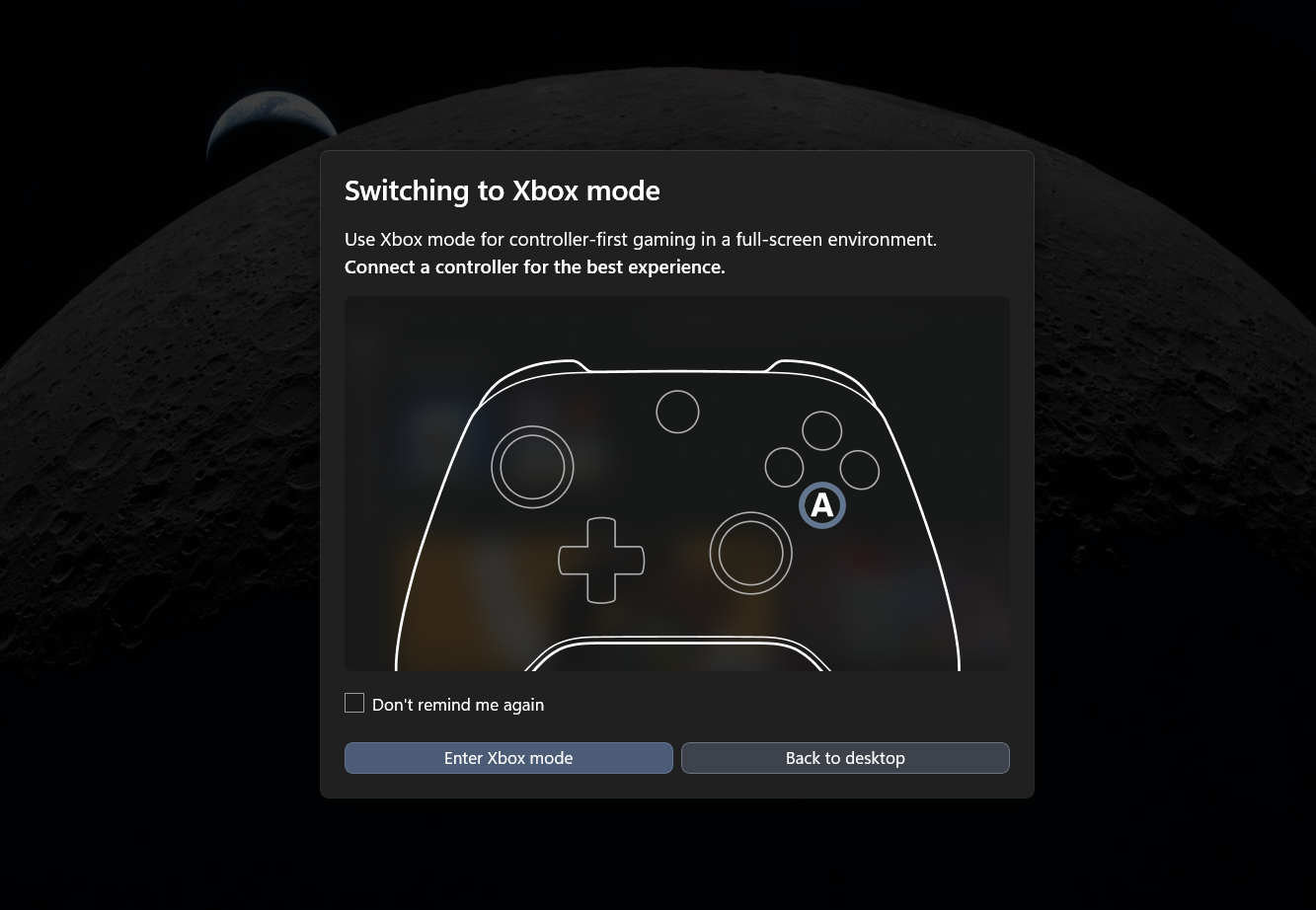
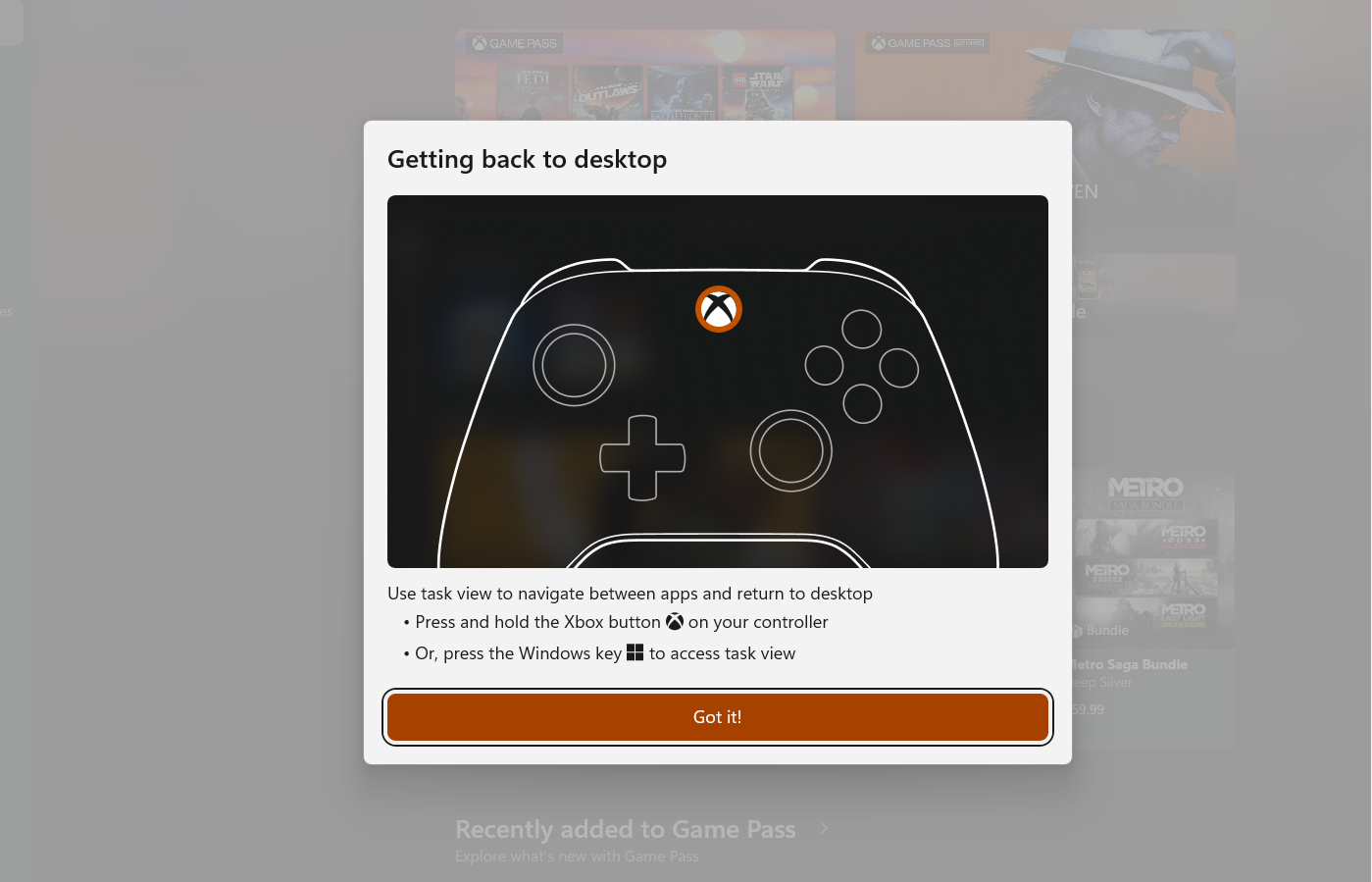
Once you’re in the Xbox mode, you can go back to any open apps by pressing Windows key + Tab. Switching between these tabs is very smooth in my testing.
If you want to exit, click Windows desktop from this task view. Or if you want to exit using the controller, press and hold the Xbox button.
Beyond the visual overhaul, there is a tangible performance benefit. When Xbox Mode is active, Windows 11 aggressively deprioritizes background tasks. By suspending unnecessary File Explorer elements and non-essential background applications, Xbox Mode frees up crucial system RAM and CPU cycles, with many initial testing reports getting up to 2GB extra RAM.
For users on budget gaming laptops or handheld devices where memory is shared with integrated graphics, Microsoft’s intelligent resource management for games gives smoother frame rates and fewer micro-stutters, especially at a time when Microsoft says 32GB of RAM is the no-worries upgrade for Windows 11 gaming.
If all this sounds interesting, but going to Settings > Gaming doesn’t show the Xbox mode, you can either wait for Microsoft or force enable it.
How to force enable Xbox Mode (and why you should be careful)
If you do not want to wait for Microsoft’s server-side switch, you can manually unlock the feature. Because the code was delivered to your machine today via the KB5089549 patch, it is entirely possible to bypass the CFR restrictions.
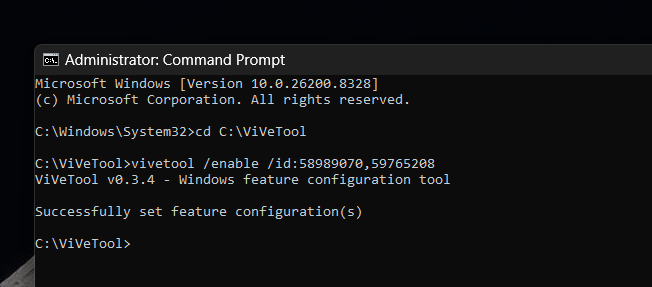
We have published a comprehensive, step-by-step guide on how to force enable Xbox Mode in Windows 11. You’ll need to install a popular open-source third-party utility called ViVeTool to manually inject the specific feature IDs into the Windows registry.
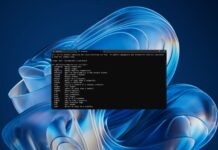
After installing ViVeTool, all you need to do is open CMD and type the following command to enable the hidden Xbox mode IDs, and press Enter: vivetool /enable /id:58989070,59765208
Also, after you try these steps, make sure you’ve updated the Xbox app from the Microsoft Store. Then open Gaming in Settings and you’ll see Xbox mode on top:
While the process is relatively safe since you are just turning on official Microsoft code, I highly recommend exercising caution. Microsoft hides these features for a reason. During my extended testing, I did encounter occasional performance hiccups. Sometimes, when using the shortcut to jump back and forth between Xbox Mode and the standard Windows 11 desktop, the screen would flicker, or the taskbar would momentarily refuse to reload.
If you use your PC strictly for gaming, force-enabling the feature is definitely worth the risk. But if you rely on your machine for critical work, it is always better to wait until Microsoft officially flips the switch for your specific hardware configuration and location, so you receive the most optimized, bug-free version of the code.
Xbox is helping Windows 11 and vice versa
As we reported in February, Windows 11 is getting real performance fixes thanks to the next-gen Xbox. The next generation of Xbox console hardware will actually be powered by Windows 11 itself.
As Xbox is a massive revenue machine for Microsoft, it’s imperative for Windows 11’s gaming performance to be absolutely flawless. Microsoft cannot afford to have a dedicated gaming console suffer from the same background bloat, memory leaks, and sluggish UI interactions that have always been a complaint of the desktop version of Windows 11.
Xbox’s future hardware success now directly depends on Windows 11 being a genuinely fantastic operating system.
Fortunately, we’re seeing a company-wide push to fix Windows right now. Features like Low Latency Profile CPU boost we recently tested, the massive RAM optimizations in the May update, and the introduction of a resource-saving Xbox Mode are all interconnected.
Also, once Xbox mode reaches all Windows 11 PC gamers, Xbox itself is getting a ton of new potential customers.
You might have to wait a few weeks for Xbox mode to officially appear on your desktop, but when it does, it will fundamentally change how you interact with your PC for gaming.