







Today’s biggest headline is Microsoft’s Project Zenith, which is all about powerful hardware running a version/experience of Windows 11 that is “ready-to-code,” or decluttered for a developer-friendly experience. But you don’t need to buy a new PC to try Windows 11’s so-called developer-friendly/decluttered experience. It’s already available for existing PCs.
In its current state, Windows 11 tries to be an OS for everyone, and Microsoft doesn’t want that to change. Instead, it’s building a special experience just for developers, and bundling it with new hardware called “Project Zenith.” However, it’s not a new SKU or edition of Windows.
Turns out Project Zenith runs the same Home/Pro SKU of Windows 11, but Microsoft has enabled certain features by default and removed a few things, so the experience feels a bit different or “developer-friendly.” The irony is that Microsoft already lets you achieve the same experience on Windows 11 via a new open-source script it made, but it isn’t loudly talking about it.
What even is Project Zenith?
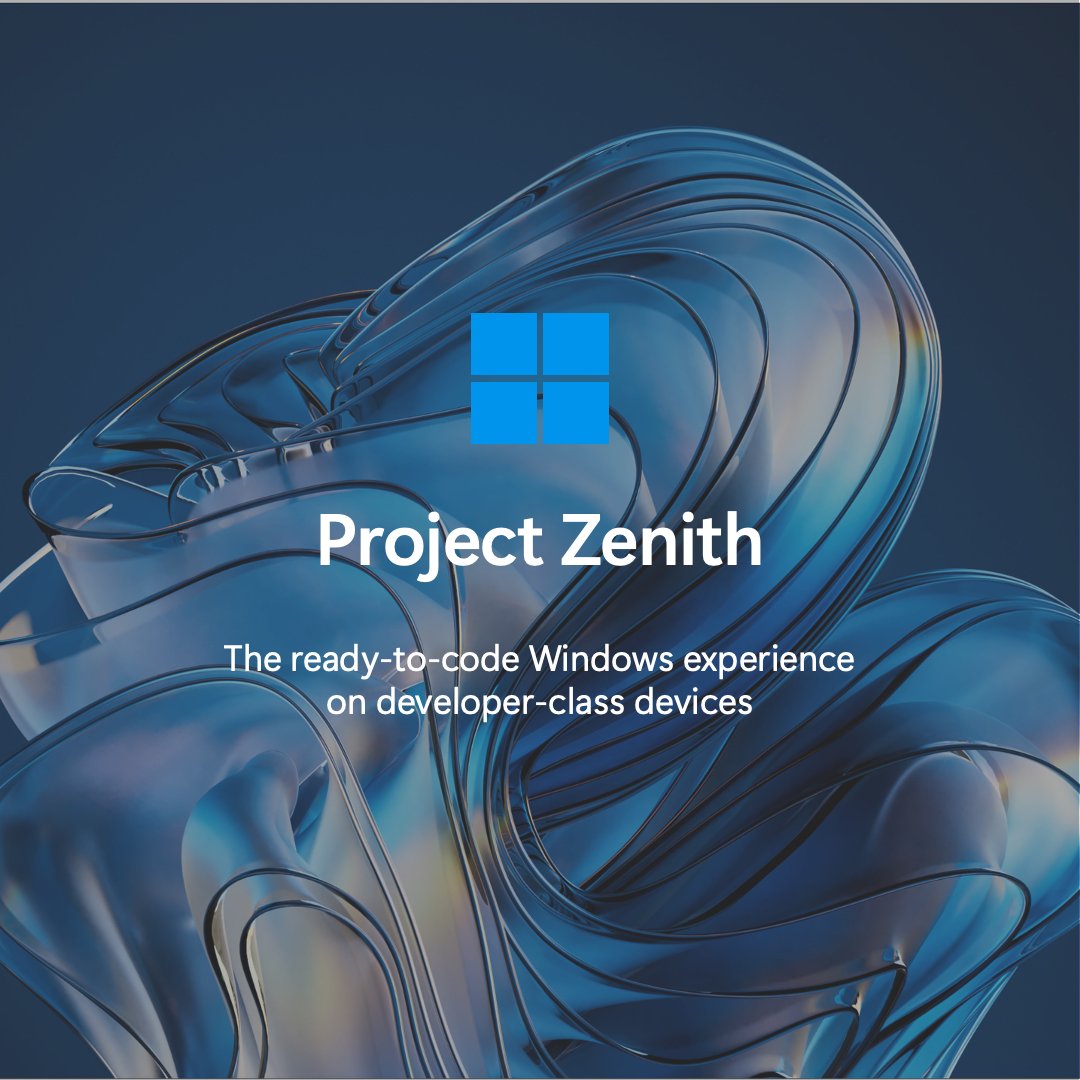
Microsoft is building Project Zenith because it wants Windows to remain the best platform for developers, and that means it needs to not only optimize the operating system, but also pair it with the right hardware.
Zenith has a preconfigured Windows 11 setup for high-end developer PCs, and the baseline is quite high. For a product to qualify as Project Zenith, it must have 64GB of RAM, 250GB/s of memory bandwidth, and an optimized/preconfigured Windows 11 setup, as that’s what developers want in the AI age, according to Microsoft.
Thanks to the baseline requirement of 64GB of RAM and 250GB/s of memory bandwidth, Zenith PCs can run 30B+ parameter AI models locally, so you don’t have to pay for cloud tokens.
Microsoft says Project Zenith will first ship on AMD Ryzen AI Halo devices, with other OEM and chip partners planned later.
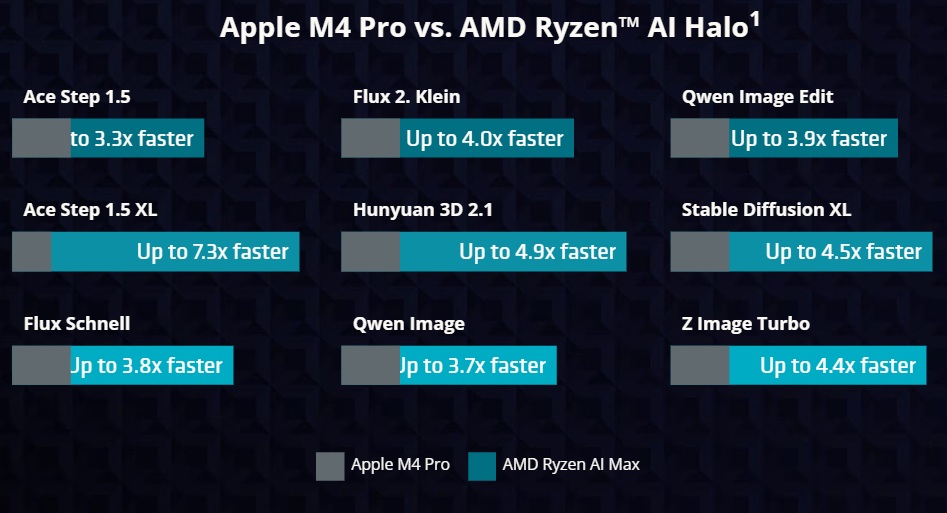
If you’ve read this far, you might have already realized that Project Zenith’s target audience is extremely niche. It’s those people, mostly developers, who want to run AI models locally and do not mind spending thousands of dollars on hardware that has a baseline requirement of 64GB of RAM.
But what about the special Windows 11 experience? How is that different?
When I first read the announcement and headlines on the internet, I thought Microsoft had built a new SKU of Windows 11. However, it turns out it’s nothing but the same version of Windows we use with certain settings changed, which means it’s a “preconfigured” version of Windows with a developer-friendly focus.
“Project Zenith devices come with a preconfigured Windows setup for development, and a set of tools curated for what developers reach first,” Microsoft argues in a new document. “Project Zenith represents Windows at its best – listening to developers, responding with purpose and working across our ecosystem to raise the bar for what a developer PC can be,” the company explained.
So many words for nothing.
By “preconfigured Windows setup for development,” Microsoft is only referring to settings it changes out of the box. On Project Zenith PCs, Microsoft changes a number of File Explorer, Search, Start, and Taskbar settings before the PC reaches you.
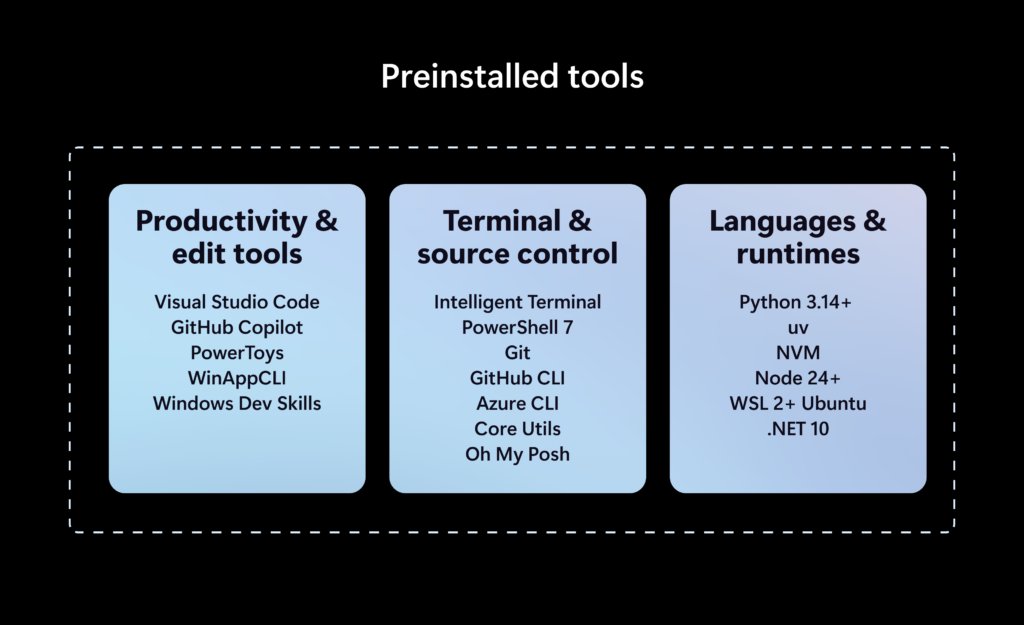
For example, file extensions, hidden files, full file paths, and the Details pane are enabled, while things such as Start menu tips, account notifications, recently used files/folders, and sync-provider tips are disabled.
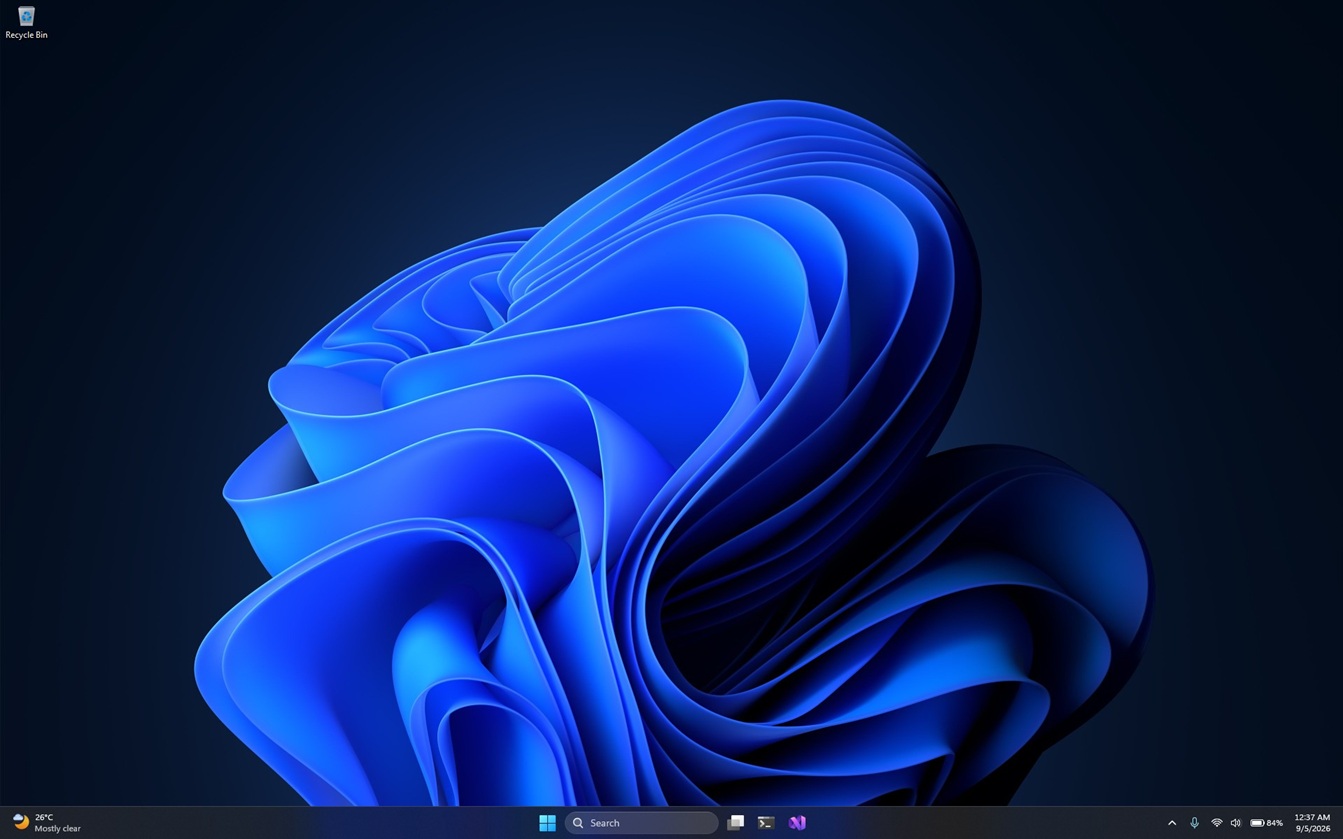
Windows Terminal and Visual Studio Code are also pinned to the taskbar, so it feels developer-friendly.
You’ll also notice that WSL and local Linux/container development are part of the intended workflow, so the machine is supposed to be usable for Windows and Linux development immediately.
When you put it all together, you get a “preconfigured Windows setup for development,” or the exclusive Project Zenith experience. All Zenith PCs will come with these changes enabled out of the box.
All of that sounds good, but almost everything Microsoft is describing on the software side is already available on a normal Windows 11 PC. You could change all of these settings yourself, but Microsoft literally built an easier option.
Microsoft is letting all users try the Project Zenith-like experience via a new open-source project
It’s called Windows Developer Config, an official open-source project published on Microsoft’s GitHub. It’s what Project Zenith runs out of the box, so you get a decluttered Windows 11 experience.
Microsoft describes it as a way to turn a fresh Windows 11 PC into a “clean, distraction-free dev workstation in one shot.” And when you look at what Windows Developer Config actually changes, the similarities to Project Zenith become obvious.
The configuration installs a collection of developer tools, including PowerShell 7, Git, GitHub CLI, Visual Studio Code, .NET SDK, Python, Node.js, Coreutils for Windows, PowerToys, and more.
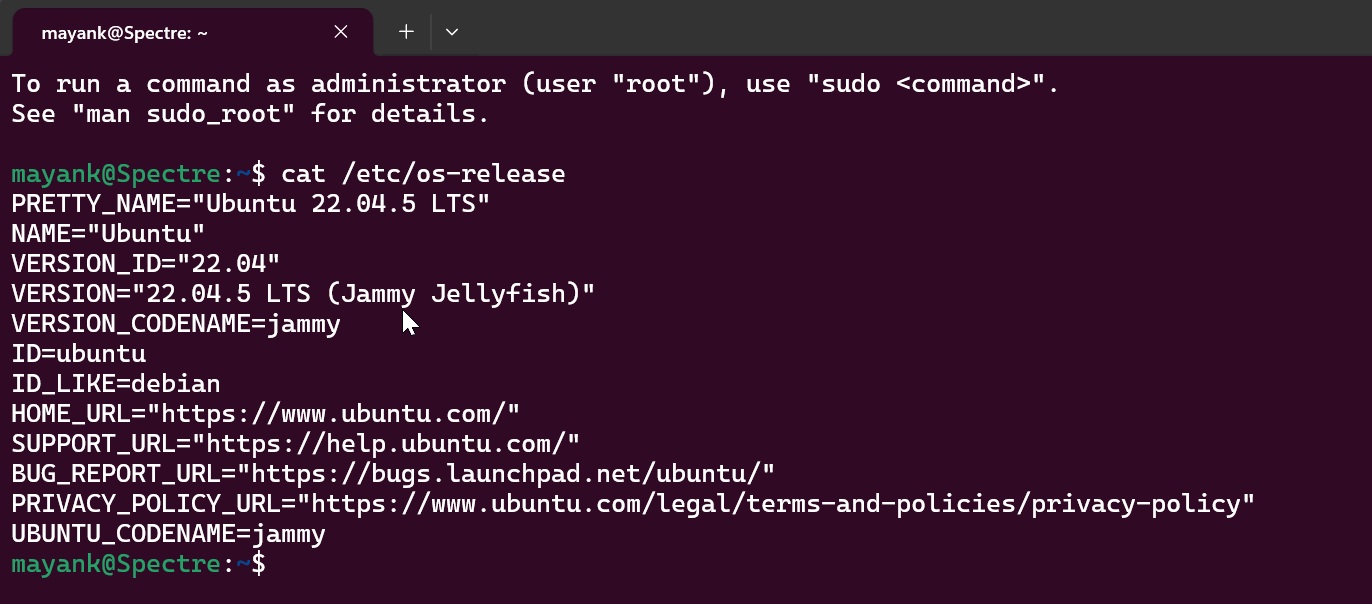
It also sets up WSL with Ubuntu, changes Windows Terminal defaults, enables Developer Mode and long-path support, and applies a long list of Windows settings intended to remove distractions.
For example, Windows Developer Config already tells File Explorer to show file extensions and hidden files, enables the full path in the title bar, and turns off frequent files, frequent folders, cloud recommendations, and sync-provider notifications.
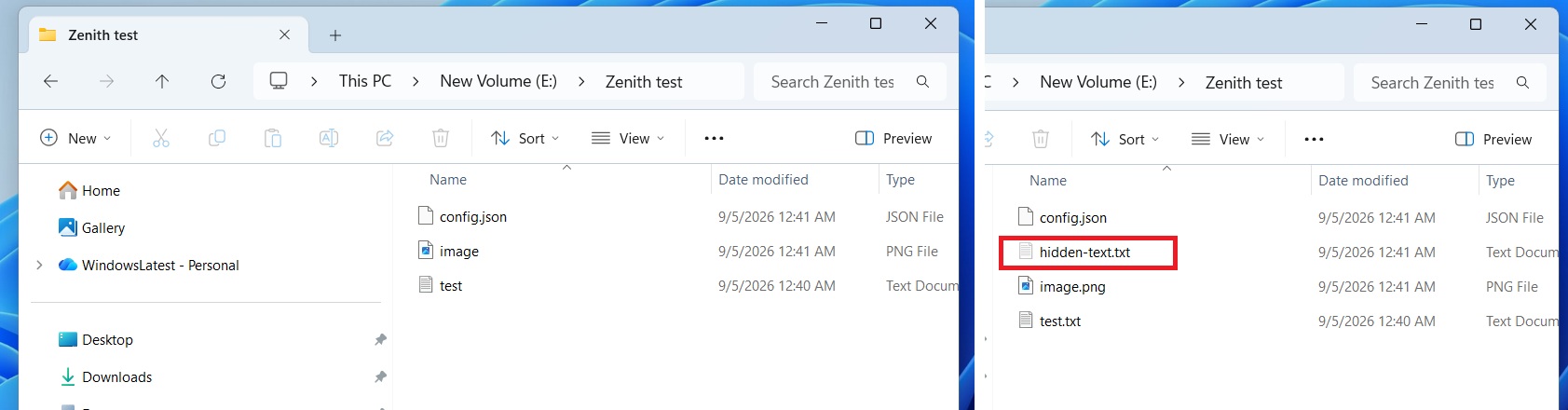
It also disables Search suggestions and Highlights, Start recommendations, and Widgets, while enabling Do Not Disturb. Even some of Edge’s default clutter is removed.
Here’s a comparison between the Windows 11 experience shipping on Project Zenith, which requires expensive hardware, and Windows Developer Config, which works on existing PCs:
| Project Zenith | Windows Developer Config |
| File extensions visible | File extensions visible |
| Hidden files visible | Hidden files visible |
| Full Explorer path | Full Explorer path |
| Long paths enabled | Long paths enabled |
| Recent files/folders disabled | Frequent/recent files disabled |
| Sync provider tips disabled | Sync provider notifications disabled |
| Start clutter reduced | Start recommendations disabled |
| Developer tools installed | Developer tools installed |
| VS Code | VS Code |
| PowerShell | PowerShell 7 |
| Git/source control | Git + GitHub CLI |
| WSL | WSL + Ubuntu |
| 64GB+ unified memory required for local AI models | No special memory requirement |
| 250GB/s+ memory bandwidth required for local AI models | No special memory bandwidth requirement |
| Designed to run 30B+ parameter AI models locally | Depends entirely on your existing hardware |
| Ships on specially qualified developer-class PCs | Can be applied to an existing Windows 11 PC |
| Preconfigured by Microsoft/OEM before you use the PC | You apply the configuration yourself with WinGet |
How to turn a normal Windows 11 PC into Microsoft’s developer-friendly setup
You don’t need to buy a Project Zenith PC to try all of this, as Microsoft has a simple script that enables everything I mentioned above. Microsoft built Windows Developer Config around winget configure, so you don’t need to reinstall Windows or download a special Windows 11 ISO.
First, enable WinGet Configuration:
winget configure --enable
If Git is already installed, clone Microsoft’s repository:
git clone https://github.com/microsoft/WindowsDeveloperConfig.git
Then run:
cd WindowsDeveloperConfig
Then run:
winget configure -f .\windows-dev-config\dev-config.winget --accept-configuration-agreements --disable-interactivity
Here’s what my Terminal looks like after executing the above three commands:
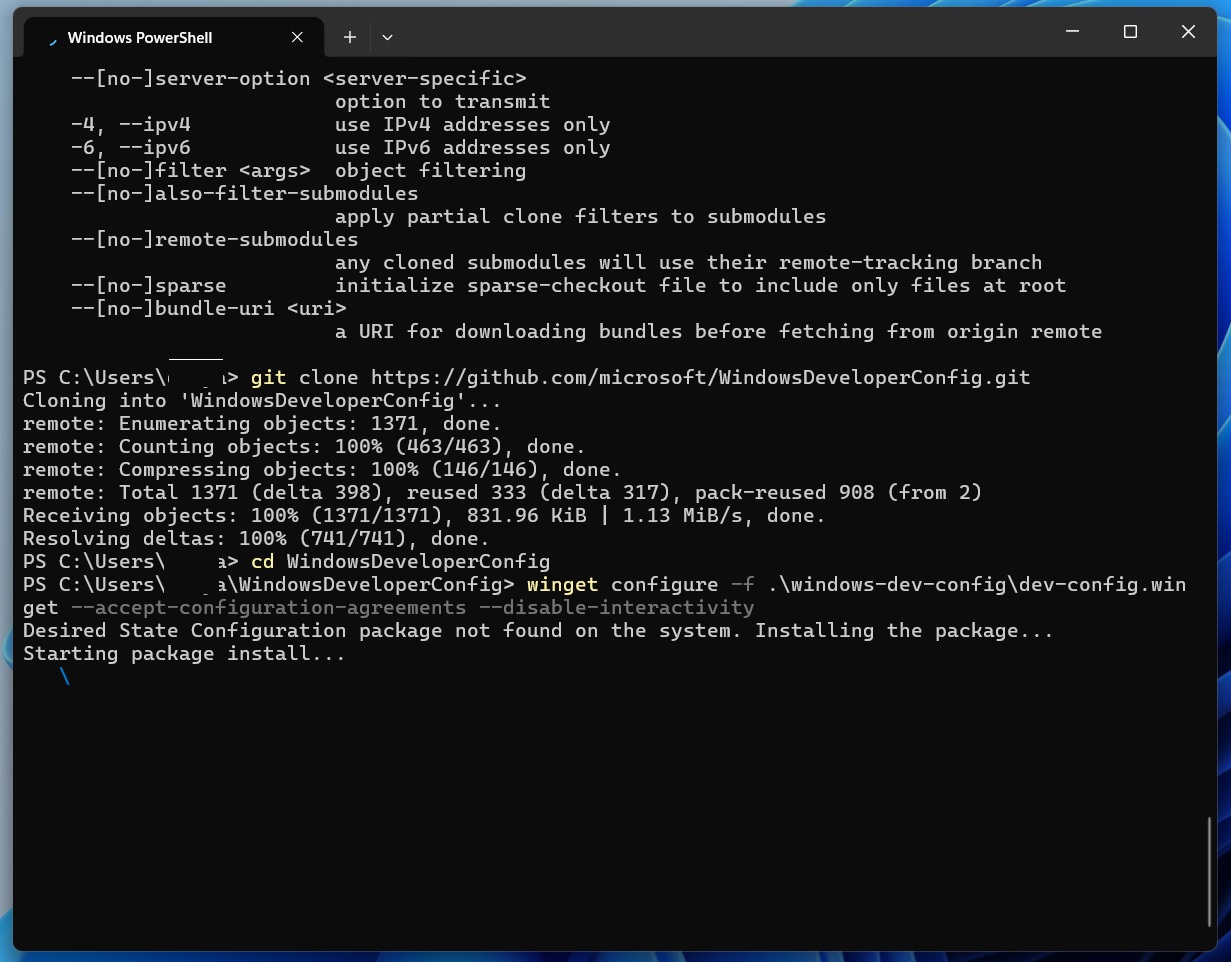
As you can see in the above screenshot, Windows found that the developer-friendly (or Project Zenith) configuration is not applied, so it begins downloading everything I need, such as WSL, PowerShell 7, etc.
If you don’t want to use Git to download the repository, you can simply download the repository as a ZIP from GitHub and extract it. Once you’re inside the folder, run:
winget configure -f .\windows-dev-config\dev-config.winget --accept-configuration-agreements --disable-interactivity
The above is an optional step for those who do not prefer downloading it directly over Git.
So, what exactly changes after you run the Windows Developer Config/Project Zenith script? Here’s what Microsoft’s configuration applies to Windows 11:
| Area | Windows Developer Config changes, matching the Project Zenith setup that costs new hardware |
| Developer tools | Installs PowerShell 7, Git, GitHub CLI, GitHub Copilot CLI, Visual Studio Code, .NET SDK 10, Python 3.14, uv, Node.js, NVM for Windows, Coreutils, Windows App CLI, PowerToys, and other developer tools. |
| WSL | Enables Windows Subsystem for Linux and installs Ubuntu. The PC may reboot during this process. |
| Developer Mode | Enables Windows Developer Mode. |
| Long file paths | Enables Windows long-path support. |
| File extensions | File Explorer shows known file extensions by default. |
| Hidden files | File Explorer shows hidden files by default. |
| Explorer path | Shows the full folder path in File Explorer’s title bar. |
| File Explorer Home | Disables frequent folders, recent files, cloud recommendations, and sync-provider tips. |
| Explorer Git integration | Enables version-control integration in File Explorer’s navigation pane. |
| Start menu | Turns off Start menu recommendations. |
| Windows Search | Disables web search suggestions and Search Highlights. |
| Widgets | Hides the Widgets button and disables the Widgets/News and Interests service through policy. |
| Notifications | Enables Do Not Disturb by disabling toast notifications. |
| Taskbar | Enables the End Task option on app right-click menus and hides the Bluetooth notification-area icon. |
| Windows Terminal | Makes PowerShell 7 the default Terminal profile and switches the default font to Cascadia Mono NF. |
| PowerShell | Configures an Oh My Posh-powered PowerShell profile. |
| Fonts | Installs Cascadia Code Nerd Font and Cascadia Mono Nerd Font. |
| Windows theme | Switches Windows to the dark theme. |
| Windows Sudo | Enables Sudo for Windows in inline mode. |
| Remote Desktop | Enables Remote Desktop connections. |
| Microsoft Edge | Sets the New Tab page to about:blank and disables Edge’s first-run experience. |
When you run the above command, Windows 11 becomes very close to the “special” Project Zenith software experience that would otherwise come preconfigured on hardware costing thousands of dollars. Remember that the process takes a very long time because Windows downloads several things:
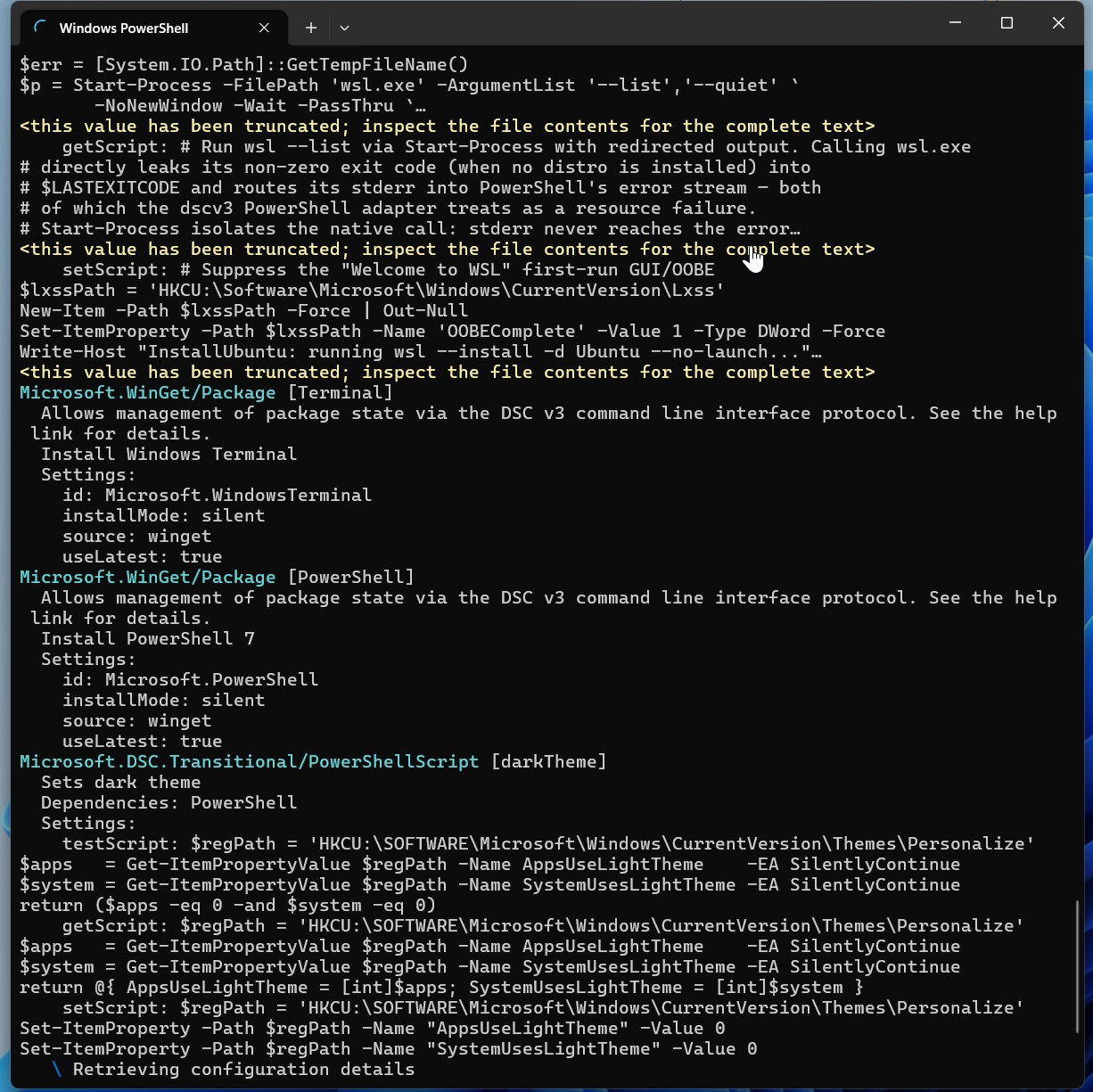
Once you finish running the script and reboot your PC, you’ll have a Project Zenith-like experience on Windows 11. The main difference is that you can’t run large AI models locally if you don’t have capable hardware. But on the Windows 11 software side, you’re getting the same Project Zenith-style setup.