






If Windows 11 is sending alerts that you need to turn on virus protection and your PC is unprotected, don’t worry. It’s a mistake, and Microsoft has confirmed it’s aware of the issue, but it does not have a fix yet.
In our tests, Windows Latest found that the “Windows Security” app, which manages Microsoft Defender Antivirus, randomly throws up “Turn on virus protection” pop-ups when you boot Windows and even when casually using it. The alert says that virus protection is turned off, and you need to tap it to turn on Microsoft Defender Antivirus.
“After installing the latest updates for Microsoft Defender Antivirus, notifications might appear stating that ‘Microsoft Defender Antivirus is turned off,’ even though the antivirus is functioning correctly and all settings show it as active,” Microsoft warns in a statement, but it won’t tell us the specific version that is causing the issue.
Since the protection was never actually turned off, clicking the alert doesn’t make a difference, and you’re sent to the Home tab of Windows Security/Defender. If you haven’t gotten the alert yet, you might get one in the next few days. And if you already have the alert sitting in the Notification Center, you’ll continue to get more of these until it’s patched.
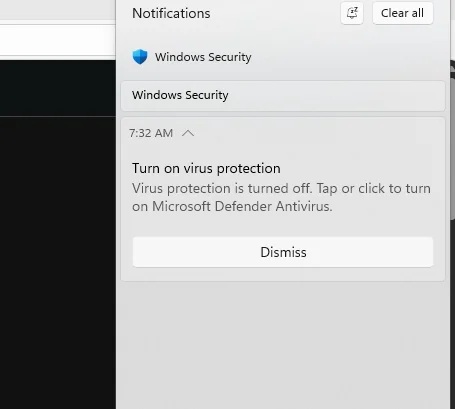
There’s also an option to dismiss it, but the alert can reappear, and it seems to be affecting all versions of Windows, including 23H2, 24H2, 25H2, and even Windows 10, because the issue is tied to a Defender update.
It’s worth noting that the “Turn on virus protection” alert bypasses Windows Notifications settings, so disabling system-wide notifications or using Do Not Disturb will not stop the alerts.
Microsoft says it’s trying to stop the false Windows Security alerts, but a fix is not ready yet
In an updated support document, Microsoft noted that any version of Windows or Windows Server with Microsoft Defender Antivirus is affected, as long as Defender is not actually paused. In the case of Windows 7, for example, you don’t run into these alerts because Defender updates are no longer released for it.
“We are working to release a resolution in a future Microsoft Defender Antivirus update and will provide more information when it is available,” the company noted.
Windows Latest can independently confirm that Defender’s false security alerts were first observed in early August, and the number of reports has increased over the past few days, which caught Microsoft’s attention.
I also remember that Microsoft’s Jen Gentleman, who is a software engineer at the company, confirmed that Microsoft was investigating the issue about two weeks ago, but nothing has happened until now.
But is that a big deal? I’d say so, and I wouldn’t dismiss it as a “mistake.” False Windows security alerts are particularly alarming because malware can use similar tactics, including fake or misleading security warnings, to convince users to disable Microsoft Defender or change other security settings.
And it’s also why I recommend that you do not just dismiss the alert, assuming it to be a false alarm. First, verify that Microsoft Defender is actually running and real-time protection is enabled.
Verify if Windows Defender is actually running
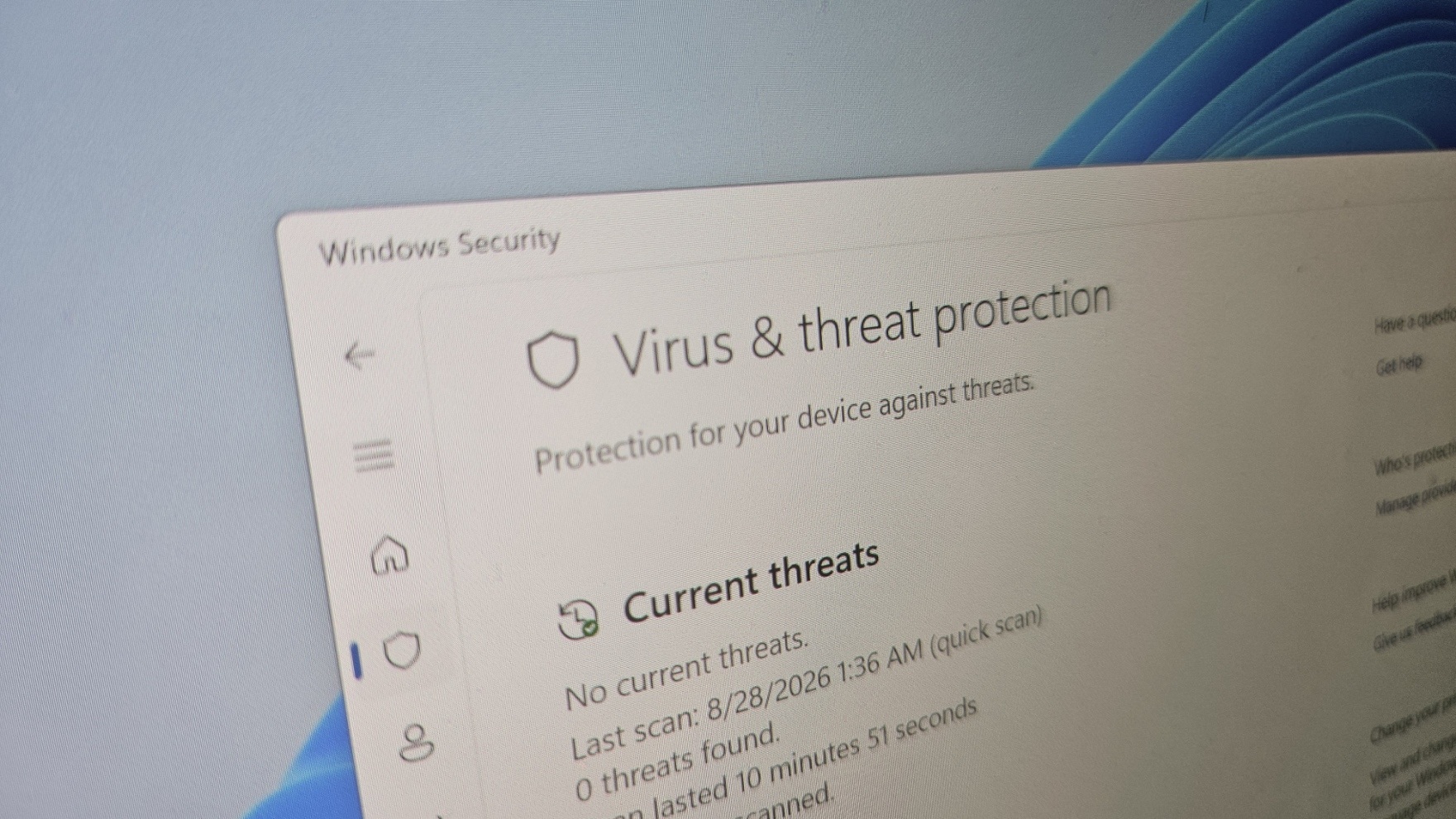
To verify if Windows Defender is running, open Windows Security and select Virus & threat protection. If Defender is working correctly, you won’t see any alerts. And yes, you can safely ignore security alerts to enable OneDrive, as that’s an upsell.
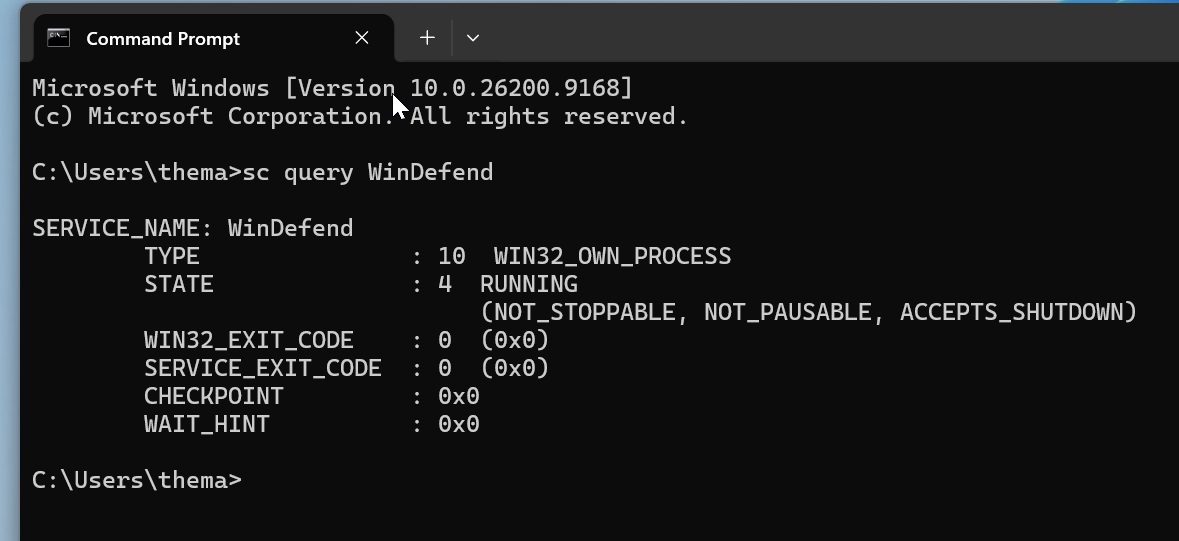
You can also click Manage settings under Virus & threat protection settings and verify that Real-time protection is turned on. If you want to verify it from Command Prompt, you can run this command:
sc query WinDefend
If Microsoft Defender Antivirus is running, you should see:
STATE : 4 RUNNING
Here’s what it looks like on my PC:
But this only covers a specific feature. To check whether Defender and its real-time protection are actually enabled, you can run the following command:
powershell -command "Get-MpComputerStatus | Select-Object AntivirusEnabled,RealTimeProtectionEnabled,AMServiceEnabled"
On a normally protected PC, the output should show:
AntivirusEnabled           : True
RealTimeProtectionEnabled  : True
AMServiceEnabled           : True
You can run these commands without launching Terminal as admin. Here’s what the command shows on my PC:
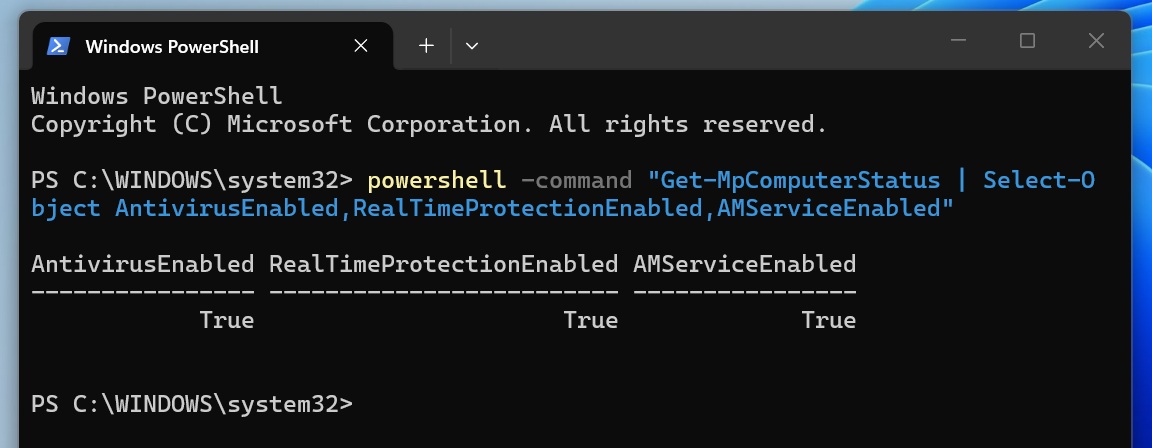
If all three values are True, Windows Defender Antivirus and its real-time protection are active, even if Windows incorrectly sent you the “Turn on virus protection” notification.
And it’s not the only issue affecting Windows right now. Microsoft has also confirmed it’s aware of a bug where Windows 11’s cursor breaks after an update, and wallpapers are being reset as well.