





Microsoft might need a year or two to close the gap between Outlook Classic and New Outlook, but that doesn’t mean it can’t add new features to New Outlook or its mobile apps. New Outlook for Windows and the web is testing a unified inbox and faster notifications, while the mobile version is now adding the ability to insert signature images directly from OneDrive.
Outlook and OneDrive’s deeper integration should surprise nobody, and it has already gotten a lot better in New Outlook. You can drag and drop an attachment either to OneDrive in the left pane or into an email as an attachment in the right pane.
Now, mobile users will also be able to pull signature images directly from OneDrive without downloading them first.
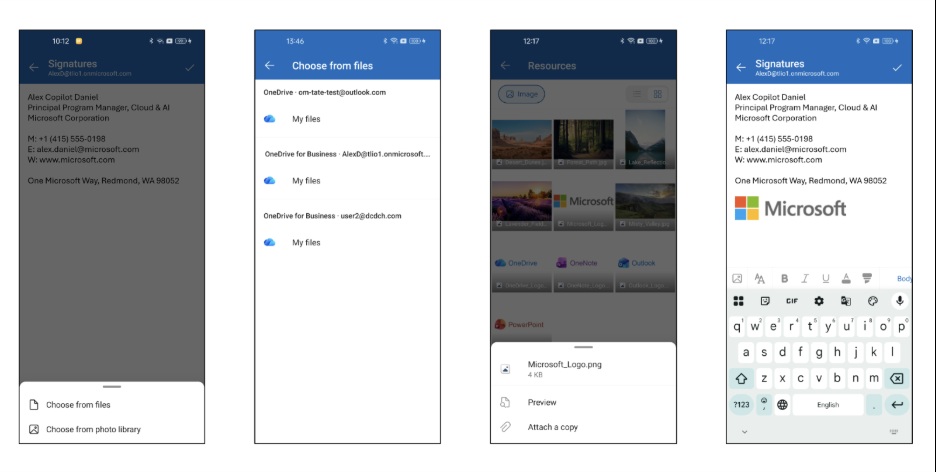
Right now, you can manually insert an image-based signature using the file picker. You can also store the image in OneDrive, download it, and then add it manually, but there is no direct option to browse OneDrive while editing the signature.
This is now changing in Outlook for iOS and Android, with the rollout beginning in late August 2026.
The feature is particularly useful on mobile devices because of how Android and iOS handle image files. When you download an image from OneDrive to your phone, it can become lost among folders, and the mobile file picker may not immediately surface it.
With the new integration, you’ll be able to browse image files stored in OneDrive and insert one directly into your Outlook signature, so you no longer have to play a cat-and-mouse game with the file picker.
Microsoft says the feature will be enabled by default and requires no action from administrators.
Outlook Calendar for mobile is testing drag and drop
Outlook for Android and iOS is also testing a new feature that lets you reschedule calendar events using drag and drop. It will work in both day and multi-day calendar views and could be a game changer for productivity.
There are multiple use cases for drag and drop in Outlook Calendar. For example, if a meeting is scheduled for 10:00 AM but needs to be moved to 2:00 PM, you can simply drag the event to the new time slot. Outlook will automatically update the meeting time without requiring you to open and edit the event manually.
What is coming to Outlook for Windows?
Outlook Classic is adding a big Copilot button to the ribbon menu, so you have a familiar experience across all Office apps. Word, PowerPoint, and Excel already have Copilot in the ribbon menu, as well as a floating button. A similar experience is being prepared for Outlook Classic.

Another notable change that I am particularly excited about is Unified Inbox, which will let you view emails from all mailboxes in the same view, including shared mailboxes. You’ll be able to reply, archive, flag, snooze, and execute all tasks from the same inbox. This is coming to New Outlook.
Speaking of New Outlook, it’s getting a bit faster, particularly with notifications.
One of the recent updates rolled out the ability to open emails faster from notifications, but it’s still slower than Outlook Classic on Windows.