





Microsoft OneNote has been around since the era of Office 2003, originally as an add-on in the same way that Visio or Project was. Through its evolution, it became a standard part of the Office suite, then a free download on PC, Mac, mobile, and web.
The PC version even had a detour through the Windows 8.x era “Store” / UWP app, where a slower, simpler (and less featured) app was positioned as the future of OneNote. That chapter has closed, and OneNote on the PC reverted back to its traditional architecture (and that’s now the one published in the Store), which, as we’ll see, is a Good Thing.
Like many other traditional Office apps, Microsoft designed an add-in architecture, allowing developers to build extensions to the base apps. This too has evolved over the versions, and now it’s positioned as part of the Microsoft 365 “apps” marketplace.
As you might see, there aren’t exactly loads (39 OneNote apps at the time of writing, vs thousands for Word, Excel, Outlook, etc) and even some of Microsoft’s own don’t appear – the OneNote Clipper for Chrome or Edge, for example, which lets you quickly grab a web page to save it in OneNote.
But the UWP version (named OneNote for Windows 10) had no extensibility option, so any clever third-party stuff that was available for trad OneNote was no longer available. As already mentioned, that list is short – but one of the very best add-ins for OneNote (also not listed in the M365 Marketplace) is Onetastic.
Fantastic OneCalendar & more
This add-in is actually a large suite of additional functions which could be broken down into 3 categories:
- OneCalendar, the original add-in which is arguably the most useful for lots of people
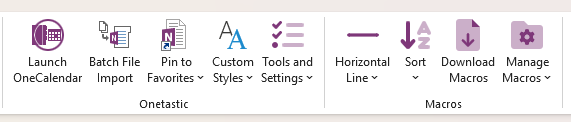
- Macroland, a Macro language and toolset, along with hundreds of downloadable macros that can automate OneNote to do useful stuff from simple “insert a horizontal line” to sorting pages, generating a table of contents for a notebook, etc.
- Onetastic tools, a collection of useful add-in functionality like easily managing Favorites so you can pin commonly used pages (like a shopping list) to the toolbar
The OneCalendar feature is killer if you’re a heavy OneNote user, since it shows you all the pages you’ve edited (across all the different sections & notebooks you have open) based on the day you did it. Hover over the item in the calendar view, and you’ll get a fast preview of that page, and if you click on it, then OneNote jumps straight to it.
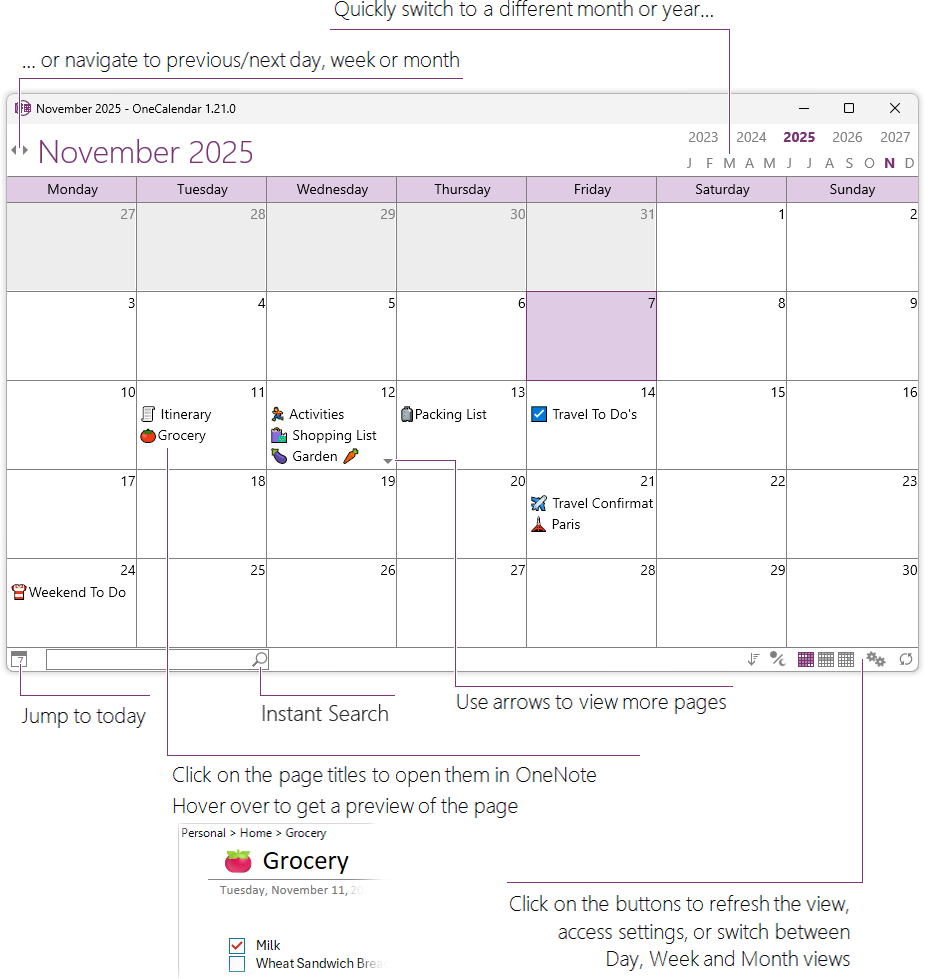
So, if you have a weekly meeting with someone, it’s easy to jump to OneCalendar to find the notes you’d have taken the last time you met. It’s fast, easy, and should really be built-in to the core product.
You can pin OneCalendar to the Quick Access Toolbar or even to your taskbar, and it can be downloaded and run separately if you only want to use that tool.
OneTastic has been a side hustle for well over a decade, from Omer Atay, who’s been part of the OneNote development team for 20 years. It started as a few simple capabilities, but has grown with the Macroland function and has spawned free and paid-for options, depending on how much you need to use it.