






June 2026 was a big release for Microsoft Teams, but there’s more on the table than I expected, with another update in the works for release through the summer. Teams will be getting apps in Private Channels, a new Speaker-focused layout for Teams events, cloud file search in the attach picker, Quick Share for images, and more.
Over the past several days, Microsoft has quietly updated most of its messages previously sent out to enterprises with new details, and there are a few interesting changes coming to Teams, including keyboard shortcut search and standardized previews for Word, Excel, and PowerPoint.
At the same time, Microsoft has paused the rollout of a new minimized meeting update that would have allowed you to raise your hand and react in a live meeting without opening the full window. Some users disliked the approach, and Microsoft decided to pause the rollout, as it needed more time to patch the bugs.
Regardless, here are the seven other changes rolling out in the coming weeks.
1. Private channels now support Apps
Microsoft says it has almost finished rolling out support for Apps in private channels, but if you still don’t have it, try checking again by the end of July 2026. With app support in private channels, you can finally have bots, message extensions, and tabs added per channel.
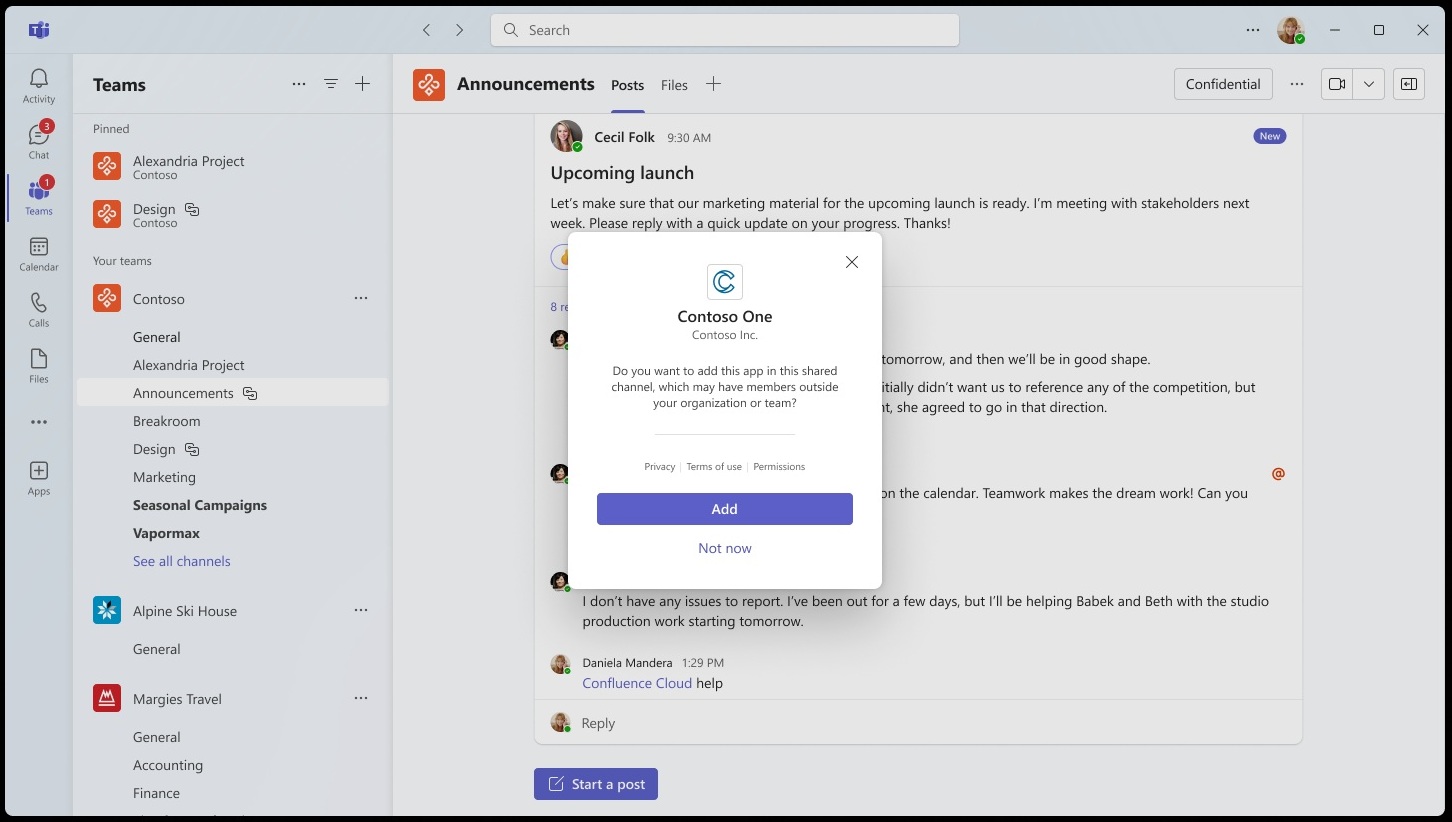
I tried apps in private channels, including a private app I made for my organization, and it follows the same experience as shared channels. For some reason, Microsoft blocked apps in private channels, but it’s now lifting the restriction and allowing you to have a richer experience across all teams.
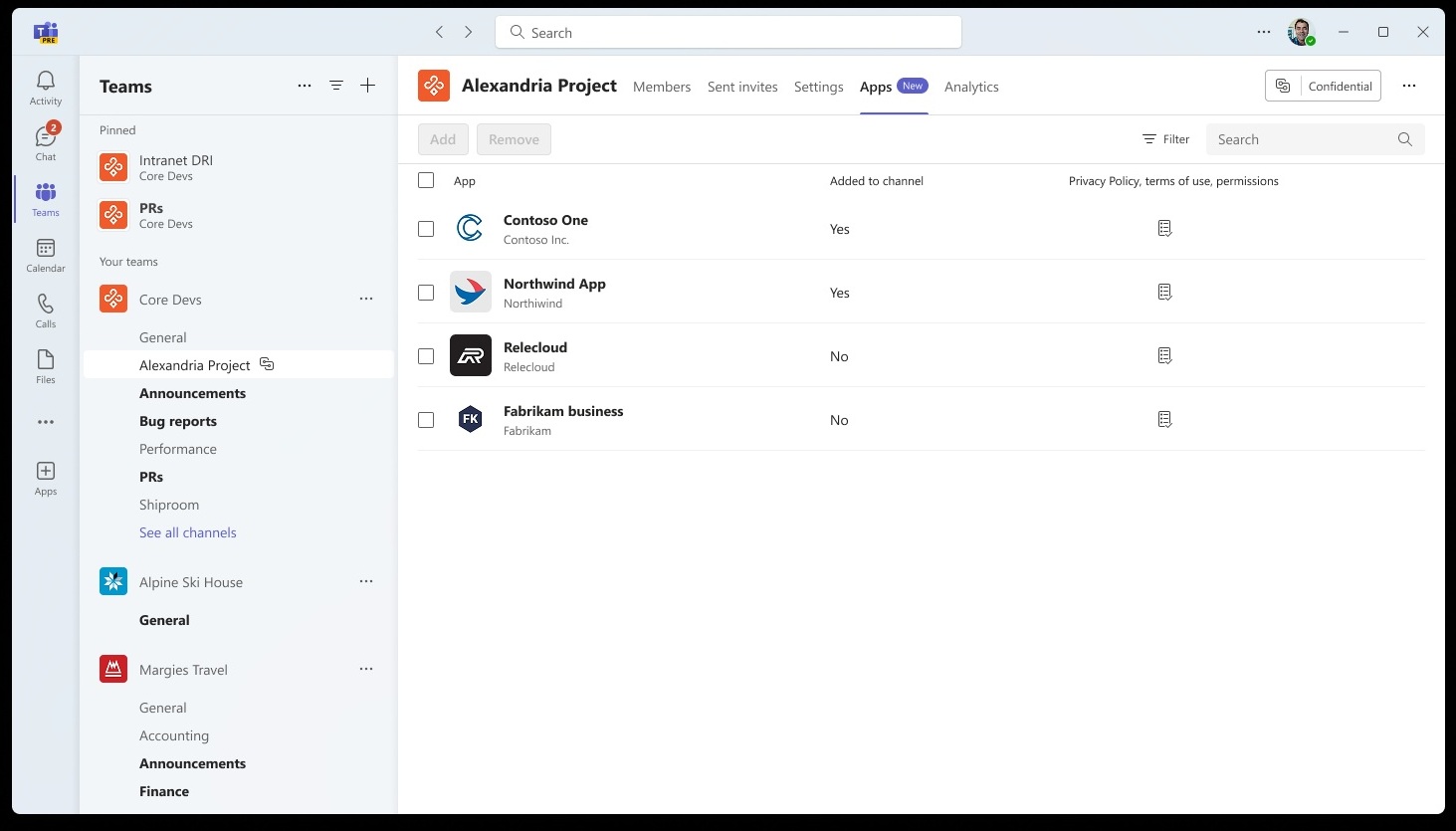
This feature began rolling out in January 2026, but it wasn’t until the end of June 2026 that it became available to more users. Now, it’s being turned on by default for everyone, with rollout set to fully complete by the end of July.
2. Microsoft Teams is testing a new sharing layout for events
Teams is a great app to manage events as well, but it doesn’t have a decent layout when you are sharing content in an event. A new update will introduce a Speaker-focused layout for Teams events, so the focus is on the presenter’s video and the shared content. The idea is to increase engagement for those presenting in events.
You can configure how the layout appears in a Teams event by opening “Manage what attendees see” and selecting a new Speaker-focused layout option.
3. Microsoft is making it easier to share files
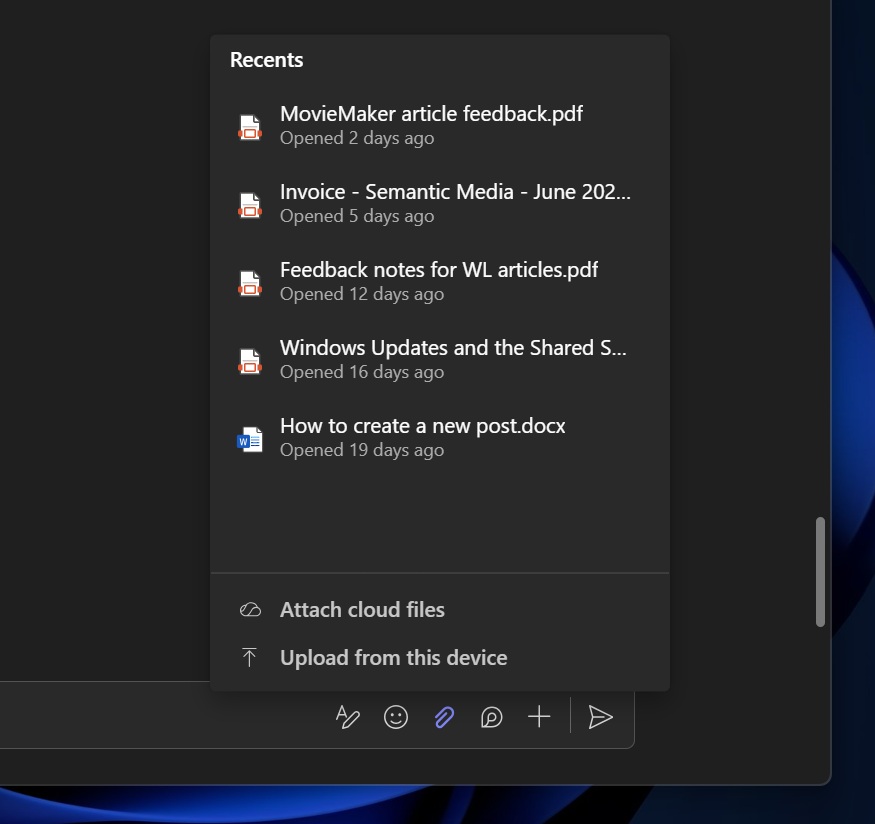
In the next few weeks, you’re going to come across a new quick sharing experience where you can search cloud files directly within the file picker.
This feature will roll out to Teams for all platforms, and you’ll be able to attach files you recently added to the cloud or files that were previously shared in the cloud.
To try it, click on the attach button, and you will see a new Attach cloud files option, which lets you browse the tenant’s SharePoint and upload files.
4. A new Quick Share option for images in Teams
There’s a new Quick Share option rolling out in Teams that will help you share images across channels and chats.
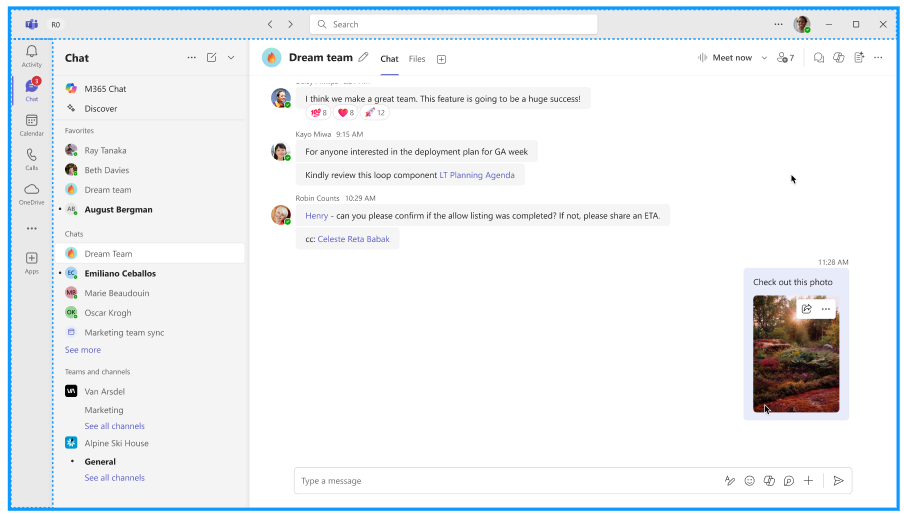
For example, when you right-click or hover over an image in the chat or channel, you will now see a new share button, which opens a share flyout that lets you copy image links directly and retain existing view permissions.
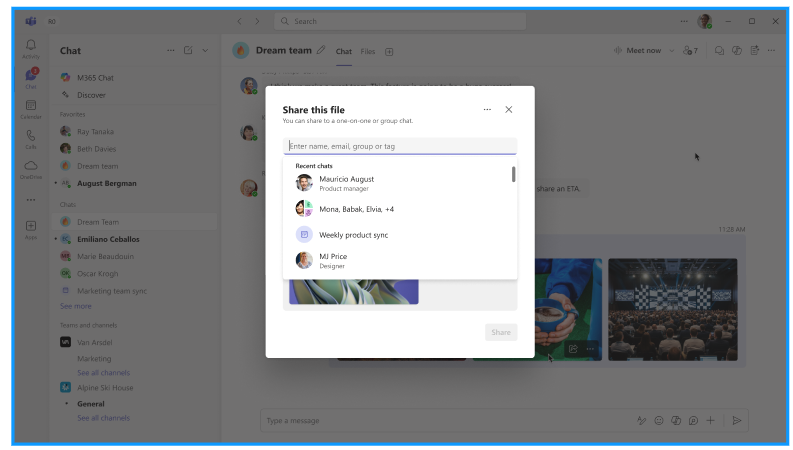
This feature is enabled by default, and it’ll roll out to everyone by the end of July.
5. A new file download manager experience
Teams isn’t really a good download manager, but it should be, since we frequently share files, including zip files and documents, in chats or channels.
Microsoft has finally heard our feedback and is working on a new file download manager that better handles download notifications and makes it easier for you to find where your downloads were saved.
Once this update hits your Teams installation, you will notice that file download alerts now dismiss if you do not interact with them within 4 seconds. If you choose not to interact and later open the download manager, you’ll notice that there’s now an option to locate downloaded files after they finish downloading. It’s a neat change and similar to how File Explorer works.
6. Improved keyboard shortcuts customization in Teams for Windows and macOS
You can quickly find the keyboard shortcut settings in Teams, thanks to the new interface, now rolling out to most of you. As per Microsoft, the new keyboard customization experience reduces the time spent on personalizing shortcuts and makes you more efficient.
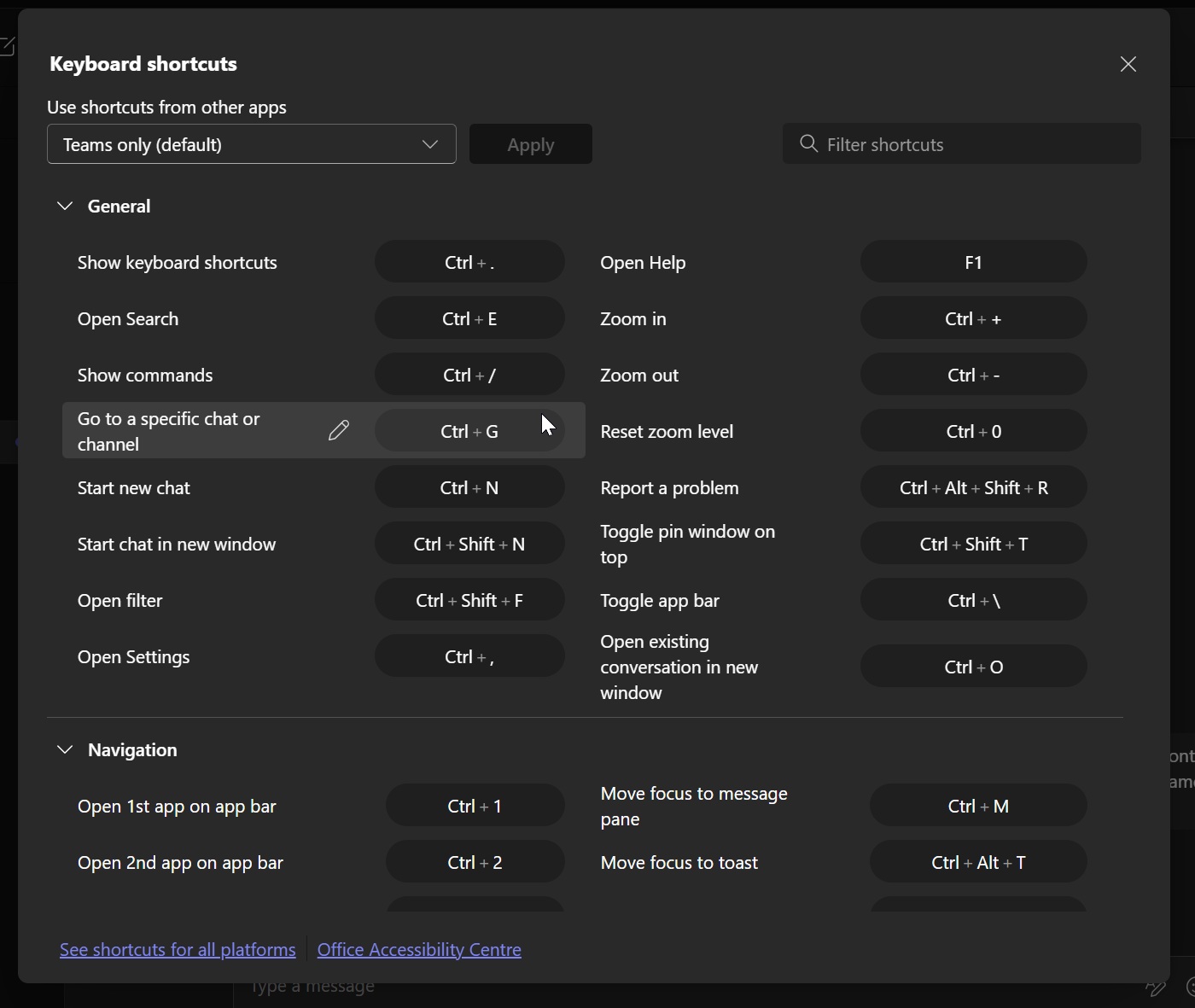
One of the best features is the ability to quickly search for shortcuts using the most appropriate keyword. For example, if you don’t know how to mute yourself in a meeting, you can search for “mute” in the Keyboard manager, and it’ll explain how to do it. On Windows, it’ll recommend Ctrl+Shift+M.
7. Teams now offers a better preview experience for Office files
If you try to preview Office files, such as Word or PowerPoint documents, Teams’ built-in preview tool now handles those requests faster, and you’ll notice that the documents load almost instantly. You’ll also notice that Teams uses less RAM when it’s previewing your Office files compared to before.
This feature is rolling out across all devices, including mobile, but it’s most noticeable on Windows 11.
In addition to these changes, Teams is rolling out Facilitator in physical meetings and adding a toggle to turn off all AI features. It’s also shipping a new Efficiency mode that reduces overall RAM usage on Windows PCs, but there are no plans to use a native framework like WinUI for PCs.