





I test Windows Insider builds on more Virtual Machines than I’d like to admit, and many of them used to leave ghost PCs behind in my Link to Windows app. Even after deleting the VM and sometimes after removing it from my Microsoft Account also, the PC name would still be there in the Linked PCs list, appearing disconnected and impossible to get rid of from the app. To my relief (and many others I presume), that’s finally changing.
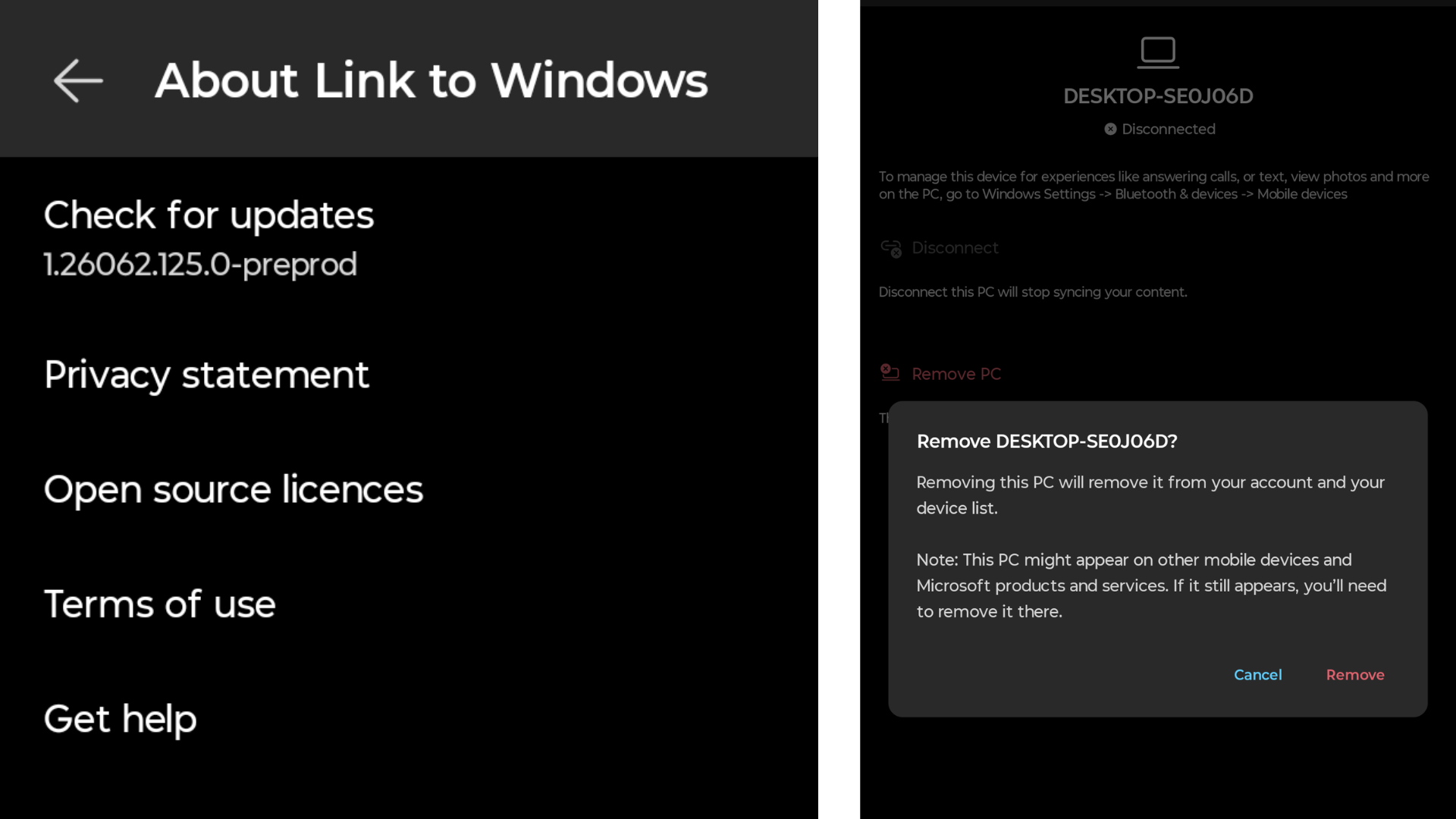
The Link to Windows Android app is rolling out a new Remove PC option that lets you delete a linked computer straight from your phone, no PC required. I’m running the beta version 1.26062.125.0-preprod, and the option showed up in Settings without much fanfare.
I hadn’t even gone looking for it until I saw Zac Bowden talk about it online, and once I checked my own device, I could confirm it’s live for at least some beta testers too.
How to remove a PC from Link to Windows on Android
Open Link to Windows, tap your profile picture in the top left corner, and go to Settings.
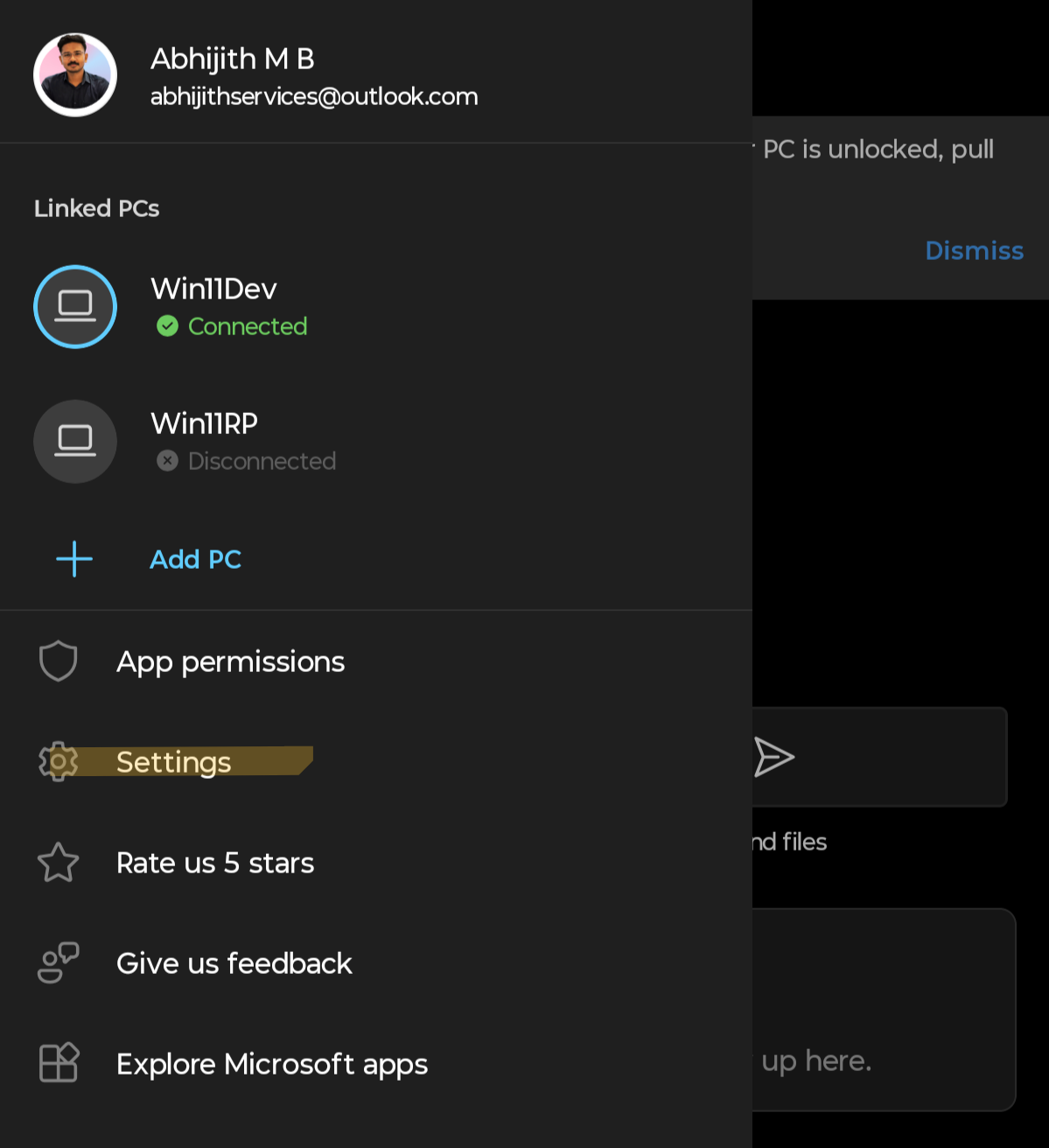
Under Linked PCs, you’ll see every PC that has been paired with your Microsoft account through Phone Link. Next to each PC’s name is a small gear icon, and tapping it opens a dedicated screen for that device with its connection status at the top.
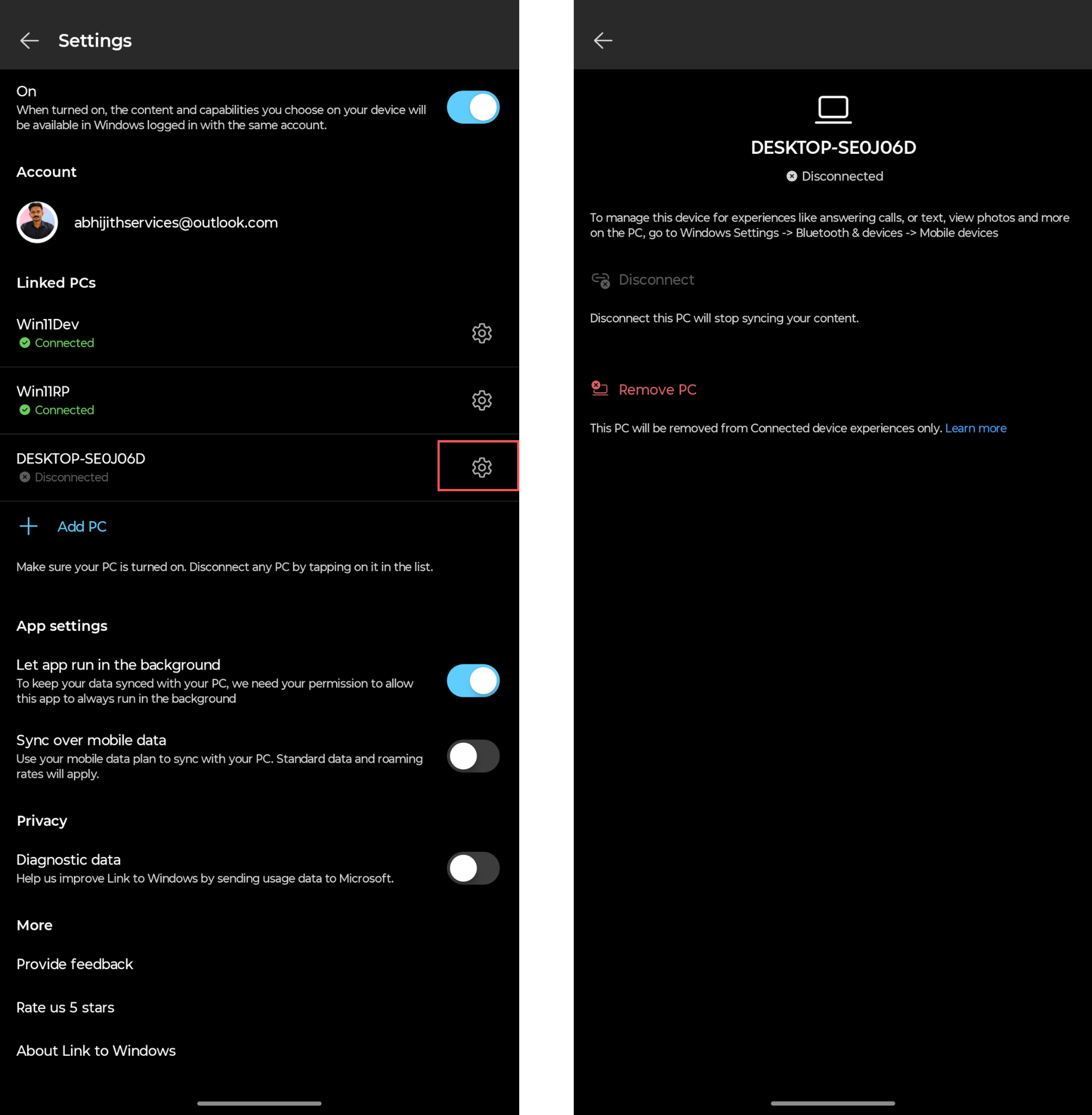
The device screen has two options. Disconnect pauses the sync, and it’s reversible. Below it is Remove PC, and this deletes the entry for good.
Tap it, and a confirmation dialog reads “Remove [PC name]?” with a warning that removing the PC takes it off your account and your device list. There’s also a note that the PC might still show up on other mobile devices and Microsoft products, and if it does, you’ll need to remove it there too. Confirm, and the entry disappears from the Linked PCs list right away.
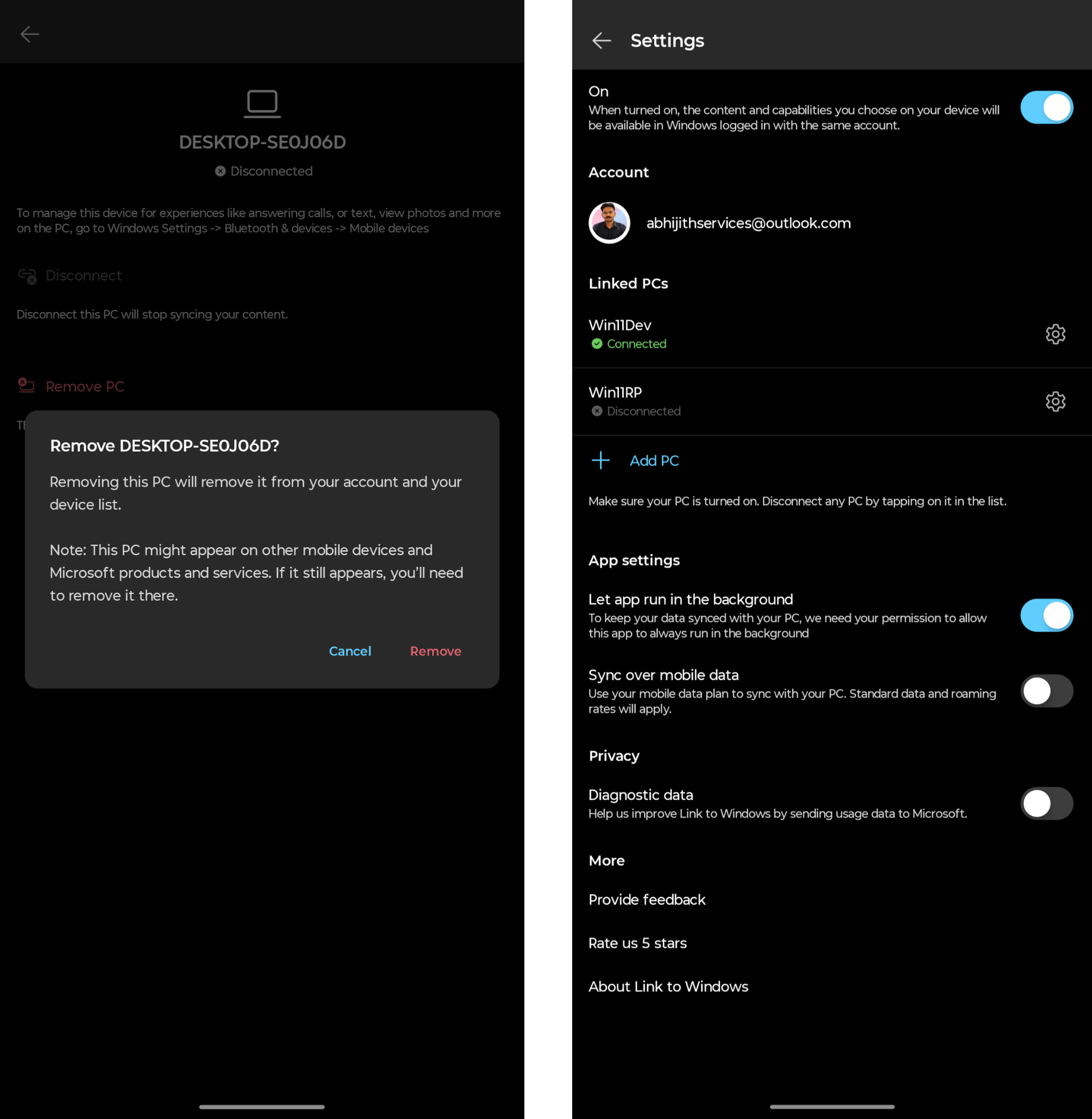
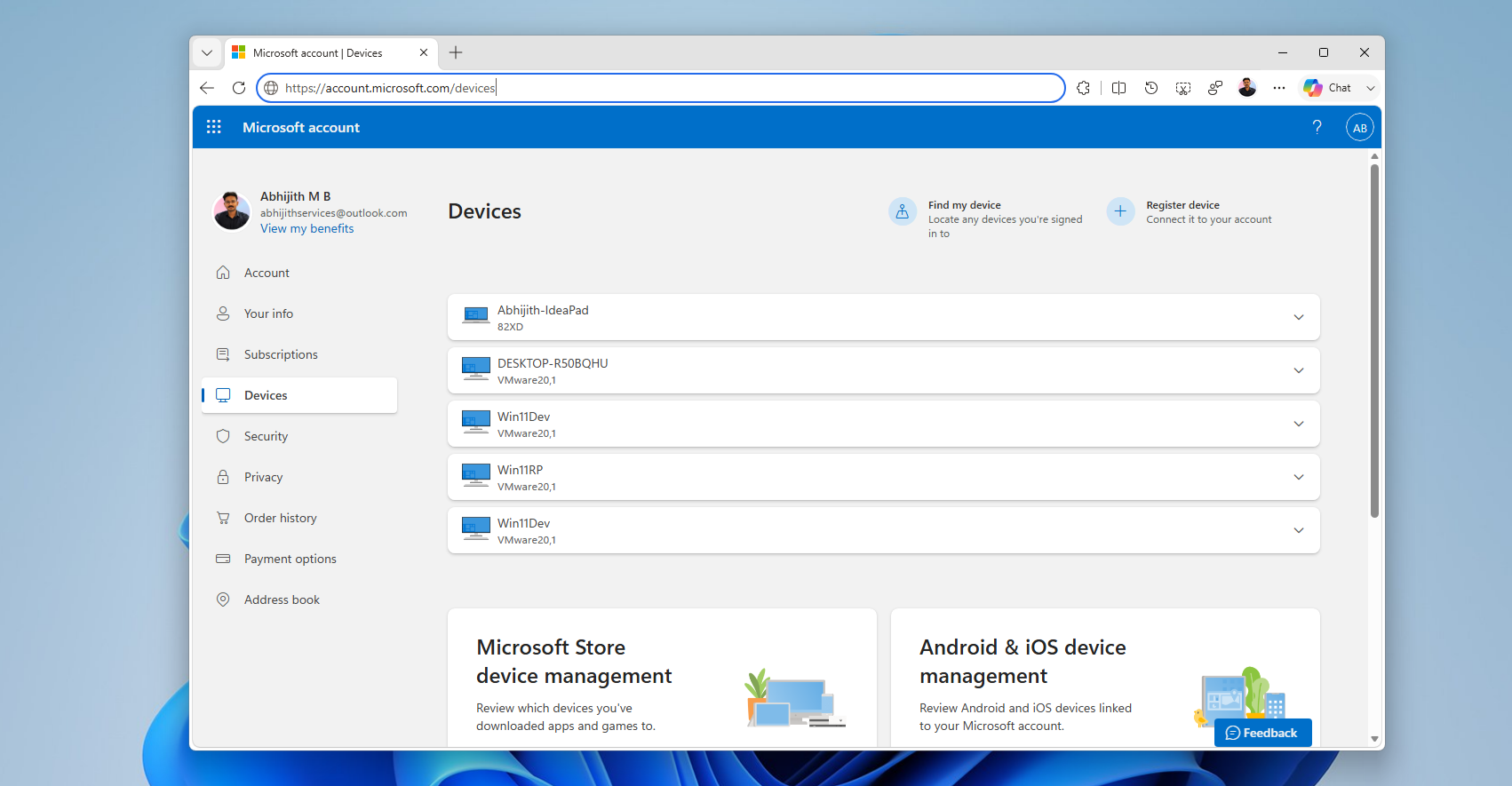
And in my testing, after removing the PC shown in the screenshot, I opened Devices on my Microsoft account and, sure enough, this PC wasn’t there anymore.
Why removing a PC wasn’t possible until now
Turns out this wasn’t Microsoft dragging its feet on adding a simple UI. According to an Independent Advisor on Microsoft’s Q&A forum, an engineer confirmed that the Linked PCs list is stored in a backend database that isn’t publicly accessible, which explains why there was no way to delete individual entries from the app.
The advisor added that Microsoft was already working on it back in January, so this Remove PC button has apparently been months in the making.
One user from 2024 replaced a broken laptop and kept seeing the old device pop up every time they tried to send something from their phone, with no way to clear it out. Another asked a nearly identical question a year later and got no real fix either, just a workaround of signing out entirely and starting over.
Link to Windows and Phone Link keeps getting better
Link to Windows and Phone Link are two of my favorite apps in the Windows and Android ecosystem. They take two operating systems that share nothing in common architecturally and make them talk to each other well enough that I can lock my PC, send files, sync my clipboard, and a lot more.
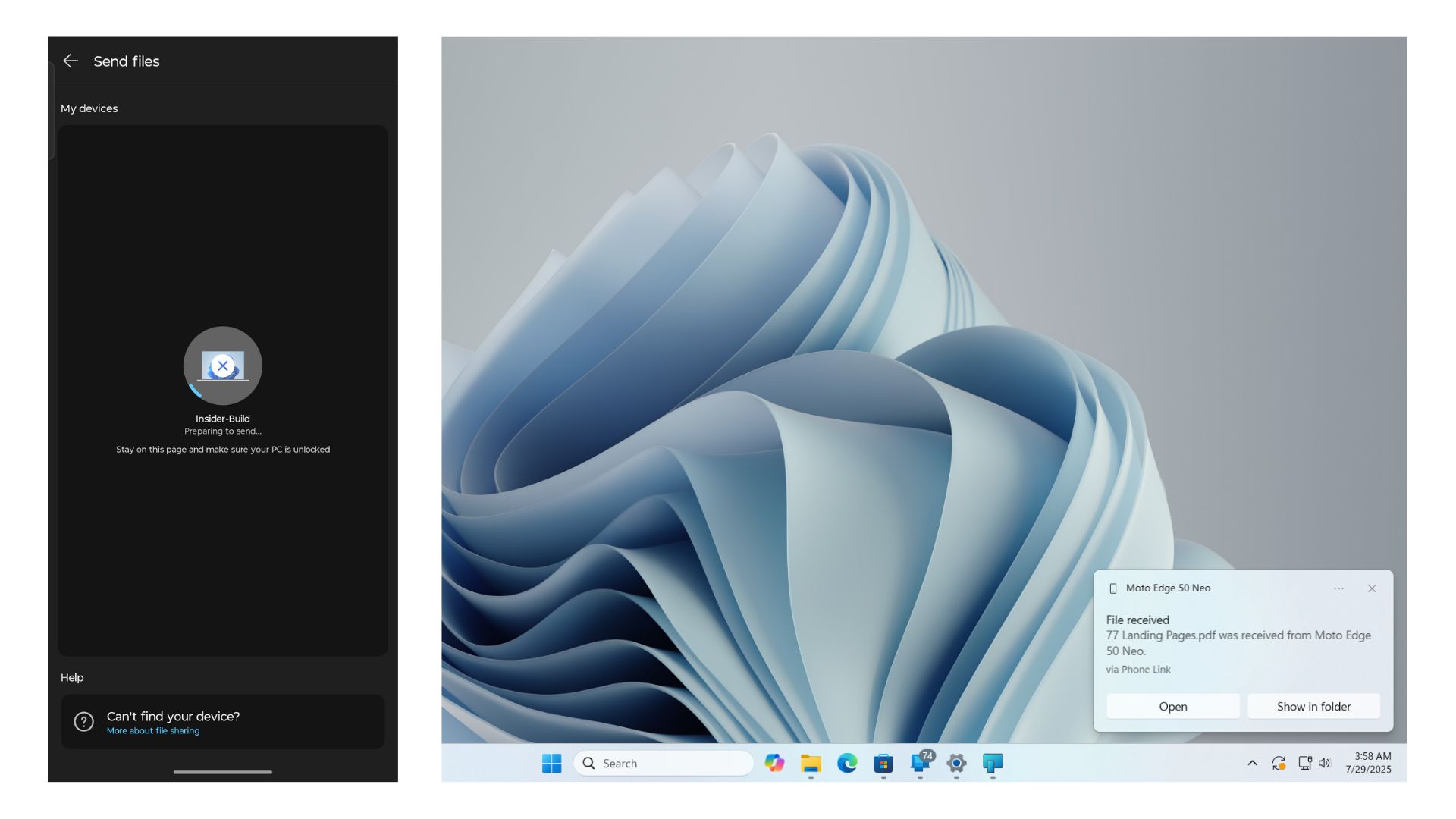
Cross-device resume now lets a Vivo browser tab or an M365 Copilot document jump straight to your PC’s taskbar, and the Android app looks nothing like the barren shortcut list it used to be.
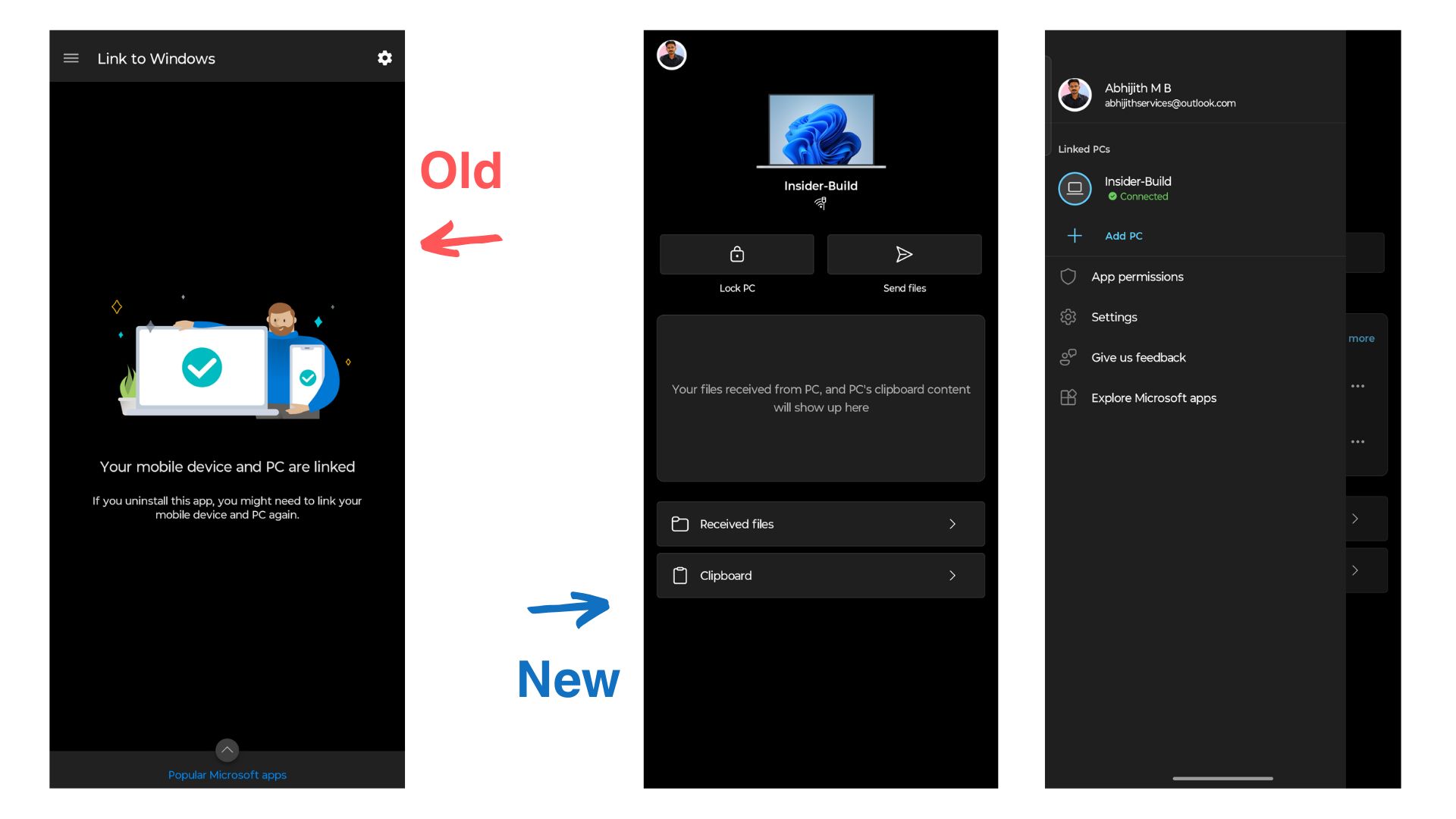
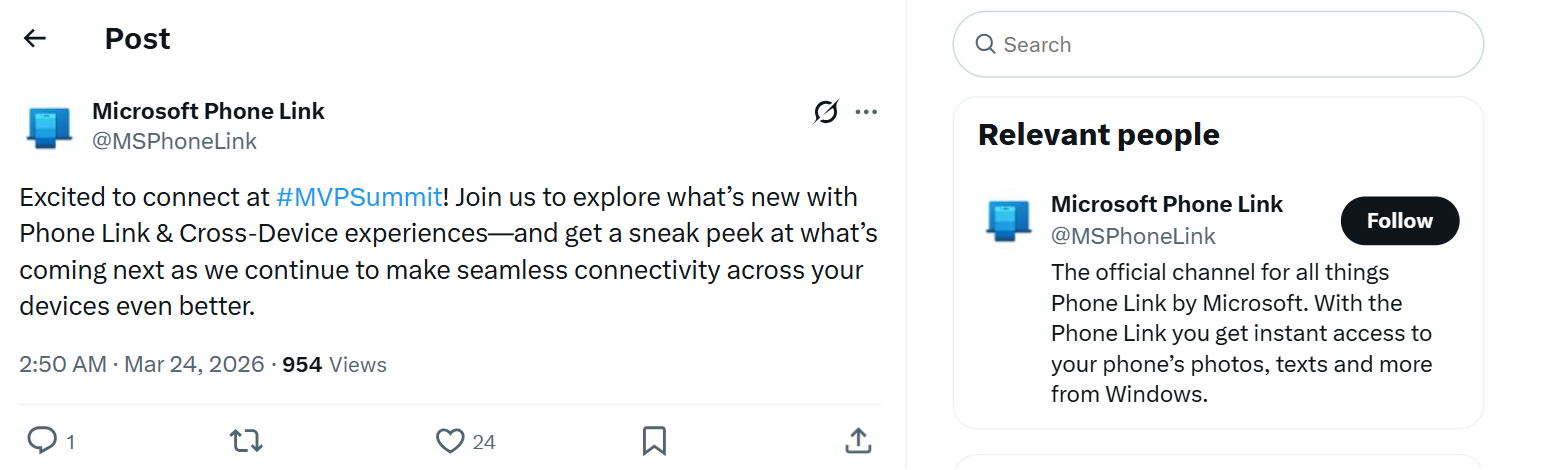
The Phone Link team isn’t slowing down, either. Phone Link’s X account posted in March about MVP Summit and teased that more features are on the way to Phone Link and cross-device experiences. The handle isn’t exactly active on social media.
Months passed before this remove PC option was even shown in beta, so whatever was being hinted at back then is likely still working its way down the pipeline.
The option to remove PC from Link to Windows is limited to the preprod beta channel for now, so don’t be surprised if it takes a while to reach the stable app.