







Windows 11 KB5095093 is rolling out, and it adds a number of new features, including greater control over Windows Updates. It also adds a new recovery option called “Point-in-time restore” and patches a Recycle Bin bug. The update is out via Windows Update, but Microsoft has also published direct download links for KB5095093 offline installers (.msu).
KB5095093 is an optional update, and it’s part of the June 2026 update cycle. While the June 2026 Patch Tuesday was a huge release and one of the biggest updates of the year with features like Low Latency Profile, today’s optional update focuses more on smaller changes.
June 2026’s optional update is titled “2026-06 Preview Update (KB5095093) (26200.8737),” and it takes approximately ten minutes to finish applying. But of course, if you do not want to “seek” today’s improvements right away, you can always choose to skip this optional update.
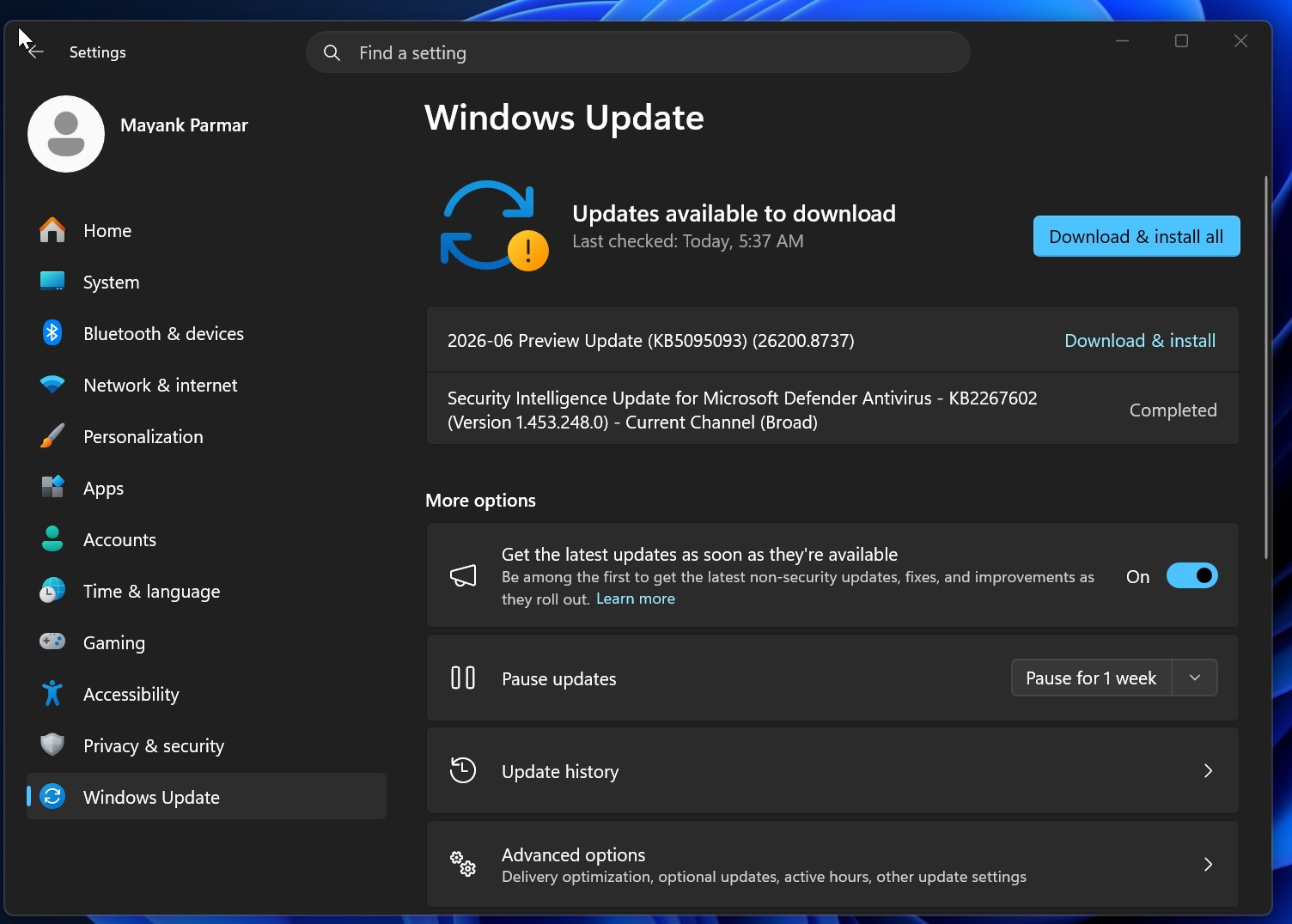
To download and install the update, just open Settings > Windows Update, check for updates, and click the Download & Install button. This update only downloads when you explicitly seek it, either by clicking the download button or by toggling on “Get the latest updates as soon as they’re available.”
Download Links for Windows 11 KB5095093
Windows 11 KB5095093 Direct Download Links: 64-bit and ARM-64 | Microsoft has not been able to iron out Windows update install errors, so there’s a chance some of you might run into errors when installing the June 2026 optional update. In that case, I recommend going the Microsoft Update Catalog route, which is quite straightforward.
In all other cases, if Windows Update is working perfectly fine, I do not see any reason to use the Update Catalog I linked above. It’s usually for those who like to update several devices with a single download. Also, these offline installers are huge in size, largely due to how Windows updates are now delivered and AI models being bundled.
The June 2026 optional update is approximately 5.4GB for Intel and AMD PCs, while Arm hardware is at 4.8GB, a bit lower.
| Build Number | Size | OS Version | Architecture |
|---|---|---|---|
| 26200.8737 | 5423.6 MB | Windows 11 25H2 | x64-based |
| 26200.8737 | 5423.6 MB | Windows 11 25H2 | arm64-based |
| 26100.8737 | 4835.9 MB | Windows 11 24H2 | x64-based |
| 26100.8737 | 4835.9 MB | Windows 11 24H2 | arm64-based |
Update Catalog is usually recommended for enterprises or anybody who manages several devices. Otherwise, Windows Update is more than enough.
What’s new in Windows 11 Build 26200.8737 (25H2) / Build 26100.8737 (24H2)?
Microsoft has clarified that everything listed below is being rolled out gradually, so you’re not going to see most changes out of the box unless you are lucky. And yes, while it’s annoying, the company has no plans to put a halt to Controlled Feature Rollout (CFR). It’s what keeps the OS a bit bug-free.
1. Point-in-time restore
I installed Windows 11 Build 26200.8737, and the very first thing that I wanted to test out was the new Point-in-time restore feature. As the name suggests, this new feature allows you to roll back recent changes to your PC, including apps and settings that might have affected the ability to use Windows.
Point-in-time restore, aka snapshots, is automatically created to help you recover Windows when something goes wrong. And when I say goes wrong, I do not always mean Windows updates.
While Windows updates have had a bad history, even apps can break PCs. One recent example is AMD’s driver update, which prevents some of you from playing games.
In our tests, Windows Latest observed that the Point-in-time restore feature creates flexible recovery snapshots for you, so you can always go back in time and restore Windows, apps, and even personal files.
Point-in-time restore is still being rolled out with Windows 11 KB5095093, but if you have access, you can find the toggle inside Settings > System > Recovery. On the recovery page, you need to click on “Point-in-time restore.”

Finally, when you’re on the screen shown in my screenshot, you need to enable the feature, and a new restore point will be created every 24 hours. This is the case for Windows 11 Home and Pro. But on enterprise PCs, you can create an automatic restore point every 4, 6, 12, 16, and, of course, 24 hours.
By default, restore point retention is set to 72 hours (3 days), but if you use Windows 11 Enterprise, you can switch between other options, including 4 hours, 6 hours, 12 hours, 16 hours, 24 hours, and 72 hours.
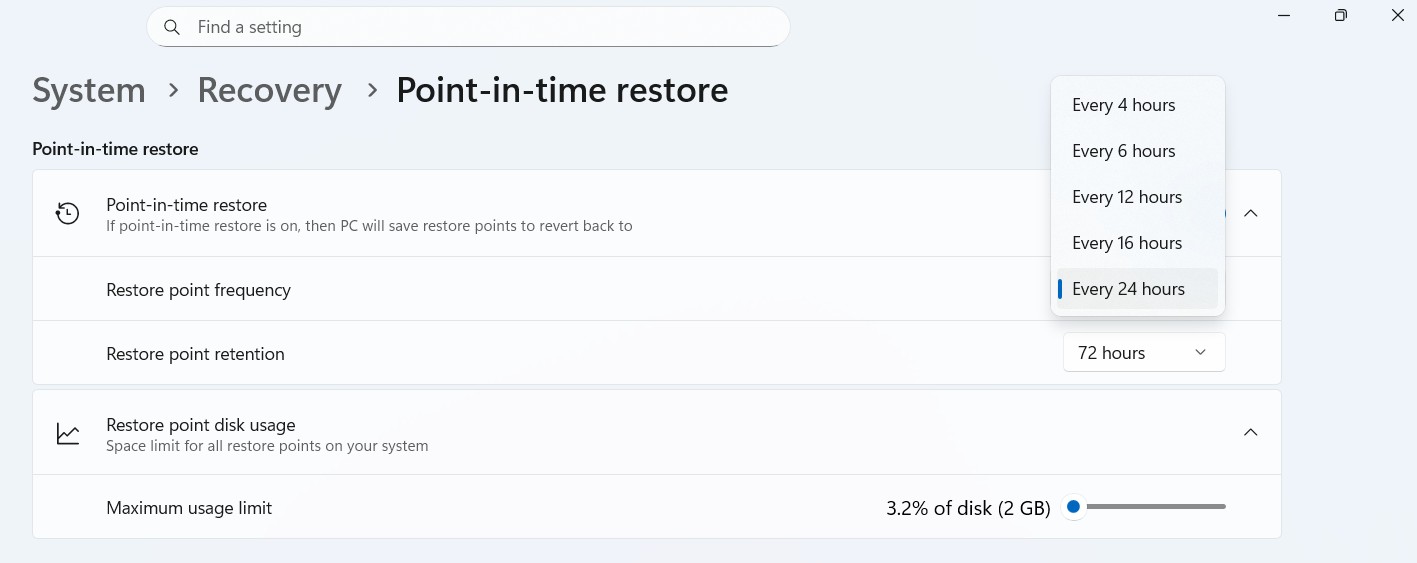
You can also limit storage usage, so restore points would not use more than the specified disk space. This also means you can limit the number of restore points that can be created on your PC. Regardless, a bare minimum works, and if you ever run into a major problem, you just need to choose Troubleshoot during Advanced Startup.
Finally, you’ll see the Point-in-time restore, and Windows will begin restoring your files.
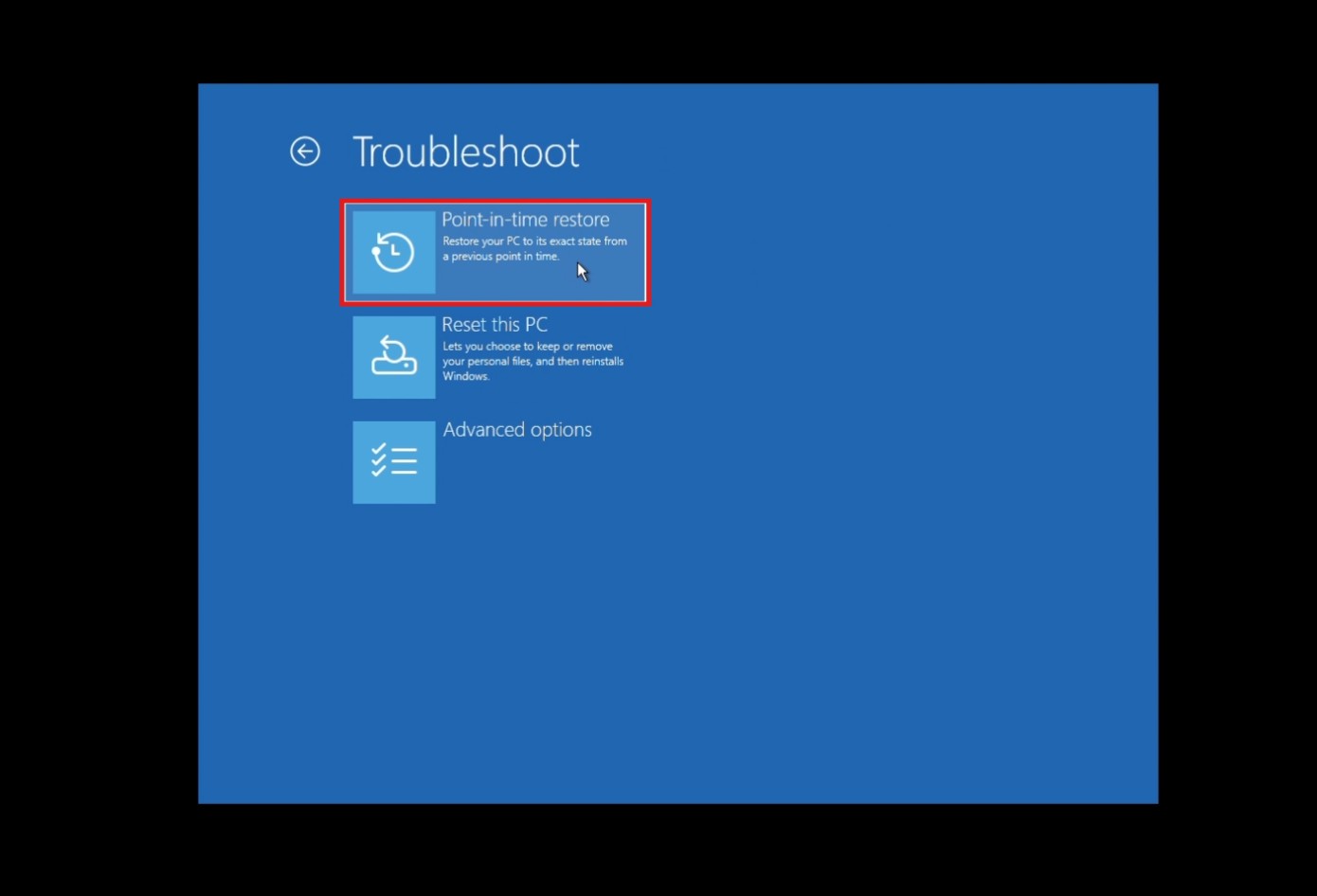
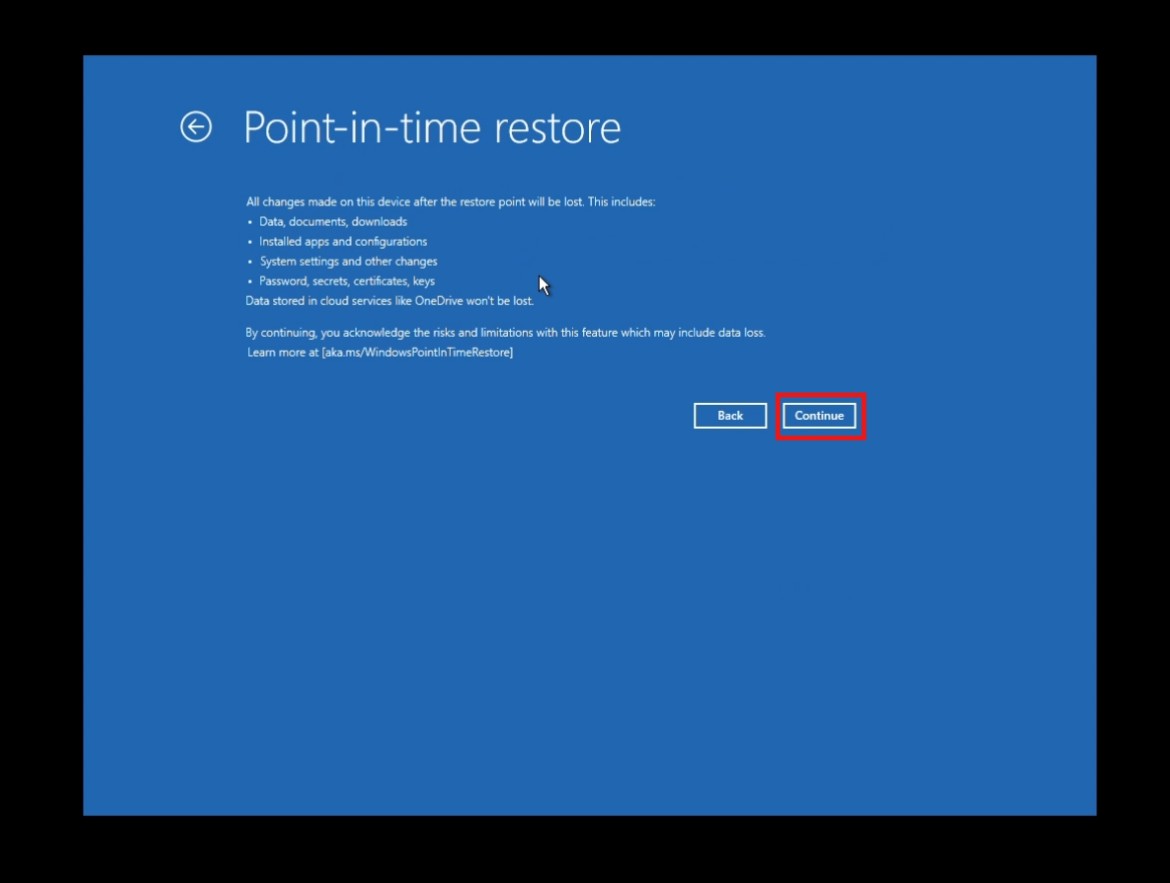
I created a restore point after installing Windows 11 KB5095093 and tried restoring one of my new PCs, which took up to 40 minutes to boot me back to the desktop with the previous state. Based on my few days of experience, I can confidently conclude that Point-in-time restore is one of the features you’d really want to turn on. It works very well.
2. Pause Windows updates with new controls
Right now, you can pause updates by up to four weeks, but you can’t choose a specific day. That changes with today’s update. If you go to Settings > Windows Update and try pausing updates, you will notice that there’s a new calendar view that lets you pick a specific day in the calendar until which you want all updates paused.
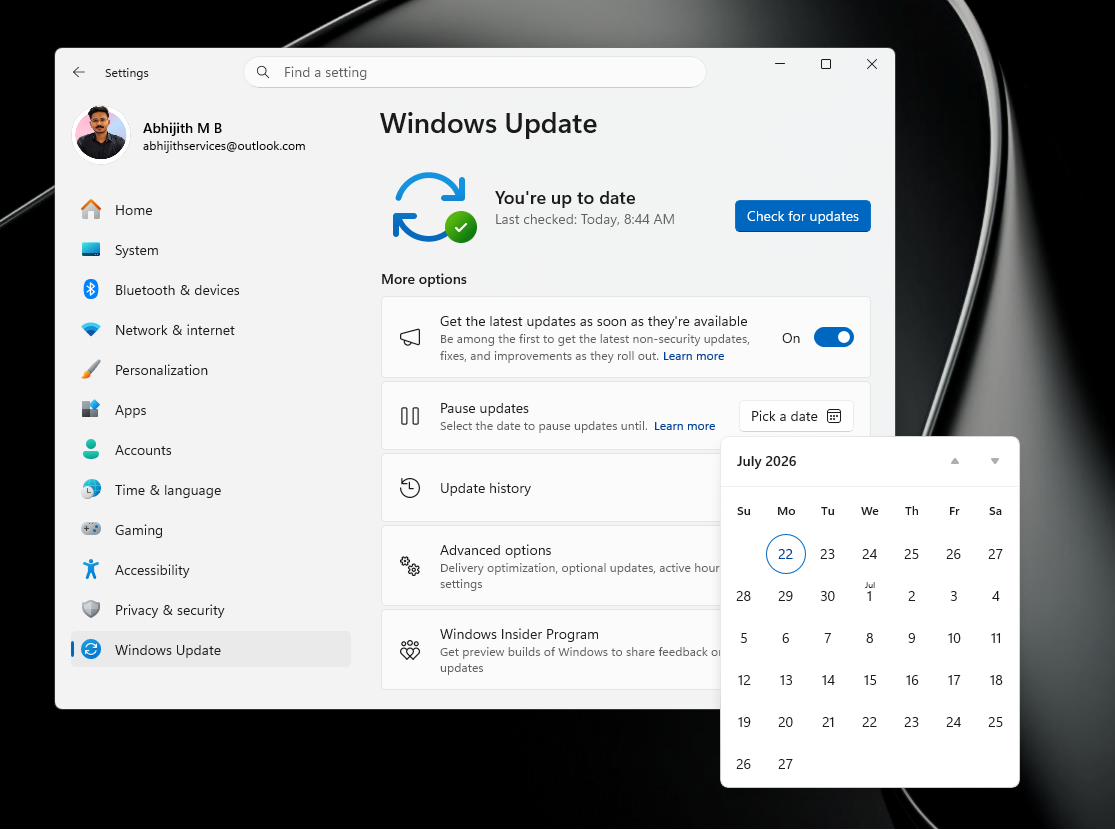
After installing Windows 11 KB5095093, you can pause updates for up to 35 days, but you also have the ability to pause them again when the 35 days are up.
Microsoft has confirmed that it’ll let you pause updates as many times as you want, but it’s unclear if it’ll let you block updates for more than 35 days with just a single tap. Even with this new experience, the Windows Update pause cycle would reset every month (35 days), and you would need to pause again.
My understanding is that you can always use Group Policy to pause updates for more than a month, and it wouldn’t be a good idea to give casual users access to block updates indefinitely.
3. Windows Widgets are getting better, if you dislike the current experience
Windows widgets aren’t exactly popular among users, and I have personally not found anybody who uses them. I do not use them. I rarely open them, and when I do, it’s usually because something hit the “W” key on my keyboard when I press and hold the Windows key to hit E to open File Explorer.
In either case, Microsoft doesn’t plan to give up on the Widgets board and is rolling out a new version that makes it less annoying. Right now, if the Widgets board is turned on, which is the case by default, it opens when you hover over the weather/widgets icon. With Windows 11 KB5095093, Microsoft no longer allows Widgets to open on hover.
Microsoft is also pulling back MSN clutter from the Widgets board, and its default experience will be the basic widgets dashboard. You can configure the experience from Settings in the navigation bar and even customize the number of alerts or badges that show up automatically.
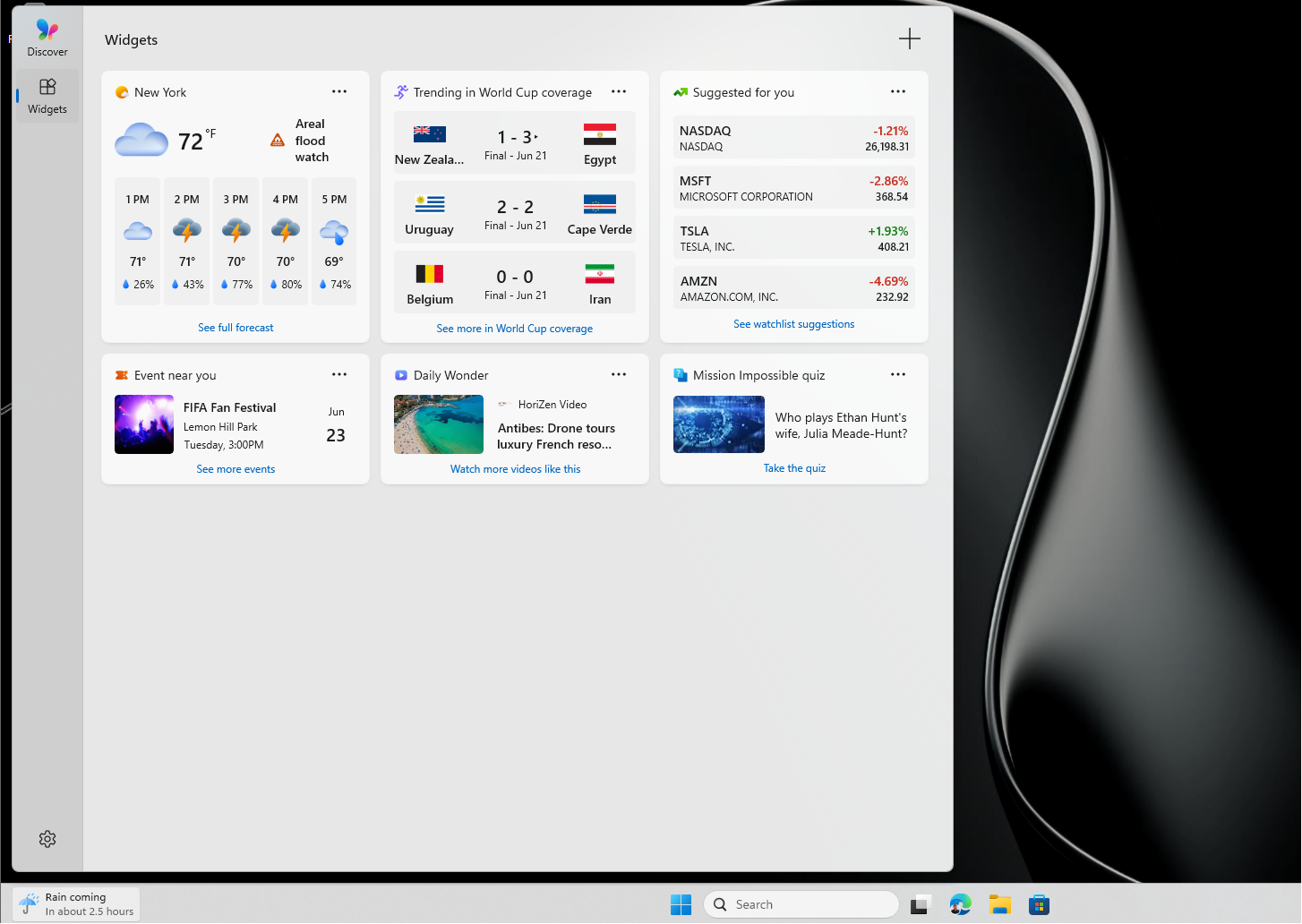
Moreover, Windows Latest noticed that the Widgets board is now faster, and it’s all part of the company’s efforts to revive Windows 11, but I still struggle to find a use case for Widgets. Perhaps, if Microsoft ever brings it to the desktop, similar to Windows Vista gadgets, I might give it a try.
4. Screen Tint feature is now rolling out, and it’s more advanced than Night Light
Windows 11 has a new Screen Tint feature, which is primarily designed for accessibility and isn’t really supposed to replace Night Light. Night light has a different purpose, but if you are somebody who has always wanted to customize the Night light experience, Windows 11 KB5095093 makes it easier to do so with Screen Tint.
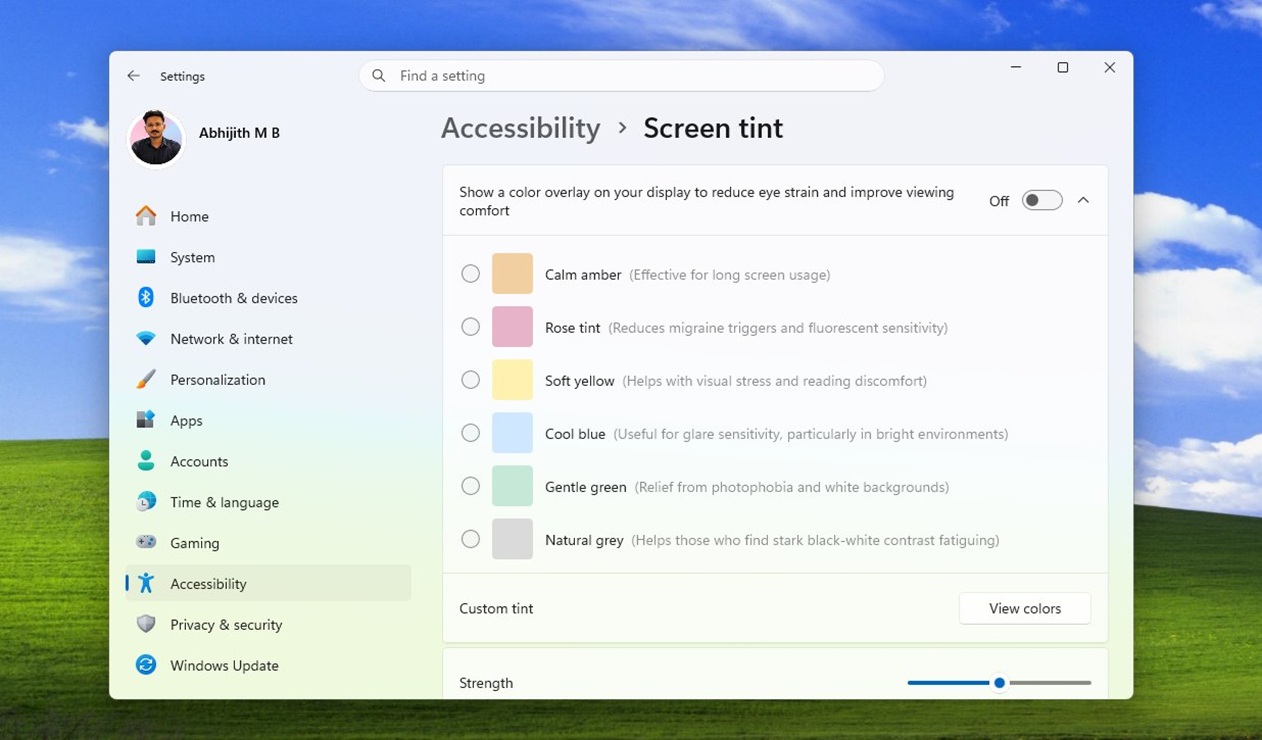
I tested Screen Tint a few months ago, and I was really impressed with the choices I was offered. While Night Light has just one color, and you can change its intensity, Screen Tint lets you choose from up to six presets.
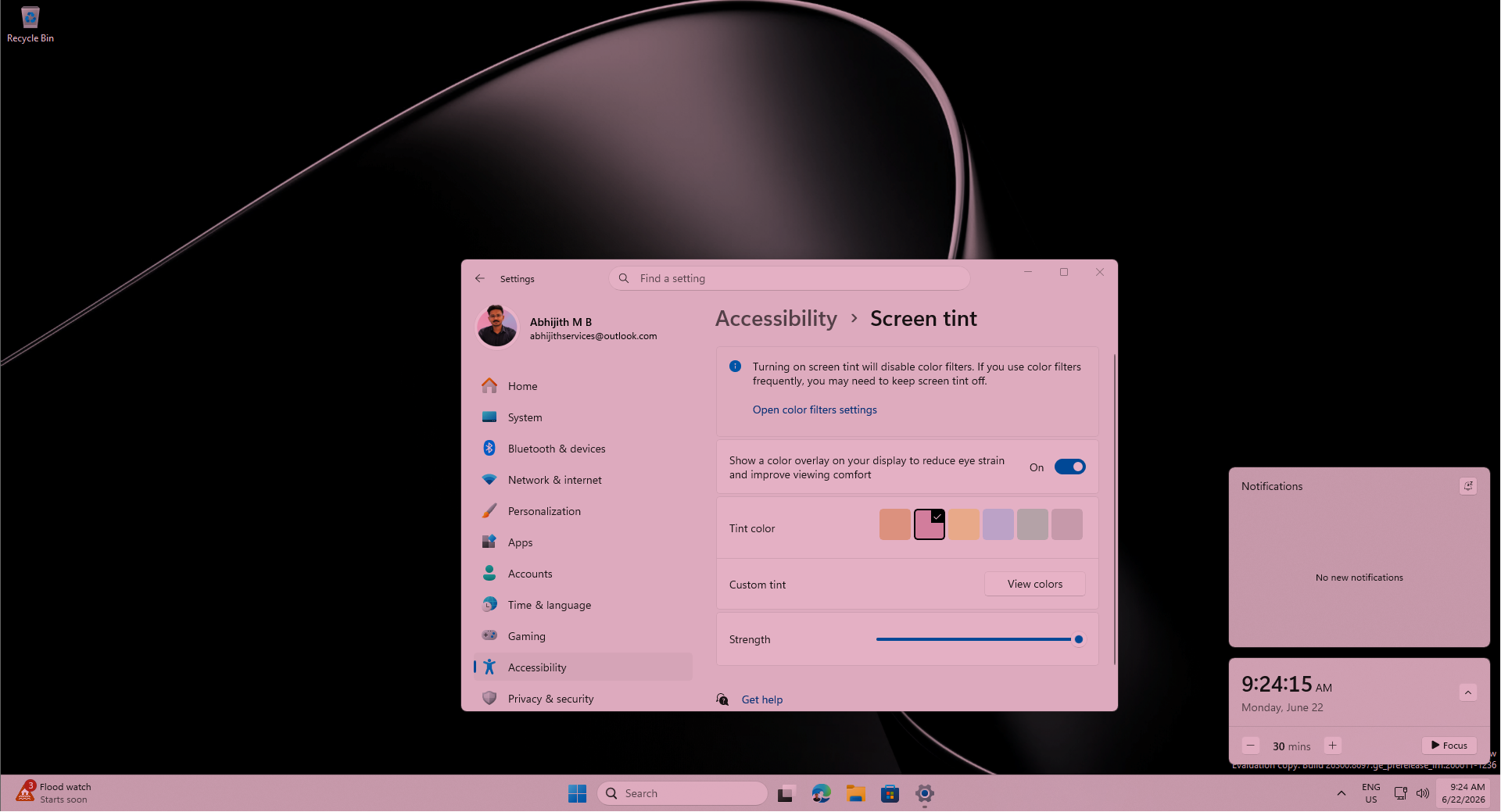
Microsoft has configured six colors for different use cases. We have a calm amber shade for long screen usage, while a cool blue is an option for those who have problems with glare sensitivity. Similarly, Windows 11 also has a Rose tint to help those with severe headaches.
Finally, if you think you know better than Microsoft, you can click on Custom tint and pick your own shade. There’s also an option to control the strength, so it’s a bit like Night Light.
5. Bluetooth is getting a much-needed upgrade in Windows 11
Bluetooth experience on Windows (not just ‘Windows 11’) is a dumpster fire. I haven’t had a month without running into connectivity problems, even with flagship products like Samsung Galaxy Buds.
For example, last week, I noticed that my Galaxy Buds were partially connected. I could only hear from the right bud, but the left one was not getting recognized by Windows.
Finally, I unpaired the headset in the hope that it would work, but little did I know I was getting myself into an hour-long struggle with Bluetooth. Windows would not connect to the Galaxy Buds, which connected perfectly with other devices, including PCs running Windows 11.
Turns out all these issues are actually Windows 11’s problems, and Microsoft says today’s update should ease the experience. With Windows 11 KB5095093, Microsoft is reducing Bluetooth connectivity issues and improving overall performance. It’s also rolling out the following changes:
- Windows now remembers the microphone mute state when you connect and disconnect Bluetooth.
- AirPods now appear faster when you try to pair. The same goes for Beats Studio Pro headphones.
- Windows now offers improved stability for some OEMs.
- Bluetooth call quality is now significantly better.
- A bug has been fixed where headphones using the mic delay the audio.
- Headphones now connect faster after sleep mode.
6. File Explorer is now faster
Well, again, but yes, File Explorer should feel more responsive after deploying Windows 11 KB5095093, as it patches several bugs. In fact, Microsoft specifically states it improved the speed and performance of File Explorer, but it went a step further and also patched up the address bar.
Right now, the address bar suggestion dropdown is a bit buggy and may not even close when an item has been selected. Today’s update addresses those edge cases and makes the address bar more reliable. Also, a bug where OneDrive integration makes File Explorer run slower has been fixed in this update.
Microsoft is rolling out a few new features as well. For example, “Ask Copilot” now appears for all users when you are on the “Home” tab, and Microsoft is adding support for new paths with a wider range of inputs.
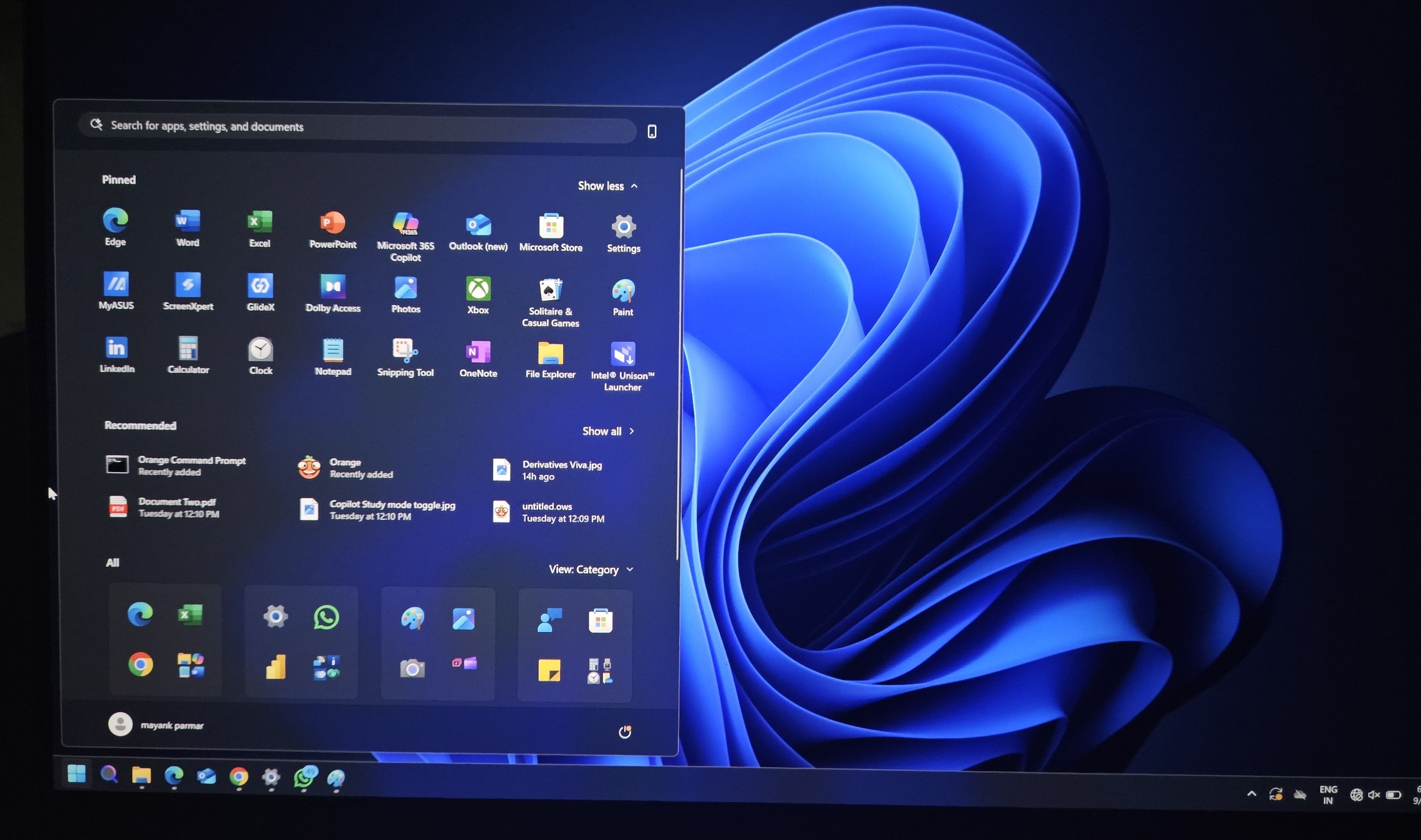
In addition to File Explorer, Bluetooth, and other major changes, Microsoft is rolling out Secure Boot for more PCs. It’s also expanding the rollout of Low Latency Profile and turning on the new Start menu on all PCs by default, including commercial PCs. Here’s the full changelog of Windows 11 KB5095093:
- You can now enter a zoom percentage (custom value) in Magnifier and change it.
- Printers will now install using Windows Ready Print and use modern driver selection where possible. This means Microsoft is slowly moving away from third-party drivers, but that doesn’t mean older PCs will stop working.
- Windows Subsystem for Linux (WSL) now works better in networking mode.
- Apps now scroll smoothly if you use multiple monitors.
- For laptops or 2-in-1s, there’s a new feature that gives you greater control over the “right-click zone.” You can now choose between default, small, medium, or large under Bluetooth & devices > Touchpad in Windows Settings. When you choose large, Windows responds better to single-finger right-click because it takes into consideration more of the touchpad.
- PCs should take less time to shut down.
- Explorer.exe is now more reliable, and taskbar icons should no longer appear black/gray.
- Memory management improvements for PCs with more than 32GB of RAM for AI-related processes.
And that’s pretty much it. The June 2026 optional update is huge, and Microsoft is not aware of any new problems, but it’s still investigating a critical bug that causes Office apps to crash.