








Microsoft is backing down on OneDrive Photos, and you’ll soon be able to remove it without also removing the OneDrive sync client. That means you won’t have to risk breaking synced files, folders, or shortcuts on Windows 11 if you don’t want OneDrive Photos but still use the OneDrive sync client that you may have set up when you got your PC.
On or around August 1, Microsoft quietly added OneDrive Photos to thousands of PCs running Windows 11. OneDrive Photos itself is harmless, but most users dislike the idea of apps getting installed when they never hit “Download.”
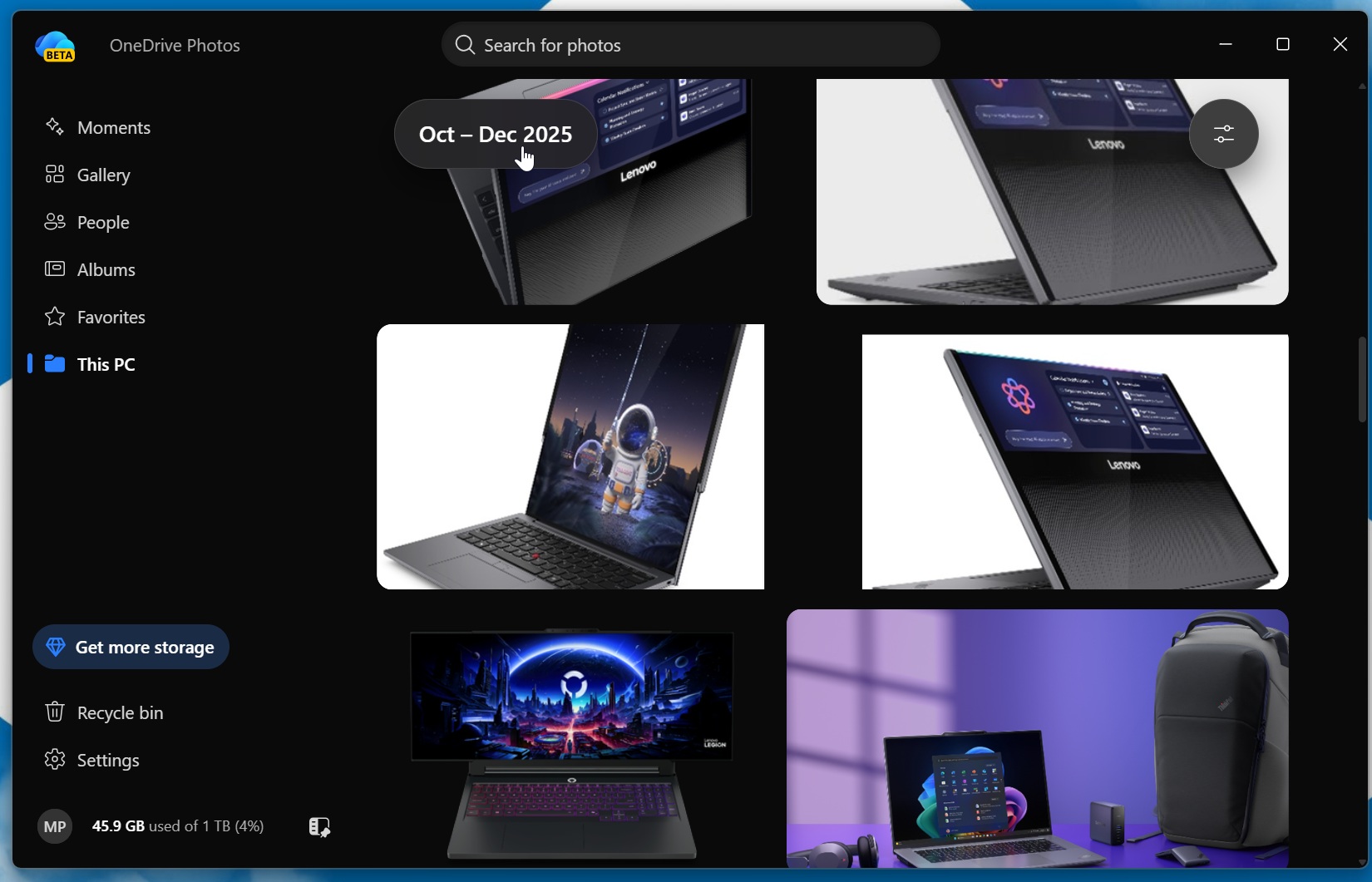
To make matters worse, OneDrive Photos already had access to all your pictures on the PC, including those outside the Pictures folder:
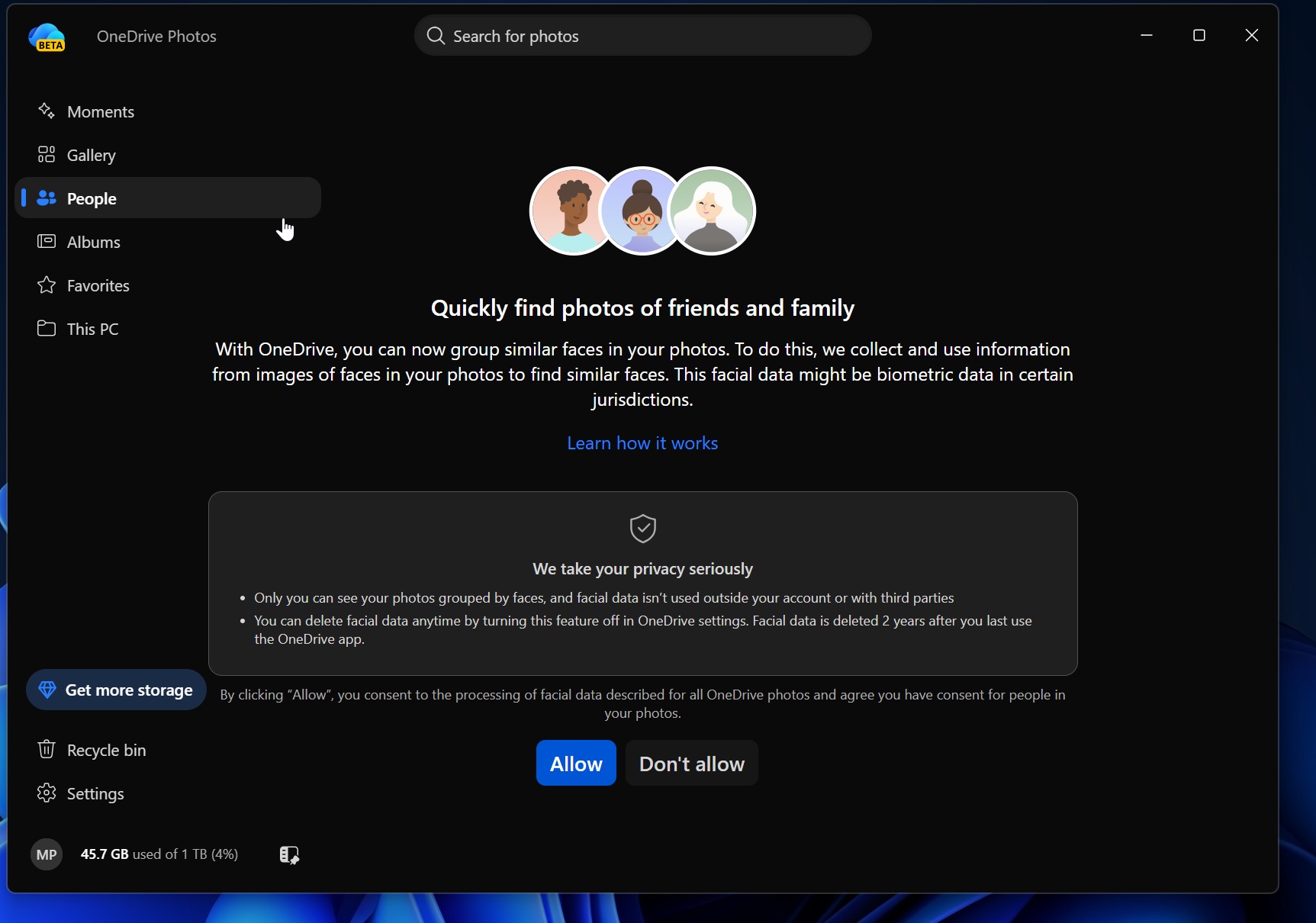
And it also has an AI-powered optional “People” feature that groups similar faces, which was a concern for those who do not want AI around their personal files or pictures:
In our tests, Windows Latest originally found that the AI-powered OneDrive Photos app was also being installed on enterprise PCs, where it doesn’t work because it requires a personal Microsoft account. That caused further backlash from IT admins, who were upset that an unusable app was suddenly present on thousands of PCs in their organizations.
After the outrage, we reached out to Microsoft, and it told us that it never intended to roll out the app so broadly and promised to fix it.
We haven’t heard back from the company on exactly how OneDrive Photos ended up on unsupported PCs or why it was installed without your permission, but Microsoft insists that the broad rollout was accidental.
“We are incubating a new photos experience in OneDrive that went more broadly than it should have in Windows,” Microsoft’s Jeff Teper said. “We’re fixing that. Windows Photos will always give you the option of local and cloud photos and the choice to use OneDrive or not.”
Jeff Teper also said that Microsoft is listening to feedback around OneDrive’s photos features on desktop, web, and mobile.
However, that still doesn’t explain why Microsoft made OneDrive Photos so difficult to remove in the first place. If you want to remove OneDrive Photos today, you need to delete the OneDrive sync client, and that could potentially break shortcuts or make files appear missing if you don’t first ensure everything is available locally.
How was OneDrive Photos added to Windows 11 PCs?
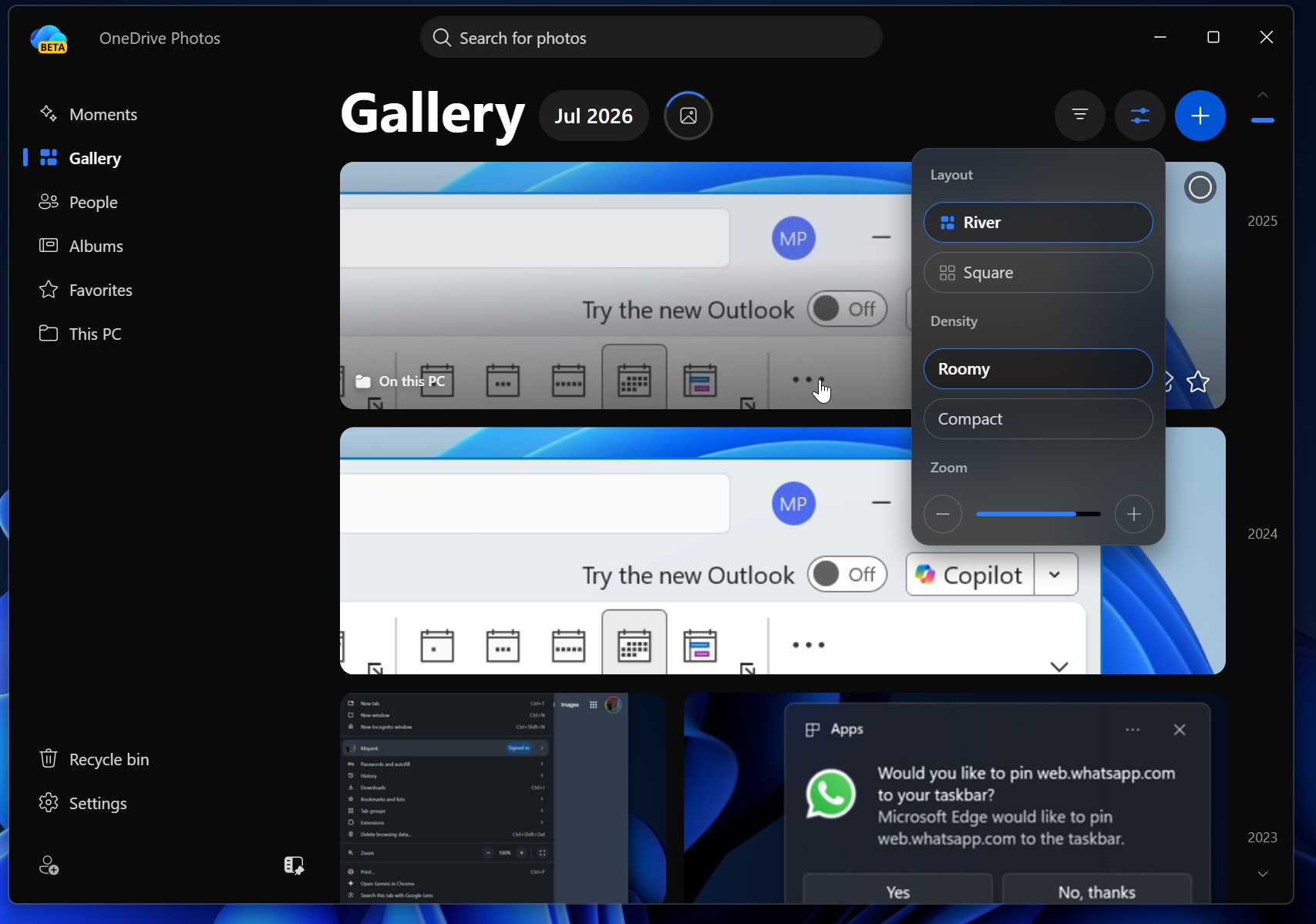
Our tests showed that OneDrive Photos is added through the OneDrive sync client, which comes pre-installed on most Windows 11 PCs. You may or may not actively use OneDrive, but the sync client is usually sitting in the background, and Microsoft used it to add OneDrive Photos to PCs.
It is worth noting that you were not affected by the forced installation of OneDrive Photos if you disabled OneDrive when you installed Windows 11 or purchased a new PC.
This can be verified easily if you go to C:\Program Files\Microsoft OneDrive. The OneDrive Photos app is present at the following path:
C:\Program Files\Microsoft OneDrive\OneDrive.App.exe
On the other hand, the OneDrive sync client, which is pre-installed, is at the following location:
C:\Program Files\Microsoft OneDrive\OneDrive.exe
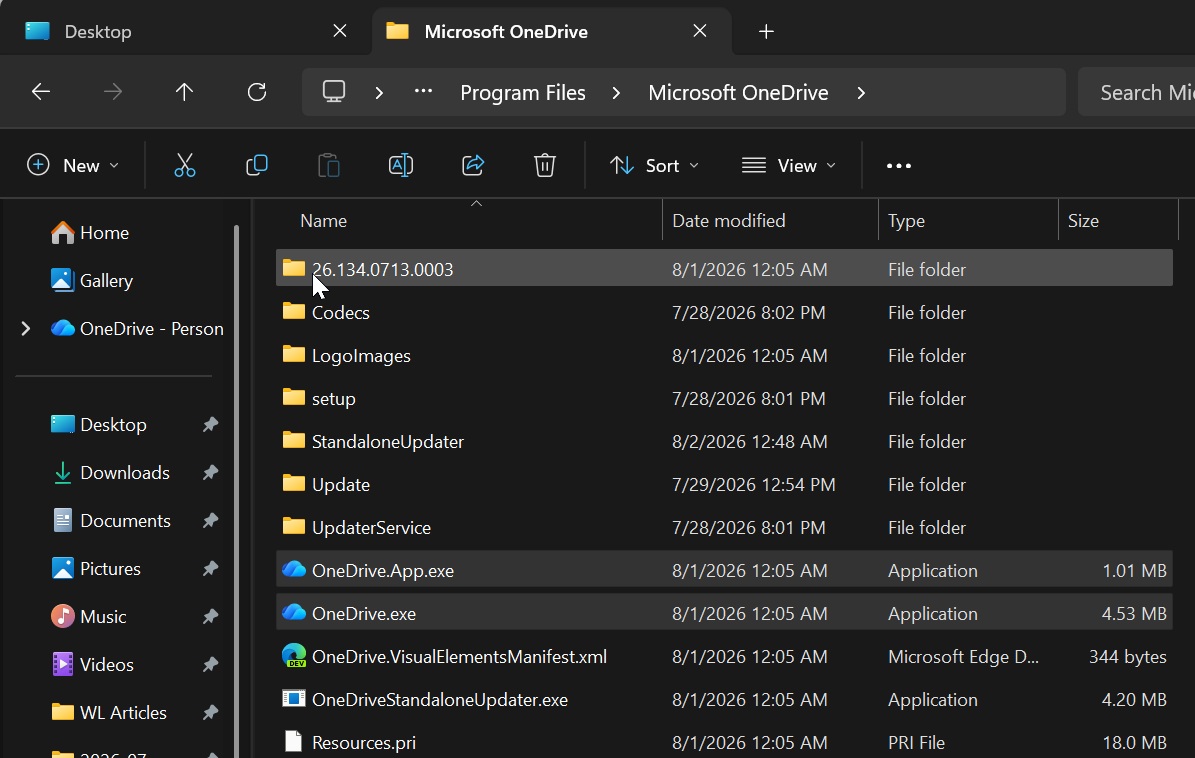
OneDrive Photos can’t currently be removed as a standalone app because it’s tied to OneDrive Sync. It doesn’t ship as an MSIX. If you really don’t want it, you can remove OneDrive entirely, and Photos will also go along with it. But that’s not an ideal option if you’ve ever used the sync client to back up folders such as Desktop, Documents, or Pictures.
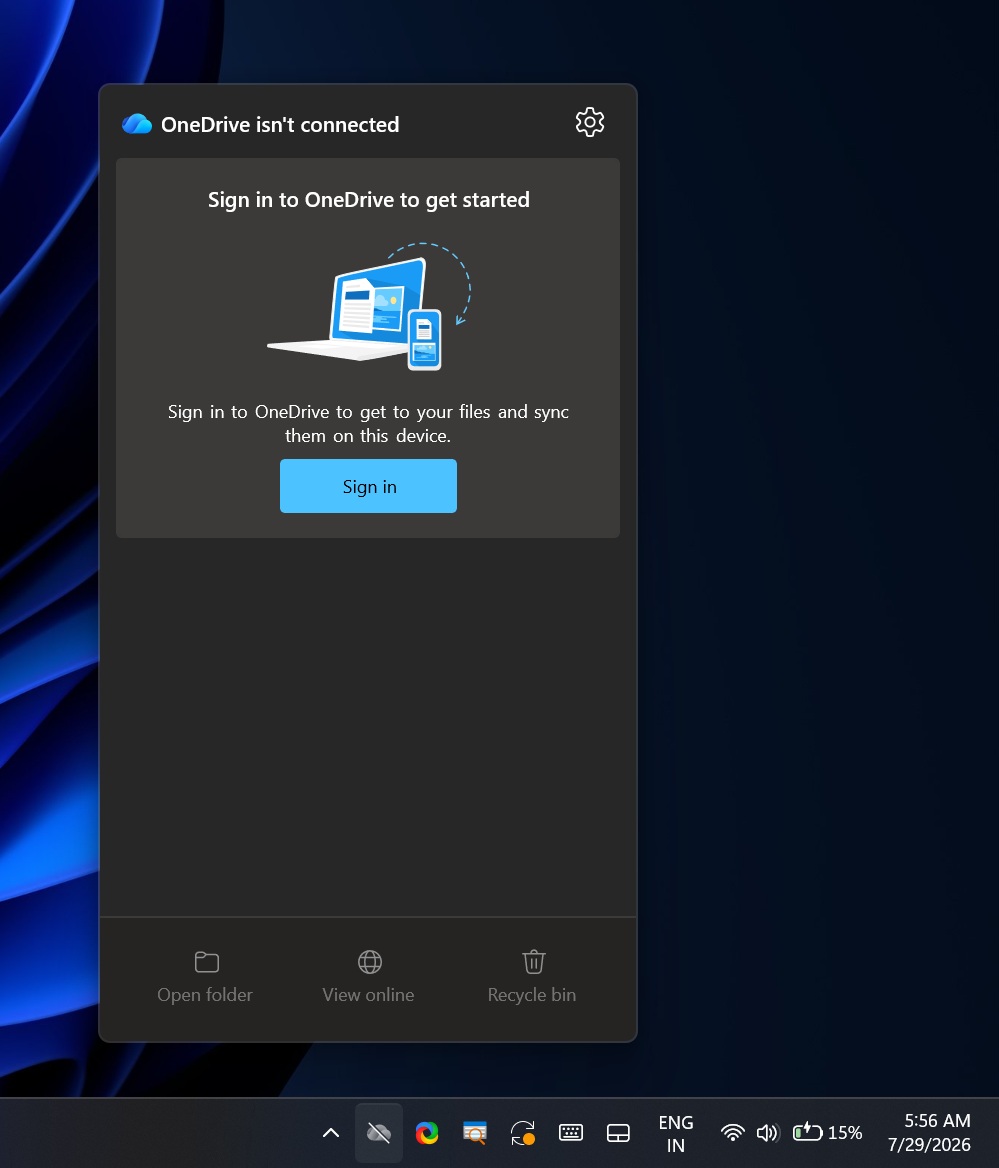
When you remove the OneDrive sync client from a PC where it has been active for months or years, and features like Known Folders or Files On-Demand are turned on, you’re creating a mess for yourself.
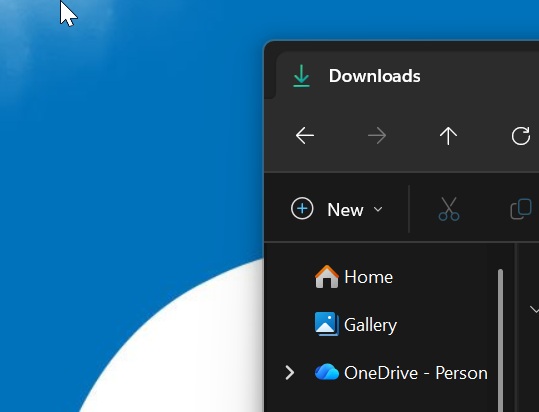
For example, let’s assume OneDrive is backing up your Desktop folder. If OneDrive sync is turned on for known folders, your actual desktop files may sit inside:
C:\Users\YourName\OneDrive\Desktop\
Now, if you suddenly remove OneDrive without first turning off folder backup, files can disappear from your desktop, and shortcuts may stop working.
Microsoft does not delete your files when you remove the OneDrive client from your Windows PC. They’re still present in the cloud, but you may not realize that some of them were never fully stored locally in the first place.
When Files On-Demand is turned on, a file can appear inside File Explorer even when it isn’t actually stored locally on your PC. OneDrive downloads it when you open it or maintains a local cache.
If you remove the OneDrive sync client because you hate OneDrive Photos and never make those files available offline first, you could suddenly notice that some files or photos are missing from your PC even though you assumed they were already stored locally.
This is why users who understand the consequences, or simply like using the OneDrive sync client for its benefits, were upset that OneDrive Photos was being enforced on PCs without a separate uninstall option. It’s also a bit strange that Microsoft did not understand the mess it was “accidentally” creating for users, including enterprises.
Thankfully, Microsoft has now confirmed that’s changing.
Microsoft says it’ll let you remove OneDrive Photos without causing sync issues
“We’re adding controls to remove the OneDrive Photos experience separately from the OneDrive app,” Microsoft told Windows Latest in a statement.
“OneDrive is giving people more control over their Windows experience by allowing them to uninstall the OneDrive Photos experience independently. Removing the Photos experience does not uninstall the OneDrive app, interrupt file sync, or delete photos and files. This provides a clear removal option for people who prefer to manage their photos with another app,” the company explained.
Microsoft told Windows Latest that OneDrive Photos’ Uninstall button will roll out to everyone in September 2026.
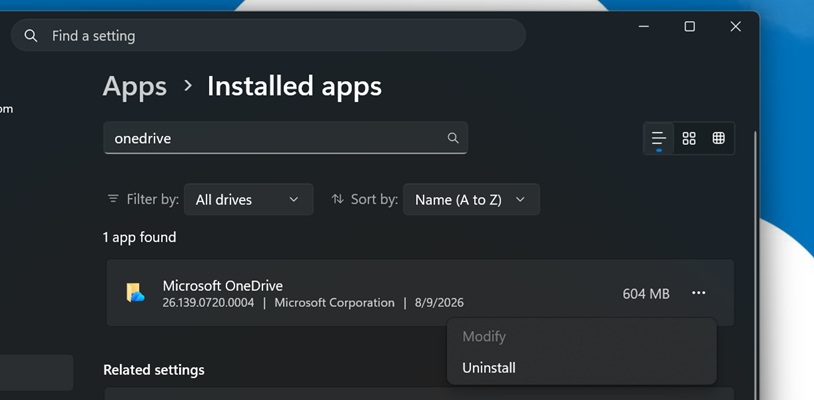
Right now, if you genuinely don’t want the Photos app and you’re not actively using OneDrive sync, you can open Settings > Apps > Installed apps and remove “OneDrive.” This will remove all OneDrive-related features from the system.
But I don’t recommend taking this route if you are not 100% sure how your files are synced to OneDrive. You should wait until September, and it’s actually not a bad deal because OneDrive Photos does not run in the background. It runs only when you open it.
Once the change rolls out, you’ll be able to remove OneDrive Photos without touching the regular OneDrive sync client, interrupting file sync, or changing your existing OneDrive setup.
OneDrive Photos is actually not a terrible product, but I don’t see the point
Here are some of the things you can do with the new OneDrive Photos app:
- You can browse photos stored on your OneDrive and local PC storage. You can also use filters and intelligent search to find photos using their content, but that’s limited to items synced to OneDrive. On Copilot+ PCs, intelligent search works with photos stored locally as well.
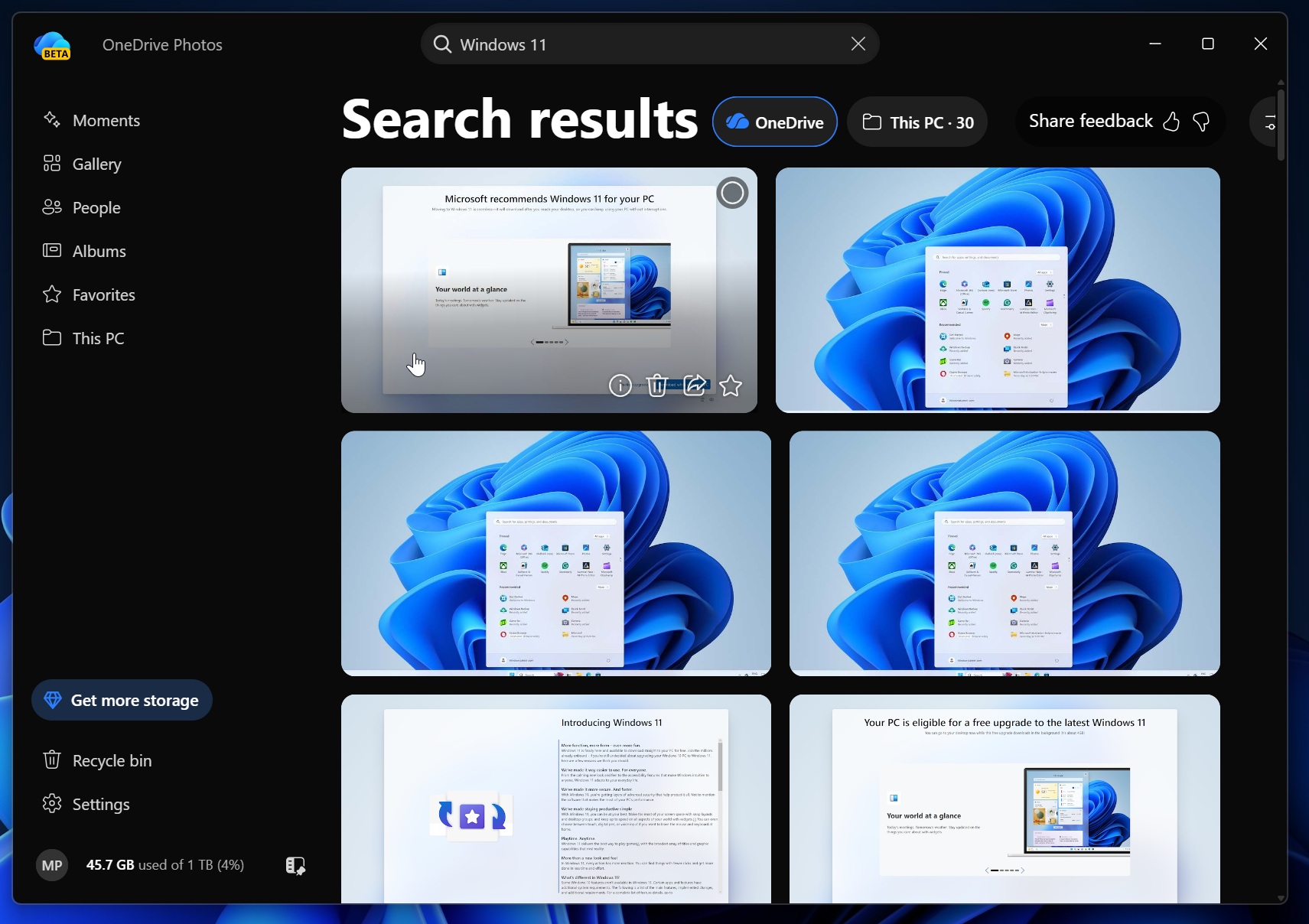
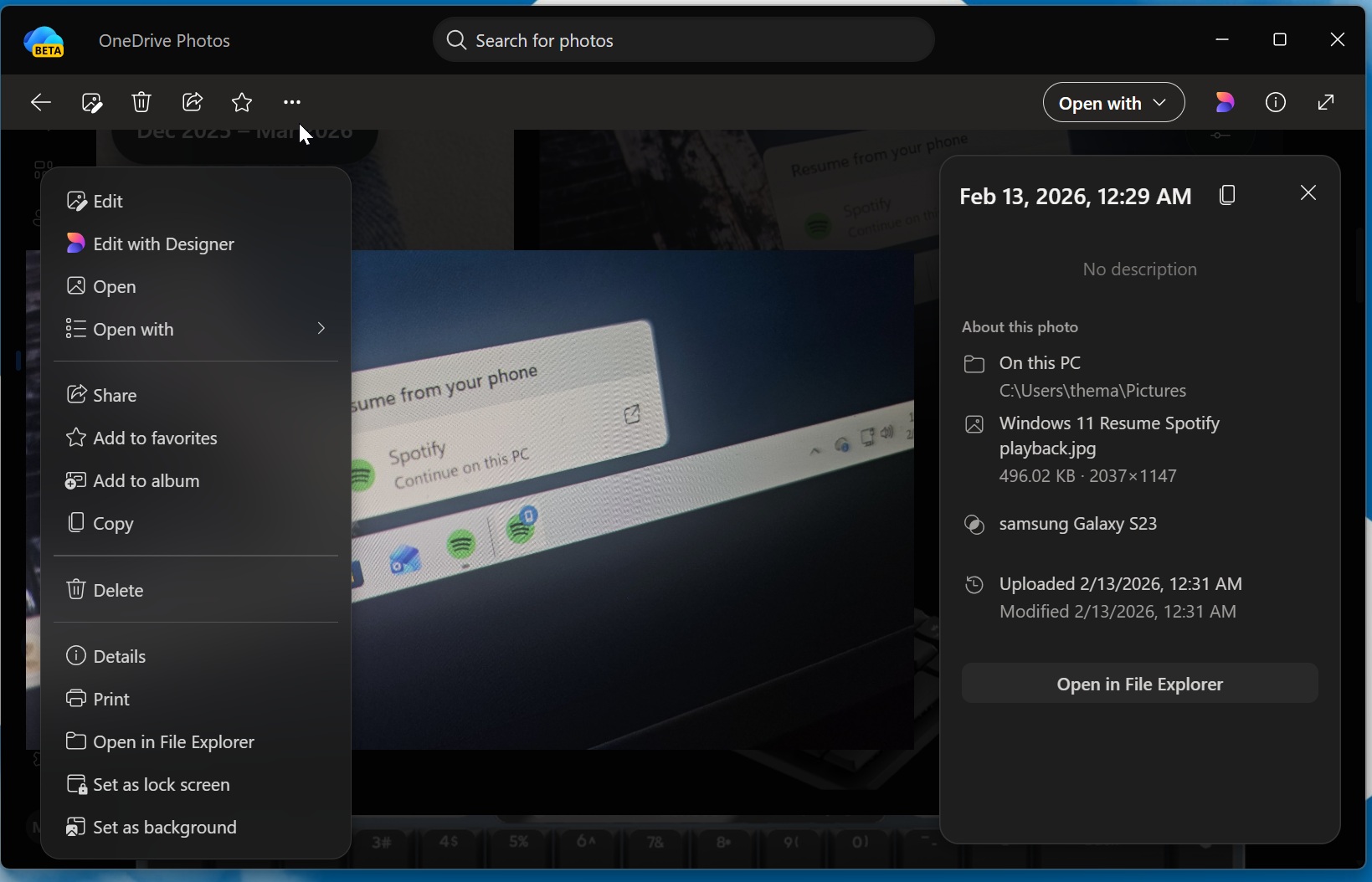
- You can create favorites, albums, and edit your photos. You can also add local folders from another volume if they were not automatically detected by OneDrive.
- Since it’s OneDrive at the end of the day, you have OneDrive Moments, where Microsoft randomly shows collections of photos from your history.
Microsoft also lists “Setting as desktop background” and “Location in File Explorer” as reasons to use the new OneDrive Photos app.
This is a pretty good list of features, and it should be for an app that’s trying to be your photo viewer, but you could already do all of it via the existing Microsoft Photos app. So unless Microsoft has plans to replace Microsoft Photos with OneDrive Photos, I fail to see the point of this app in the first place.
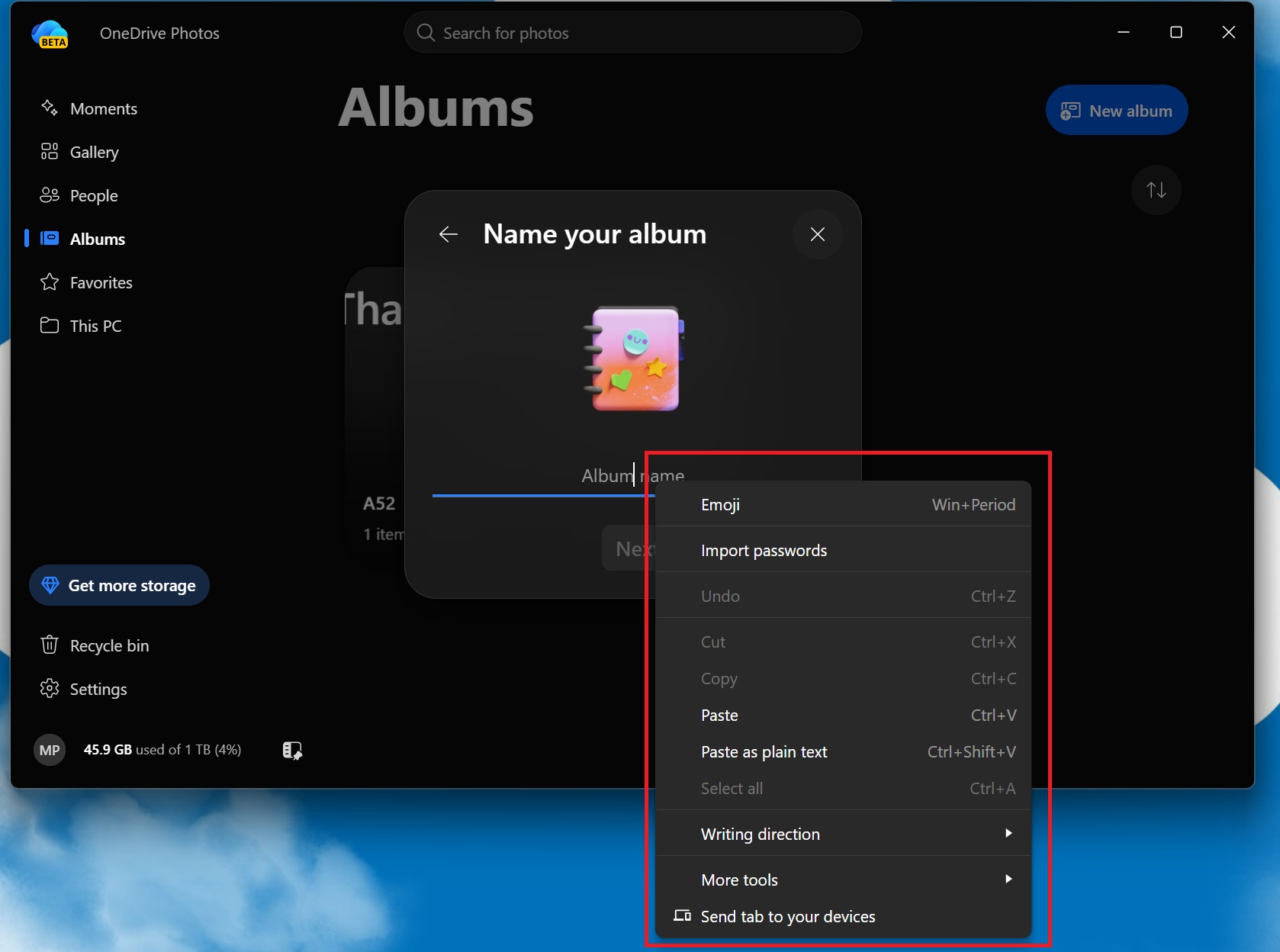
It’s also entirely web-based, so if you right-click any text field, you’ll easily come across Microsoft Edge components:
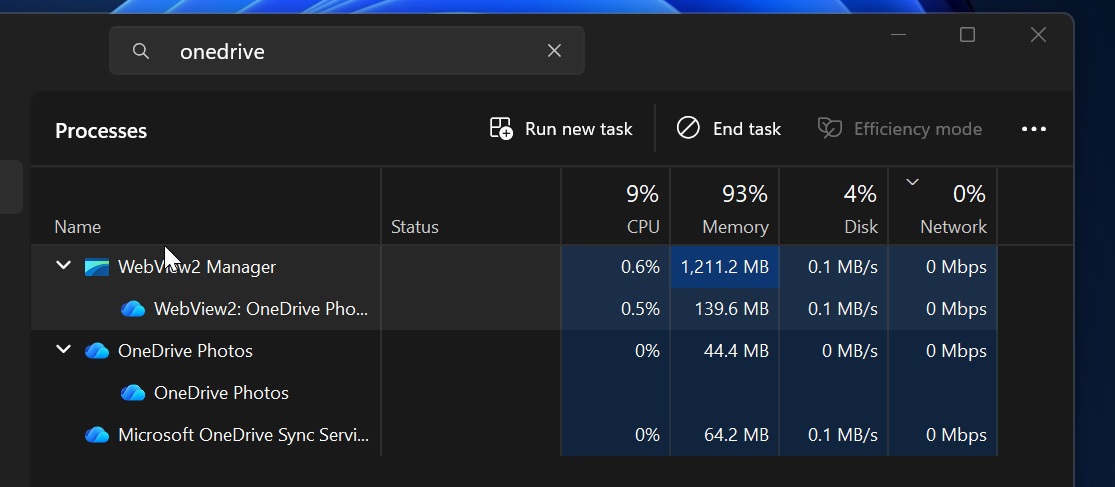
In our tests, OneDrive Photos’ memory usage is usually around 1GB, and it’s quite decent for a web wrapper:
The problem isn’t that OneDrive Photos is a terrible product. Microsoft has created bad press for it by forcing it on everyone. The company could have handled this fiasco much better, and I still don’t understand how a trillion-dollar company is unable to roll out its features in a better way.