




Microsoft Photos for Windows Insiders in the Experimental channel just got a lot cleaner with fewer icons crowding the top bar and a shorter right-click menu that opens instantly, both of which make the app as clean as the legacy Photos app.
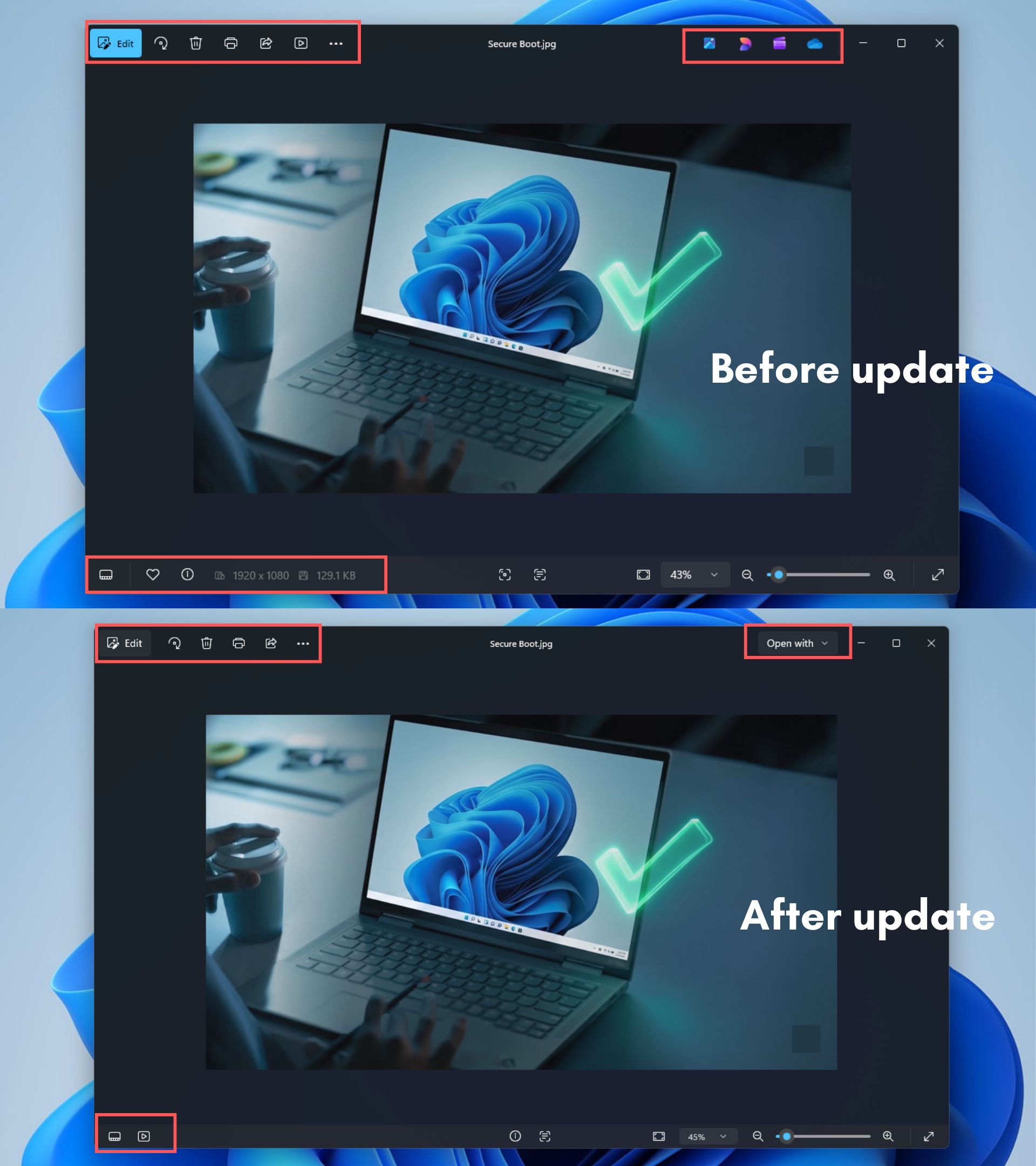
Photos wasn’t always this cluttered, or rather, Microsoft made sure it became this way. Over the past couple of years, Microsoft kept bolting things onto the top toolbar, including Designer, Clipchamp, and OneDrive, all of which were colourful distractions in an image viewing app. The right-click menu in Photos was worse, taking its sweet time to load while also being too long.
Microsoft has been sticking to this pattern of cleaning up since March, when Pavan Davuluri published a blog post promising to fix Windows quality, including a pledge to cut “unnecessary Copilot entry points” from apps like Snipping Tool, Widgets, Notepad, and Photos.
Photos had already lost its dedicated “Ask Copilot” button earlier this year. Now the rest of the app is getting the same treatment, and about time too.
Microsoft Photos loses the clutter, and it feels noticeably faster
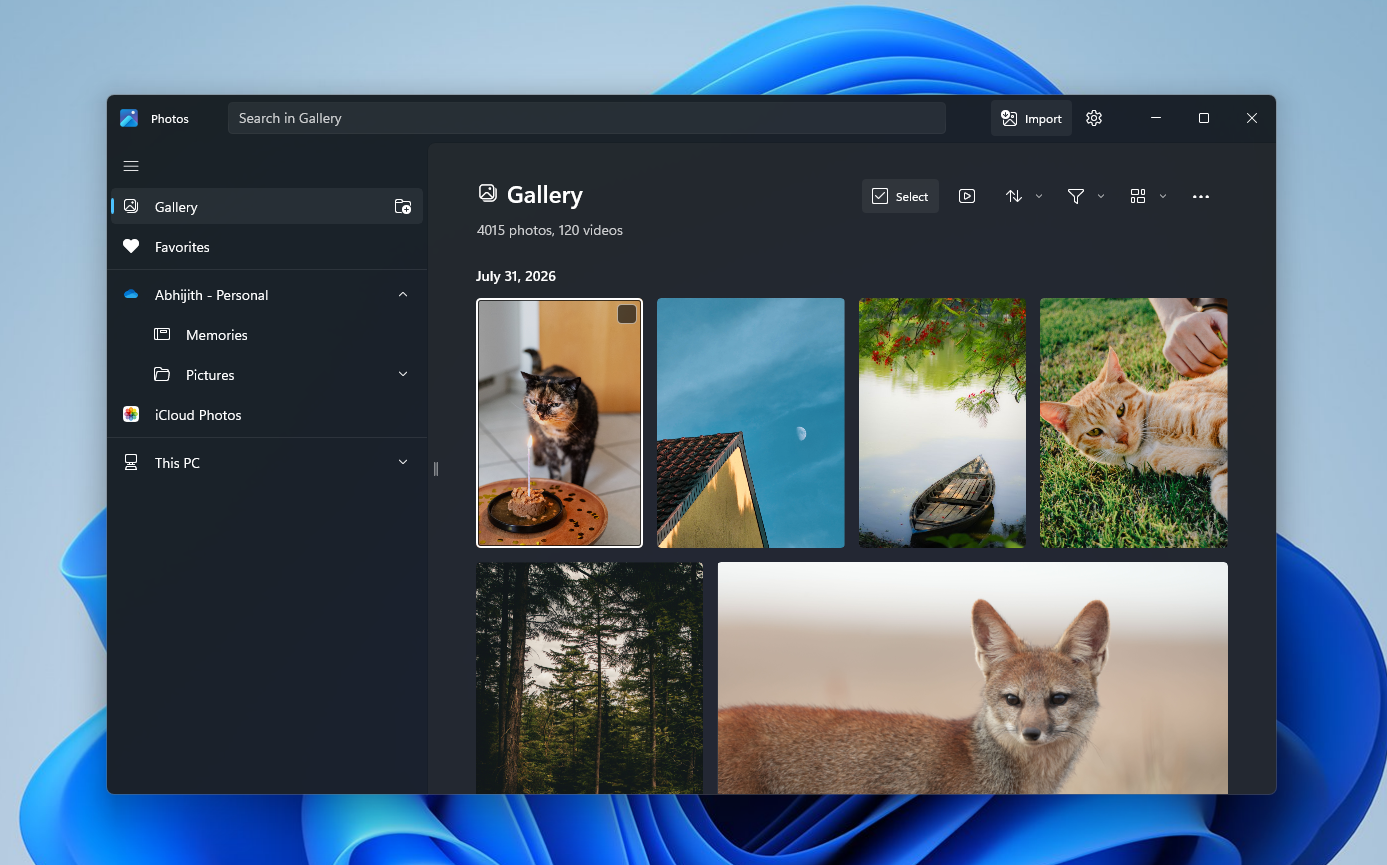
I tested the new Photos app on my PC running Windows 11 Insider Preview Build in Experimental with app version 2026.11070.23001.0
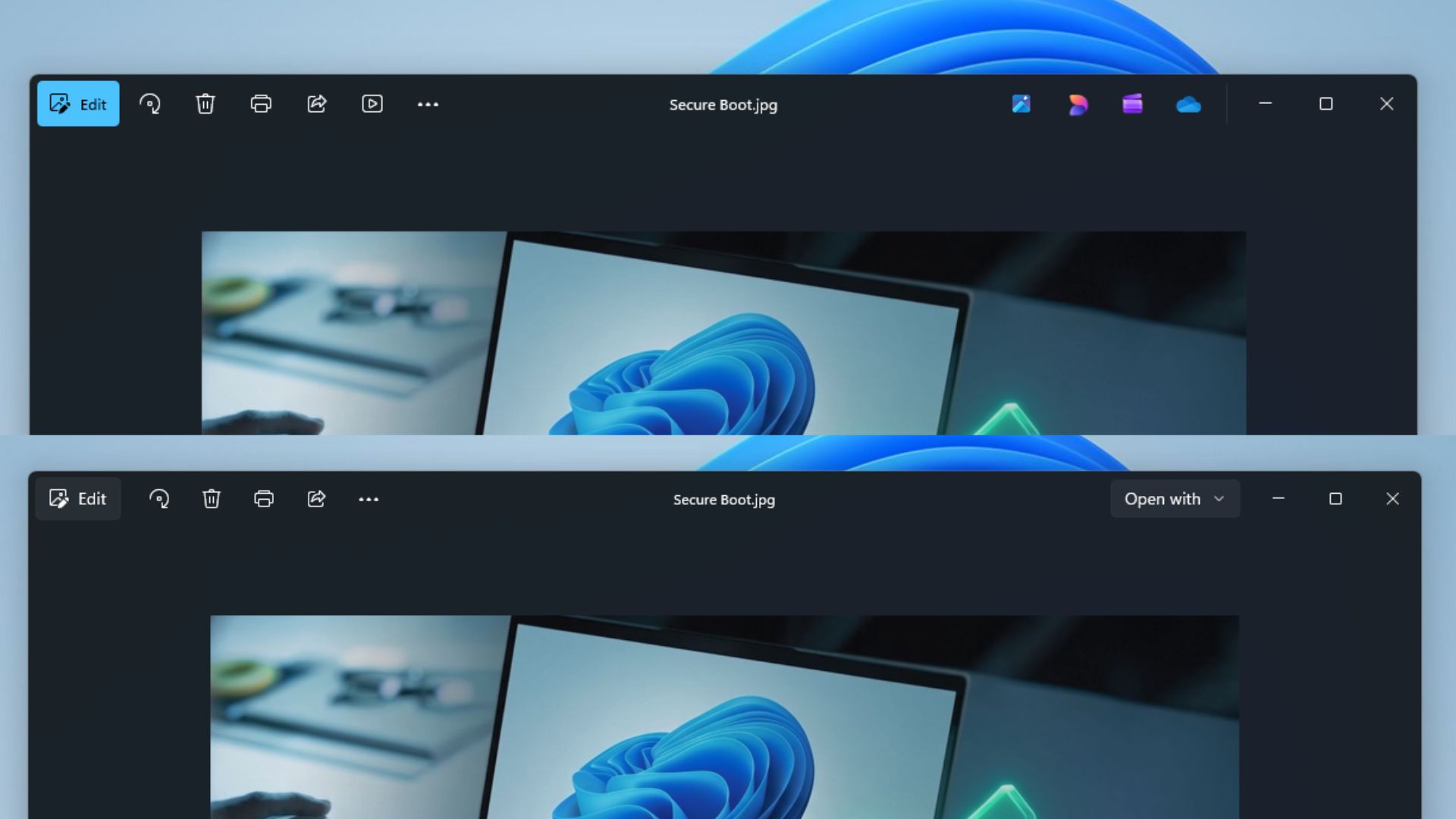
The old Photos viewer had four extra icons wedged into the top bar next to the window controls: Designer, Clipchamp, and a OneDrive shortcut among them, on top of the usual Edit, print, and share buttons. The new version drops all of that. What’s left is just Edit, rotate, delete, print, share, an overflow menu, and Open with, nothing else fighting for space.
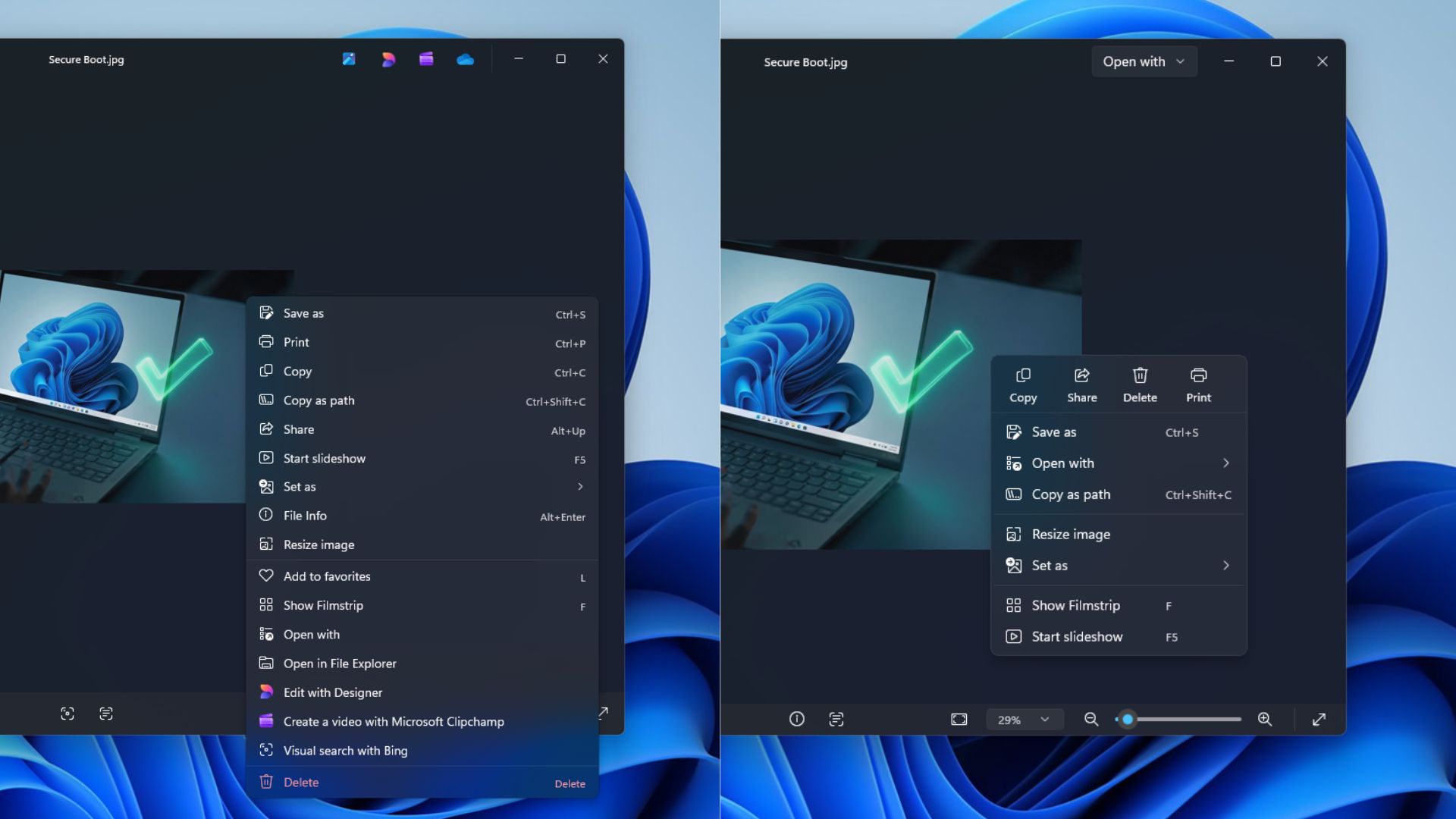
The context menu got the same treatment. Right-clicking a photo used to bring up “Edit with Designer,” “Create a video with Microsoft Clipchamp,” and “Visual search with Bing” mixed in with the file actions people needed.
All three are gone now. What remains is a short, sensible list with save as, open with, copy as path, resize image, set as, show filmstrip, and start slideshow. Microsoft’s changelog describes this as a “refreshed design that puts the focus on your content and top actions like edit, print, and share,” which I feel undersells how much clutter had to go to get there.
And continuing with the good things, the context menu in Photos now opens noticeably faster since it isn’t rendering three extra promotional entries every single time you right-click.
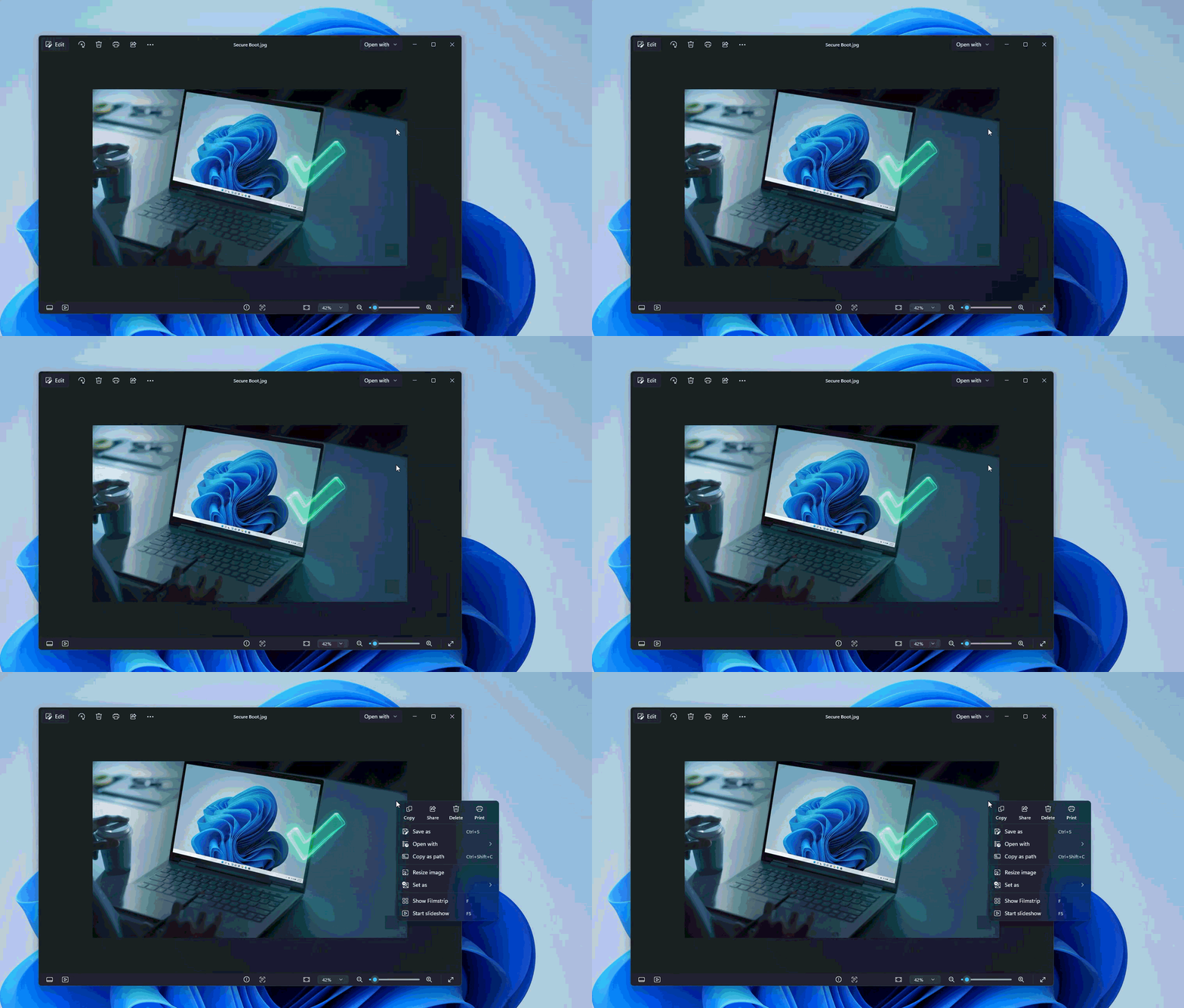
Opening a photo and zooming into it feels snappier too, which lines up with Microsoft’s claim of improved launch performance. It didn’t need a CPU boost or a settings change. Photos is just doing less unnecessary work in the background, which is really all we ever wanted from it.
Everything else Microsoft changed in this Photos update
Microsoft also packed in a handful of smaller changes to the Photos app:
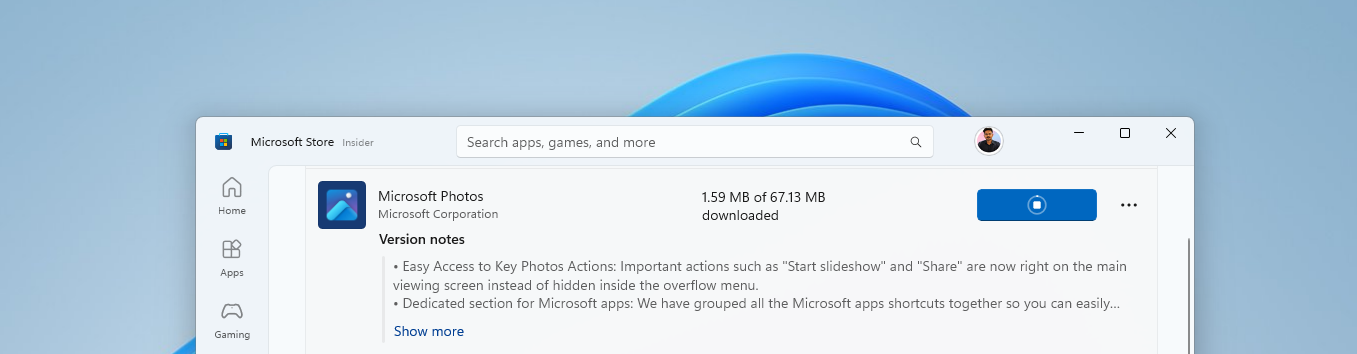
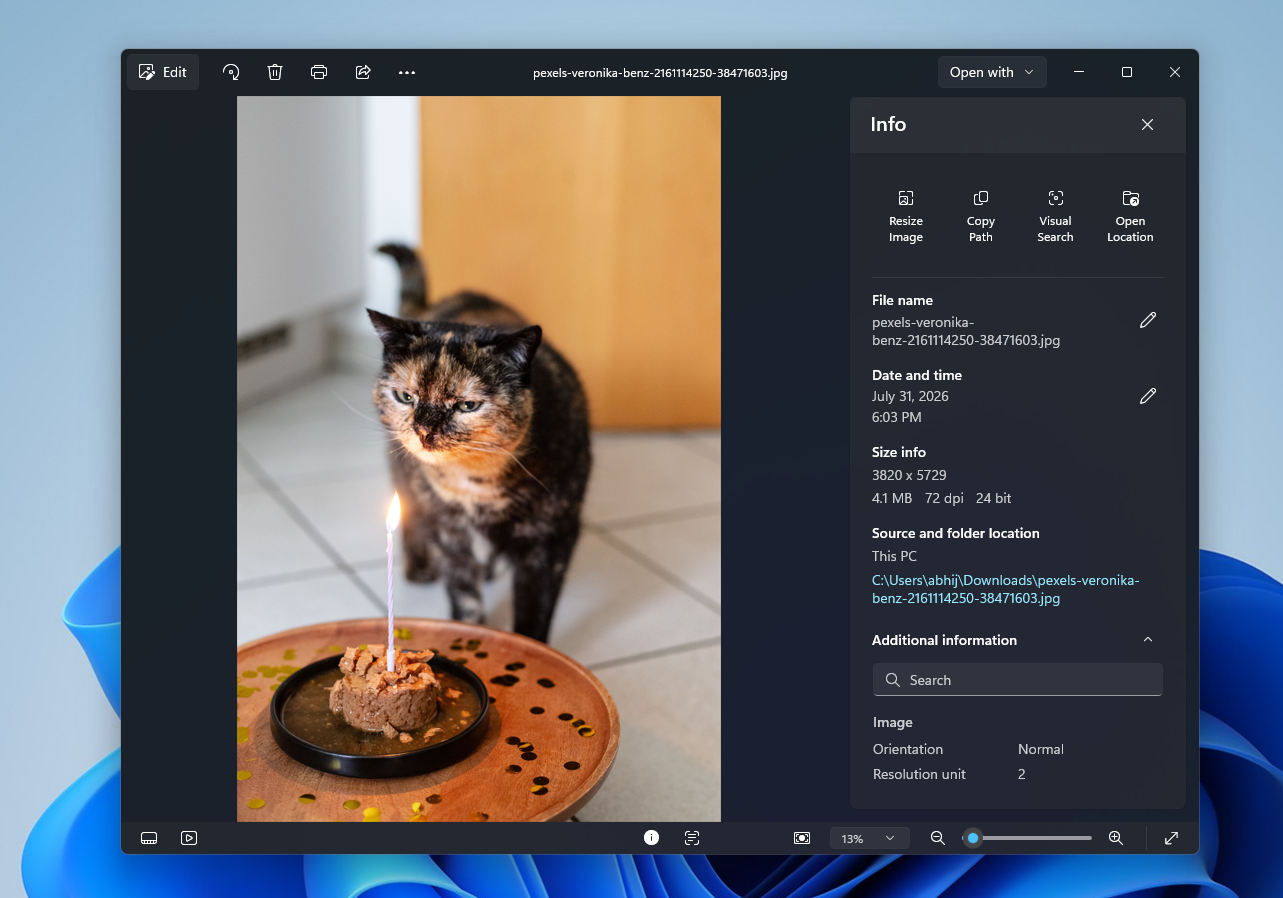
- A richer file info pane. Opening the info panel now surfaces quick actions like Resize Image, Copy Path, Visual Search, and Open Location right at the top, along with expanded metadata, orientation, resolution unit, and the full file path.
- HEIC files keep their original format when edited. Editing a HEIC photo no longer forces a conversion to another format just to save changes.
- SVG viewing support, so the photo viewer can finally open SVG files directly.
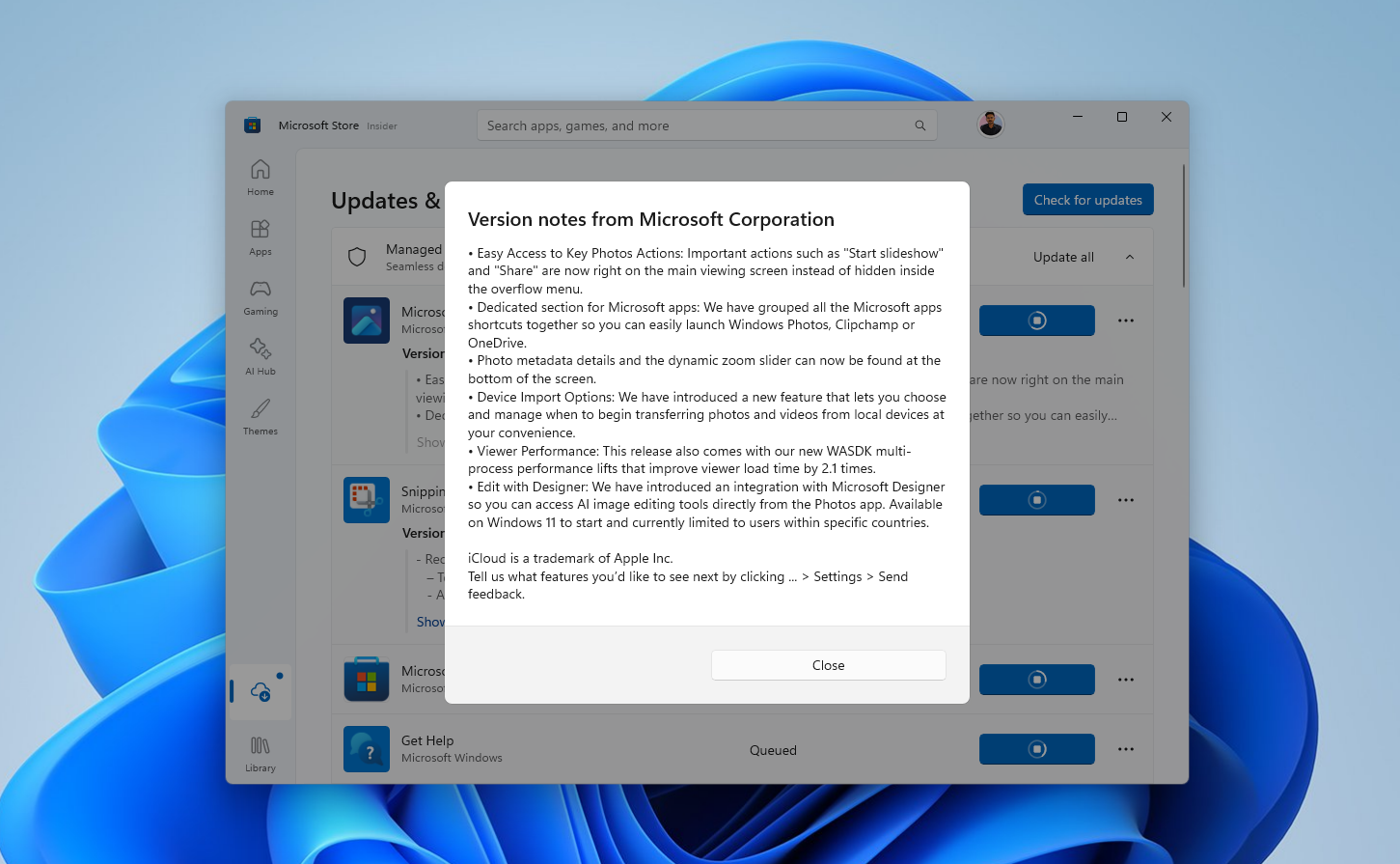
- Faster launch performance, which Microsoft credits to a new WASDK multi-process architecture that the in-app version notes claim cuts viewer load time by roughly 2.1 times.
- A dedicated Microsoft apps section, grouping Clipchamp and OneDrive shortcuts together instead of scattering them across the interface. At least they’re out of the main toolbar now.
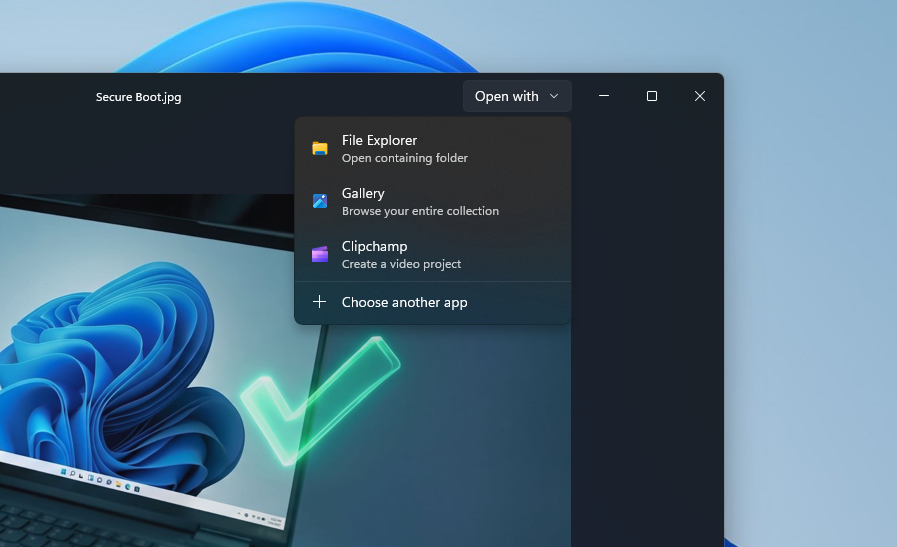
- New device import controls, letting you choose when Photos starts pulling images and videos from connected devices instead of it happening automatically.
Microsoft is still keeping Designer’s AI editing tools around, currently limited to specific countries, but the difference is that it now lives inside the app instead of sitting on the toolbar as a permanent advertisement for itself.
Photos (Preview) undoes all of this progress in the same update
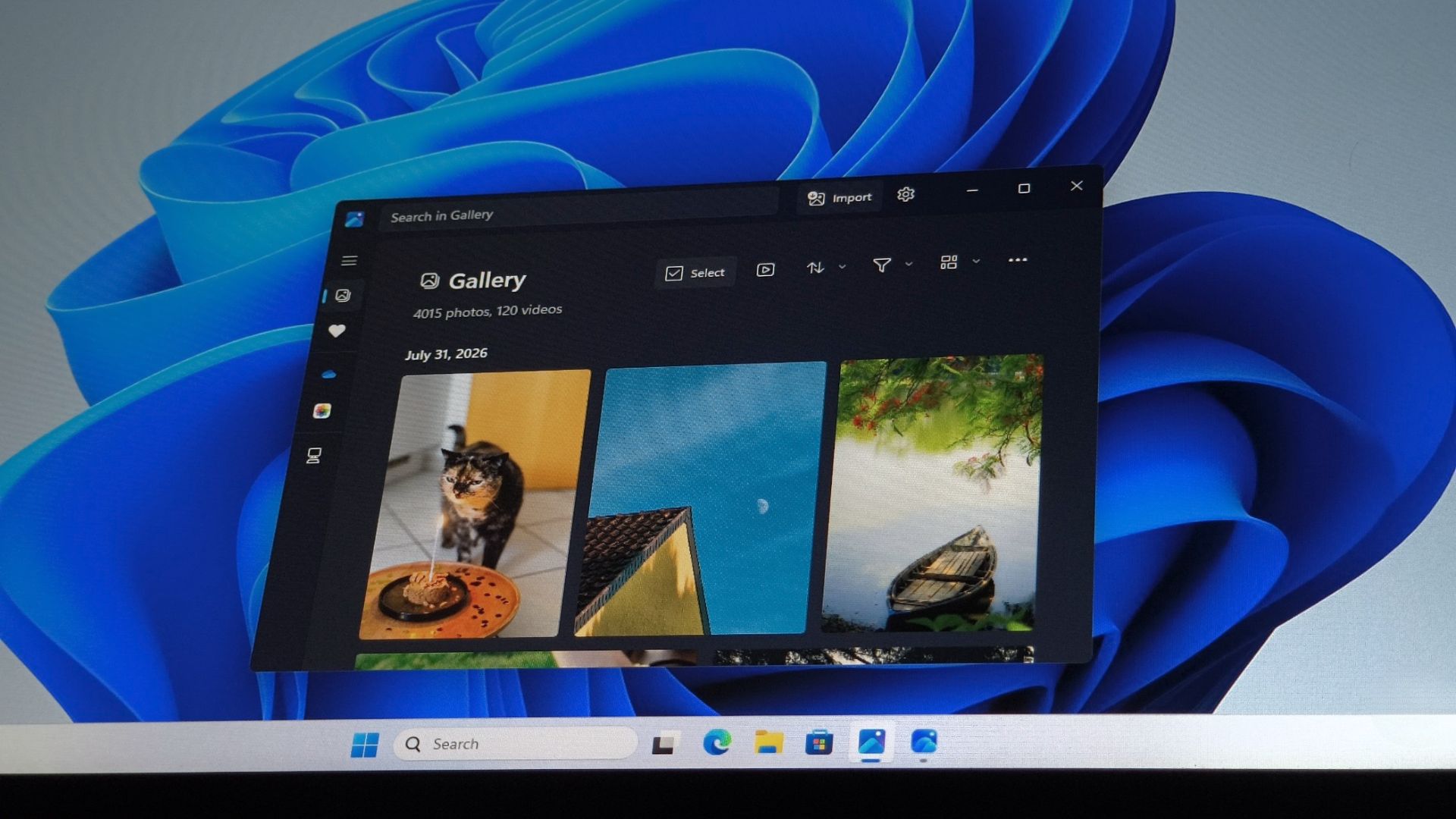
The July changelog for the Photos app also mentions something called “Photos (Preview),” a separate app in the Start menu with its own Gallery, People, Albums, and Favorites sections.
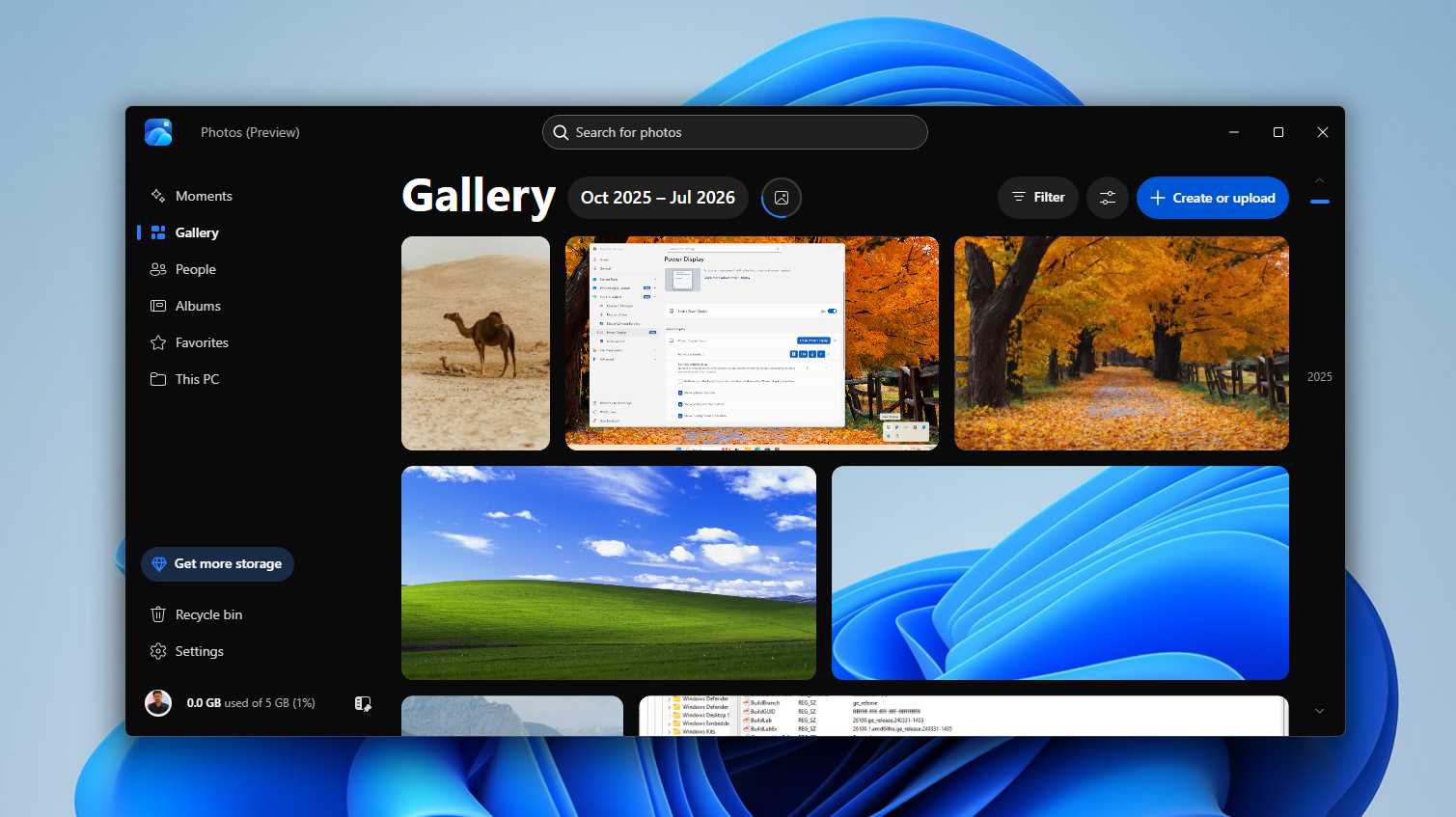
On paper, it sounds like a next-generation Photos app. But it’s just a second app doing a worse job of what Photos already does, and what’s even worse is that it auto-installs!
If you’re our regular reader, you might recognize this as it looks just like the OneDrive Photos app that we recently reported was auto-installing on Windows 11 PCs. It’s another WebView2-based gallery app that Microsoft quietly installed alongside OneDrive, with the same Moments, Gallery, People, Albums, Favorites, and This PC sidebar structure.
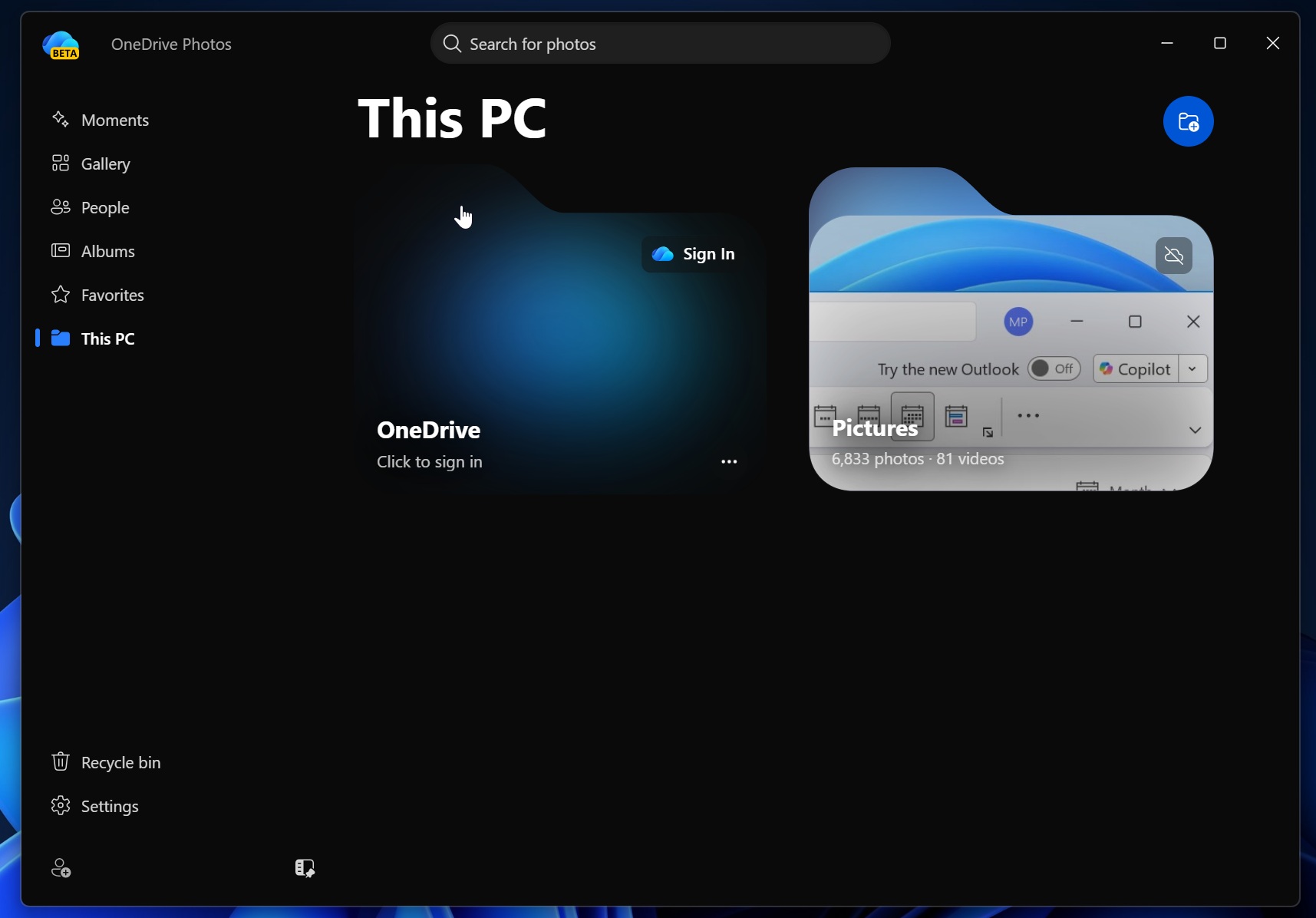
I checked Task Manager while Photos (Preview) was running, and sure enough, just like OneDrive Photos, it shows up as a WebView2 process, not a native app.
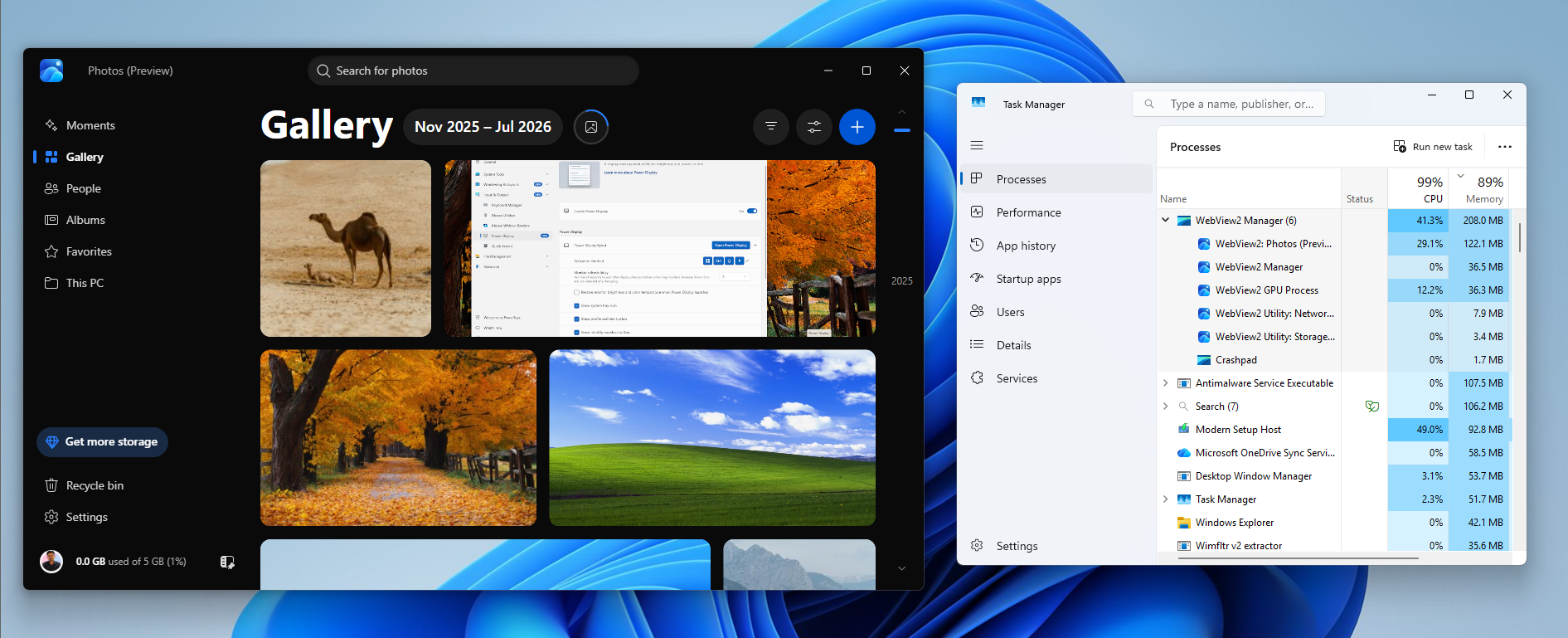
At this point, Photos (Preview) just looks like Microsoft building yet another photo viewer instead of improving the one that already works.
It doesn’t make sense. Microsoft just spent this same update stripping bloat and promotional clutter out of Photos, and is pushing more of Windows 11 toward native WinUI code specifically because WebView2 apps are heavier and slower than native ones.
Shipping a brand new WebView2 photo gallery in the same breath undercuts both efforts at once. Microsoft also recently admitted Windows 11 is a memory hog and promised 8GB RAM optimization by the end of 2026, and that goal gets a lot harder every time Windows auto-installs another background web app nobody asked to run.
Microsoft should keep debloating apps, not add more web wrappers
To be fair, most of what Microsoft did to Photos this month is exactly the direction Windows 11 needs more of. The company has already stripped the Copilot button out of Snipping Tool completely and renamed Notepad’s AI tools to something a lot less in-your-face.
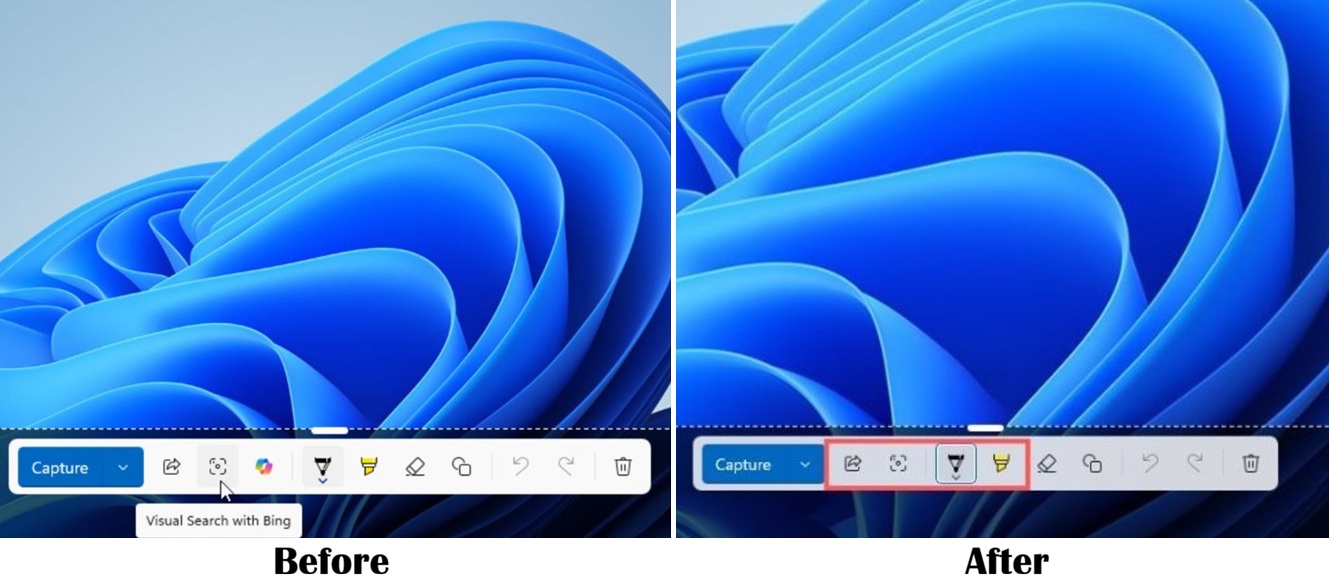
Photos (Preview) is still labeled experimental, and Microsoft is explicitly asking for feedback inside the app, so there’s a real chance it gets scrapped or folded into the main Photos app or maybe even OneDrive.
Windows 11 doesn’t need a WebView2 process in the background masquerading as a second Gallery app. What it needs is Microsoft pointing that same debloating energy at every inbox app until they become as fast and efficient as the ones in the Windows 7 era.