







Despite public pushback and what appeared to be a bit of contrition on Microsoft’s part regarding its forceful embedding of Microsoft 365 Copilot, it now seems the company is back to its old ways.
Depending on which version of Office apps you happen to be on, you may have noticed that Microsoft 365 Copilot components are creeping back into your productivity suite, even if you do not actively use them.
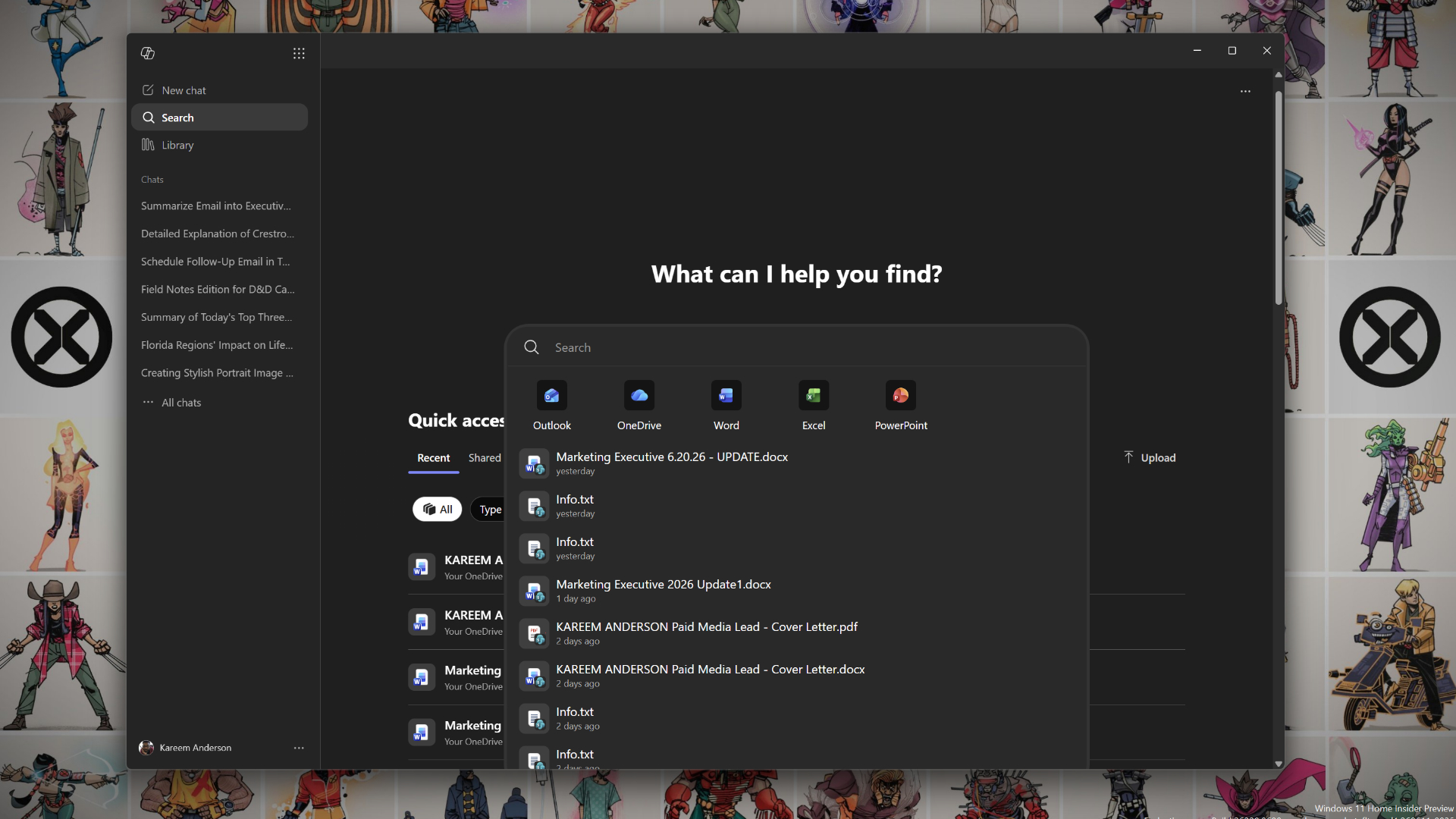
In an update to its admin portal, Microsoft quietly confirmed that the Microsoft 365 Copilot app will auto-install on eligible Windows PCs with Microsoft 365 desktop apps. The company says admins will need to “opt out” if they do not want the Microsoft 365 Copilot app to automatically appear on devices in their organization.
Microsoft plans to roll out the Microsoft 365 Copilot app to eligible Windows devices with Microsoft 365 desktop apps between mid-June and mid-July. You’ll automatically notice the MS 365 Copilot app, as the activation or installation is enabled by default, and it does not require your interaction.
However, if you are based in the European Economic Area, you will not notice any changes, as the entire is exempted.
“Starting June 2026, we will resume the automatic installation of the Microsoft 365 Copilot app to eligible devices with the Microsoft 365 desktop apps,” Microsoft noted in an updated document spotted by Windows Latest. “This change simplifies access to Copilot and ensures users can easily discover and engage with productivity-enhancing features.”
It is worth noting that this is not literally every PC with Office. Microsoft says the automatic installation targets eligible PCs with Microsoft 365 desktop apps.
How is the Microsoft 365 Copilot app getting installed automatically?
Microsoft is not using Windows Store to auto-install the MS 365 Copilot app. Instead, it appears to be using Office apps’ built-in Microsoft 365 Apps updater.
While Microsoft may not be re-rolling out the carpet for the return of its AI models with a prominent banner, you might have noticed that the Copilot button has reappeared in many Office experiences, including ribbons, sidebars, and cloud-based Copilot entry points after recent updates.
To be clear, this rollout is for the Microsoft 365 Copilot app itself, but it comes at a time when Microsoft is also pushing Copilot entry points across Word, Excel, PowerPoint, Outlook, Teams, and Microsoft 365 on the web.
If you happened to journey beyond one of several convoluted Microsoft “opt-out” options and head directly through the registry to permanently excise the ghost of Copilot, it may still not be enough. Registry tweaks are not the cleanest or most reliable way to manage Microsoft 365 Copilot, especially in an organization.
Microsoft’s supported controls are now scattered across the Microsoft 365 Apps admin center, Integrated Apps, Office privacy settings, and per-app toggles.
Until Microsoft wises up and allows for a simple, permanent, user-facing removal of Copilot from Microsoft 365, there are a handful of old and new ways to fight the onslaught of Microsoft’s AI push.
How to disable Copilot integration in Office apps (easy way)
Remove Copilot from select Office apps
If Copilot only mildly annoys you in particular apps, you can do the whack-a-mole approach of simply removing it from individual apps by:
- Open the app and go to File > Options > Copilot
- Clear the Enable Copilot checkbox
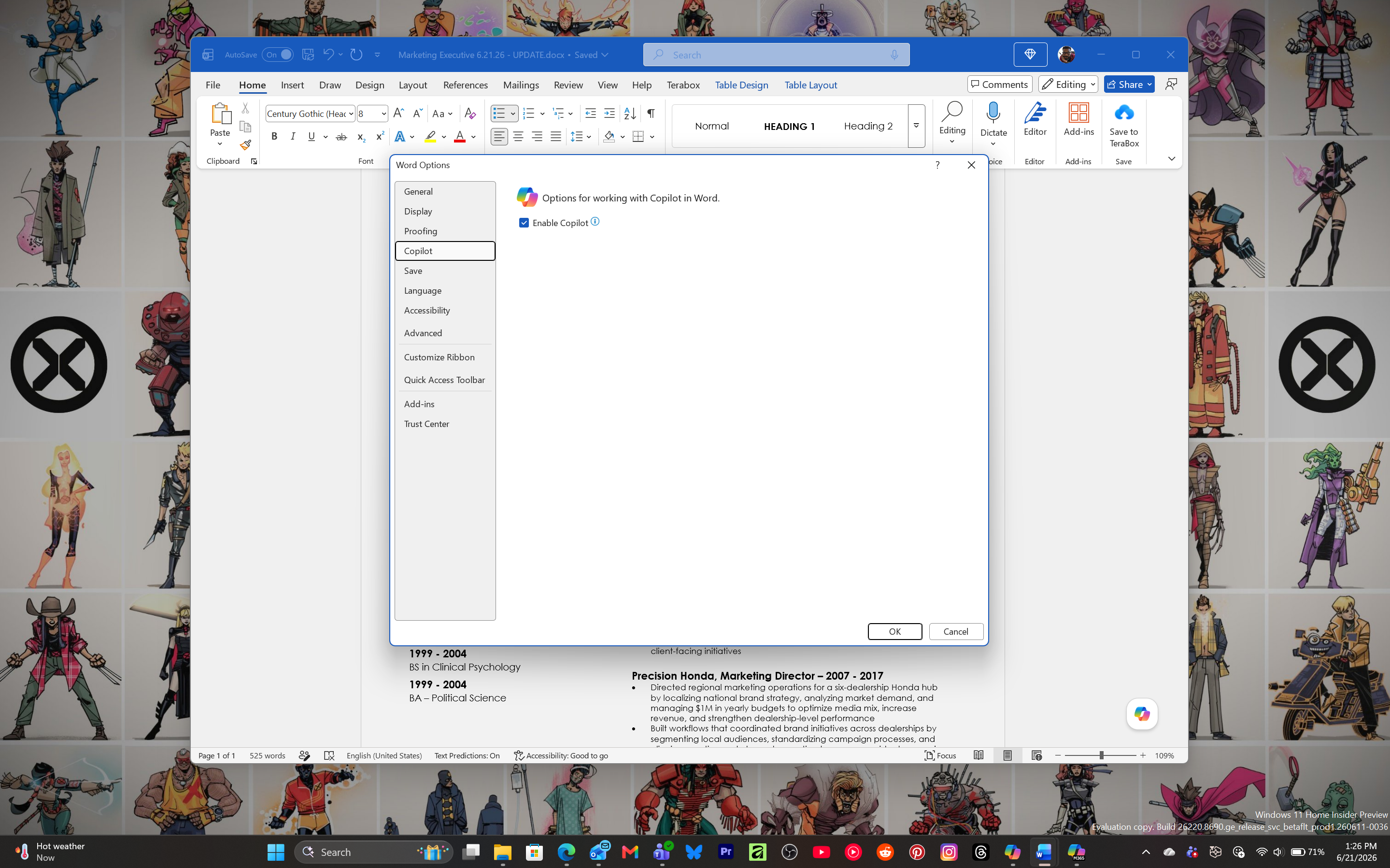
- Close and restart the app for changes to apply
This is the easiest way, but it works on a case-by-case basis and must be done per app and per device.
While this approach works for Word, Excel, PowerPoint, and OneNote on supported versions, Outlook is a bit trickier. You will need to find the Copilot toggle in Quick Settings or Settings > Copilot, depending on the version of Outlook you use.
Microsoft says there is currently no estimated date for the Copilot toggle in classic Outlook for Windows.
Change your privacy settings to block Copilot in Office apps
- Open Word, Excel, or PowerPoint and go to File > Account > Account Privacy > Manage Settings. On Mac, go to Preferences > Personal Settings > Privacy.
- Find Connected Experiences and switch off Turn on experiences that analyze your content.
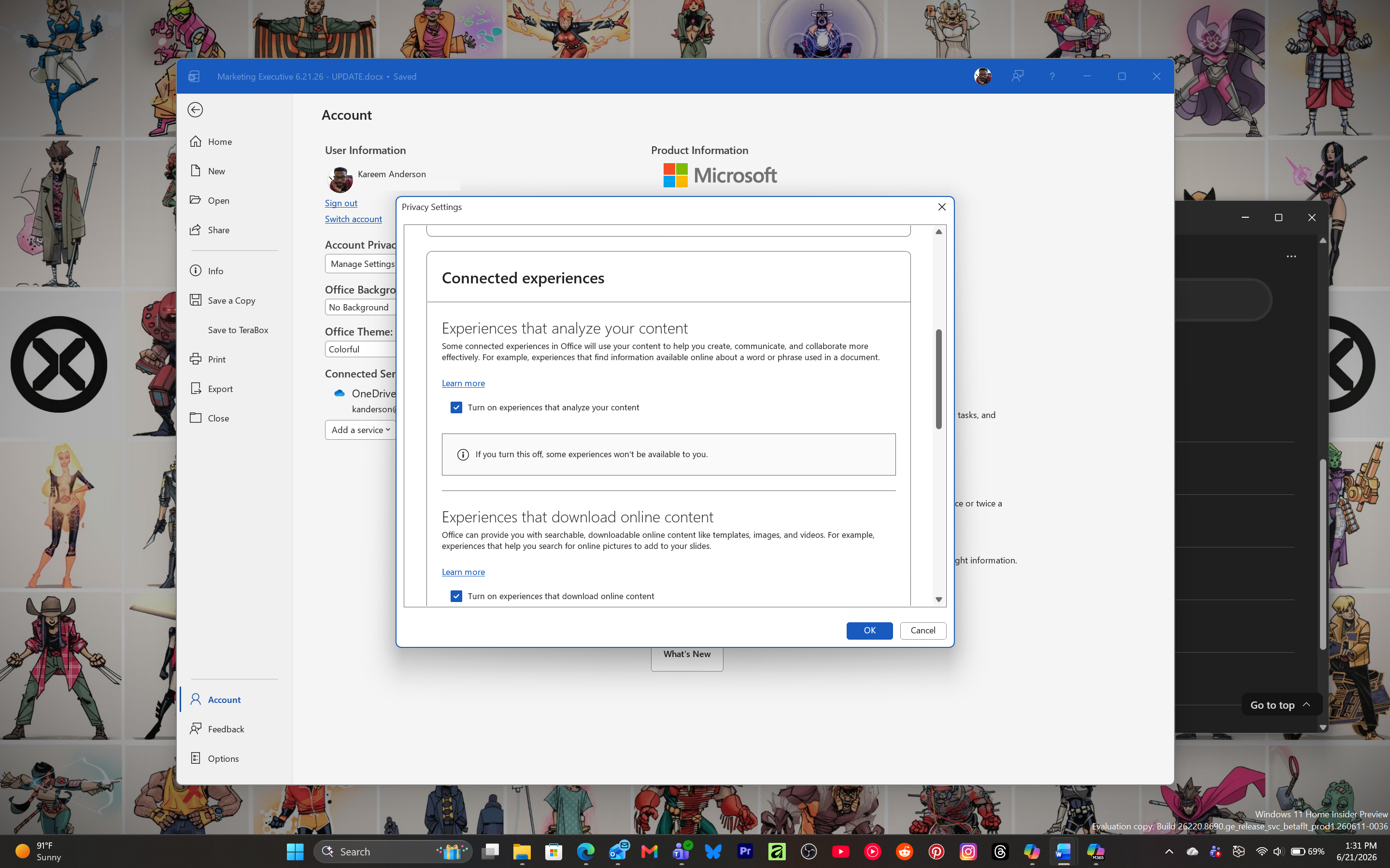
This should block Copilot features in Office apps, but it is not a Copilot-only switch, and it also affects other features like suggested replies in Outlook.
Remove Copilot from Office apps’ Ribbon
If you don’t want to go through the hassle of manually removing Copilot-related features, the easiest way is to just hide them. You can do it in any Office app by modifying the Ribbon menu. To do this, go to File > Options > Customize Ribbon and toggle off Copilot.
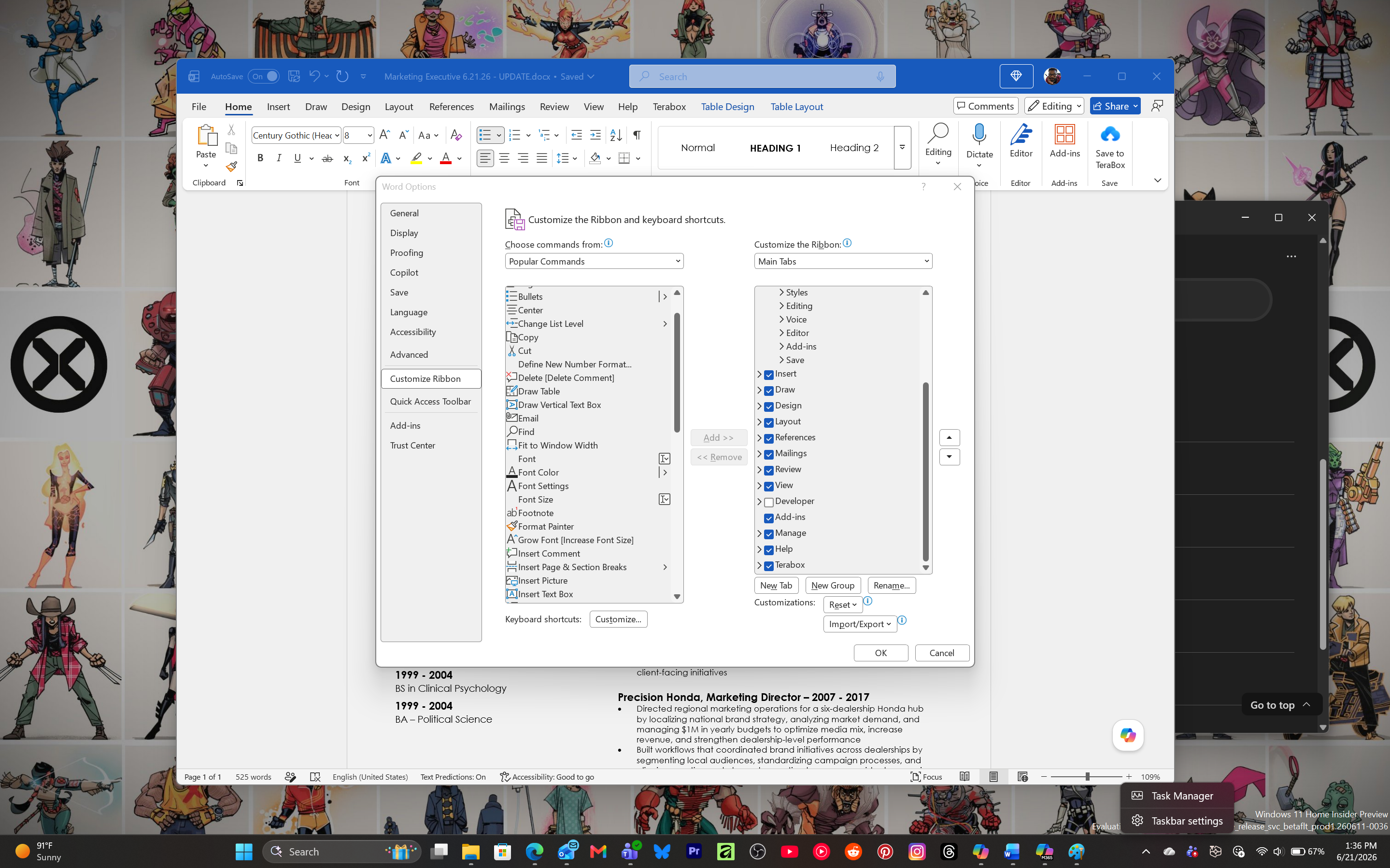
More recently, Microsoft also added a floating Copilot button, but it’s now rolling back that experience, and moving Copilot back to the ribbon.
However, it is worth noting that the Ribbon method only hides Copilot-related features, and AI itself is not removed. You might still see Copilot when you right-click or hover over the paragraphs.
Restore Classic Microsoft 365 subscription without Copilot
For personal and family-level subscriptions, Microsoft has offered Classic plans without Copilot in some regions and for some eligible accounts.
You find out if it’s possible to go back to the non-Copilot Microsoft 365 by following these steps:
- In any browser, simply copy https://account.microsoft.com/services and paste it into the address, and then sign in.
- Now, go to the subscriptions tab and cancel the subscription if your current plan.
- If Microsoft offers a Classic plan without Copilot, you should see it during the cancellation or switch flow.
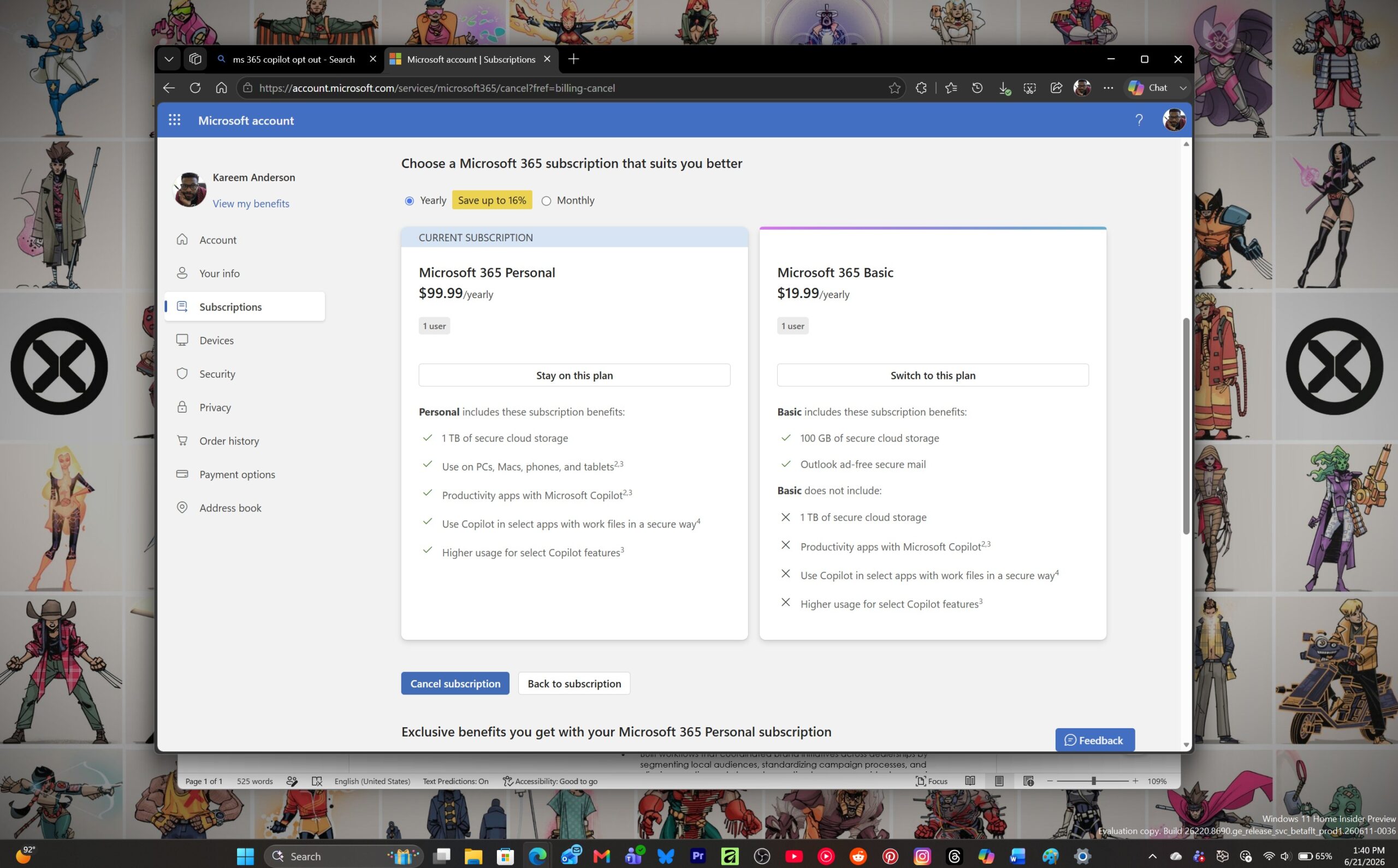
This is not available to everyone in all regions, but I can see it in the United States. It is not the same as the admin opt-out for the Microsoft 365 Copilot app rollout.
How to remove Copilot from Office apps (harder ways)
Unless you’re familiar with navigating command prompts, Group Policy, or registries, I suggest avoiding these options. However, if you’re a Windows-mad scientist who’s fed up with Copilot, I’ve some ideas for you.
Group Policy Blocking
For managed devices, admins can use Office policy settings to block connected experiences that power Copilot in Microsoft 365 apps.
- On Windows, press Win + R
- Type gpedit.msc
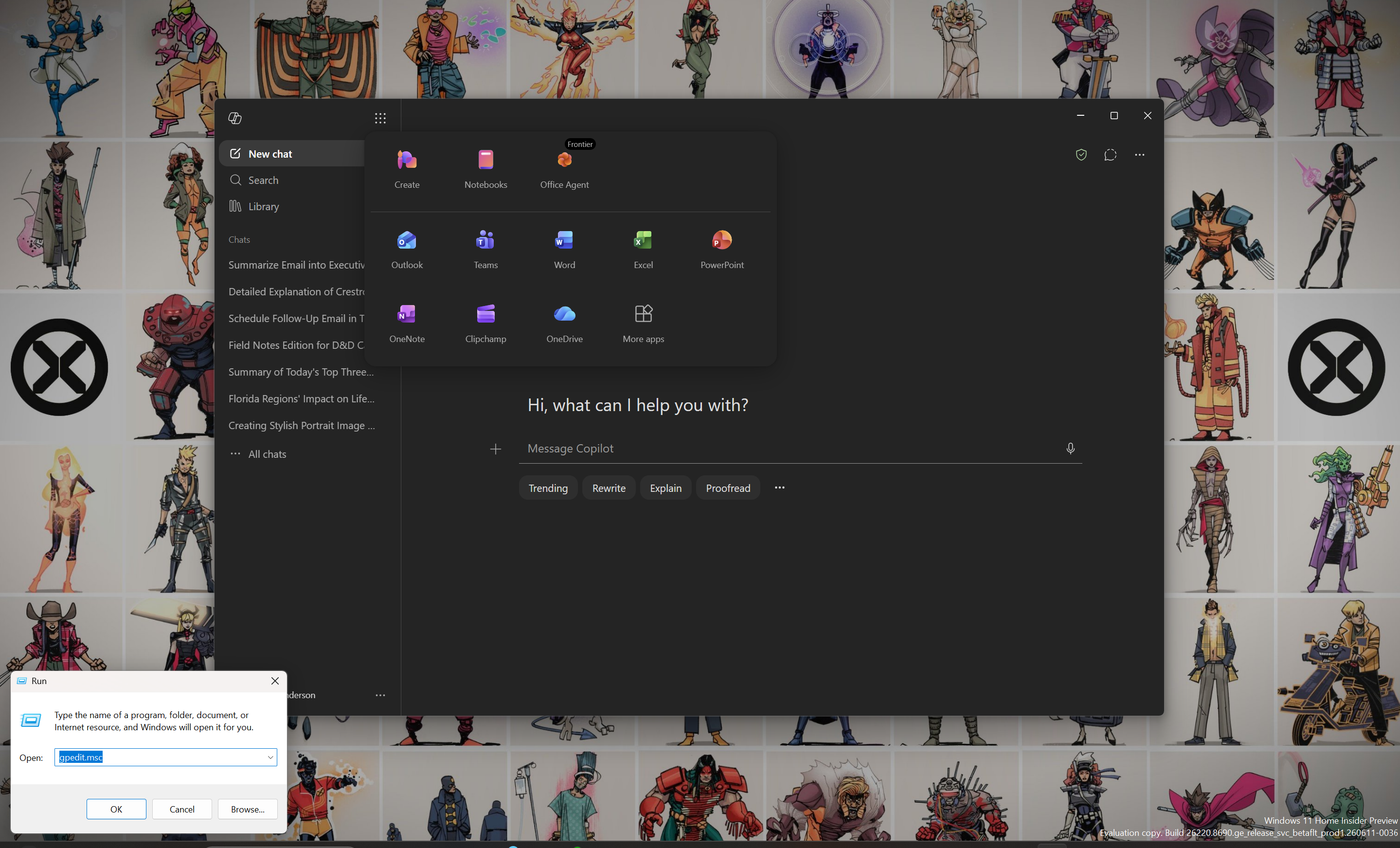
- Go to the Microsoft Office policy templates. Depending on your ADMX templates, this is usually under User Configuration > Policies > Administrative Templates > Microsoft Office 2016 > Privacy > Trust Center.
- Find Allow the use of connected experiences in Office that analyze content.
- Set it to Disabled.
You can also disable Allow the use of connected experiences in Office, but that is a much broader option. It can turn off more than Copilot, including other cloud-backed Office features.
This does not stop the Microsoft 365 Copilot app from being installed. To stop the app installation itself, admins need to opt out from the Microsoft 365 Apps admin center under Customization > Device Configuration > Modern Apps settings > Microsoft 365 Copilot app.
Nuclear Firewall Block? I would avoid it
You may see guides recommending firewall blocks for Copilot-related domains, but this is not a clean or reliable Copilot-only switch.
- Open Windows Defender Firewall
- Choose Advanced Settings
- Create outbound rules only if you know exactly which Microsoft 365 services you are willing to break.
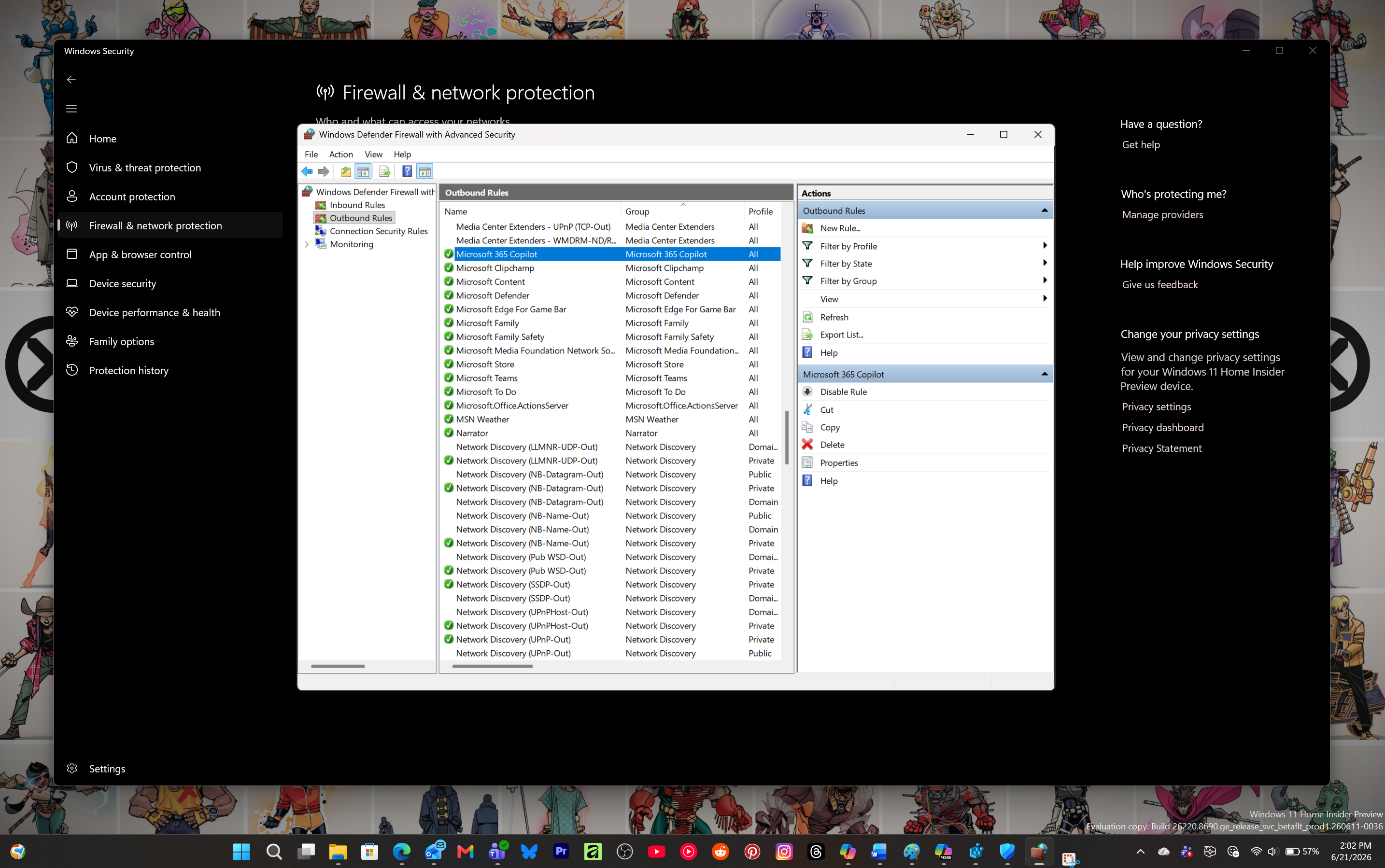
Doing this may affect other features that come via online updates, Microsoft 365 connected experiences, templates, cloud features, or app delivery. Microsoft 365 is deeply tied to online services, and blocking random Copilot or Office endpoints can break more than the Copilot button.
Microsoft may once again offer a mea culpa for its aggressive Copilot push, but for now, the company is moving ahead with automatic installation of the Microsoft 365 Copilot app on eligible Windows devices.
The only real difference is that this time, Microsoft is at least giving admins an opt-out before the app lands on PCs.