






With the June 2026 Patch Tuesday update (KB5094126), Microsoft pushed the Secure Boot 2023 certificate update to a significantly wider set of Windows 11 and Windows 10 devices. For the better part of two years, this rollout has been cautious and phased, held back by firmware compatibility checks. With the June update, the vast majority of supported consumer PCs that Microsoft has diagnostic data for are now in the high confidence category, which means the certificates are either already applied or on their way without any action needed from you.
Secure Boot has been one of the more misunderstood topics in Windows lately. Since a lot of coverage has been aimed at IT professionals, regular home users are left wondering if they need to do anything at all. The short answer for most people is no. The longer answer depends on a few things, and we cover all of them here.
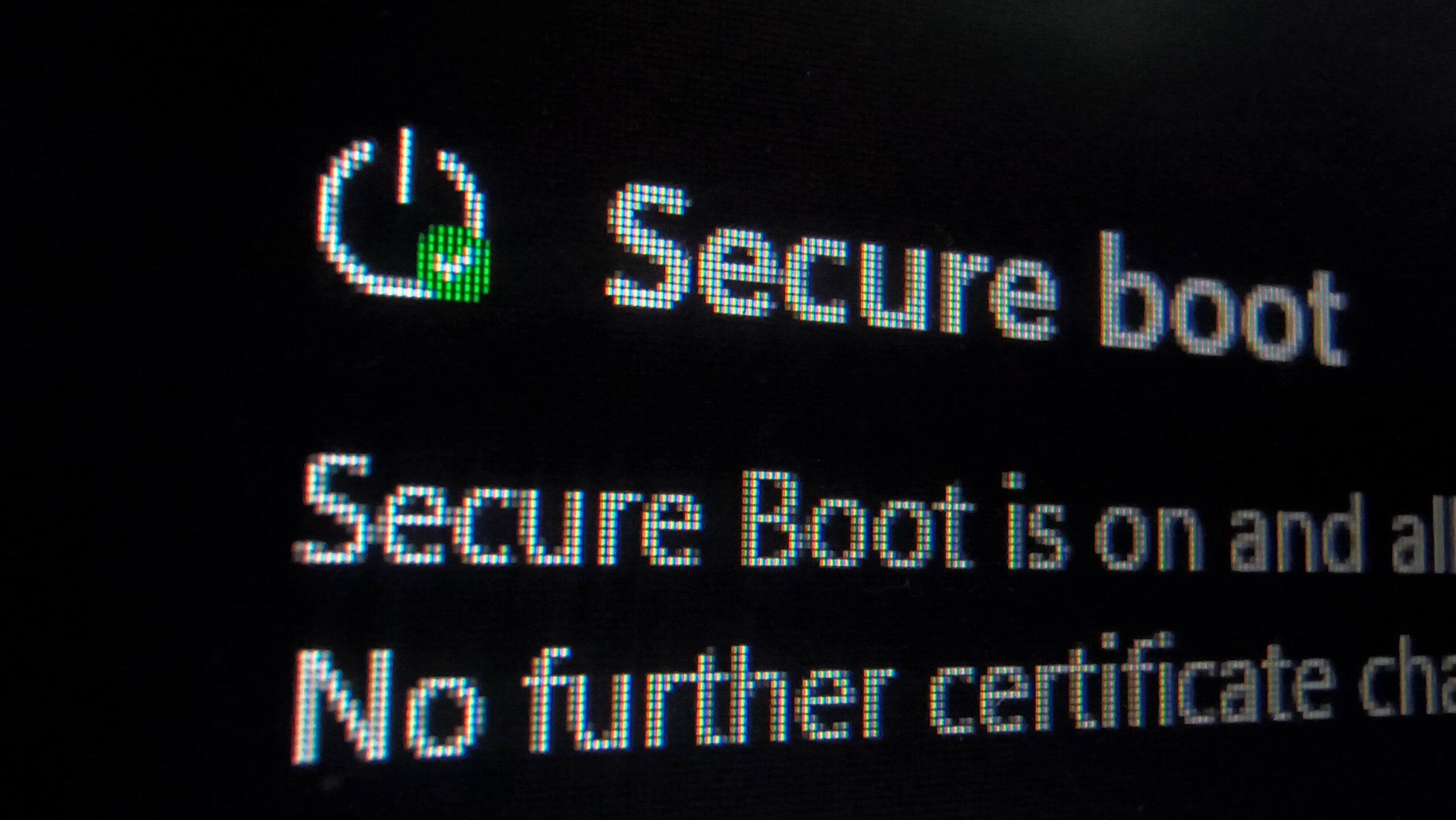
What is Secure Boot and why is it important for your PC?
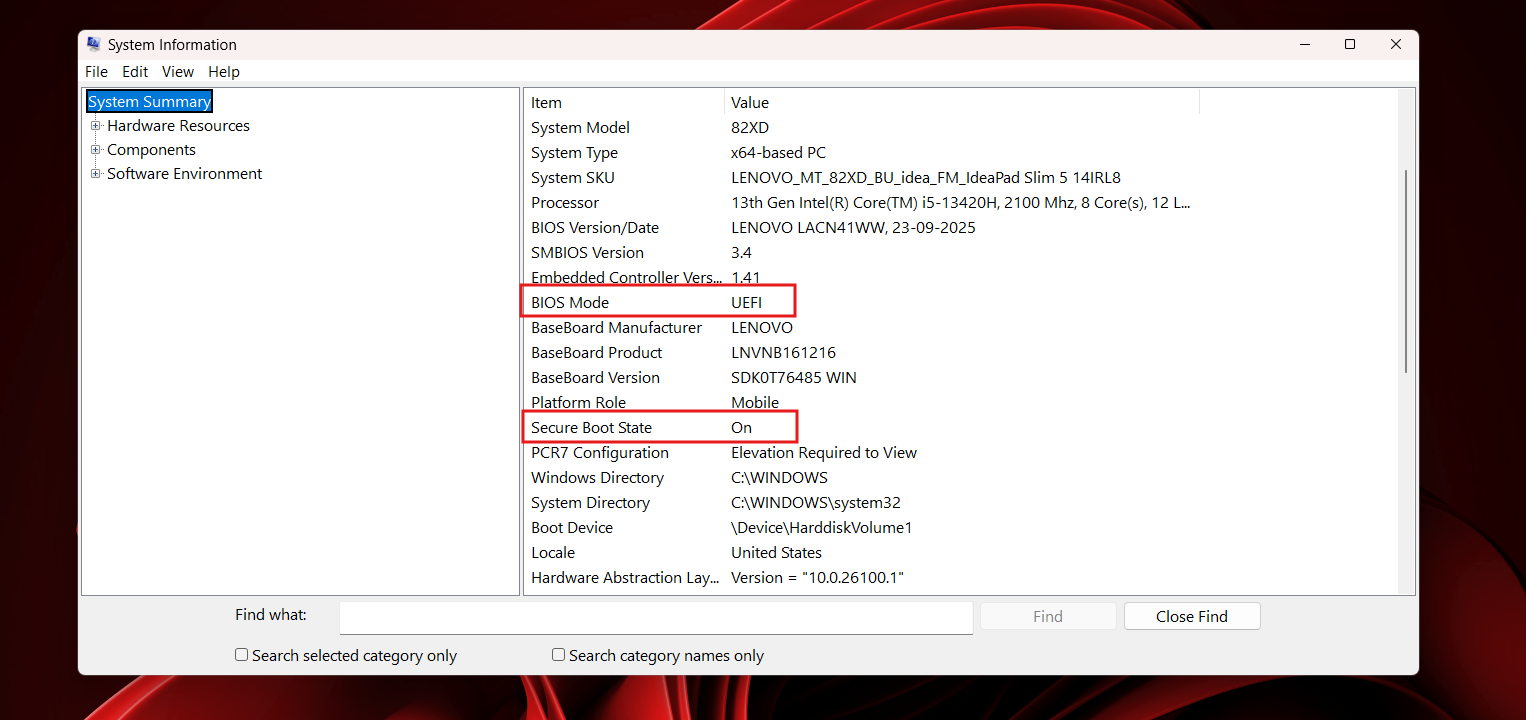
Secure Boot is a security feature built into the firmware of your PC, specifically the UEFI (the modern replacement for BIOS). When you power on your computer, Secure Boot checks the cryptographic signature of the software trying to load before Windows even starts. If something unauthorized tries to run at that early stage, like a rootkit or a bootkit that hides from your antivirus, Secure Boot blocks it. It has been required for Windows 11 since its launch and is on by default on all modern PCs.
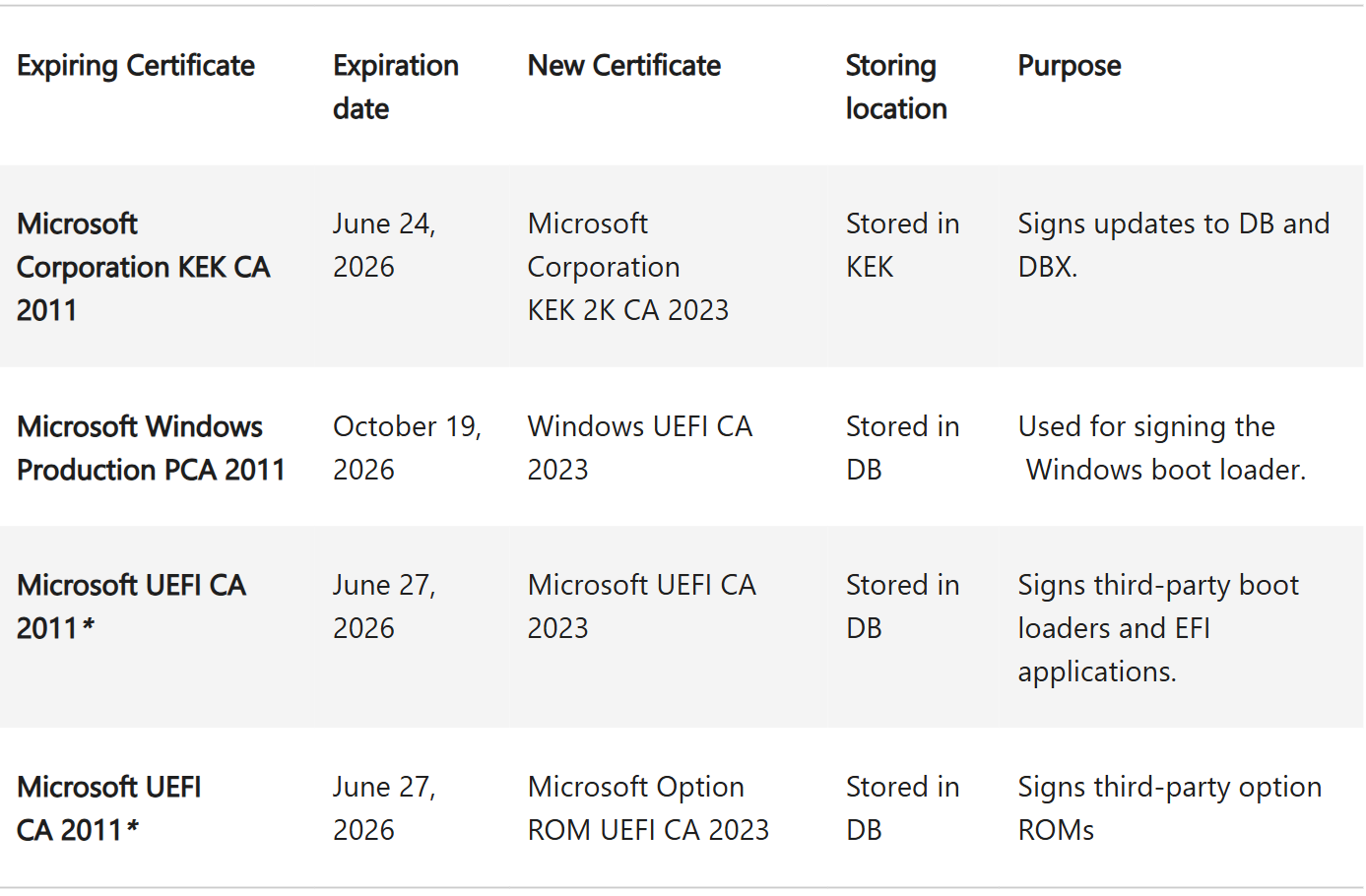
The certificates that back this system were originally issued in 2011. Those 2011-era certificates are now expiring in stages, starting June 24, 2026, with additional expirations stretching to October 2026. Microsoft has been rolling out replacement certificates, called Secure Boot 2023, so that PCs can continue receiving boot-level security updates after the old certificates stop being useful. We covered what happens to Windows 11 PCs if you ignore this deadline in detail earlier.
If you’re a regular Windows 11 or Windows 10 user, here’s what to do
Check your status in Windows Security
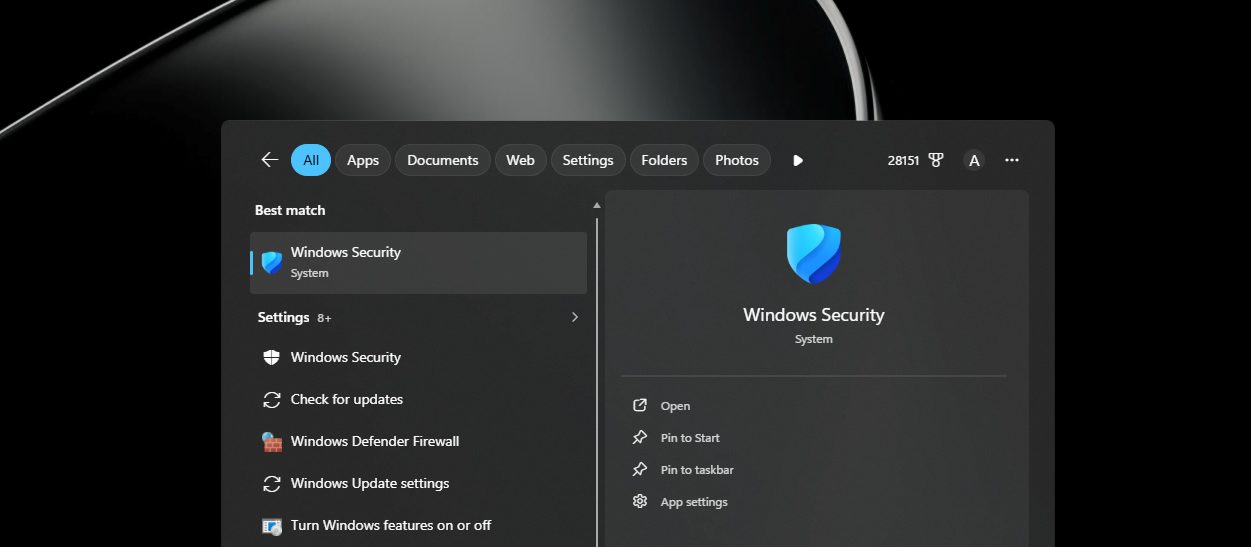
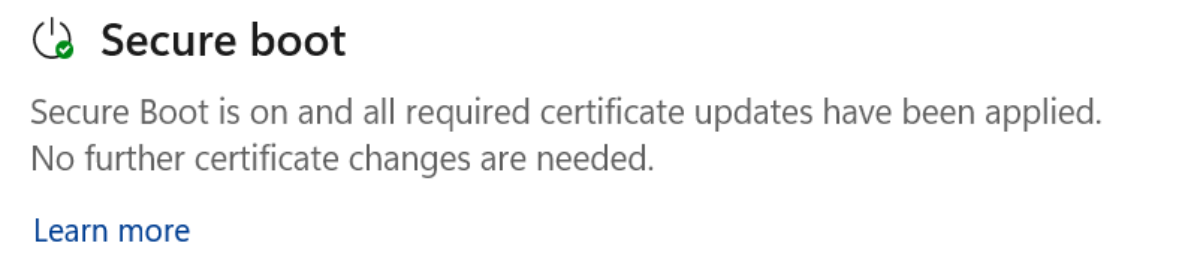
For most home users, nothing needs to be done manually. The Secure Boot 2023 certificates are being delivered through Windows Update, and if your device qualifies and Windows Update is not paused, the update happens in the background. However, you should still verify your status. Since the April 2026 update, Windows 11 shows your Secure Boot certificate status directly inside the Windows Security app. Open Windows Security > Device Security > Secure Boot section. A green checkmark means your PC is fully updated, and no further action is needed. Windows Latest covered what each status icon means when Microsoft first introduced this feature.
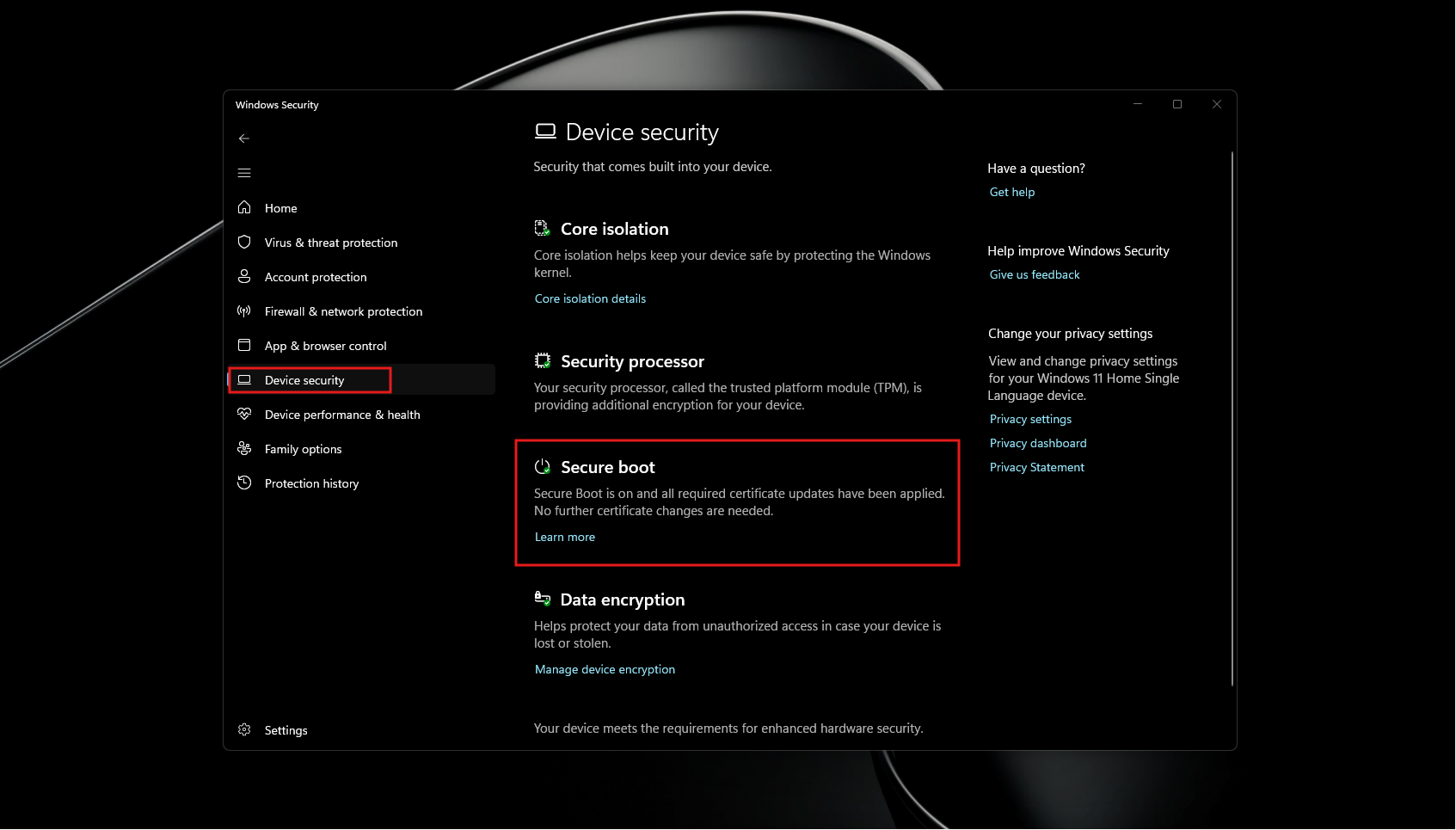
What if you see a Yellow or Red icon?
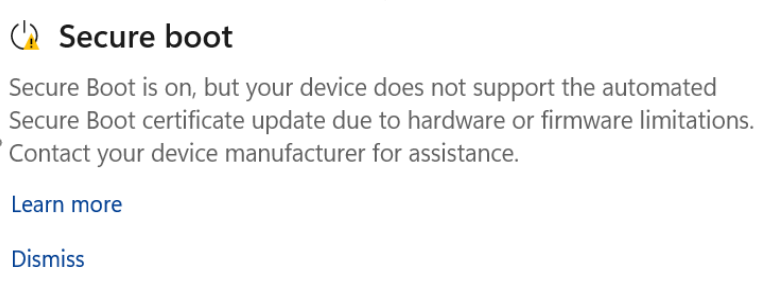
A yellow warning usually means Windows is waiting to apply the certificate update, because it needs more compatibility data about your specific device firmware. In most cases, all you need to do is keep Windows Update running and wait. The June update has significantly expanded the list of devices that will receive this automatically.
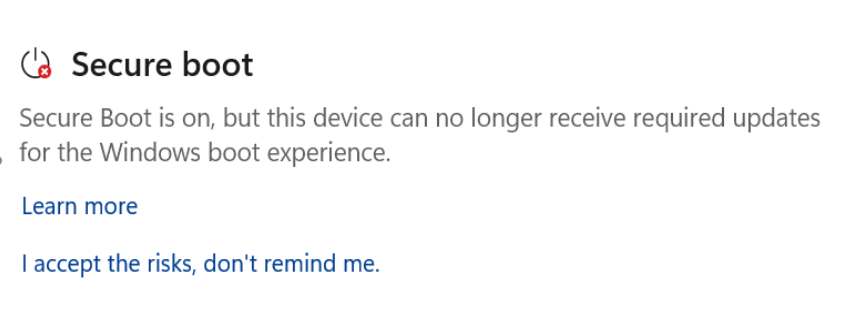
A red alert is less common and is a more serious issue, usually a firmware incompatibility that requires your PC manufacturer (HP, Dell, Lenovo, ASUS, etc.) to release a BIOS/UEFI update. If you see a red icon, check your manufacturer’s support page for a BIOS update and install it. After applying the firmware update, Windows will retry the certificate update on its own.
Do you need to do anything if your PC already has a Green checkmark?
No. If Windows Security shows a green checkmark under Secure Boot, your PC has already received the 2023 certificates. You are fully up to date. There aren’t any BIOS changes or PowerShell commands that you need to do.

Multiple Reboots during Secure Boot updates is normal
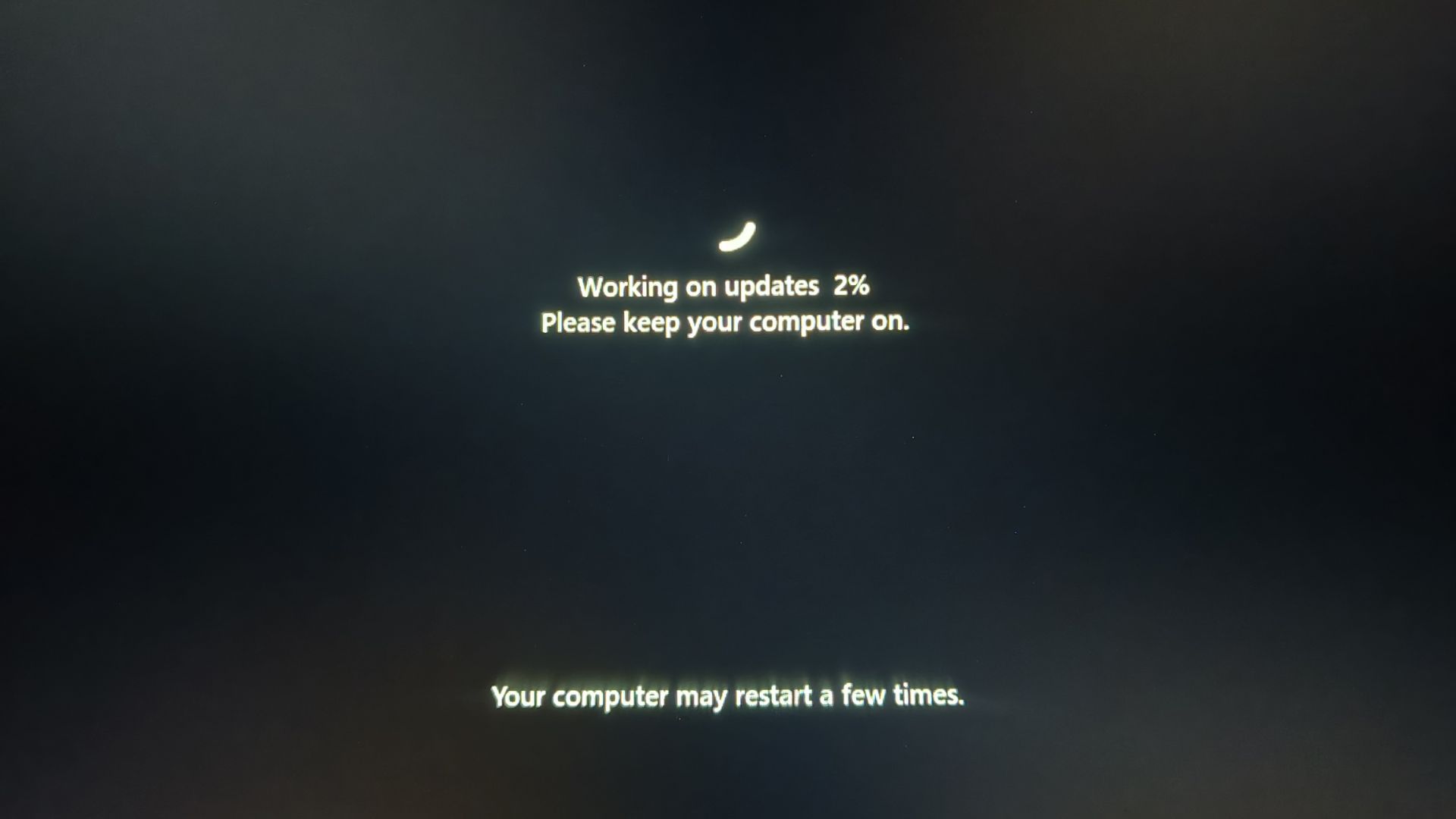
Some users noticed their PCs restarting two or three times after installing Windows updates recently. Microsoft confirmed this is expected behavior, specifically because of the Secure Boot certificate update process. Pushing these certificates into the firmware requires staging them, applying them, and then booting the updated bootloader, with each step needing a reboot. If your PC restarted more than once after the June update, it was likely working as intended.
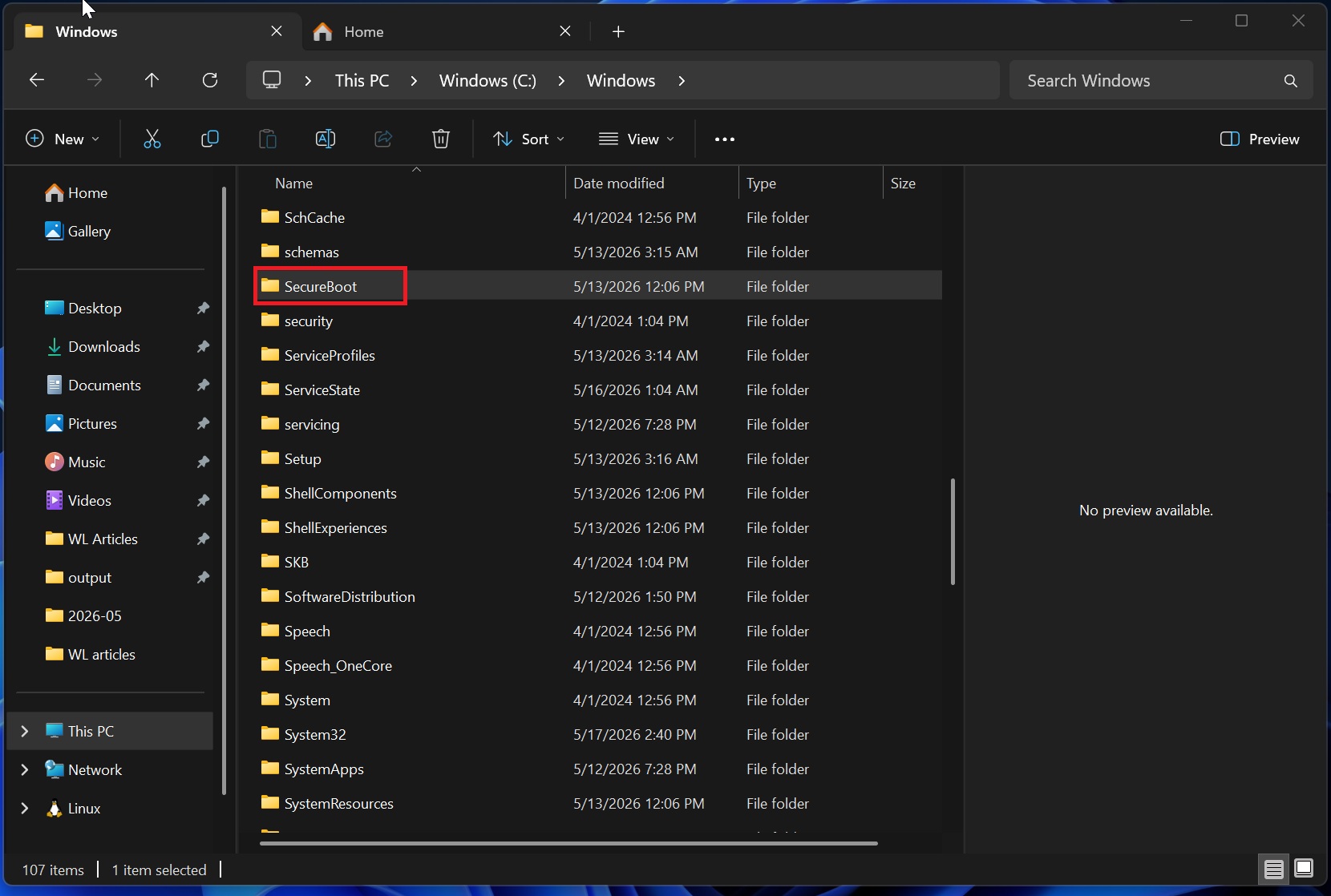
You may see a new SecureBoot Folder in Windows
If you see a new SecureBoot folder inside C:\Windows, you don’t have to be concerned and delete it. Microsoft confirmed it is not a bug and you should not delete it. Windows uses this folder to stage the cryptographic files before flashing them into the firmware. You can leave it alone.
Secure Boot on older PCs
Older PCs fall into a few different categories. If your PC shipped with Windows 10 or 11 and has been receiving Windows updates regularly, there is a good chance the June update will cover it. If your PC is from the 2015-2019 era and the manufacturer has not released a recent BIOS update, you may see a yellow status for a while longer as Microsoft works through the confidence database for those firmware versions.
A very small number of very old PCs may never get the automatic update because the firmware has issues that can’t be resolved without a manufacturer update that does not exist. For those devices, we published a detailed breakdown of what Secure Boot failures look like across older hardware and how to diagnose them. But for the average consumer with a PC from 2020 or later, the June update covers you.
Do you need to check your BIOS or do anything manually?
For a home user on Windows 11 or Windows 10 ESU, no. Microsoft explicitly states in its official guidance that for devices receiving Microsoft-managed updates, the process is automatic. You do not need to open BIOS, or touch any registry settings. Earlier this year, we showed how to check Secure Boot certificate status manually if you want to verify it yourself, but it is entirely optional for home users.
A Note for HP users
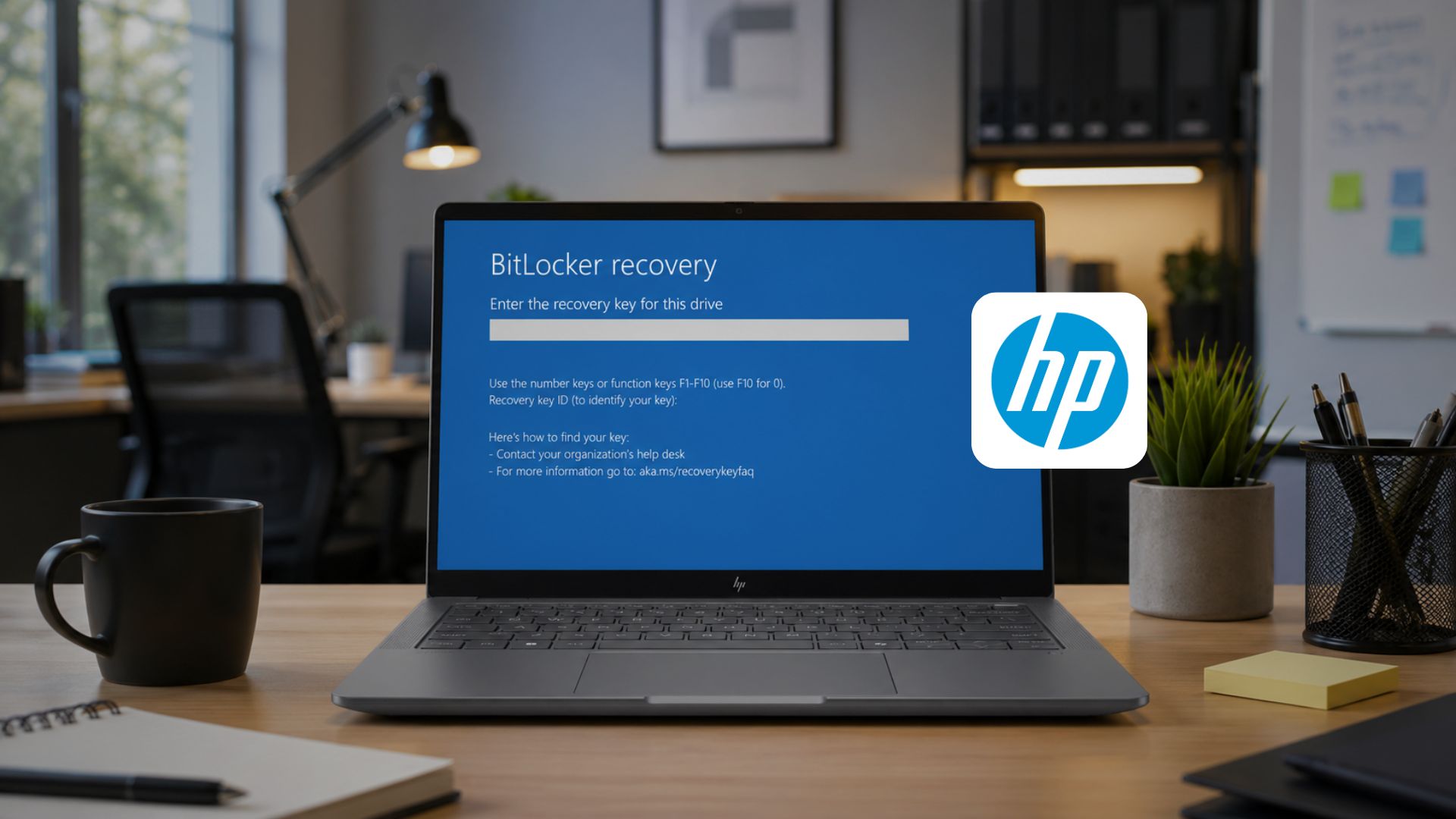
HP users specifically should be aware that HP’s April 2026 BIOS updates caused BitLocker recovery loops and boot failures on premium commercial laptops and workstations when they tried to apply the Secure Boot certificates. HP has since acknowledged the issue and published updated firmware. If you have an HP device and you are seeing BitLocker recovery prompts or boot problems after recent updates, check HP’s support advisory and install the latest BIOS update from HP’s support site first before anything else. Also, check our coverage of Windows 11 KB5094126 known issues, where HP PCs appear to be among the affected devices.
What IT Administrators need to know about changes in the June 2026 Update
The June Patch Tuesday update added a significant number of device models to the high confidence database, which is the list Microsoft uses to determine which PCs receive the certificate update automatically. Microsoft’s engineering team confirmed in their second Secure Boot AMA session on June 4 that the vast majority of systems with available diagnostic data will be high confidence after the June update.
Devices in the High Confidence bucket
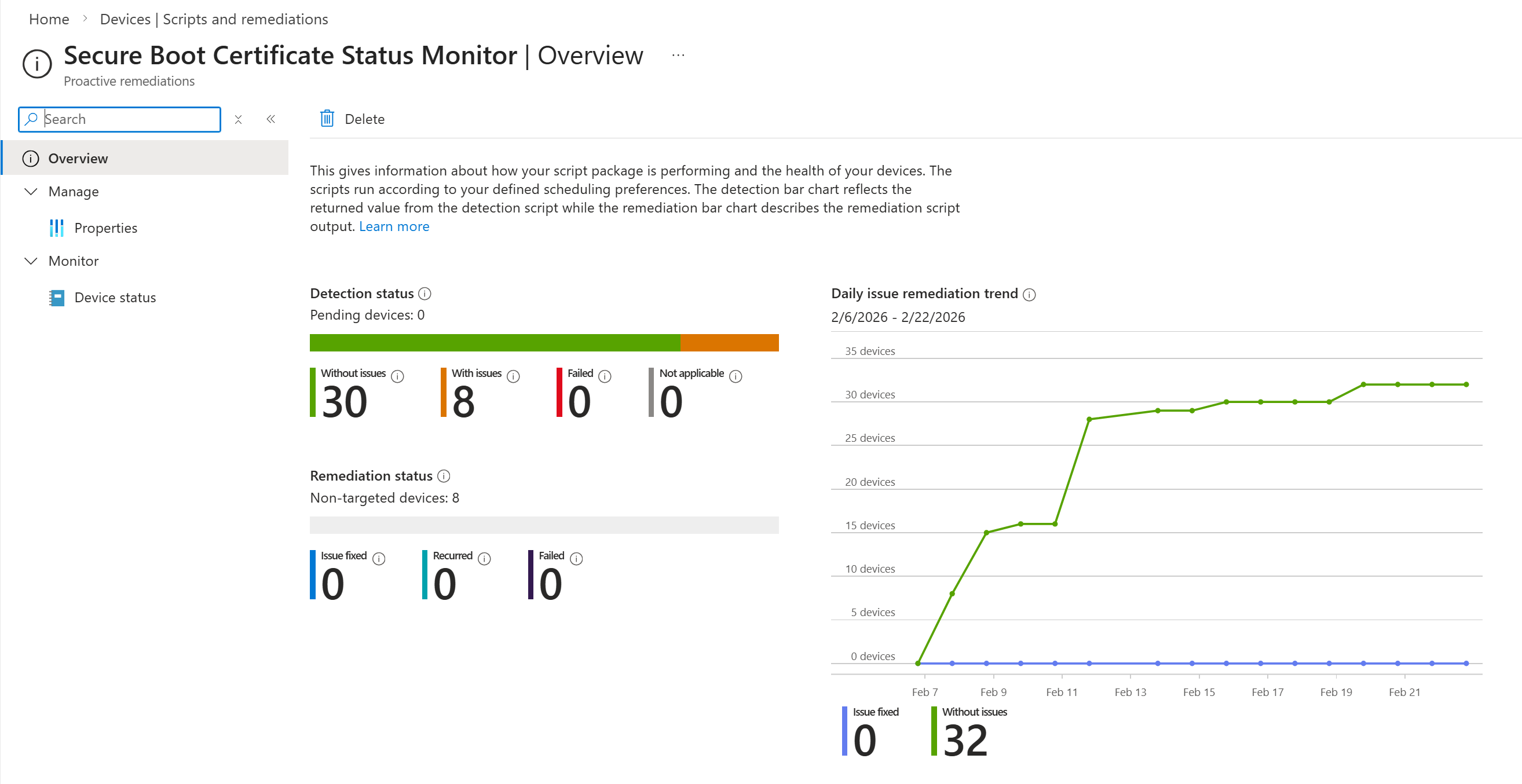
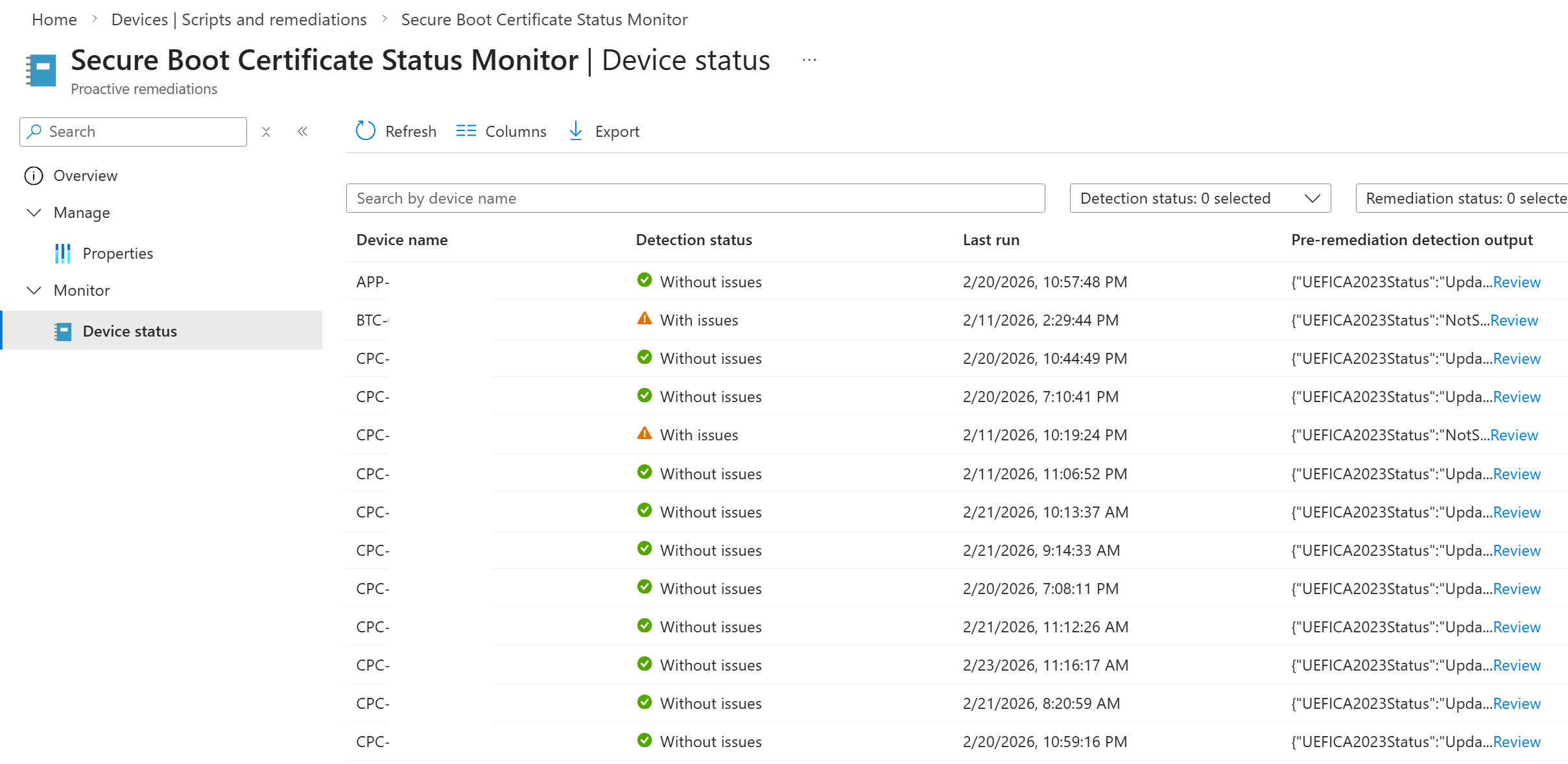
If a device is in the high confidence bucket, Intune handles the update automatically. No administrator action is needed for those devices. The Intune monitoring report, updated in mid-May, shows the certificate update status for every managed device. Microsoft’s guidance is to pull that report first, identify what is in high confidence and what is not, and then plan your rollout accordingly.
Devices not in High Confidence
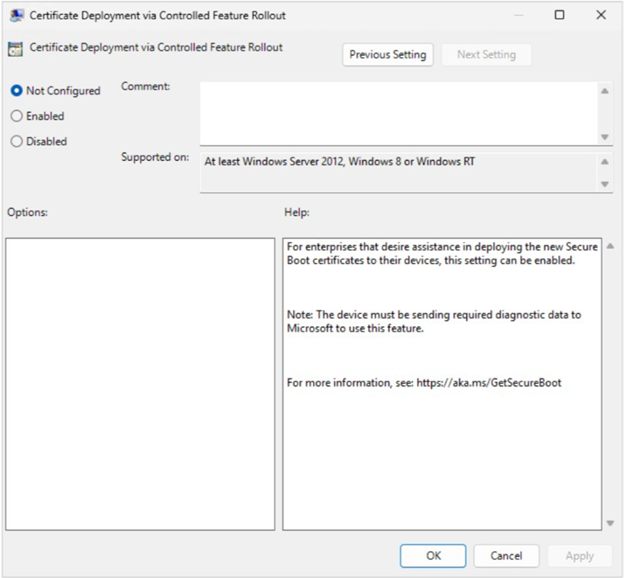
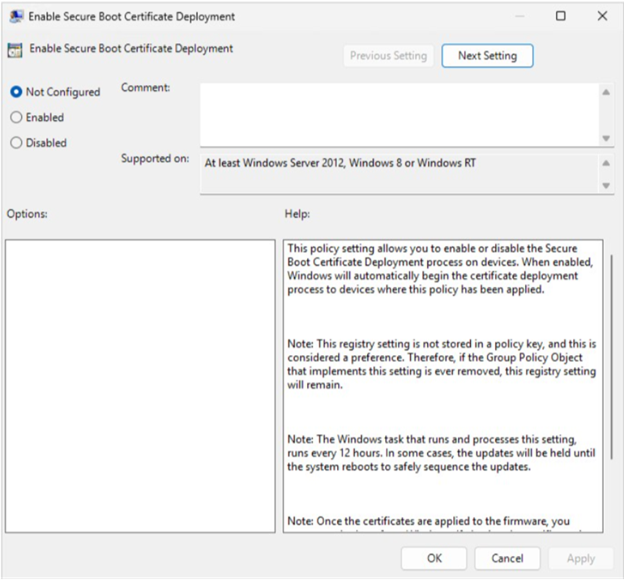
For devices outside the high confidence bucket, including white box machines, older configurations with less telemetry, or uncommon OEM firmware versions, administrators need to manually trigger the update. The two primary methods are the registry key approach (setting the AvailableUpdates value to 5944) or the equivalent Intune settings catalog policy. Both do the same thing as they tell the scheduled task to run the certificate update process immediately instead of waiting for the device to be classified.
Microsoft’s recommended workflow for Intune-managed devices is to pull the Secure Boot monitoring report, find devices that have not updated, pick one or two representative units from each firmware variant, push the policy, and wait for a green status before expanding. Devices should be active and accessible. Avoid picking remote machines that might stay offline for days. Microsoft has published detailed guidance on monitoring Secure Boot certificate status with Intune remediations and the registry key method for IT-managed devices on its support pages.
The temporarily paused bucket
Devices in a temporarily paused state are there because Microsoft’s rollout system detected a firmware compatibility issue that would make the update risky on that specific device configuration. Forcing the update through the registry on these devices without first installing a firmware update from the OEM is not recommended. Check the OEM’s support page for a BIOS update, install it, and then retry. After a firmware update, the device moves into a new bucket based on its new firmware version, which will likely be under observation or high confidence instead of being paused.
Note that once a device moves to a new bucket after a firmware update, the old bucket does not change. Looking at a cached data export from weeks ago will give you a false picture. Always check live Intune or GitHub CSV data to know the current state of a specific device. Microsoft’s OEM pages for Secure Boot list firmware update resources for all major manufacturers.
Machines with Secure Boot turned off
For devices where Secure Boot is disabled in firmware, Microsoft cannot update the certificates. The firmware physically does not allow it. These machines are already exposed to the boot-level attacks that Secure Boot exists to prevent, and the certificate expiration does not change that exposure, as it was already there. If you plan to enable Secure Boot on these machines later, test thoroughly first. The boot manager on the device will be updated to the 2023-signed version, but if the firmware trust database only contains the 2011 certificate when you re-enable Secure Boot, the machine will not boot and will require manual recovery.
Event Log entries to monitor
The TPM-WMI event source in the Windows System event log is the most reliable diagnostic tool for Secure Boot certificate update status. Event 1801 indicates the device is tracked and awaiting more data. Event 1802 points to a specific firmware-level issue and is the typical reason for a temporarily paused classification. Event 1803 indicates a failure to apply the KEK update, usually because no PK-signed KEK payload exists for that device’s Platform Key configuration, which is common in some virtual machine setups where the PK was set to an invalid value.
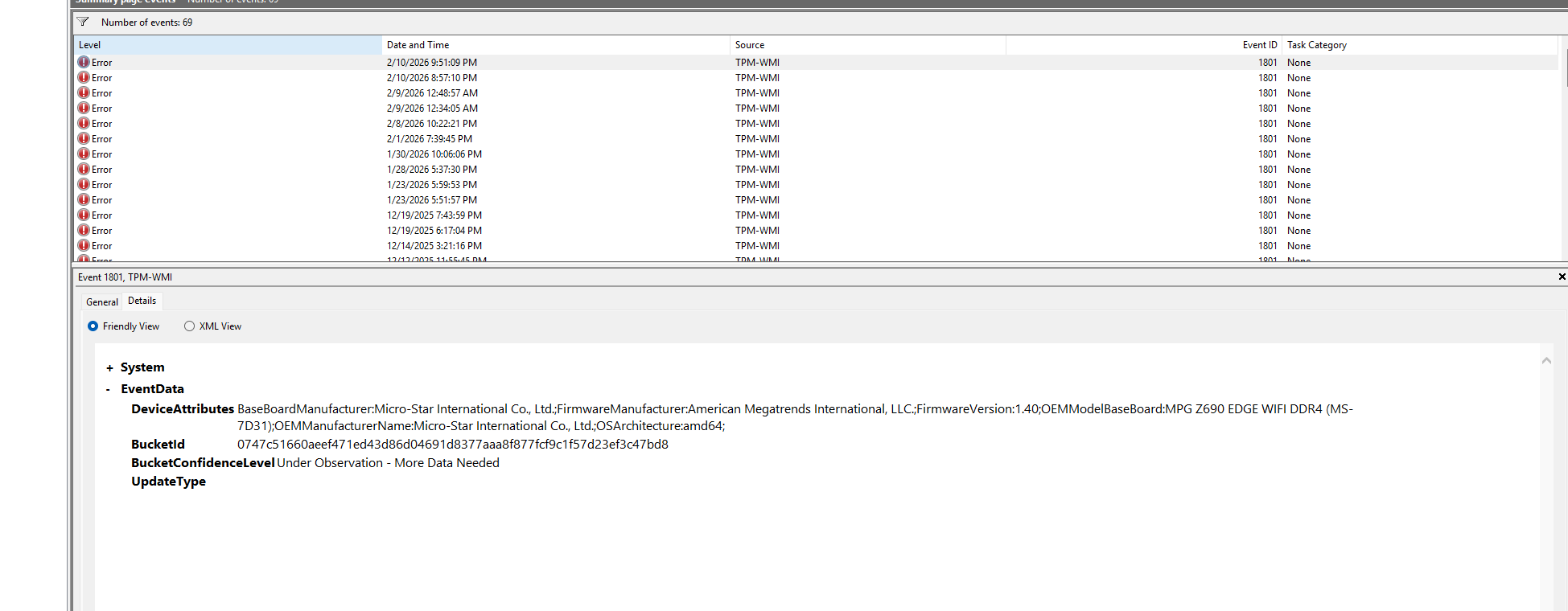
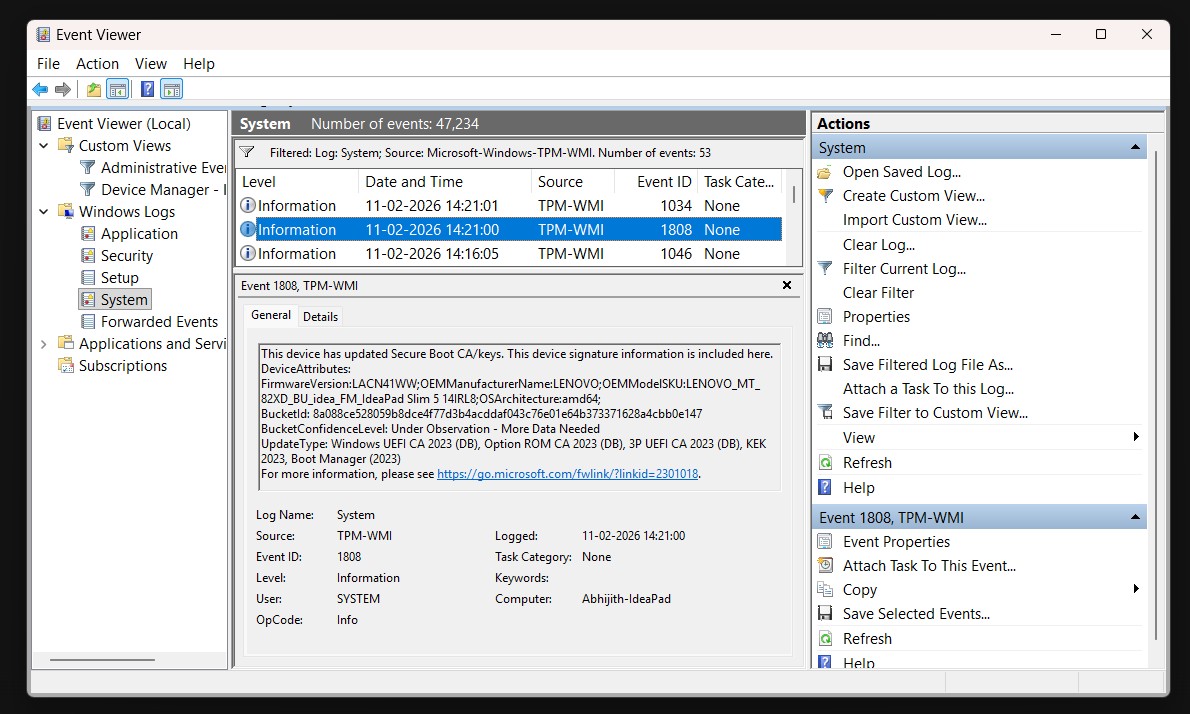
If your update is fully complete, you will see Event ID 1808 in Event Viewer, confirming that the new Secure Boot keys are active.If you have virtual environments with HyperV or Azure VMs, the PK configuration is a potential sticking point. Confirm that both the KEK and the DB certificates are the 2023 versions. If the DB certificates are already present but the KEK failed, the device is still partially protected but will not receive DBX revocation updates until the KEK is also updated. Microsoft has specific guidance for Trusted Launch and Confidential VMs on Azure and Azure Virtual Desktop environments.
OEMs and the Driver Quality Initiative
The Secure Boot deadline has put significant pressure on OEMs to ship BIOS updates quickly, but occasionally had the opposite effect of what was intended. We covered how OEMs bricked Windows 11 PCs through rushed firmware updates. Microsoft’s Driver Quality Initiative announced at WinHEC 2026 is an ecosystem-wide effort to make firmware and driver quality a shared accountability between Microsoft, OEMs, and silicon vendors.
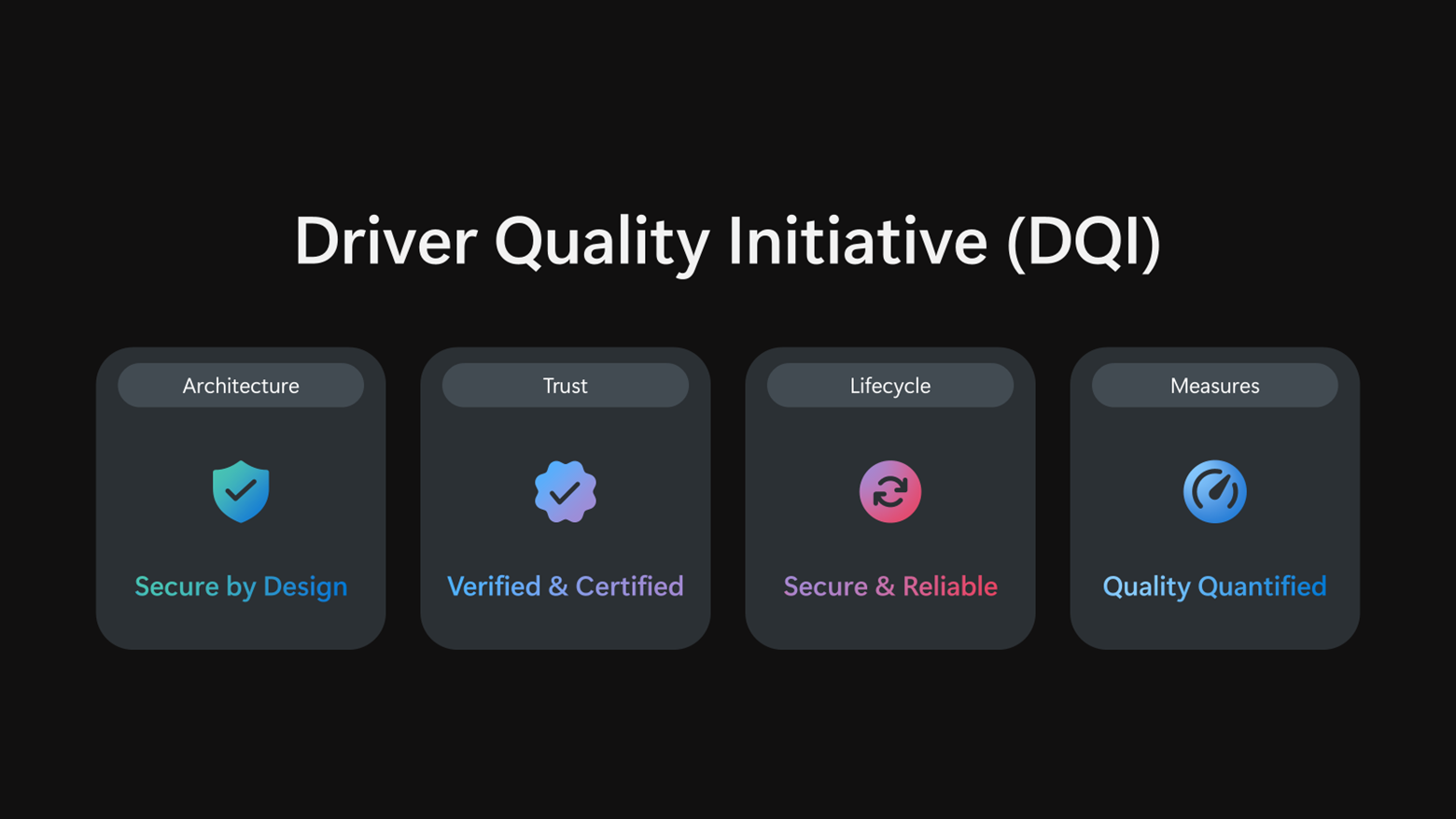
For IT admins managing large fleets, it strengthens the importance of piloting OEM firmware updates on a small cohort before broad deployment, even when the update is marketed as a security fix.
KEK expiration and what stops working after June 24
June 24 is not a date when devices suddenly stop working. It is the expiration date of the Microsoft Corporation KEK CA 2011 certificate, specifically. After that date, Microsoft loses the ability to sign new DBX revocation payloads with the old KEK. All previously signed payloads, including the registry key and scheduled task mechanism, continue working exactly as before. The DB key does not expire until October 2026, so Microsoft can still sign new boot managers until then. What stops accruing after the KEK expires is Microsoft’s ability to push new malware and bootkit blacklist updates to devices that have not yet received the new KEK.
You can check Microsoft’s central resource for all things about Secure Boot, including documentation, scripts, OEM firmware links, Intune guidance, troubleshooting, and known issues, at aka.ms/GetSecureBoot.
Let us know in the comments if you’re facing any issues with Secure Boot.