





Windows 11 KB5089573 is a major update that bumps the OS to Build 26200.8524 and adds multiple new features, including Low Latency Profile for better performance. This update is available via Windows Update, but Microsoft has also posted direct download links to the KB5089573 offline installers (.msu) on the Update Catalog.
May 2026’s optional update shows up as 2026-05 Preview Update (KB5089573) (26200.8524) when you check for updates under Settings > Windows Update, but it won’t download unless you click the “Download & install” button.
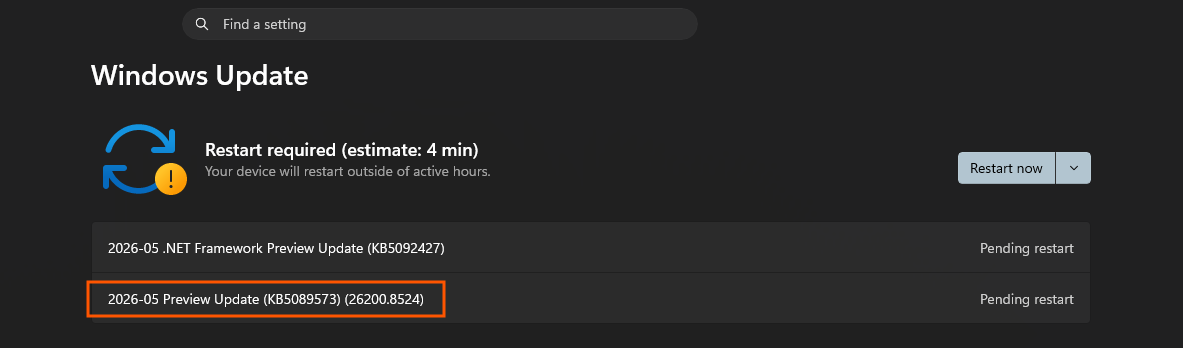
The update is labeled “preview” because it includes all changes that will ship on the next Patch Tuesday (June 9, 2026). In our tests, Windows Latest observed that an optional update auto-installs when the “Get the latest updates as soon as they’re available” toggle is enabled, and even reboots the system when you’re away from your PC.
In all other cases, these preview updates never install automatically, but they’re usually as good as the monthly Patch Tuesday releases.
Download Links for Windows 11 KB5089573
Windows 11 KB5089573 Direct Download Links: 64-bit and ARM-64 | Microsoft Update Catalog is usually not required when Windows Update is running smoothly. But if you’re running into installation errors with KB5089573, you can use Update Catalog and download the .msu offline installer. It’s also useful when you have multiple PCs to update.
Like every monthly update, Windows 11’s May 2026 update is also huge. For Intel and AMD PCs, the size of Build 26200.8524 is approx 5.3GB.
| Build Number | Size | OS Version | Architecture |
|---|---|---|---|
| 26200.8524 | 5388.6 MB | Windows 11 25H2 | x64-based |
| 26200.8524 | 4803.0 MB | Windows 11 25H2 | arm64-based |
| 26100.8524 | 5388.6 MB | Windows 11 24H2 | x64-based |
| 26100.8524 | 4803.0 MB | Windows 11 24H2 | arm64-based |
Windows Latest has written an in-depth analysis of why Windows Updates are growing in size, and it’s partly because of the AI models bundled for all hardware, including those without an NPU chip.
What’s new in Windows 11 Build 26200.8524 (25H2) / Build 26100.8524 (24H2)?
All changes in today’s Windows 11 update are rolling out in stages, which means they won’t show up immediately after the update is installed.
1. Low Latency Profile is rolling out
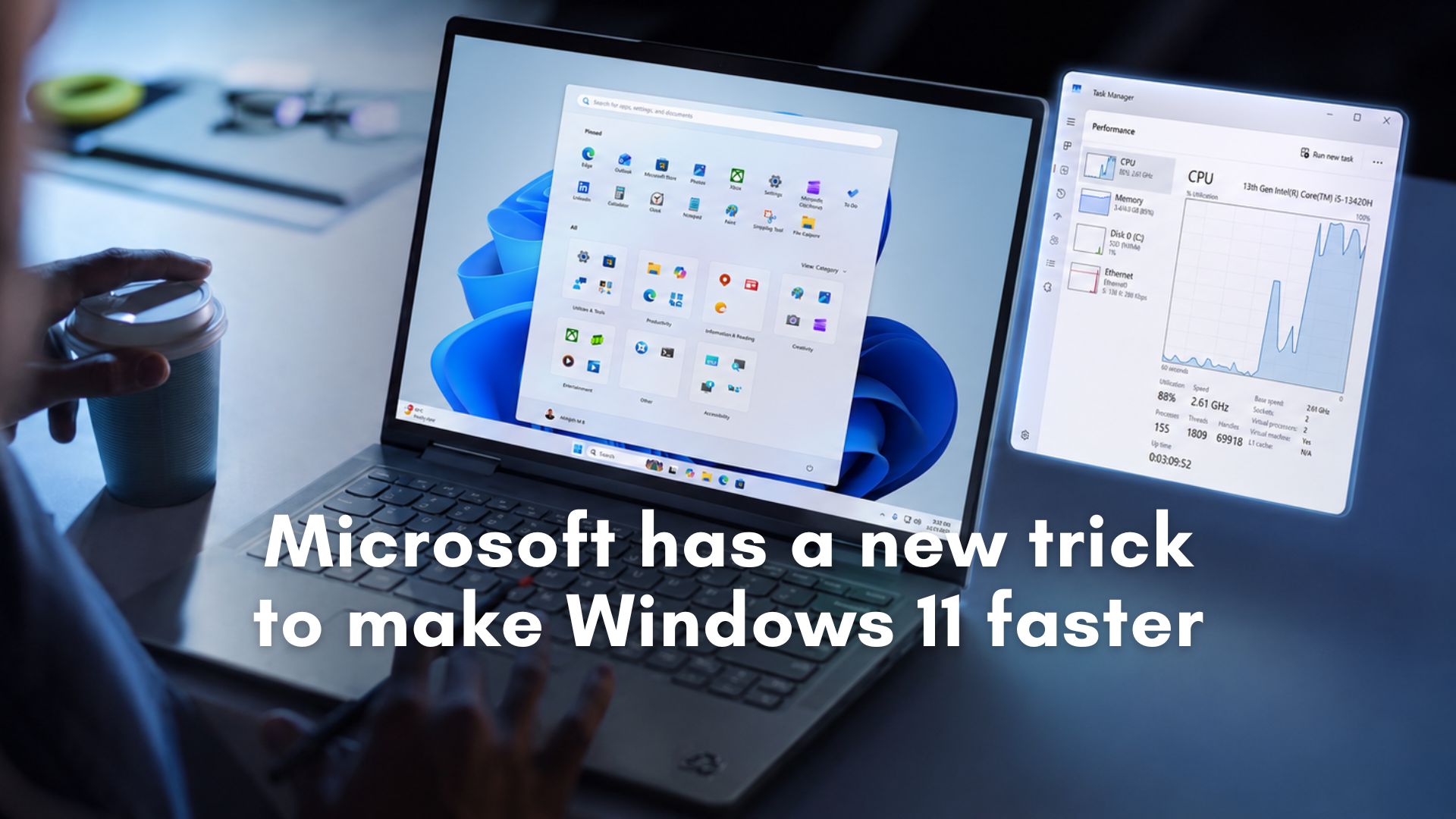
Windows 11 KB5089573 includes a new feature called “Low Latency Profile,” which is a CPU feature that makes the OS feel more responsive. Low Latency Profile boosts performance, allowing the OS or apps to run the CPU at a higher frequency when you open the Start menu or an app.
Windows Latest has been testing the Low Latency Profile for the past two weeks, and it’s finally rolling out to everyone with Windows 11 KB5089573.
Low Latency Profile doesn’t show up immediately, but if you force-enable the feature and try launching the Start menu or Notifications Center, Windows briefly tells the CPU to wake up faster and run at a higher frequency. I found that the boost lasts for 1 to 3 seconds, and it’s more than enough to surface the UI much faster.
Some users have argued that it’s not the “right way” to patch Windows 11, but, truth be told, macOS and Linux use a similar CPU-boosting method. Neither macOS nor Windows keeps the CPU at maximum speed all the time. The so-called speed boost only lasts for a second or two and makes the overall experience more responsive.
In the case of Windows, the CPU also sits in a low-power state when it’s not being used actively, and while that’s a good thing, it also makes the Start menu, Notifications Center, and other areas feel “laggy,” particularly on low-end hardware.
I personally use Windows 11 on a PC with 32GB of RAM and an Intel Core i7. It doesn’t lag at all, but if you use it with 8GB of RAM and an Intel Core i5, you’re going to experience subtle delays when interacting with the Start menu or even File Explorer. Today’s update with Low Latency Profile addresses those concerns, and it’s rolling out gradually.
Our tests found that the Low Latency Profile (performance boost) for apps is not included in the Windows 11 KB5089573 update, as it’s scheduled for a later release.
2. Shared audio support is rolling out
More than the Low Latency Profile, I’ve actually been looking forward to Windows 11’s new shared audio feature, which lets two people listen to the same audio through two different Bluetooth devices at the same time.
Until now, if you wanted to watch a movie with a friend or family member using a wireless Bluetooth headset, it wasn’t possible to share audio. That meant you’d need to watch it using speakers, as Windows 11 does not allow you to use two earbuds at the same time, despite Bluetooth advancements.
That changes with Windows 11 KB5083631, which includes support for shared audio over Bluetooth if you meet the following hardware requirements:
- Two Bluetooth LE accessories
- Windows 11’s Bluetooth adapter must support LE Audio broadcast.
You can verify if your PC supports Bluetooth LE by going to Settings > System > Sound > your Bluetooth device > Output settings. You’ll see Bluetooth LE as an option in Settings. If it’s not visible, go to Bluetooth & Devices > Devices page in Settings, and make sure the “Use LE Audio when available” toggle is turned on. It requires a reboot to apply changes.
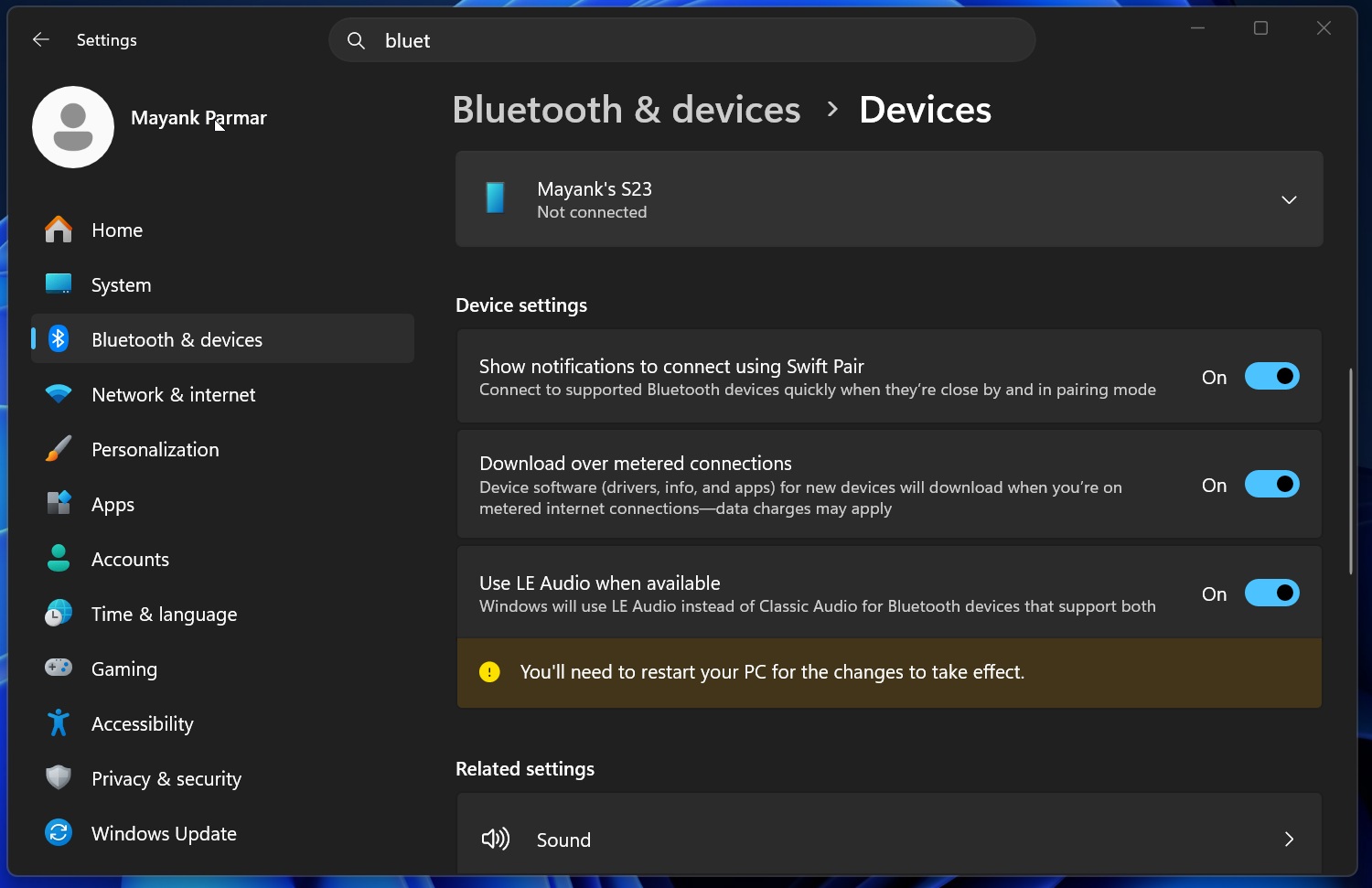
I’m told that most new PCs support broadcast, but in case you’re unsure, Microsoft recommends checking with your PC manufacturer.
Once you’ve verified that your PC and headset support Bluetooth LE audio, make sure Windows 11 KB5083631 is installed, and the OS build number in Settings > System > About is Build 26200.8524 / 26100.8524 or newer. However, remember that Shared audio support is still rolling out.
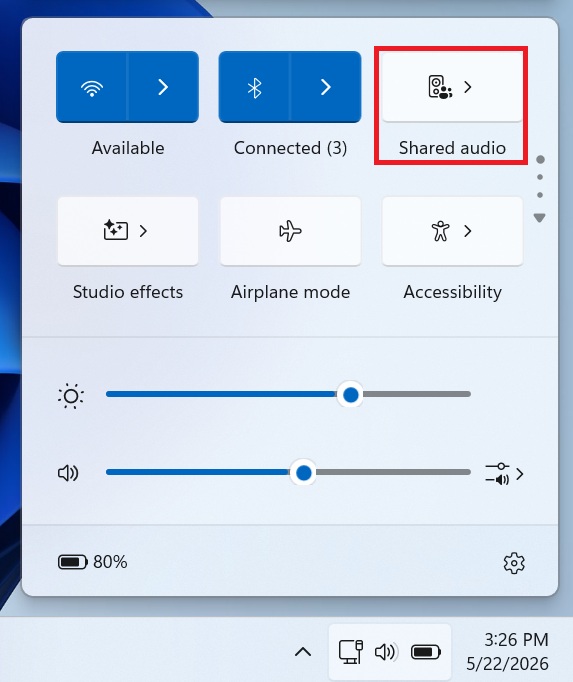
If you have access, open Quick Settings, and the “shared audio” button appears.
The “shared audio” section only lists compatible Bluetooth headsets, so if you don’t see your headset, it means it’s not Bluetooth LE broadcast-enabled hardware. If it’s supported, you can click on “share” to begin sharing the audio to the two connected devices.
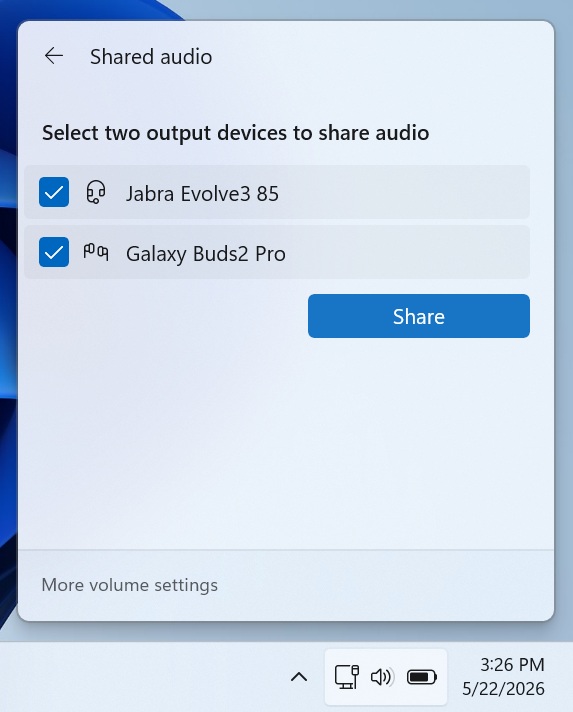
In shared audio, Windows 11’s system audio and volume are also shared, but you can adjust the volume for each connected device from the Shared audio panel in Quick Settings.
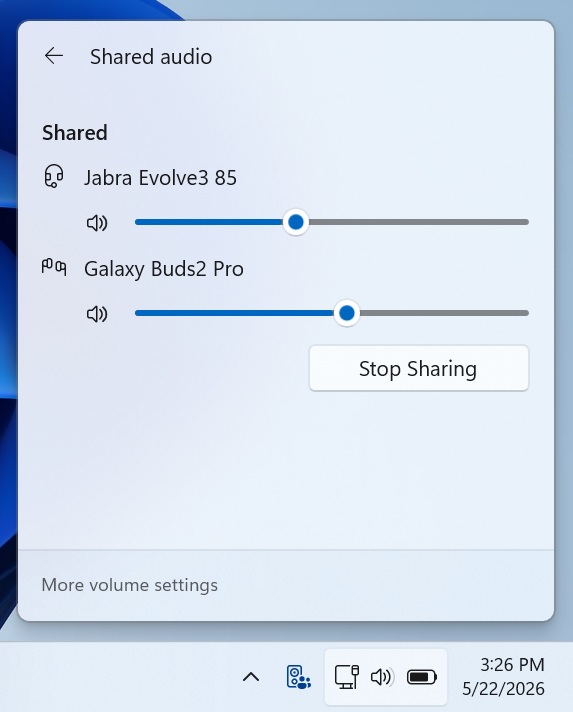
I tested Windows 11’s Bluetooth shared audio, and it works flawlessly for multiple use cases. For example, if you’d like to listen to a song or watch a movie together on the same laptop with your friend and both of you have your own Bluetooth headsets, you can use Windows 11’s shared audio feature.
I used the feature with headphones and a speaker, but any Bluetooth LE audio hardware pair is supported, including earbuds and hearing aids, too.
3. Multiple apps can now use the camera
Windows 11 is finally rolling out support for multi-app camera, which means you’ll no longer run into “Close other apps” to use the camera errors.
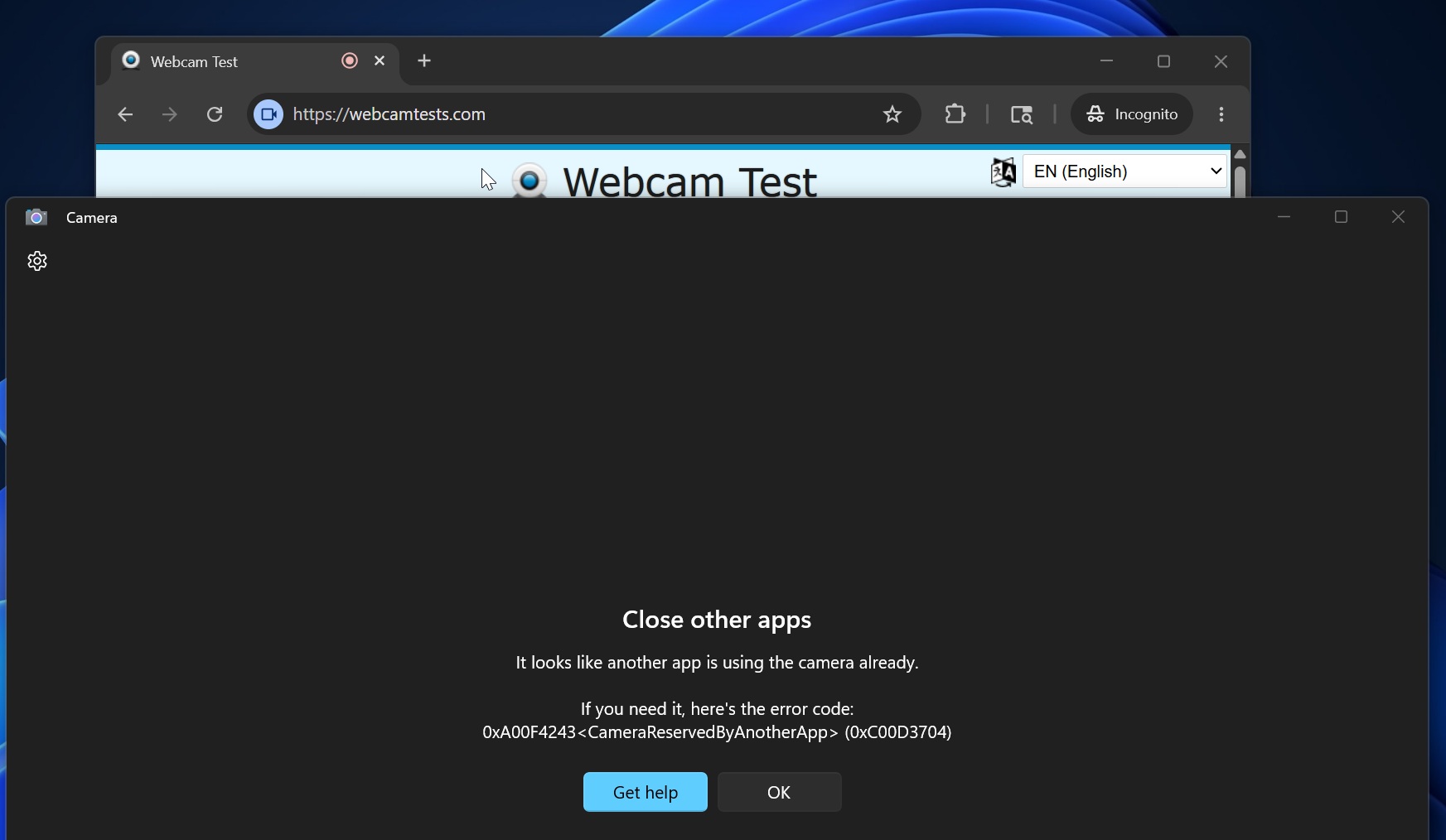
Right now, if you open an app, such as Teams, and allow it to use your camera, you cannot access your camera using any other app at the same time, not even using the Windows Camera app. This limitation has been removed with Windows 11 KB5083631.
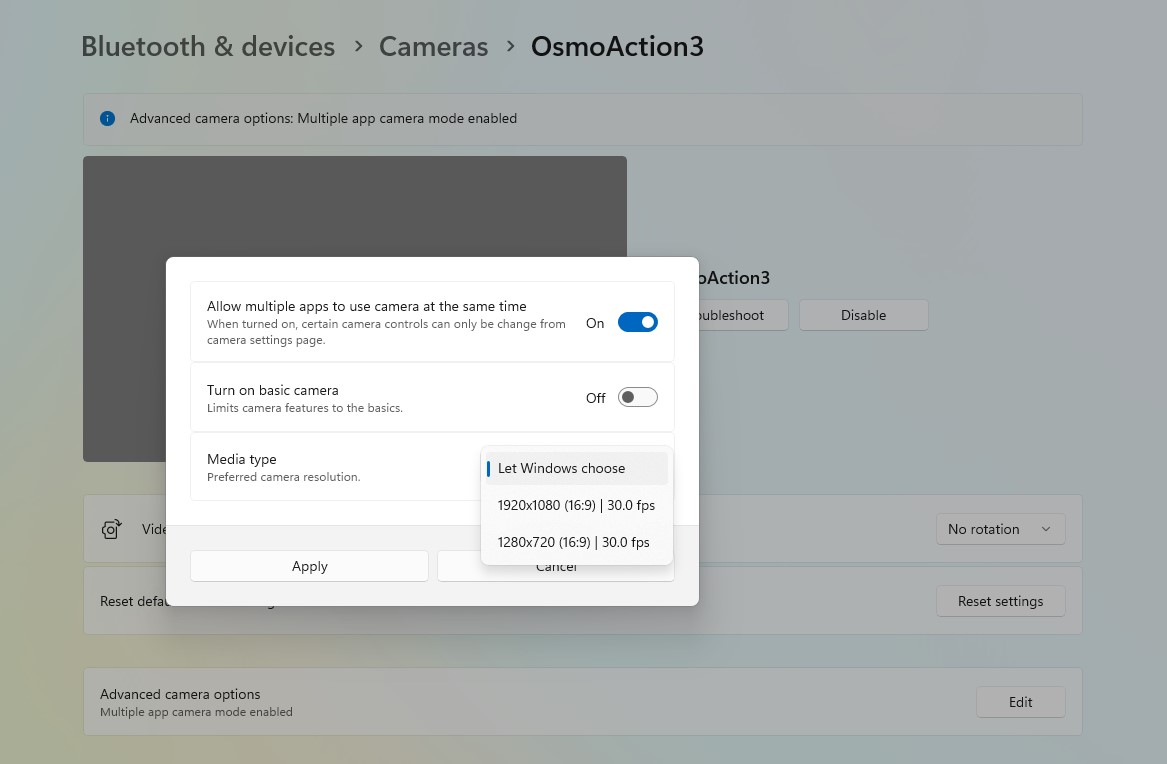
Also, Microsoft is rolling out a new basic camera mode that lets you troubleshoot camera issues when you’re experiencing stability issues or the camera isn’t being detected, and you’re unsure whether it’s due to a Windows update.
4. Magnifer is getting better, Task Manager now offers detailed NPU usage, and other changes
Windows 11 KB5083631 also comes with a new feature for Magnifier, where it works better with a screen reader. The screen reader can now announce when you use Magnifier to zoom in or out, and play with other controls, such as color inversion. Also, you can now magnify protected content if permitted.
Speaking of Task Manager, today’s update lets you better understand NPU usage, as new columns like “NPU engine” have been added to different pages of the Task Manager. It includes the Processes, Users, and Details tab.
Here’s the full list of improvements and features in Windows 11 KB5083631:
- Task Manager’s CPU tab now correctly displays usage in Virtual Machines.
- You can now configure your preferred name when setting up Windows during the Windows Setup page. Windows will no longer use the letters of your email address as the username. This requires a clean install to work.
- Windows Hello is now more reliable as Microsoft optimized the Windows Biometric service (WinBio).
- Windows Search now prioritizes local results and apps over web.
- USB4 docks and hubs are now more reliable.
- Explorer.exe no longer crashes when you change the input, and the Clipboard history flyout now loads faster.
These improvements are part of Microsoft’s plans to “win back” Windows fans and improve all areas of Windows 11, including the Start menu, which is getting new Small, Larger, and other personalization options.