







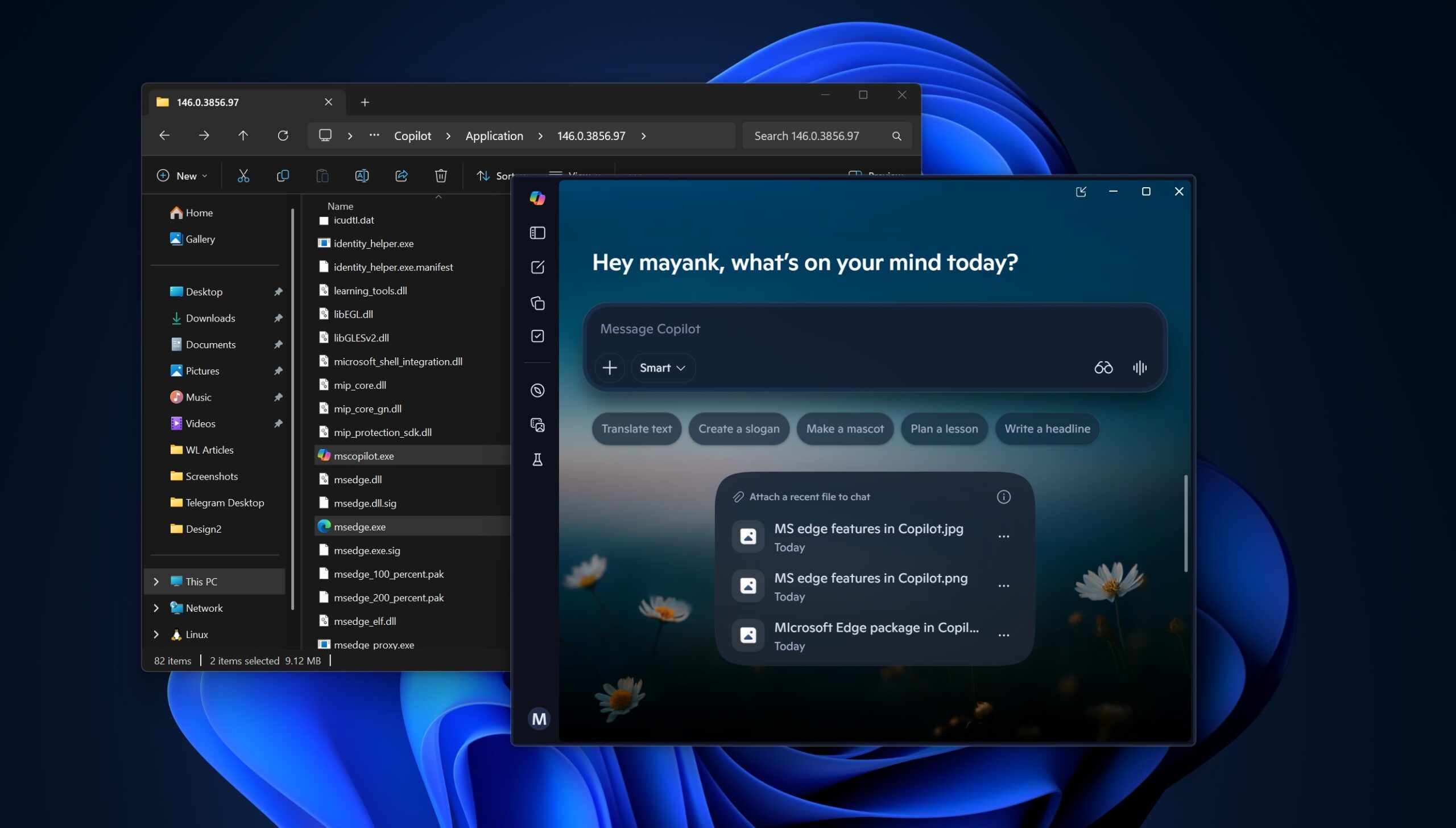
Copilot integration hasn’t gone well with most Windows 11 users, and the fact that Microsoft won’t tell us how many users regularly use AI on PCs makes it quite obvious. Regardless, Microsoft wants to win back users, and it’s making it easier for you to remove Copilot on Windows 11, particularly if you prefer using Group Policy or Registry.
In our tests, Windows Latest found that Microsoft quietly added a Group Policy that allows you to remove Copilot. This policy was added with Windows 11’s April 2026 Update, and it’s called “Remove Microsoft Copilot app.” It can be found under User Configuration > Administrative Templates > Windows Components > Windows AI.
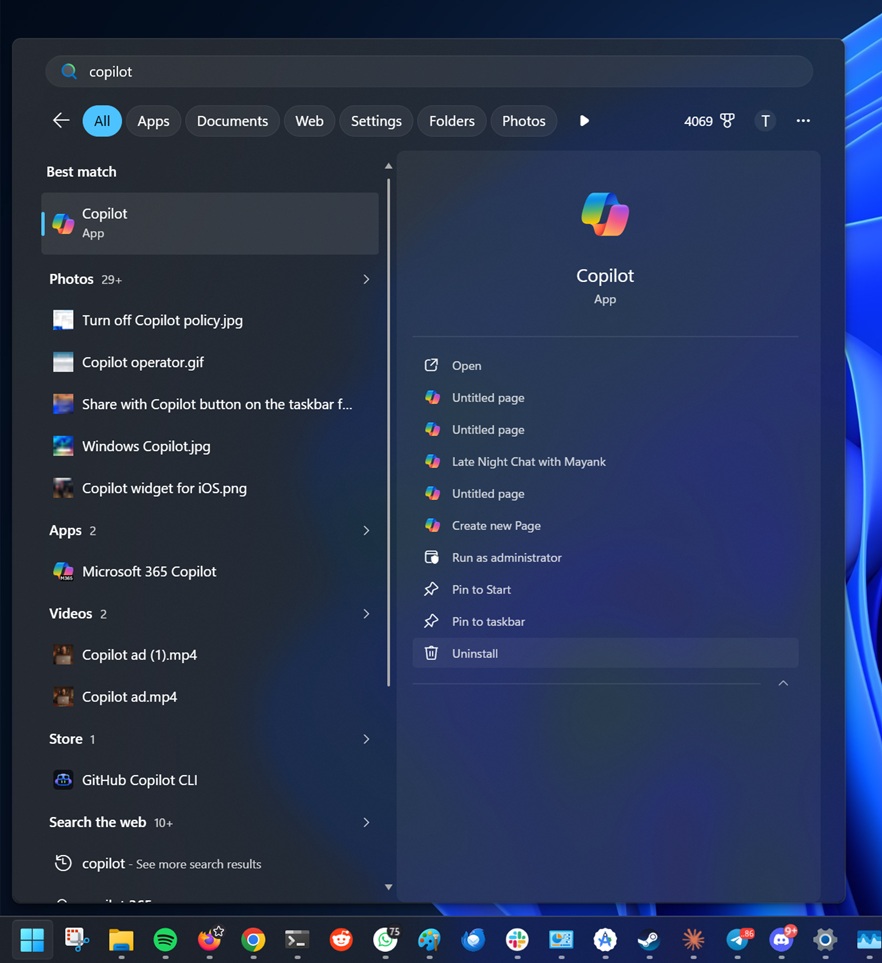
As you might be aware, Copilot is installed on Windows as an app, so you can find the option to remove it in the installed apps list or by right-clicking Copilot. But Copilot can sometimes return after a fresh install of Windows 11. In rare cases, some random Windows updates reinstall the app.
In either case, you may want to set up a Group Policy that covers not just Copilot but also Microsoft 365 Copilot. Also, if you own multiple or manage devices in your organization, Group Policy is the right tool to control Copilot installation behavior across all PCs. For example, you can set up the policy to remove Copilot from all PCs.
How to uninstall Copilot and Microsoft 365 Copilot using Group Policy in Windows 11
To find the “Remove Microsoft Copilot app” policy, open the Group Policy editor, and navigate to the following path: User Configuration > Administrative Templates > Windows Components > Windows AI.
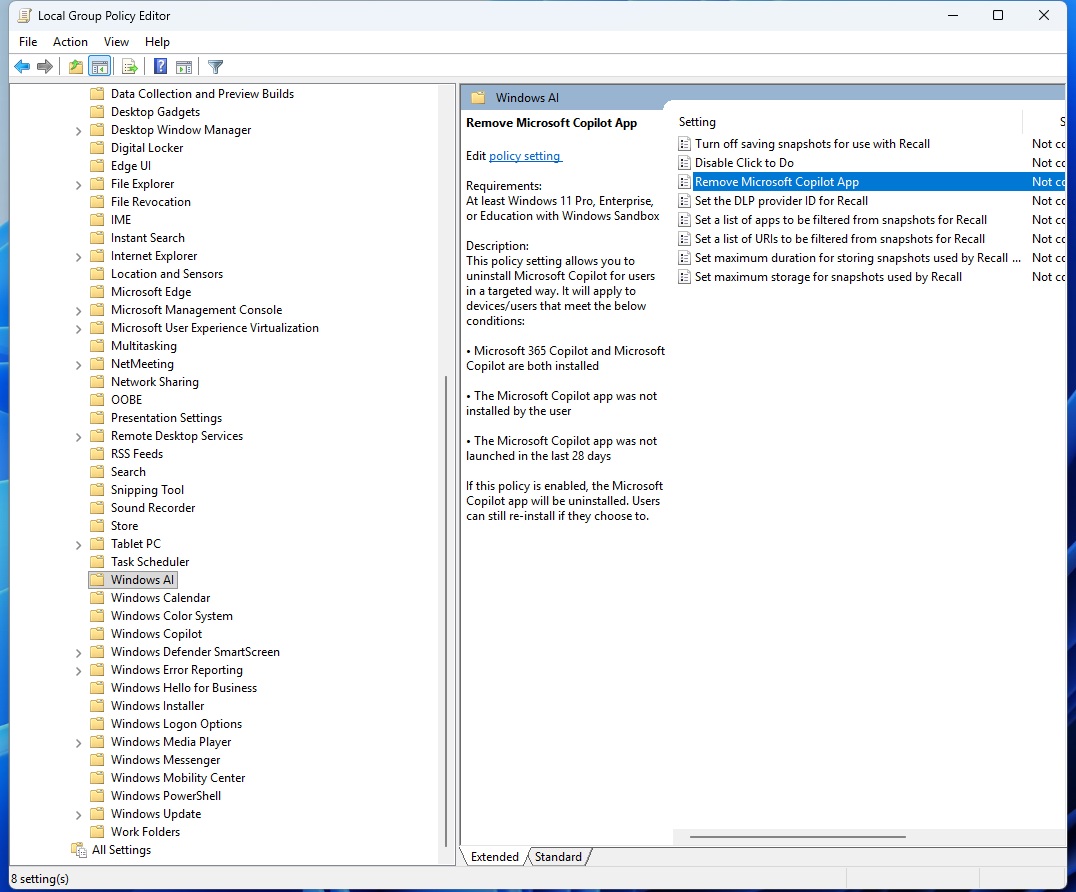
On the right side, you will notice a new policy called “Remove Microsoft Copilot app.” In Microsoft’s own words, it removes not just the Copilot app, but also Microsoft 365 Copilot, which is usually bundled with Office apps for consumers and enterprises.
This Group Policy works only in the following conditions:
- Microsoft 365 Copilot and Copilot are both installed
- You did not install Copilot apps yourself.
- You do not use the Copilot app. I found that the Group Policy automatically removes the Copilot app only when you don’t use it for more than 28 days.
In a separate document found by Windows Latest, Microsoft lists the policy as supported on Pro, Enterprise, Education, and IoT Enterprise or LTSC. This means a regular consumer can also use the policy to automatically remove Copilot apps in the above conditions, but if you’re using Windows 11 Home SKU, you’ll need to tinker with the Windows Registry.
How to remove Copilot using the Windows Registry
Windows Home is not listed as a supported SKU for this policy, but you can create the same registry value manually and remove Copilot if you want:
- In Registry Editor, navigate to the following:
HKEY_CURRENT_USER\Software\Policies\Microsoft\Windows
- Right-click the Windows key, select New > Key. Name the new key as WindowsAI.
- Now go to the following path:
HKEY_CURRENT_USER\Software\Policies\Microsoft\Windows\WindowsAI
- Right-click on the right side, and select New > DWORD (32-bit) Value.
- Name it as RemoveMicrosoftCopilotApp. Then, double-click the new value and configure it to 1.
- Restart Windows or sign out.
Copilot and Microsoft 365 Copilot apps will automatically get removed from Windows 11 when you make the above change to the Registry unless you’re using Windows Home, and Microsoft attempts to block the edit.
Or you can also run the script in PowerShell (Terminal) to remove Copilot:
Get-AppxPackage -AllUsers -Name "Microsoft.Windows.Ai.Copilot.Provider" | Remove-AppxPackage
After all the outrage, Microsoft has made it really easy to uninstall Copilot. If you search for the app in the Start menu and right-click it, you will find the uninstall option. You don’t have to go through the above steps, but Group Policy is the best way to get around blocking Copilot across all your PCs.
Do you use Copilot, or is it uninstalled on your PC? Let me know in the comments below.