
It’s very unfortunate if you lose your work laptop, but it’s even more troubling to the IT folks who are left with two bad choices: hope nobody guesses the password, or wipe the Windows 11 PC, even if it somehow turns up at the office reception the next morning. Luckily, Microsoft is now testing a middle ground called Remote Lock, which lets IT lock a lost or stolen Windows PC from Intune without erasing any files.
We saw Remote Lock listed in Windows 11 Insider Preview Build 29708.1001 for the Experimental (Future Platforms) channel on November 13. If a PC is locked with this, your Windows password, PIN, or even a local admin account won’t get you back in, and only IT can remove the lock. This is an early preview, so you still have to remember where you kept your laptop!
Windows 11 Remote Lock signs everyone out without wiping the laptop
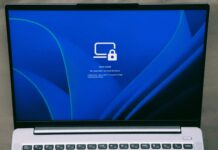
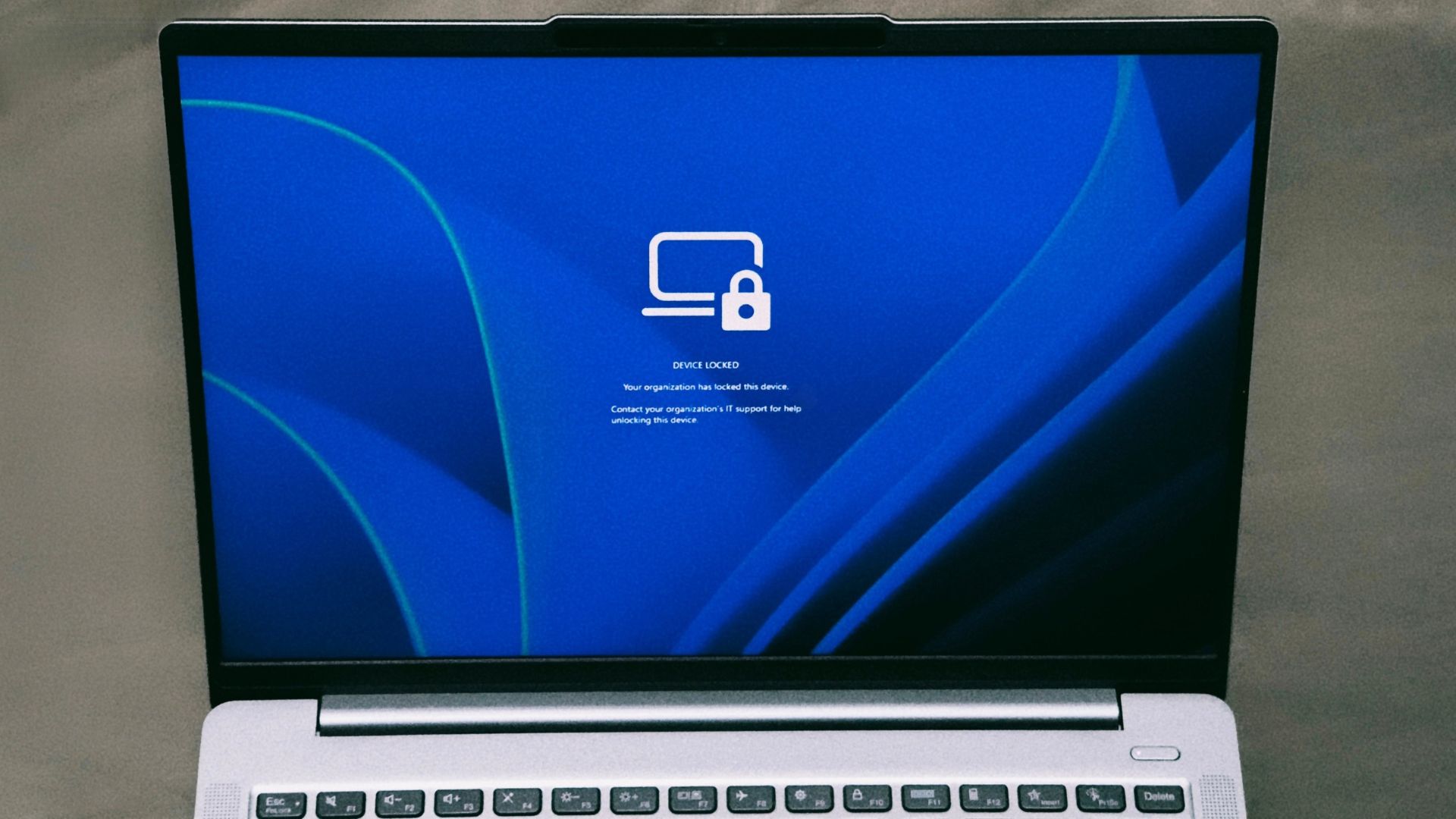
When IT locks a device using Remote Lock, Windows signs out all active sessions, hides the sign-in options, and shows a Device Locked screen. “Nothing is erased,” Microsoft says in the release notes. The PC will continue to be enrolled and managed in Intune, BitLocker will be on, and your files won’t be moved anywhere. In case you’re wondering, restarting or taking the device off the internet won’t turn off Remote Lock, which is good for obvious security reasons.
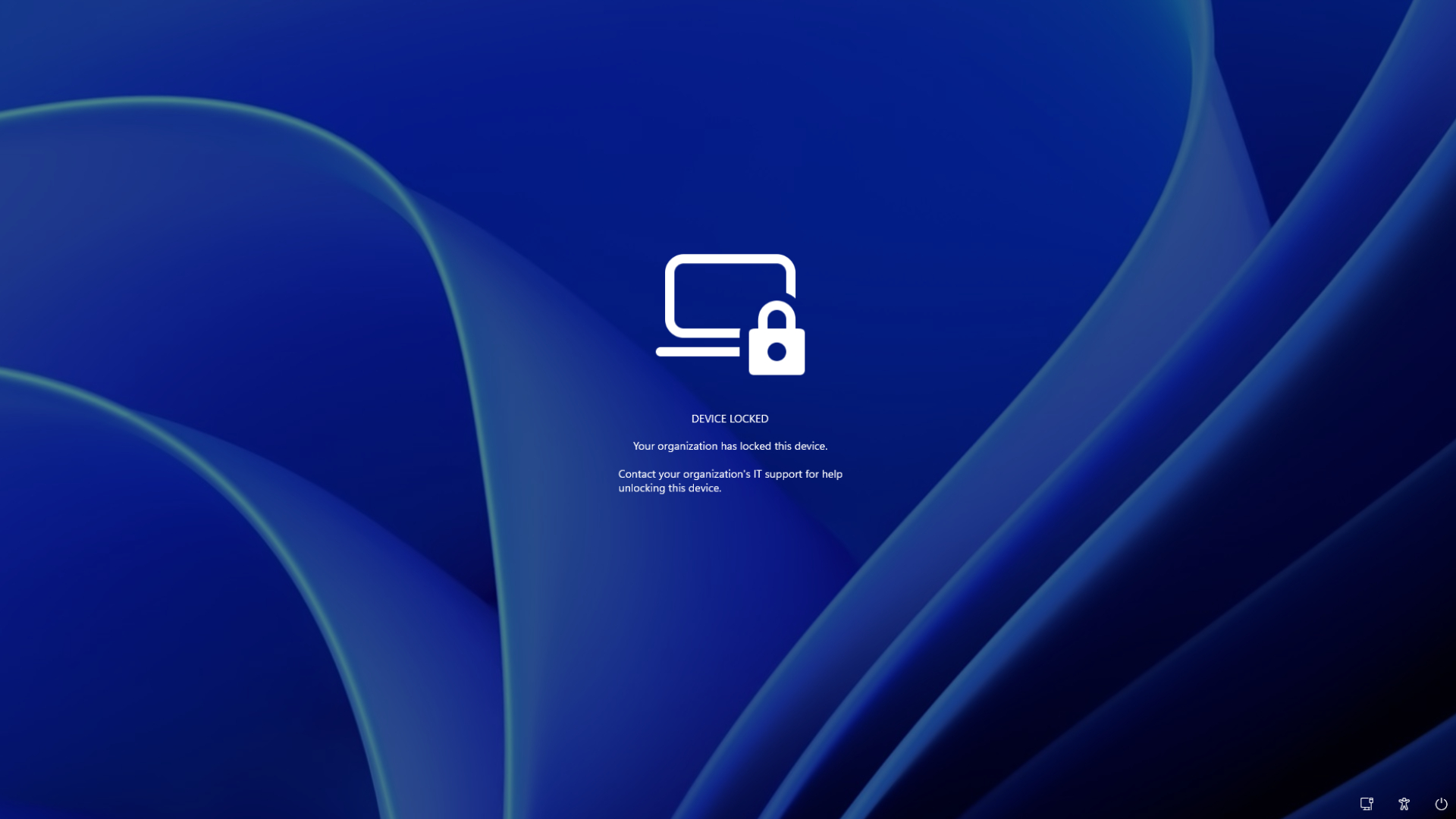
By default, the screen says “Your organization has locked this device” and asks you to contact IT support. Admins can add their own reason using LockReason and a help desk contact using RecoveryHint.
Note that your account isn’t affected. Your credentials will continue working on other devices, so if the account is the one that’s compromised, IT has to disable it or revoke its sessions in Microsoft Entra ID.
Interestingly, this feature wasn’t in Microsoft’s long-term plans. In March 2025, when an admin asked about Remote Lock for Windows during a Microsoft Intune event, Microsoft’s Joe Lurie replied, “We do not have plans today to implement Remote Lock on Windows devices.” Another Microsoft employee added that it wasn’t high on the team’s backlog. Some 20 months later, here we are.
IT needs a custom Intune profile to remotely lock a Windows device
Intune already has a Remote lock button, but that action only supports Android, iOS/iPadOS, macOS and visionOS (yes, even Apple’s failed VR headset), and without a passcode set, Microsoft warns that “the screen may just turn off.” The Windows version doesn’t need your password at all.
According to Microsoft’s documentation, devices need to be Microsoft Entra joined, hybrid joined, or MDM-enrolled, and run Windows Pro, Enterprise, or Education. The page also mentions Windows 10 and Windows Server 2016, 2019, and 2022, but so far, Remote Lock has only been announced for this preview build.
For now, IT has to create a custom profile in the Intune admin center under Devices > Windows > Configuration > Create > New policy, choosing Windows 10 and later, then Templates > Custom, with these OMA-URI settings.
| Setting | OMA-URI | Value |
|---|---|---|
| Lock state (required) | ./Device/Vendor/MSFT/RemoteDeviceLock/LockState | Integer, 1 to lock, 0 to unlock |
| Lock reason (optional) | ./Device/Vendor/MSFT/RemoteDeviceLock/LockReason | Up to 1,024 characters |
| Recovery hint (optional) | ./Device/Vendor/MSFT/RemoteDeviceLock/RecoveryHint | Up to 256 characters |
The profile with LockState set to 1 goes to a device group reserved for locked devices, and adding a laptop to that group locks it at its next check-in. To unlock, IT creates a second profile with LockState set to 0, assigns it to an unlock group, and moves the device over.
Yes, it’s a bit clunky. But a read-only Status node tells admins whether the device is Unlocked (0), Locked (1), Lock pending (2), or in an Error state (3), which is better than guessing!
Remote Lock doesn’t replace BitLocker, and Microsoft says so
If you haven’t figured out the issue yet, it’s the timing. A laptop only gets the lock when it checks in with Intune, so if it’s already offline when IT sends the command, obviously nothing happens until it reconnects. The unlock also has to come from Intune, and as I said, no PIN, password, local admin, or web sign-in can lift it.
Remote Lock doesn’t isolate the device from the network. Most importantly, it doesn’t block the Windows Recovery Environment, Safe Mode, or booting from a USB drive. Microsoft admits someone could remove the drive or reimage the laptop, which is why it wants BitLocker kept on.
Unfortunately, BitLocker hasn’t had the smoothest year, with some PCs stuck in recovery loops during the Secure Boot certificate rollout, but here, it’s what keeps your data unreadable.
Still, it’s nice to see Microsoft finally giving IT a way to stop a missing laptop in its tracks, without wiping a device that might be back on someone’s desk tomorrow.