








Microsoft just rolled out a major Windows update that fixes some of the most frustrating parts of updates, which are the updates themselves. The company has finally fixed the interruptions from Windows updates and the lack of control over scheduling them.
You can now skip Windows updates during setup, pause updates as long as you want, and restart at your own will. The changes are all rolling out now to Windows Insiders with Build 26220.8282 for Beta and Build 26300.8289 for Experimental (Canary and Dev channels).
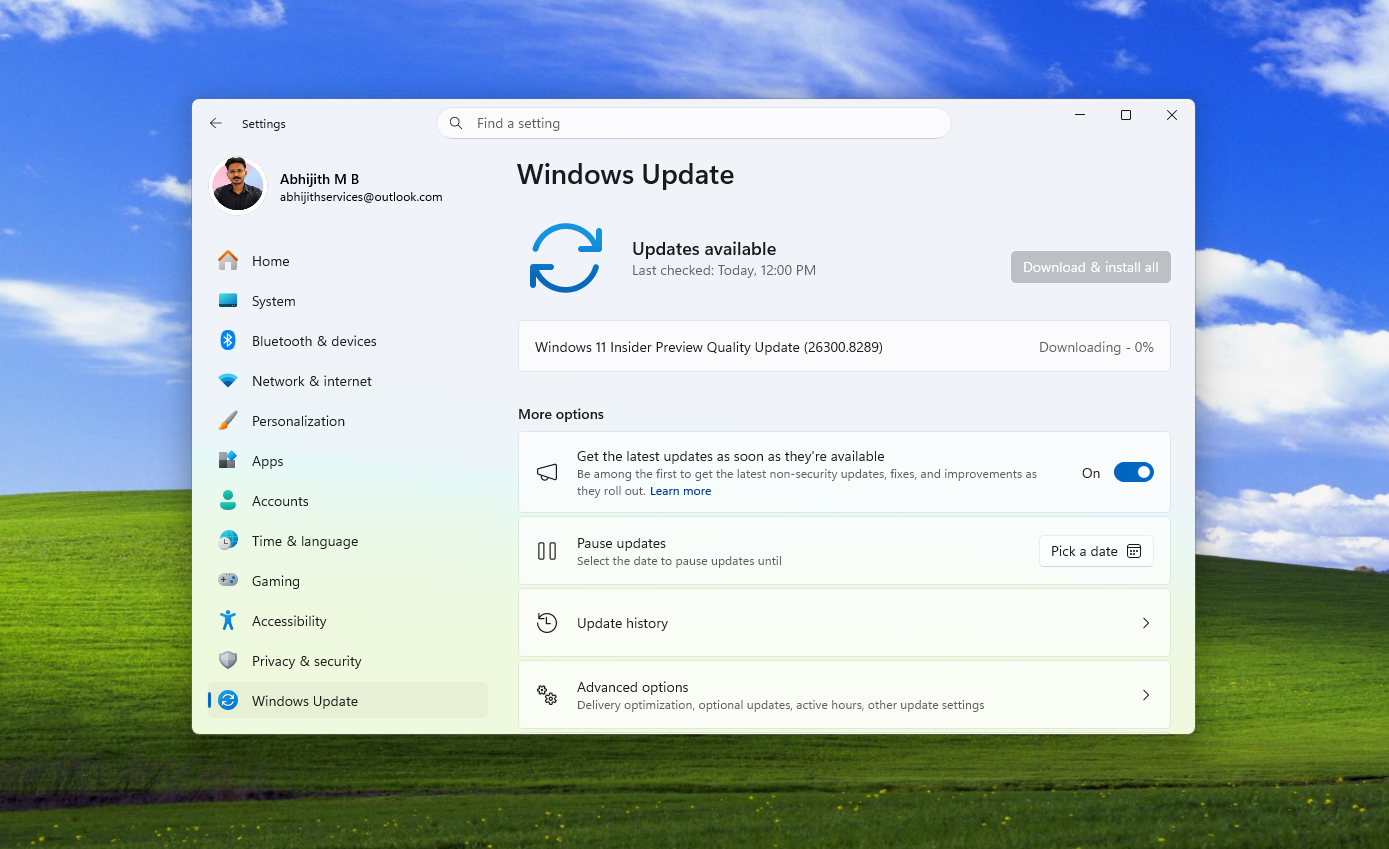
Based on over 7,621 feedback about Windows updates, Microsoft has brought four much-needed changes to Windows updates:
- A new “Update later” button while setting up Windows 11
- Option to prevent your PC from getting updates indefinitely
- Ability to shut down and restart without updating the PC
- More information about available updates
Perhaps the most significant change coming to the Windows update experience is Fewer disruptions, which has the sole purpose of reducing the number of reboots you see every month.
This is a win for the Windows Insider community, as Microsoft has officially acknowledged that all improvements to the Windows Update experience are the direct result of our feedback.
You are now in complete control over Windows updates
When Microsoft said that they would give us more control over Windows updates about a month ago, I didn’t expect those changes to roll out so soon. In fact, I wasn’t expecting such a drastic change of heart from the company that was infamous for frustrating its users with multiple updates a month.
To be fair, as the most popular desktop OS, Windows should get updates regularly, for both security and feature improvements. However, getting updates in the middle of an important task and getting prompts to restart your PC multiple times a month made it a tiring chore.
Microsoft has now confirmed that they’re unifying different Windows updates with the ultimate goal of “reducing update experience to a single monthly restart” and they’re starting with better coordination among driver, .NET, and firmware updates.
Apart from these, regular users also usually see the following Windows updates:
- Monthly security updates (Patch Tuesday)
- Emergency out-of-band (OOB) updates
- Optional non-security updates
Now, Microsoft will show all these updates under a new “Available updates” section, which you can find when you go to Settings > Windows Update.
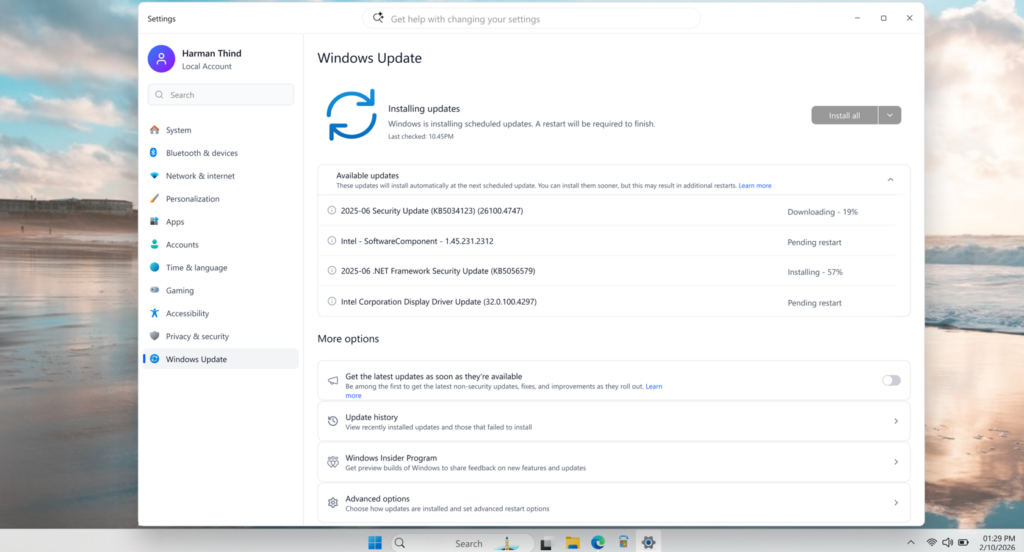
These updates will download quietly in the background and wait to install and restart during the next scheduled Windows quality update or any update you approve. You can still choose to install specific updates sooner by manually starting the download and restarting. Otherwise, updates remain in the background until applied with the next scheduled update.
Option to skip updates while setting up a Windows 11 PC
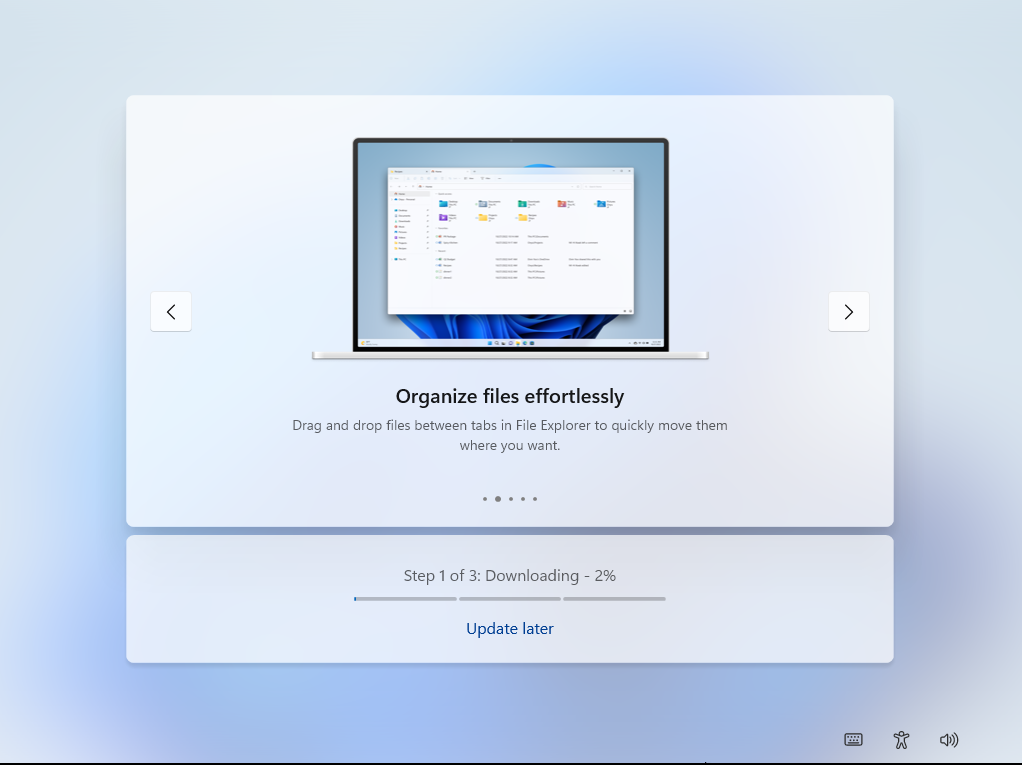
I recently reported how setting up a new PC would take close to an hour because of forced updates. Now, Microsoft has added an Update later button that shows up during OOBE.
We have already tested the feature, and clicking it would skip the updates while setup continues, and naturally, the latest features and security updates won’t be available until the updates are installed after setup. However, it’s the choice here that matters.
You can now pause Windows updates as long as you want
The Windows Update page now includes a Pause updates option with a calendar, allowing you to select a date until which updates will be paused. By default, you can pause updates for up to 35 days. And the calendar only shows these days.
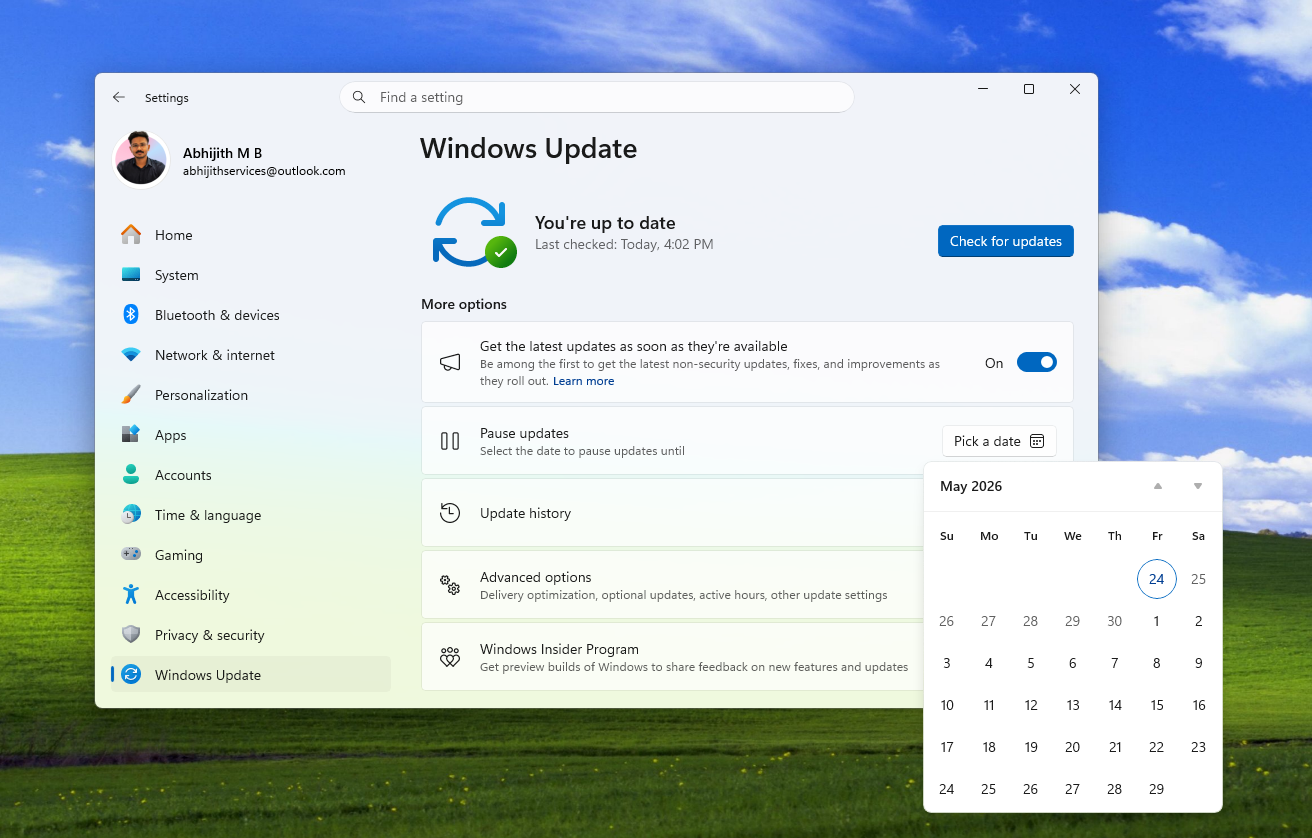
However, Microsoft is now enabling us to extend this last day as many times as we need, which means that when we reach the end of these 35 days, we can re-pause for up to another 35 days and so on.
This can be done an unlimited number of times, effectively allowing users to use a Windows 11 PC without ever having to update it. It’s not something I would recommend, for security reasons, but it’s great to have options!
Separate options to restart and shut down after downloading an update
The ‘Update and shut down” and “Update and restart” buttons were a constant annoyance because either we just want to restart the PC or shut it down after a day’s work. But we were forced to wait until the update finished installing.
After fixing the “Update and shut down” button, which now no longer restarts the PC, Microsoft is now adding buttons to just restart or shut down, without having to install the update.
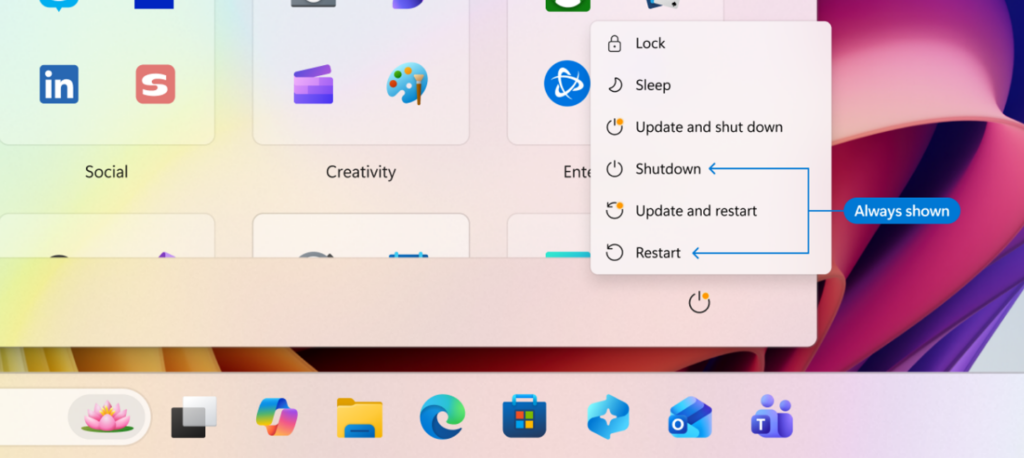
Now, you’ll see four buttons after downloading a Windows update:
- Update and shut down
- Shutdown
- Update and restart
- Restart
The Shutdown and Restart buttons will always be available, so you can skip installing an update when you just want to shut down or restart your PC.
New labels for driver updates
Until now, driver updates in Windows 11 were mostly confusing because most of them would have the same titles, and you wouldn’t know which driver was getting an update.
Now Microsoft is adding a device class to the driver title. So, when you get a driver update, you’ll know exactly if it applies to the display, audio, battery, extension, HDC, or any other applicable device.
This is an important change because sometimes you wouldn’t want to update the driver of certain devices, and now you’ll know which device is getting a driver update.
Microsoft is now delivering on the promises they made about fixing and improving Windows 11, and all of them can come to your PCs only via Windows updates. But Windows updates were also a frustration for many users, which the company has now fixed. The improvements to Windows updates are live in Insider channels and will reach regular users in the coming weeks or months.
Would you rather install the newer updates coming to Windows 11 in 2026 or pause updates indefinitely?