






Yesterday, I wrote about how Windows can keep thumbnails of photos you deleted, and a friend who’s donating his old Windows laptop (with RAM prices where they are, that’s a generous gift) asked me, out of concern, if resetting his PC is enough and whether Windows secretly keeps some of his data.
Fearmongering posts about Windows are not new on social media, with a few viral posts claiming that Windows keeps a permanent record of every USB device you’ve ever plugged in, even after it’s removed. There is an actual Windows behavior behind the claim, but engagement-farming posts make it sound far more sinister than it is.
Linux and macOS also maintain device information and system logs for hardware, too. And Microsoft has documented the behavior for more than a decade.
Here’s what Windows remembers about the USB drives you’ve plugged in, why it does so, how to check it yourself, and what happens to those records when you reset the PC.
Microsoft explains why Windows keeps remembering USB drives
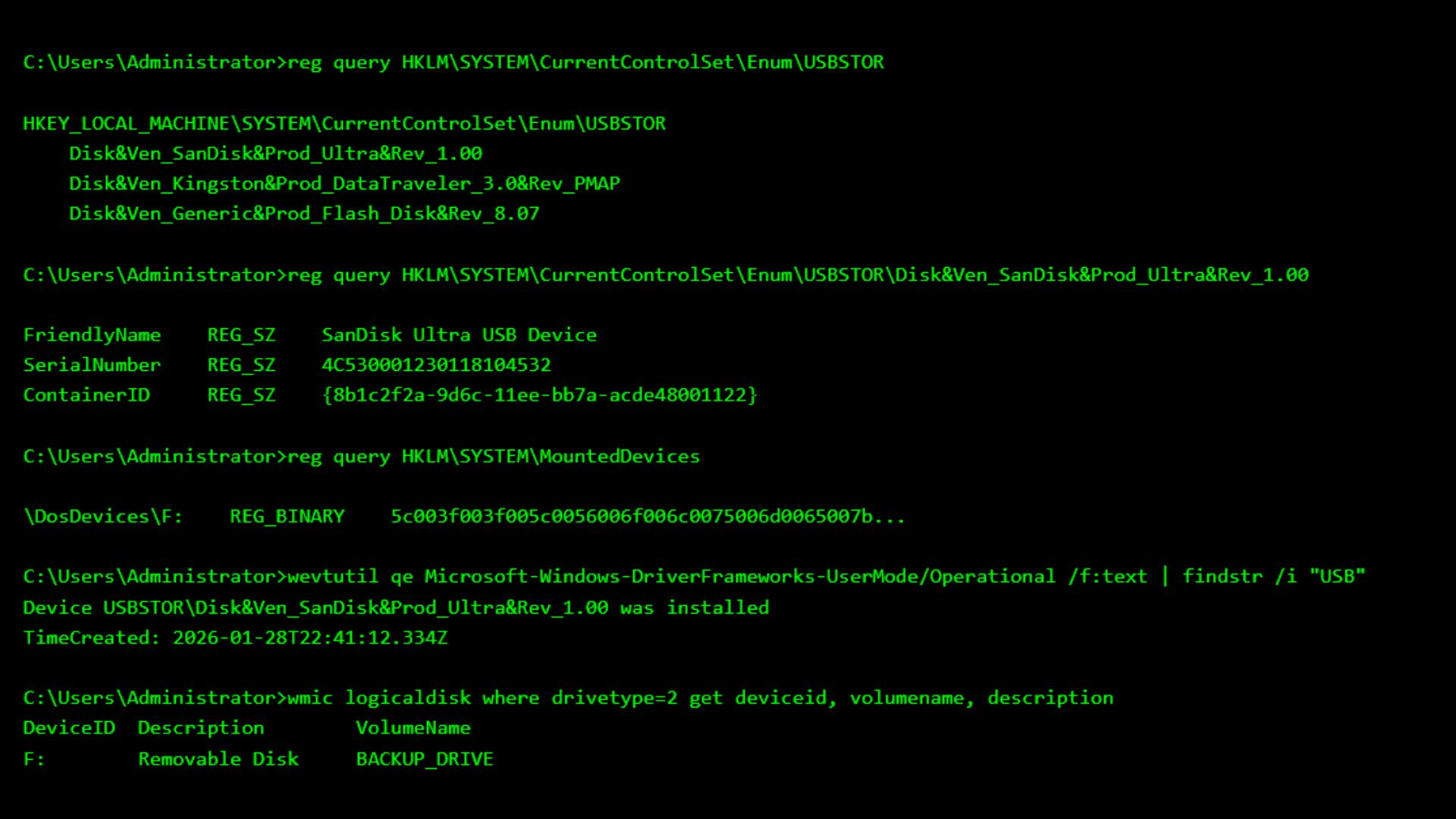
Back in 2012, Microsoft premier field engineer Jason Walker wrote on Microsoft’s Scripting Blog that “when a USB storage device is inserted into a machine, the USBSTOR key is created in the registry, and everything the operating system needs to know about that storage device is contained in that key.”
This is the full path where the key can be found: HKEY_LOCAL_MACHINE\SYSTEM\CurrentControlSet\Enum\USBSTOR.
Microsoft’s support document about removing registry information for old devices explains why Windows continues to keep this entry. When a storage device is connected, “even if only briefly, windows creates registry information for the device,” and the cleanup is left to other software because “Windows does not know when a storage device is removed temporarily or permanently.”
When you pull out a USB stick, Windows, obviously, can’t tell whether you’ll plug it back in tomorrow, so Plug and Play keeps the device instance to recognize and configure the drive when you connect the USB stick again.
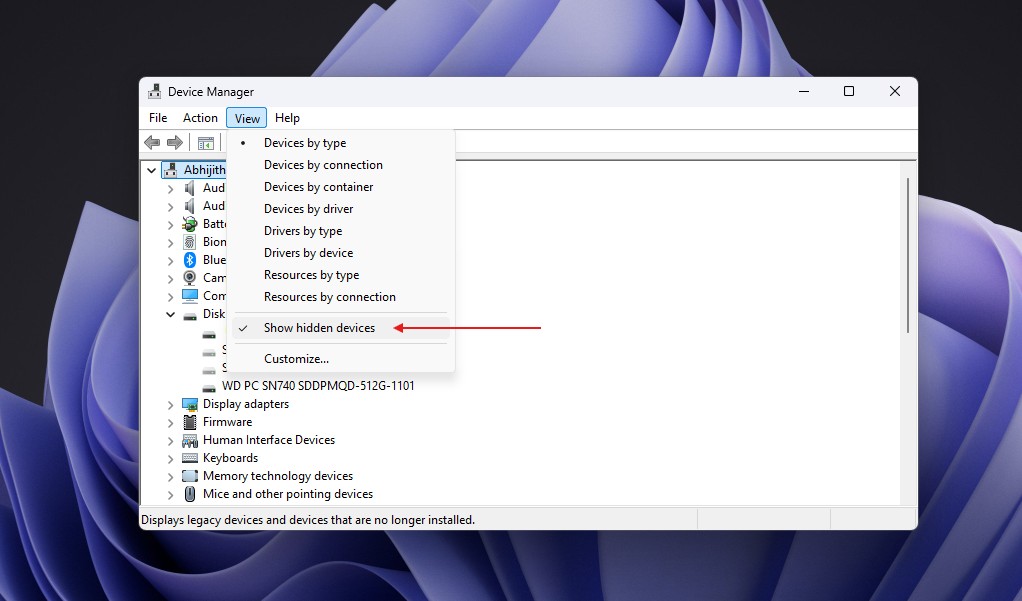
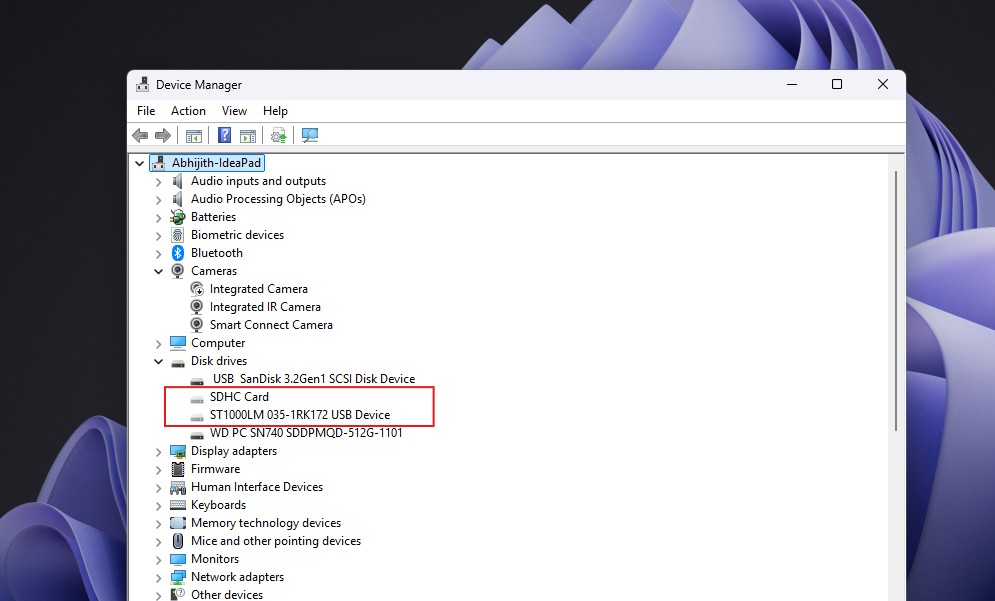
Microsoft even has a name for these leftovers. Devices that were physically removed but whose registry entries weren’t deleted are called non-present devices, or phantom devices, and you can see them in Device Manager by selecting View > Show hidden devices.
However, USBSTOR isn’t a list of every USB gadget you’ve plugged into your Windows PC. It covers mass-storage devices handled by the Usbstor.sys driver, and Windows also has a separate UASP storage driver, Uaspstor.sys, for devices using the newer USB Attached SCSI protocol, which is designed to improve storage performance. Your keyboard, webcam, USB mouse, or USB microphone won’t appear in USBSTOR. I’m already using some of these, and it doesn’t show them.
It’s easy to judge this as a Windows-only problem, but the fact is Linux’s udev keeps a database of the devices it has processed, and macOS also maintains hardware information through IOKit and records system events through its unified logging system. These operating systems need to identify hardware, load the right driver, and help you troubleshoot when something goes wrong.
So yes, Windows remembers the USB drive. But the useful question is what it remembers.
What Windows knows about your USB drive, and what it doesn’t
Windows can store a readable device name such as “SanDisk Ultra USB Device,” along with hardware and instance identifiers derived from information reported by the device. Depending on the device, the instance identifier can contain serial-number information or location information, when the drive was first set up, when it last arrived or was removed, and the drive letter it got.
However, the USBSTOR records described here don’t contain a list of the files that were on the drive, and they don’t by themselves show whether files were copied. Other Windows features can leave separate evidence, such as Recent Items or removable-storage auditing.
To see your records, open Windows PowerShell and run the following command.
reg query “HKLM\SYSTEM\CurrentControlSet\Enum\USBSTOR” /s
The /s switch queries every subkey below USBSTOR. Each model key holds device-instance subkeys. Depending on the device, the instance identifier can contain serial-number information or location information. Still, a SanDisk name alone doesn’t prove that one particular stick was connected, because different drives can share hardware IDs and USB devices aren’t required to report a serial number.
For a cleaner list, use PowerShell’s Plug and Play cmdlet.
Get-PnpDevice -Class DiskDrive |
Where-Object { $_.InstanceId -like ‘USBSTOR\*’ } |
Format-List Status, FriendlyName, InstanceId
Get-PnpDevice shows devices known to Plug and Play, whether they’re present or not, unless you add -PresentOnly, which makes for an easy test. Plug in a USB drive, run the command, and note its InstanceId. Then safely eject the drive, unplug it, and run the command above along with this one.
Get-PnpDevice -PresentOnly -Class DiskDrive |
Format-List FriendlyName, InstanceId
If Windows has kept the record, the drive disappears from the -PresentOnly list but stays in the first one.
To check timestamps, paste that InstanceId into $deviceId and run the following:
$deviceId = ‘PASTE_THE_FULL_INSTANCE_ID_HERE’
Get-PnpDeviceProperty -InstanceId $deviceId |
Where-Object { $_.KeyName -match ‘_(FirstInstallDate|InstallDate|LastArrivalDate|LastRemovalDate)$’ } |
Format-List KeyName, Data
FirstInstallDate is when Windows first installed that device instance. InstallDate is when it was last installed, and Microsoft says this timestamp changes with each driver update. LastArrivalDate and LastRemovalDate are single values, so none of these fields give you a full history of every time the drive was plugged in.
Windows also writes device installations to a plain-text SetupAPI log at %SystemRoot%\INF\setupapi.dev.log. You can search it for your drive.
Select-String -Path “$env:SystemRoot\INF\setupapi.dev.log” -SimpleMatch -Pattern $deviceId -Context 3,12
A match shows that SetupAPI recorded an installation event for that device. It should not be treated as a complete record of every later connection.
Finally, reg query “HKLM\SYSTEM\MountedDevices” shows the mount manager’s persistent name database, which maps volumes to drive letters and can keep names for volumes that are no longer in the system. An entry like \DosDevices\F: doesn’t identify a SanDisk drive until you match its binary data to that device’s volume.
How to remove USB records, and whether a reset is enough
To remove a drive’s record, right-click the greyed-out drive in Device Manager’s hidden devices view and select Uninstall device.
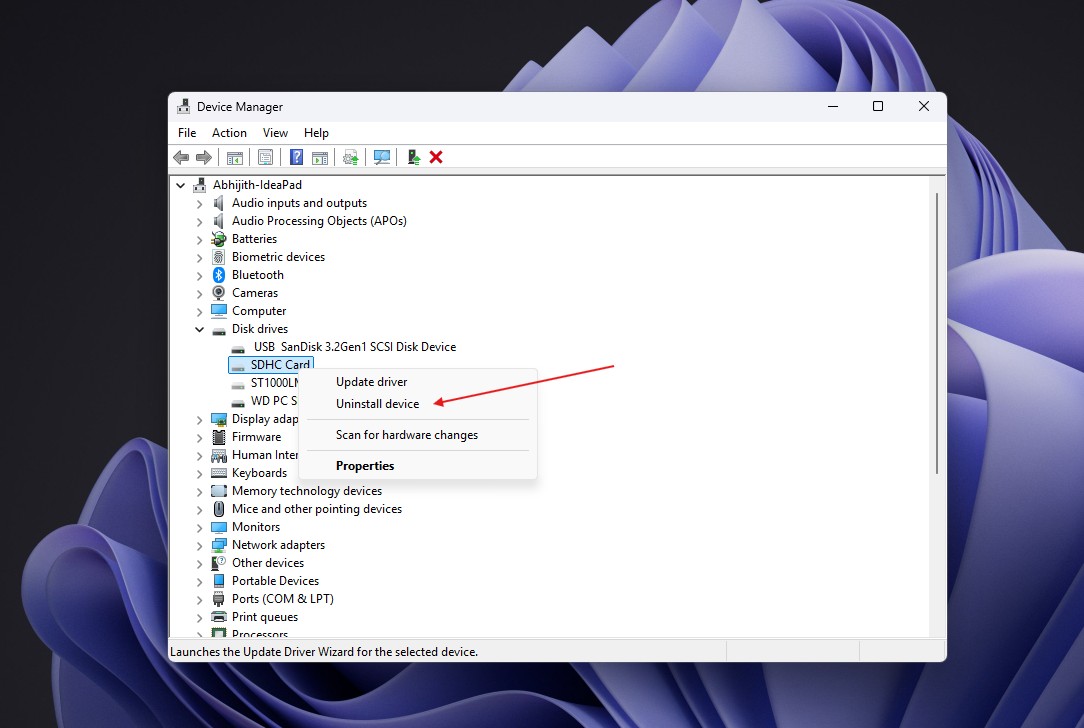
Microsoft says a device’s registry keys are deleted automatically when it’s uninstalled, and IT admins can clear phantom storage entries in bulk with Microsoft’s DevNodeClean utility. Please don’t delete USBSTOR keys, because it can potentially cripple your PC.
For my friend’s laptop, while resetting Windows, Microsoft says Remove everything “reinstalls Windows and removes all your personal files, apps, and settings” and is ideal “when you are giving away or selling your PC.” Its push-button reset documentation says the option prepares the PC “for recycling or for transfer of ownership.” Since the OS is reinstalled, the old USBSTOR records shouldn’t carry over.
There’s a catch. According to Microsoft, reset doesn’t format the Windows volume and deletes user files individually, so turn on Clean data under Change settings before you hand the laptop over. Microsoft says it “makes it harder for other people to recover files you’ve removed,” although the feature “does not meet government and industry data erasure standards.” If the laptop has a second partition, pick the option to delete files from all drives, too.
Windows keeps plenty of metadata for legitimate reasons, such as file-system tunnelling giving a new file the creation date of one you deleted. A proper Remove everything reset removes the old Windows installation and its data, but it should not be described as a universal forensic-erasure tool.
Does a USB record prove that somebody copied files?
As for the claim that USB records prove data theft, they don’t. A USBSTOR entry can show that Windows encountered a particular device. By itself, it can’t tell you which files were copied, whether data moved to or from the device, or who physically connected it.
Windows can log file access on removable drives through the Audit Removable Storage policy, which generates events like 4663, but only if it was enabled before the activity. Turning it on later won’t create records of what already happened.
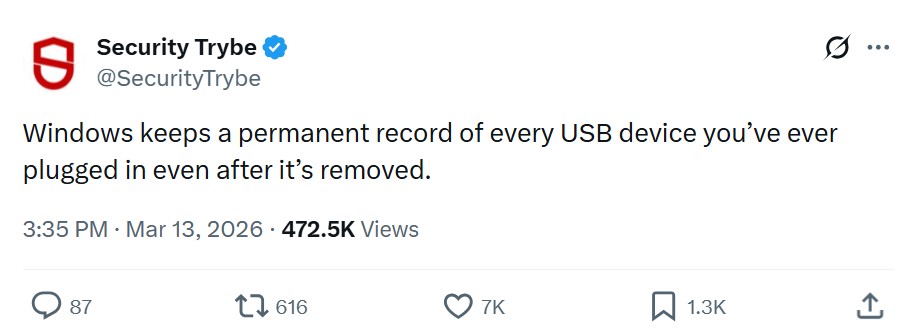
The viral posts get the basic idea that Windows remembers a USB storage device after you unplug it, like other mainstream desktop OSs. But the USBSTOR record doesn’t contain the contents of the drive; it can’t prove that anyone copied files by itself. Separate auditing or other forensic evidence may provide evidence of file access, but that is different from the USBSTOR record. Finally, it isn’t permanent.