






When an app freezes, it’s a habitual action for most Windows users to open Task Manager, find the app, select it, and click End task. But Windows 11 has a much quicker option that many users probably haven’t turned on.
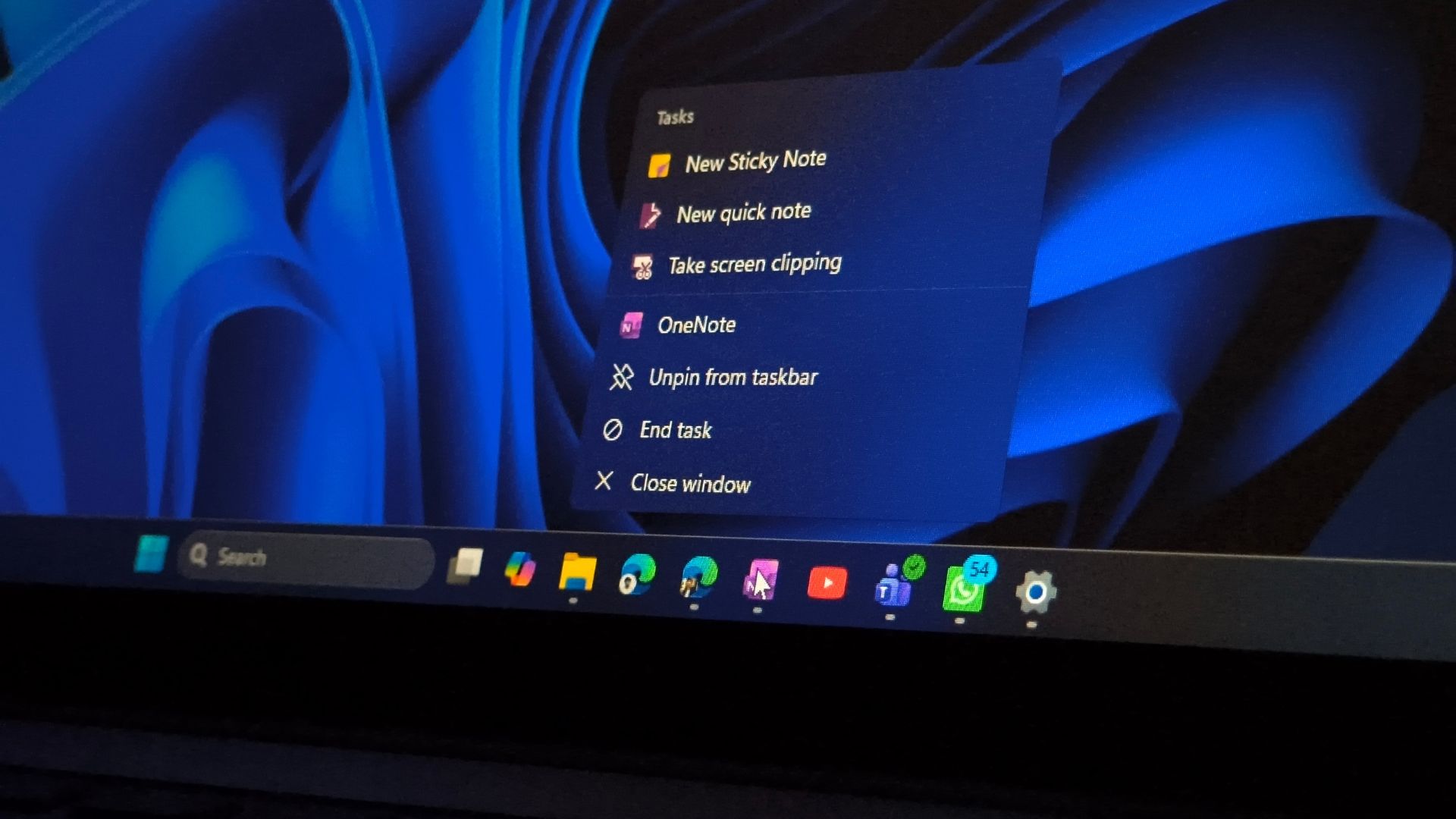
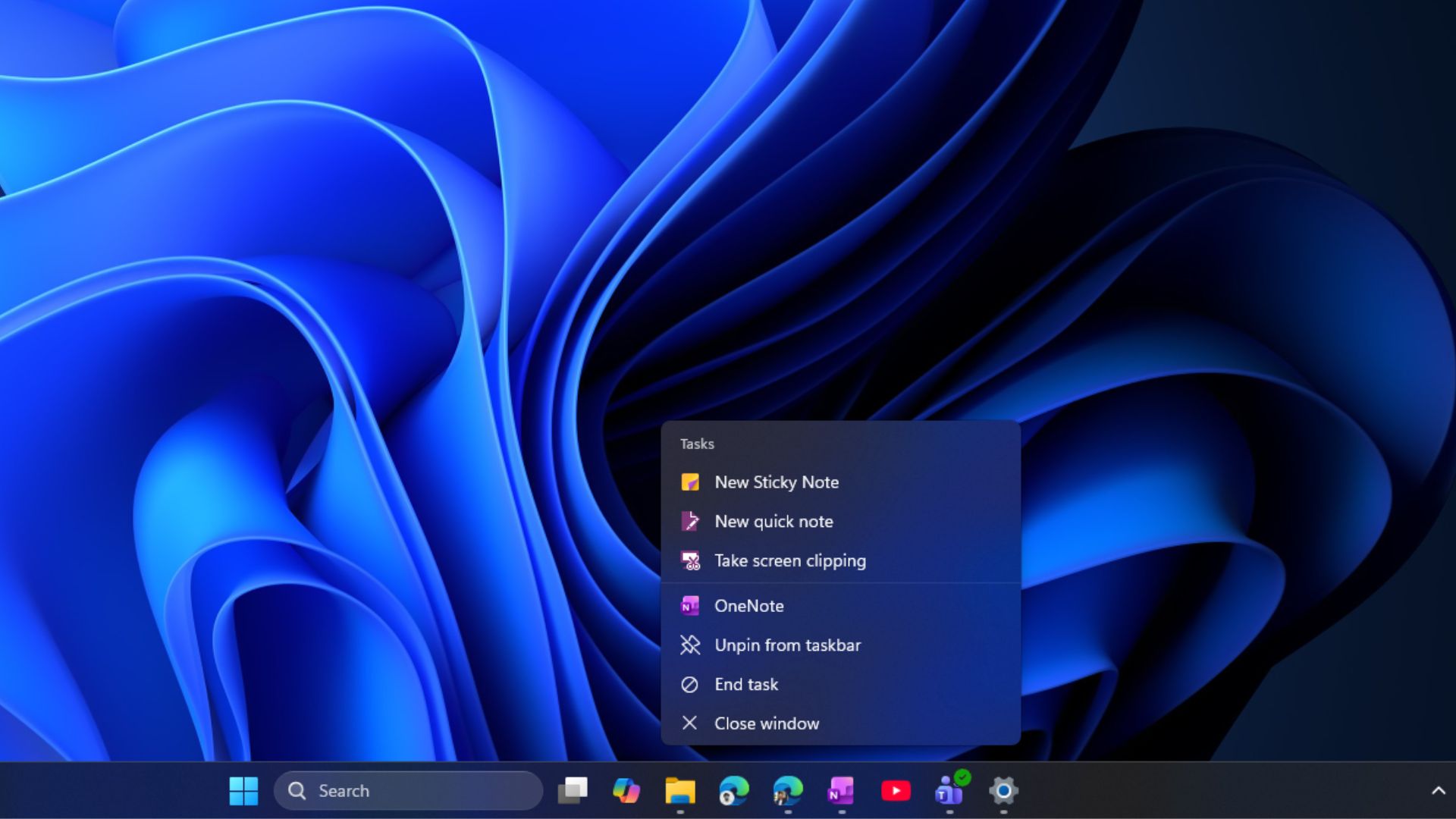
Right-clicking a running app’s taskbar icon can also show the “End task” option just below the “Pin to taskbar” button, and when pressed, it kills the app without opening Task Manager.
The feature has been around since the Windows 11 Insider days in 2023. Microsoft introduced the setting in Build 23430, originally added under the “For developers” setting.
End task has now moved to the Advanced System settings. It has more uses than closing frozen apps, and I, for one, use it every single day, saving me multiple extra clicks and many hundreds of megabytes of RAM!
How to enable End Task on Windows 11 taskbar
Open Settings, go to System, open Advanced, and find End Task under the Taskbar section. Turn it on. Microsoft’s Advanced Settings documentation confirms that this page replaced the older For Developers page, with End Task listed under Taskbar.
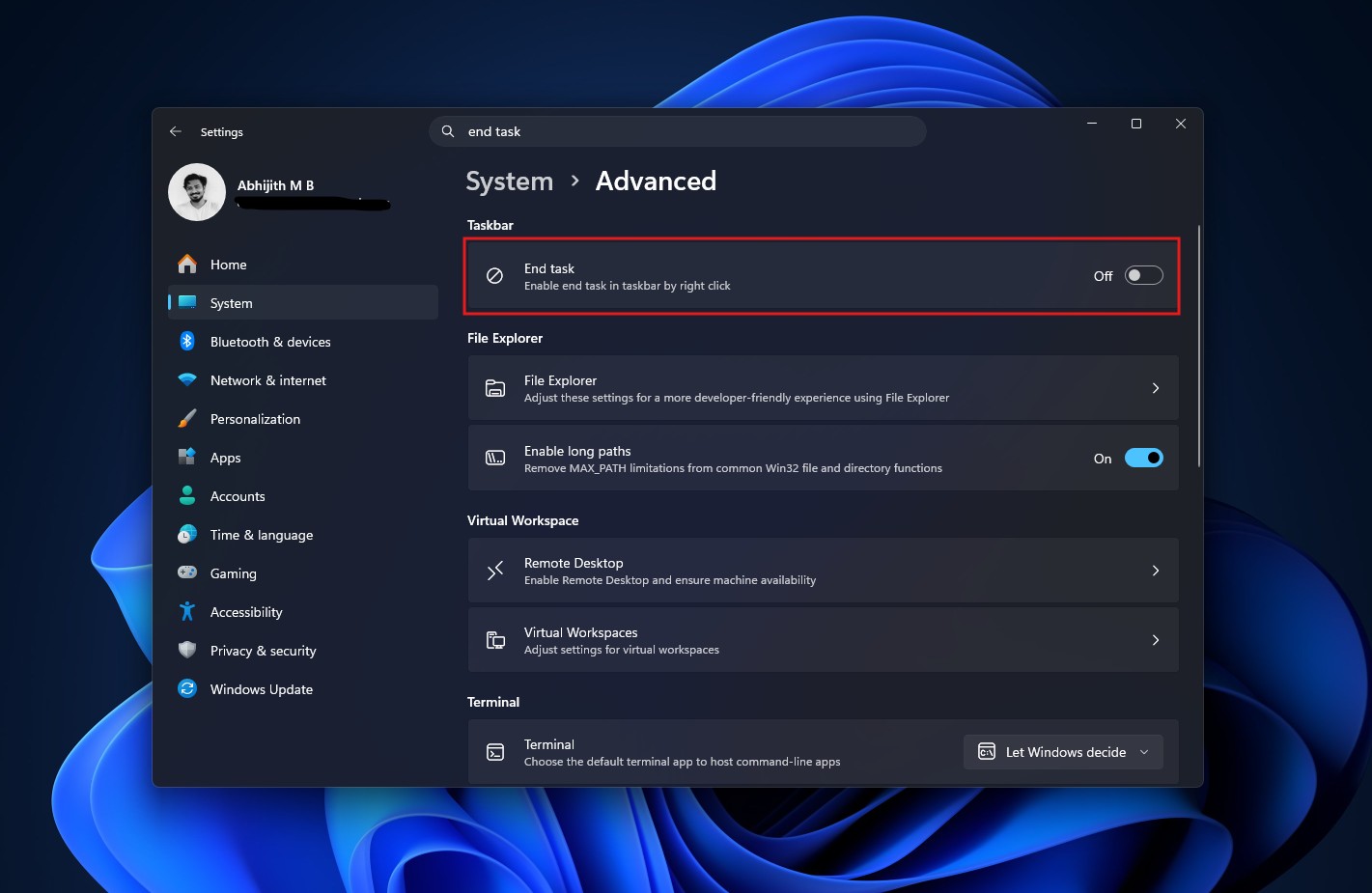
On older Windows 11 versions, the toggle was under Settings > System > For developers > End Task instead.
Once it’s on, right-click any running app’s taskbar icon and select End task. The option only shows up for apps currently running, not every pinned icon.
The actual purpose of the End task button on the taskbar is to provide a highly efficient, 2-click workflow shortcut for force-closing frozen or unresponsive apps instead of having to click Ctrl+Shift+Esc (Task Manager) and close the app from there.
Difference between End task and Close window buttons in the taskbar
Close window asks the app to shut down normally, giving it a chance to save data and exit cleanly. End task skips that and terminates the process, like the basic action Task Manager does.
Windows Latest previously reported that the taskbar version originally showed a “Not responding” confirmation dialog before ending a task. Microsoft removed that extra step in the July 2024 update, KB5040527, so End task now kills the process right away.
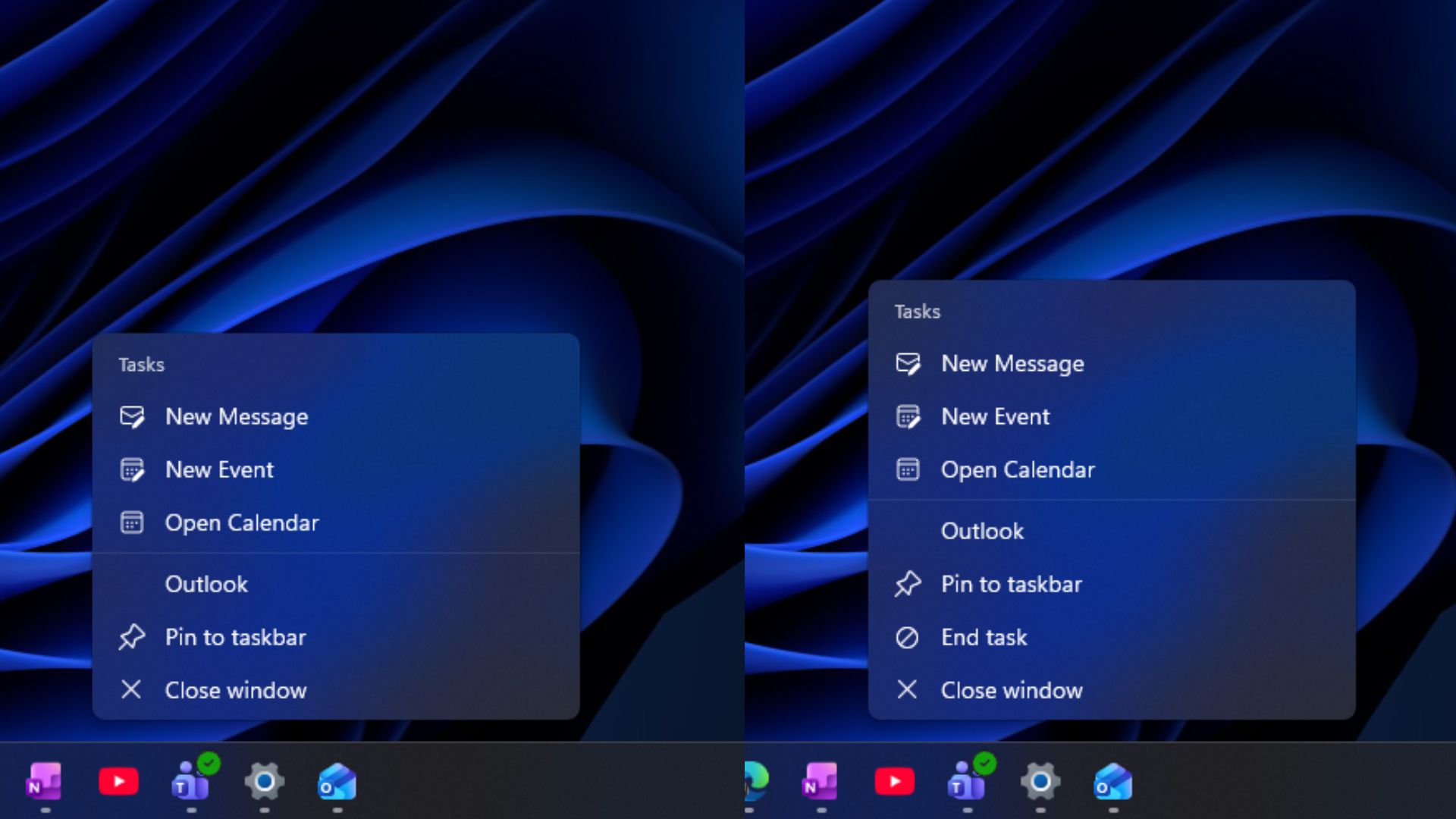
The End task button first sends a WM_CLOSE signal, which is the request a normal “X” click sends. If the app is frozen and can’t respond, Windows locates the process ID behind it and calls TerminateProcess to force it closed, along with any child processes under that task.
Note that clicking End task is force-ending a task and can discard unsaved work, so save that option for when it’s needed. Task Manager still has its place too, since it can end system processes like File Explorer, which doesn’t have the End task option when right-clicked.
Here’s why I use End Task for WhatsApp, Teams, and Discord
If there’s one thing that’s common with these communication apps, it’s that they’re all RAM-hogging web apps.
WhatsApp, Teams, and Discord are built to keep running in the background (system tray) after you close their window, so they can still handle notifications. Closing the window doesn’t stop these apps from running and pushing new message alerts, and even setting their background permission to “Never” hasn’t fixed it for everyone.
Clicking X doesn’t guarantee the app has stopped. The taskbar’s End task option gives me a fast way to kill the process when I want to completely close it.
If WhatsApp, Teams, or Discord is using memory or CPU in the background, ending the process frees up whatever RAM it was holding, though how much depends on what the app was doing.
Microsoft originally hid this in developer settings for a reason
Microsoft’s original April 2023 announcement for Build 23430 called it a new setting for developers, and the feature didn’t even work correctly at launch. It got fixed in Build 23451 the following month. The fact is that it was never really a developer-only feature, and Microsoft didn’t ask for Developer Mode to use it.
In 2025, Microsoft began replacing For Developers with Advanced Settings, a page built for features useful to power users, not just people writing code.
One of Windows 11’s better-hidden shortcuts
Needless to say, End Task isn’t a replacement for Task Manager; it’s the fast version for when you already know which app is the problem.
When something is frozen, hiding in the background, or refusing to fully close, Windows already has the process information it needs. The taskbar shortcut lets you use it without hunting for the process, and if you’re like me, who regularly closes WhatsApp, Teams, or Discord to make room for a heavier app, two clicks beat opening Task Manager every time.