







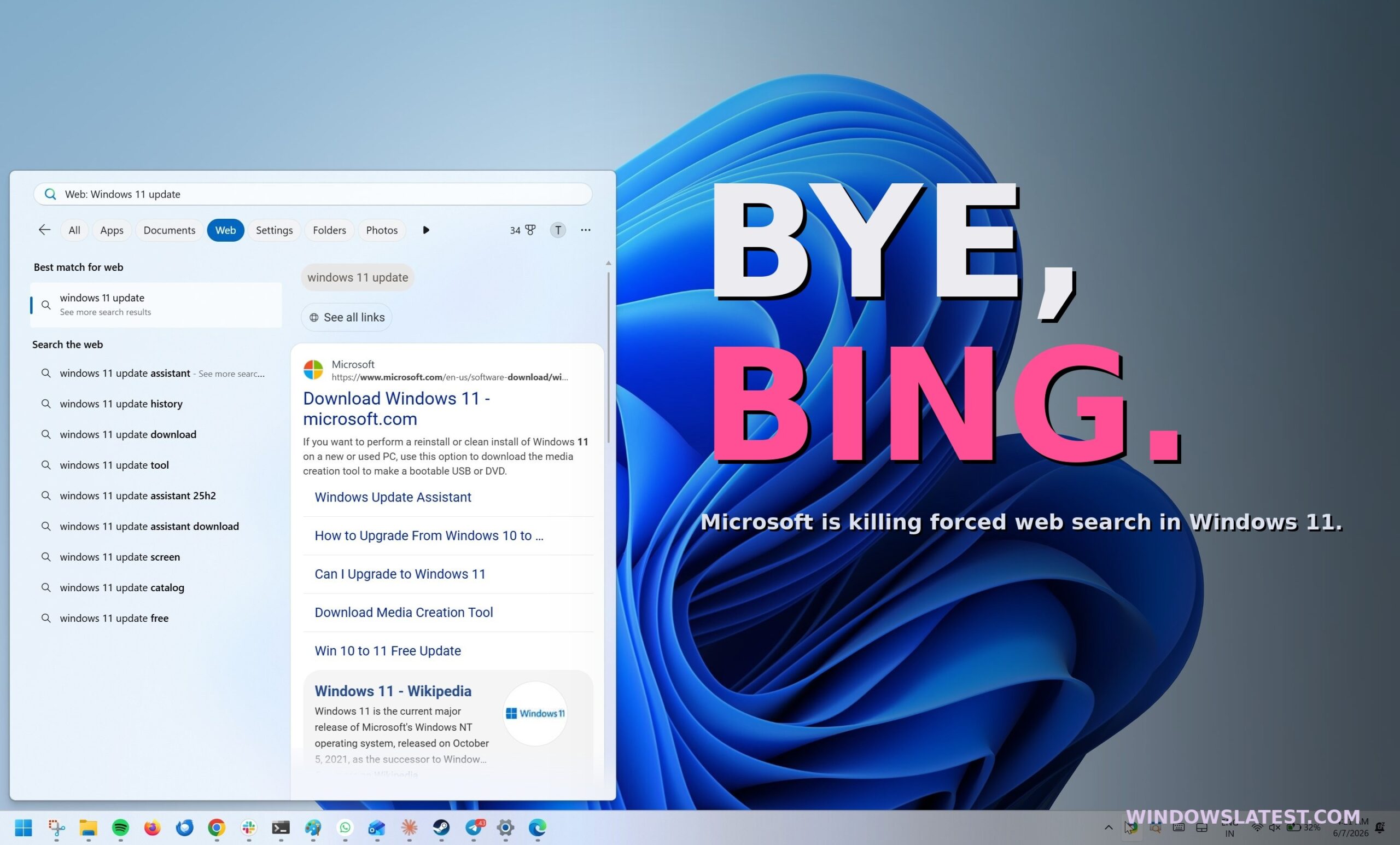
Windows Search is a hot mess when it mixes local results with web results, even when you’re trying to find something on your PC. For example, if you search for an app in Windows Search, it might surface a web result instead. Although it happens rarely, there are other occasions where Search prioritizes Bing. Microsoft has heard your feedback, and it will now let you kill Bing entirely.
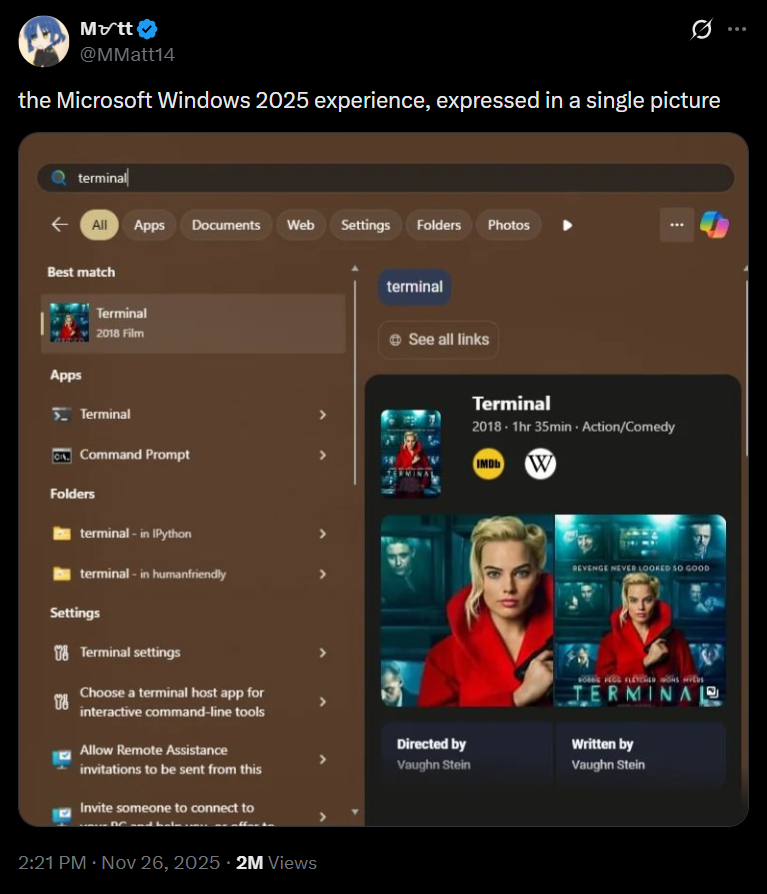
Microsoft recently acknowledged that today’s Search is far from an ideal experience, and it told us that it’ll prioritize local results over the web, even when you type just two characters.
We were able to verify the changes in preview builds, and while it’s a great improvement, that doesn’t mean Bing won’t invade the search results. Thankfully, Microsoft is aware of the concerns around Bing, and now a new Windows Search that lets you toggle off web search was quietly teased at a private Windows Insider meet-up.
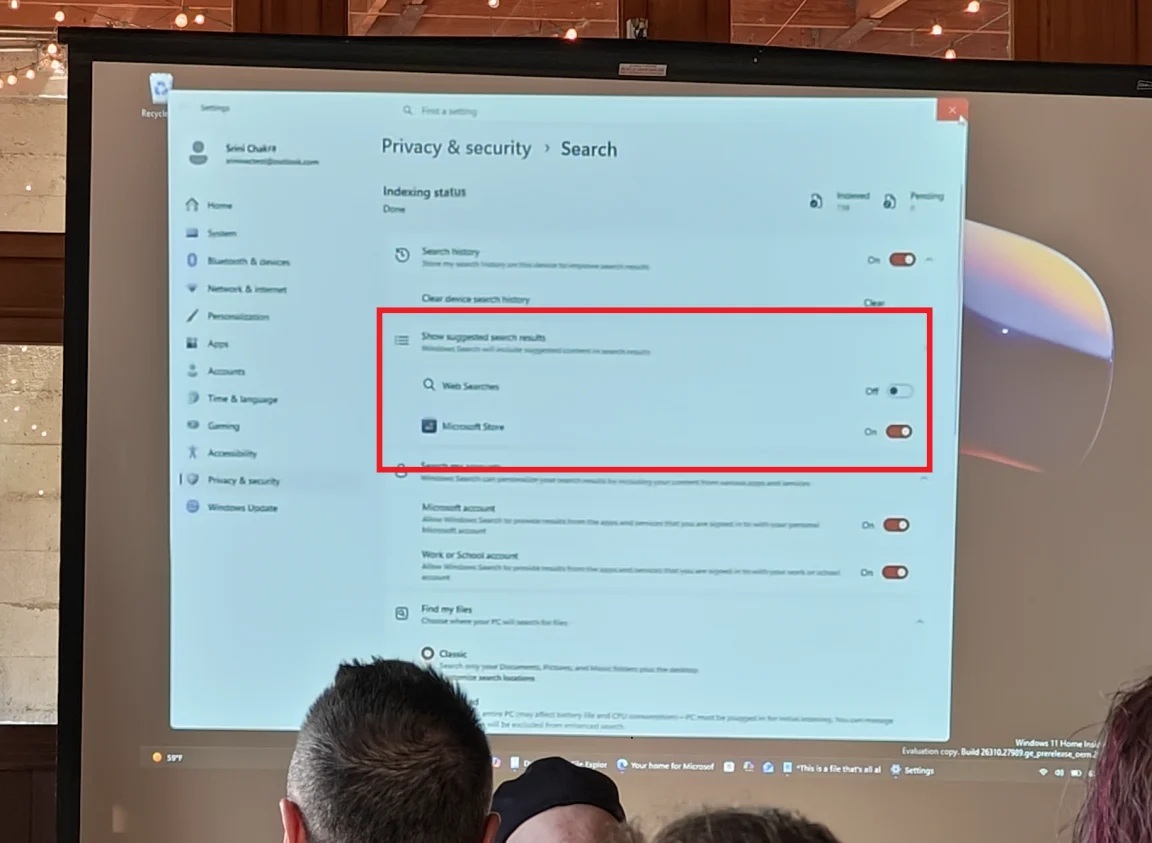
Windows Latest can independently confirm that a local-only Windows Search is in the works. I’m told that Microsoft is testing a new toggle that lets you turn off web searches in Windows Search, so it runs entirely locally. You’ll also be able to turn off Microsoft Store results.
For those unaware, if you search Windows Search for an app that isn’t installed but is on the Store, you’ll see a listing with a Get button that downloads the app. This listing will disappear when you manually turn off Microsoft Store results in Windows Search. I’m told these changes will begin rolling out to testers in a few weeks.
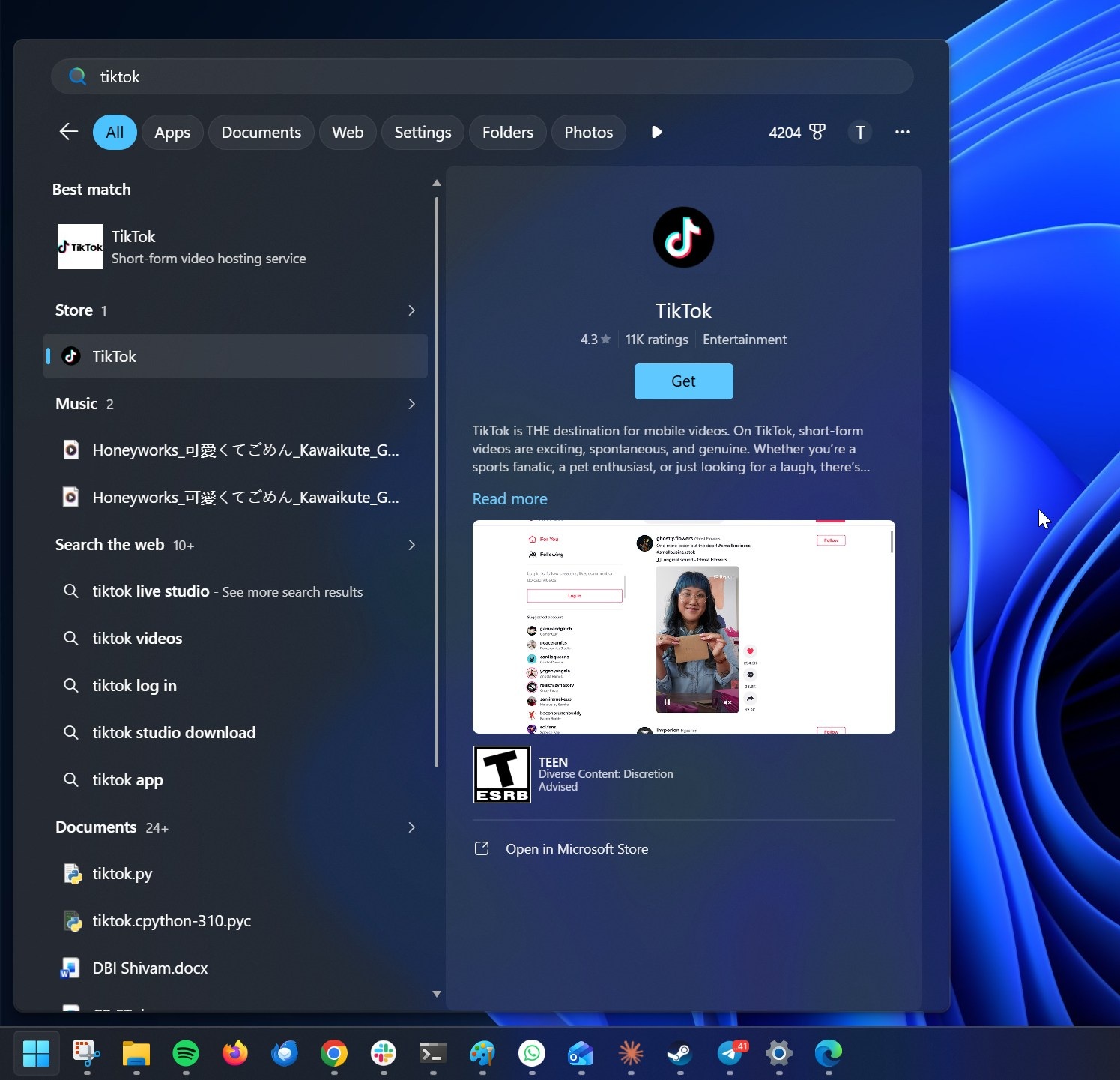
This is part of the company’s efforts to give you greater control. Right now, you cannot turn off web integration in Windows Search. The only way to easily turn off web search is by modifying the Windows Registry.
You need to create multiple entries inside HKEY_CURRENT_USER > Software > Policies > Microsoft > Windows to block web integration. However, editing the Registry for something basic never made sense, and it looks like Microsoft has finally realized that.
Microsoft is testing a number of improvements for Windows Search, including:
- Local search experience without Copilot, Microsoft Store listings in Search, MSN, Bing, and Rewards.
- Faster Windows Search, especially if files contain complex names.
- If web search is enabled, Windows Search will still prioritize local results even when you type just two characters.
- Windows Search now ranks local results above web results.
Microsoft plans to declutter Windows Search and make it fast
I often use Windows Search to find files I just created/saved, and it struggles to locate them. In fact, it would show me a result from the web, which can be frustrating at times when you’re really looking for the file to send to a friend.
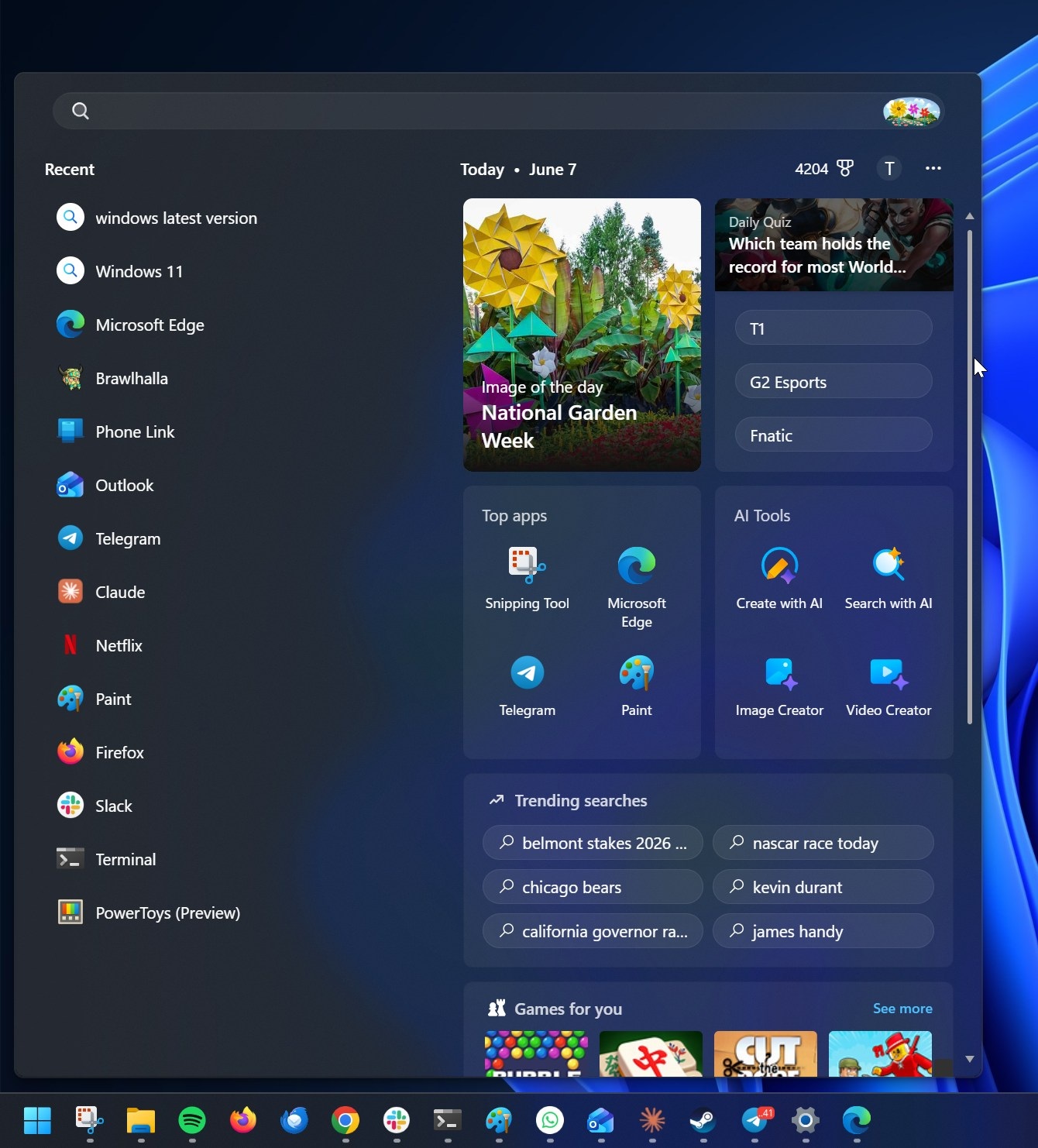
I don’t think turning off web search alone can fix these problems, as they’re deep-rooted in search filters, the ranking system, and the indexer. Microsoft previously promised to improve Search so you can find files that matter faster and identify settings quickly, and we’re now seeing early signs.
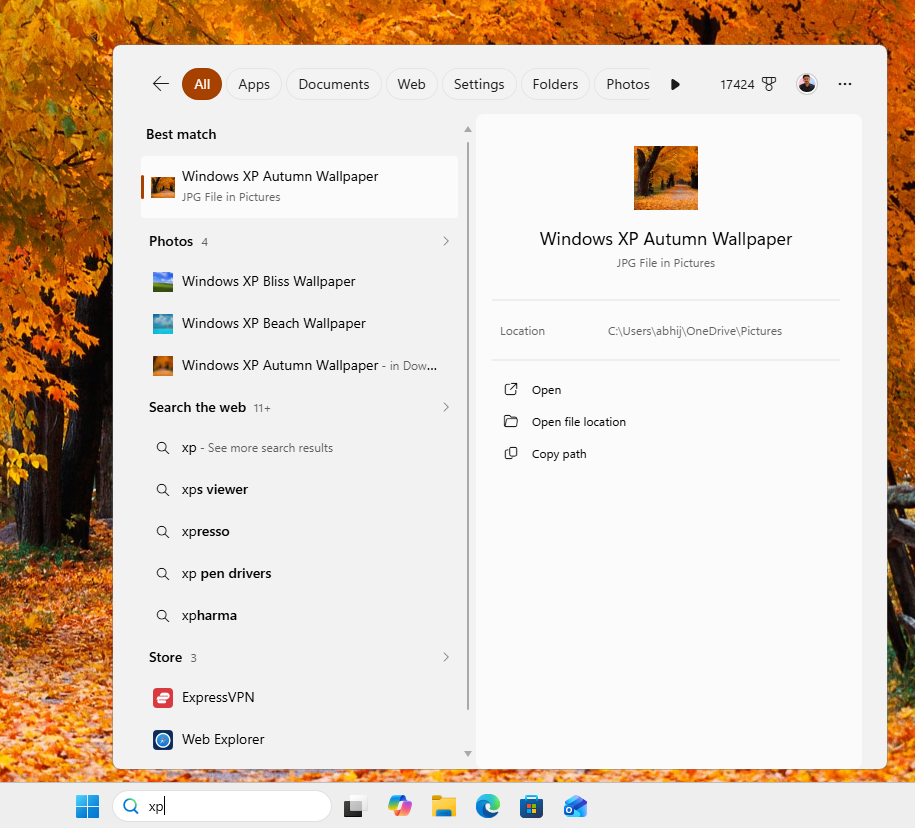
Search local files using just two characters, and the web is now demoted
With Windows 11’s June 2026 Update, you can type just two characters to trigger local search in Windows Search. Previously, if you typed a few characters, Search would send you to the web if it didn’t find the closest match. Now, Search prioritizes local results even for just two characters:
Search by substring in Windows Search
Right now, if you’re looking for a local file, you need to search for it using the first name or the first few matching characters. This changes with support for substring, which allows you to find files using a substring that is part of the file name.
For example, if you have an image on your disk called “SavedYouAClick,” you can now find it using “Click” and “You” in addition to the first word, which is “Saved.”
It’s yet another great improvement, and it only makes Windows Search more useful. How do you want Microsoft to fix Search in Windows 11? Let me know in the comments below.