






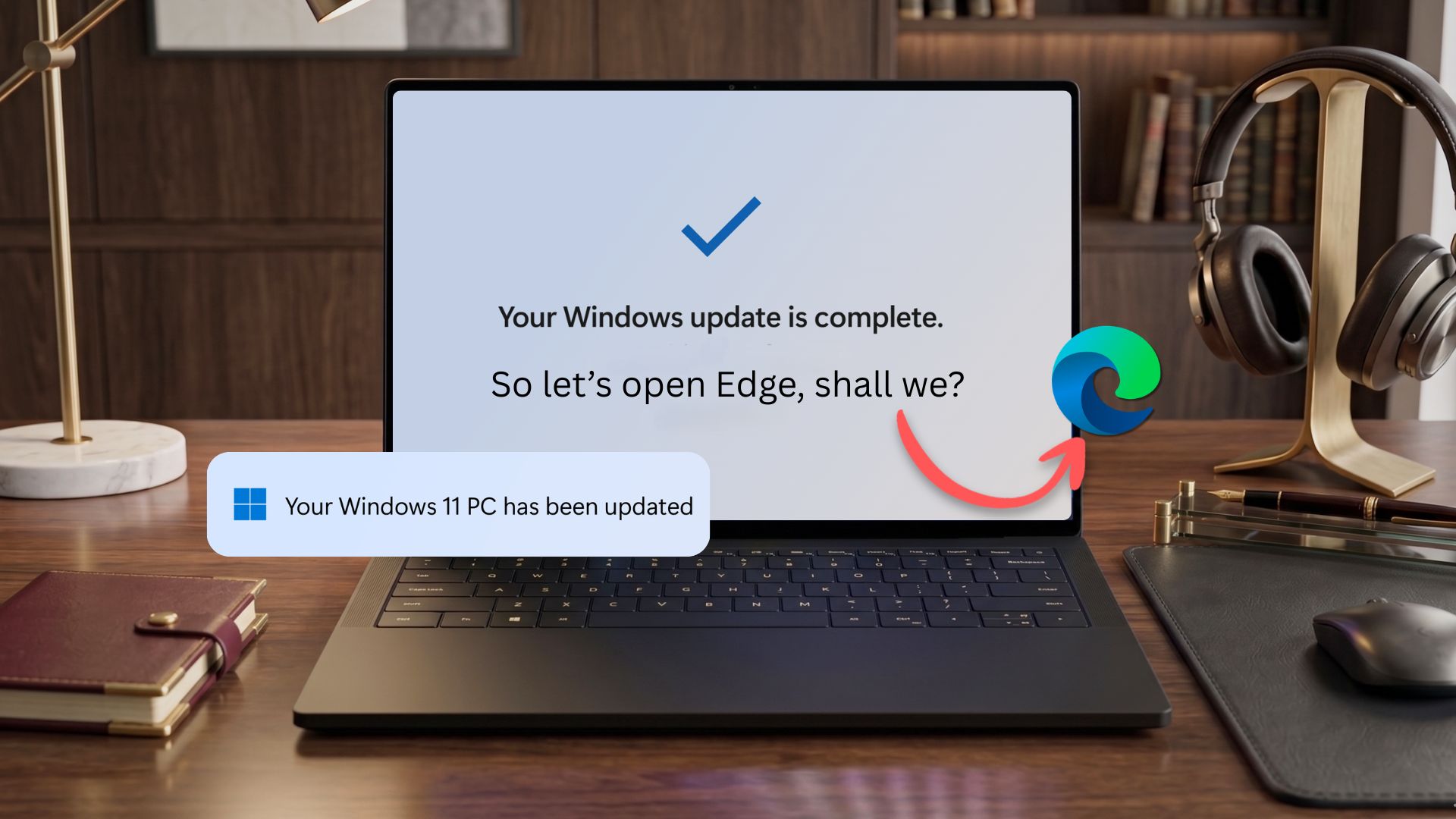
The April Patch Tuesday update for Windows 11 automatically launches Microsoft Edge on some PCs after the first restart following installation. Microsoft’s browser opens to show a page with the text “Your Windows update is complete,” followed by a slightly smaller text prompting you to take a look at 5 of the latest features. A big blue “Next” button is underneath it.
The worst part, apart from Edge auto-opening after the update, is that there is no close button. Of course, you can close Edge or open a new tab. But that’s not the point here. The average person would think to click the blue button. Also, if you choose to click anywhere on the screen, you’ll still be taken to the next page to show you the “latest” features in Windows.
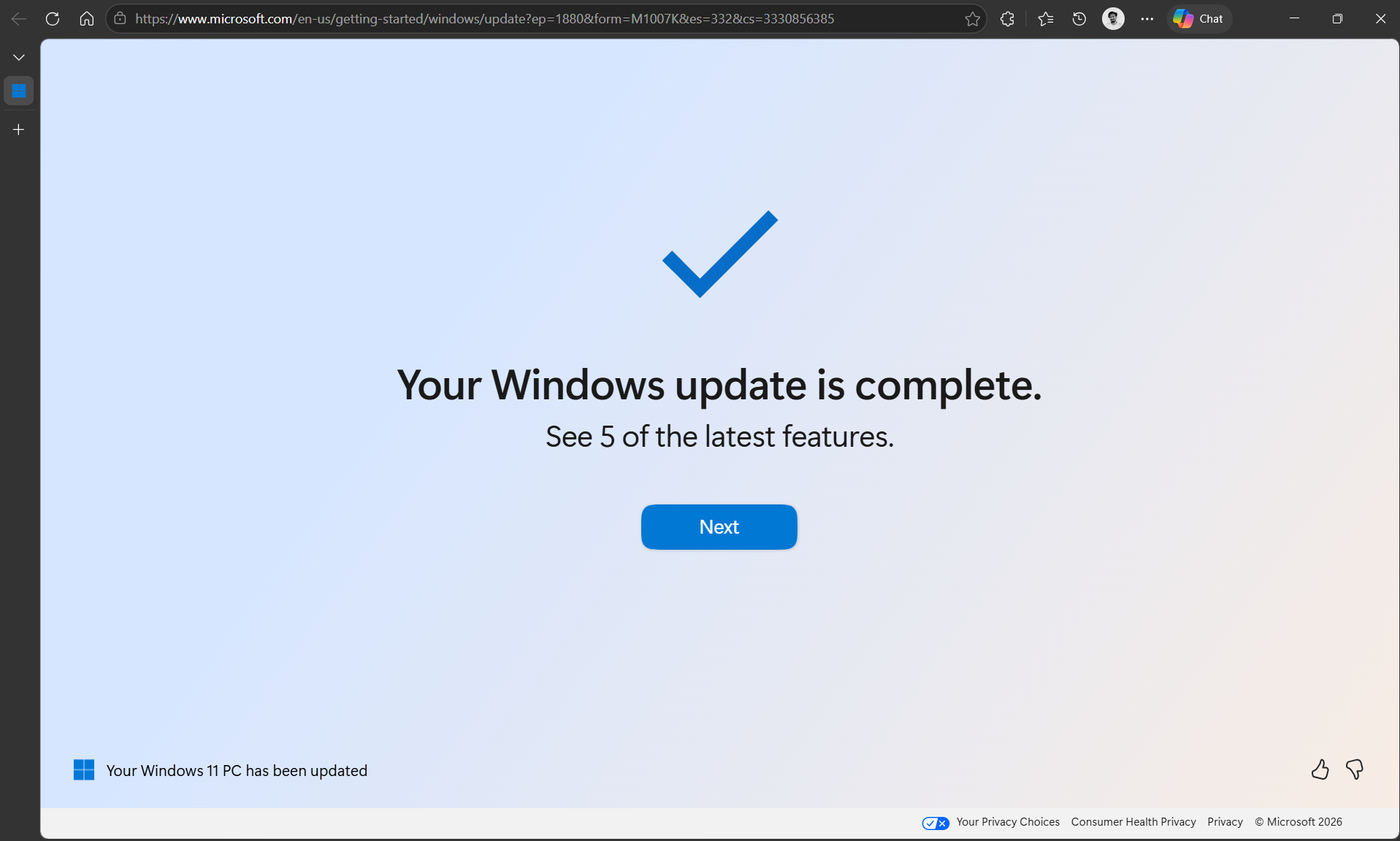
Funnily enough, on the bottom left side, in smaller letters, it says “Your Windows 11 PC has been updated”. But doesn’t the big bold text in the centre already mean that my PC was updated?
The generous white space, a big blue tick mark, and poorly written text all make me think that this was just a ploy by Microsoft to introduce a user to Edge. Because once you click the “Next” button 6 times (yeah, I know), you’ll be treated with yet another big blue button that says “Start browsing”. Clicking it would open a new tab in Edge.

And remember the 5 latest features that Microsoft wanted you to check out, those aren’t exactly the latest either…
Microsoft Edge auto-opens after a Windows update to show some new features of the OS
Usually, if an OS gets a bunch of new features after an update, or if it wants to confirm to the user that an update has successfully installed, it will show them in a banner, not in the browser. Here, Microsoft just coded the functionality to open this URL in Edge after a PC restarts to install a Windows update.
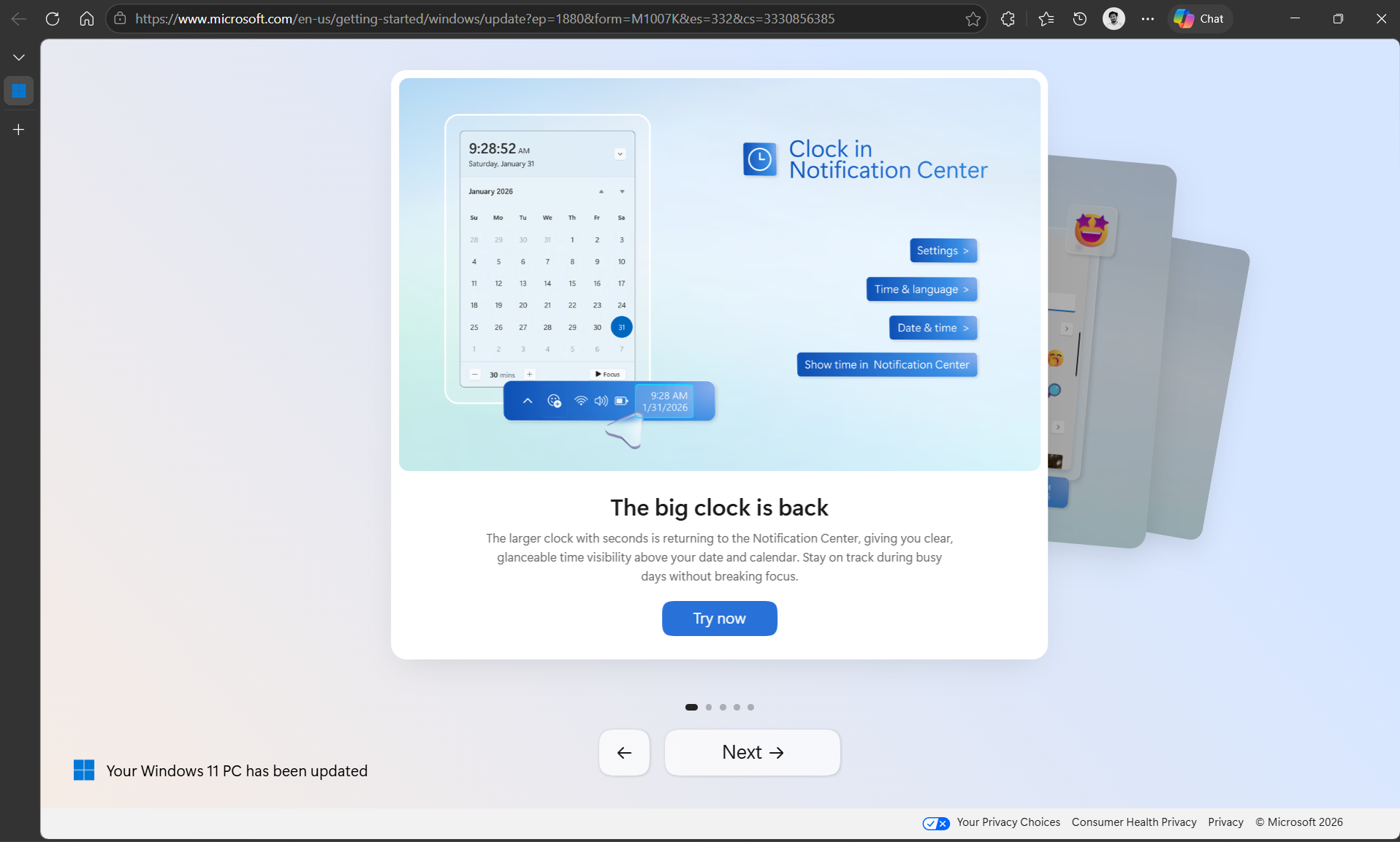
Clicking anywhere on the page, or on the Next button, will show you the following pages:
Microsoft removed the seconds functionality in the clock on the taskbar and also made it smaller. Now they have added it back. But this isn’t a highlight feature of the April update and has been available for all users for quite some time.
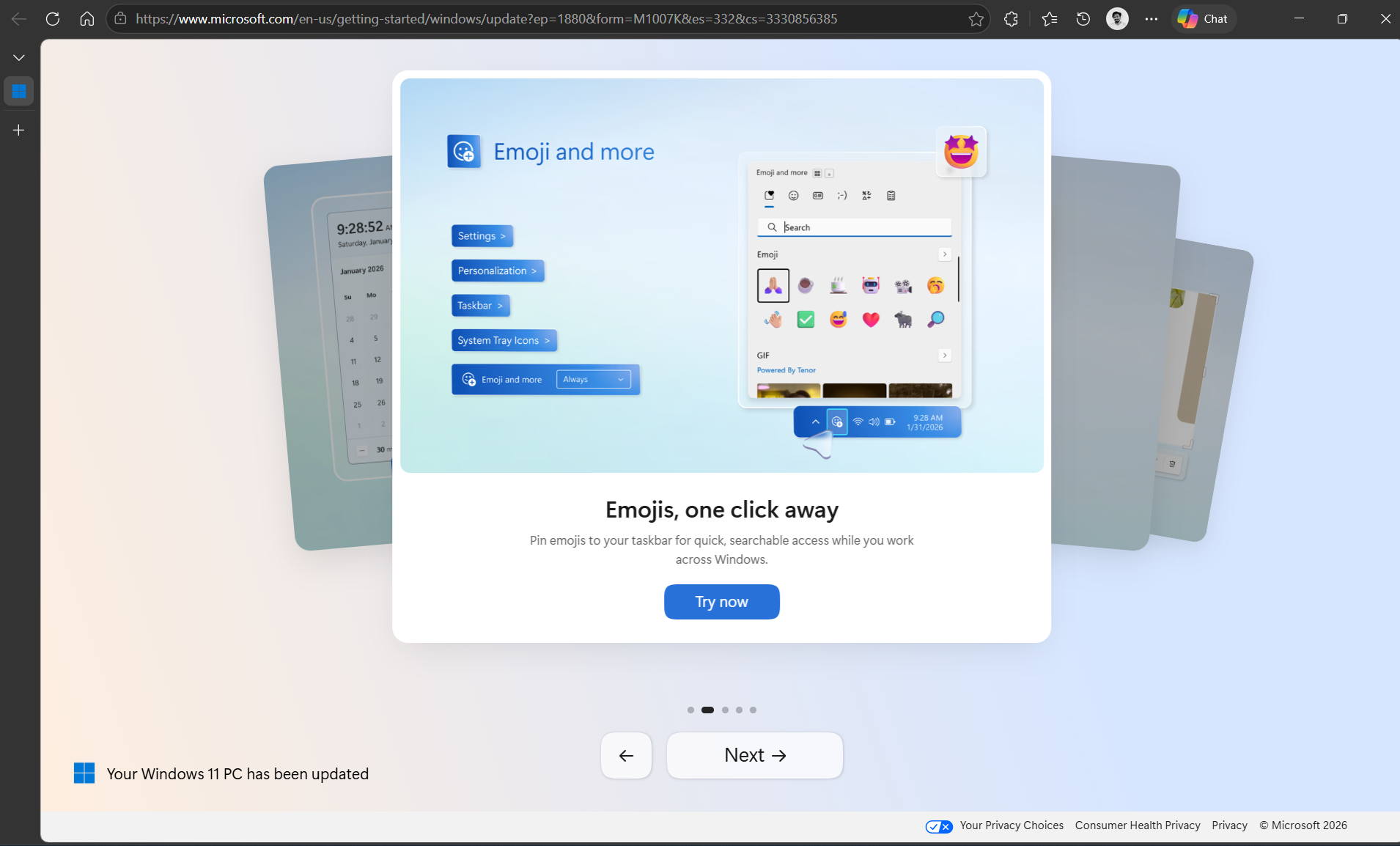
The ability to pin Emojis to the taskbar is new, though! However, I prefer to just use the Win + . (period) shortcut.
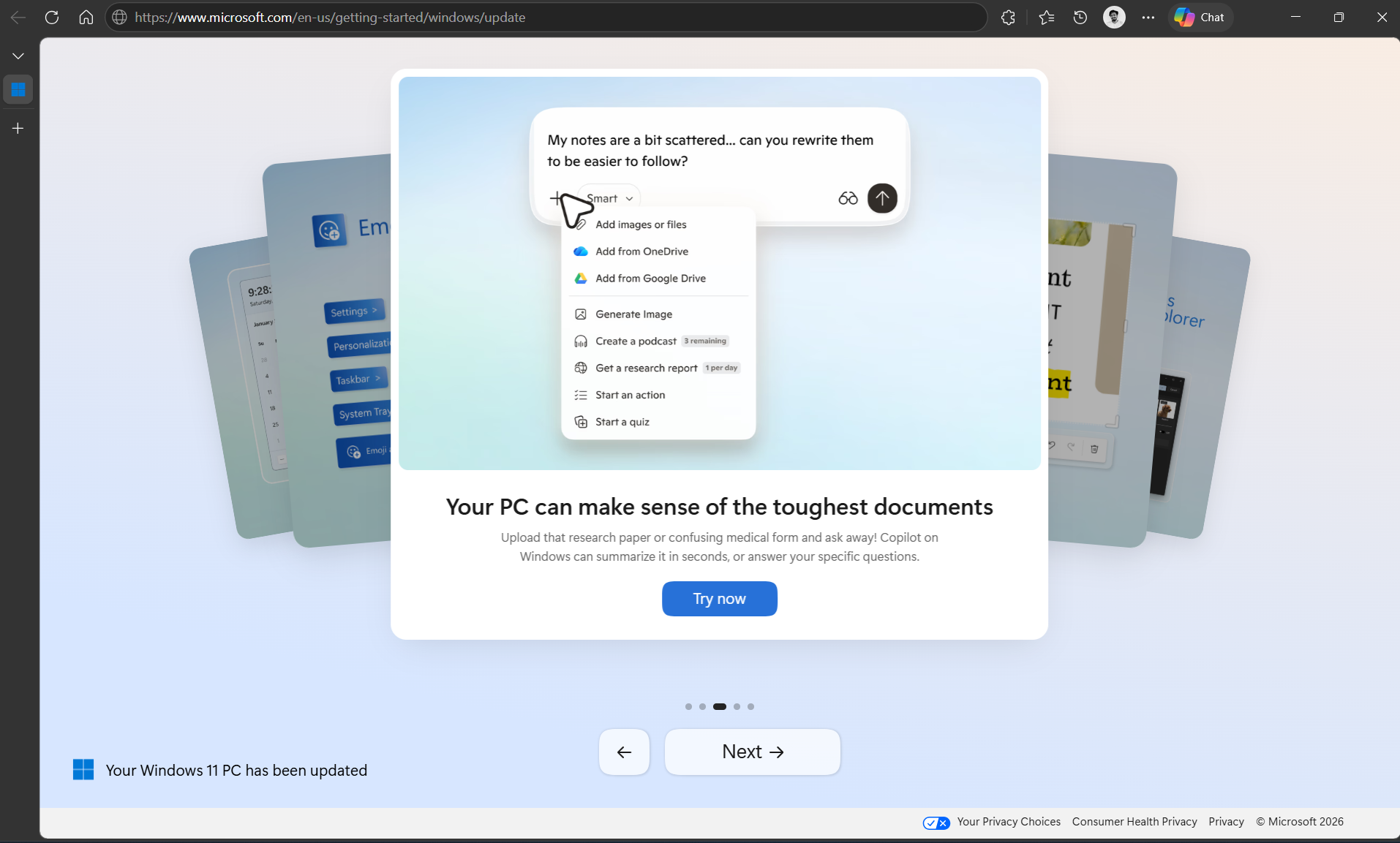
The third one showcases Copilot’s skill to summarize and answer questions about the toughest documents you have… Yes, it’s been out for ages at this point.
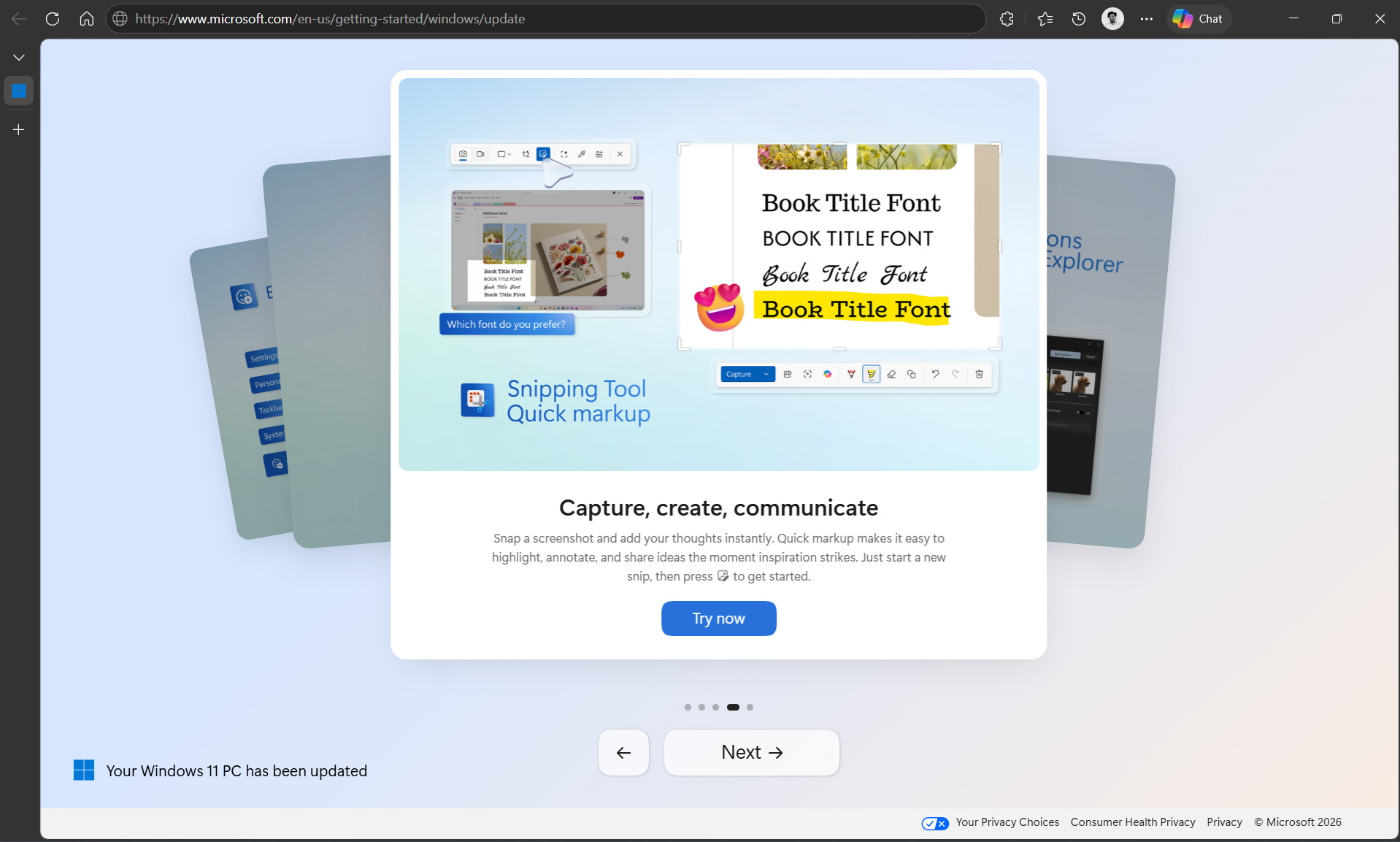
The fourth one is good, because it features Snipping Tool’s Quick markup, which is something that I use every single day.
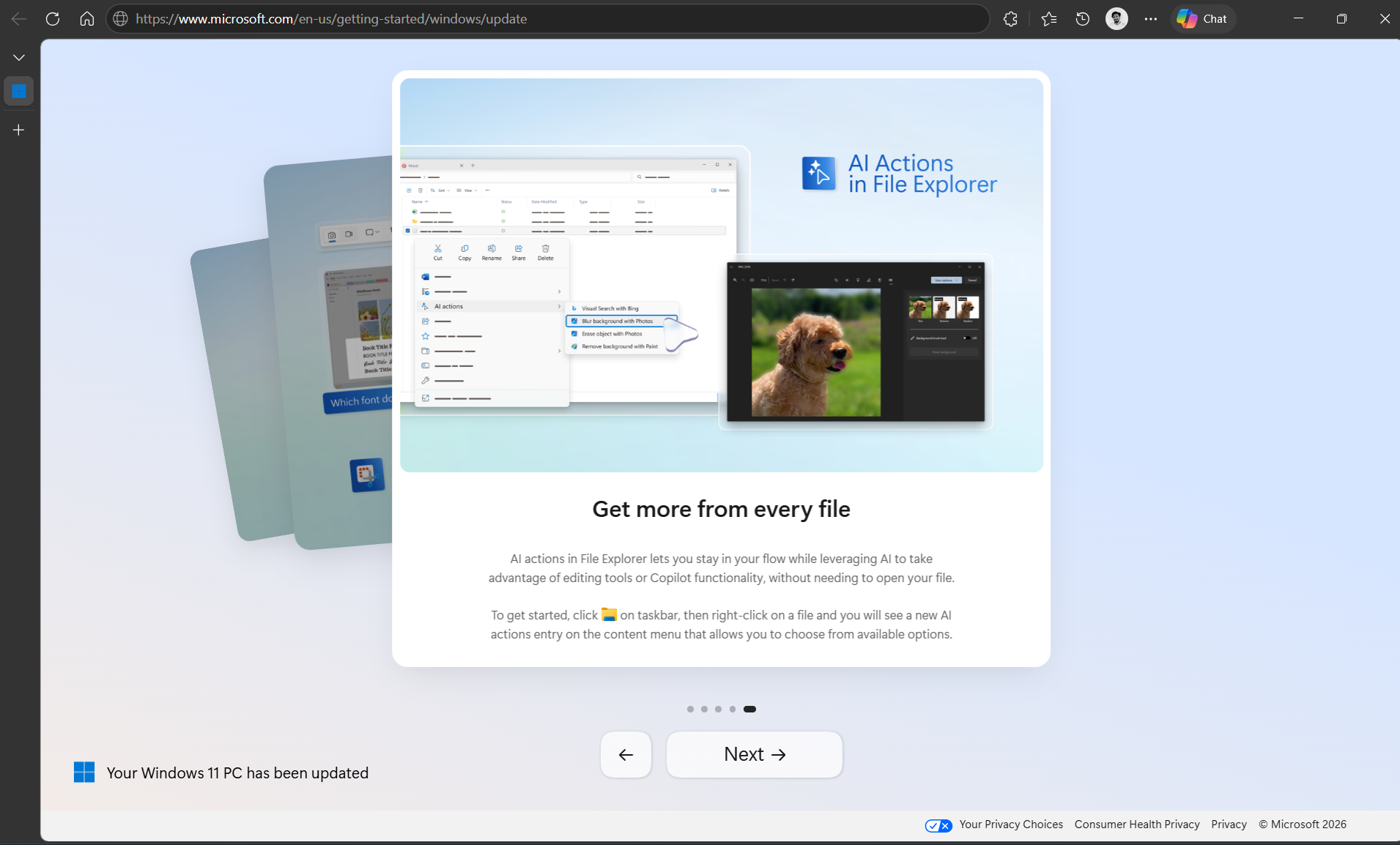
The last one is again an AI feature, showing the right-click context menu in File Explorer with AI Actions.
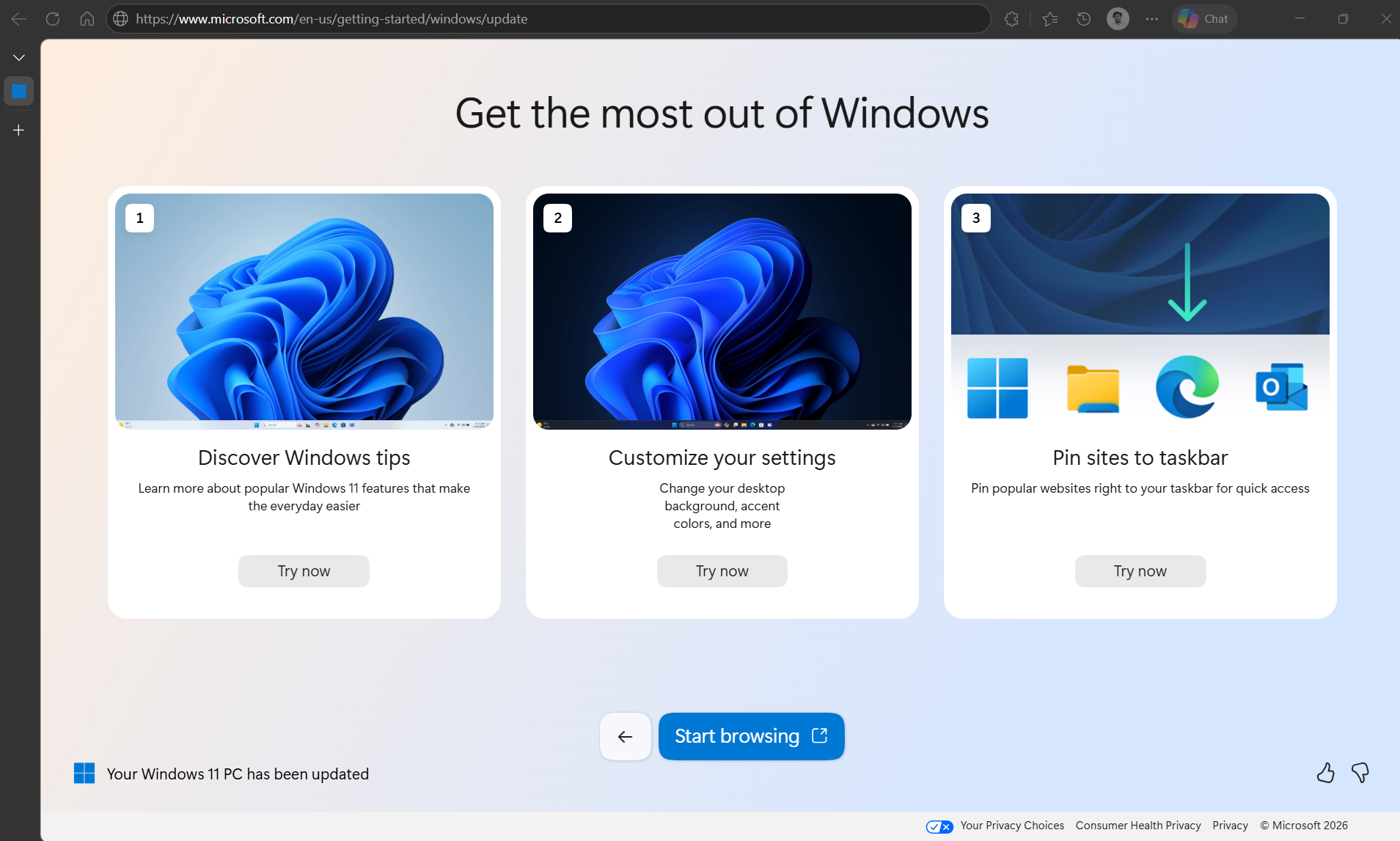
Most of these aren’t new features, and the final page has a Start browsing button with tips on how to use Windows, which are all basic stuff better suited for a complete beginner.
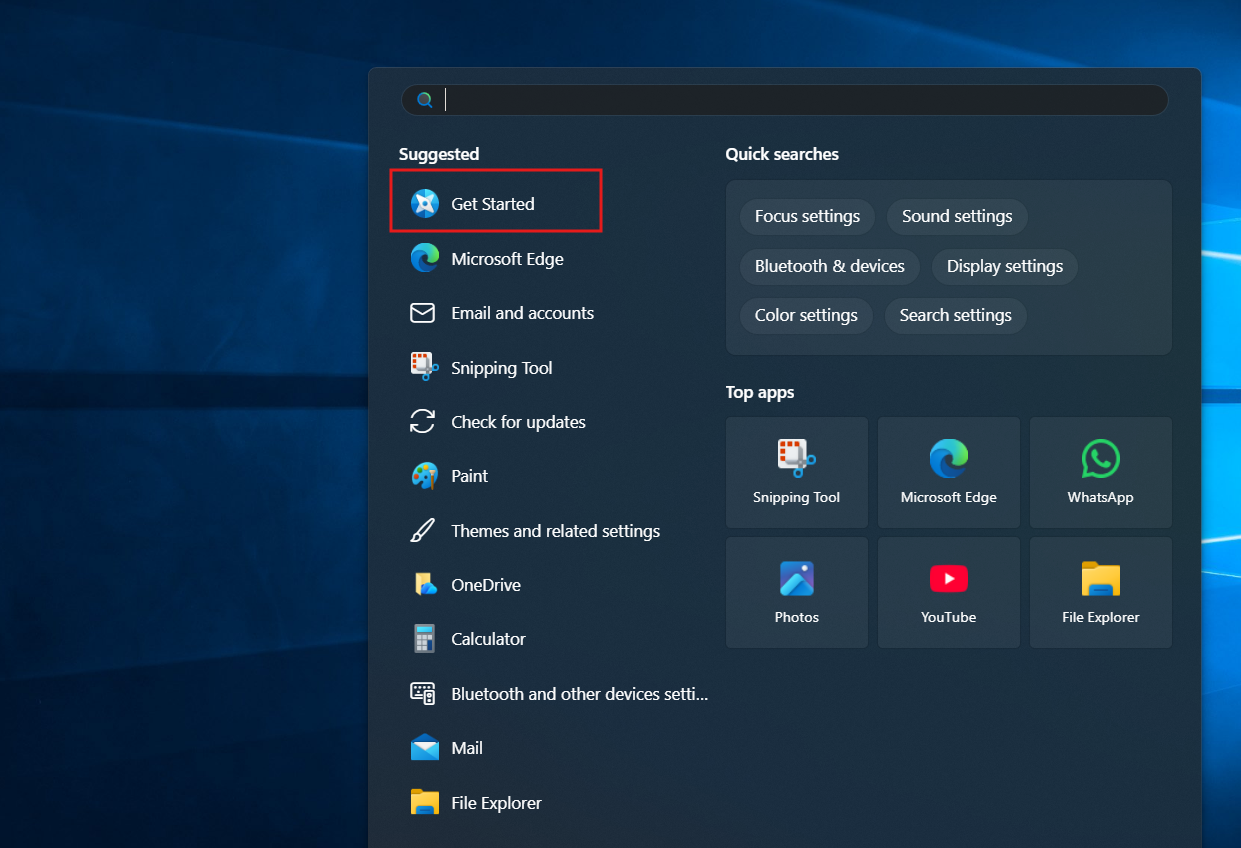
Interestingly, Windows comes pre-installed with a Get Started app and a Get Help app. Weren’t either of these the first choice to showcase basic features?
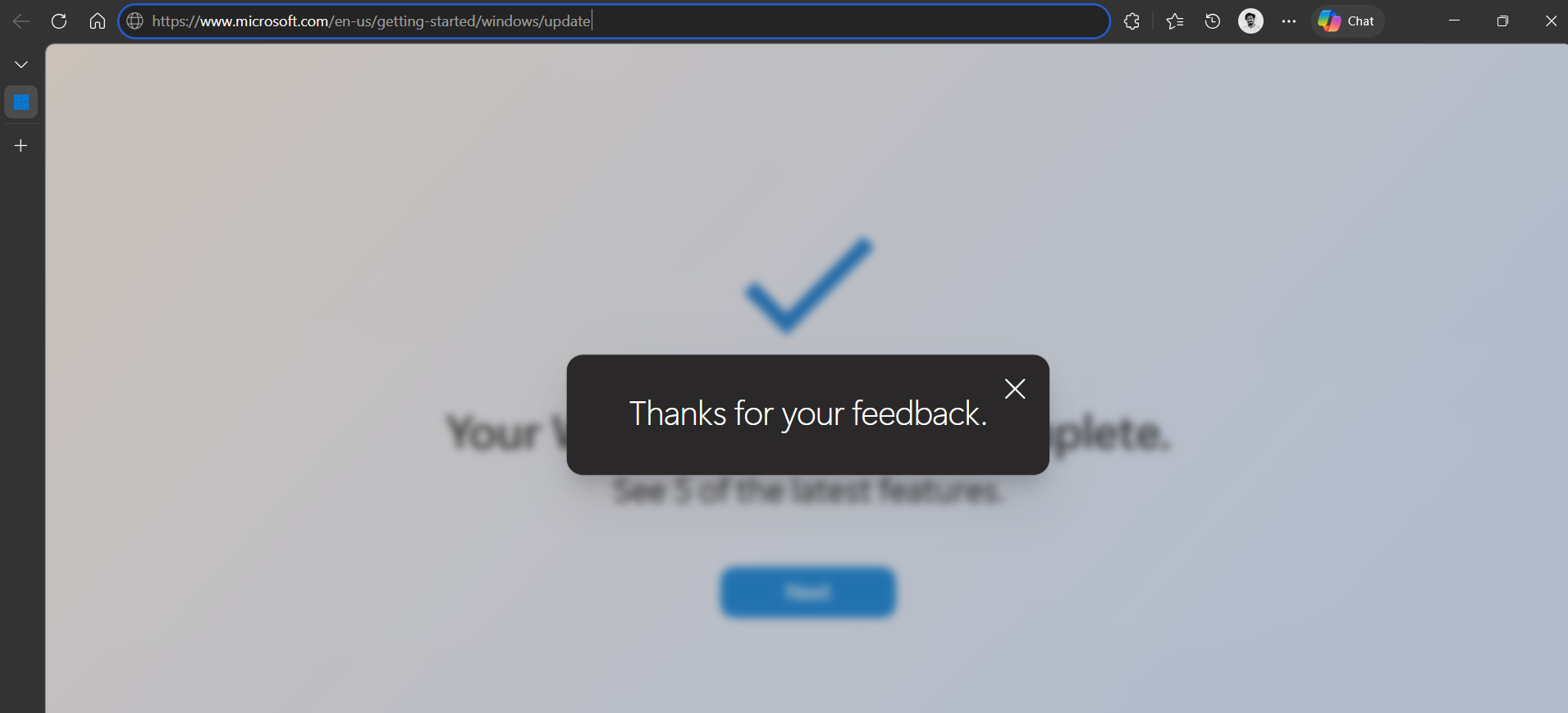
Also, in case you didn’t see it already, there are like and dislike buttons on the bottom right of the page. Clicking either would just show a banner saying “Thanks for your feedback.” Clicking its close button still doesn’t close this page.
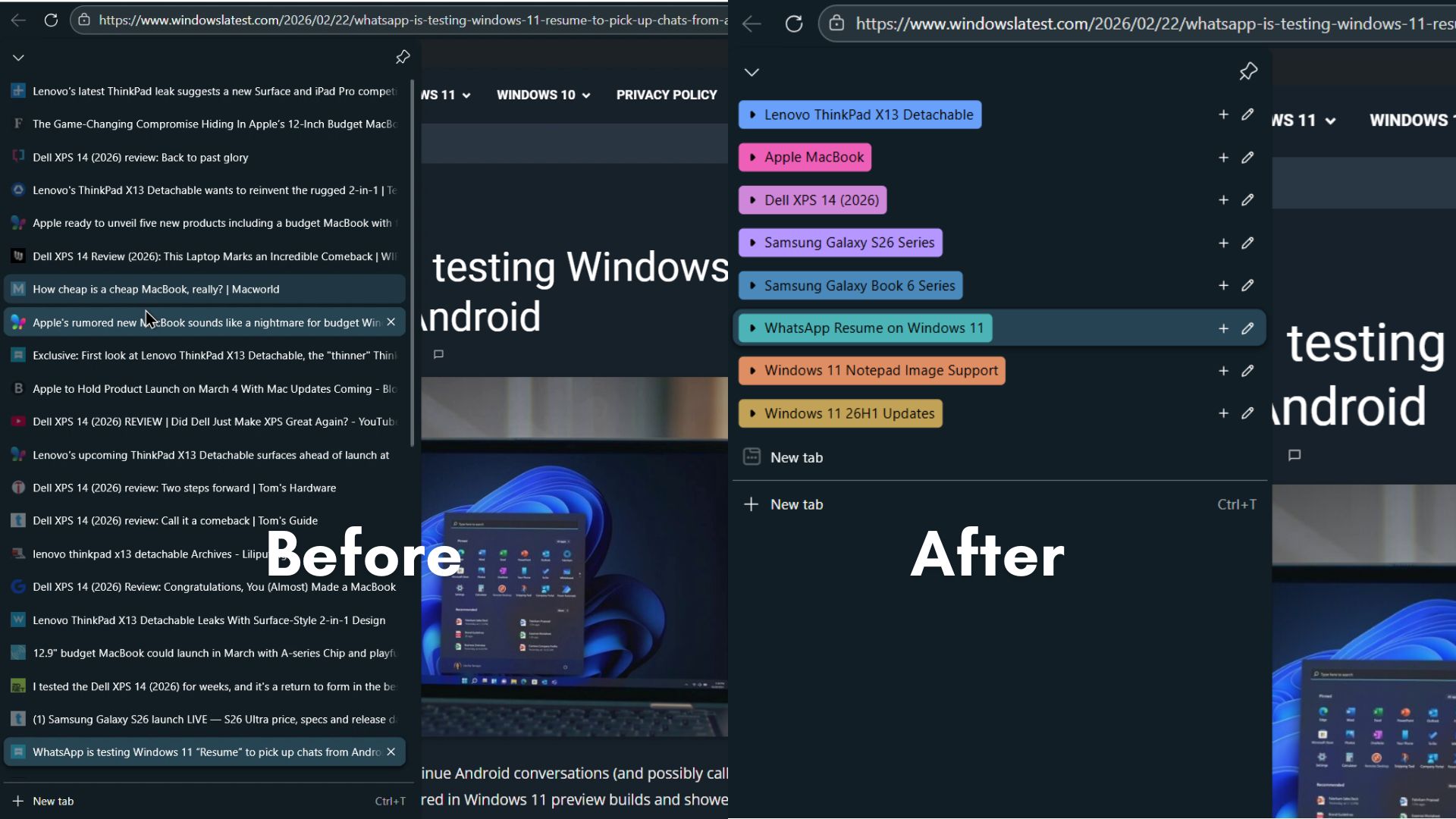
I’ve said this before, and I’ll say it again: Edge is a good browser. It has everything a modern browser needs, plus a few unique features too. The AI tab organizer in Edge is one of my favorite uses of AI in a browser.
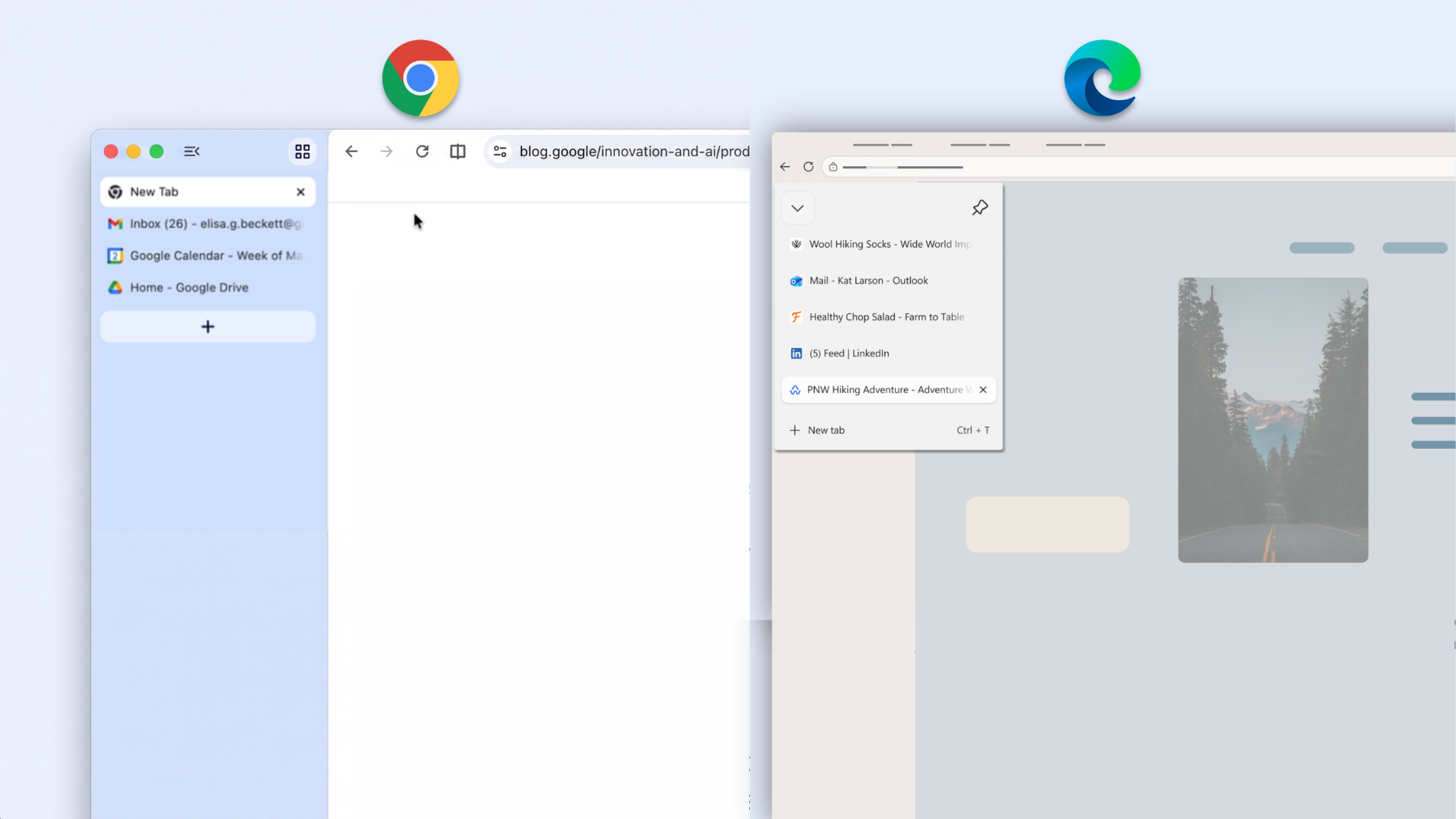
Edge also had Vertical Tabs and Immersive Reader for quite a long time, both features that Google Chrome has only recently adopted.
Besides, Edge is running on Chromium, so all extensions work here as well. However, if Microsoft persists in forcing Edge on users, it will remain the browser people open solely to install Chrome.