








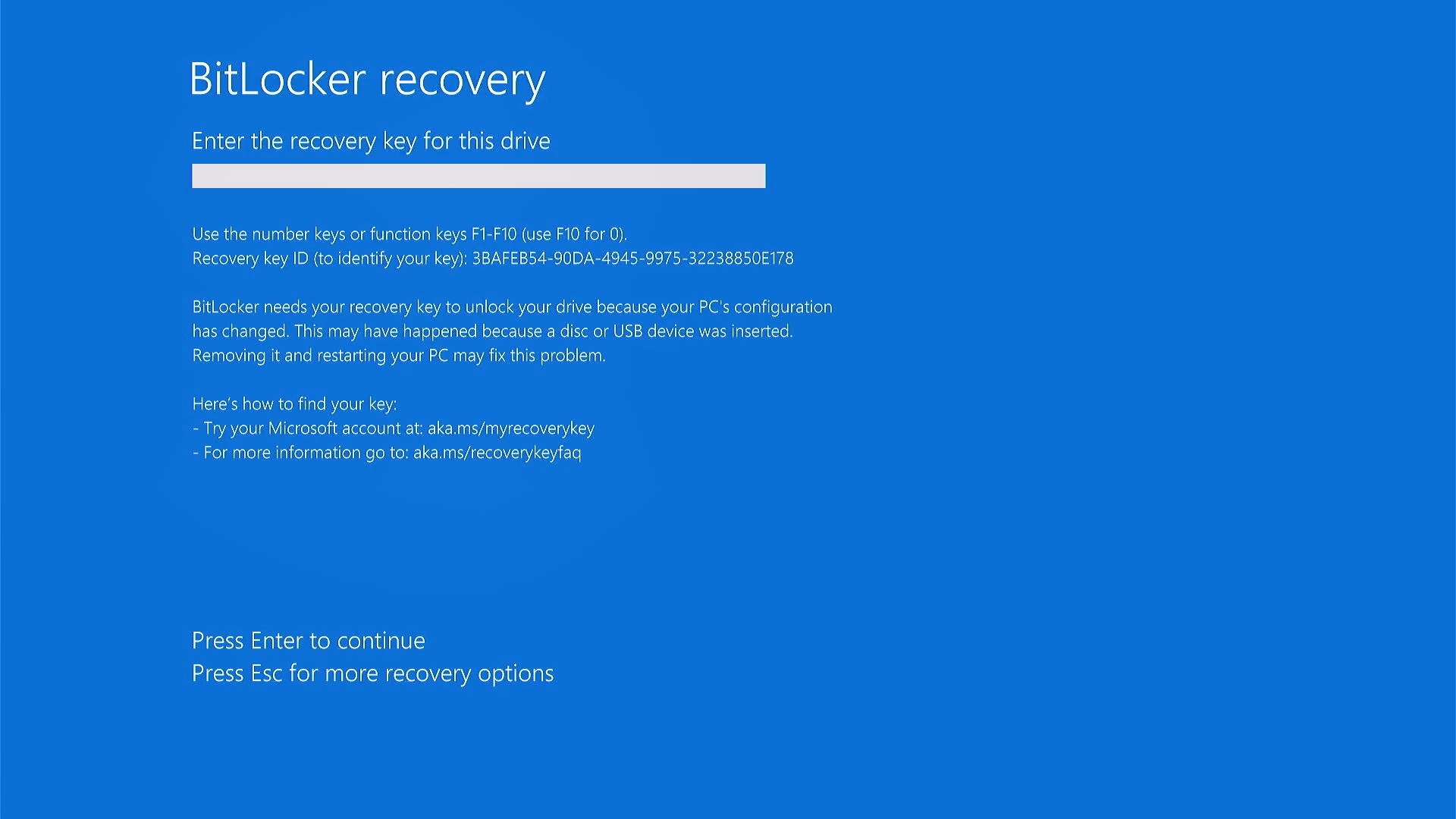
Windows 11 KB5083769 is not a big update, but on a few PCs, it could trigger a BitLocker recovery screen alert, and Microsoft says it’s already rolling out a fix. In addition, Windows Latest observed that the April 2026 Update takes multiple reboots to finish installation, and it’s likely because of a separate .NET Framework update that rolled out at the same time.
I usually do not run into major problems after Windows Update, but April 2026’s Patch Tuesday release scared me a bit. After I downloaded Windows 11 KB5083769 and normally rebooted my PC, I was on the black “Working on updates” screen with a spinning circle, showing that it’s almost there, and the percentage was slowly increasing to 50%.
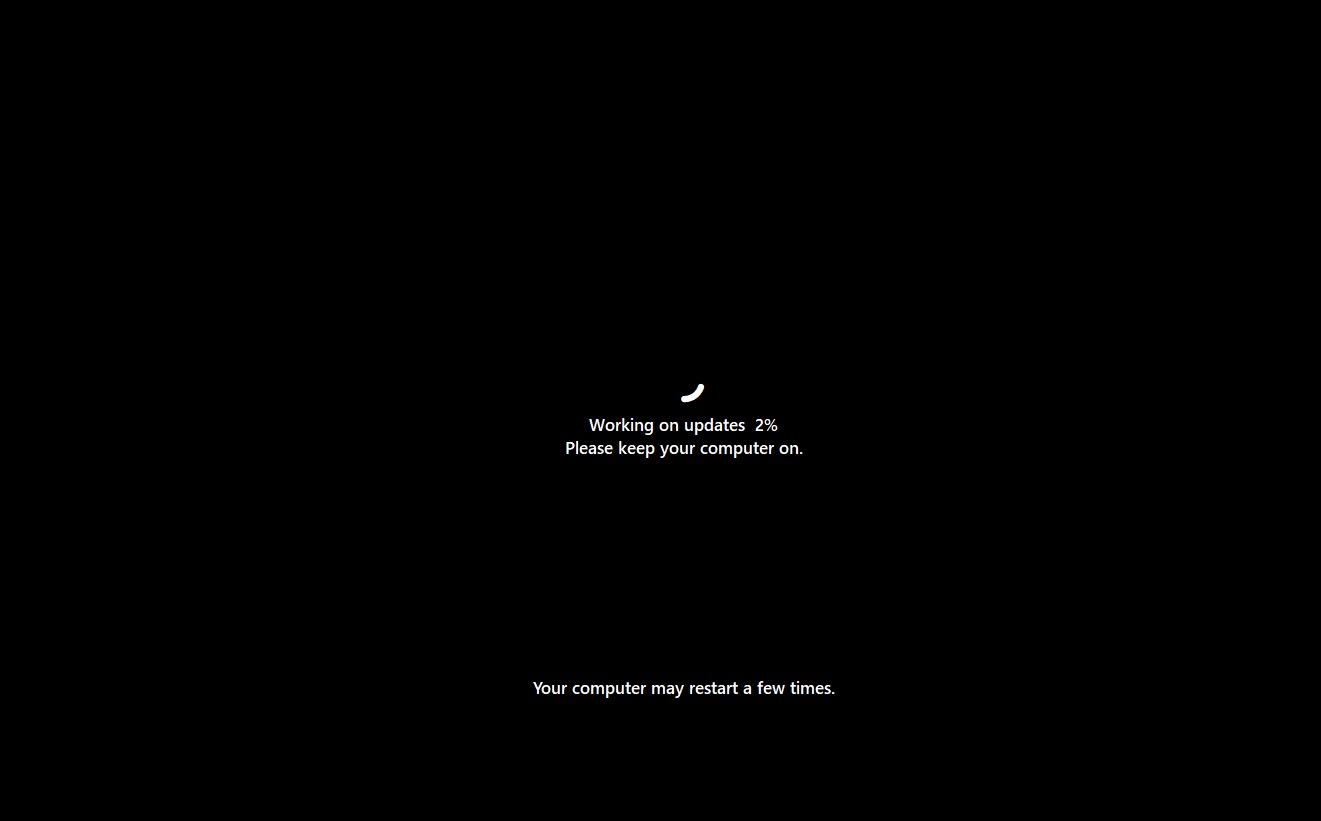
This is expected behavior, and then Windows 11 rebooted, and the installation percentage increased to 72%. At that point, it was supposed to reach 100%, and the lock screen should have appeared, but to my surprise, Windows rebooted three additional times before the lock screen appeared.
This happened on two of my PCs, and I also heard similar feedback from users.
Windows updates typically require only a single reboot, but this could be a bug, or the multiple reboots may be caused by the .NET Framework update, which rolled out on April 14 along with the Patch Tuesday update.
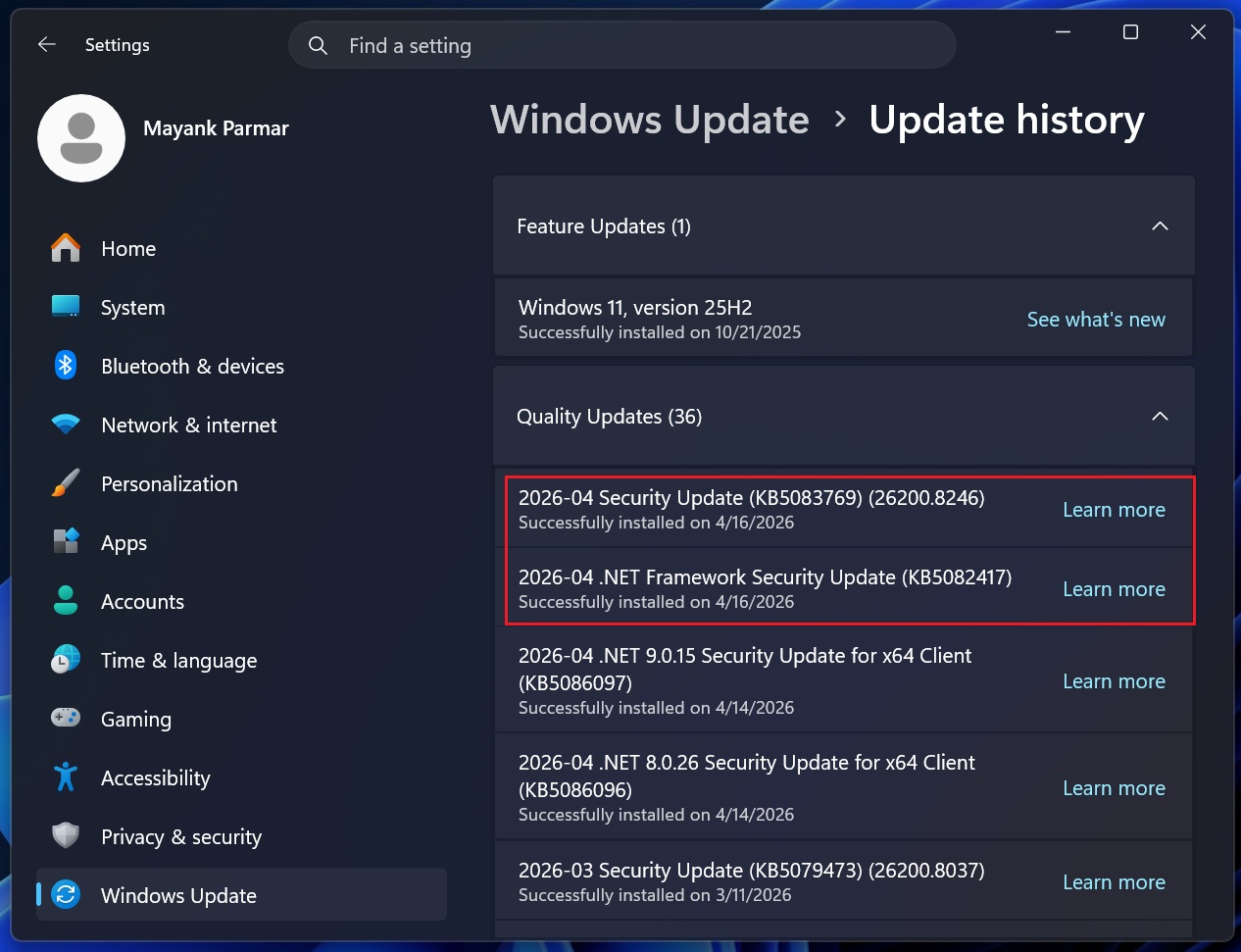
Microsoft told me it’s looking into the reports, but so far, it has not been able to confirm if a bug is causing multiple reboots. There’s a separate Windows bug where Windows Server instances reboot multiple times, but that known issue has nothing to do with what some of us are experiencing on regular (consumer) PCs.
Regardless, if your PC reboots multiple times when installing April 2026 updates, do not freak out or turn off your computer. Let the Windows update installing, and you’ll be back on your desktop after 10-15 minutes.
Also, I found that some users are unable to install Windows 11 KB5083769 due to repeated error codes, including 0x800736b3, 0x800f0991, 0x800f081f, 0x800719e4, 0x800f0823, and 0x80071a2d. One user on a Lenovo Yoga Slim 7x also said the update would not install.
Windows 11 KB5083769 triggers the BitLocker recovery screen
There’s no denying that Windows updates can accidentally trigger a BitLocker recovery screen, but it doesn’t happen frequently. However, over the past six months, we’ve seen multiple reports of the BitLocker recovery screen appearing out of nowhere.
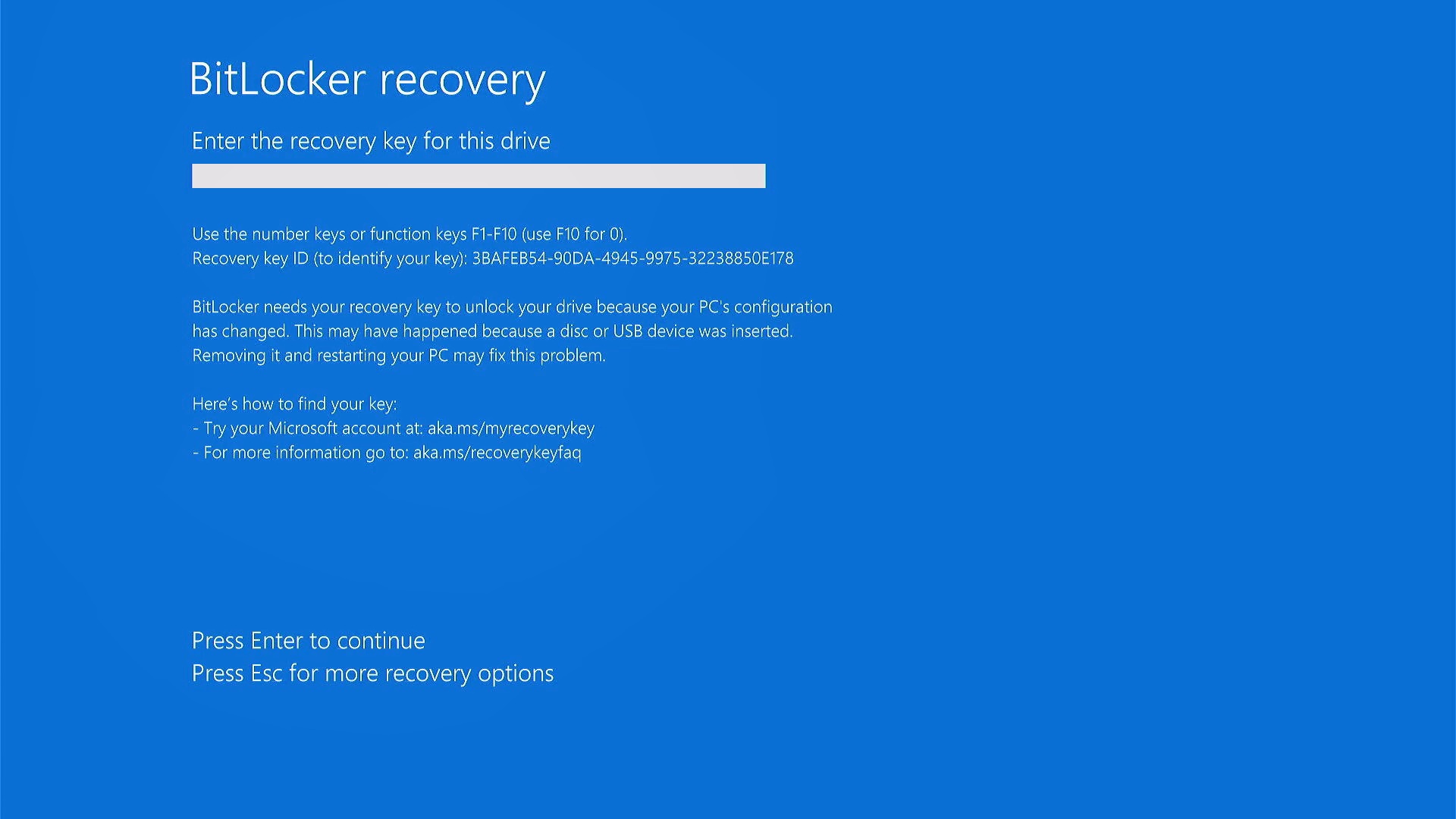
This happened after the October 2025 update, which was later fixed. We observed similar complaints in January 2026. Now, Microsoft says it’s aware of the BitLocker recovery screen after installing Windows 11 KB5083769 (April 2026 Update).
In an updated support document, Microsoft says the BitLocker recovery screen is triggered on some PCs with an unrecommended BitLocker Group Policy configuration.
That means only a few devices are affected, specifically PCs where BitLocker is enabled on the Windows drive with the Group Policy “TPM platform validation profile for native UEFI firmware configurations” turned on, and that have a “Not Possible” status under Secure Boot State PCR7.
“Enterprises are recommended to audit their BitLocker group policies for explicit PCR7 inclusion and check msinfo32.exe for their PCR7 binding status before installing this update,” Microsoft warned in a support document.
While Microsoft is aware of the problem and is rolling out a server-side update as you read this article, I still recommend ensuring that you do not use the affected policy for BitLocker:
- Open Group Policy Editor (requires Windows 11 Pro or Enterprise)
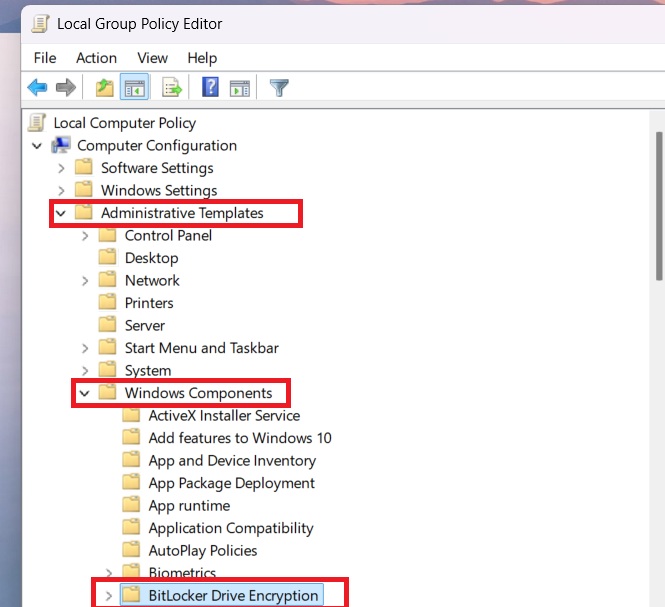
- In Group Policy Editor, open Computer Configuration > Administrative Templates > Windows Components > BitLocker Drive Encryption.
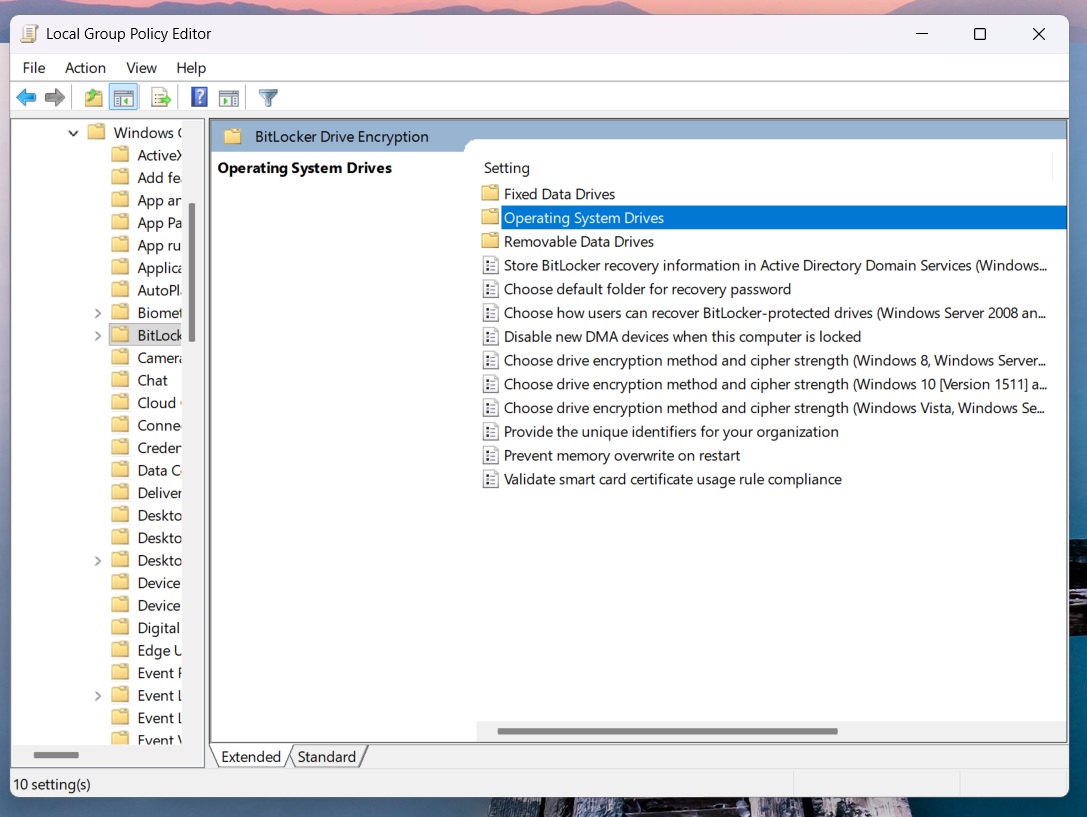
- On the BitLocker Drive Encryption tab, go to Operating System Drives.
- Finally, double-click on “Configure TPM platform validation profile for native UEFI firmware configurations.”
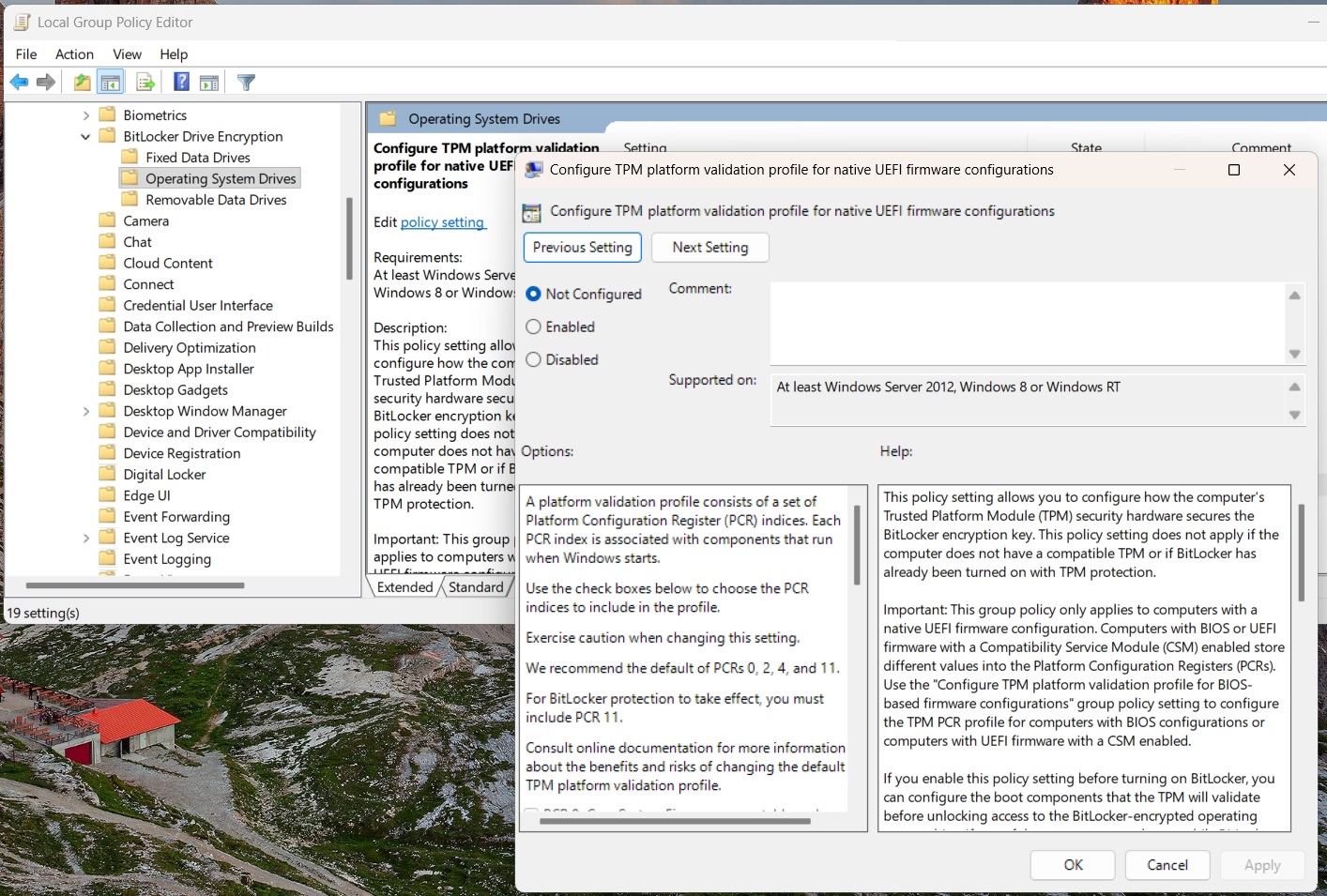
- Now, click on Edit this policy.
- Make sure the selected option is Not configured.
- Click on Apply, and select OK to close everything.
After resetting the policy, you need to make sure that it’s applied to BitLocker. To do that, open Command Prompt, run gpupdate /force, and suspend BitLocker with the following command: manage-bde -protectors -disable C:
The above bolded command turns off BitLocker protection and applies the policy change. Then, you can turn on BitLocker using the manage-bde -protectors -enable C: command.
But should you be worried about the BitLocker alert?
I asked Microsoft if Windows 11 KB5083769 issues are widespread, and the company told me that they shouldn’t affect most users. In fact, regular home users will almost never encounter the BitLocker recovery screen because of the configured policies.
Regardless, Microsoft has already taken care of the problem, and if you ever run into a BitLocker alert, you can always find your key in your Microsoft account.