





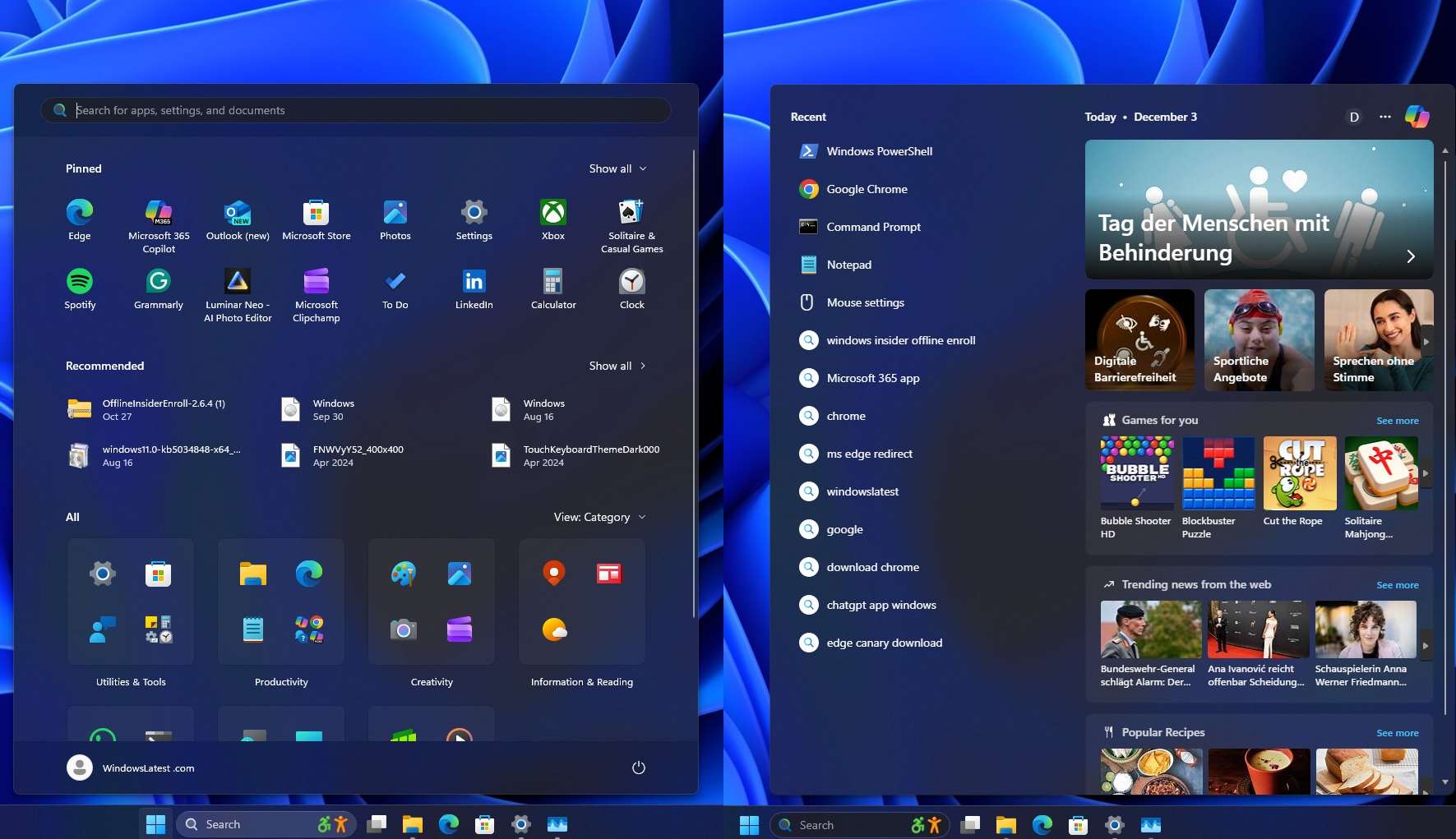
Windows 11 KB5072033 is now available for Windows 11 25H2 or 24H2, and it’s the last update for the year 2025, as Microsoft developers will be on holiday. This means fewer issues for everyone. Regardless, the update brings better dark mode support and some other fixes. Microsoft has posted direct download links for the KB5072033 offline installer.
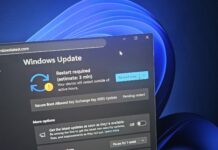
KB5072033 is a mandatory December 2025 Patch Tuesday update, and it is titled “2025-12 Security Update (KB5072033) (26200.7462). In our tests, Windows Latest observed that the update automatically begins downloading when Windows periodically checks for updates.
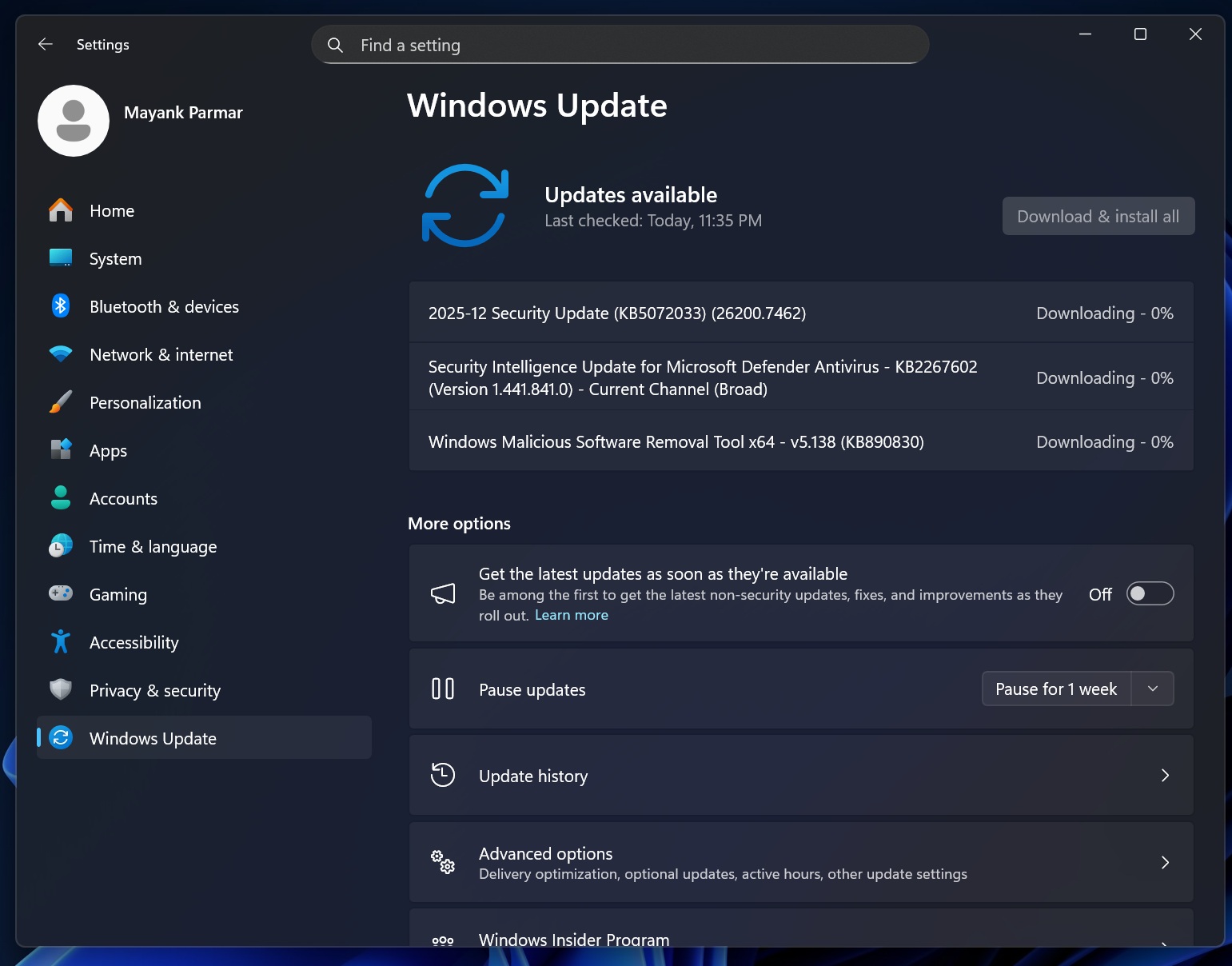
This update advances Windows 11 25H2 to Build 26200.7462. In the case of Windows 11 24H2, it brings up Build 26100.7462. As I mentioned, there are quite a few noteworthy changes, particularly for gamers, as Microsoft has patched long-standing problems haunting AMD GPUs.
Download Links for Windows 11 KB5072033
Windows 11 KB5072033 Direct Download Links: 64-bit and ARM-64 | You should look for the December 2025 Patch Tuesday via Settings > Windows Update. But if that’s failing or is slow to download because the update is huge (1GB+), you can use Microsoft Update Catalog.
If you are going to use the Microsoft Update Catalog I linked above, make sure you download the correct version. You can verify Windows 11 OS version and architecture under Settings > System > About. I’ve extracted details of all Windows 11 builds and their size:
| Build Number | Size | OS Version | Architecture |
|---|---|---|---|
| 26100.7462 | 4279.1 MB | Windows 11 Version 24H2 | x64-based |
| 26100.7462 | 3933.6 MB | Windows 11 Version 24H2 | arm64-based |
| 26200.7462 | 4279.1 MB | Windows 11 Version 25H2 | x64-based |
| 26200.7462 | 3933.6 MB | Windows 11 Version 25H2 | arm64-based |
Yes, it’s another update that is about 4.2GB in size, and it’s literally because Microsoft is bundling AI models for Copilot+ PCs in monthly updates, even when your regular PC does not support them. While AI models do not apply to regular PCs, they still get downloaded, and that explains the massive update size.
What’s new in Windows 11 Build 26200.7462 (25H2) and 26100.7462 (24H2)
1. Search UI now matches the height of the Start menu
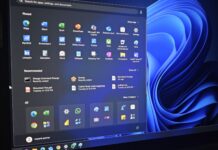
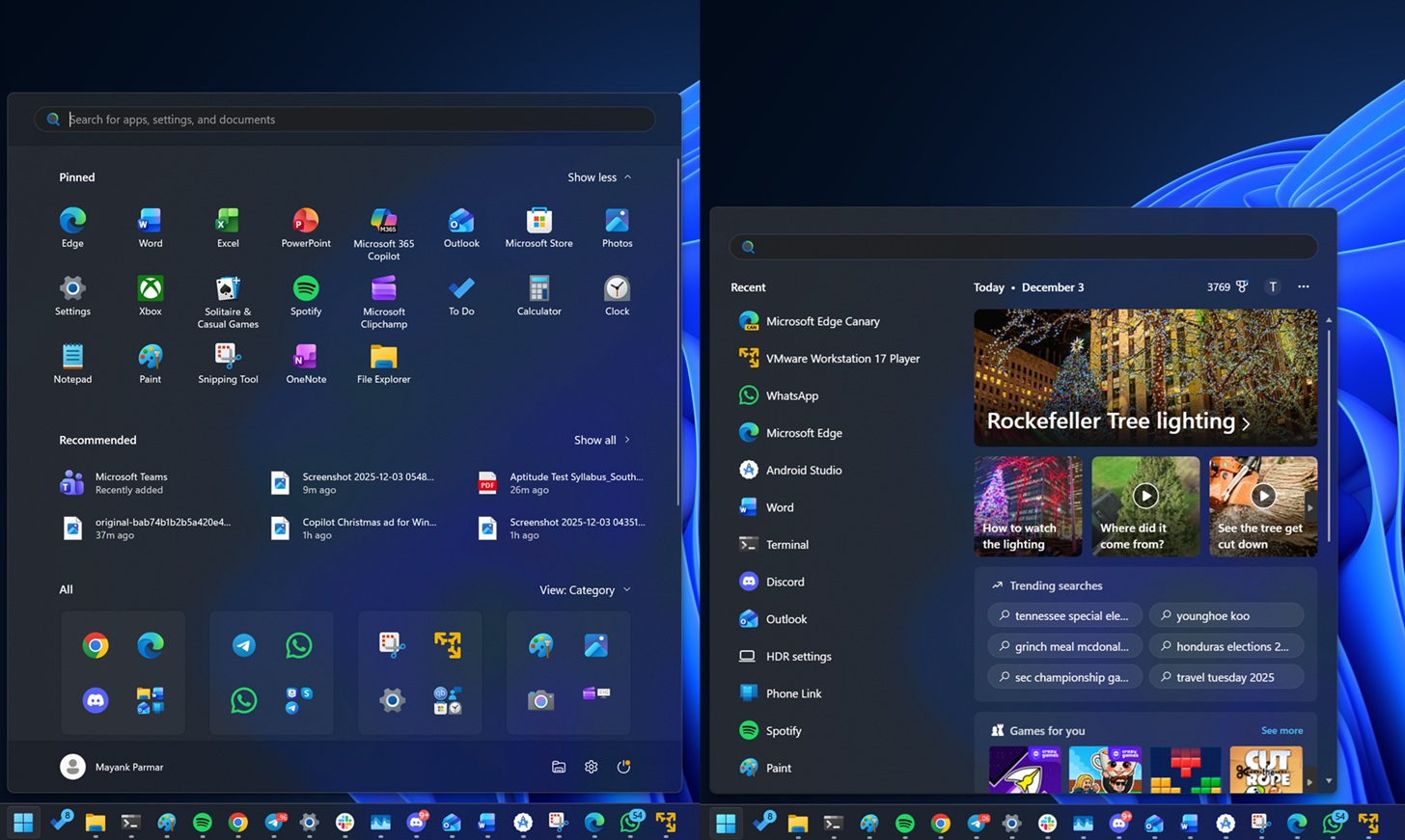
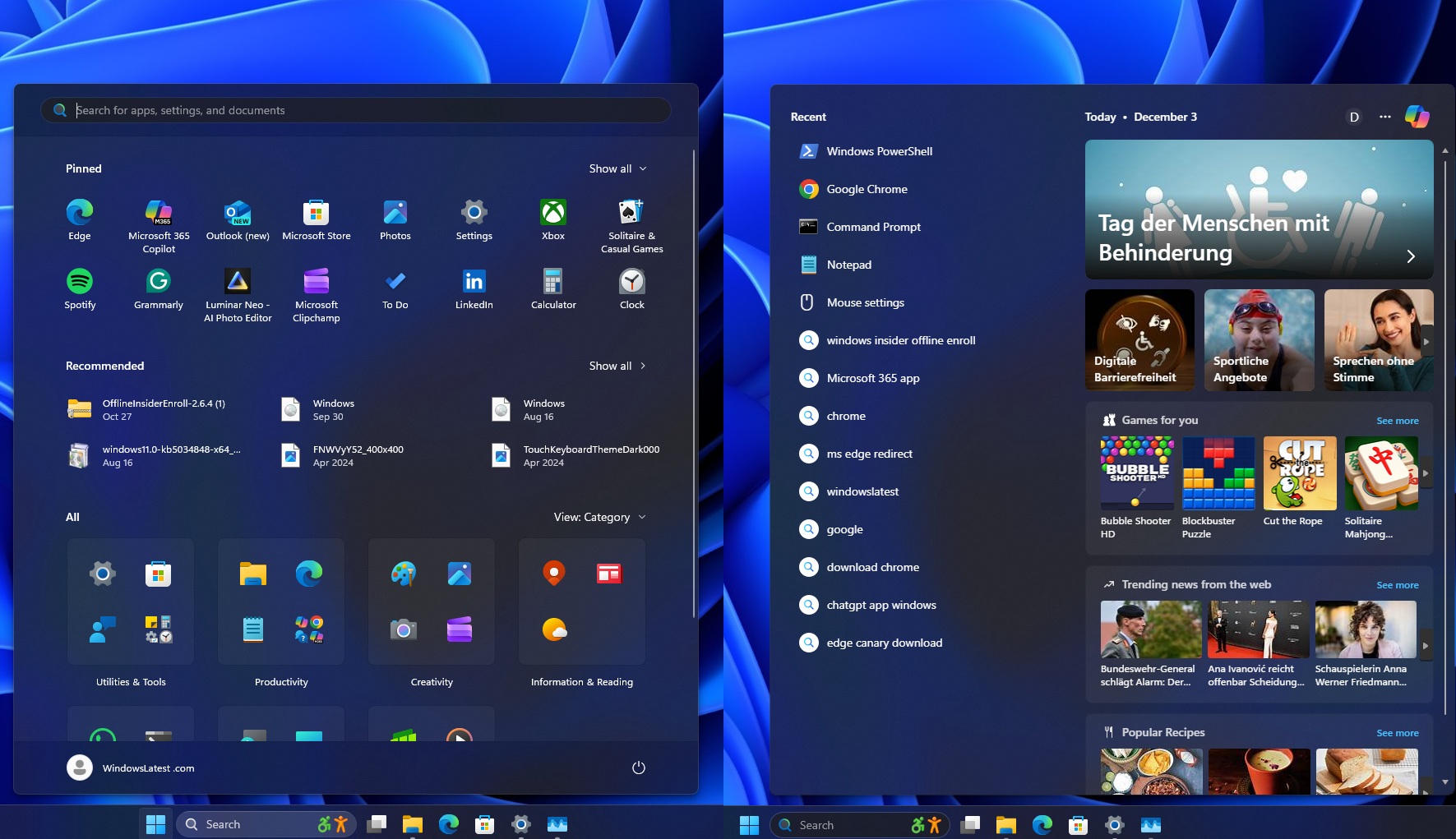
After installing the cumulative update, you will notice that Windows Search height matches the Start menu. Up until now, Search UI has been shorter than the Start menu. In fact, as the Start menu keeps growing in size, Search UI has relatively remained the same, and it’s finally getting fixed.
Here’s how the Start menu and Search UI looked when compared before I installed the December cumulative update:
And here’s what they look like after applying Windows 11 KB5072033:
2. Advanced Settings in Windows 11 now lets you manage everything
Windows 11 already has Advanced settings (previously called For Developers), but it was missing support for Virtual Workspaces.
Up until now, Windows 11 has made it quite difficult to manage Virtual Workspaces, such as Sandbox and Hypervisor, as these features were previously offered in different areas, including the Optional Features in the Control Panel.
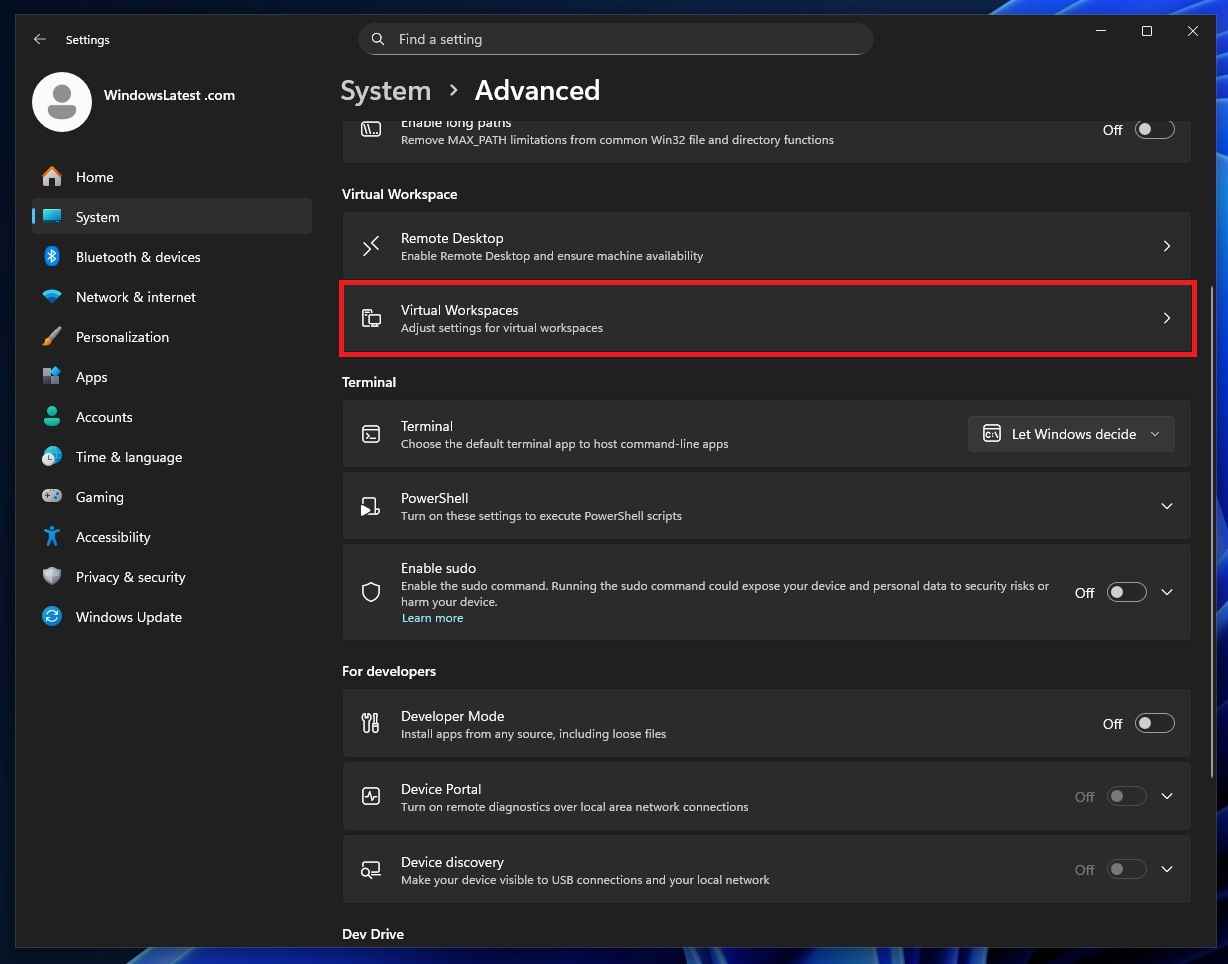
For example, when I opened Virtual Workspaces, I noticed dozens of advanced options, most of which are intended for developers, as a casual user would not want to use the Hypervisor Platform on Windows 11. But there are some nice additions, such as Windows Sandbox. You can now easily turn on Sandbox from Settings.
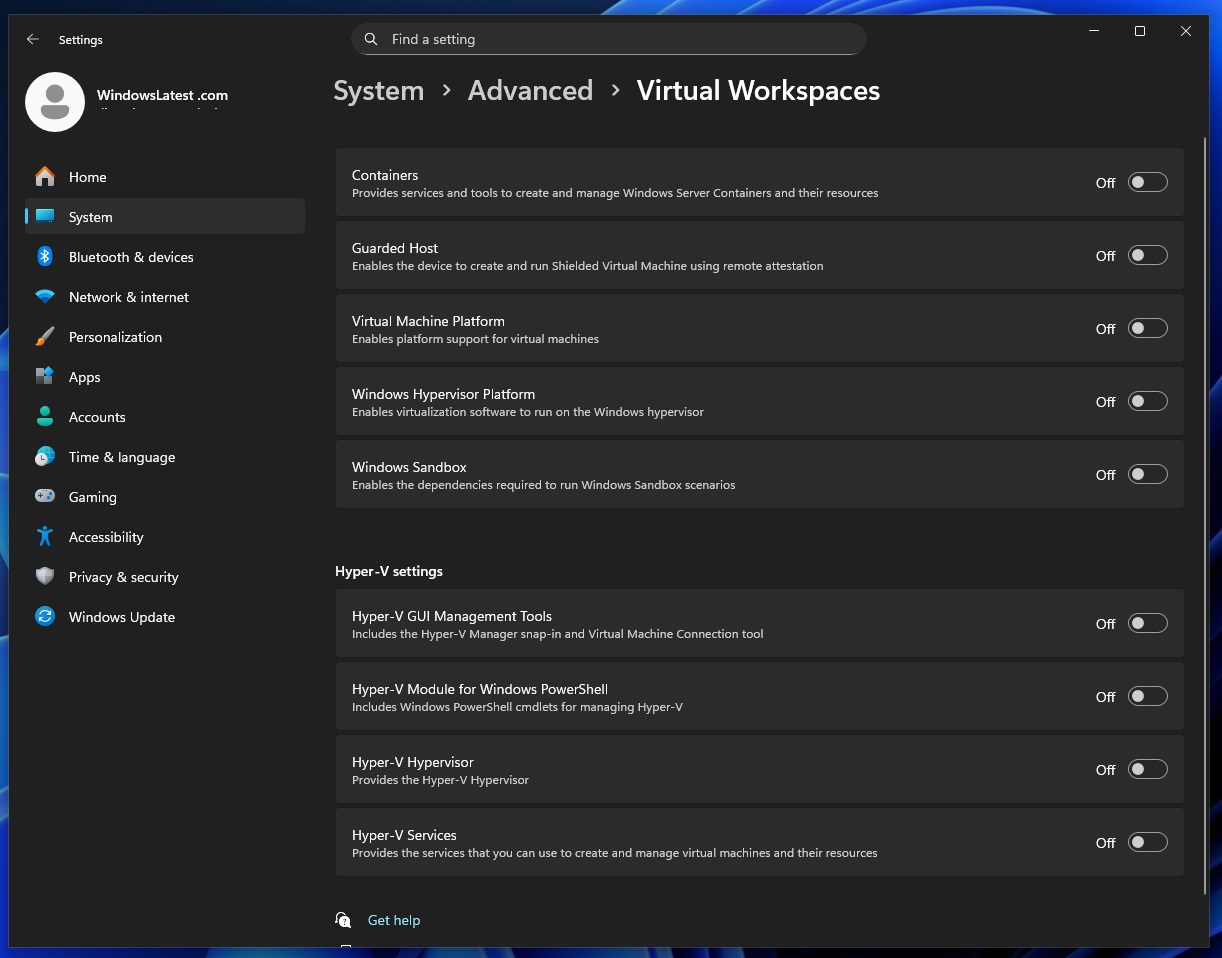
Here’s a list of all features you can manage via Virtual Workspaces after installing Windows 11 KB5072033:
- Containers: When you enable this toggle, Windows runs “container” apps, like Docker.
- Guarded Host: This lets you create locked-down virtual machines that are harder to tamper with.
- Virtual Machine Platform: This enables the base needed for things like WSL2.
- Windows Hypervisor Platform: This lets you manage VMware, Android emulators, etc.
- Windows Sandbox: Previously, Sandbox was offered via the Optional features dialog in the Control Panel, but now you can manage it via Settings.
Other tools include Hyper-V GUI Management Tools, a Module for Windows PowerShell – PowerShell commands to script and automate Hyper-V virtual machines, and more.
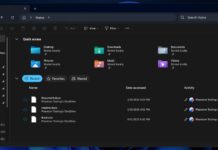
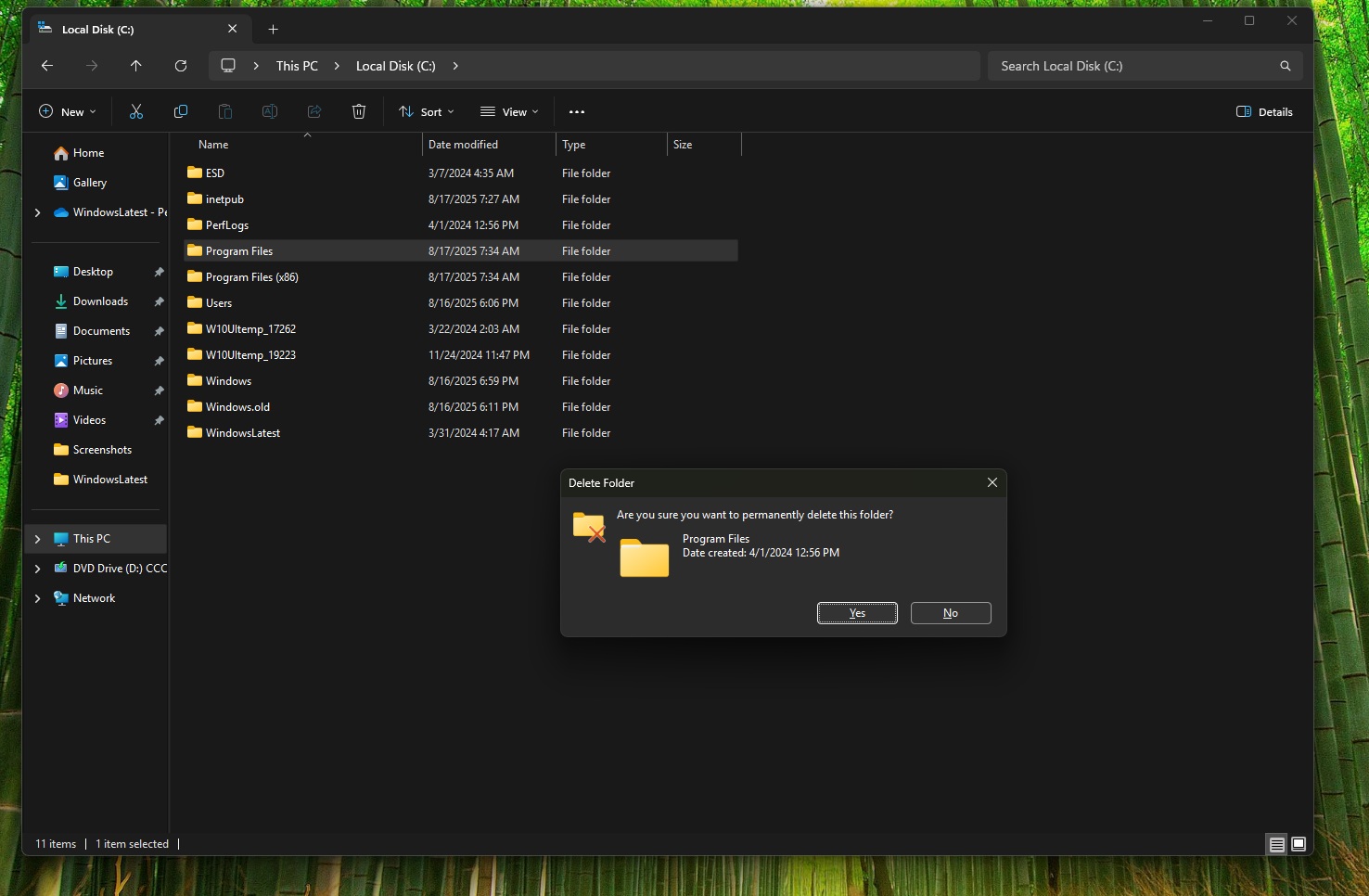
3. All dialogs in File Explorer now use dark mode
Windows 11 KB5072033 finally turns on dark mode for all operational dialogs in Windows 11, but like every other feature in this release, it’s also being rolled out gradually. After the update, if you try to delete a large file or folder in File Explorer and Windows 11 is set to use dark mode, you’ll no longer see a light-themed pop-up for ‘Delete confirmation.’
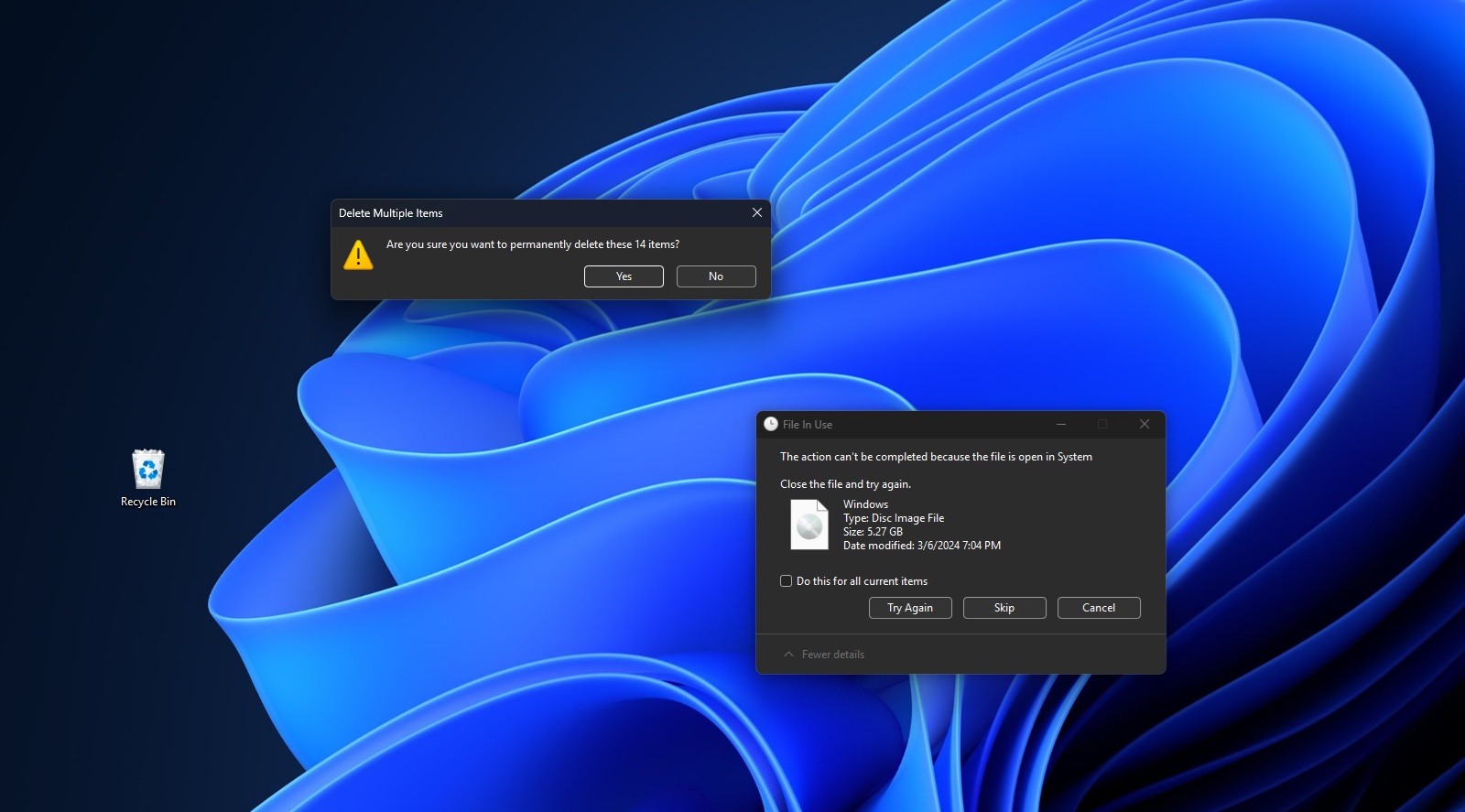
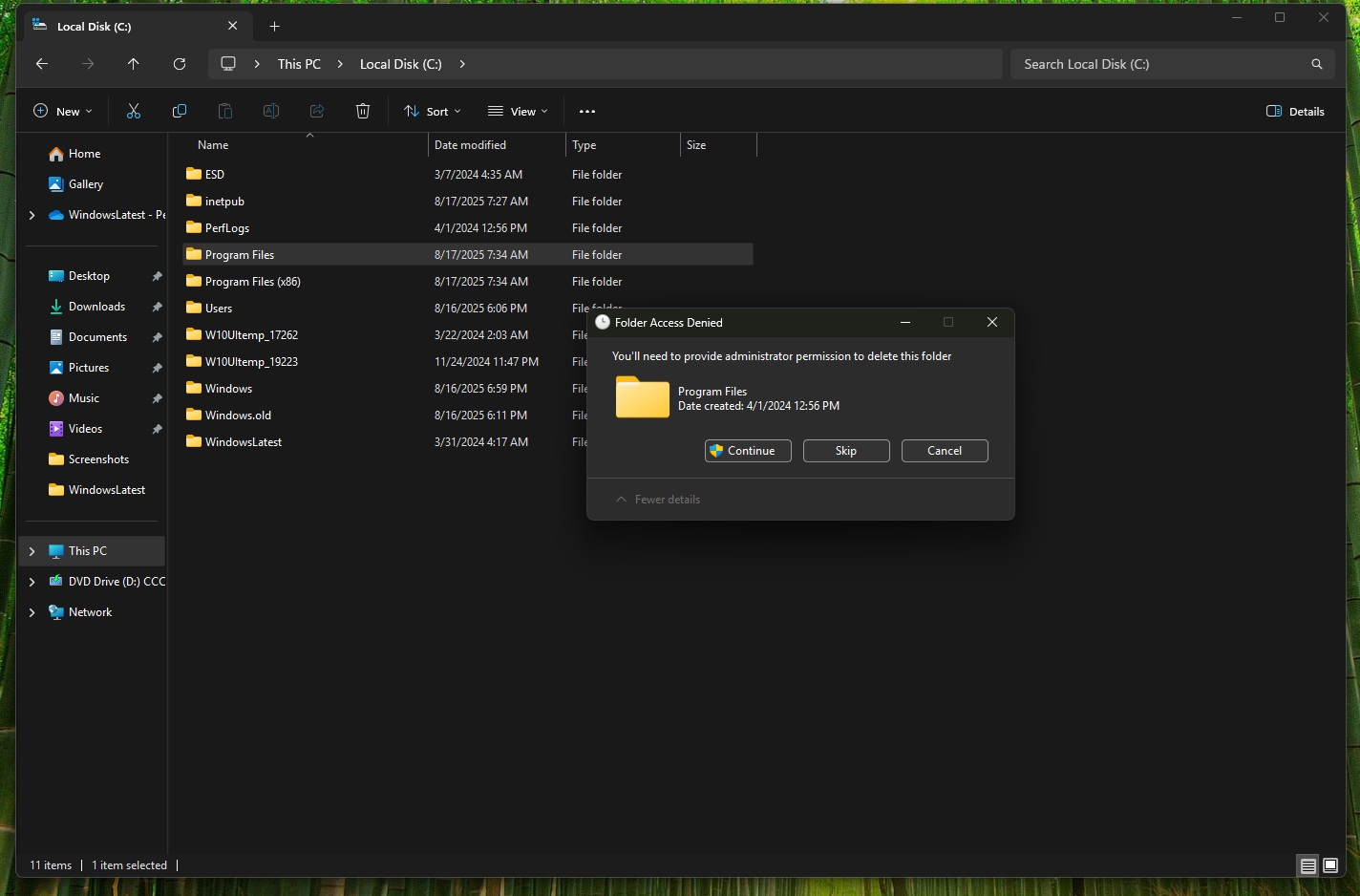
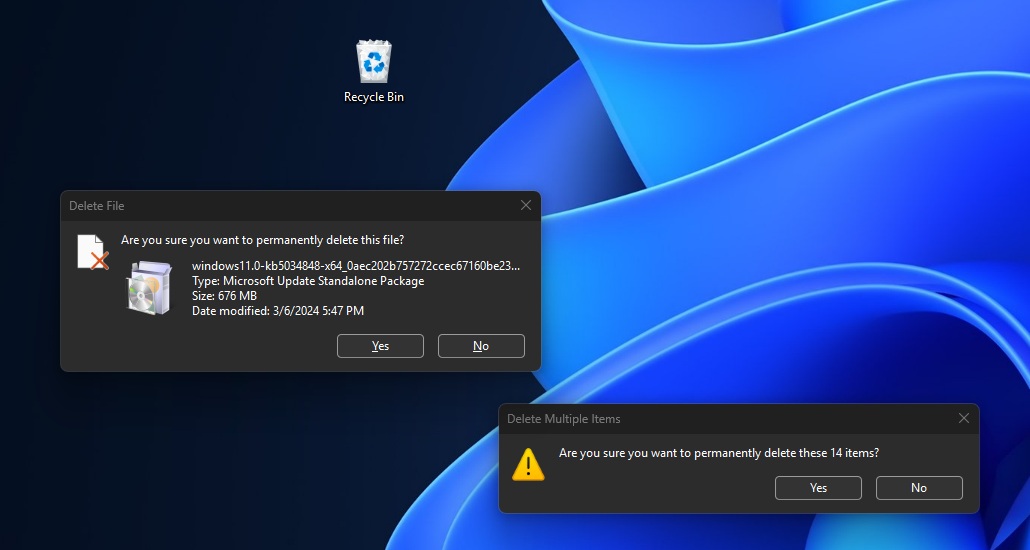
Likewise, if you’ve gigabytes of files in a drive and you try to copy and paste or copy and cut files in another drive, Windows typically triggers the ‘File transfer’ dialog. Up until now, this dialog has used a light theme with green colours, but now it’ll use a shade of blue, and the background will be dark.
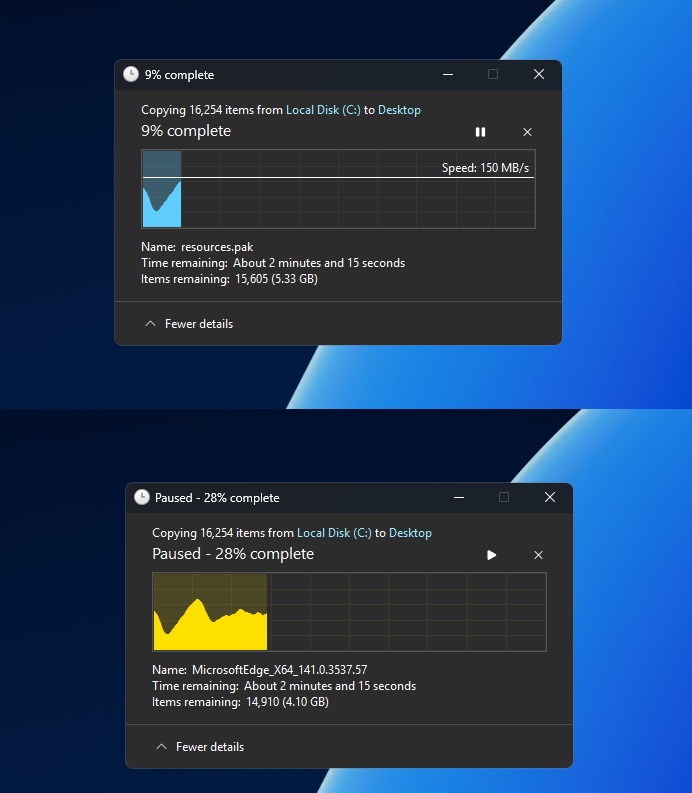
Microsoft also has other colours, such as orange and red, when the file transfer is paused or the transfer fails. Looks neat, right? It’s one of my favourite features in Windows 11’s December update.
Microsoft started rolling out dark mode for operation dialogs last month, but at that point, it also introduced a bug where File Explorer has a white flash every time you open it or switch to the Home or Gallery tab. Thankfully, Windows 11 KB5072033 fixes white flashes in File Explorer and comes with three other improvements:
- Microsoft says it fixed an issue where File Explorer does not show thumbnails for videos.
- Also, if File Explorer accidentally triggered the toolbar in your Windows 11 installation, it was not just you. Microsoft says it found a bug in File Explorer that causes the toolbar to appear unexpectedly.
- The app icon that disappeared from the context menu has now been fixed for the “Open” command.
4. Windows 11 is now better for gamers
Windows Latest has been testing the update for a while, and we noticed that there are quite a few really significant gaming fixes. After installing Windows 11 KB5072033, users with the AMD Radeon RX 9070 XT confirmed the update has calmed constant GPU crashes.
This means some games like Battlefield 6, Call of Duty Black Ops 7, and ARC Raiders will now stop throwing “GPU hung” and “driver removed” errors after installing the update while using Adrenalin 25.11.1.
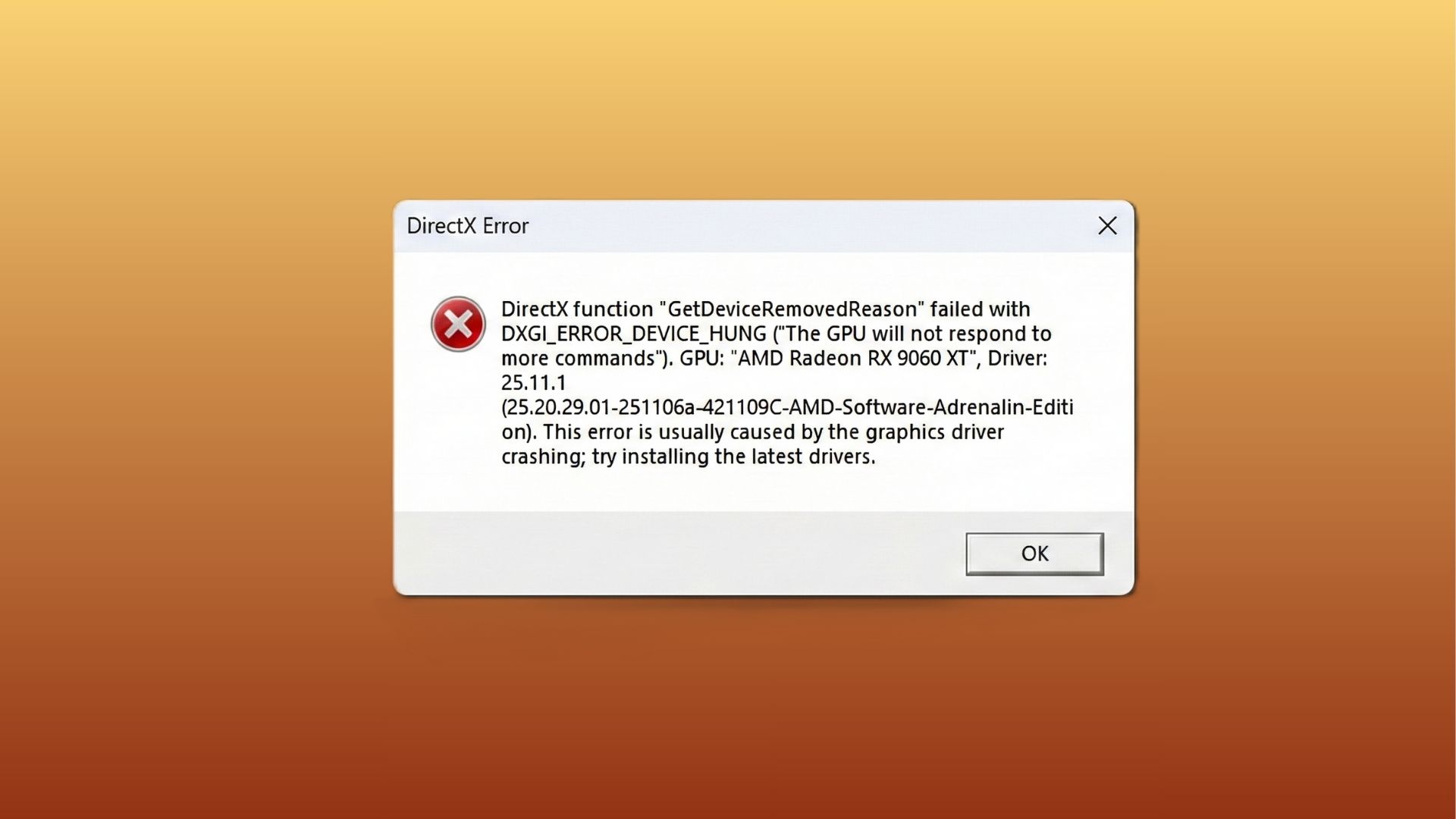
AMD’s driver notes still admit there are crashes and timeouts in several games and apps on Radeon hardware. Microsoft’s notes for the December 2025 Update only openly confirm a fix for a bug where supported GPUs were wrongly flagged as “unsupported,” which hints that Windows did touch the graphics stack but does not clearly link it to these AMD stability gains.
If your AMD GPU is timing out all the time, installing Windows 11 KB5072033 and updating to Adrenalin 25.11.1 is worth trying.
Outside the AMD drama, the month’s security update also fixes a few annoying Windows problems. One big one is a bug where explorer.exe could stop responding after certain notifications, which made the taskbar and Start menu vanish and reload.
Microsoft also says apps and games should stutter less on very high-resolution or high-refresh monitors during launch, and it has patched issues with brightness not sticking.
Speaking of performance, Microsoft quietly fixed an issue where the lock screen set to “slide show’ would cause a memory leak, and thus affect the overall performance for several minutes. It’s fair to assume it also affected your gameplay, as Microsoft warns such “leaks can lead to performance or reliability issues over time.”
Microsoft originally tested these fixes with Windows 11 KB5070311, which was an optional update and replaced by today’s December 2025 Update.
If these KB numbers sound confusing to you, just remember that Microsoft is gradually rolling out AMD and other gaming fixes to PCs using Windows 11 Build 26200.7309 / 26100.7309 or newer. Yes, fixes are also part of the “gradual” rollout, so they may take a few weeks to reflect.
5. FSE rolls out to all handhelds
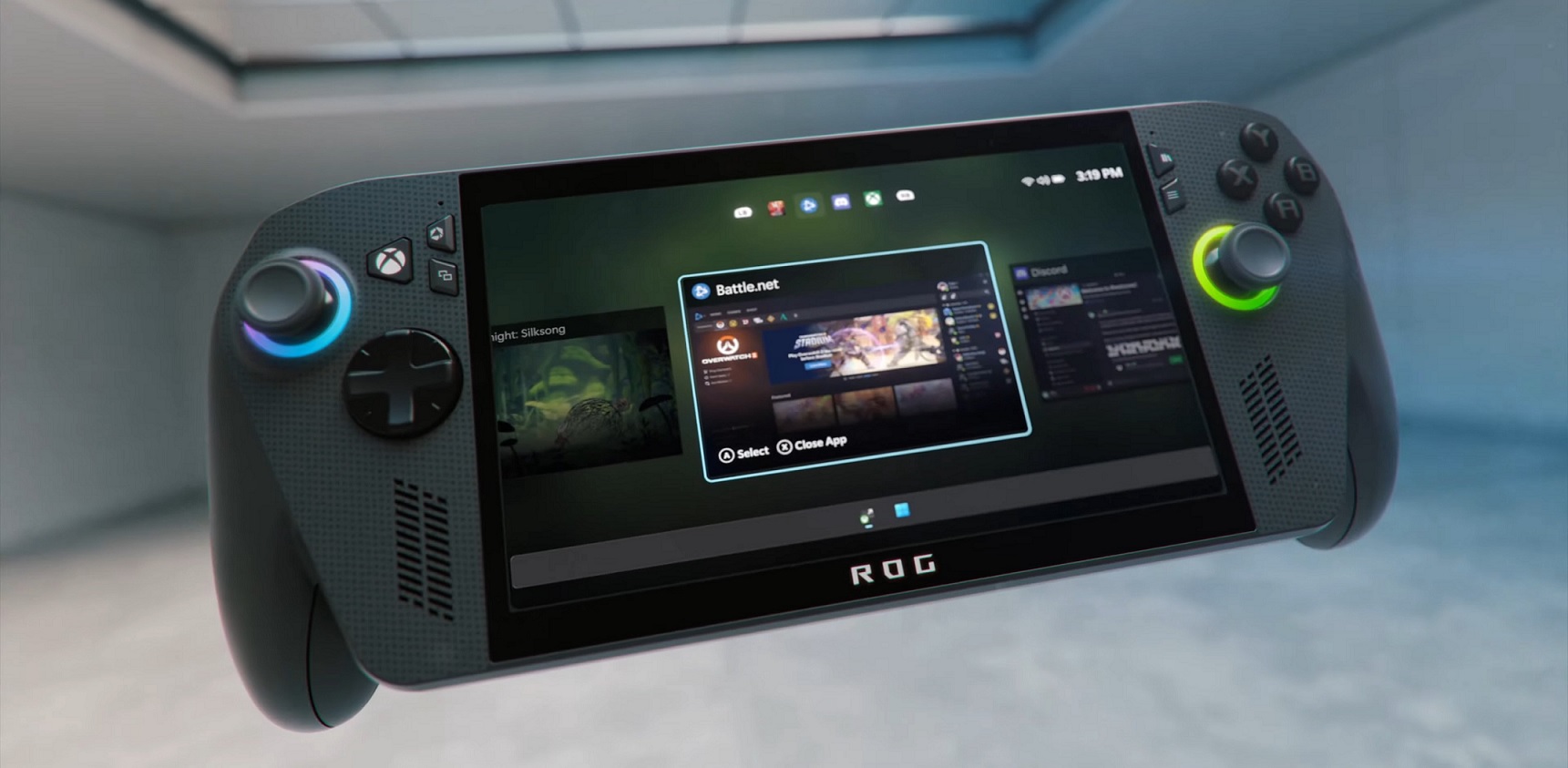
Windows 11 has a new full-screen experience (FSE), and while it’s coming to regular PCs, it’s fast expanding to all handhelds. Initially, FSE launched only on ROG Ally and ROG Ally X, but now it’s coming to all handhelds, and it offers a console-style interface with performance gains, as Windows 11’s regular processes take a back seat.
You can enable it on handheld in Settings > Gaming > Full screen experience. But if you’ve a regular PC, you will probably need to wait until March 2026.
6. Drag tray is now better
Windows 11 KB5072033 unlocks multi-file sharing for the Drag tray. For those unaware, if you go to Settings > System > Nearby, enable drag tray, and then try to drag or drop files from File Explorer to the top region. A Drag tray with relevant apps will appear, and you’ll be able to share your files to apps like WhatsApp or Telegram.
But up until now, Drag Tray only supported sharing a single file. Now, you can share multiple files, and you can also directly share files synced to OneDrive.
Here’s the full list of fixes and improvements in Windows 11 KB5072033:
- A bug has been fixed to improve backlight performance for some keyboards.
- You can now manage features like camera, File Explorer, and other clipboard access for your connected phone under Bluetooth & Devices > Mobile Devices.
- New animations for app groups on the taskbar.
- A bug has been fixed where some devices lose their physical network adapter (NIC), which causes internet issues in Virtual machines.
What about known issues?
So far, Microsoft is only aware of an issue where the ‘password icon’ disappears on the lock screen, but this issue affects all updates released after the August 2025 Update, so it’s not specific to KB5072033.
We’re testing the December update across our devices and we’ll have the results soon.