





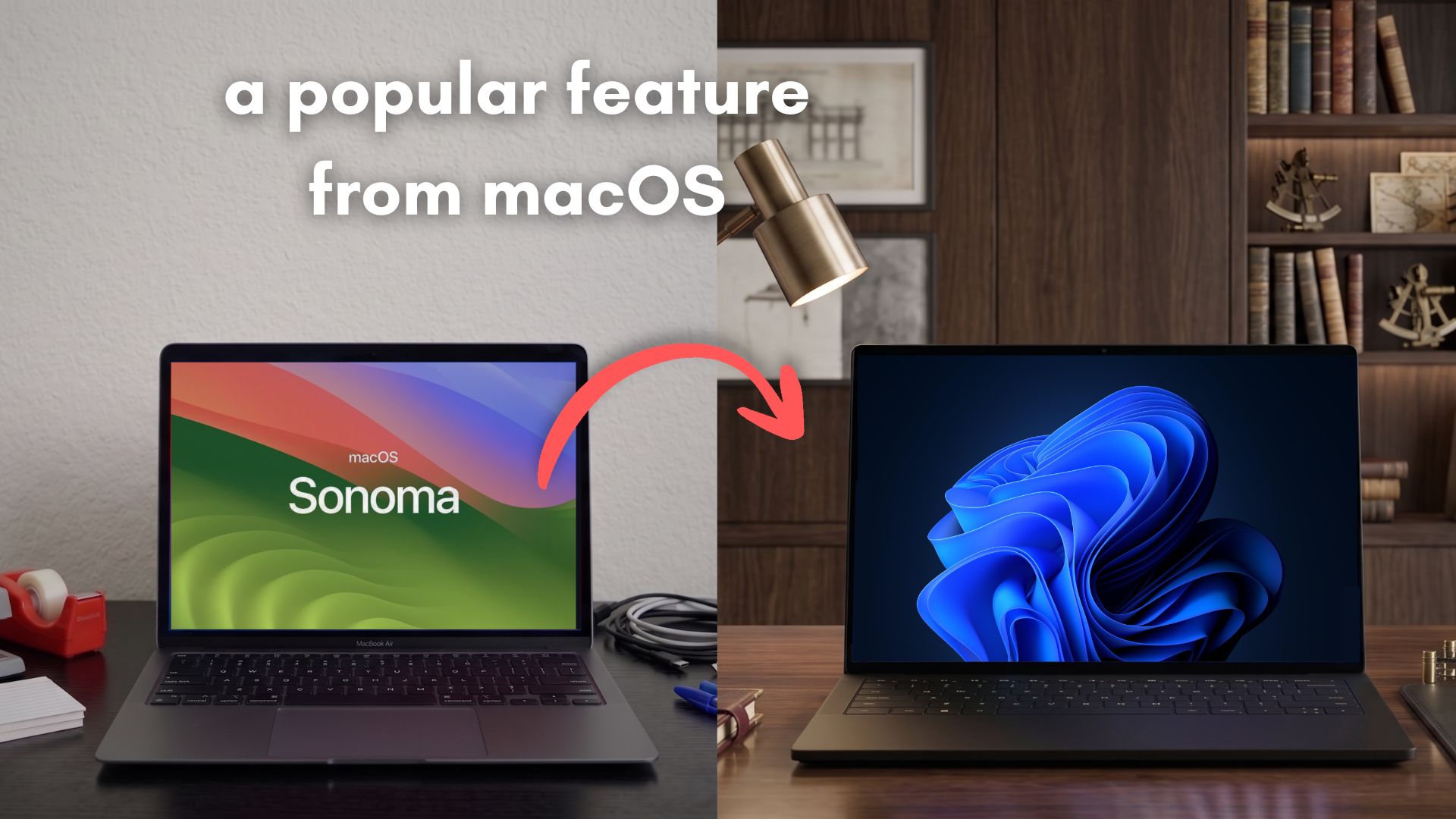
Legendary programmer Scott Hanselman, VP and Member of Technical Staff at Microsoft, has built a small tool that brings over an awesome feature from macOS to Windows.
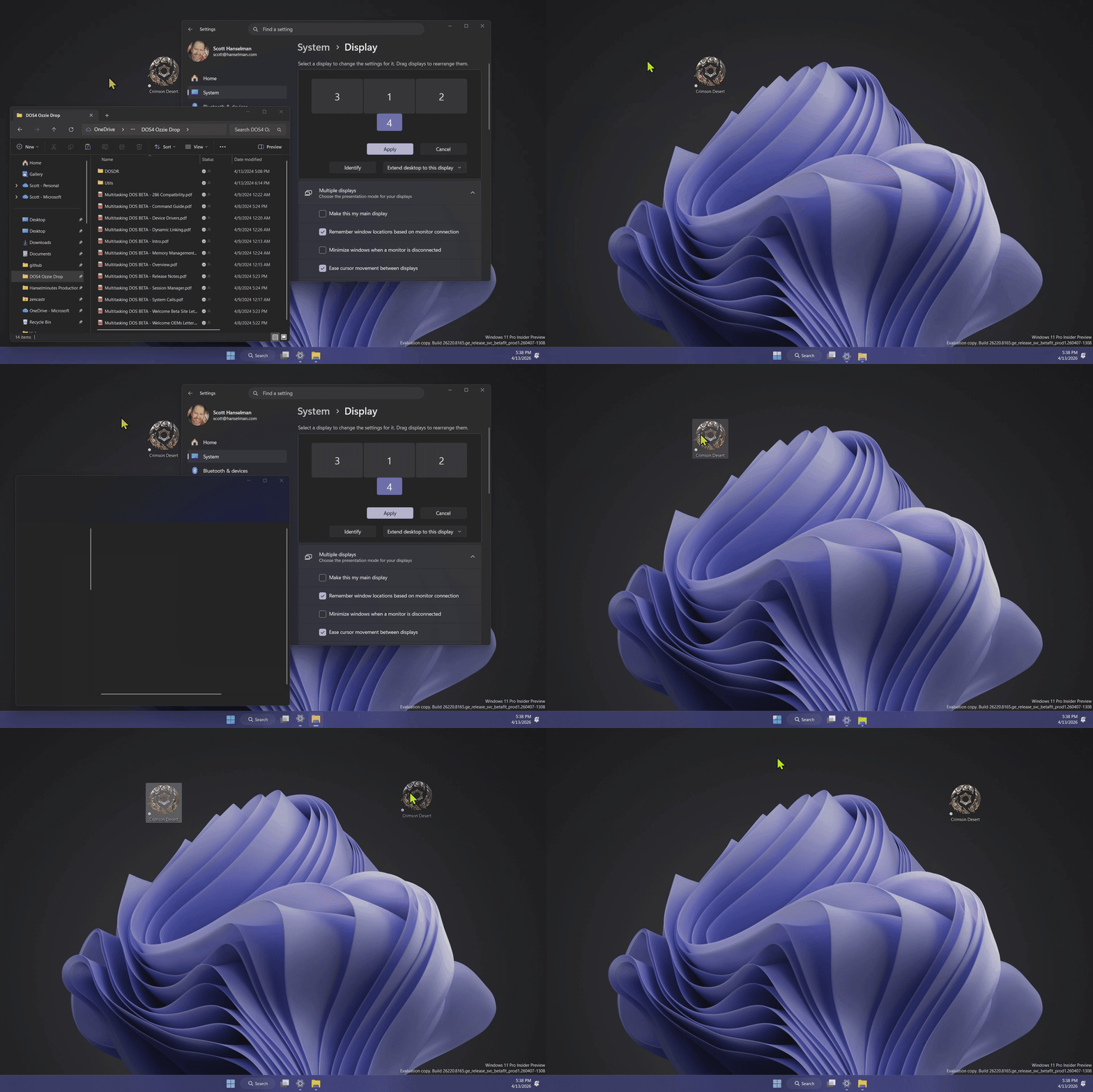
It’s called PeekDesktop, and the idea is that when you click on empty desktop wallpaper, every open window instantly gets out of the way (minimizes). Click again or switch back to an app, and everything comes back exactly where it was.
It’s almost the same as macOS Sonoma’s “click wallpaper to reveal desktop” feature. Windows has never had this exact interaction. Yes, there’s “Show Desktop”, but Scott says that this is more intentional. Shortcuts like Win + M and Win + D are both keyboard-driven, and only one of them restores your workspace.
Something I personally used for a similar functionality is the four-finger swipe-down gesture on the trackpad that shows the desktop, and the swipe-up gesture that restores all windows. Swipe up and hold shows Task View, though.
However, PeekDesktop is definitely better, and I wonder why Windows doesn’t already have “Click to Reveal Desktop” built in. Hanselman’s tool has no extra UI, no setup process, and can be downloaded from GitHub.
I tested PeekDesktop, macOS’s click wallpaper to reveal the desktop feature for Windows
To get the Click to reveal desktop feature on your Windows PC, just download the zip from GitHub (6.15 MB), extract it, and run the executable. That’s it. Scott Hanselman has not forgotten about Windows on ARM either, as the tool has native support for Snapdragon-powered PCs.
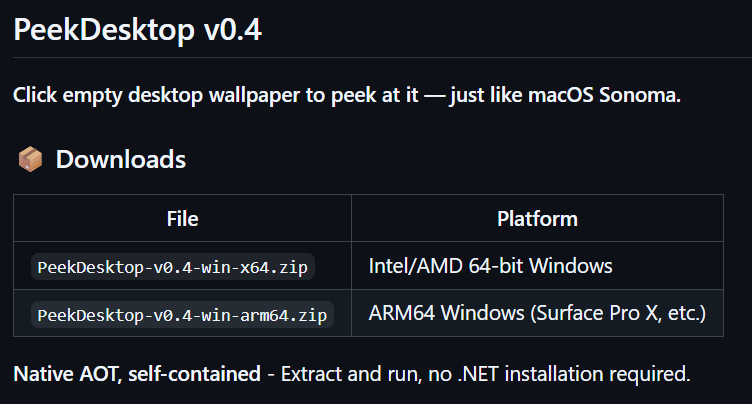
After executing, you’ll see the tool sitting quietly in the system tray, and you can forget it’s even there because it barely uses any memory, staying under 2 megabytes when idle.
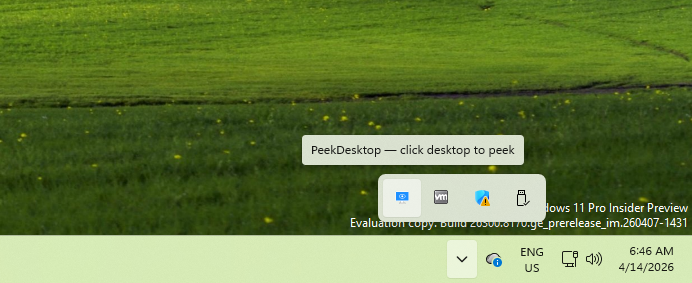
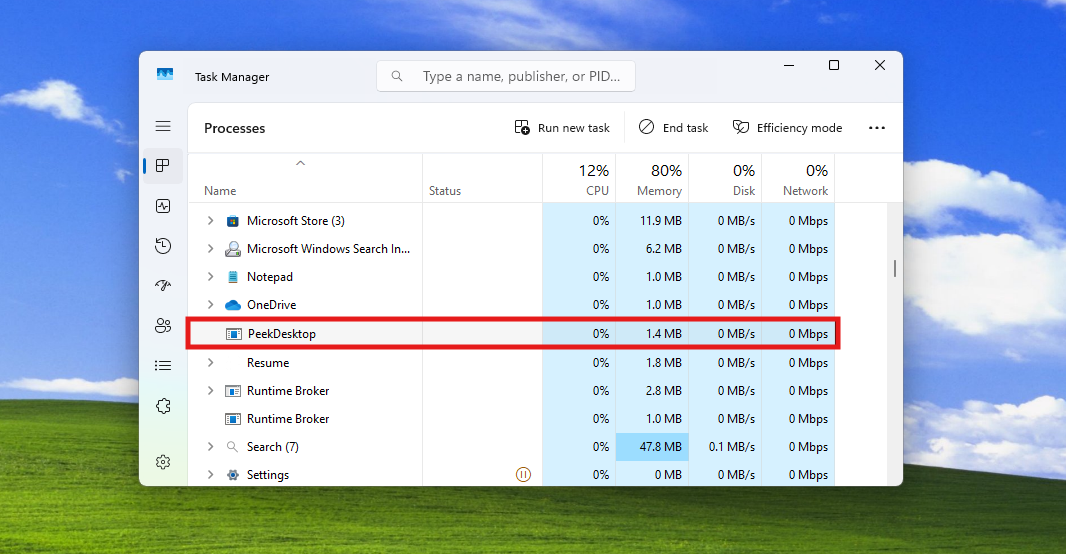
If you don’t have an app running in full screen, click on the desktop wallpaper, not icons, and every window minimizes instantly. You’re left with a clean desktop where you can move files around, right-click, or organize icons without anything getting in the way. It doesn’t misfire when you click or drag icons, which is important because that would’ve made it unusable.
When you’re done, you don’t need to think about restoring anything. Click any app, the taskbar, or even the wallpaper again, and everything comes back exactly how it was, including window positions and states.
If animations don’t look polished here, it’s likely because I’m testing this on a low-powered VM. Also, since it’s just a standalone executable, some users might prefer an installer instead of manually placing the file somewhere safe.
An issue that I noted is that emptying the Recycle Bin is a bit difficult, as PeekDesktop gets in the way. Right-clicking the Bin would open all minimized apps, and I would have to right-click again to see the context menu. This is by design, though.
Also, Task Manager doesn’t respond to clicking on the wallpaper. It refuses to minimize along with other apps, which I don’t know if it’s by design.
Then, the right-click menu on the desktop, while all apps are minimized, is a bit erratic. For example, trying to create a New Folder on the desktop just reopens all the minimized windows.
Win + M minimizes everything, but it can’t restore windows. Win + D can minimize and restore windows, but it is a keyboard shortcut. The taskbar “Show Desktop” button works the same way as PeekDesktop, but as Scott noted, macOS users have “click wallpaper to reveal desktop” in their muscle memory, and it would help them feel comfortable if they ever choose Windows, that is.
How PeekDesktop works
PeekDesktop uses a set of lightweight Windows APIs to detect desktop clicks and manage window states without getting in the way of normal usage.
Mouse detection is handled using a low-level hook called SetWindowsHookEx(WH_MOUSE_LL), which lets the app capture clicks globally without interfering with anything. Once a click is detected, it uses WindowFromPoint to figure out what’s under the cursor. That’s how it knows where you clicked.
To make sure it only reacts to empty wallpaper and not icons, it uses an accessibility layer through AccessibleObjectFromPoint. Without that extra check, even a slight misclick on an icon could trigger the whole process.
Window tracking is where most of the work happens. The tool uses EnumWindows to go through all open windows and captures their exact position, size, and state using WINDOWPLACEMENT before minimizing them.
When it’s time to bring everything back, it checks changes in the active window using SetWinEventHook(EVENT_SYSTEM_FOREGROUND). The moment you click an app, the taskbar, or even the wallpaper again, it restores everything using SetWindowPlacement, exactly where it was, including maximized windows and multi-monitor setups.
All of this runs without admin rights and barely uses any resources. Most importantly, it’s not a web app…
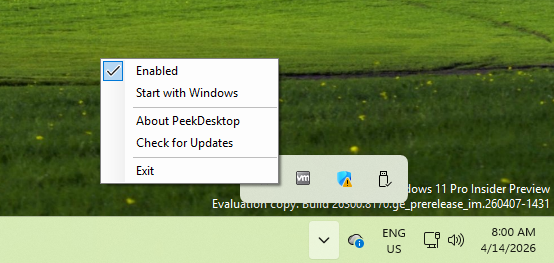
You can customize a few things in the system tray. You can toggle it on or off, set it to launch at startup, check for updates, or just exit the app entirely. I recommend that you select “Start with Windows”, because when I shut down and turned on my PC, PeekDesktop was disabled.
There’s also an ongoing effort by Scott Hanselman to replicate macOS-style behavior where windows move to the edges instead of minimizing, but that’s a lot harder to implement properly because of multi-monitor setups, DPI scaling, and tracking window positions in real time.
As I was writing this, PeekDesktop was updated from v0.4 to v0.6.1, with the download size reduced to just 1.16 MB.
PeekDesktop should be built into Windows
Once you get used to clicking the wallpaper to clear your workspace, going back to keyboard shortcuts or corner buttons feels unnecessarily clunky.
Microsoft is already focusing on improving performance, cleaning up UI inconsistencies, and fixing long-standing usability issues in Windows 11. With long-requested features like the movable taskbar about to make a grand entry, I believe the right way to go about it is to find small features like this that people like and slowly incorporate them into Windows. PeekDesktop is right in that category.