






Windows 11 KB5083769 is now rolling out, and it’s not a big release, at least not on the scale of the previous updates. It does have some handy features, including the ability to turn off Smart App Control, which is rolling out gradually. In addition to Windows Update, Microsoft has posted the direct download links for KB5083769 offline installers (.msu).
KB5083769 is supposed to download and install automatically unless you’ve already paused Windows updates for up to five weeks. It’s a mandatory release, and it has been under testing for more than a month. This patch shows up as “2026-04 Security Update (KB5083769) (26200.8246).”
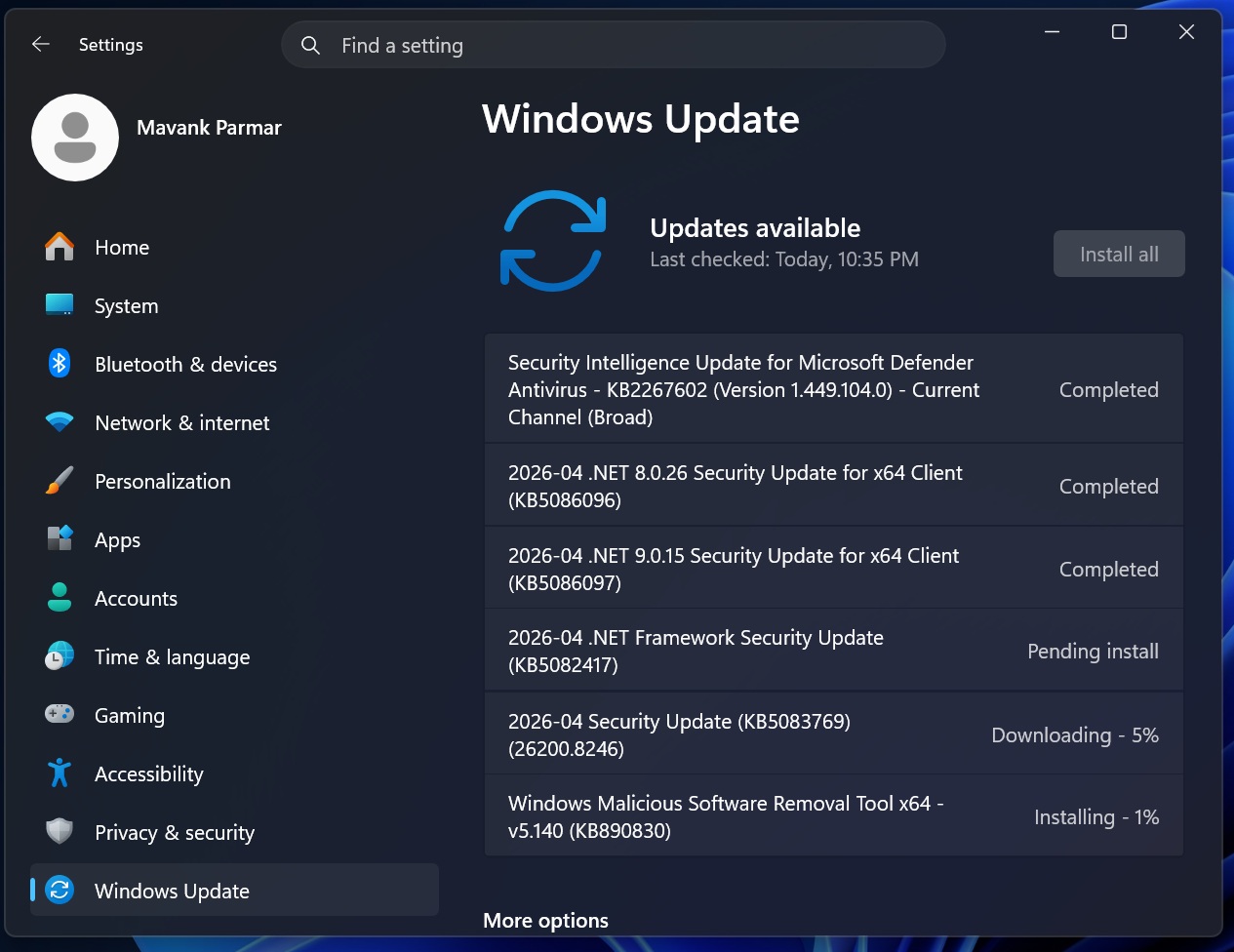
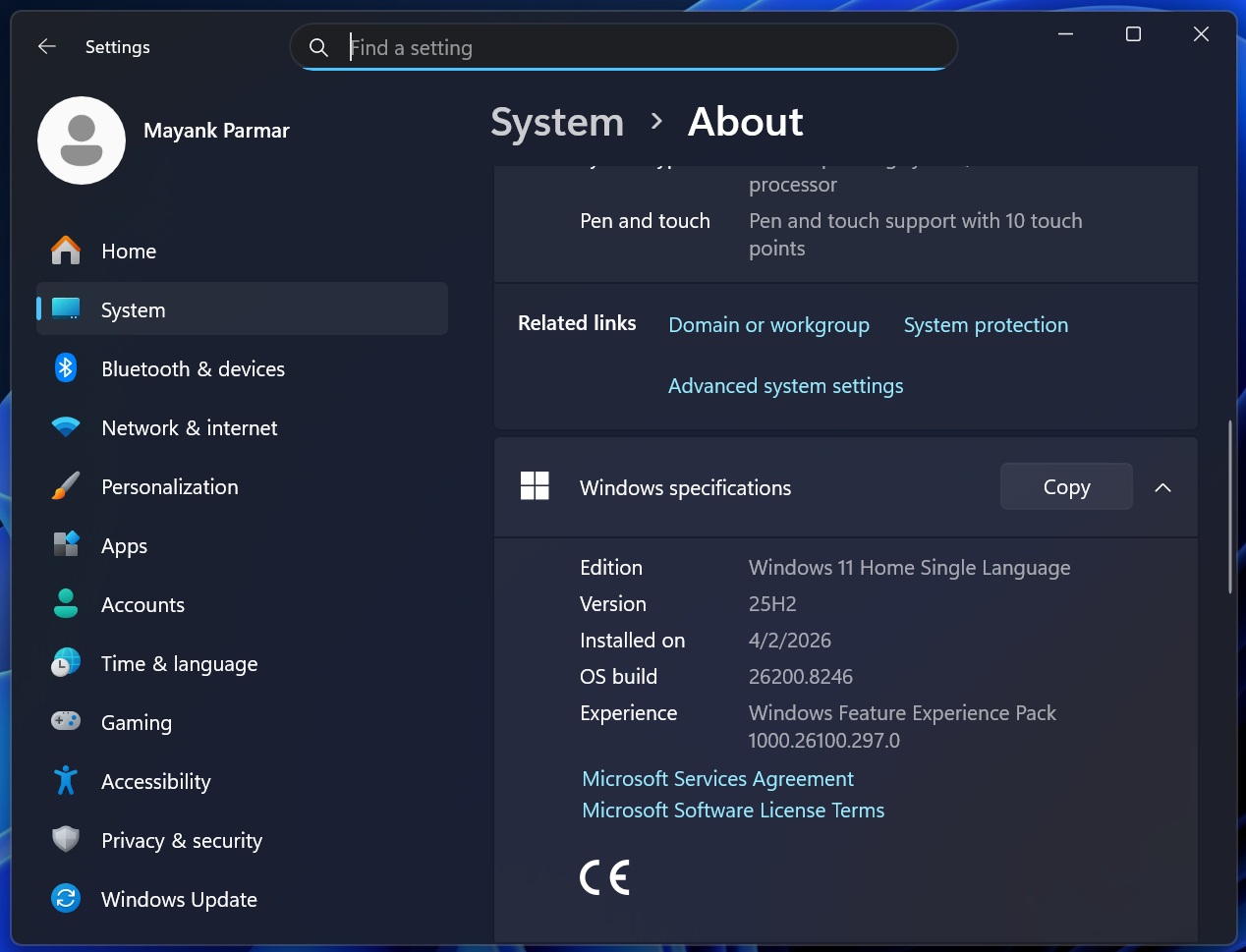
After installing the April 2026 Update, Windows 11 25H2 advances to Build 26200.8246, while version 24H2 jumps to Build 26100.8246. You can verify whether you’re running the April 2026 Update in Settings > System > About. Under “OS Build,” if your build number is below Build 26200.8246, it means it’s not on the April 2026 Update.
In addition to the April 2026 Patch Tuesday, Microsoft has released the following updates for .NET:
- 2026-04 .NET Framework Security Update (KB5082417)
- 2026-04 .NET 9.0.15 Security Update for x64 Client (KB5086097)
- 2026-04 .NET 8.0.26 Security Update for x64 Client (KB5086096)
For those unaware, .NET Framework is required by many popular Windows apps, including Microsoft’s apps.
Download Links for Windows 11 KB5083769
Windows 11 KB5083769 Direct Download Links: 64-bit and ARM-64 | You can use Update Catalog if you’re having trouble installing the April 2026 Patch via Windows Update.
If you use Update Catalog, the size of Windows 11 April 2026 Update is 5.1GB for x64-based systems, but if you’re on arm64, you can download an offline installer (.msu) for less than 4.5 GB. When you use Windows Update, the size of the monthly updates comes under 1GB. It’s only above 4GB when you use Microsoft Update Catalog.
| Build Number | Size | OS Version | Architecture |
|---|---|---|---|
| 26200.8246 | 5116.0 MB | Windows 11 25H2 | x64-based |
| 26200.8246 | 5116.0 MB | Windows 11 25H2 | arm64-based |
| 26100.8246 | 4598.9 MB | Windows 11 24H2 | x64-based |
| 26100.8246 | 4598.9 MB | Windows 11 24H2 | arm64-based |
To download Windows 11 Build 26200.8246, open Settings > Windows Update, and check for updates.
What’s new in Windows 11 Build 26200.8246 (25H2) / Build 26100.8246 (24H2)?
Windows 11 April 2026 Update new features are rolling out gradually, so everything listed below won’t show up after the update. Nobody knows how long it takes for new features to show up on Windows 11, as the entire process is based on Microsoft’s A/B testing called ‘CFR,’ which stands for Controlled Feature Rollout.
1. Smart App Control on Windows 11 can now be turned off or on without an OS reinstall
Smart App Control is one of Windows 11’s powerful security features, but it also makes it a tad difficult to access certain apps, games, or anti-cheat software. This happens when Smart App Control incorrectly blocks legitimate software as potentially unwanted or malware.
According to Microsoft’s official documentation, Smart App Control uses a cloud-based security feature to detect if the app you are trying to run is legitimate, not malicious, or potentially unwanted software.
In our tests, Windows Latest has observed that Smart App Control works most of the time, but sometimes, it can incorrectly flag a healthy app as malicious and block you from running it.
In that case, you’d ideally want to turn off the feature so you can run your app or play your game. However, until now, Windows has required a reinstall to change Smart App Control settings. In other words, you will need to reinstall Windows 11, and only then can you turn off the feature. This changes with the April 2026 Update.
With Windows 11 KB5083769, you can finally turn on or off Smart App Control without reinstalling the operating system.
For example, before the update, if you go to Settings > Windows Security > App & Browser Control > Smart App Control, you will notice that the toggles are grayed out and Windows suggests reinstalling the OS to make changes to the security settings.
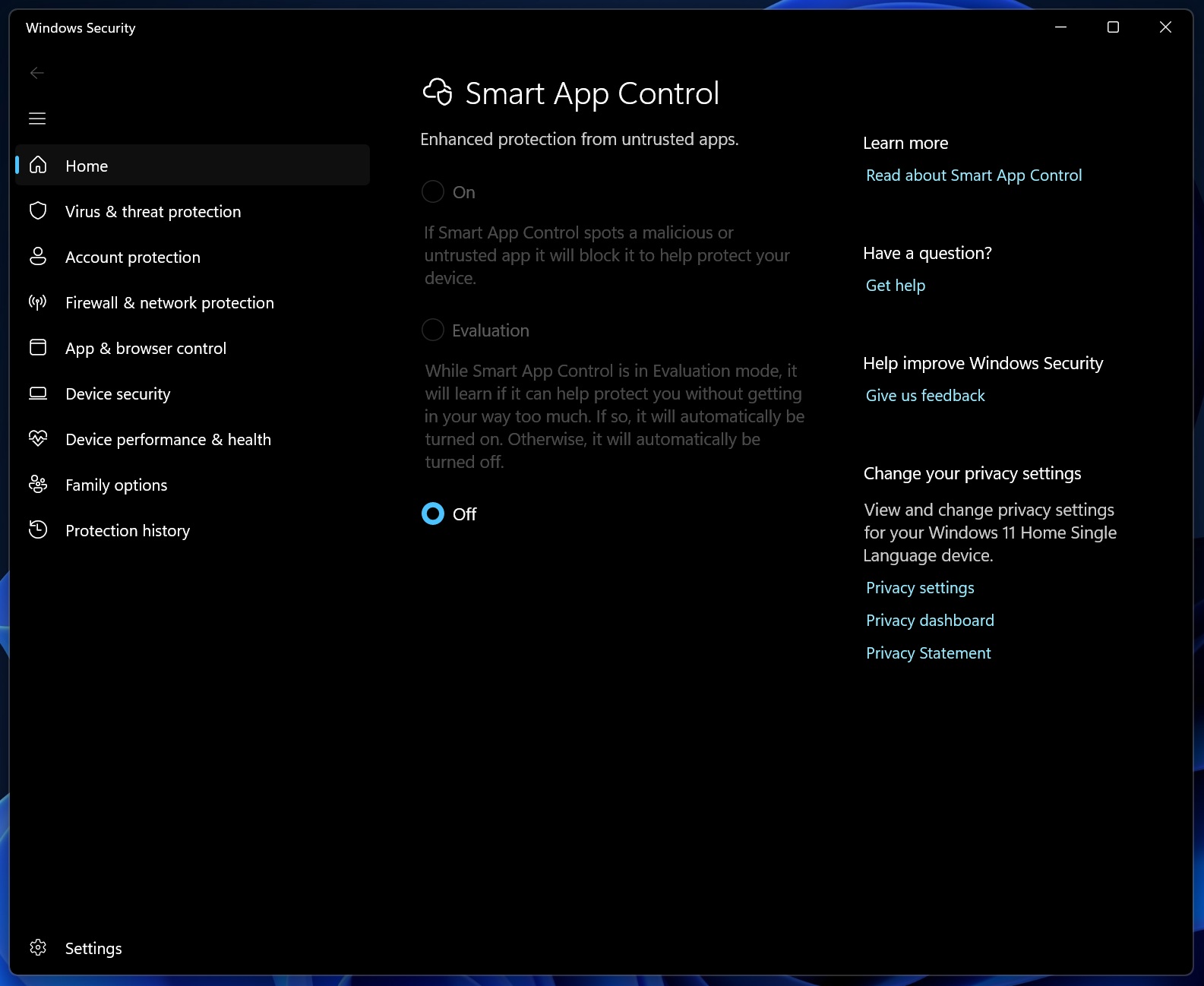
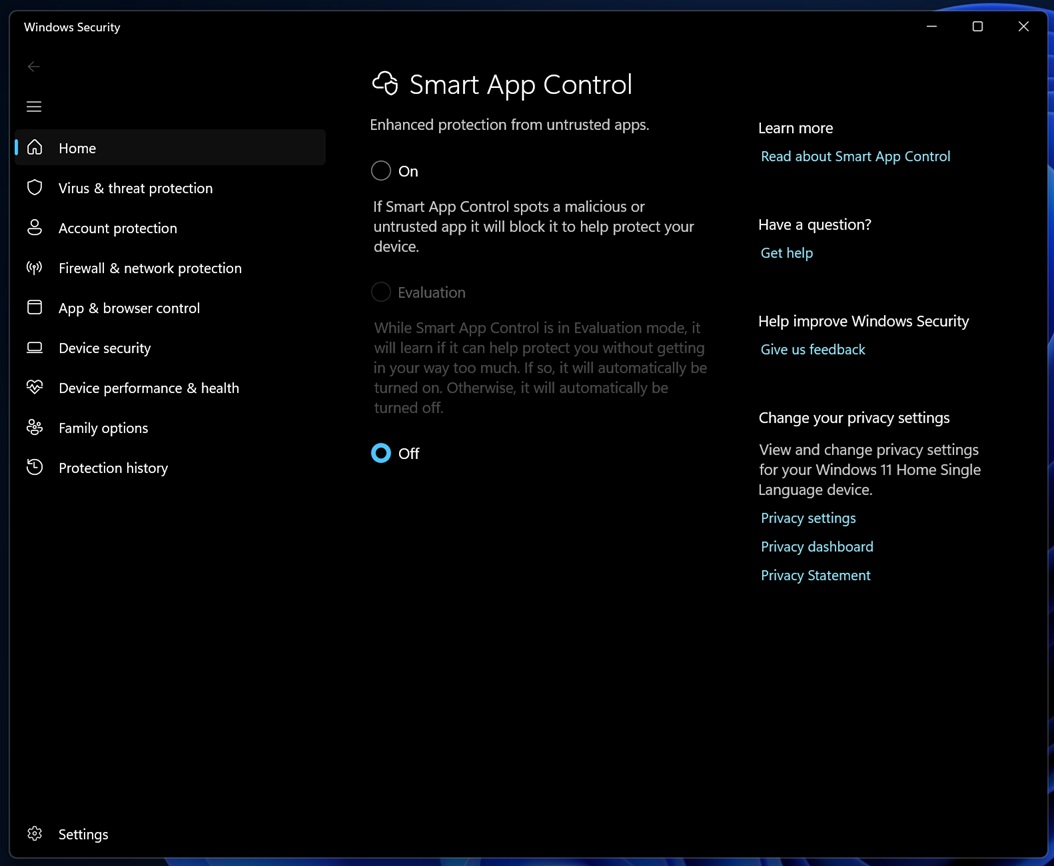
Now, that is no longer the case after I installed Windows 11 KB5083769. I can finally change my Smart App Control settings on an existing Windows installation, but the catch is that the feature is still rolling out, and it won’t show up immediately after the April 2026 Patch Tuesday update.
2. Windows Settings now lets you manage Microsoft 365
Microsoft 365 has been integrated into Windows Settings for a while now, but until now, if you tried switching to another tier in the Microsoft 365 Family or canceling the subscription, Windows Settings redirected you to Microsoft’s website.
Now, you can upgrade your Microsoft 365 subscription from Settings > Accounts.
3. Windows Settings now have modern dialogs
As Windows Latest recently reported, Microsoft really wants to make Windows 11 look and feel more appealing, and one way to do that is by reducing legacy pop-ups. Until now, if you tried changing local account settings under Settings > Accounts > Other users, you would have noticed the old legacy design language, not Windows 11’s UI.
Windows 11 KB5083769 finally updates the legacy dialogs in Settings to match Windows 11’s look and support dark mode.
Here’s everything new in the Settings app:
- Microsoft now lets you modify tail button options. This means you can now use the tail button to open the same app as the Copilot key. In other words, if you change the Copilot key to open ChatGPT, your stylus’s tail button will respect the preference as well and open ChatGPT.
- The Settings > About now has a better design. It’s more structured and allows you to easily read your PC specs.
- Settings’ Home page now loads faster than before.
- Settings > System > Advanced now downloads updates faster
4. RDP is getting strong protection against phishing attacks
Windows 11 KB5083769 has a new feature that includes protections against phishing attacks targeting Remote Desktop connections. As you might know, enterprises use Remote Desktop Protocol (RDP) connections to manage their remote systems, but the catch is that these RDP files are often exploited by bad actors.
Today’s Windows update includes protections to block malicious RDP attacks, and it’s also rolling out on Windows 10.
5. Secure Boot certificate refresh
Secure Boot certificates, which are required to ensure that only trusted boot software runs on your device, will begin expiring in June 2026. Microsoft has newer Secure Boot 2023 certificates, and it’s been trying to replace the older certificates via Windows Update for a while now. Most users do not need to take any action, as Windows Update takes care of it.
However, some users are still confused, as Windows 11 does not really allow you to quickly check if your Secure Boot integration needs an update. That changes with the Windows 11 KB5083769 update. If you go to the Windows Security app, open Device Security from the left sidebar, and scroll a bit, you will finally come across a new section, ‘Secure Boot.’
On my PC, Secure Boot is turned on, and all required certificates have been applied, so it’s clearly highlighted in the Windows Security app.
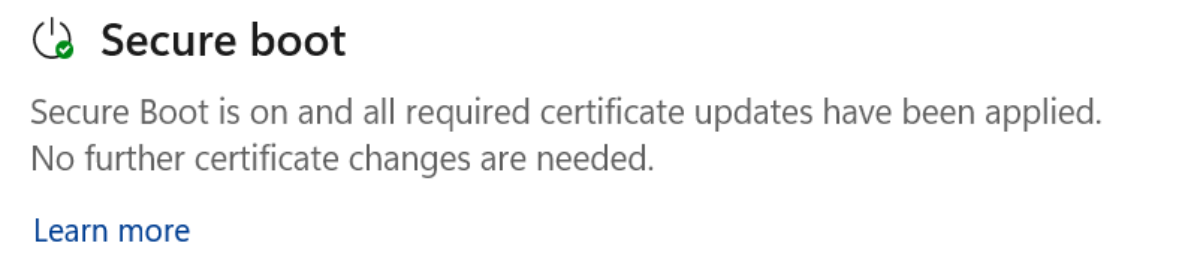
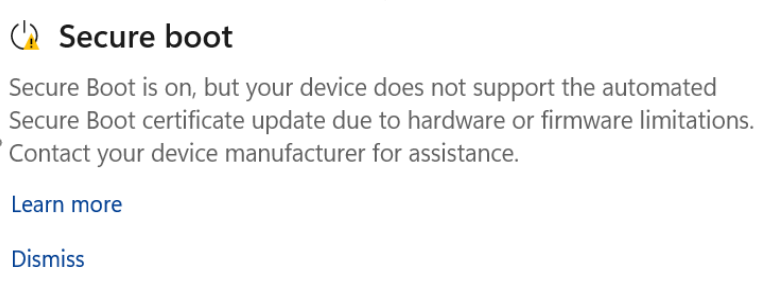
But that’s not the case for everyone. On older PCs without outdated firmware and hardware, the Windows Security app will flag that your device does not support the automated Secure Boot certificate update, and you should reach out to your OEM (PC manufacturer).
Of course, this does not mean Secure Boot is not working. It only reflects the status of the certificate updates.
In the worst-case scenario, Secure Boot will be red-flagged, and Microsoft will warn you that it’s no longer possible for your device to receive required updates for Windows boot.
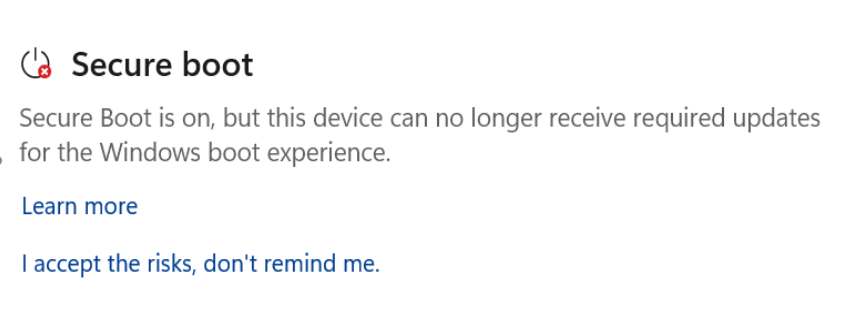
This update for the Windows Security app is rolling out with Windows 11 KB5083769 and will be reflected on all PCs in the coming days.
You can open the Windows Security app from Windows Search or Settings > Privacy & security > Windows Security.
6. File Explorer is now a bit stable, while Display settings get reliability improvements, and other changes
Windows Latest previously reported that File Explorer now blocks the preview of internet downloaded files. This means that if you downloaded a document from Google Drive or OneDrive and tried to preview it in File Explorer, Windows will block you and flag the file as potentially harmful.
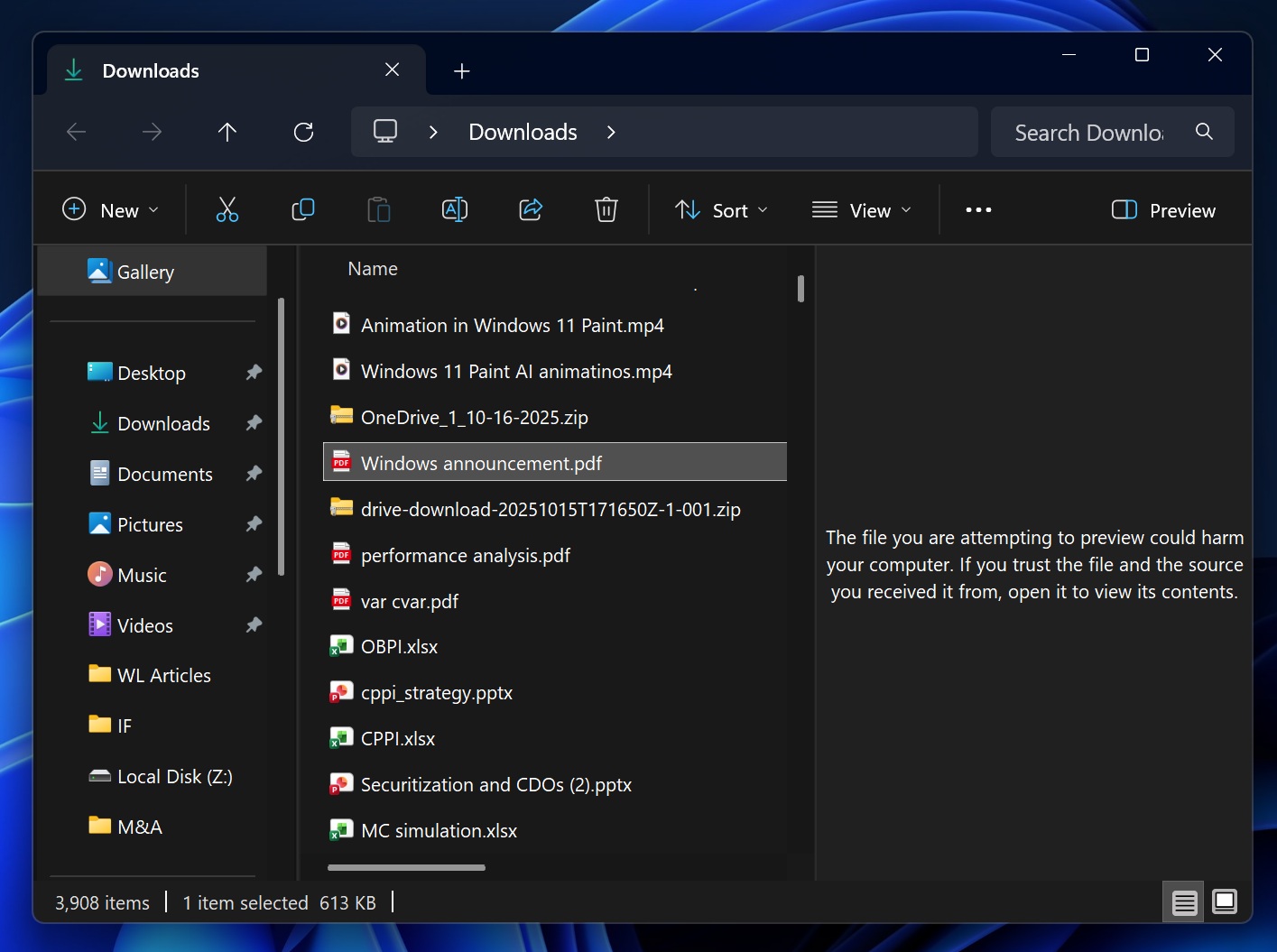
Now, if you want to unblock the file, you need to right-click and select ‘Unblock’ under the security section of the General tab, where it says “this file came from another computer and might be blocked to help protect this computer.“
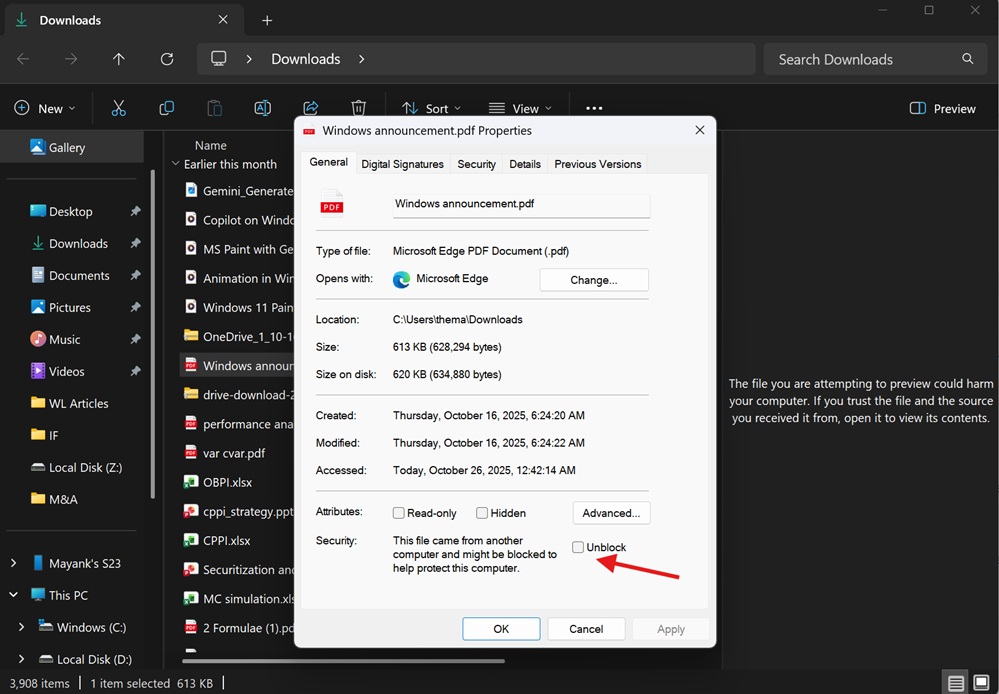
However, Windows Latest observed that the toggle doesn’t always work, and the files may not be unblocked. Thankfully, today’s Windows 11 KB5083769 update finally makes the file unblocking more reliable in File Explorer.
In addition, Voice typing (Win + H) now works when renaming a file in File Explorer.
Beyond File Explorer and Windows Security, Microsoft has added support for a 1000 Hz refresh rate for the monitor. Also, the USB4 controller now uses a low power level when the PC is in sleep state and is connected to a monitor.
The sfc /scannow feature now accurately reports the status. Previously, sfc scannow was flagging errors incorrectly, even when the system worked without problems. This has been fixed with Windows 11 KB5083769.
Here’s the full list of improvements and fixes in Windows 11 KB5083769:
- Baseline support updated for printers.
- In Safe mode, taskbar components now load more reliably.
- Start menu layout can now be customized correctly through Group Policy.
- Windows Hello Fingerprint now works more smoothly on certain PCs.
Last but not least, Microsoft patched an issue where selecting “Keep my files” and “Remove everything” breaks the “Reset this PC” feature.