





Windows 11 25H2 ISO images have been available on Microsoft’s servers for quite a while now, and you can download them directly from the official portal if you want an offline installer or a clean install setup. To get started, head to Microsoft’s downloads page, scroll to the ISO section, select the Windows 11 25H2 edition, choose your language, and begin the download.
I strongly recommend saving a copy of Windows ISOs. Keeping a copy of the ISO is useful as it gives you full control over installation, whether you want to upgrade manually, perform a clean install, or keep a backup copy ready. It’s also required when you want to recover a PC that is struggling to boot.
Also, Microsoft told Windows Latest that it now refreshes Windows 11 ISOs with monthly cumulative updates, so that means the offline installer ships with the latest features, such as the new Start menu and colorful battery icons on the taskbar.
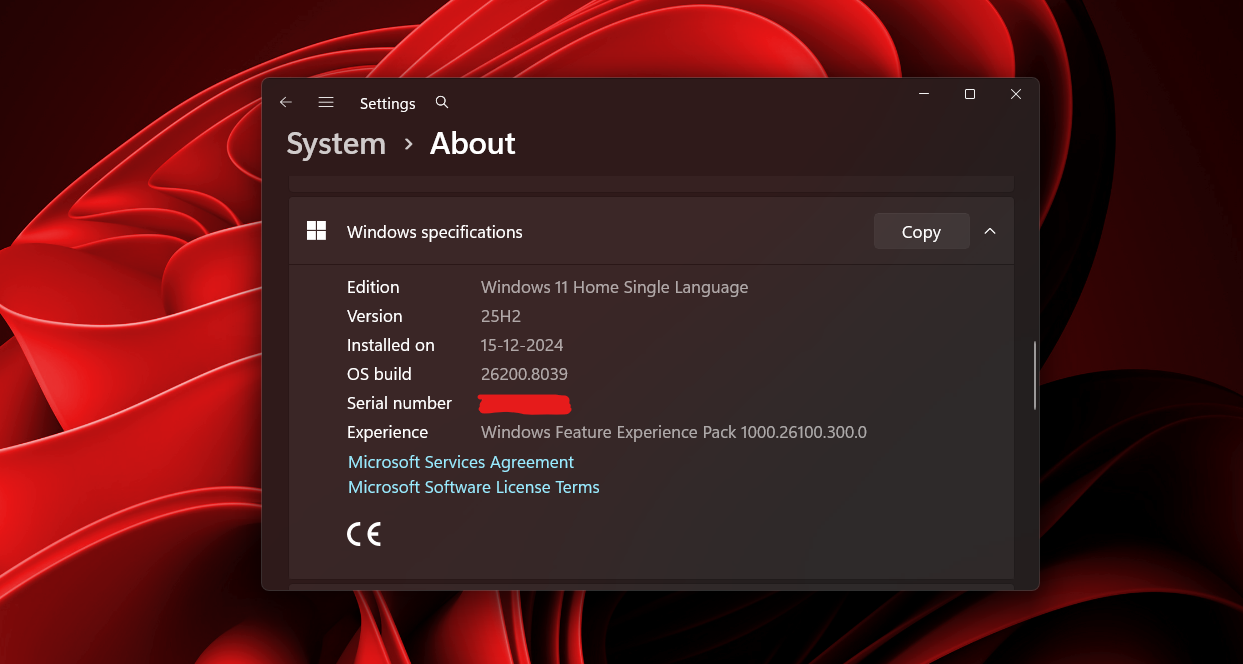
Also, if you’re running Windows 11 version 24H2, note that it will reach the end of support on October 13, 2026, for Home and Pro editions, so you should consider upgrading if you haven’t already. Or if you have issues with the existing installation, you can use the offline installer for a fresh install.
The Windows 11 25H2 ISO is typically around 7.9GB in size and is available in multiple editions, including Home, Pro, and Enterprise. Microsoft no longer provides 32-bit versions, so this is strictly a 64-bit release, with ARM builds available separately for supported devices.
To download the ISO file for Windows 11 version 25H2, you can either use the Media Creation Tool or refer to the official direct links we’ve generated, depending on how you plan to install the OS.
Direct download Windows 11 25H2 ISO files from Microsoft
Windows Latest has generated the direct download links of 25H2 ISO files straight from Microsoft. All you need to do is click the right link, and the download will begin immediately.
Since these download links are from Microsoft’s servers, they’ll expire after 24 hours, but we’ll update these links daily, so you’ll always get the latest 25H2 ISO image.
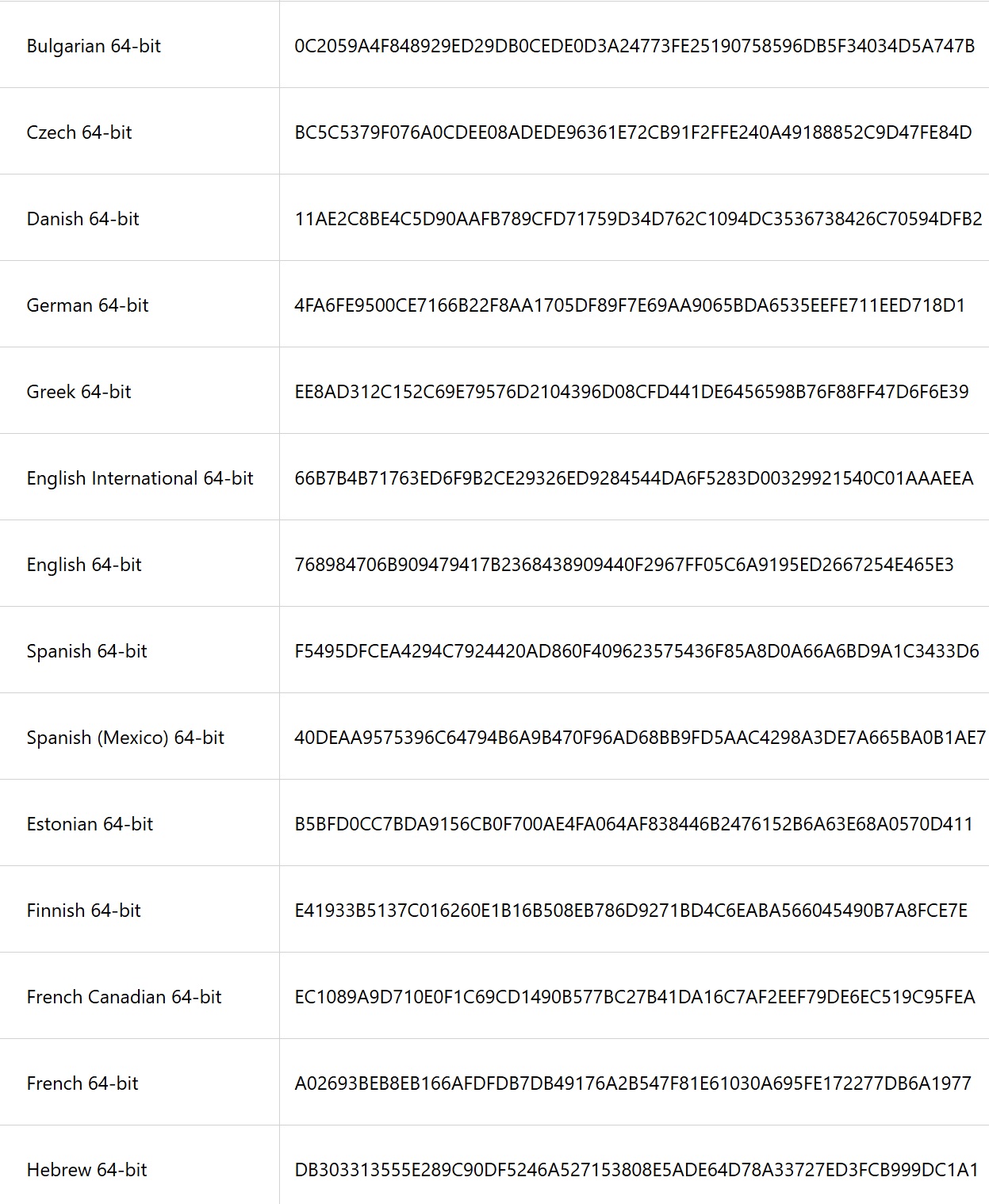
However, if you have downloaded an ISO file from another source, you’ll need to check its authenticity. To do that, you can check your file’s hash value with the checksum data from Microsoft. Here are the steps:
Open PowerShell and run the Get-FileHash command to generate the hash value for the file. If your ISO file is in the downloads folder, you can use the command: Get-FileHash C:\Users\username\Downloads\Win11_24H2_English_x64.ISO
This command will generate the SHA256 value, and you can verify it against the screenshot shared below:
But if you want to get the download link for Windows 11 25H2 ISO from Microsoft by yourself, use the following steps:
How to download Windows 11 25H2 ISO
- Head to Microsoft’s official Windows 11 download page and scroll down to the section titled “Download Windows 11 Disk Image (ISO)”.
- Under this section, select Windows 11 (multi-edition ISO for x64 devices) from the dropdown menu and click the Download Now button.
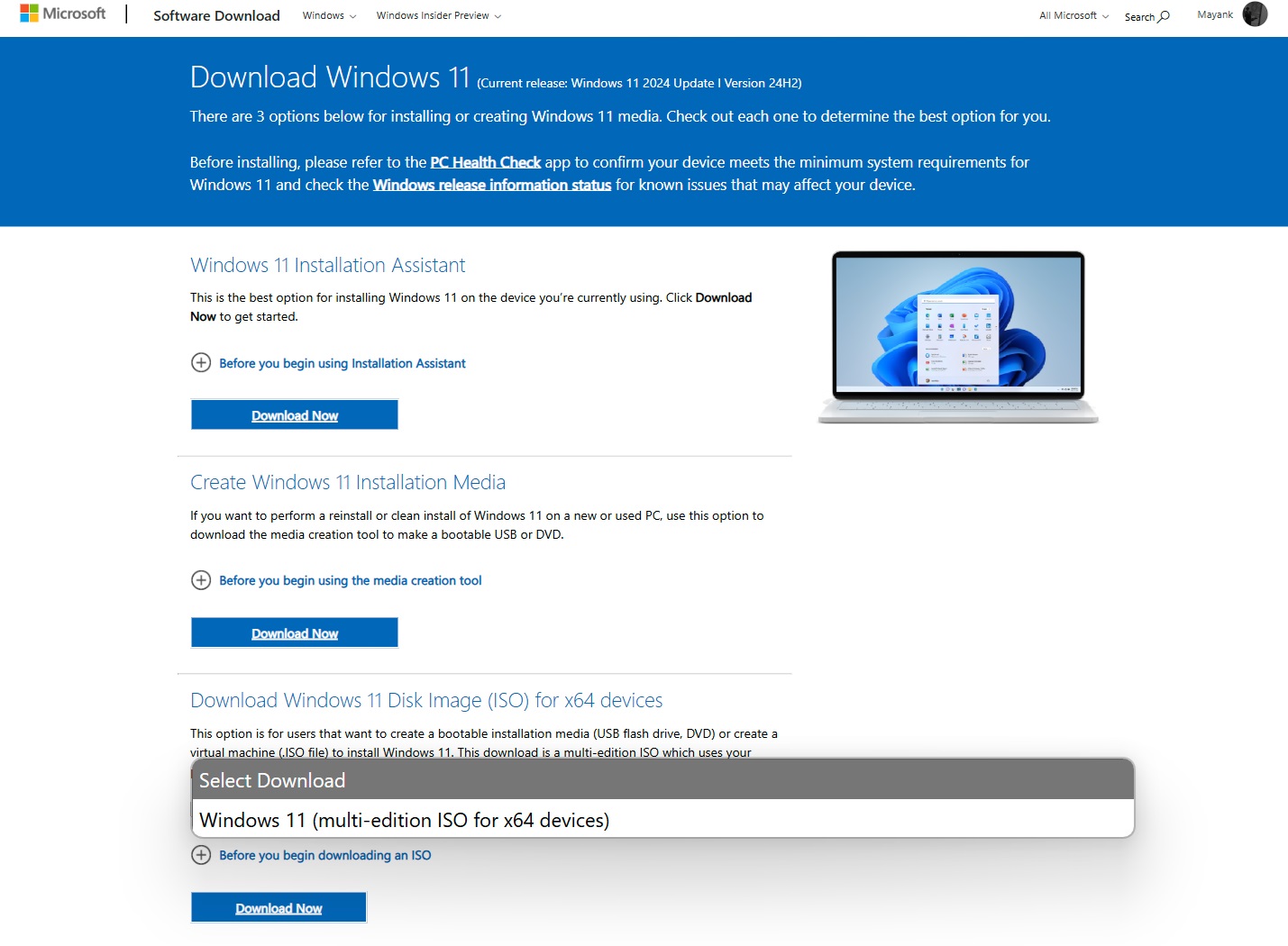
- If you’re using an ARM-powered device, like the Snapdragon X series, click the link above the dropdown menu that says “Windows 11 ISOs for Arm64 devices are available here.”
- You’ll then be asked to choose your preferred language. Make sure it matches your current system language under Settings > Time & Language.
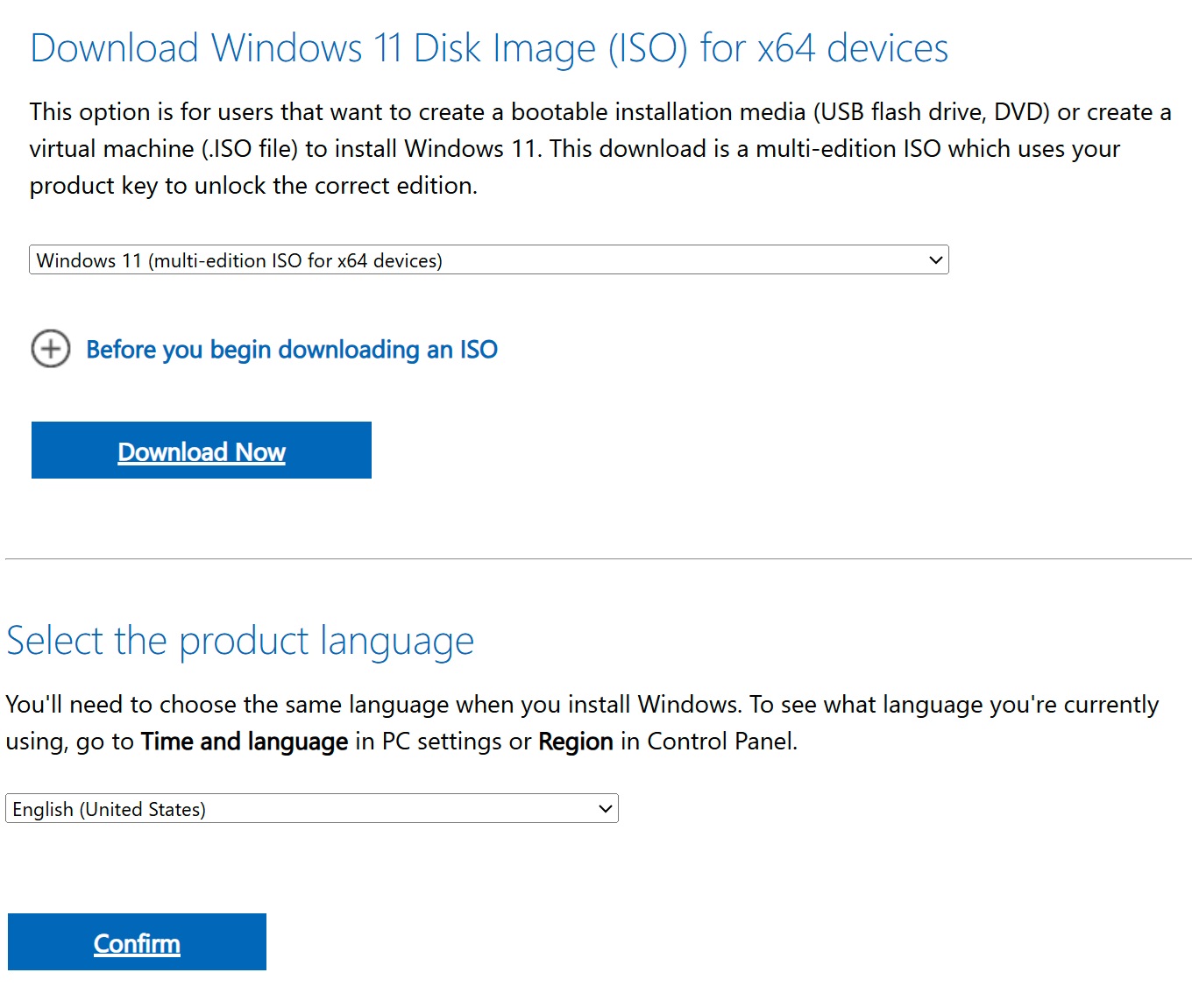
- Once selected, click Confirm, and Microsoft will generate a direct download link for the ISO file.
The Windows 11 25H2 ISO is available only in 64-bit, and the file size as of writing this was GB, and may vary depending on the selected language pack.
How to install Windows 11 25H2 using ISO
Upgrade existing Windows using ISO (no data loss)
If you’re already on Windows 11 and just want to upgrade to version 25H2, this is the easiest method.
- Go to the folder where you downloaded the ISO file, right-click it, and select Mount. This will create a virtual drive in File Explorer.
- Open the mounted drive and run setup.exe.
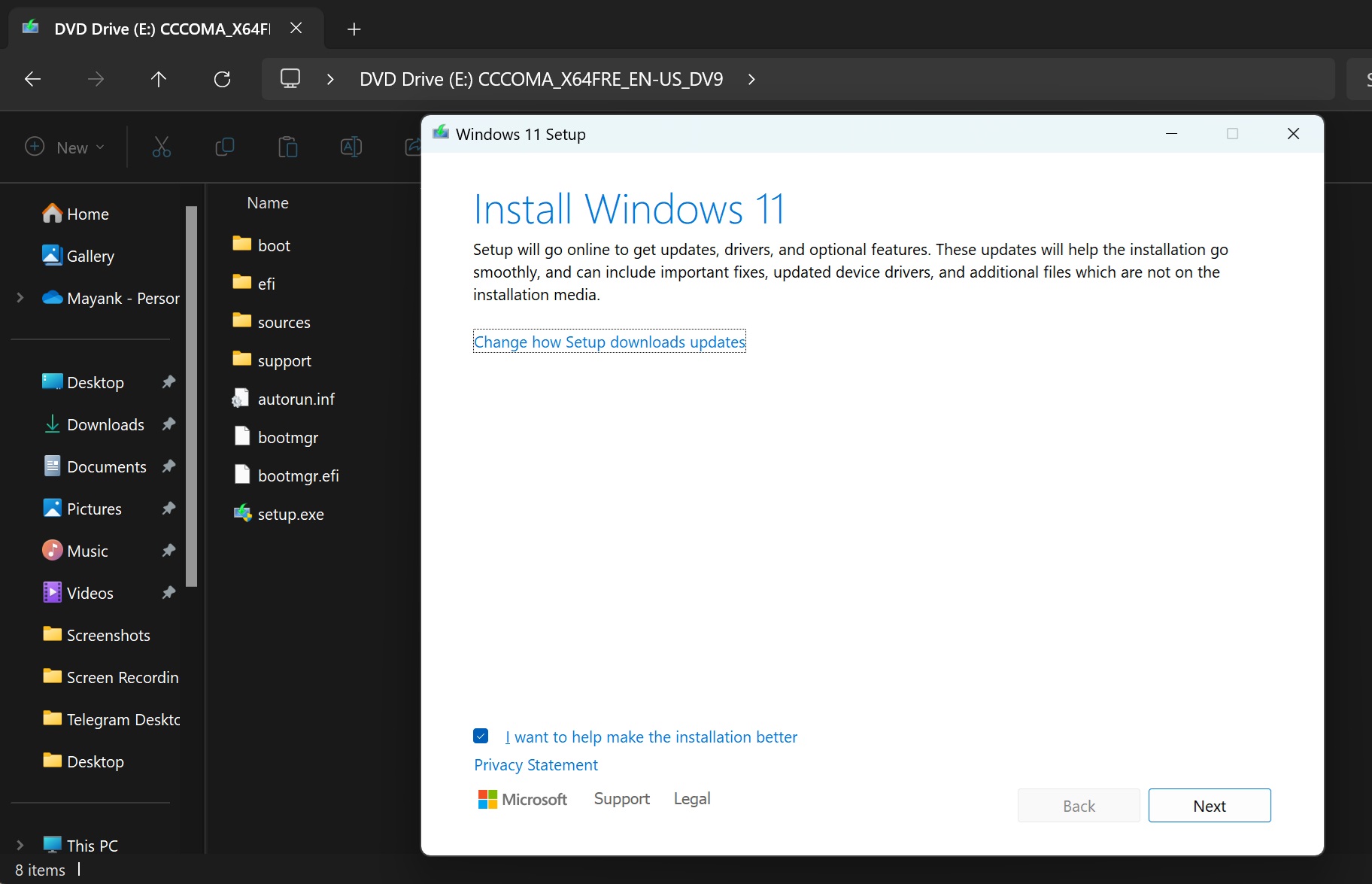
- You will see the “Windows 11 Setup” window. Select Yes when Windows asks for administrator permission. As soon as you open the setup.exe, it will begin checking for updates, and Windows will install any mandatory security updates.
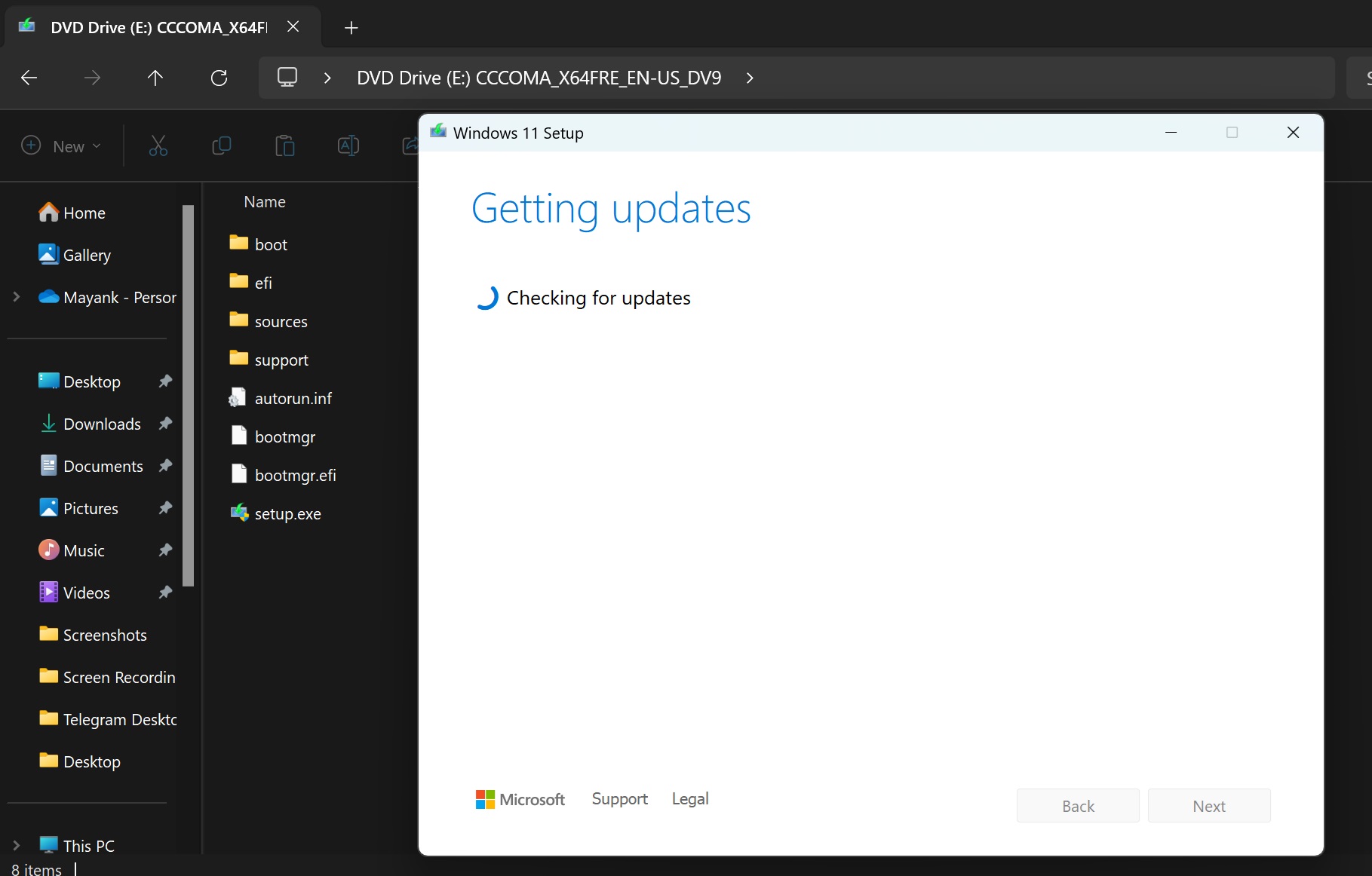
- To avoid getting updates, uncheck the “I want to help make the installation better” option.
- On the “Ready to install” screen, make sure “Keep personal files and apps” is selected.
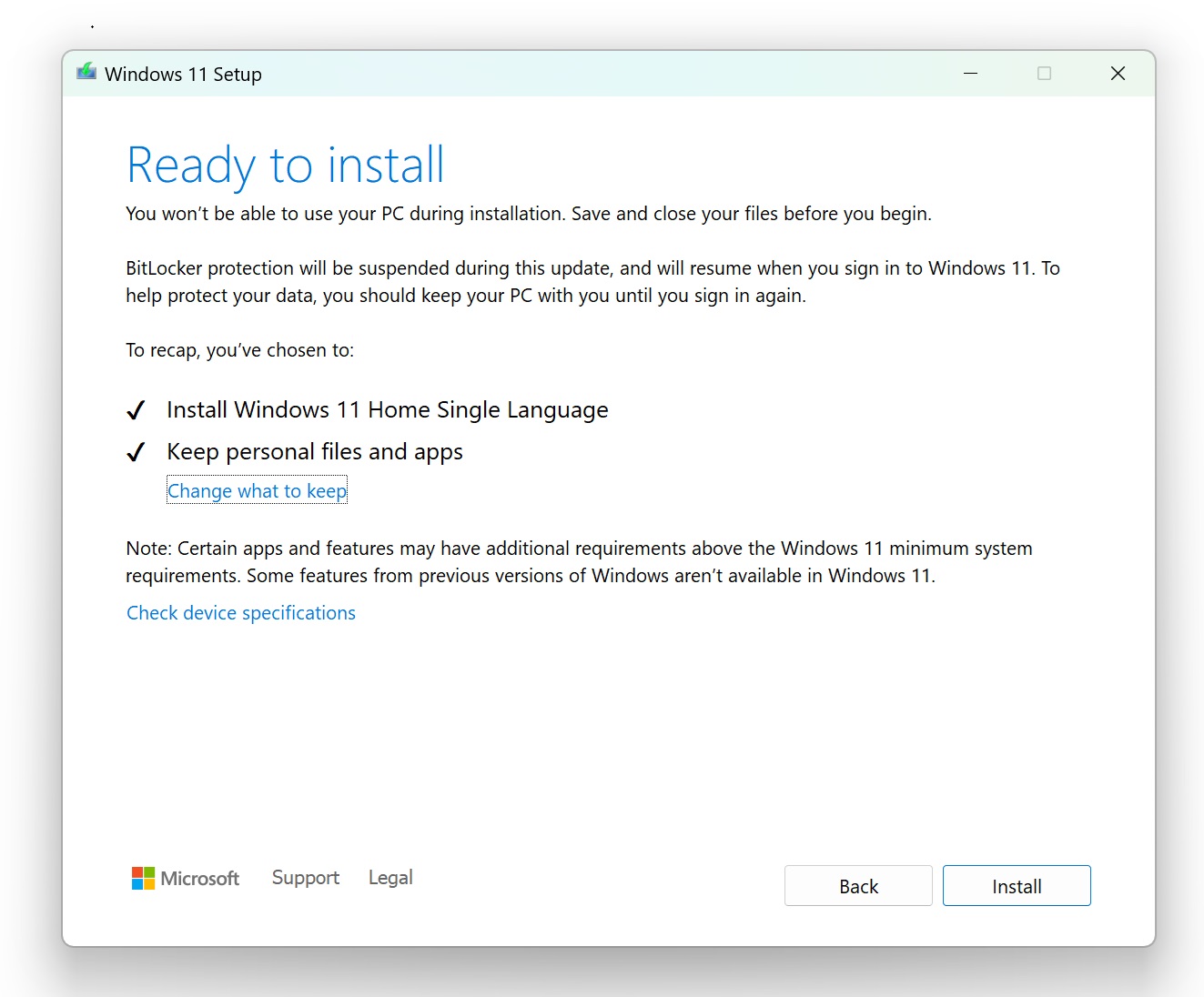
- Click Install, and Windows will begin the upgrade process.
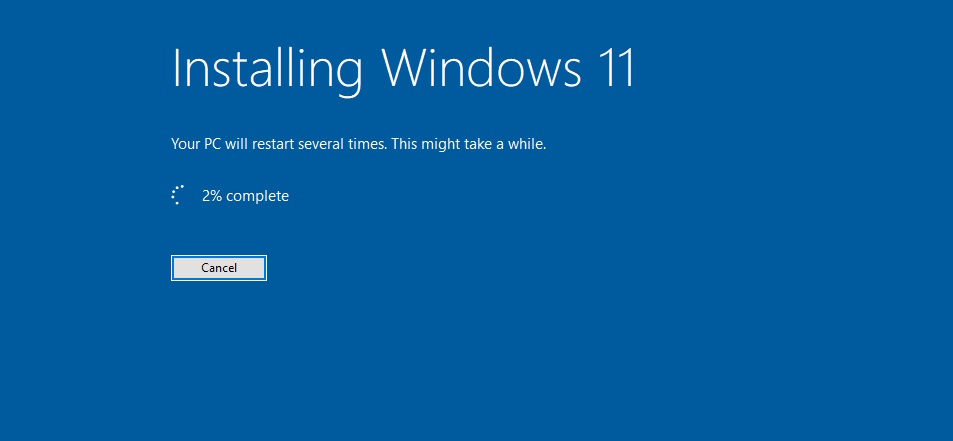
Your PC will restart multiple times, and the entire process usually completes within 20 to 40 minutes, depending on your system.
If you want to do a fresh install using ISO, do the same steps above, but on the “Ready to install” page, click on “Change what to keep” and uncheck the option to keep your personal files and apps. Note that this deletes everything in your system.
Windows 11 25H2 clean install using Media Creation Tool
If you want to create a bootable USB with 25H2 in it, you can use Microsoft’s Media Creation Tool, which has also been updated to support Windows 11 25H2.
Note that you can also create an ISO file using the Media Creation Tool. But if you prefer to have it on your USB drive, make sure that it has at least 8GB of free space.
- Download and install the Windows Media Creation Tool from Microsoft’s website.
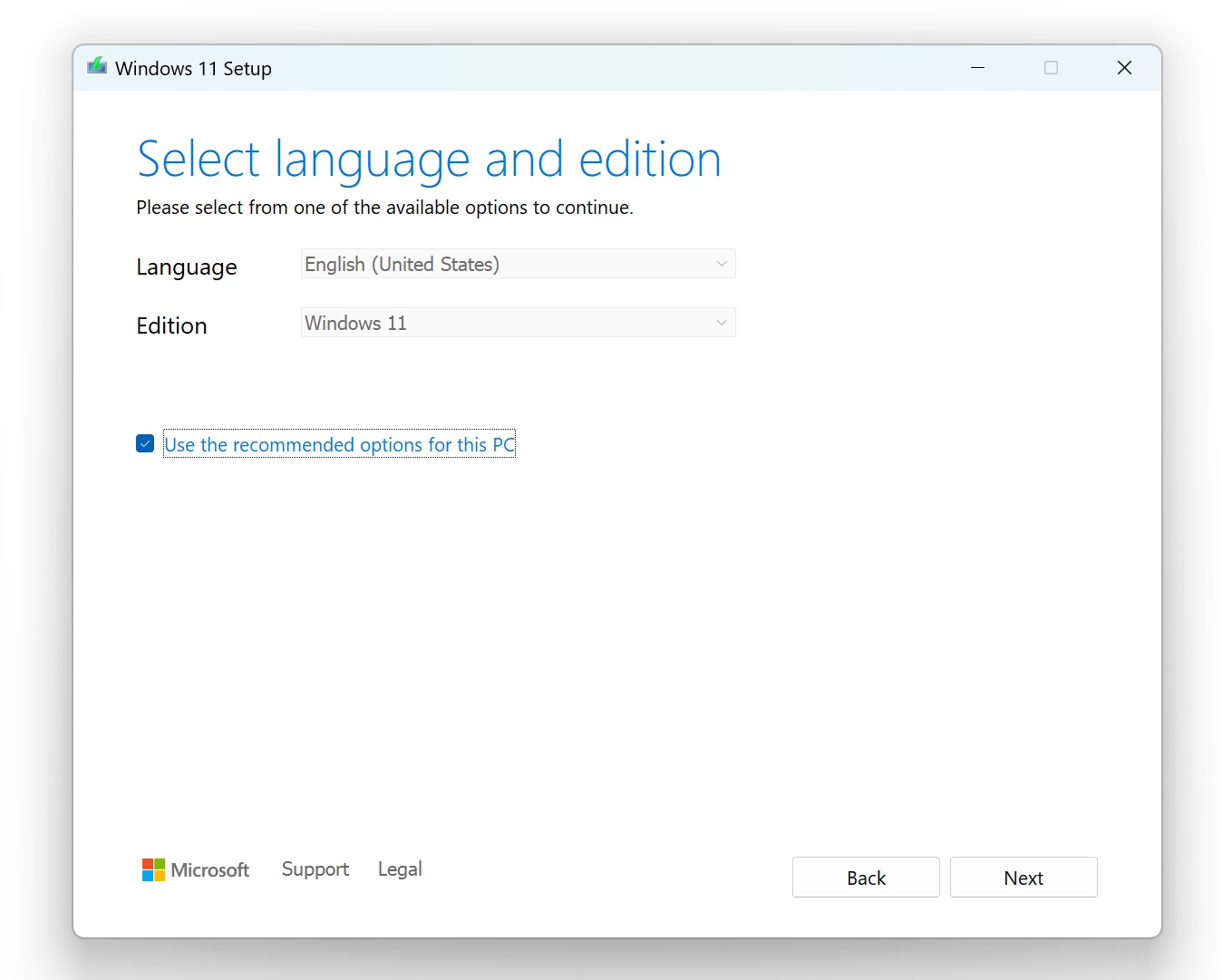
- Open it, and select “Create installation media”. From there, you can choose your language and edition, and then select whether you want to: Create a bootable USB drive, or Download the ISO file directly.
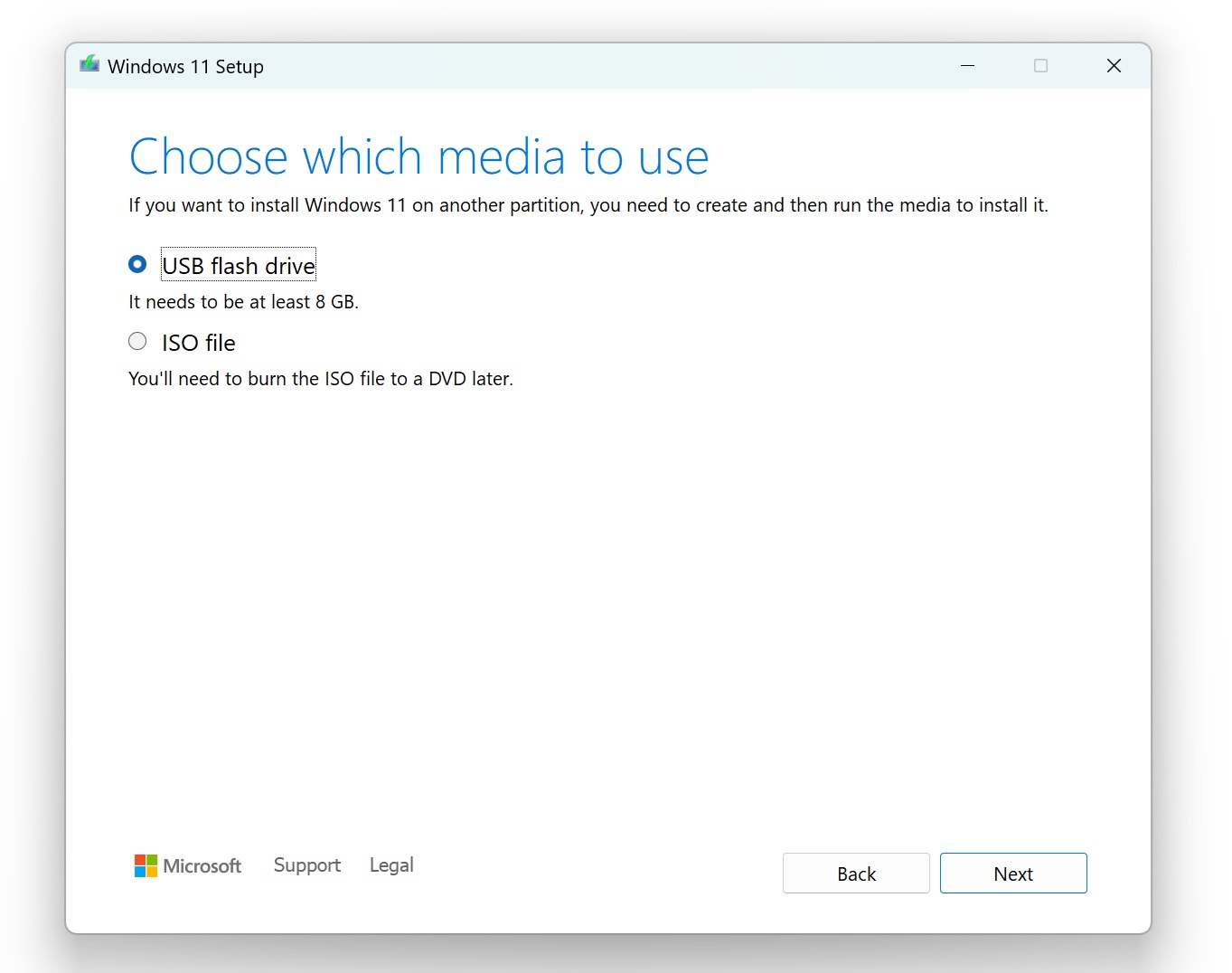
- Click “Next” and select your flash drive.
- As you click “Finish”, Windows Setup will begin downloading the bits of Windows 11 version 25H2 and create the bootable USB drive or ISO file.
This method is also useful if you’re preparing installation media for another PC or want a ready-to-use USB installer.
Why you should always keep a Windows 11 ISO (almost as important as a backup)
If you’re using Windows long-term, keeping a copy of the ISO is one of those things you only realize you need when something crashes in your PC.
The biggest reason is for recovery when Windows itself fails. If your system runs into boot issues or malware, the built-in recovery tools depend on files already present on your system. If those are damaged, recovery doesn’t work. An ISO gives you a known-good copy of Windows that can repair or reinstall the OS properly.
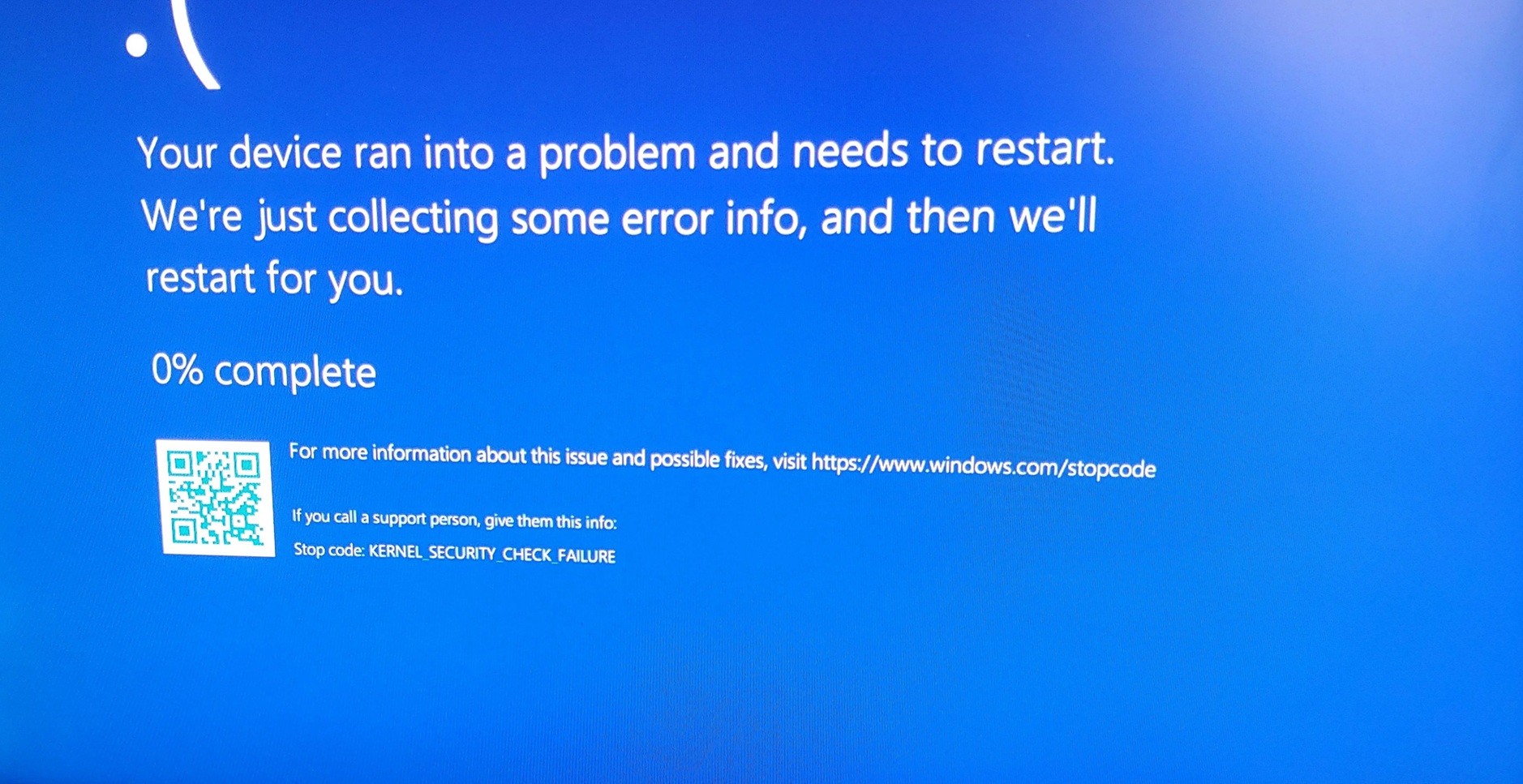
A clean install using an ISO wipes everything and installs Windows from scratch, which is still the most reliable way to fix persistent issues.
Considering that an ISO file is about 7GB, if you do not have a stable internet connection, especially when you’re travelling, having a USB bootable drive for offline installation is totally worth it.
What to expect during Windows 11 25H2 installation
After installation, you’ll go through the Windows setup process (OOBE), where you’ll:
- Select region and language
- Sign in with a Microsoft account
- Configure privacy settings
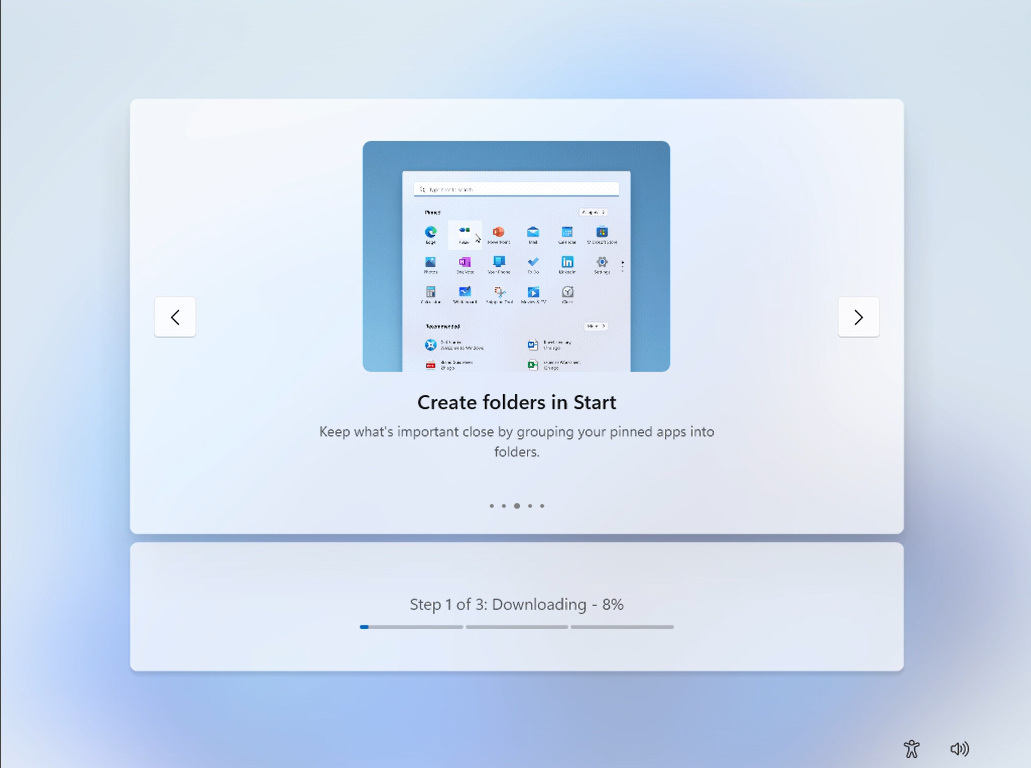
Windows may also install updates during setup, depending on your internet connection and current build; it may take anywhere between 45 minutes and an hour.
It’s worth checking our detailed breakdown of the Windows 11 setup experience since Windows 11 OOBE is a long and cluttered process.
All major features and improvements in Windows 11 25H2
Windows 11 25H2 added a bunch of features that changed the look of several parts of the OS, while also adding some quality of life improvements. Microsoft has a controlled rollout strategy with features in Windows, so some of these features may not arrive instantly after installing 25H2. Also, a few features are shared with 24H2 too.
Here are the major features and improvements introduced in Windows 11, version 25H2, in no particular order:
Start Menu, Taskbar, and Desktop
- Redesigned Start Menu: The Start menu features a new layout with a scrollable “All” apps section, options to switch between Category and Grid views, responsive scaling for larger screens, and a mobile device button for Phone Link integration.
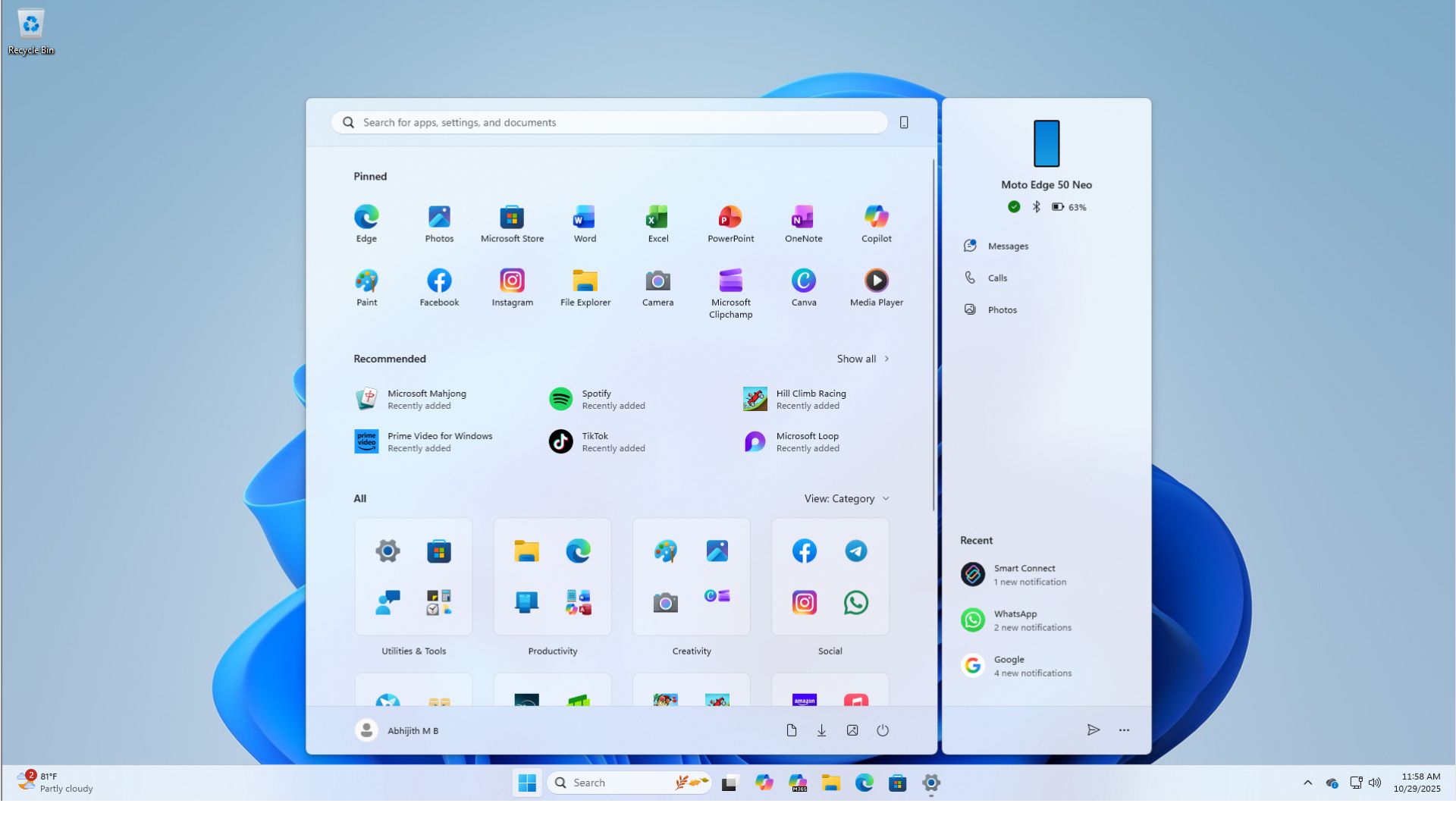
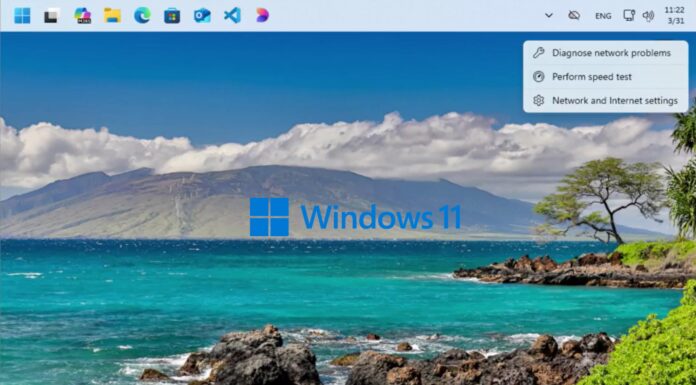
Feature rich Start menu setup in Windows 11 after the new Start menu update - Taskbar Network Speed Test: A built-in network speed test is now accessible directly from the taskbar’s system tray or Quick Settings, allowing you to test Wi-Fi or Ethernet speed.
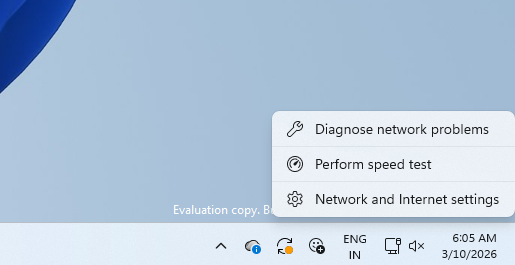
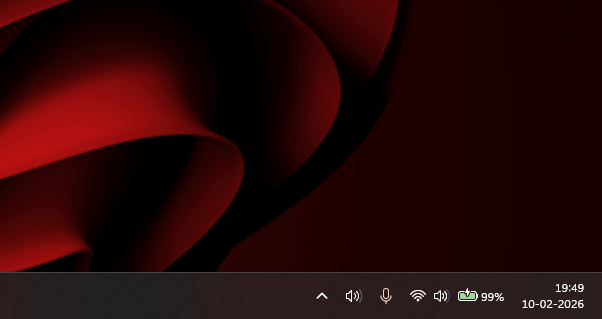
- Battery Icon Updates: The lock screen and taskbar feature newly redesigned battery icons with color indicators (green, yellow, red) and percentage displays.
- Taskbar Search Previews: Search results on the taskbar now group items with result counts and allow you to preview content by hovering over a result without opening it.
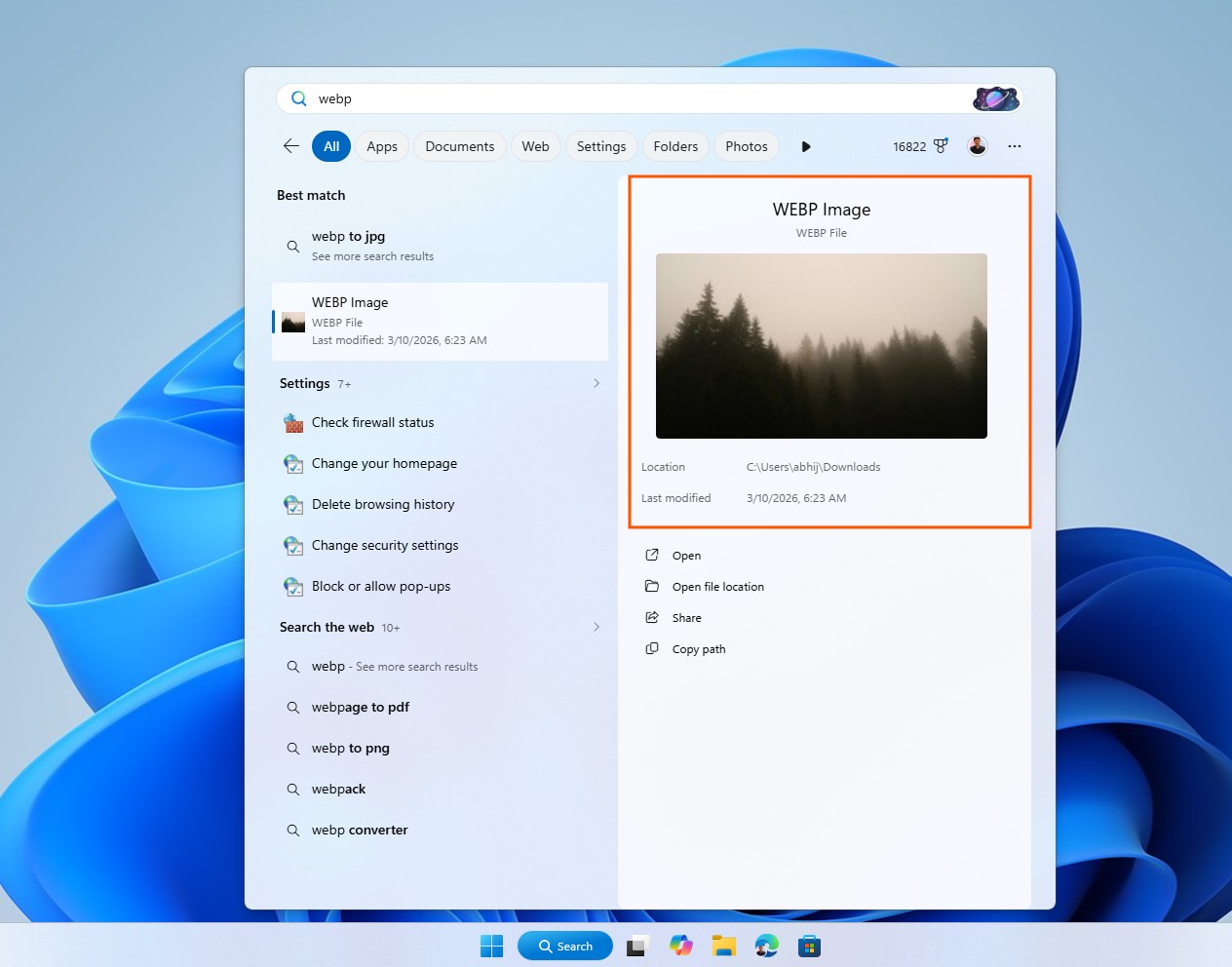
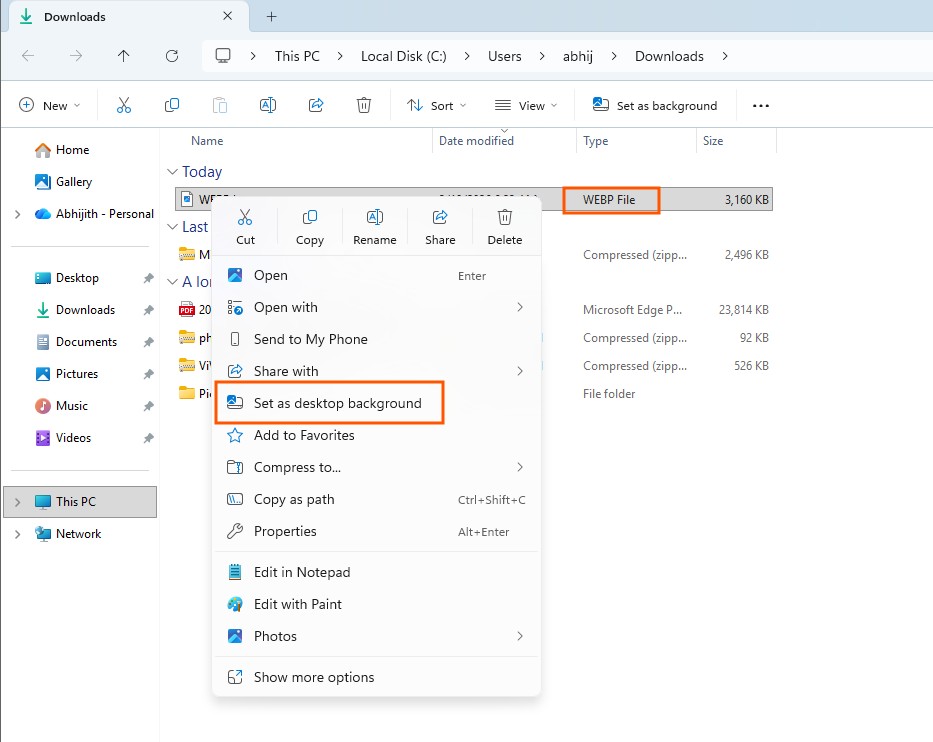
- Desktop Backgrounds: You can now set WebP (.webp) images directly as your desktop background.
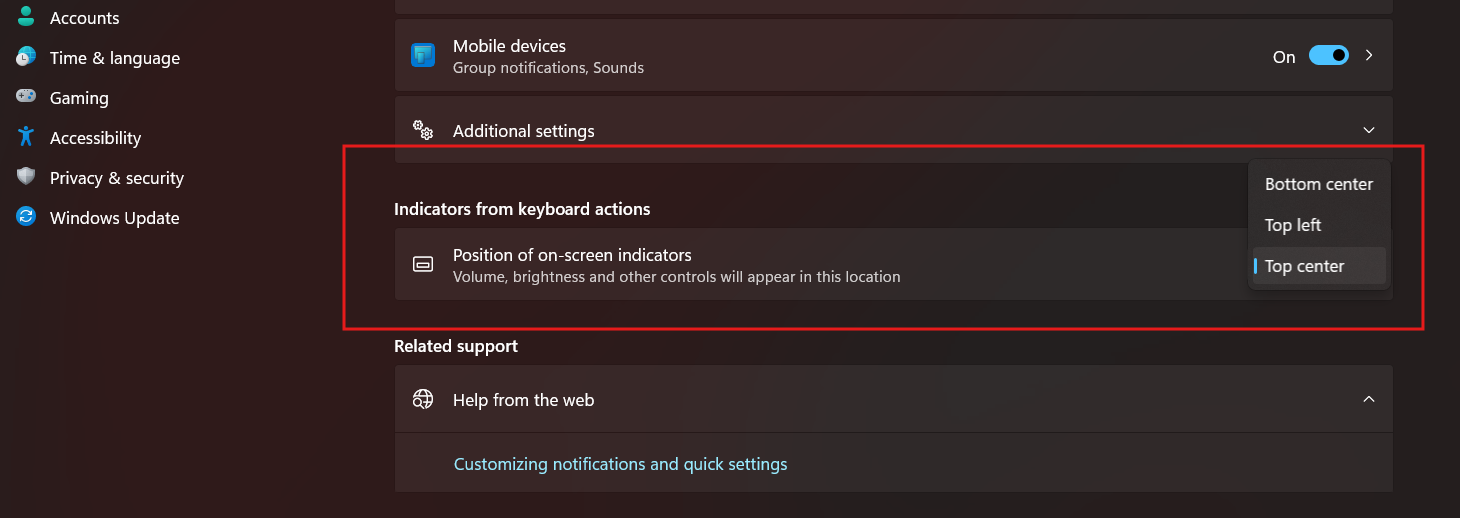
- Movable Hardware Indicators: You can change the on-screen position of hardware indicators (like volume, brightness, and airplane mode) from the Notifications settings.
File Explorer
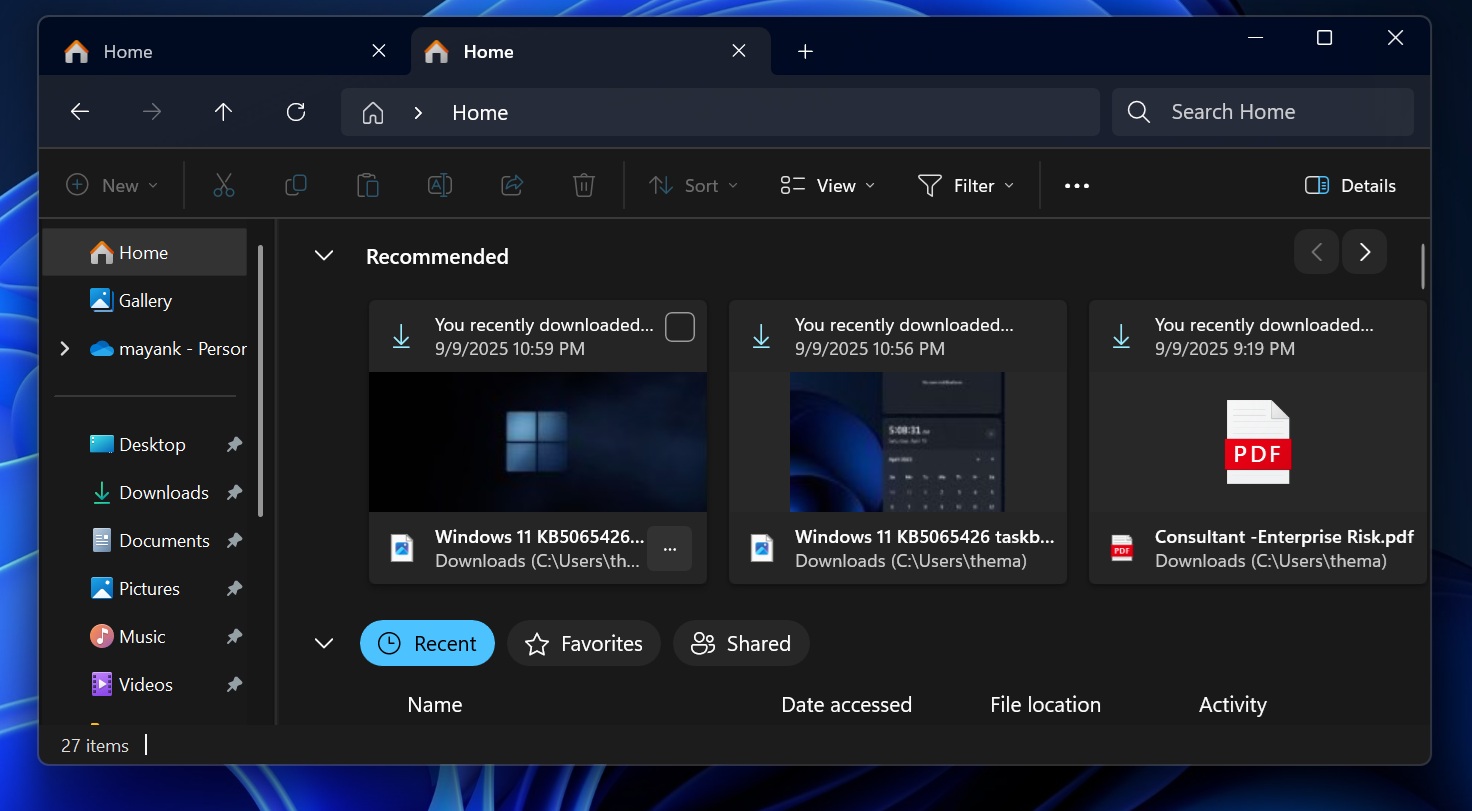
- Recommended Section: A new “Recommended” section on the File Explorer homepage makes it easier to access frequently used or recently downloaded files.
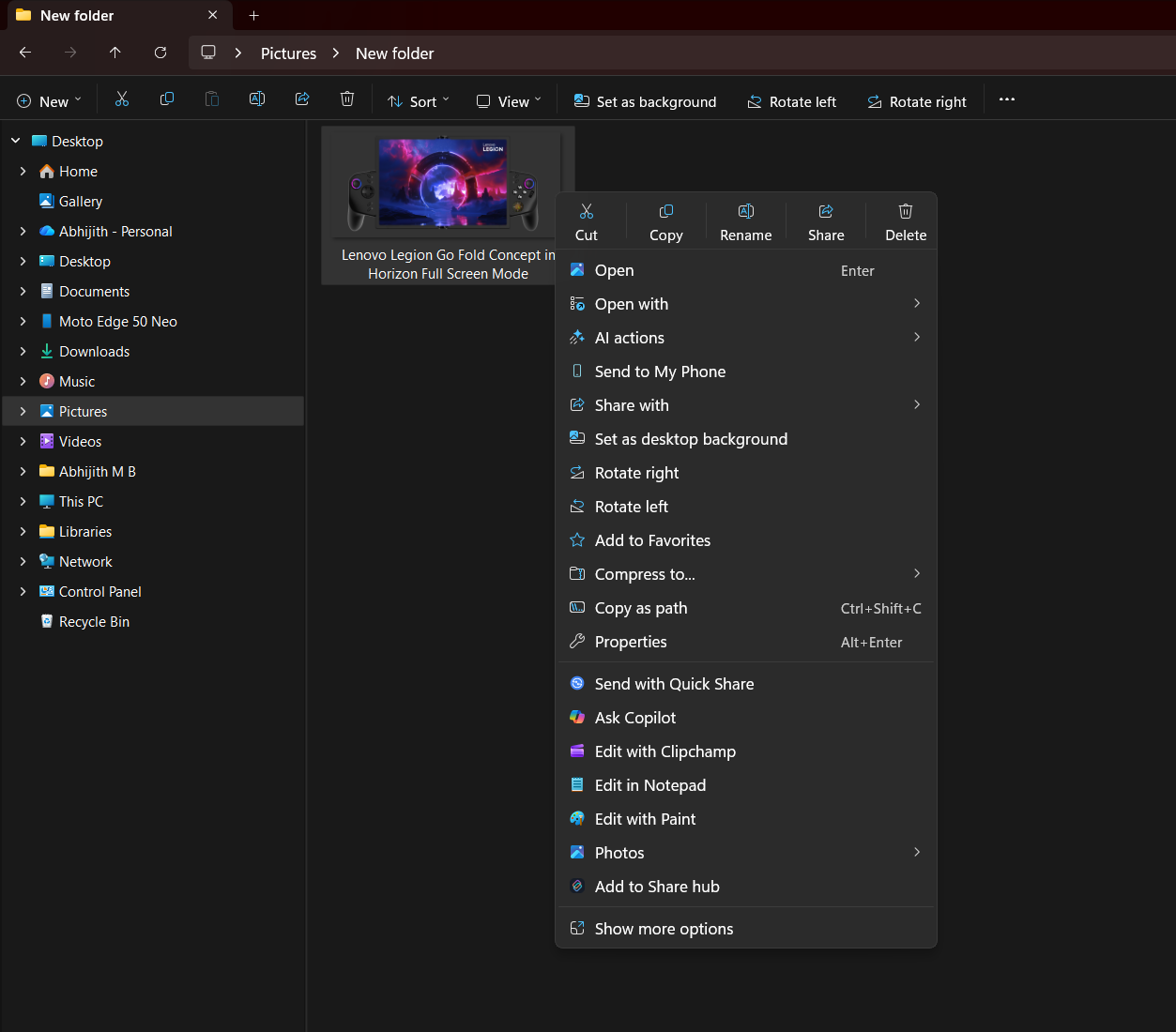
- Simplified Context Menu: Common actions like Share, Copy, and Move have been merged into a single, organized menu with dividers.
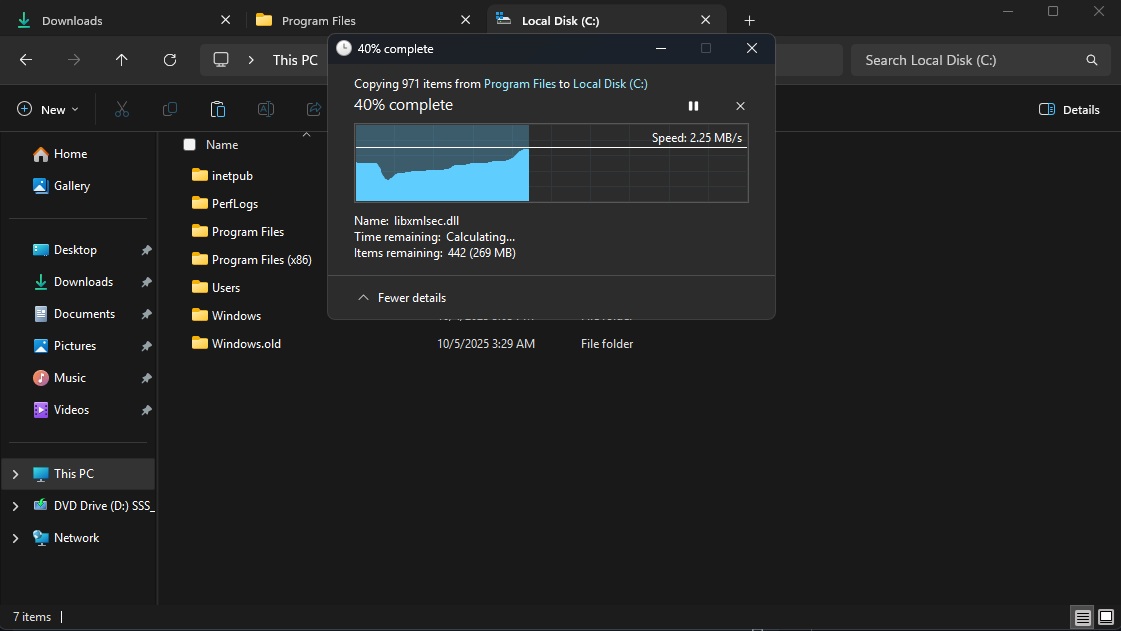
- Consistent Dark Mode: Progress bars, chart views, and confirmation dialogs have been refreshed to better match the dark theme.
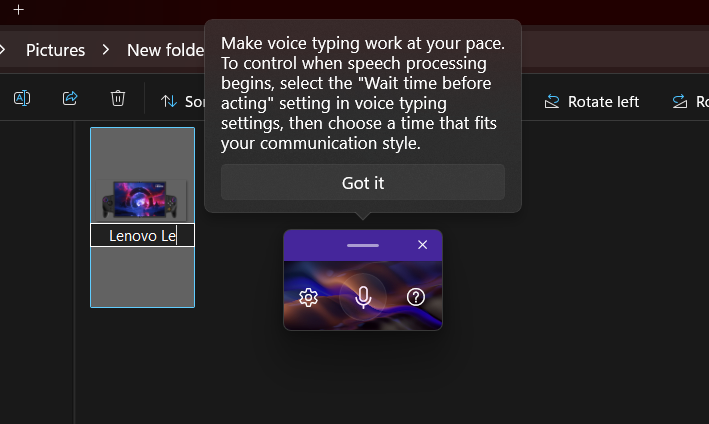
- Voice Typing: You can now use Voice Typing (Windows key + H) to rename files in File Explorer.
AI and Copilot Integrations
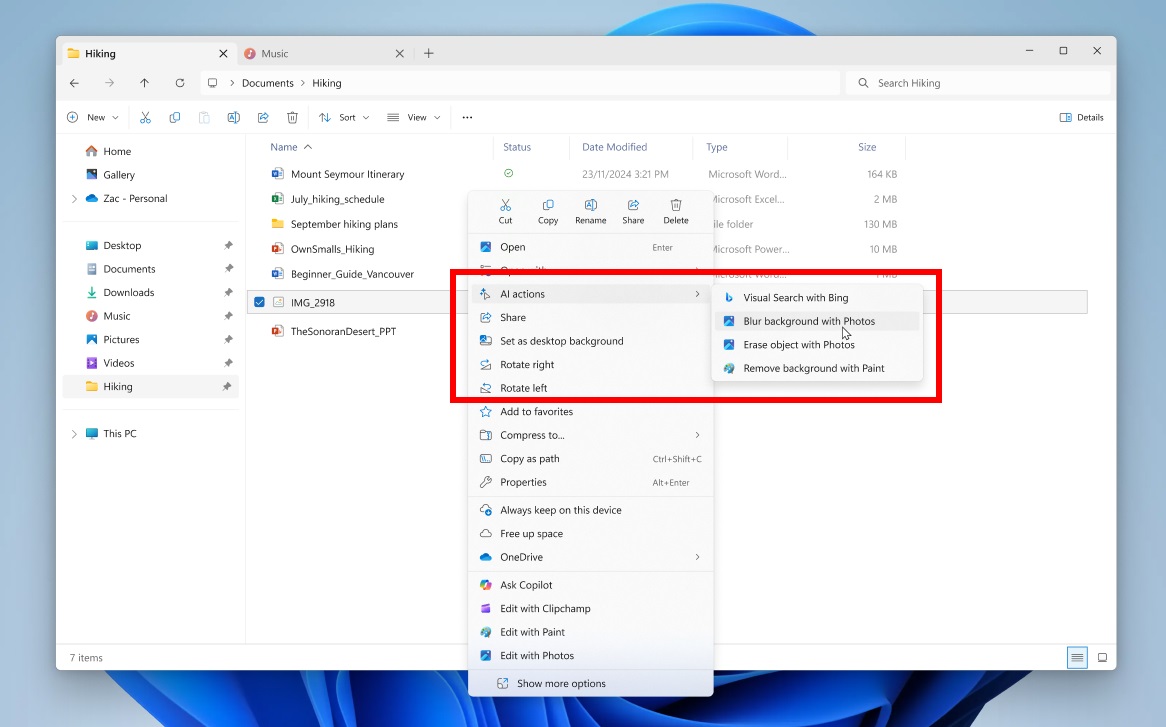
- AI actions in File Explorer: Features that were previously under enterprise control are now enabled by default, allowing you to right-click files to use AI to blur backgrounds, erase objects, remove backgrounds via Paint, or summarize Microsoft 365 documents using Copilot.
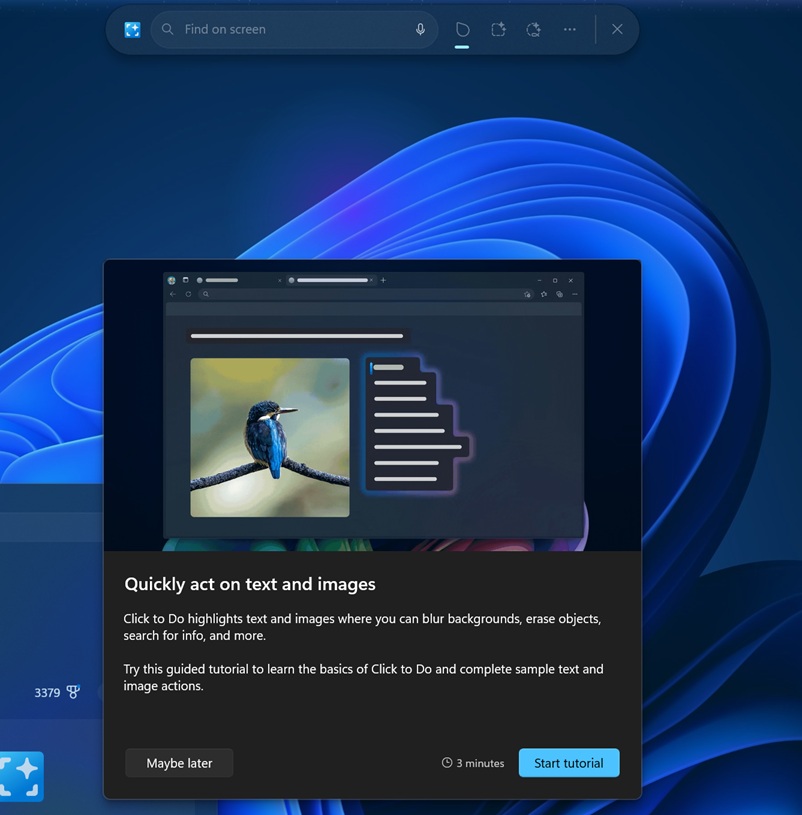
- Click to Do & Agent in Settings: Now enabled by default, Click to Do provides a context menu with popular AI-powered actions and more concise text summaries, while Agent in Settings offers direct navigation links to relevant settings pages.
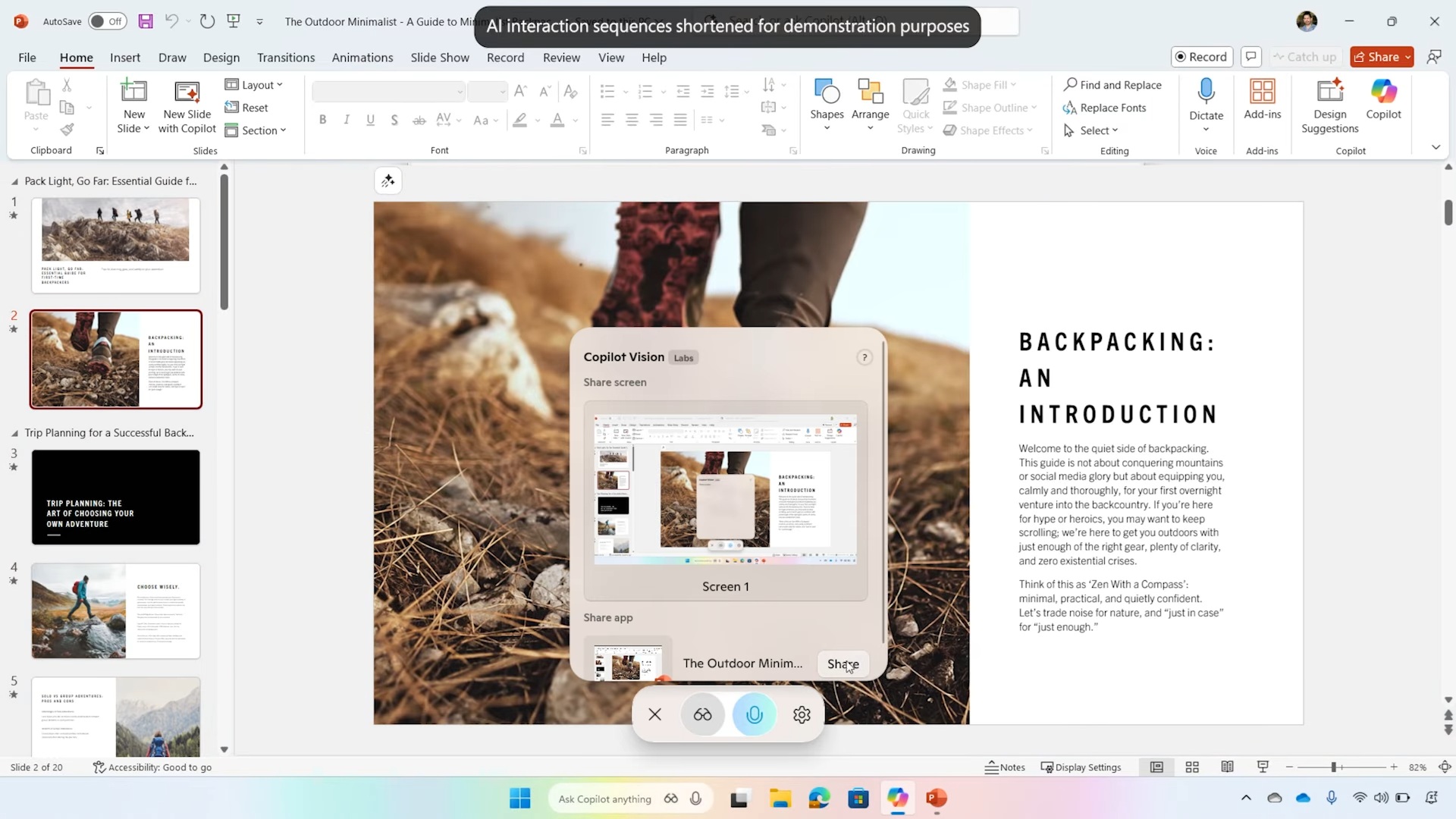
- Copilot Vision in Taskbar: You can share an open app window directly with Copilot from the taskbar to get info of what is shown in that app.
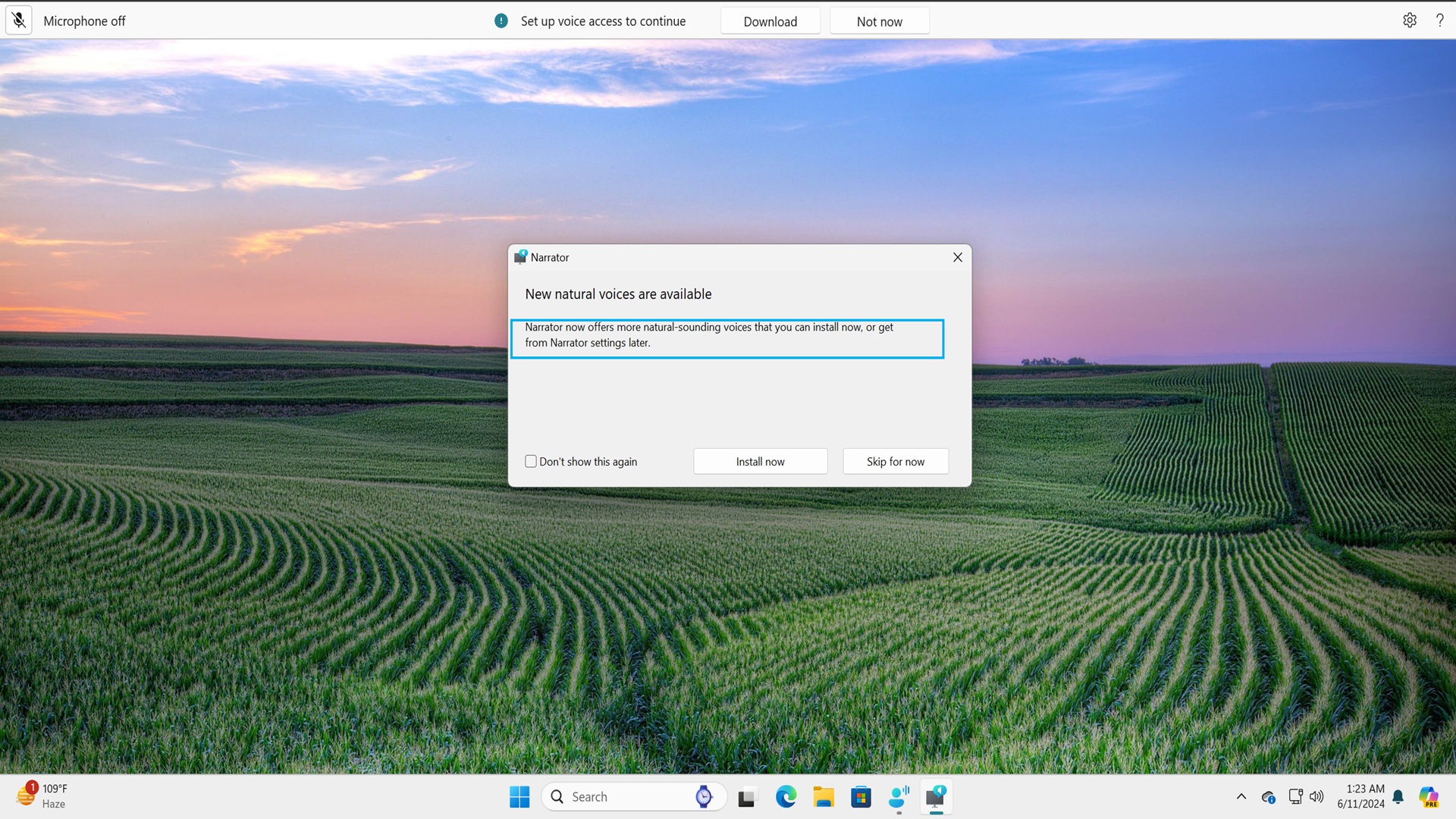
- Narrator image descriptions: Narrator now works with Copilot to provide rich image descriptions on all Windows 11 devices.
Gaming and Multimedia
- Handheld Full Screen Experience (FSE): Windows 11 handheld devices get a console-style, distraction-free interface built around the Xbox app, which improves performance by minimizing background tasks. In even newer news, this option is being renamed to Xbox Mode.
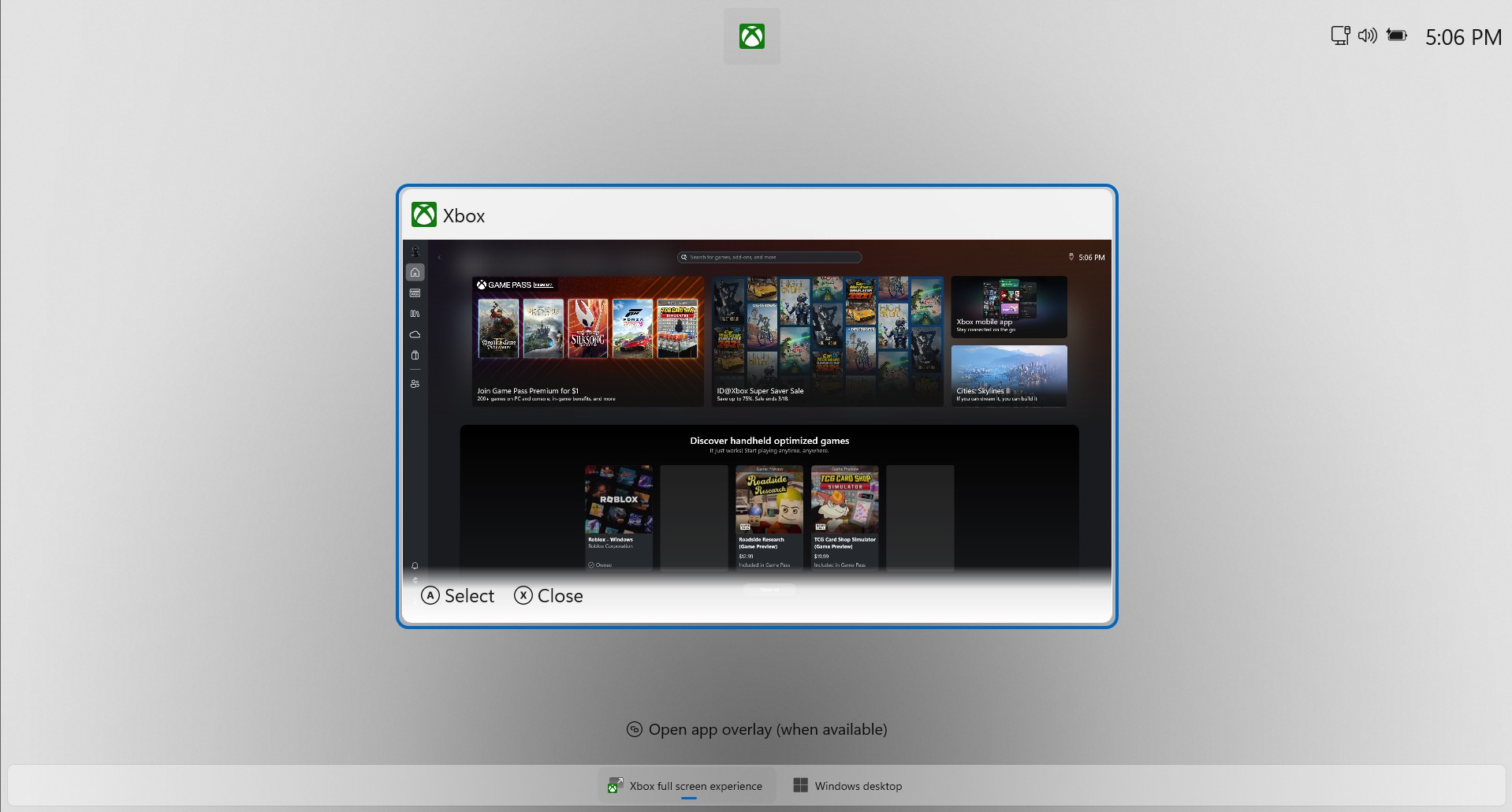
Switching between Xbox Mode and Windows Desktop - Xbox Controller shortcuts: On supported handhelds, a short press of the Xbox button opens Game Bar, while a long press opens Task View.
- Windows MIDI services: Deeply enhanced support for MIDI 1.0 and MIDI 2.0 with app-to-app MIDI routing and custom port names.
System Settings and Administration
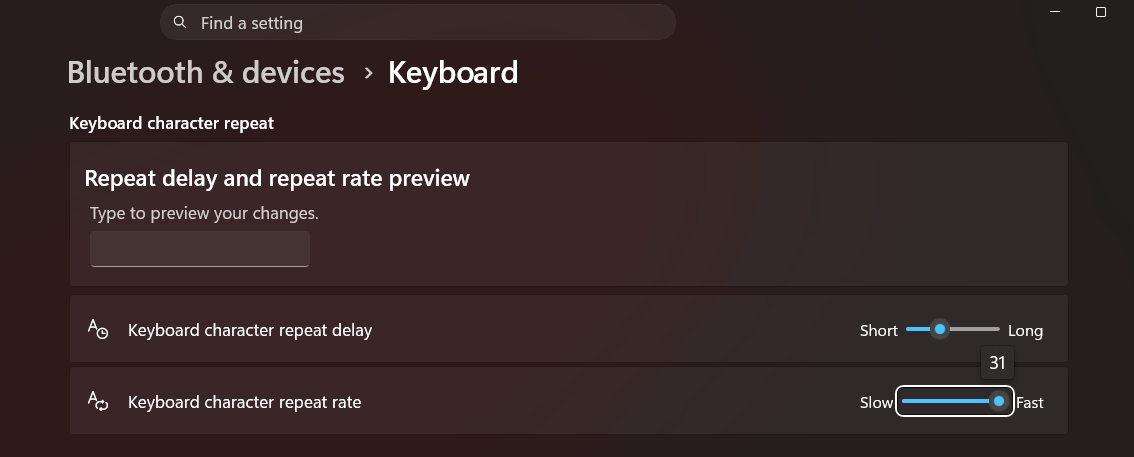
- Control Panel migration: Keyboard settings (character repeat delay and cursor blink rate) and Date/Time options (multiple clocks, time servers, region formats) have been moved from the Control Panel to the Settings app.
- Virtual Workspaces: A new toggle in Advanced Settings allows you to easily turn virtual environments like Hyper-V and Windows Sandbox on or off.
- Advanced settings & Git integration: The old “For Developers” page has been redesigned as “Advanced Settings,” which now includes an option to show Git repository details (branch, diff count) directly in File Explorer.
- Smart App Control: You can now turn Smart App Control (SAC) on or off in Windows Security without needing to perform a clean installation of the OS.

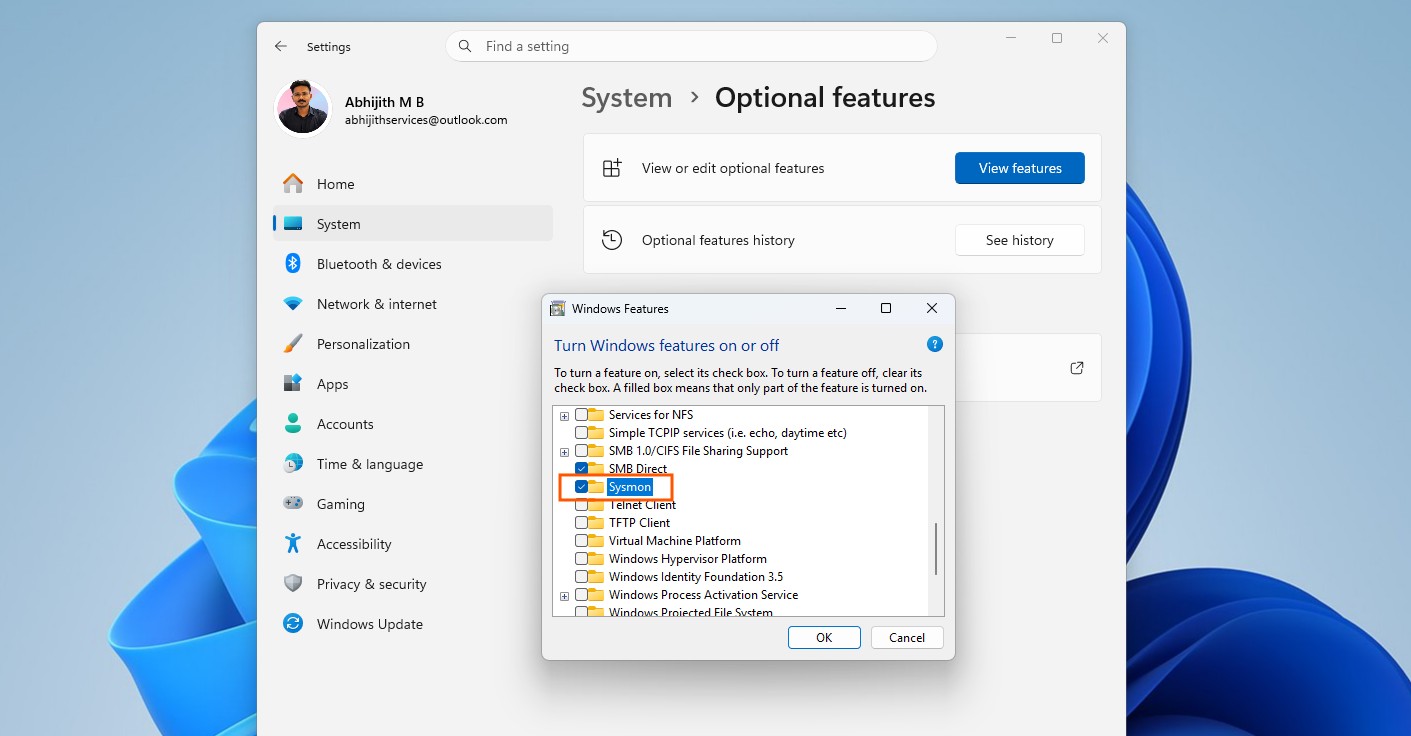
Smart App Control finally lets you turn it off without resetting the OS - Built-in Sysmon: System Monitor (Sysmon) is now available natively as an optional feature, allowing you to capture system events for threat detection.
- UAC for Storage settings: Opening Storage settings now triggers a User Account Control (UAC) prompt to ensure only authorized users can access system files.
Input, Accessibility, and Cross-Device
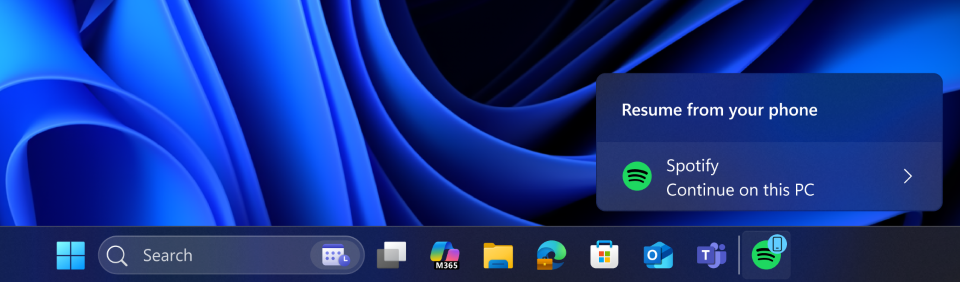
- Cross Device Resume: You can seamlessly resume activities from your Android phone on your PC, including Spotify playback, Microsoft 365 documents, and browsing sessions.
- Voice Access & Typing: Voice Access now supports natural language commanding (understanding synonyms and filler words) and features a streamlined setup. Voice Typing includes a new adjustable “Wait time before acting” delay setting.
- Narrator improvements: Narrator now has a new Braille Viewer, more natural reading experiences in Microsoft Word, and greater control over how on-screen controls are announced.
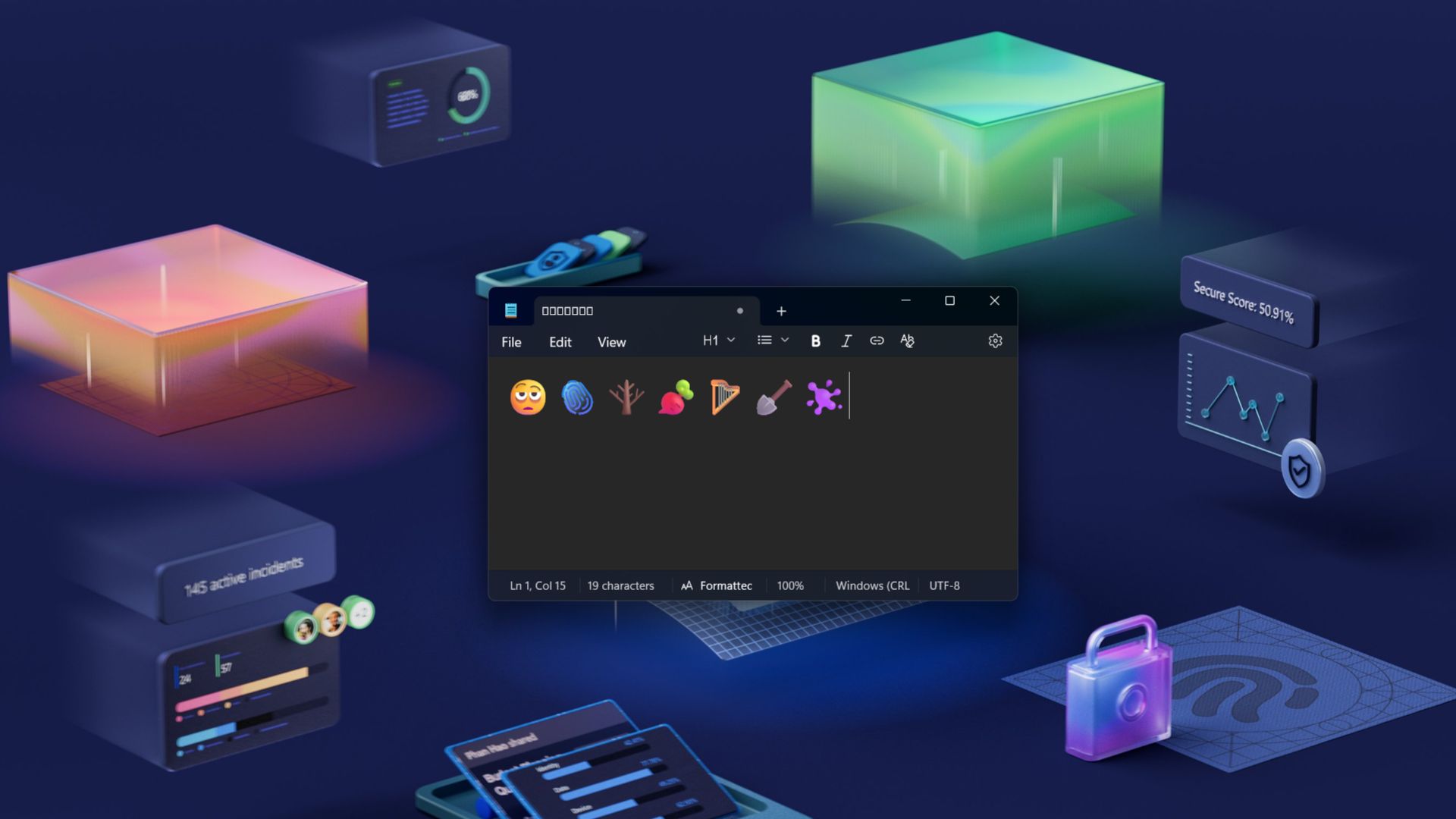
- New Emojis and shortcuts: Emoji 16.0 is now supported with a new system tray icon, and you can now quickly type en dashes and em dashes using new Windows key + Minus keyboard shortcuts.
- Haptic Pen feedback: Pens that support haptics will now vibrate slightly to simulate touch when hovering over close buttons or resizing windows.
Security and Utilities
- Passkey Manager Integration: Windows 11 now seamlessly integrates with third-party plugin credential managers for saving and authenticating with passkeys.
- External Fingerprint Readers: Windows Hello Enhanced Sign-in Security (ESS) finally supports peripheral (plug-in) fingerprint sensors.
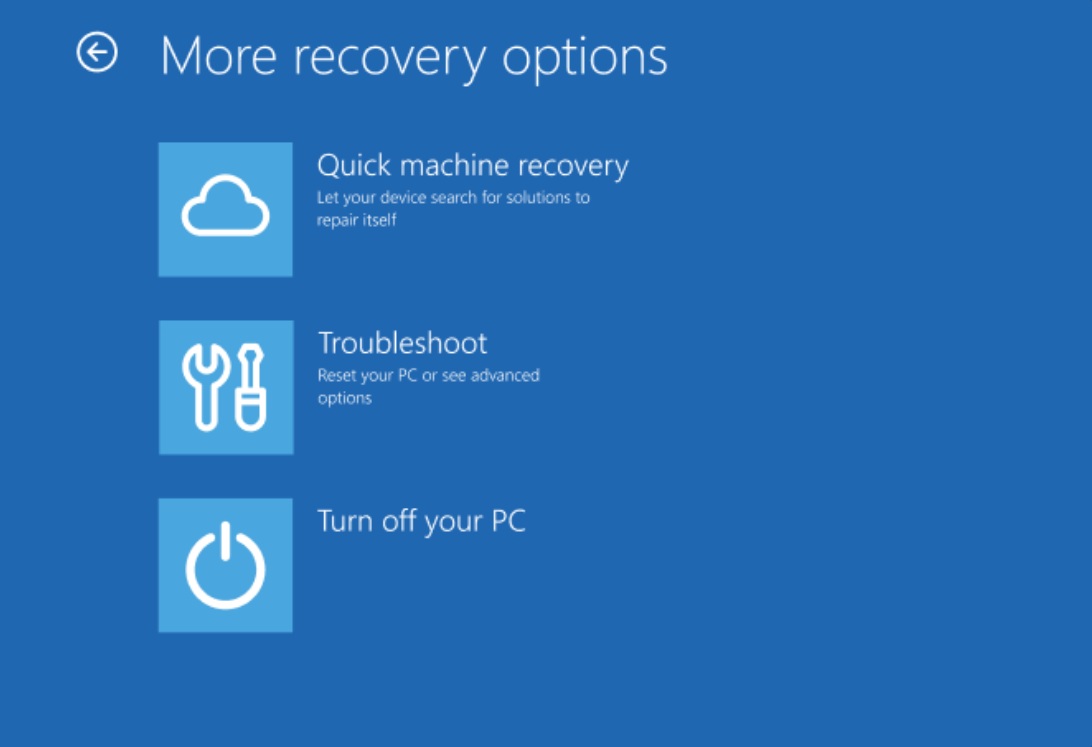
- Quick Machine Recovery (QMR): QMR can now run targeted scans to help fix PCs remotely. It automatically turns on for Windows Pro devices not joined to a domain.
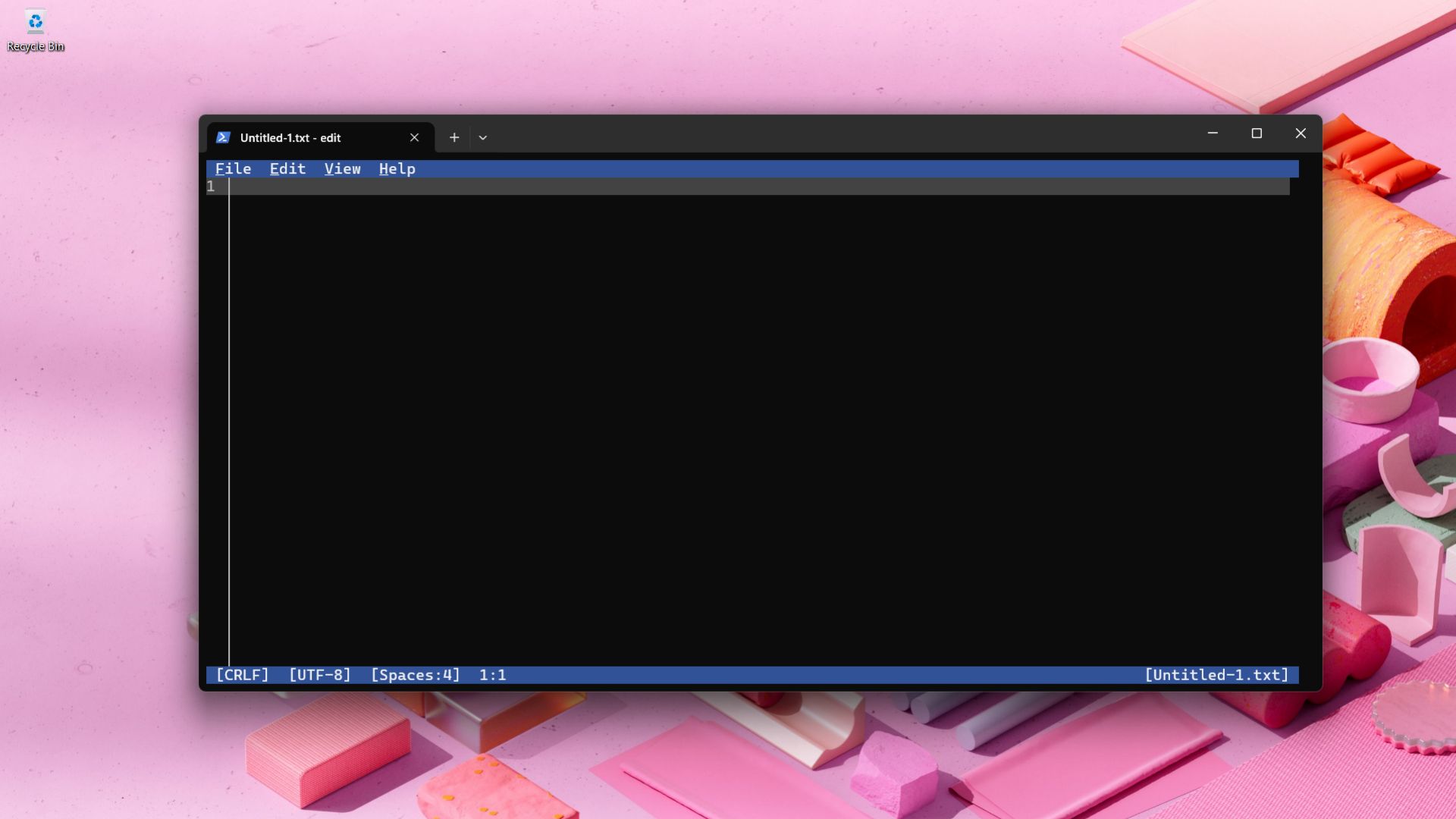
- Command Line Text Editor: Windows now natively includes “Edit”, an open-source text editor you can use directly from the Terminal.
Windows 11 is getting massive improvements in 2026
Windows 11 25H2 is already a solid update, but it’s clearly not the end of the road. Microsoft has already confirmed that deeper fixes are coming throughout 2026, targeting performance, RAM usage, File Explorer responsiveness, fewer AI integrations, and overall system reliability.
So having the 25H2 ISO with you is not just about installing it today, but having a clean, stable base ready for all the improvements that are yet to roll out after it gets into the hands of Windows insiders.
There would be a considerable amount of time till you get Microsoft’s promised fixes for Windows 11. In the meantime, whether you’re upgrading, reinstalling, or keeping a backup, having the official ISO gives you control over how and when you move forward with Windows.