




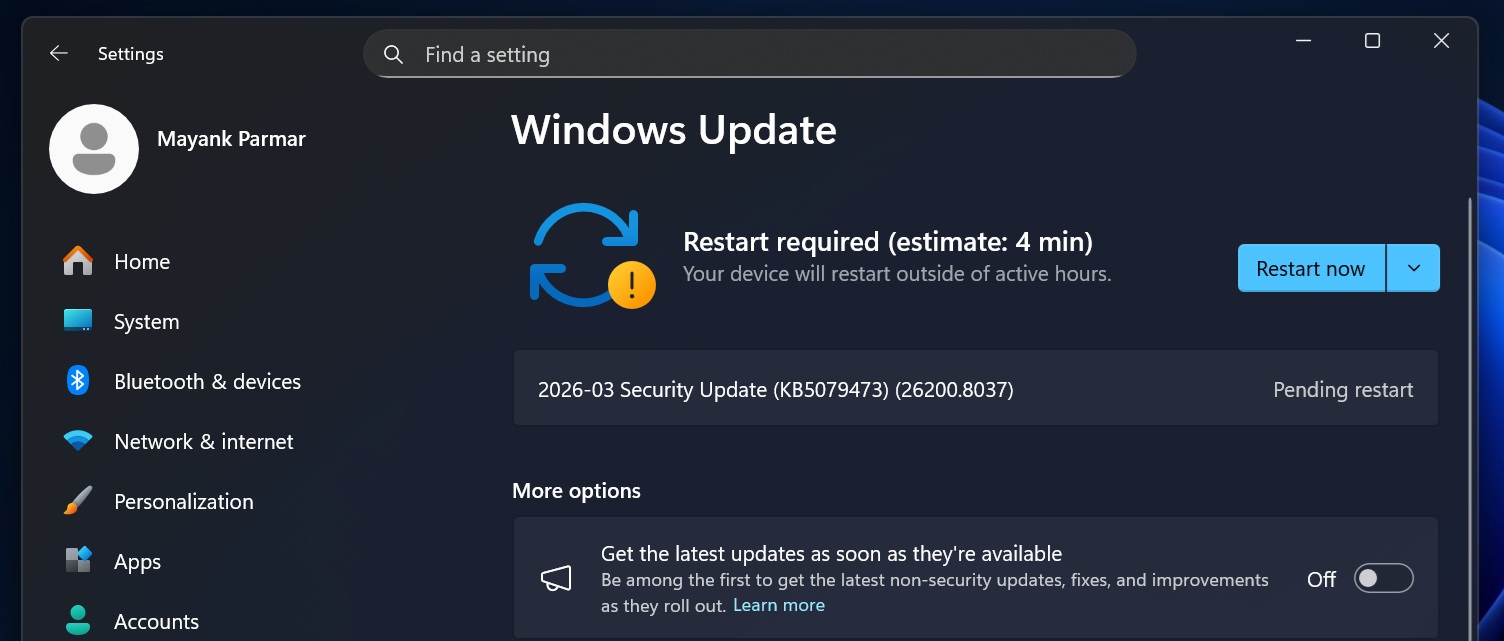
Microsoft has begun rolling out the March 2026 Patch Tuesday update for Windows 11 and Windows 10. The update, Windows 11 KB5079473 (Build 26200.8037), brings a bunch of improvements to Windows 11, suggesting that this might be part of the company’s effort to improve the OS in 2026, as promised.
Although Patch Tuesday updates are for system security and stability, this month’s release also includes a few functional improvements across Windows 11.
These include Emoji 16.0 support, built-in Sysmon for security monitoring, a new network speed test on the taskbar, Quick Machine Recovery changes, improvements to Storage and File Explorer, and preparations for upcoming Secure Boot certificate updates.
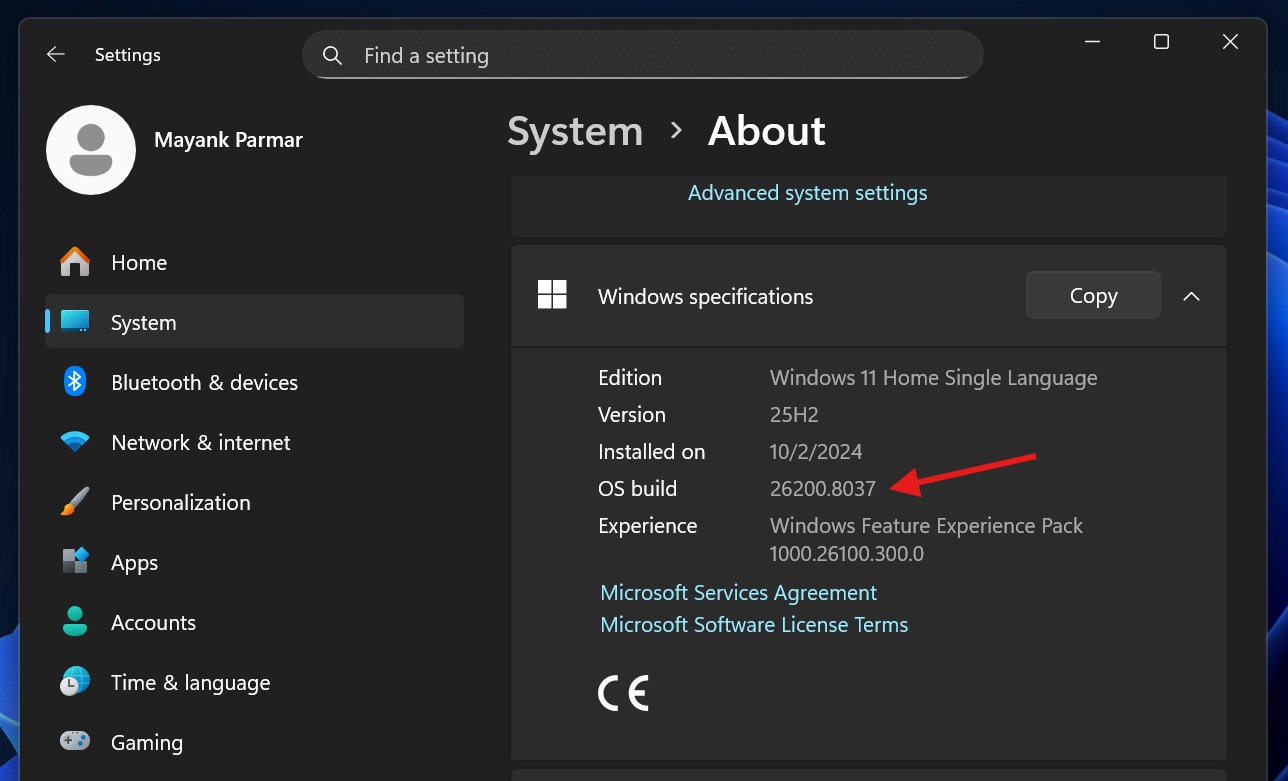
Windows 11 Build 26200.8037 for Version 25H2
The March 2026 Patch Tuesday update applies to Windows 11 version 25H2 and version 24H2. The update package, KB5079473 (Build 26200.8037), includes new features, security improvements, system fixes, and reliability enhancements.
The two-phase rollout approach has become Microsoft’s standard strategy for Windows updates, and continues here as well, with a gradual rollout (for most new features) and a normal rollout (for security updates and fixes).
New features rolling out with the March 2026 Windows 11 update
All new features in the March 2026 Patch Tuesday update are being delivered through Microsoft’s Controlled Feature Rollout (CFR) system, meaning they may not appear on every device immediately after installing the update. So if you install the update today and don’t see some of the features listed below, that is completely normal.
Emoji 16.0 support lands in Windows 11 25H2 or 24H2
Microsoft has been testing new Emoji 16 support for a while now, more than eight months to be precise.
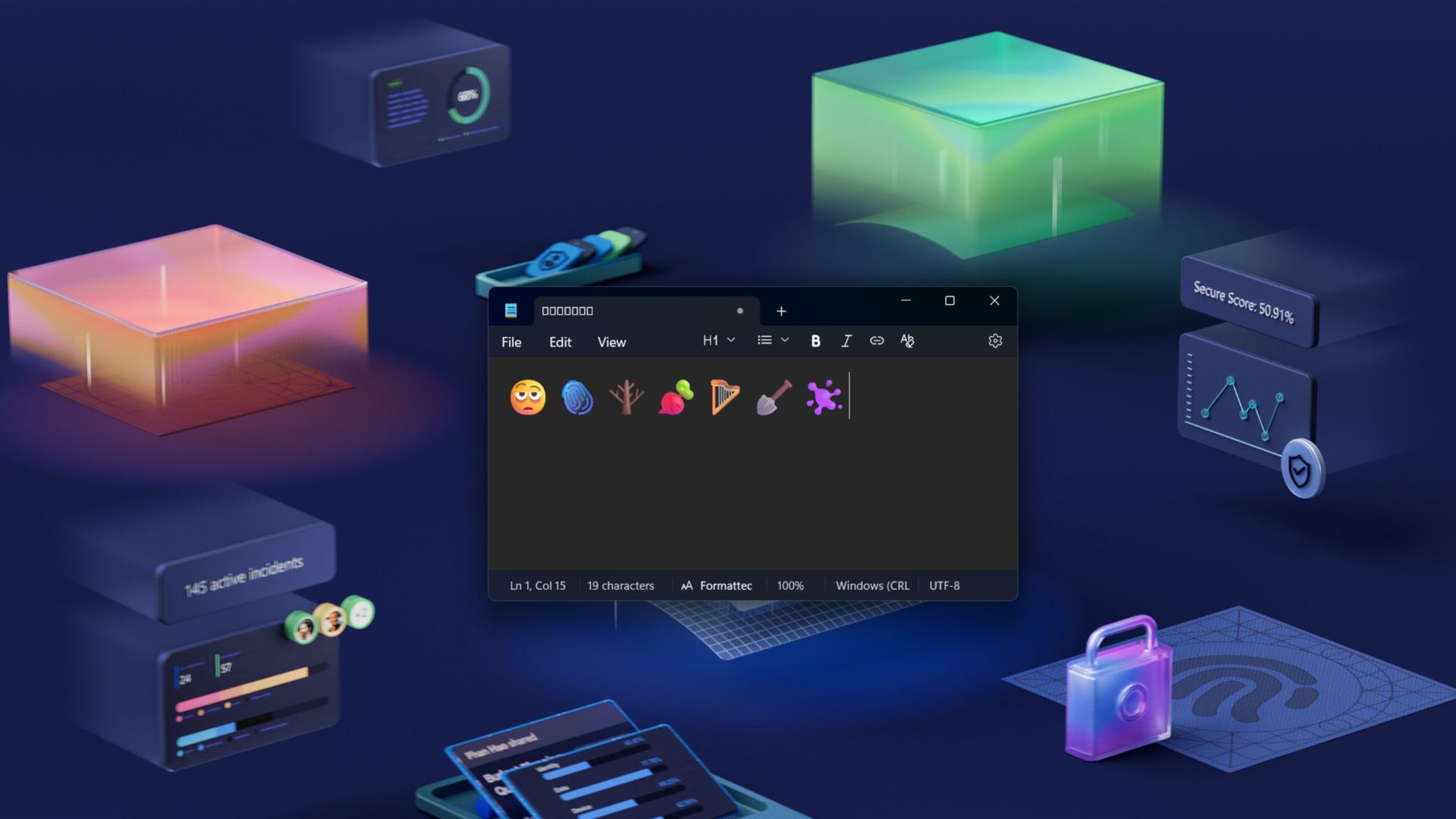
Microsoft actually shipped partial support for Emoji 16 in September 2025, but the catch was that you could not insert Emojis using the Emoji panel. However, you could view the new Emojis if they were already inserted in apps like Notepad, OneNote, and your browser or webpages.
Windows now lets you insert new emojis, including Fingerprint, Leafless Tree, Root, and Shovel, among others.
However, Windows is still not adding support for flags to the built-in Emoji tool.
Windows Backup restore expands to organizations
Windows Backup restore has been around for more than a year now, but it doesn’t really meet the needs of all business organizations. It’s a fine app for consumers, but not exactly for enterprises.
With the March 2026 update for Windows 11, Microsoft is rolling out Windows Backup for organizations in the first sign-in restore experience. That means, if the feature is turned on by the enterprises, they should be able to restore a specific customer’s settings and installed apps (if installed via the MS store) when they sign into their org on the device.
Microsoft has tested that the experience works on PCs in the Entra, multi-user environments, and also expands to Cloud PCs.
Quick Machine Recovery turned on automatically on more hardware
Quick Machine Recovery (QMR) is an idea Microsoft coined after third-party security updates caused disaster for the Windows experience in the enterprise world. With QMR, you can go back to a working state when a disastrous update takes down your system. And the feature will now be turned on by default.
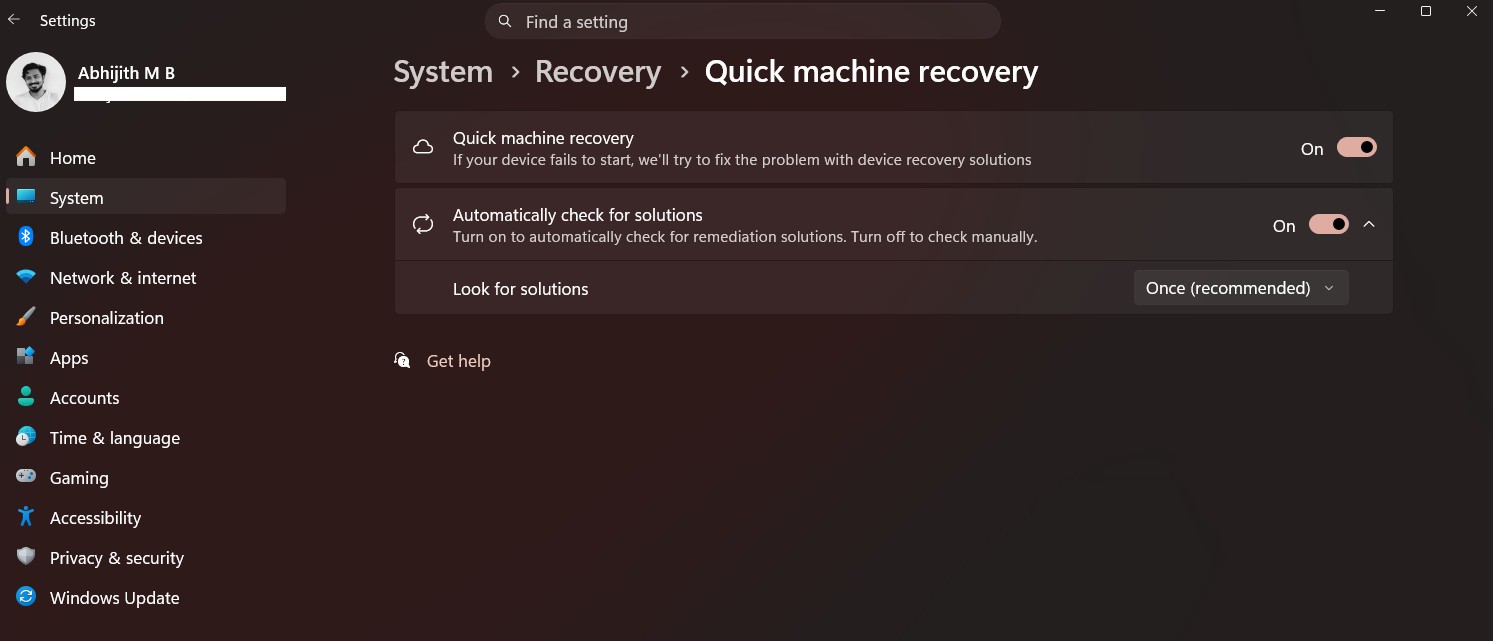
Previously, QMR was turned on automatically on some PCs, but now Microsoft is expanding QMR to handle more cases, so that means it’ll now be turned on automatically for Windows 11 Pro PCs.
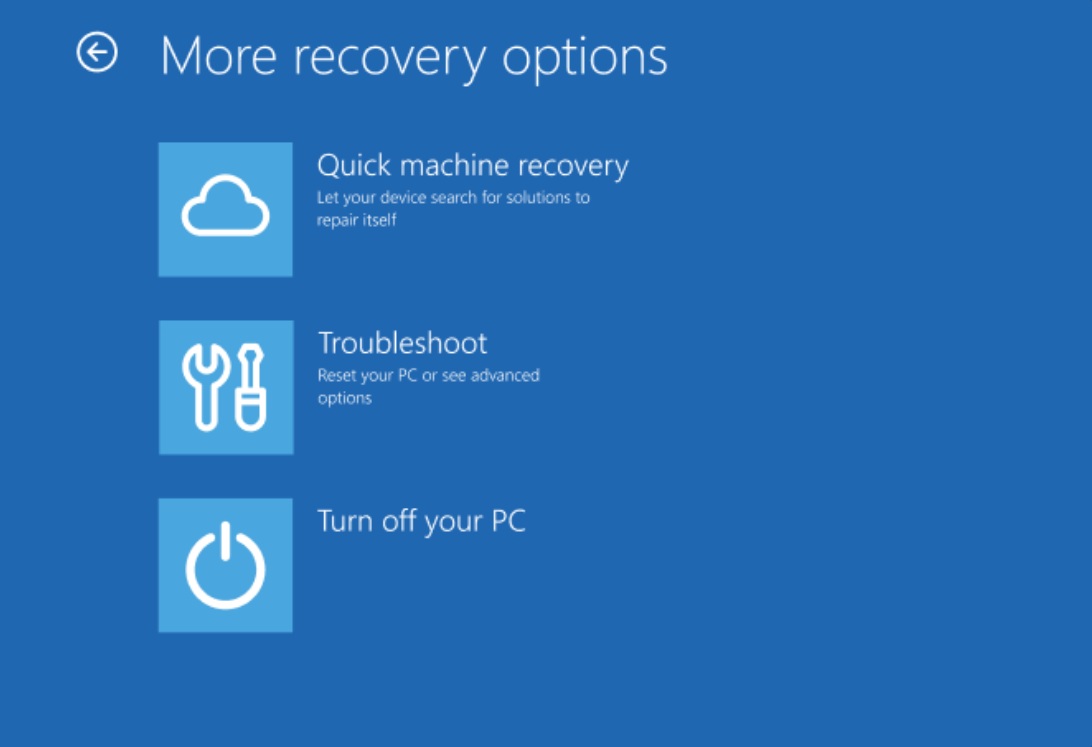
However, QMR is still not turned on if your device is managed by an enterprise or if you use one of the endpoints.
Bing-powered Internet speed test tool rolls out to the taskbar
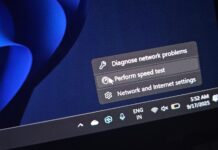
Windows Latest recently reported that Microsoft is preparing to roll out the Bing-powered Internet Speed test tool to more PCs, and today is the day. When you install the March 2026 Updates, you’ll notice that a new “perform speed test” toggle shows up when you right-click the internet icon on the taskbar.
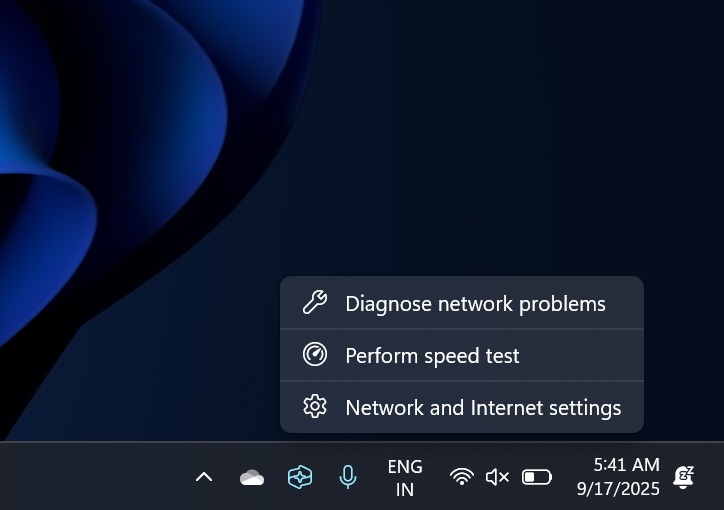
It’s a bit concerning that Microsoft finds it normal to keep sending users to Bing when they expect something to work natively. For example, as you can see in the above screenshot, if you right-click anywhere on the taskbar, you’ll be sent to one of the native apps or features, but the speed test tool is an exception.
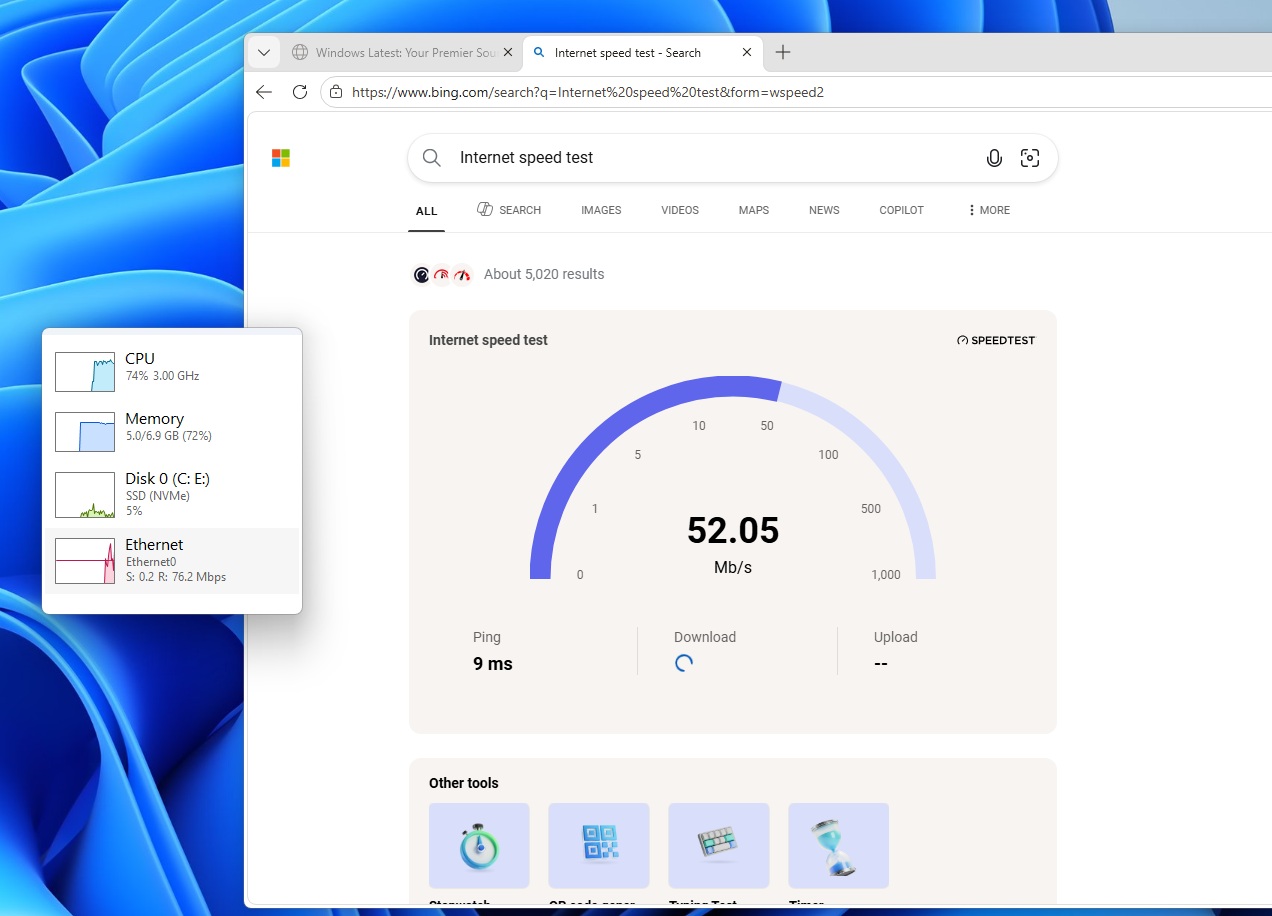
A user behaviour expects it to open a native tool or Settings, but it simply redirects you to Bing.com, and starts downloading files from SpeedTest to check your internet connection. Of course, it works only when you double-check your decision.
Regardless, it still works, and if you want to quickly check your internet speed, a Bing-powered tool is more than enough.
Sysmon is now an inbox feature in Windows 11
You probably already use Sysmon if you’re an advanced user, especially when dealing with security in your organization. But it’s not something casual users use. For those unaware, Sysmon is a service that allows you to perform deep-level monitoring of system activity. It has logging, detailing, and reporting on all running processes, and even network connections.
You can use Sysmon for security audit and to detect malicious activity.
Until now, Sysmon was offered via a manual download from Microsoft’s website, but it’s finally included as a native component in Windows 11 March 2026 Update.
However, Sysmon is not turned on by default. If you’d like to try, open Settings, and go to the System page, then look for Optional features, and finally head to the “More Windows Features” page. There, you will find the Sysmon tool, as I have it in my screenshot:
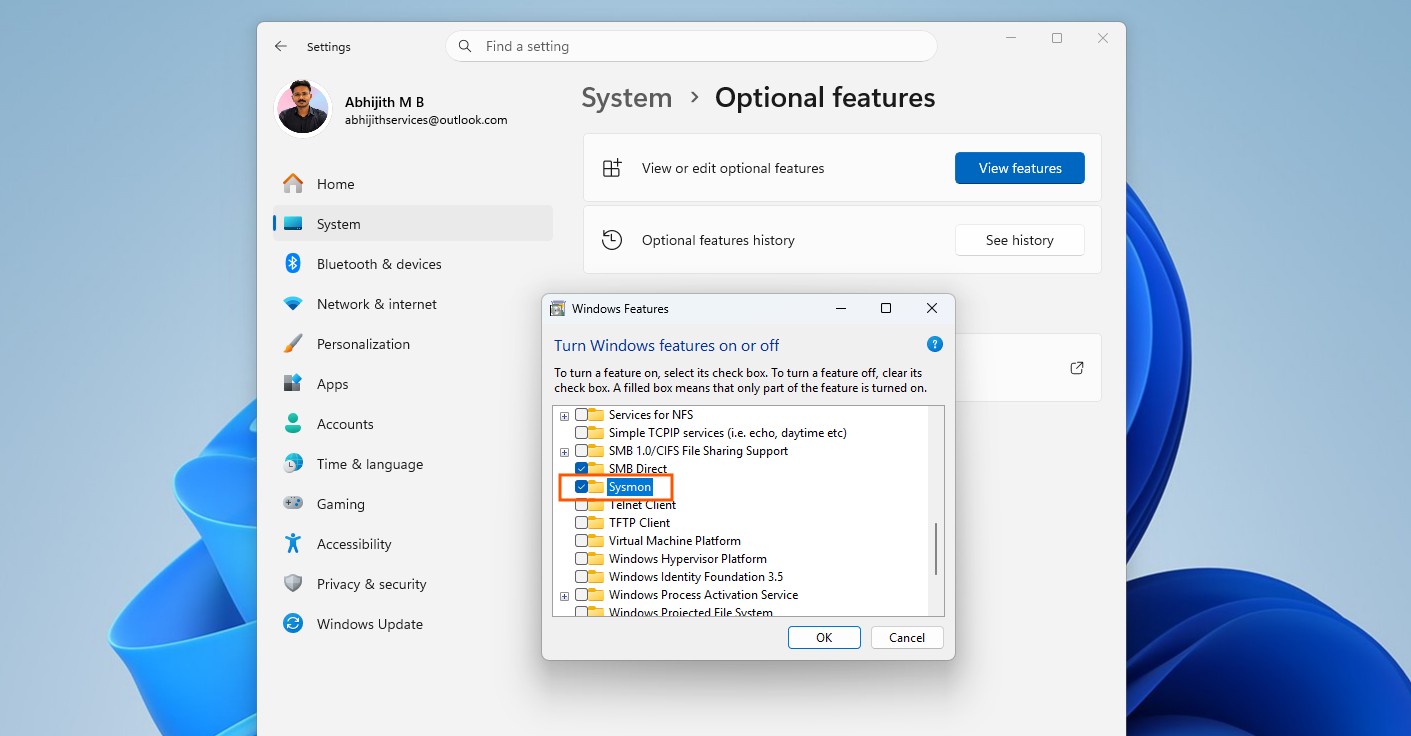
Sysmon has always been offered via the Sysinternals package, which has several other tools, but if you just require Sysmon, you’re now covered.
You can now use WebP as a desktop background
Windows 11 March 2026 Update now lets you use images as desktop wallpapers. WebP images tend to be smaller in size, and you can apply them from the Settings > Personalization > Background, or simply select an image, right-click, and tap on ‘Set as desktop background.’
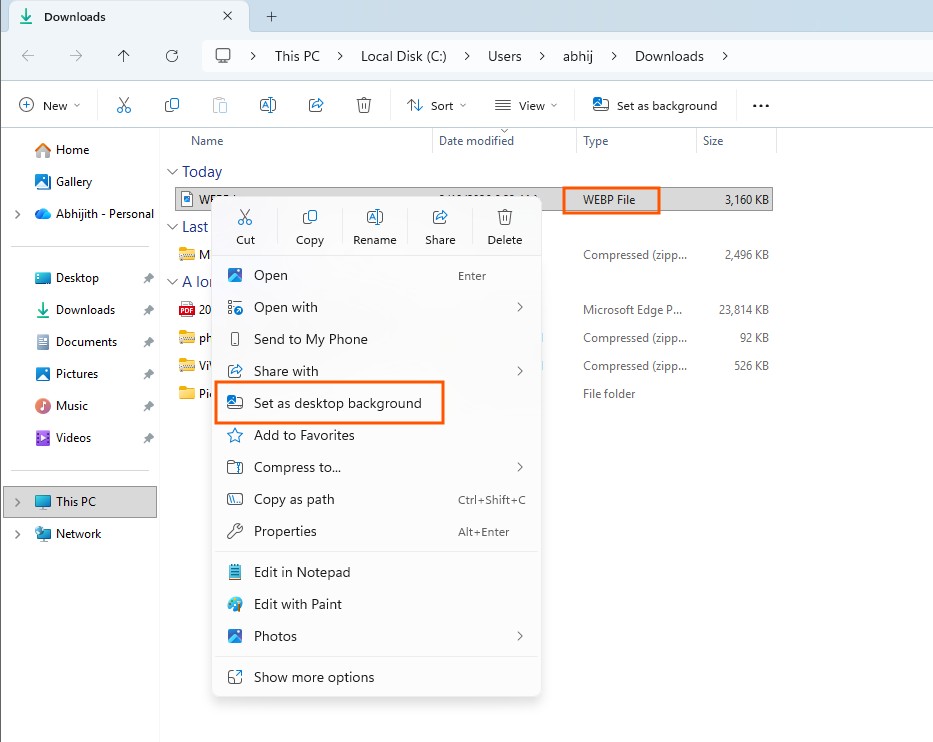
RSAT is now supported on Windows 11 Arm64
Microsoft is also expanding enterprise capabilities on Arm-powered PCs. With this update, Remote Server Administration Tools (RSAT) are now supported on Windows 11 Arm64 devices.
RSAT allows administrators to remotely manage Windows Server environments directly from their PCs. The tools included in this package allow IT teams to manage a variety of server roles and infrastructure components.
The available tools include:
- Active Directory Domain Services tools
- Active Directory Certificate Services tools
- DNS Server tools
- DHCP Server tools
- Server Manager
- Group Policy Management tools
Administrators can install these tools from Settings > System > Optional Features or through Control Panel > Programs > Turn Windows features on or off.
RSAT support for Arm64 devices is a clear sign of Microsoft adding enterprise compatibility to the platform, as they want more organizations to adopt the battery-efficient Arm-based Windows PCs.
Small additions in Accounts and Camera settings
The March update also introduces a couple of smaller feature additions in Windows 11.
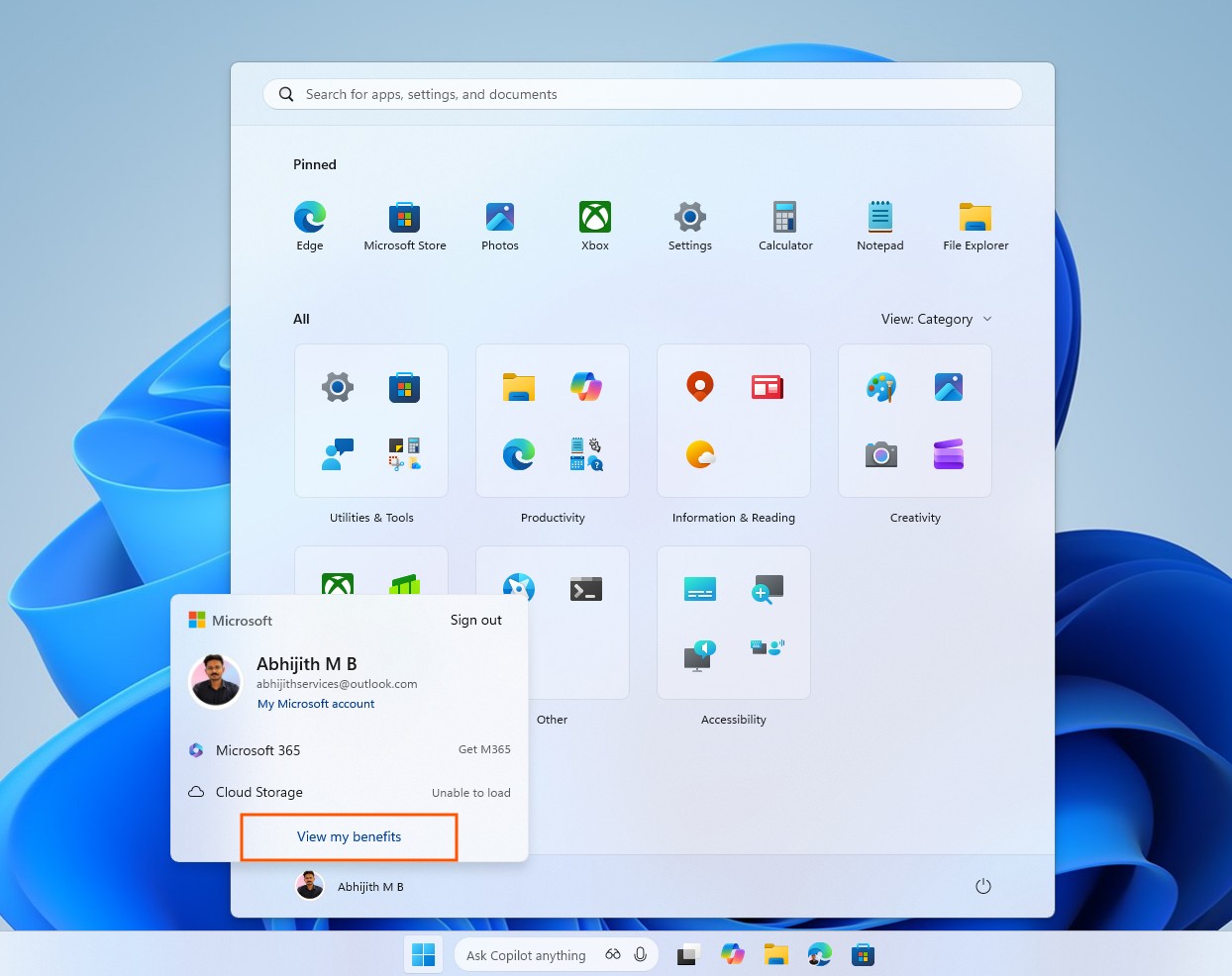
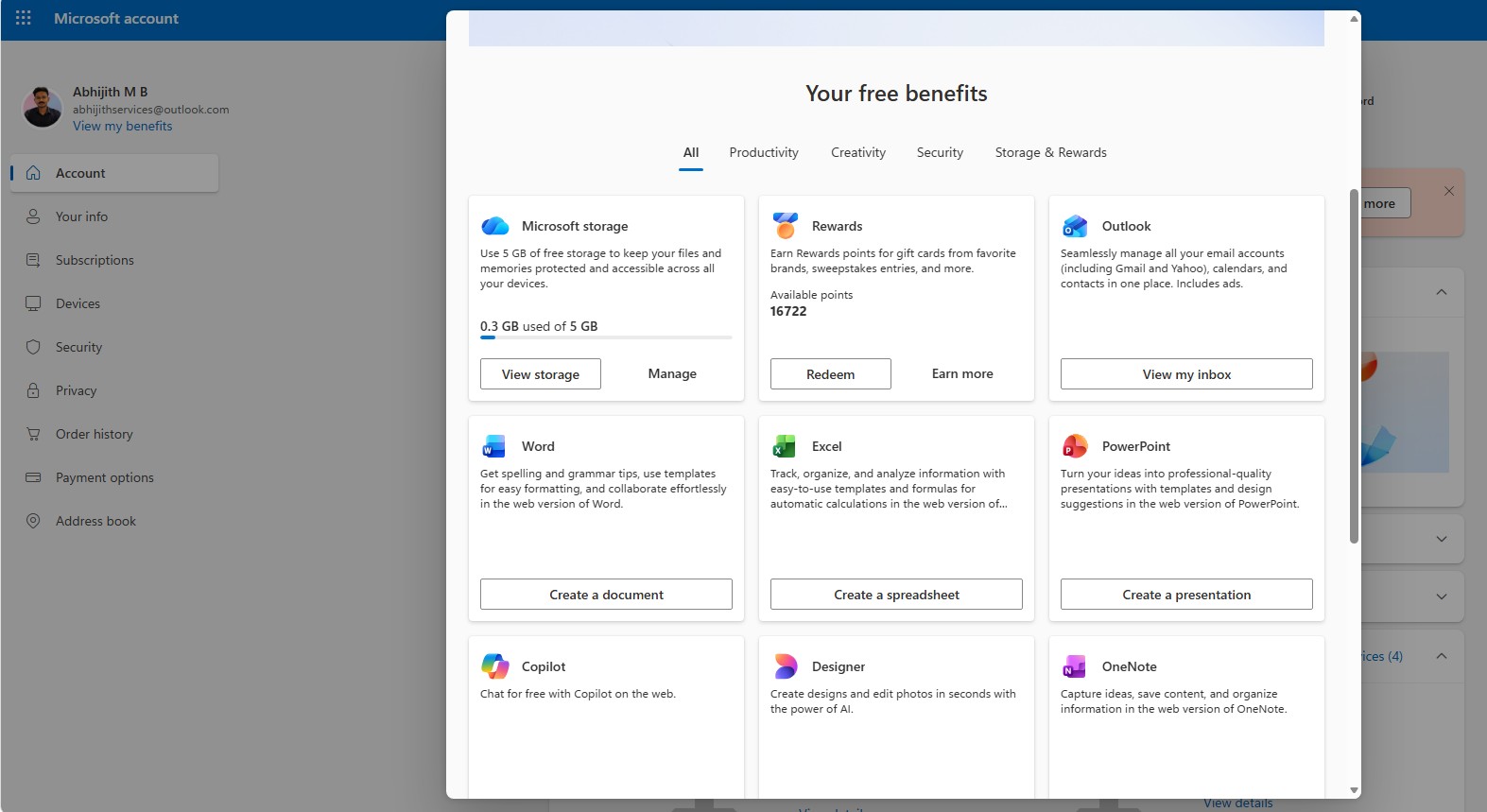
First, the account menu in the Start menu now includes a new option called “View my benefits” that, when clicked, takes you to your Microsoft account benefits page, making it easier to explore and manage subscription or account-related features.
Second, Microsoft has added pan and tilt controls for supported cameras directly inside the Settings app. These controls can be found under:
Settings > Bluetooth & devices > Cameras
Within the camera settings page, you can adjust the pan and tilt options in the “Basic settings” section for supported devices. This makes it easier to manage compatible webcams without depending on third-party camera tools.
March 2026 update brings multiple improvements across Windows 11
Along with the new features, the March Patch Tuesday update also includes a large set of reliability and stability improvements across Windows 11 that will roll out gradually.
- Microsoft has improved the responsiveness of the Windows Update settings page, making it load faster and behave more reliably when checking for updates or joining update channels.
- The update also improves sign-in screen reliability in Login and lock screens, addressing stability issues that could occasionally occur during the login process.
- Microsoft has improved the reliability of Nearby Sharing, particularly when transferring larger files between devices.
- Users who use multiple monitors with the Windows + P projection menu will notice improved reliability when switching between display modes.
- The Windows printing service (spoolsv.exe) has also received performance improvements. Microsoft says these changes help reduce slowdowns and improve reliability during heavy or high-volume printing tasks.
- Several reliability fixes are also included for File Explorer. You can now open a new File Explorer window more reliably. Holding Shift and clicking the File Explorer icon on the taskbar, or using the middle mouse button on the File Explorer icon, will now correctly open a new instance.
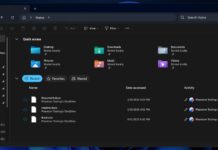
- File Explorer also now includes an “Extract all” option in the command bar when browsing non-ZIP archive folders, making it easier to extract files directly from the interface.
- Microsoft has also improved the reliability of device detection in the Network tab of the File Explorer, which should help ensure connected devices appear precisely.
- Microsoft says the update improves reliability when a PC wakes from sleep, while also reducing the time it takes for systems to fully resume from sleep in certain heavy-load scenarios.
- The Storage Settings page also receives a few refinements. Several dialogs have been redesigned with a more modern look, and Microsoft has improved the temporary file scanning performance.
- Finally, Microsoft has made several small interface consistency improvements across Windows 11. These changes include refinements to the taskbar when auto-hide is enabled, credential fields in Windows Security dialogs, and the print dialog interface.
Quality improvements included in the normal rollout of the March 2026 update
Preparation for Secure Boot certificate
One of the more important changes in this update prepares Windows systems for upcoming Secure Boot certificate updates. Microsoft warns that Secure Boot certificates used by many Windows devices will begin expiring starting in June 2026. If these certificates are not updated in time, certain systems could potentially face issues booting securely.
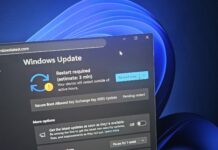
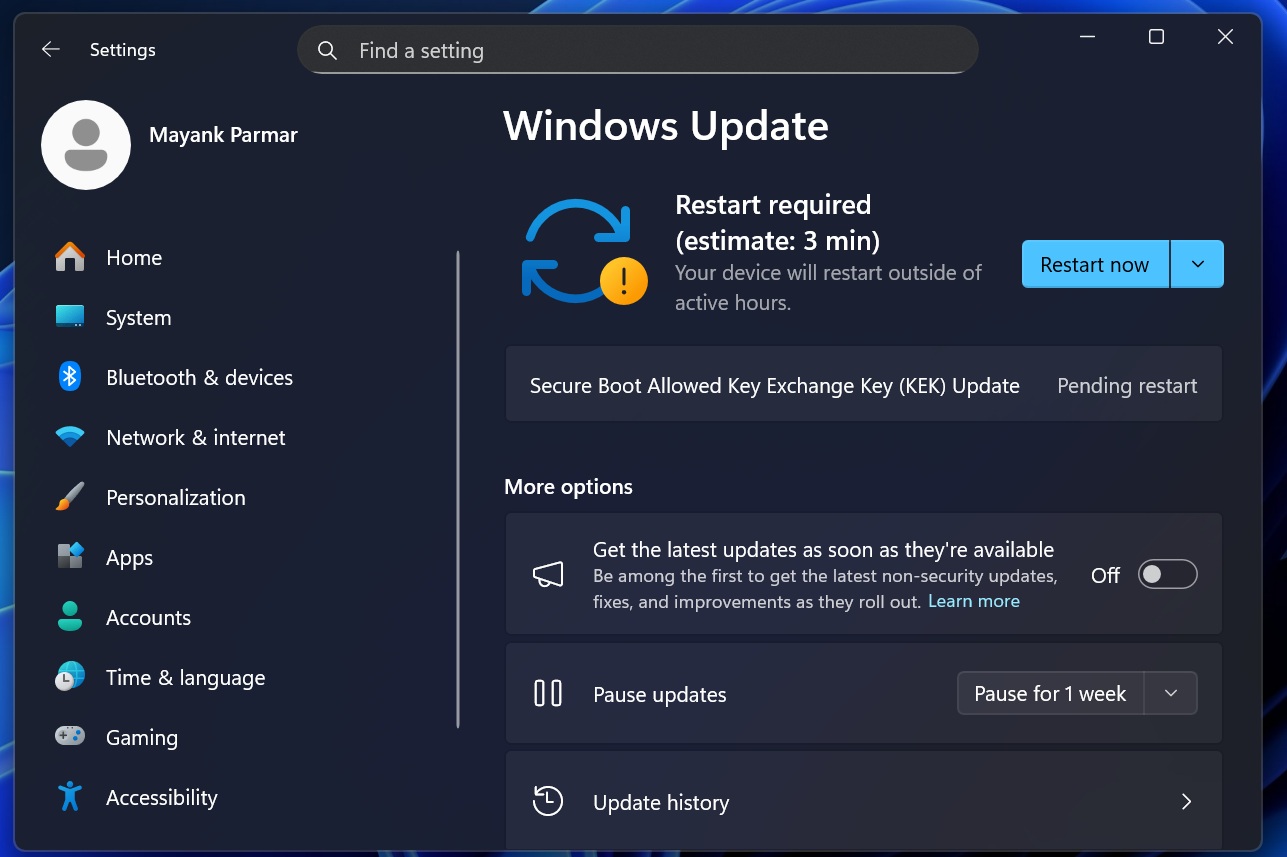
The March update introduces infrastructure that helps prepare systems for the new Secure Boot certificates. As we reported, some Windows 11 PCs are getting a pending update called “Secure Boot Allowed Key Exchange Key (KEK) Update.” You won’t see this update if your PC has already applied the new Secure Boot 2023 certificates.
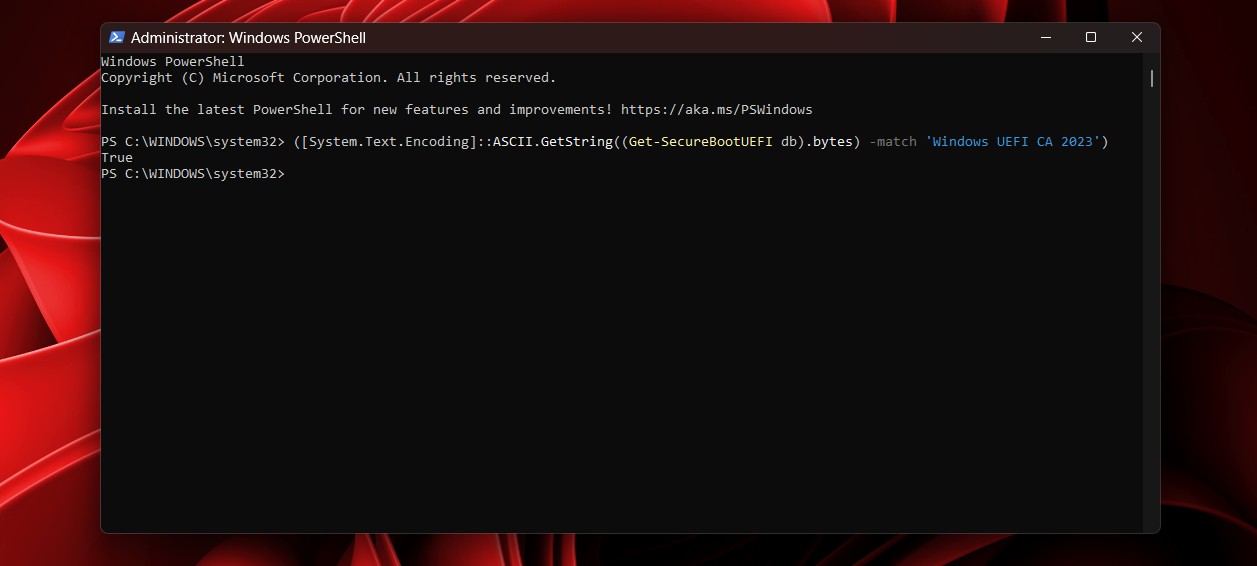
You can also check if it is already applied.
Microsoft is using a targeted rollout approach, where devices receive updated certificates only after the system demonstrates successful update signals. This controlled rollout helps reduce the risk of boot failures during the transition.
Improvement to BitLocker reliability
Microsoft has also fixed a reliability issue affecting BitLocker encryption. Previously, some devices could become unresponsive after entering a BitLocker recovery key. The March update resolves this issue, improving the reliability of the disk encryption process.
AI components updated in the background
The March update also refreshes several internal AI components used across Windows 11. The following components have been updated to version 1.2602.1451.0:
- Image Search
- Content Extraction
- Semantic Analysis
- Settings Model
Microsoft does not publish detailed changelogs for these components, but they power features such as Windows Search, intelligent recommendations, and other AI-assisted system capabilities.
Servicing stack improvements and known issues in the March update
Microsoft is also shipping a servicing stack update (SSU) identified as KB5077371.
Servicing stack updates improve the component of Windows responsible for installing system updates. Microsoft says the SSU improves the overall reliability of the Windows Update infrastructure, helping devices receive patches more consistently.
As of now, Microsoft reports no known issues with the March 2026 update. While that does not always guarantee a completely problem-free rollout, it is still a positive sign compared to some earlier updates.
Microsoft continues rollout of new Start menu and battery icons
Alongside the features and improvements included in the March 2026 Patch Tuesday update, Microsoft also shared a couple of announcements about ongoing Windows 11 rollouts.
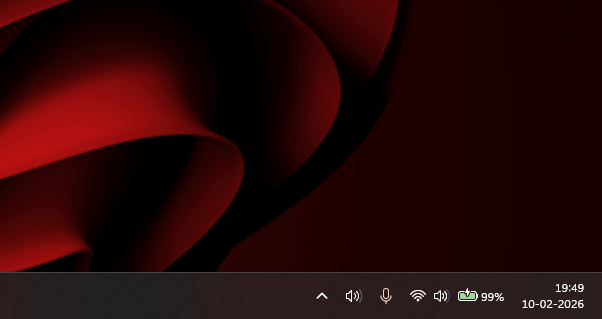
First, the updated battery icon design is continuing to expand to more devices. The refreshed icon makes battery status easier to understand at a glance, especially on laptops and handheld PCs. As with most recent Windows interface changes, this feature is rolling out gradually and will appear on more systems over time.
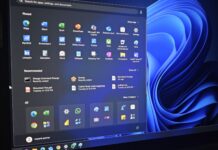
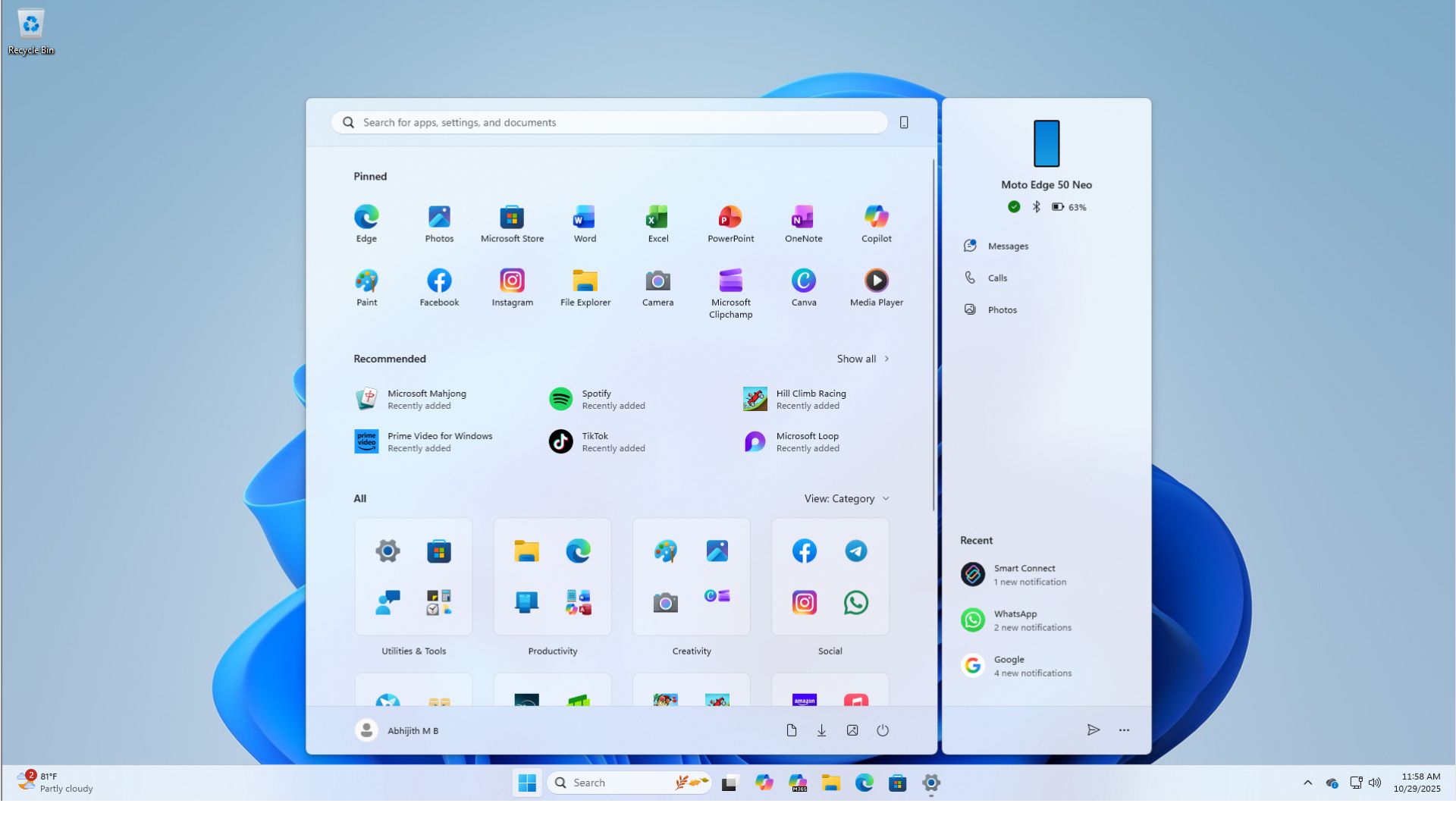
Microsoft also confirmed that the redesigned Start menu continues to expand to additional devices. The updated Start interface, which began rolling out in late 2025, is gradually reaching more users as Microsoft continues testing and refining the experience.
Microsoft warns about the upcoming Secure Boot certificate expiration
Another important announcement included with this update concerns Secure Boot certificates. Microsoft warns that Secure Boot certificates used by many Windows devices will begin expiring starting in June 2026. If systems are not updated with the new certificates before the expiration date, those PCs could potentially encounter problems booting securely.
To avoid disruptions, Microsoft recommends that both individuals and organizations review the official guidance and update their systems in advance. The March update already includes infrastructure changes that help prepare devices for this certificate transition.
For most users, this process will happen automatically through Windows Update as Microsoft gradually deploys the new certificates.
As with most Patch Tuesday releases, we recommend that you install the update once it becomes available on your device. To check for updates, go to Settings > Windows Update > Check for updates