




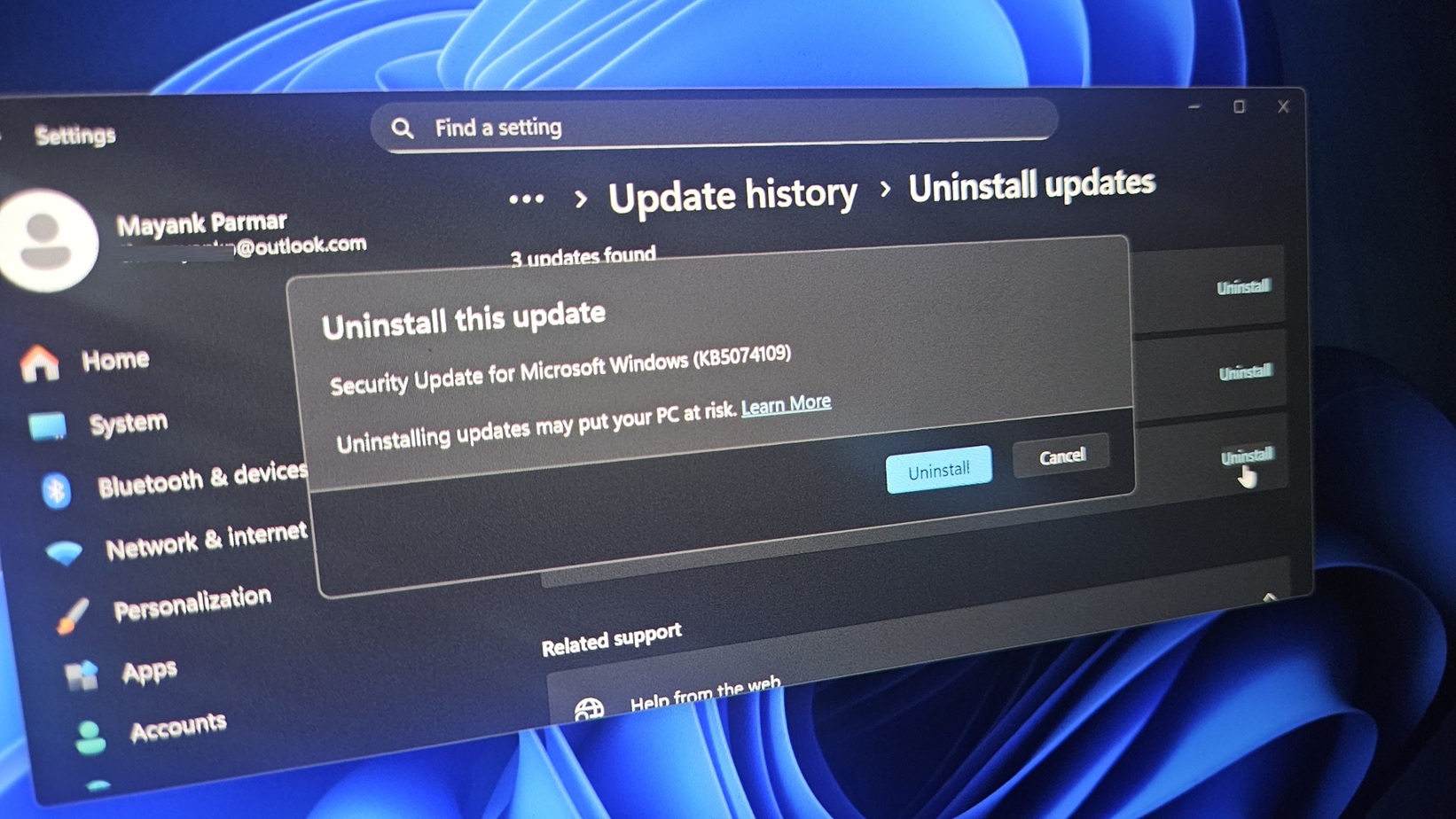
If your Outlook Classic freezes or hangs when you use POP accounts or deal with PST files, you’ll need to remove Windows 11 KB5074109 or use webmail. In some cases, third-party apps can also become unresponsive if they save files to cloud storage, such as OneDrive. These two issues are apparently related to a single core problem.
It’s very rare for Microsoft to admit that it messed up, but the January 2026 Update is a disaster, as it continues to break features in Windows 11, including something as basic as Sleep mode (S3) on older PCs. In our tests, Windows Latest found that the update causes a black screen, resets the desktop background, breaks File Explorer customization, among other problems.
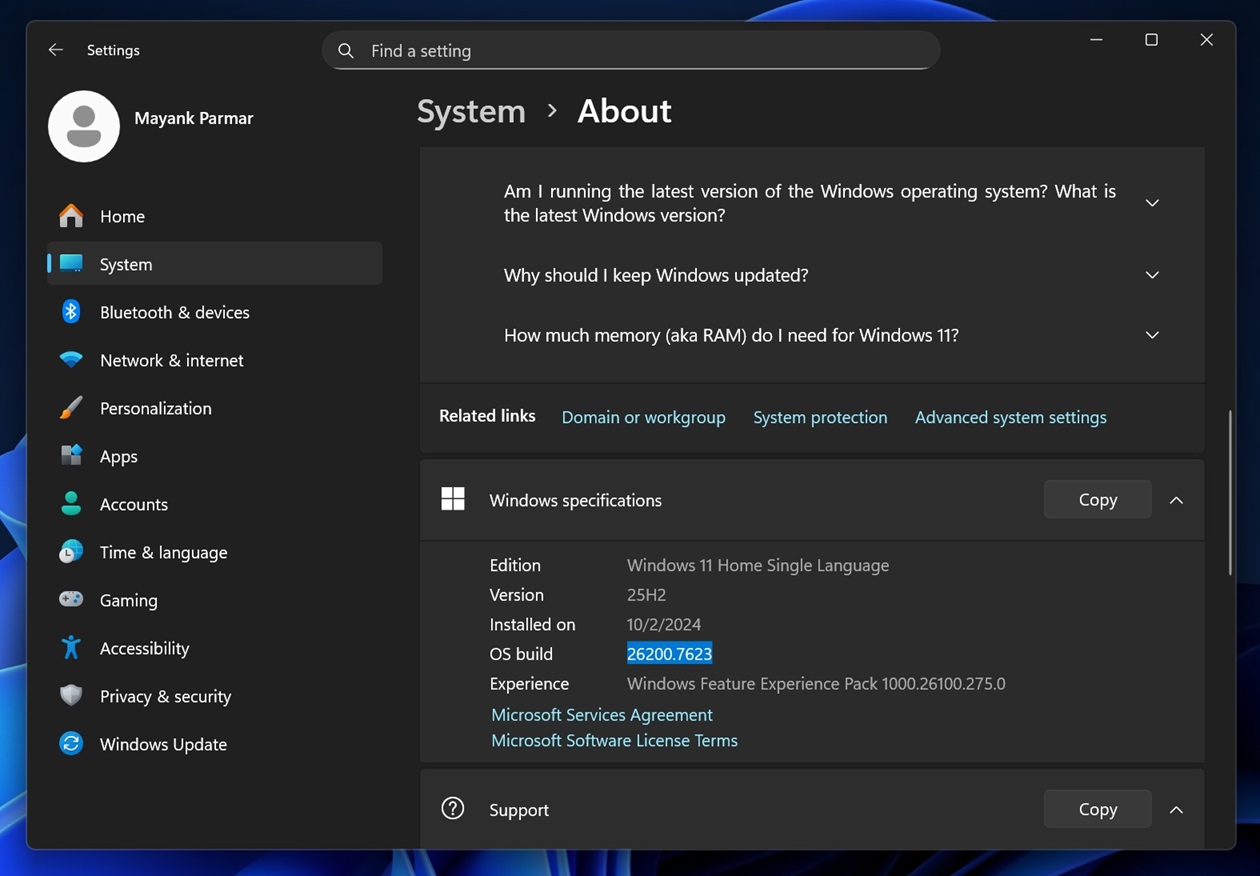
KB5074109 is a mandatory update that began rolling out on January 13, 2026 and it installed automatically on our PCs. Your PC is using this update if you see OS Build 26200.7623 / 26100.7623 / in Settings > System > About or winver.
However, some of us noticed that Outlook Classic no longer works, and you won’t be able to access your emails. This issue only affects the older Outlook Classic, not the newer web-based Outlook (new).
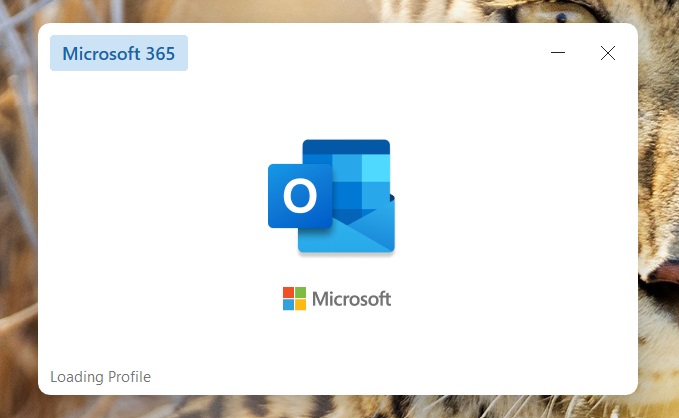
Windows Latest traced the issue to a POP account configured in Outlook Classic for Windows 11. I specifically use POP (Post Office Protocol) in Outlook to access my emails offline on a single device, and consolidate multiple accounts into one inbox
Outlook also crashes on Windows 11 25H2 if your Outlook profile has PSTs synced to OneDrive. For those unaware, PST (Personal Storage Table) is a local Outlook data file that stores your POP mail, Sent Items, drafts, calendar, contacts, and indexes on your PC.
In an update to a support document spotted by Windows Latest, Microsoft confirmed that it’s aware of the problem affecting Outlook. The company added that existing workarounds are “complicated,” so you’re recommended to use webmail. If it’s not possible to use webmail, you should remove Windows 11 KB5074109.
“Until a fix is available, please use webmail. The other workarounds may be complicated,” Microsoft noted. Either “Move PSTs out of OneDrive,” which is complicated, or “remove the Windows Update.” These are the other two workarounds if Outlook is no longer working on Windows 11.
Microsoft warns that there could be potential security issues if you remove Windows updates. For example, the January 2026 Update fixed more than 100 security issues.
How Windows 11 KB5074109 broke Outlook Classic
With POP accounts, Outlook writes everything to the PST. If that PST sits inside a OneDrive-synced folder, OneDrive’s sync engine can grab or hold the file while it scans or uploads.
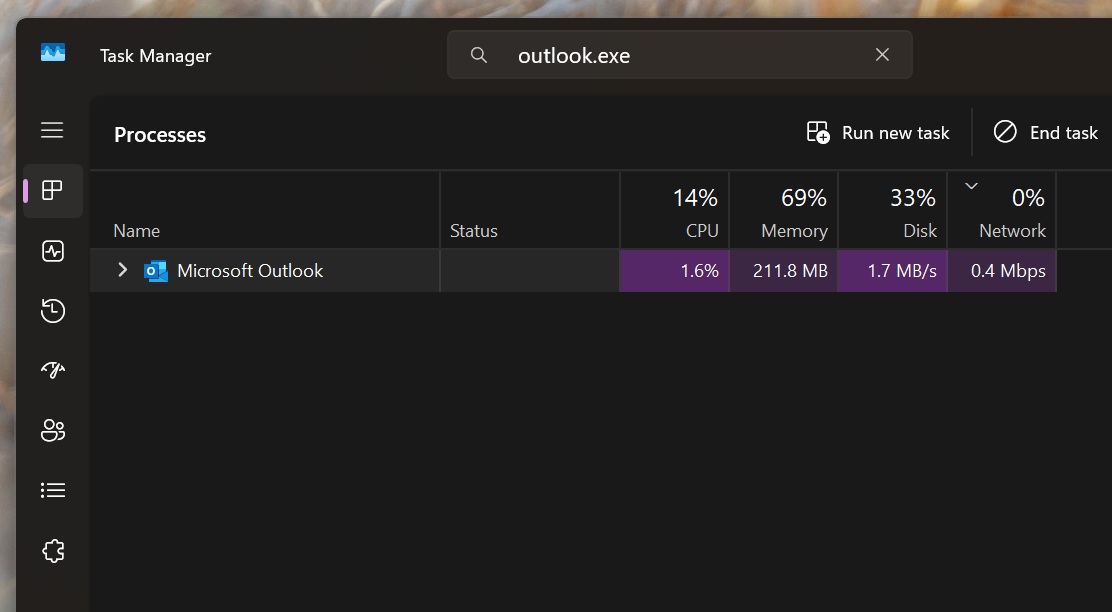
In other words, when you quit Outlook, and it attempts to write Sent Items on exit into the PST, OneDrive may keep a lock or open handle. In that case, Outlook waits for the PST operation to finish, but it can’t cleanly close, and Outlook.exe always stays running in the background.
Microsoft confirmed that Windows 11 KB5074109 not only crashes Outlook, but also affects the ‘Sent items’ folder, as emails won’t show up despite being sent. Outlook won’t be able to redownload emails, and often gets stuck at Not Responding unless you end the Outlook.exe process or reboot Windows every time you open the Outlook app.
How to uninstall Windows 11 January 2026 Update?
- Open Settings > Windows Update > Update history > Uninstall updates.
- Look for KB5074109 and click on “Uninstall.”
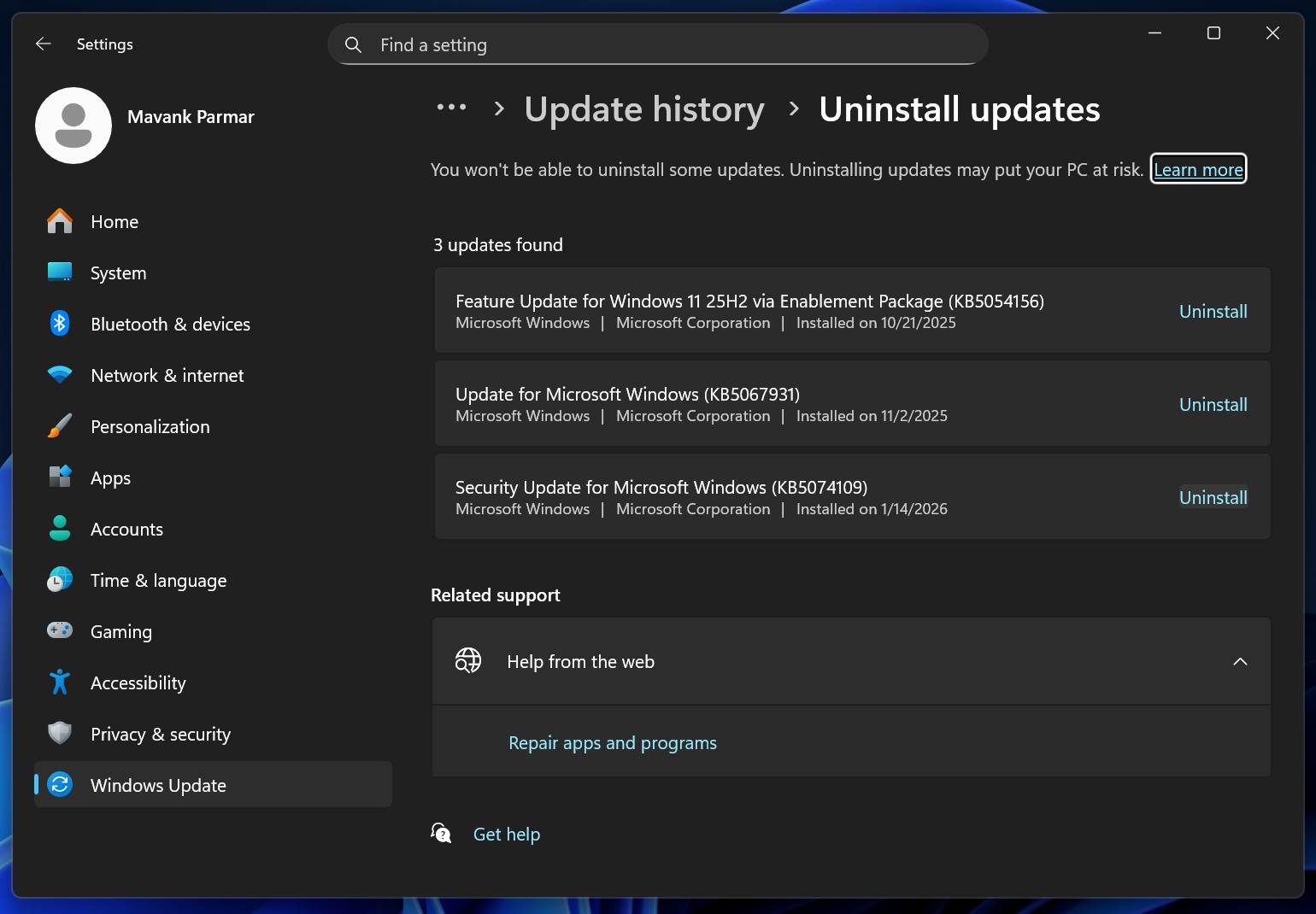
- Confirm your decision by clicking Uninstall again, and Windows will reboot automatically.
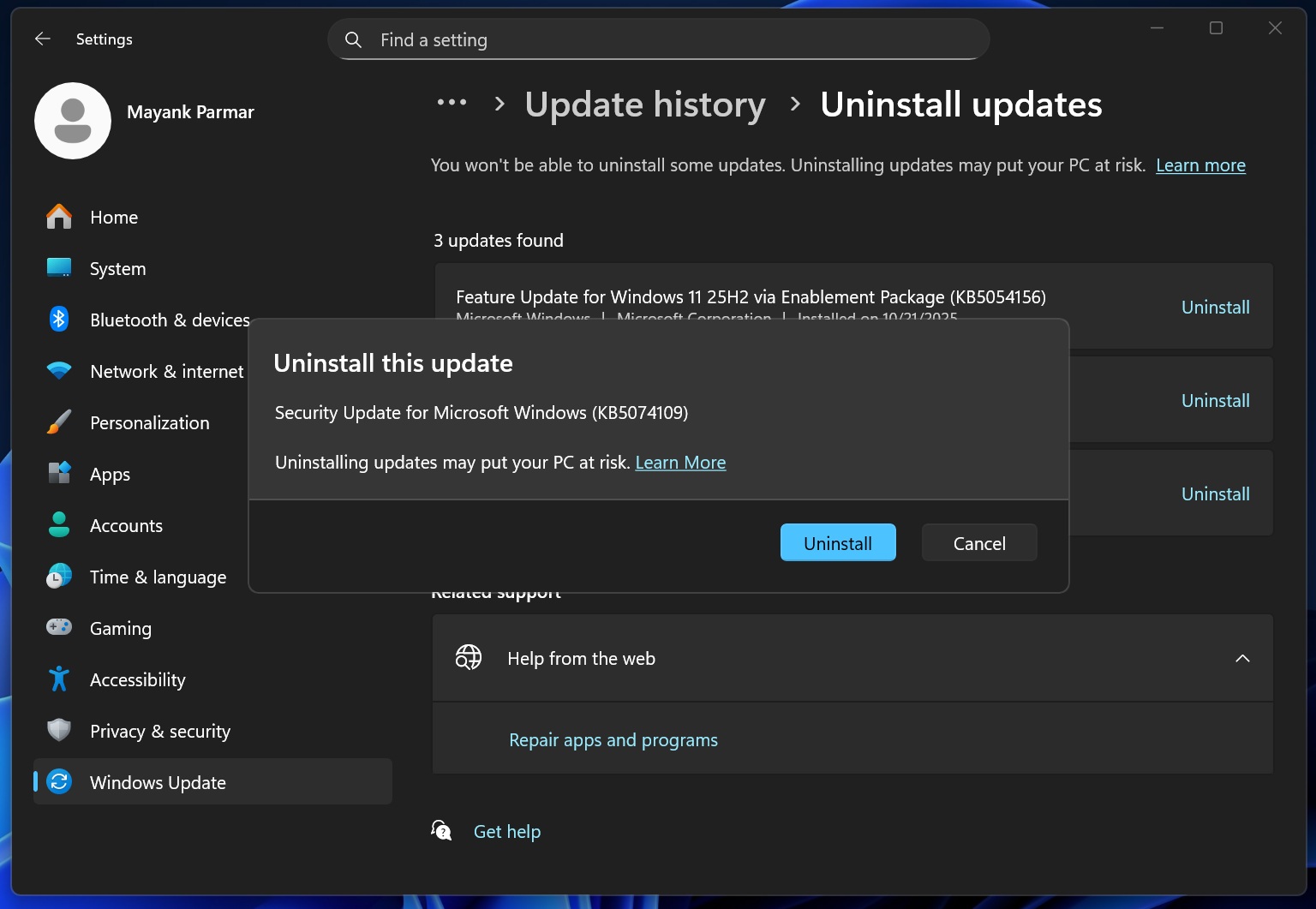
Once the patch is removed, Outlook Classic will start working again, but make sure you pause updates, or it will brick the app again.
Microsoft says some apps might become unresponsive in the January 2026 Update
In another updated support document, Microsoft quietly confirmed that some apps may become unresponsive or run into errors. This could block users from saving or opening files saved to OneDrive or Dropbox.
“If you are experiencing this issue, please contact the application developer for possible alternative methods of accessing the files,” Microsoft confirmed.
This issue appears to be related to the Outlook POP/PST problem we highlighted above, and Microsoft says it’s trying to figure out a workaroud.
“We are actively working on a resolution and will share an update as soon as more information becomes available,” the company added.
List of all issues in Windows 11 KB5074109
First and foremost, Windows 11 KB5074109 isn’t a broken update for everyone. In fact, most users will never run into problems with Windows Updates, but the same can’t be said for everybody.
Black screen and wallpaper issues
Windows Latest found that the update causes a black screen for some seconds or minutes before the desktop loads. In other cases, your desktop personalization could reset and remove the wallpaper. This means you will lose your desktop customization, and the background will be black (empty), as the patch removes the wallpaper after some reboots.
To bring back the wallpaper, you can reboot Windows or hold the Shift button while you shut down the PC. Or you can also manually choose the wallpaper from Settings > Personalization > Background.
Sleep mode (S3) issues
Multiple users reported that Sleep mode (S3) stopped working after the Windows 11 KB5074109 update. To verify if your PC uses the S3 sleep method, where Windows saves all open apps to memory, open Command Prompt and run powercfg /a:
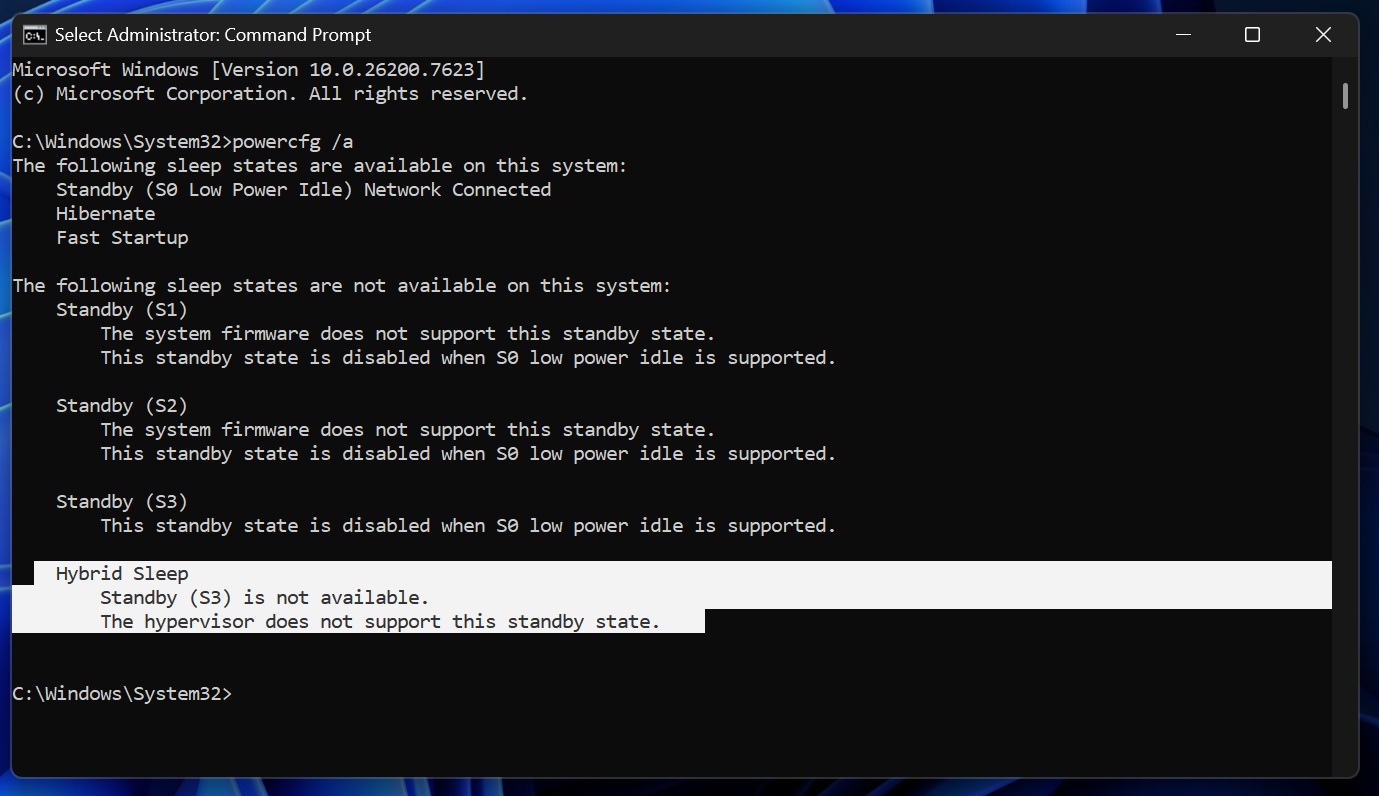
Most modern PCs no longer use S3, as there are better alternatives, such as S0 (Modern Standby). But old PCs, specifically custom builds, use S3, and in those cases, you won’t be able to put your desktop to sleep. However, not all users with the S3 sleep method are having issues.
Folder customizations via desktop.ini stopped working
After Windows 11 KB5074109, File Explorer still sees desktop.ini, but it stops applying folder customisation, especially LocalizedResourceName under [.ShellClassInfo].
Normally, if the folder has the Read-only attribute and desktop.ini is System and is Hidden, Explorer treats it as a customised folder and shows the display name from LocalizedResourceName.
With this update, those settings can be correct, but Explorer shows the real folder name anyway, which points to a shell regression in how Explorer parses or applies desktop.ini
Windows Latest was able to verify it in our tests, and I also have a screenshot below.
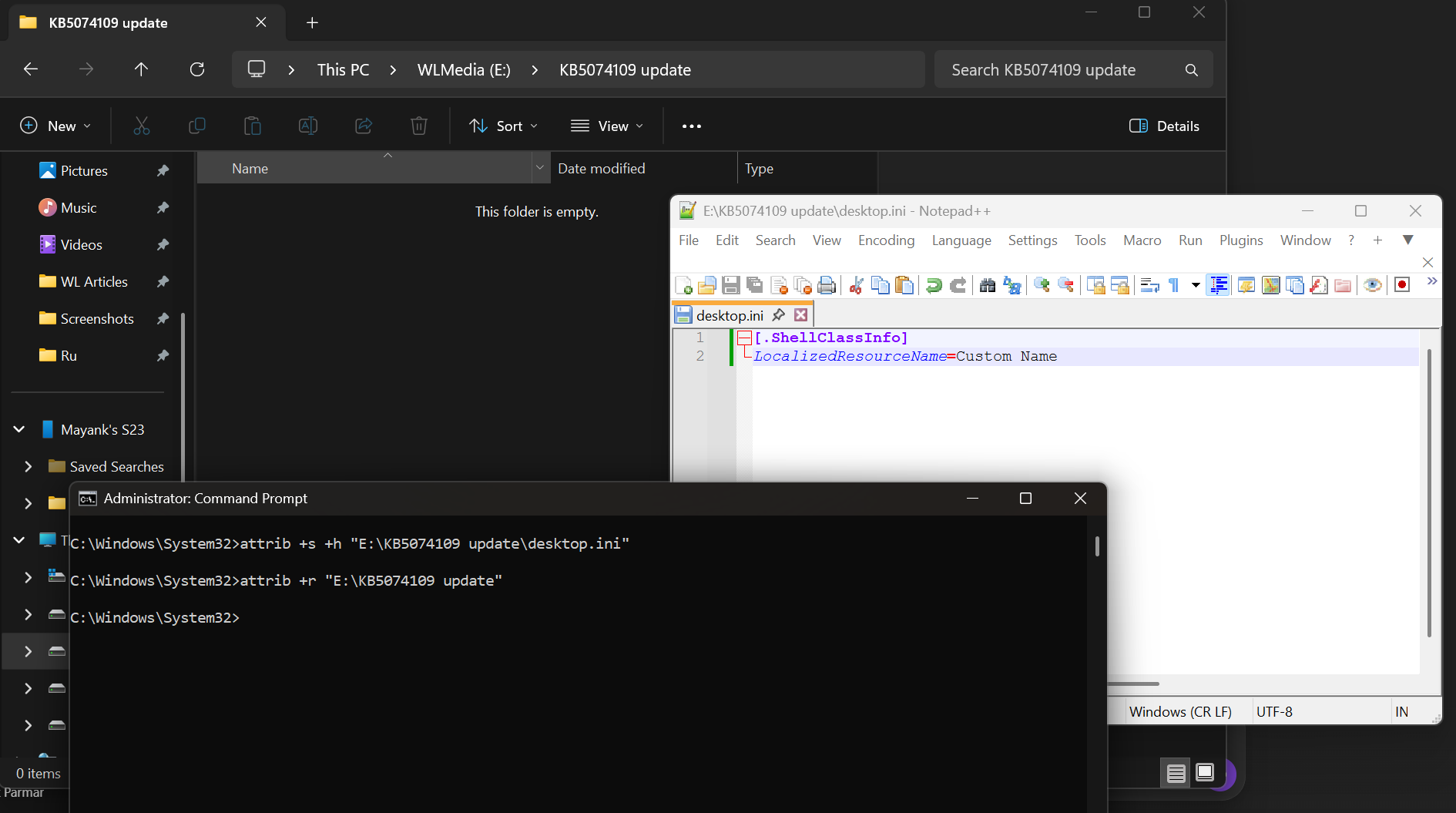
For those unaware, this issue is a big deal for those who renamed folders via custom display names, and if you want to keep paths short but want nicer labels. Businesses use desktop.ini to standardise folder names. The folder still works, but the UI suddenly looks wrong and can confuse anyone.
Other problems in the January 2026 Update include a broken Citrix remote desktop client, which was confirmed by Citrix.
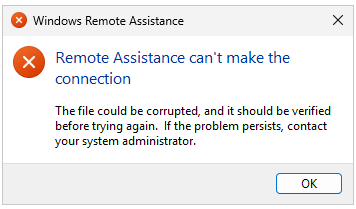
Microsoft previously confirmed a bug that broke shutdown on older Windows installs and Remote desktop failure. These two issues were patched in an emergency update.