




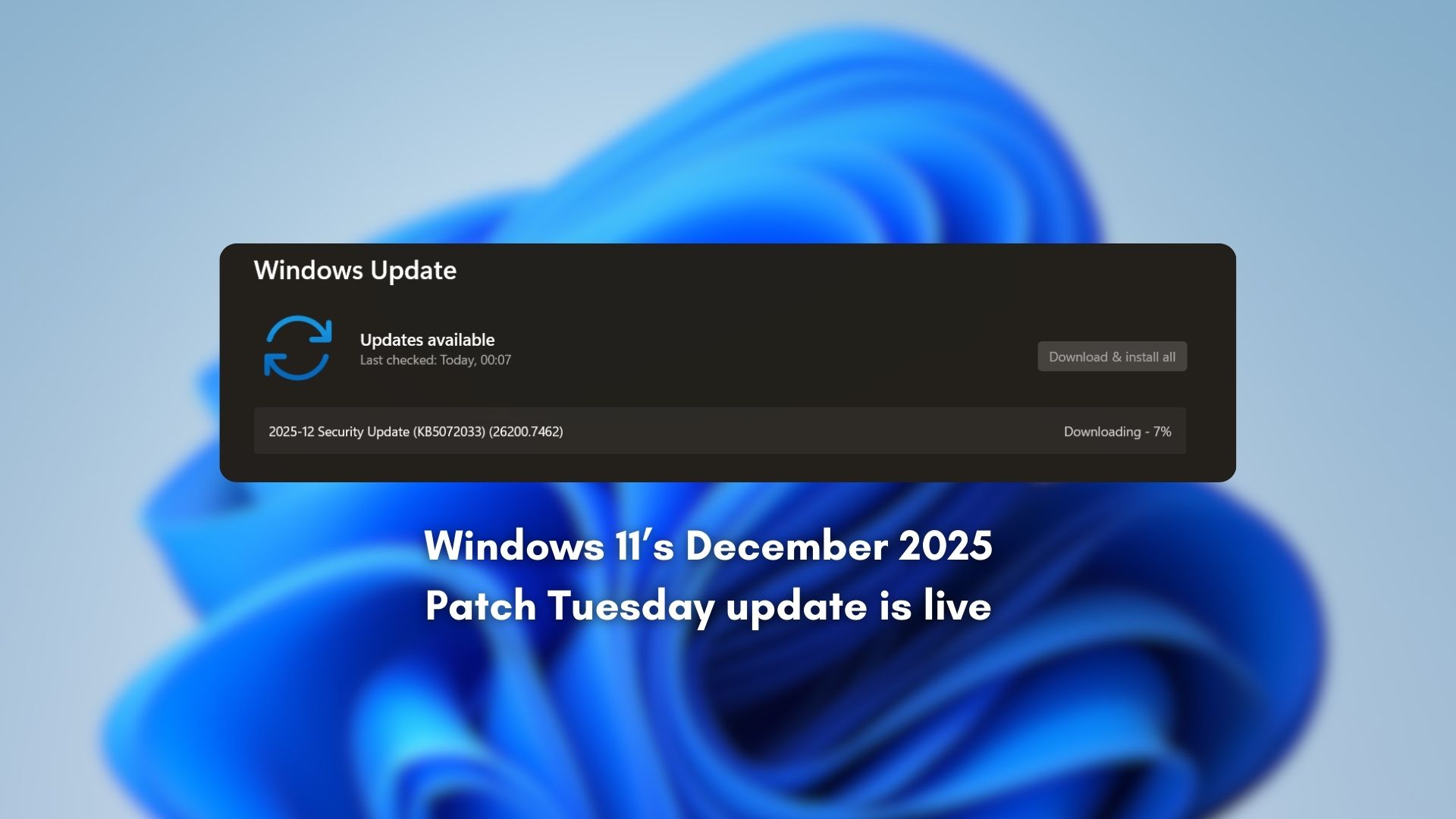
Windows 11 December 2025 Update has been released, and it has something new for everyone. Based on our testing, we can say that it’s a big one.
This month’s update (KB5072033) has everything from previous releases, so it sums up all Windows 11’s 2025 updates. But all the changes are rolling out gradually. This means the features would not show up immediately.
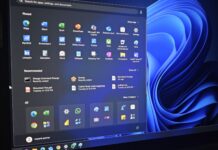
If you’re lucky, you will get a refreshed File Explorer experience, some Start menu refinements, and improvements across Settings, gaming, and overall system reliability. Copilot+PCs get their fair share of improvements as well. Microsoft also shipped a fix for the “Unsupported graphics card detected” error that affected certain games.
What’s new in the Windows 11 December 2025 Update
Here is a list of all the biggest improvements after installing the Microsoft December 2025 Patch Tuesday update:
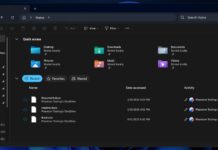
- File Explorer finally gets a complete dark mode overhaul with dark dialogue boxes, progress bar, and confirmation prompts.
- The context menu in File Explorer is getting more compact by rearranging and grouping similar actions.
- The Settings app gets UI updates, with a redesigned About page and relocated keyboard and cursor settings that were previously found in Control Panel.
- You can now turn on Virtual Workspaces by going to Settings > Systems > Advanced.
- Widgets receive dashboard badges, cleaner navigation, and support for selecting a default dashboard.
- Xbox Full Screen Experience reaches more Windows handhelds.
- Display and graphics improvements include a fix for games incorrectly showing “Unsupported graphics card detected.”
- HID keyboard backlight performance and responsiveness show noticeable upgrades.
- The Mobile Devices page in Settings now lets you manage connected phones more easily.
- System-wide performance improves in areas like search, multitasking, high-resolution display mode queries, and brightness adjustment on all-in-one PCs.
- Copilot+ PCs receive new Agent-in-Settings improvements and a redesigned Click to Do context menu.
- Windows Studio Effects now works on external USB webcams and secondary laptop cameras.
What’s new for Windows 11 25H2 or 24H2?
The OS advances to Windows 11 Build 26200.7462 on 25H2 and 26100.7462 on 24H2, and here’s a closer look at some of the changes.
Everything new in the File Explorer
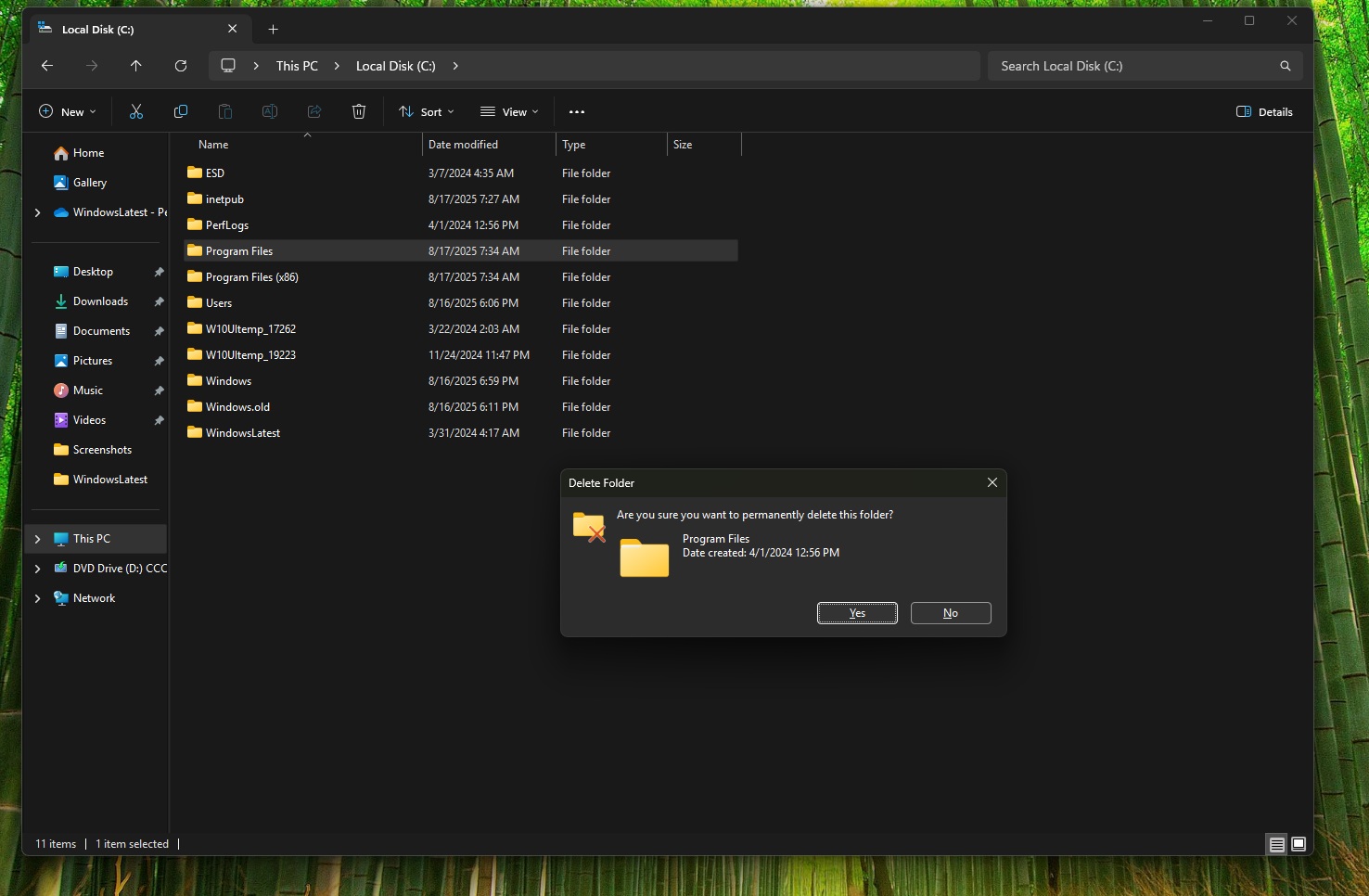
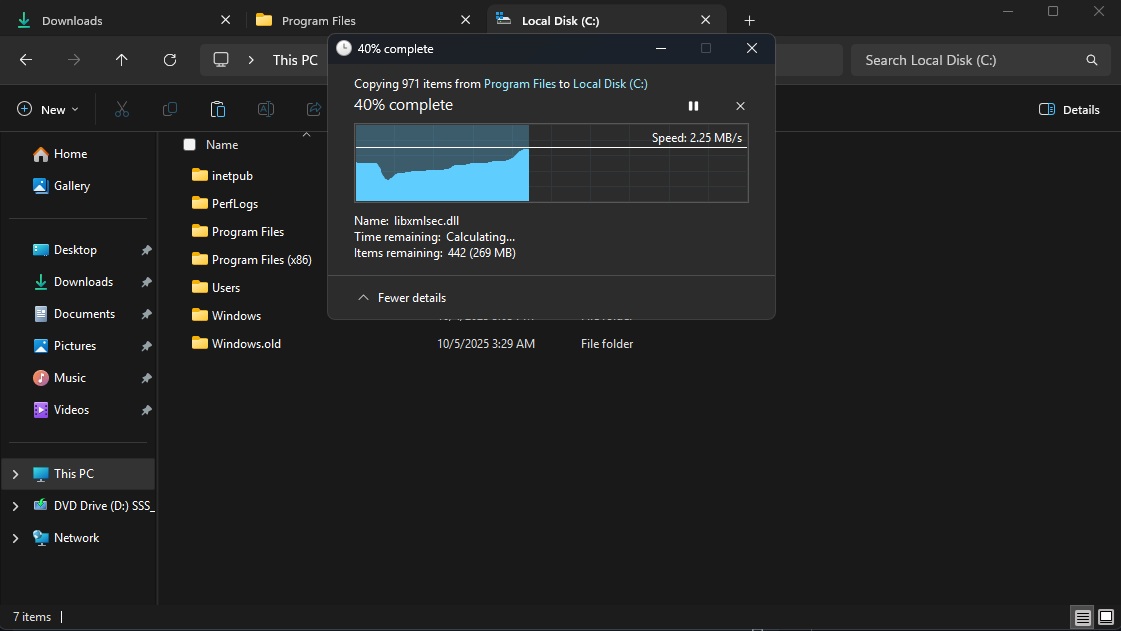
The File Explorer got all the love from Microsoft this time, with a ton of updates on the visual front. Microsoft has finally completed its full transition to dark mode, now that all the file action dialog boxes have a dark mode as well.
The copy, move, delete, and rename dialogs now fully match the system’s dark theme. Progress bars and chart bars have been recolored with a blue shade. Confirmation prompts like skip, overwrite, or file-in-use errors also follow the updated design language, which makes the whole workflow look more consistent.
However, this dark mode update came with an issue from the optional KB5070311 update, where the File Explorer shows a white screen flash when launching it, switching between Home and Gallery, creating a new tab, and performing some other activities. Microsoft fixed this issue with the December 2025 Update.
The other visual update comes in the form of a simpler context menu (right-click menu) in the File Explorer. Actions like Copy, Move to, Share, and Open now appear in a cleaner layout. The spacing is tighter, icons are more uniform, and the menu feels less cluttered.
Microsoft also fixed issues where thumbnails for some videos containing specific EXIF metadata didn’t appear correctly. A toolbar that showed up for some users in File Explorer is now gone. The icon next to the Open option in the right-click menu now displays the correct default app instead of a blank placeholder.
The File Explorer is also slated to get a performance boost via preloading, but it is not yet available in this update and may arrive by early 2026.
Taskbar got the Copilot treatment
The biggest addition to the Taskbar is Copilot integration. When you hover over an open app, a new Share with Copilot button appears inside the thumbnail preview. Clicking it sends that app’s window to Copilot Vision, which then analyzes the visible content and starts a conversation based on what’s on your screen. The idea is very similar to screen-sharing in Microsoft Teams.
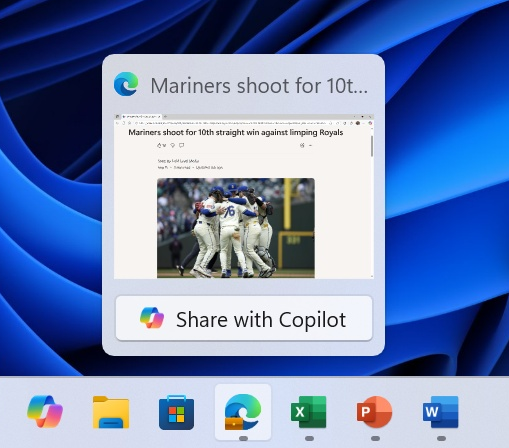
Now coming to the good parts, app groups now have smoother hover transitions, and when you glide your cursor across grouped icons, the preview thumbnails animate in a way that feels more responsive. It is a small touch, but it makes task switching feel less abrupt.
Several long-standing taskbar bugs have also been addressed. The setting for automatically hiding the taskbar no longer switches itself off in situations where Windows thinks another toolbar is already hidden. Voice Access now correctly interacts with the taskbar, where previously calling out a number sometimes did nothing. And taskbar icons are no longer randomly shrinking when there is plenty of space available.
Quality-of-life updates in the Settings app
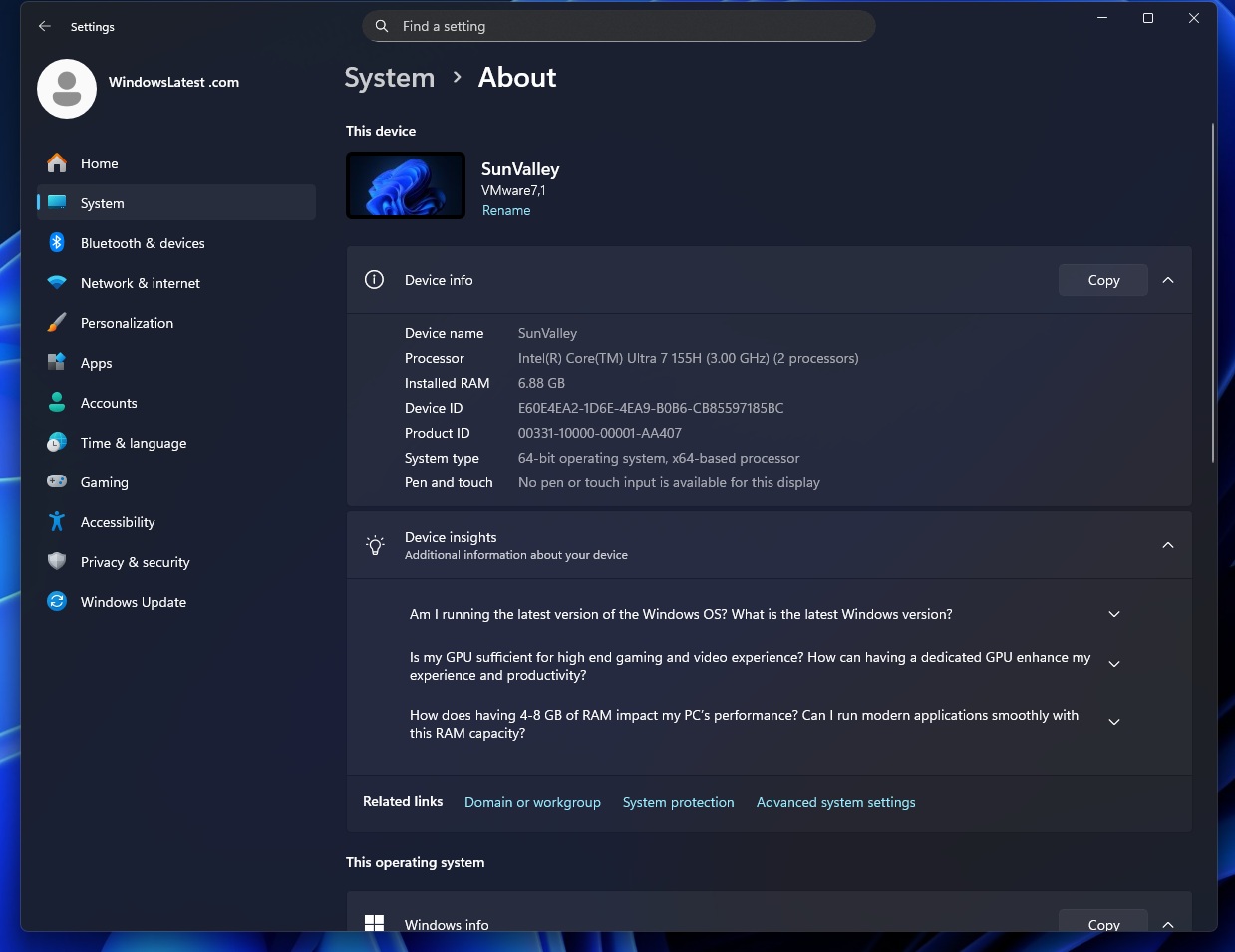
The About page now has a reorganized layout that places system details, storage links, and related options in a single view. It looks cleaner and reduces the number of clicks needed to reach common configuration pages.
Microsoft continues its long migration from Control Panel to Settings. Keyboard repeat delay and repeat rate, along with cursor blink rate, now live inside the Accessibility section instead of the classic Control Panel menu.
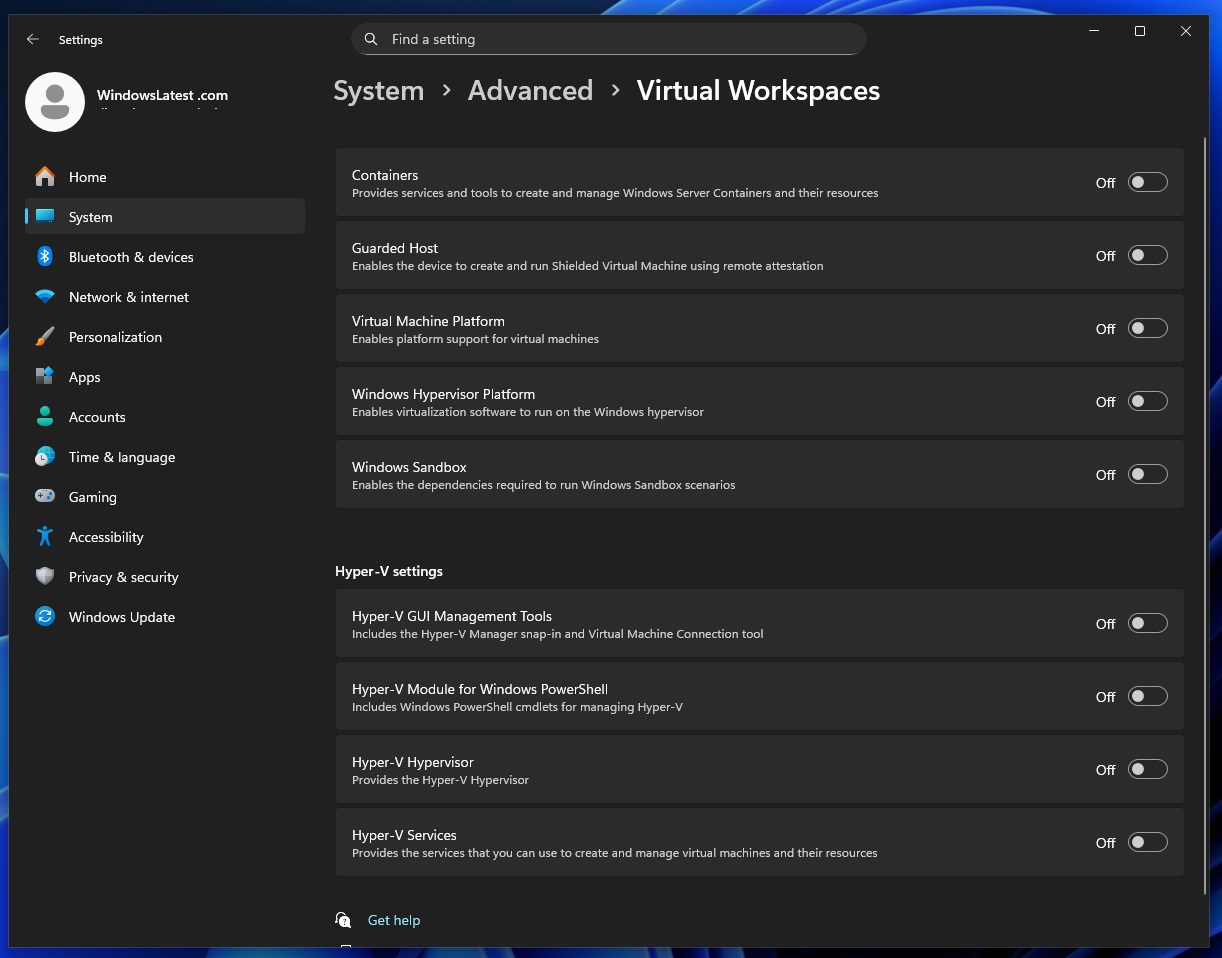
The new Advanced Settings page introduces Virtual Workspaces. This lets you enable or disable Windows sandboxed environments like Hyper-V or Windows Sandbox without digging through older menus. These options were previously only available in the legacy Windows Features menu, which allows you to turn Windows features on or off.
Microsoft also fixed a few issues that bothered users after previous updates. The Settings search bar no longer overlaps with the window buttons in compact sizes, and Settings no longer closes unexpectedly when navigating to microphone, camera, or location privacy pages.
New gaming improvements
Microsoft is quietly improving the gaming experience with this update, especially for handheld PCs. Full Screen Experience (FSE), which originally launched only on the ASUS ROG Ally and Ally X, now works on more Windows 11 handheld devices.
You can turn it on from Settings > Gaming > Full Screen Experience and set the Xbox app as the home interface. Once enabled, the UI behaves like a console overlay and ends some background tasks to save memory and increase performance.
Microsoft also fixed a long-standing problem where some games incorrectly displayed an “Unsupported graphics card detected” warning even though a supported GPU was being used. This issue affected a small group of titles and confused both AMD and NVIDIA users. After updating, the warning no longer appears in the games.
Another improvement targets high-resolution displays. Apps querying the full list of supported display modes no longer cause small stutters on 4K and ultrawide monitors. The system handles these calls faster now, which reduces micro-freezes that used to appear when launching certain games or switching between full-screen and borderless modes.
Widgets dashboard updates
In the Widgets board, you can now choose a default dashboard instead of having the board reopen the most recently viewed one. This is useful if you use multiple dashboards and prefer the same one to appear every time.
Dashboard icons inside the navigation bar now display small numeric badges. These badges show the number of new alerts or updates available. When you switch away from that dashboard, the badge clears automatically.
Windows Share improvements
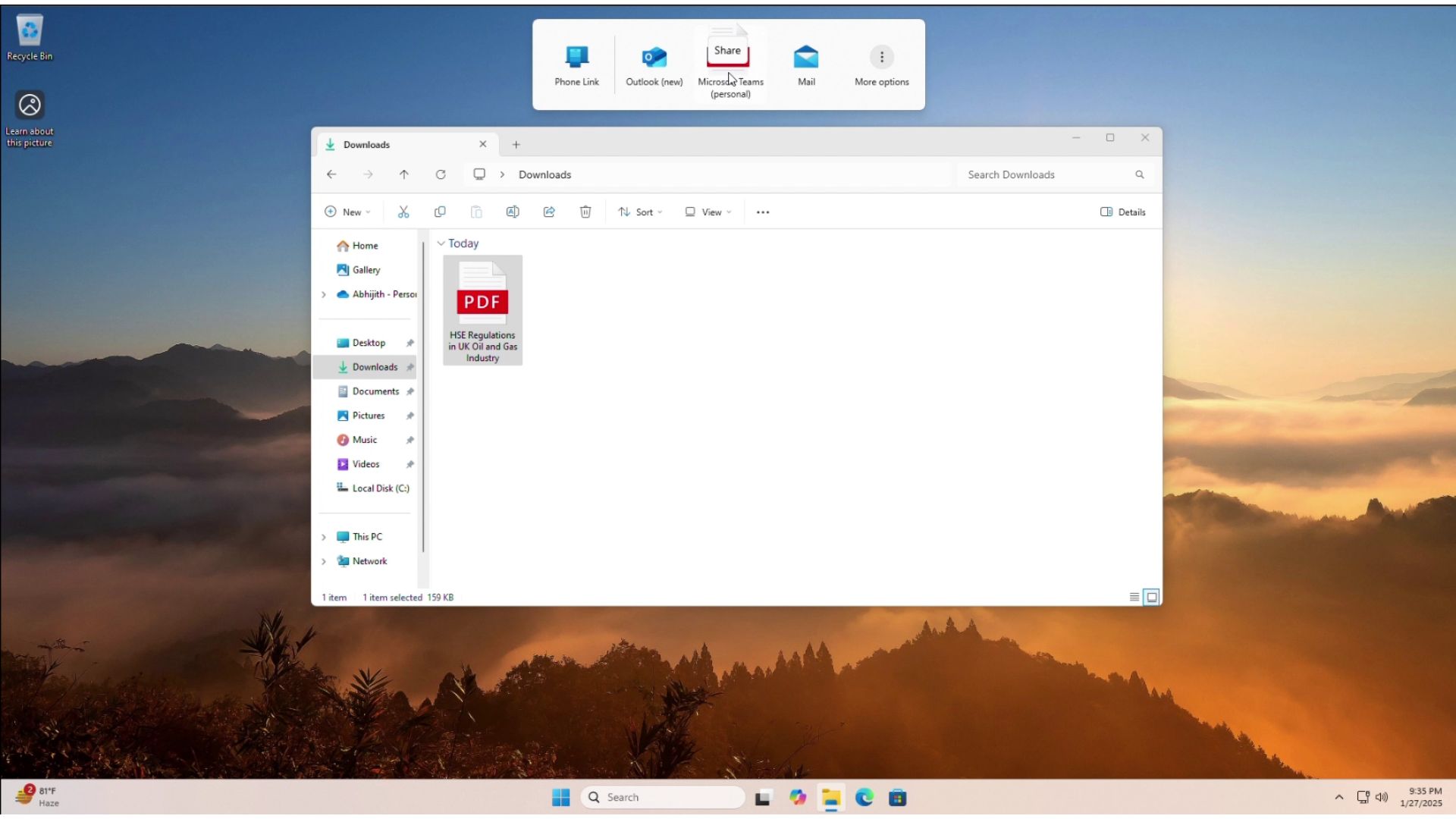
Windows Share introduces a few practical additions. The drag tray now supports multi-file sharing. You can drag several files into the tray, and Windows will recommend apps or destinations based on what you are sharing. The recommendations are more relevant than before.
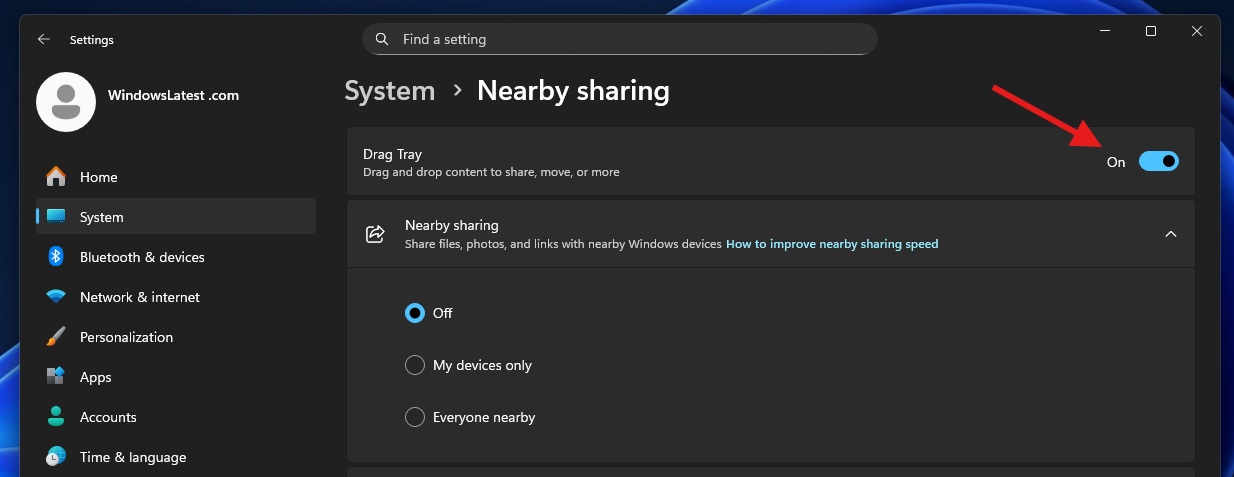
You can now toggle the drag tray from Settings > System > Nearby sharing. This makes the feature easier to turn off if it gets in the way.
In OneDrive, you can use the Copy link option to share OneDrive files directly through other apps without leaving the Share interface. This makes it easier to move content between cloud and local apps. Microsoft notes that this feature is not available in the European Economic Area.
Mobile Devices and OneDrive updates
Microsoft is continuing its effort to unify PC and phone workflows. A new Mobile Devices page appears under Settings > Bluetooth & devices > Mobile Devices. From here, you can link a phone, manage permissions, and access features like using your phone as a connected camera or browsing your phone’s files directly in File Explorer.
This page replaces the older scattered entries and gives you a central place to manage linked devices. The layout is simple and includes clear buttons for pairing, removing, or adjusting device capabilities.
All the new Copilot+ PC improvements
In the Settings app, in your Copilot+ PC, the search results panel now shows more items at once and includes a scroll bar, so it is easier to find what you want. Recommended settings also react faster and display an inline agent option for settings you recently changed. When a setting cannot be adjusted any further, Windows now shows a small explanation dialog instead of silently blocking you.
Click to Do gets a cleaner layout for common actions such as Copy, Save, Share, and Open. Whenever a large image or table appears on your screen, Windows automatically opens the Click to Do menu, which saves you a step.
Windows Studio Effects now works on more cameras, including USB webcams and built-in rear laptop cameras. You can turn it on from Settings > Bluetooth and devices > Cameras by selecting a camera and opening the Advanced camera options page. Once enabled, you can control the effects from the camera page or the Quick Settings menu in the taskbar.
File Explorer also gets a small tweak in Copilot+ PCs with updated placeholder text in the search box to highlight the newer Windows Search experience. Enterprise users get the File Explorer Home on hover actions as well. Windows Search can now surface AI-categorized photos from the Microsoft Photos app using semantic search.
Security fixes and stability improvements in Microsoft Patch Tuesday 2025
The December Patch Tuesday release (KB5072033) includes all security patches for Windows 11 version 25H2 and 24H2, along with the non-security improvements that arrived earlier in the optional KB5070311 update.
Microsoft resolved a networking issue where external virtual switches in Hyper-V environments could lose their network adapter bindings after a reboot. When this happened, virtual machines lost network connectivity, and switches dropped into internal mode.
The update fixes stability problems in the Local Security Authority Subsystem Service (LSASS), which could previously crash due to an access violation. Search reliability has improved as well, with File Explorer now correctly searching SMB network shares that were affected by earlier updates.
What’s new in Windows 11 23H2?
Windows 11 23H2 advances to Windows 11 Build 22631.6345 with KB5071417, and it makes a single change to PowerShell 5.1. After the update, PowerShell’s command Invoke-WebRequest now warns when there’s a potential security risk, and then it asks for your confirmation to approve or cancel the request.
This is the only change for Windows 11 23H2. Everything is exclusive to Windows 11 25H2 or 24H2.
How to install the December 2025 Patch Tuesday update
The December Patch Tuesday release ships as Windows 11 KB5072033, and it moves supported PCs to Build 26200.7462 or 26100.7462, depending on whether you are on 25H2 or 24H2, respectively. This cumulative update includes every improvement from earleir Windows updates, especially since it’s the last update for this year.
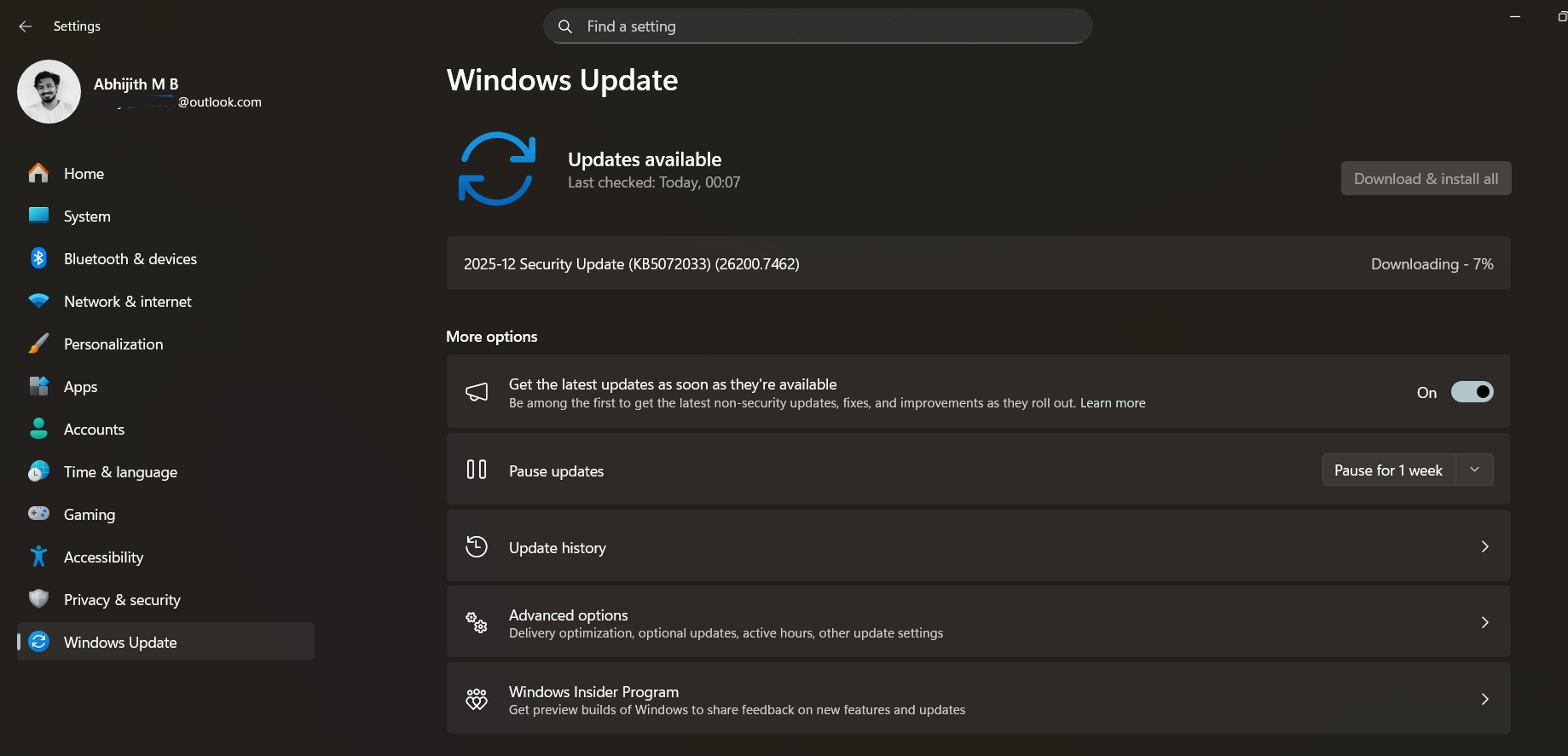
If you want to try installing it manually:
- Open Settings
- Go to Windows Update
- Turn on “Get the latest updates as soon as they’re available.”
- Click Check for updates
- Install KB5072033 when it appears
The rollout is gradual, so the features may not appear on every device at the same time. If it is not showing up yet, that is completely normal.