






Windows 11 KB5067036 is rolling out with a new Start menu, a “Ask Copilot” shortcut in the File Explorer Home, faster Windows Search, new colourful battery icons on the taskbar and more. This patch is available for version 25H2 / 24H2 via Windows Update. Microsoft has also posted direct download links for KB5067036 offline installers (.msu).
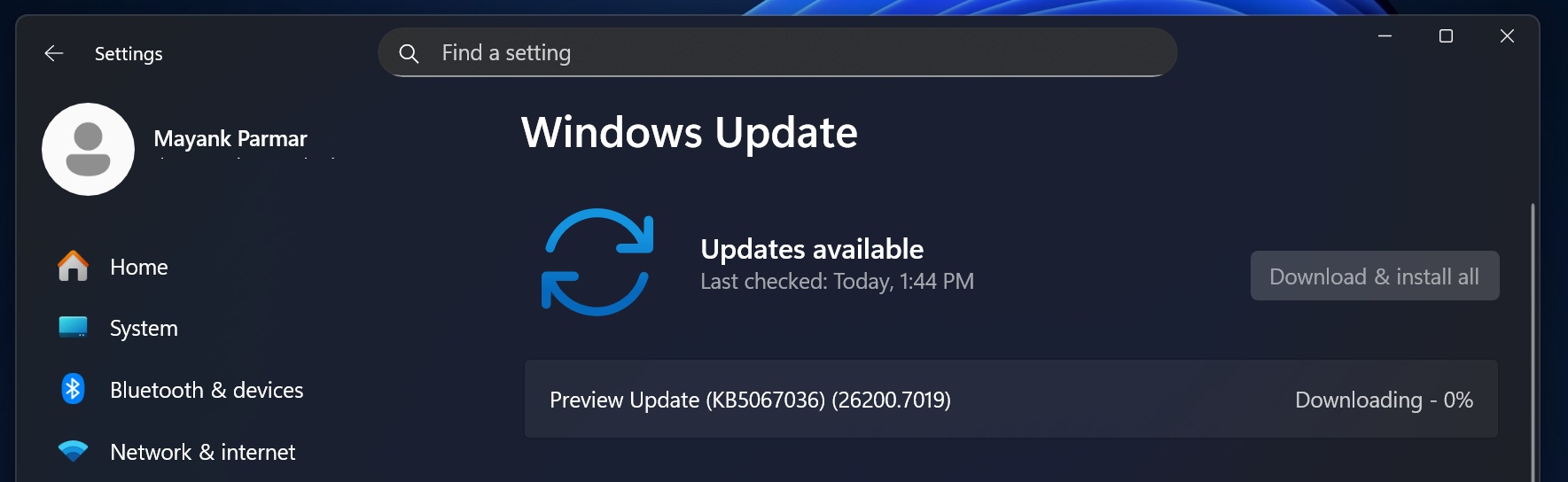
KB5067036 is an optional update for Windows 11 25H2 or 24H2, and it’ll not download automatically unless you select ‘Download & install‘ under the patch. As you can see in the screenshot below, today’s optional update shows up as “Preview update (KB5067036) (Build 26200.7019) is available.”
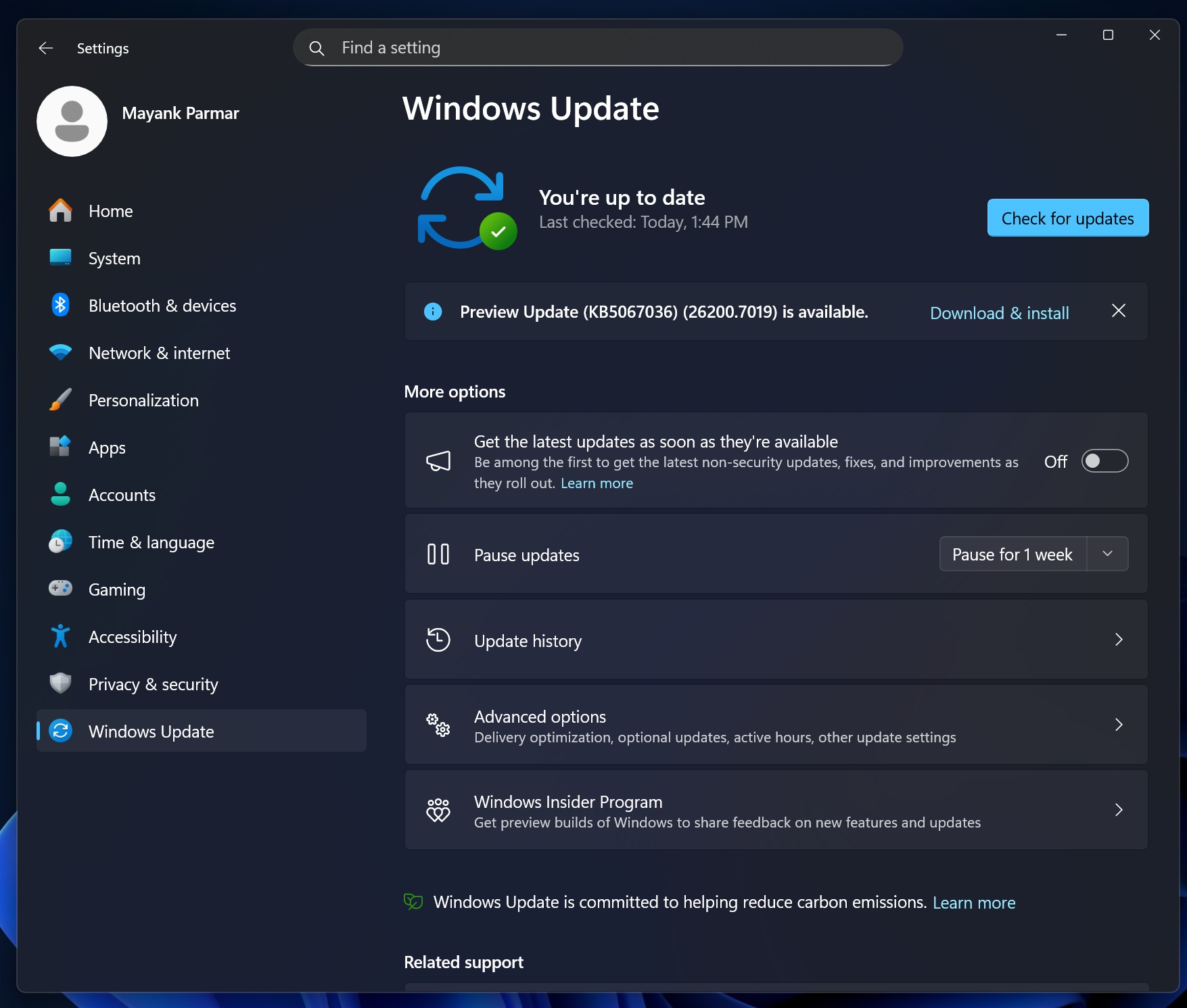
Previously, optional updates on the Windows Update page included the date and year in their titles when they showed up, but now they only list the KB (knowledge base) and build numbers. However, this change might actually confuse some users, as having the date in the name wasn’t exactly a bad thing.
After today’s optional update, Windows 11 25H2 advances to Build 26200.7019, while Windows 11 24H2 bumps to Build 26100.7019.
Download Links for Windows 11 KB5067036
Windows 11 KB5067036 Direct Download Links: 64-bit and ARM-64 | In some cases, Update Catalog loads in a language different from the system, but it’s a known issue, and it does not affect the Windows Update download package. On Update Catalog, click ‘Download‘ next to the update package, and tap on the link that shows up in a pop-up window.
You should only use Update Catalog if Windows Update is not working. If you’re wondering, I’ve extracted the size of Windows 11’s optional update:
| Build Number | Size | OS Version | Architecture |
|---|---|---|---|
| 26200.7019 | 3908.6 MB | Windows 11 25H2 | x64-based |
| 26200.7019 | 3714.0 MB | Windows 11 25H2 | arm64-based |
| 26100.7019 | 3908.6 MB | Windows 11 24H2 | x64-based |
| 26100.7019 | 3714.0 MB | Windows 11 24H2 | arm64-based |
In our tests, this optional update takes approximately 15 minutes to finish installation, but the download could take longer than usual due to its massive size. A single reboot is required to finish applying changes.
What’s new in Windows 11 Build 26200.7019 (25H2) / Build 26100.7019 (24H2)?
Windows 11 KB5067036 has a lot of new features, ranging from a new Start menu to colourful taskbar icons. These features are rolling out gradually.
What is a gradual roll out?
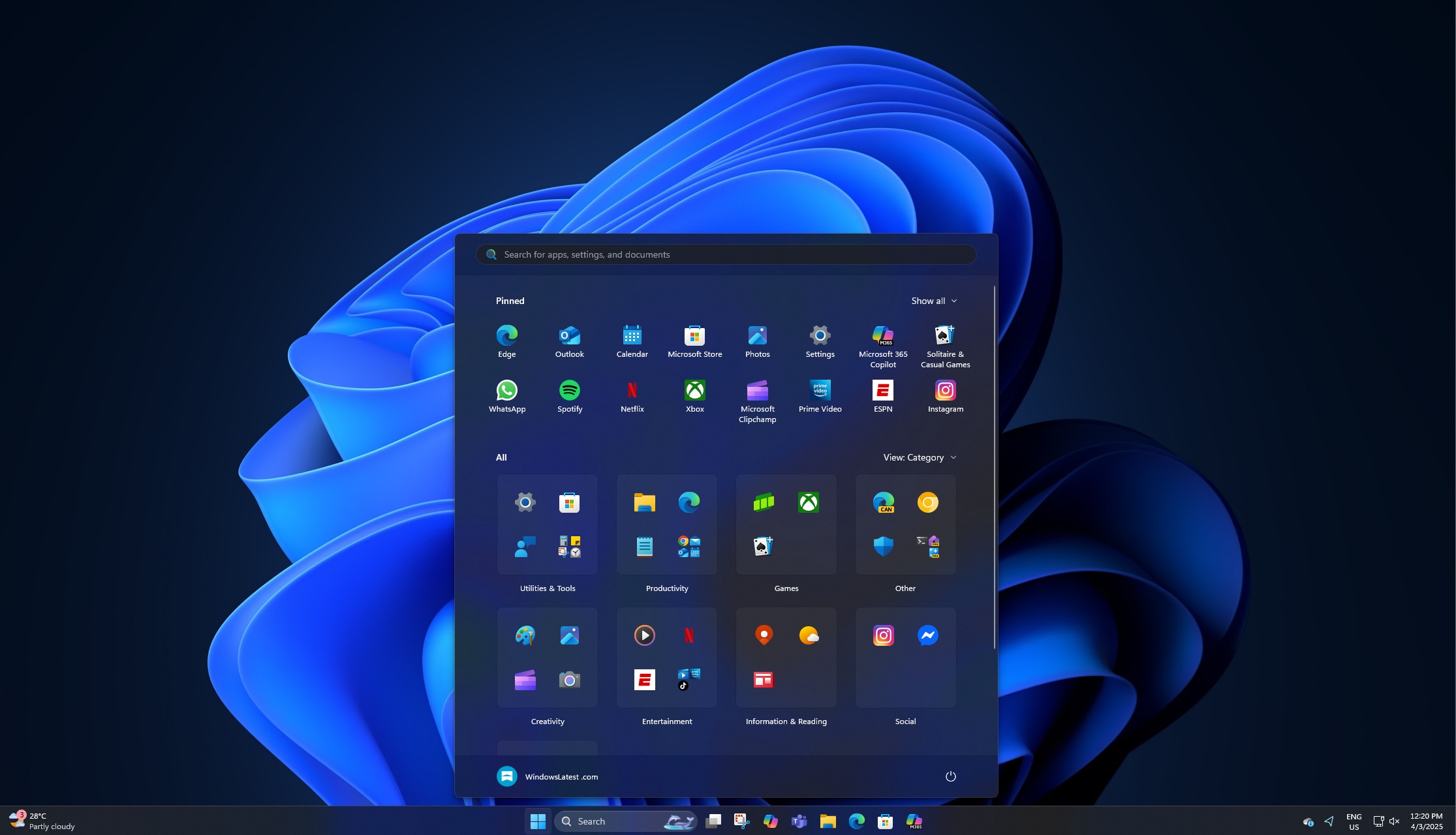
1. The new Start menu adds a new Category layout, turns off the Recommended feed
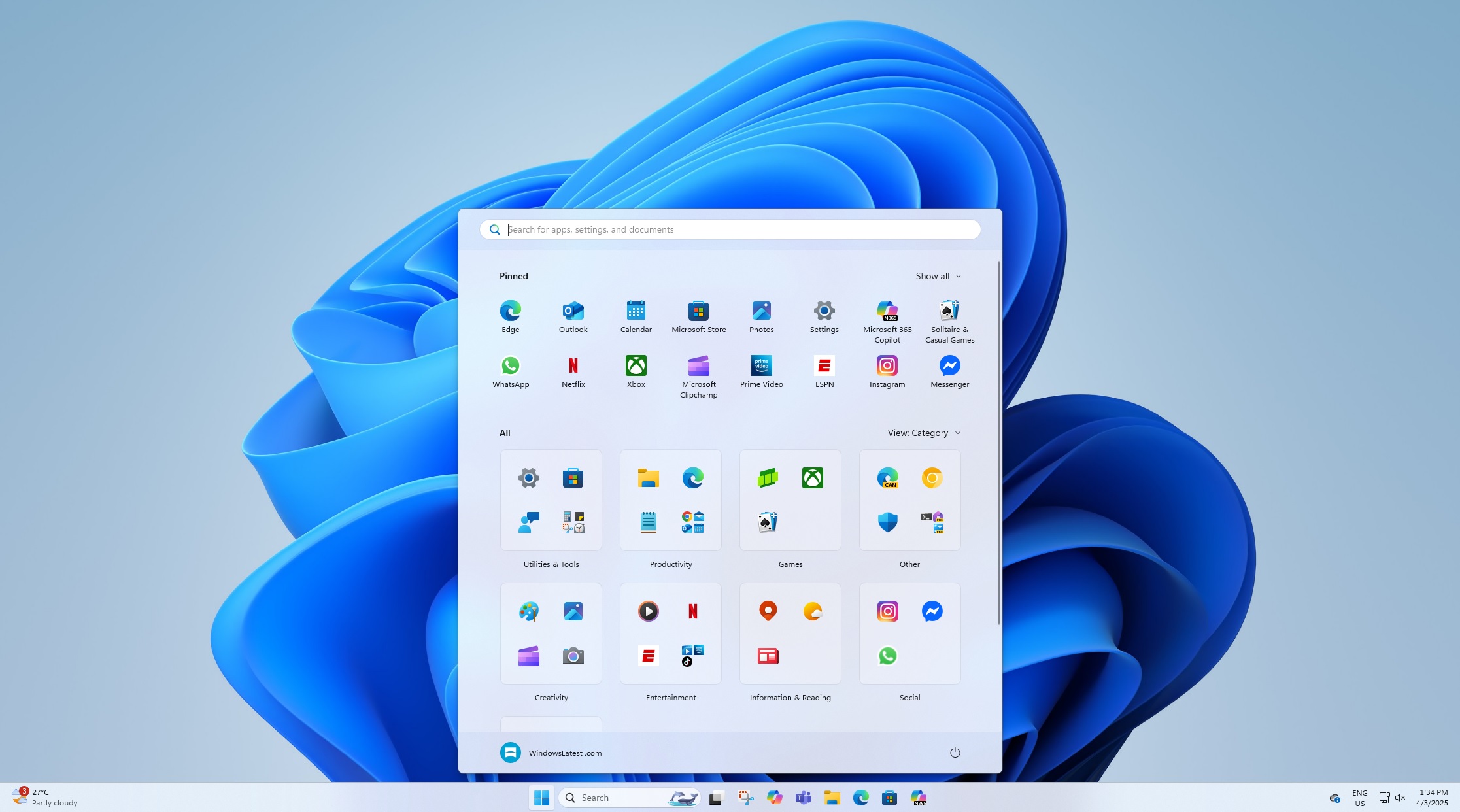
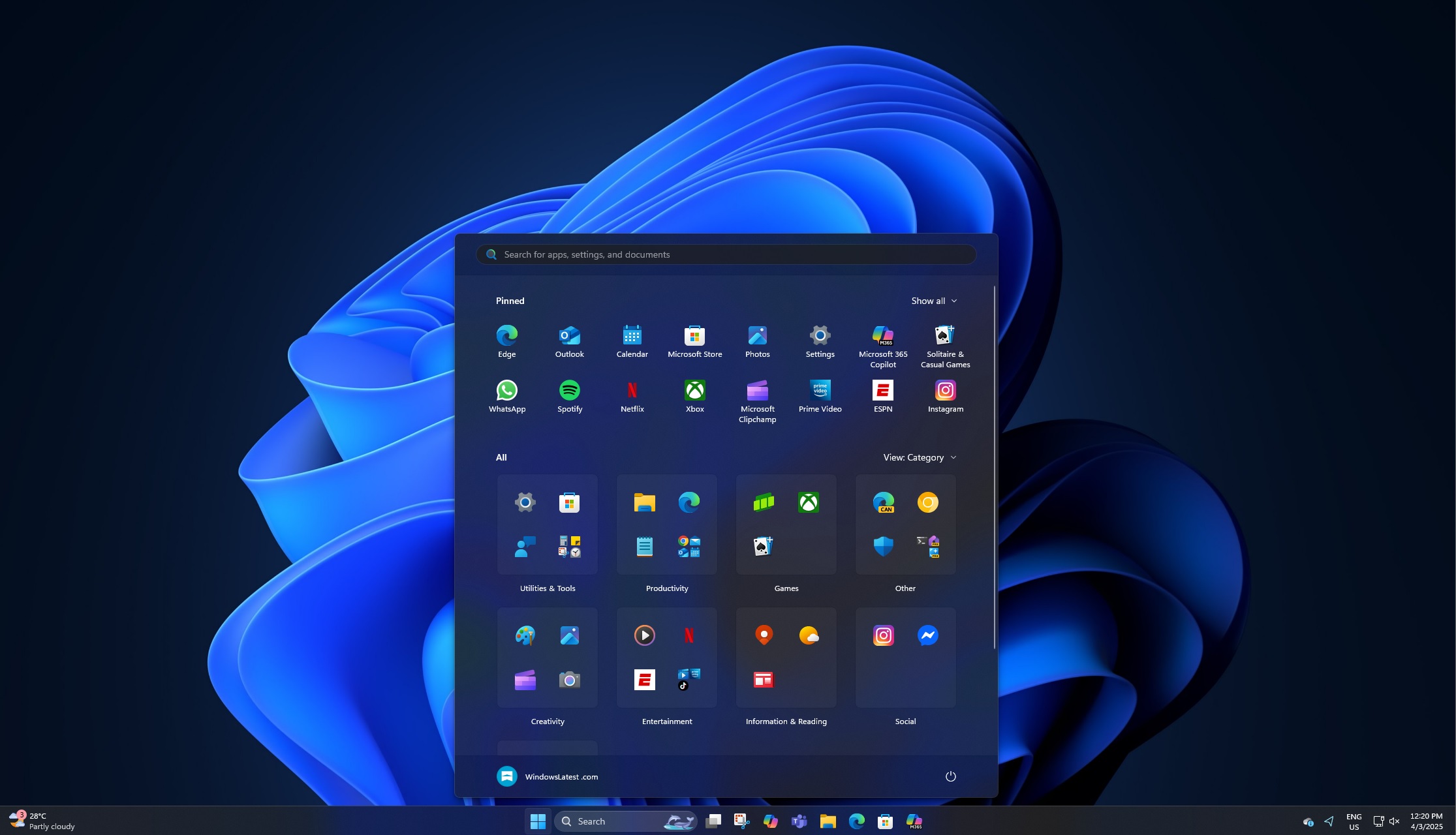
The so-called new Start menu that YouTubers lied to everyone is coming with Windows 11 25H2, is finally rolling out. But as I have been reporting, it’s not exclusive to 25H2.
Windows 11 KB5067036 turns on the new Start menu for version 24H2 as well, but it’s a staged rollout, so it won’t show up immediately.
Unlike the current Start menu, it’s a single scrollable page, which means you don’t have to click, click and click to go back and forth between pinned apps and the all apps list.
In our tests, Windows Latest observed that Windows 11 KB5067036 finally lets you toggle off the ‘Recommended’ feed in the Start menu. To turn off Recommended feed, open Settings > Personalization > Start and uncheck “Show recommended files in Start, recent files in File Explorer, and items in Jump Lists.”
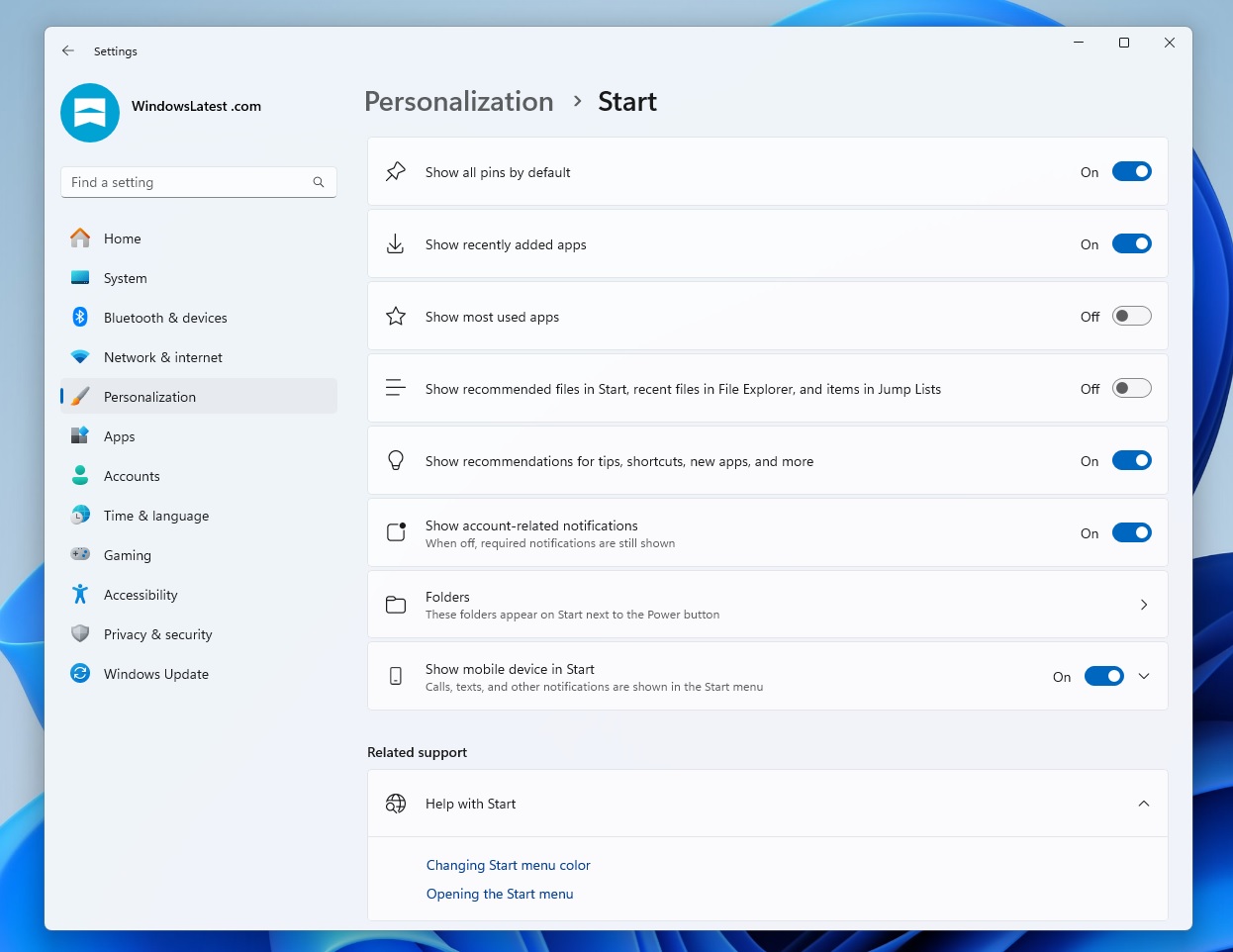
However, as the toggle makes it quite obvious, you won’t see recent files in File Explorer or Jump lists if you turn off the Recommended section in the Start menu. The two features might seem ‘separate’, but they’re part of the same engine. Microsoft won’t let you have recent files in Explorer without enabling the Recommended feed.
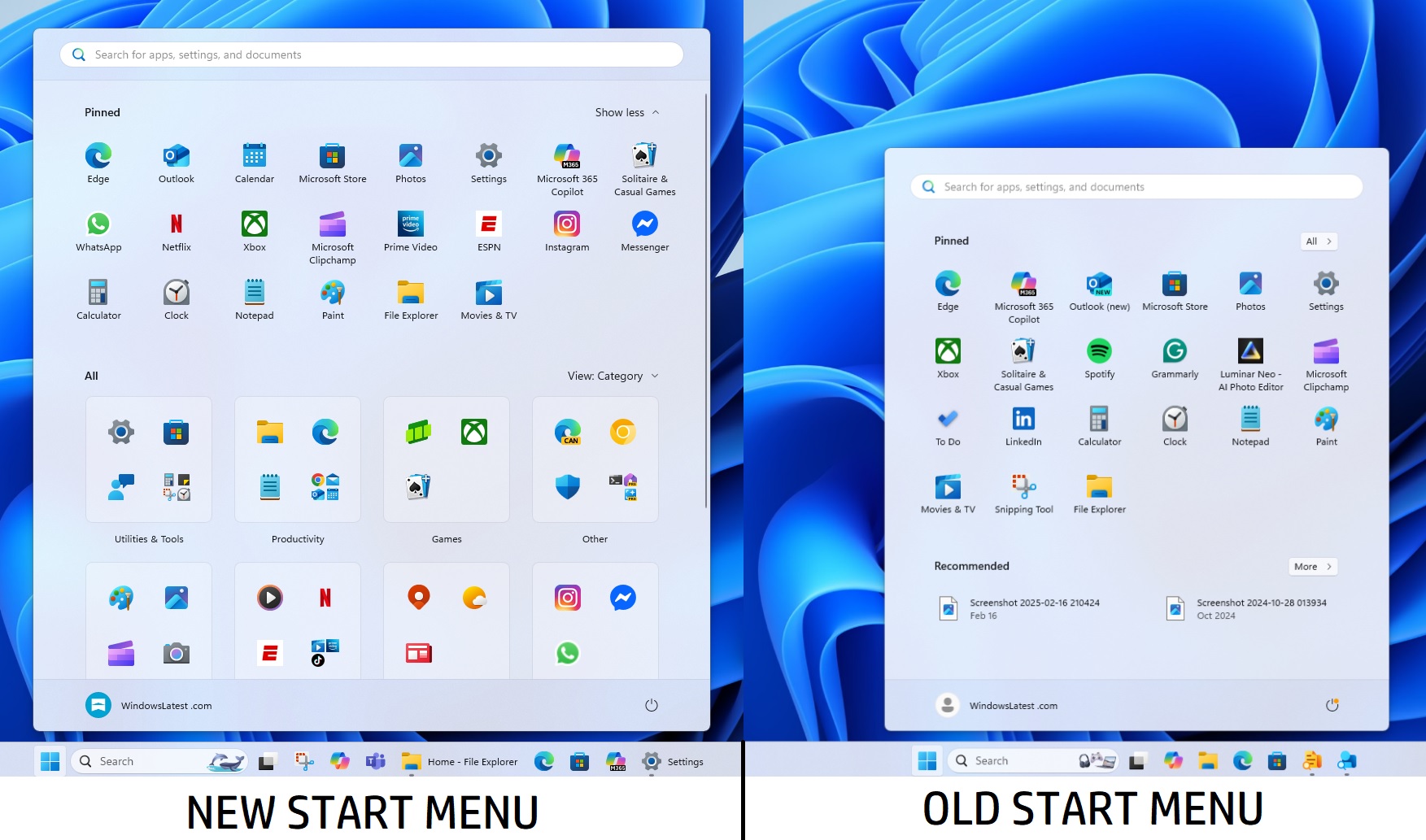
The existing or old Start menu has your pinned apps, a Recommended feed, and a toggle to see All installed apps (opens a new page). It doesn’t let you change the layout, but as you can see in the above screenshot, the new Start menu has three new layouts:
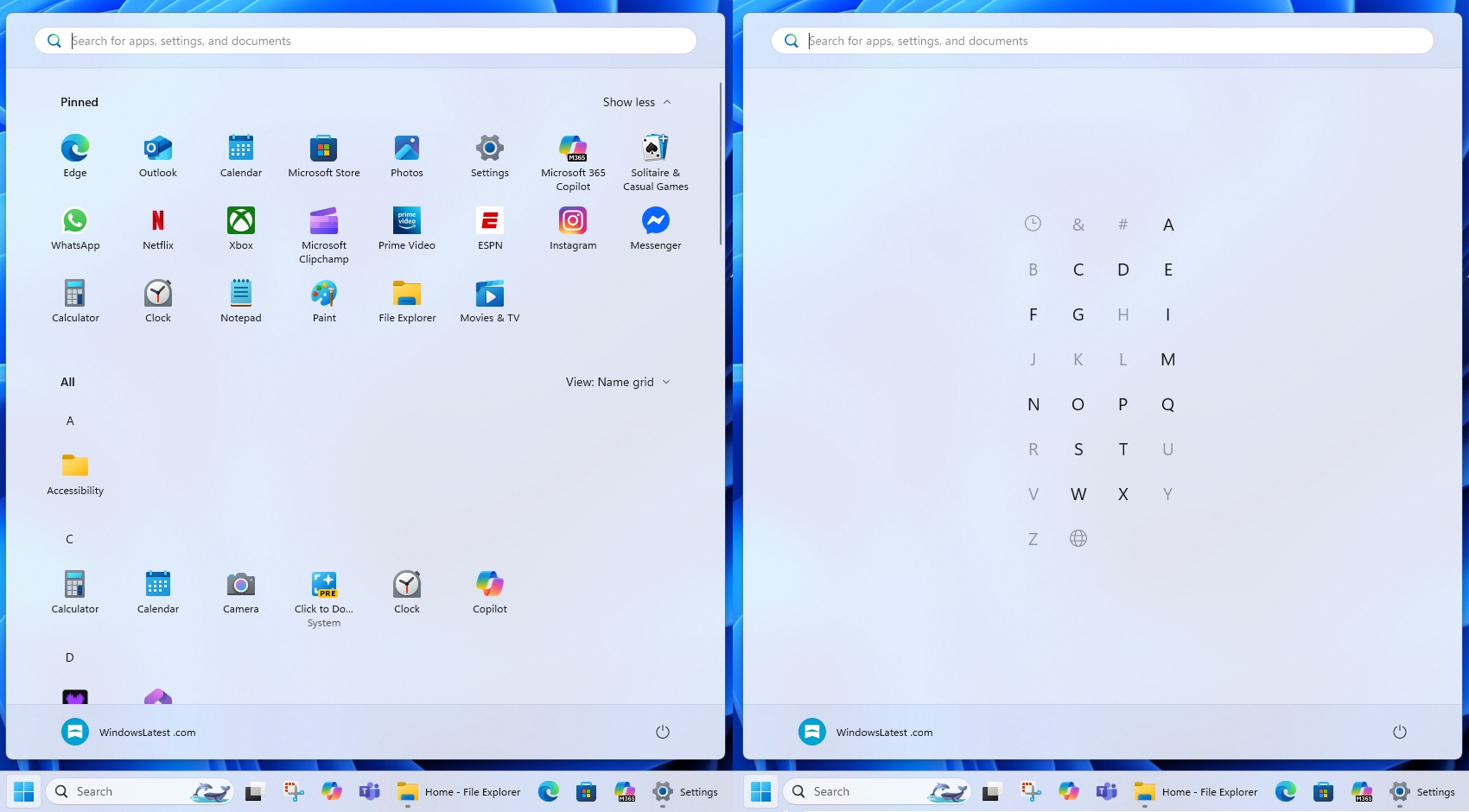
- Name Grid: All apps will be filtered in alphabetical order, but the layout is of grid. You can tap on any letter to jump to other apps. However, if you prefer the classic layout where you get a list experience, you can choose the second option.
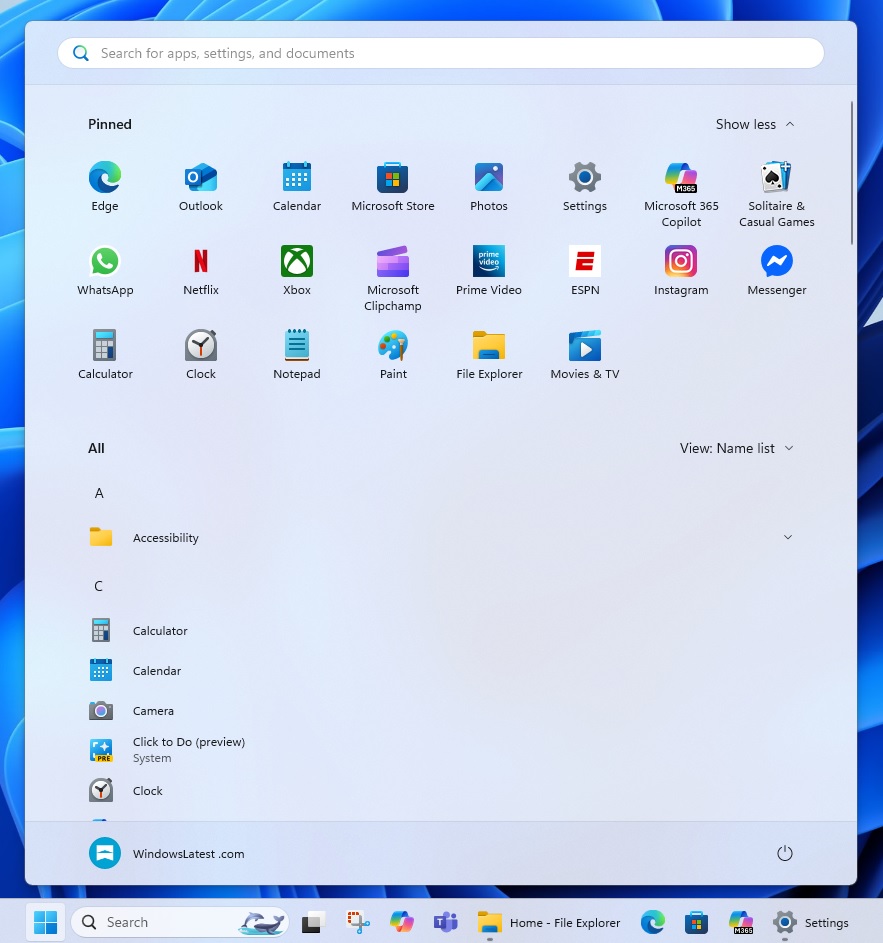
- Name list: This brings back the existing Name list format, where apps are filtered in a list layout in alphabetical order.
- Category: Some people find it similar to iOS, but I think it’s inspired by Windows Live Tiles. Although the icons are static, Microsoft is using a built-in algorithm to filter and arrange apps based on the categories.
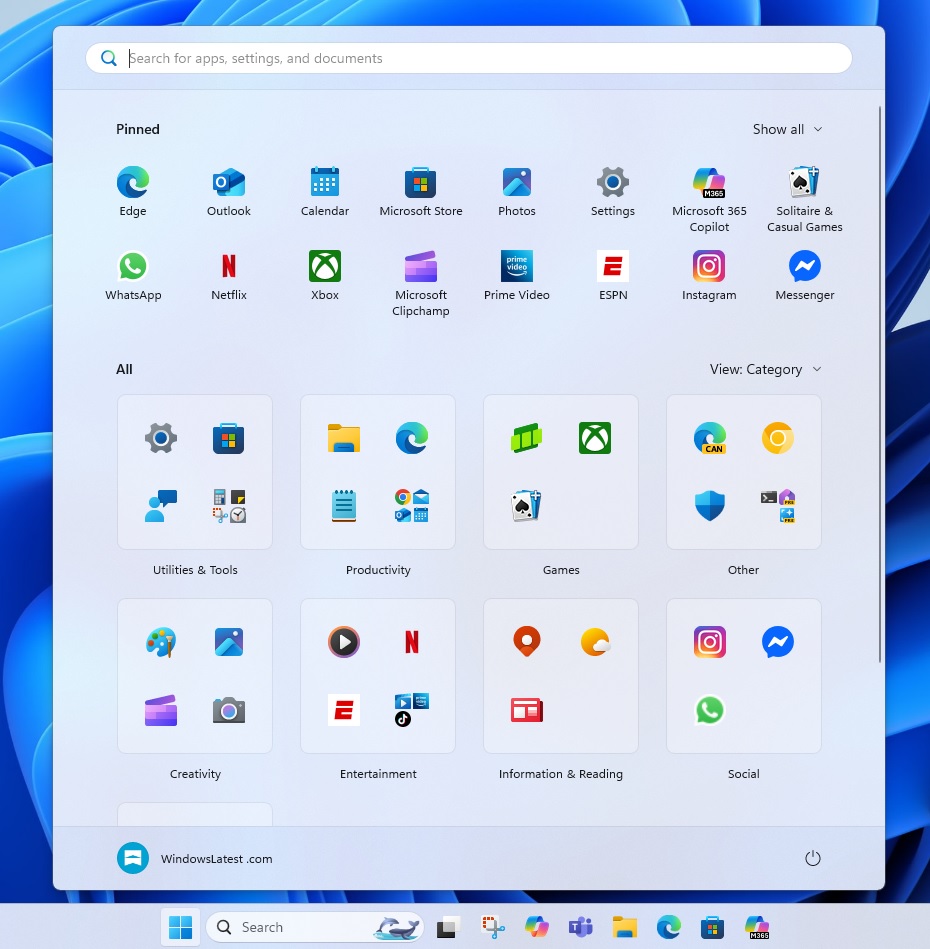
Windows 11 KB5067036 doesn’t let you create categories in the Start menu yet, but there are default categories, such as Utilities and tools, and Productivity.
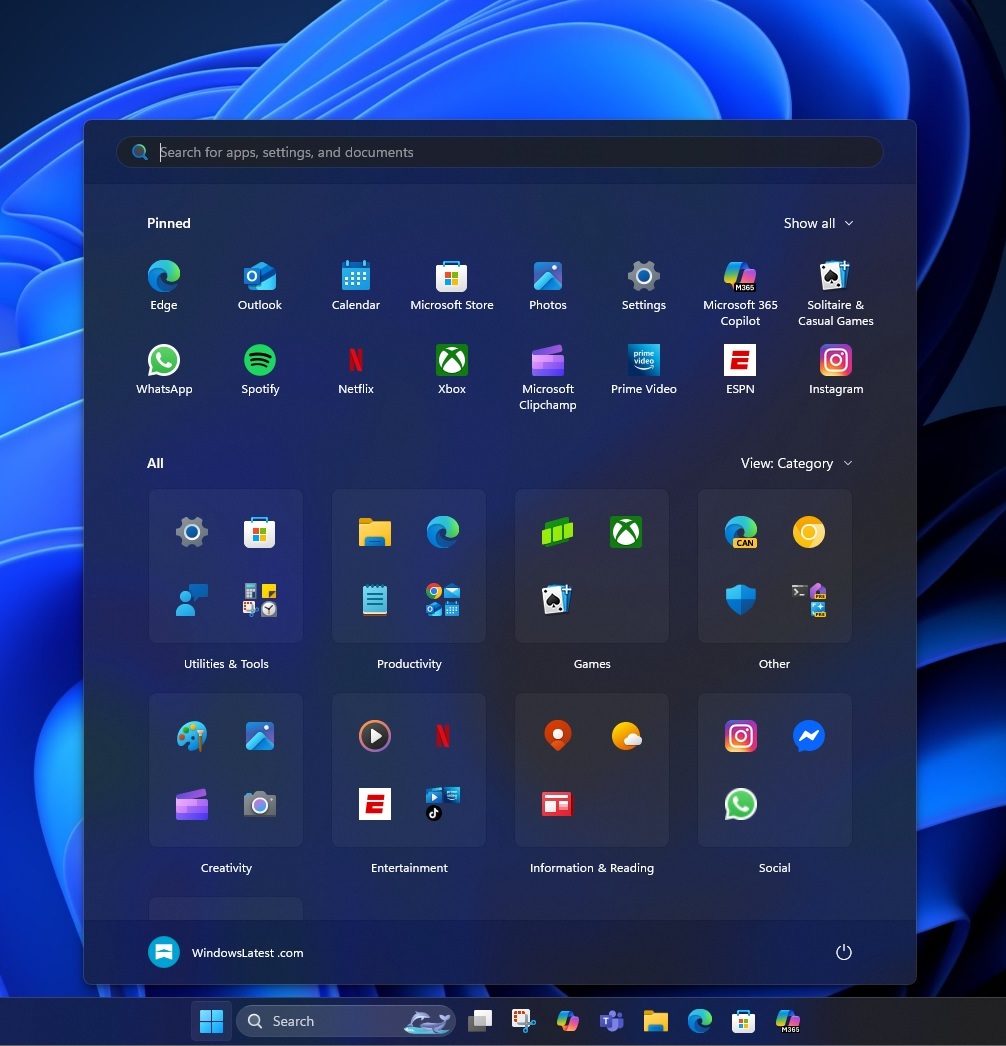
Then, we have the Entertainment category, which has your apps like Netflix and Windows Media Player. Finally, if you’ve apps like Paint 3D, Paint, Designer, Canva, etc, those will be grouped under Creativity.
Our tests showed that Windows 11 is not using AI to categorize these apps, as the entire “algorithm” is a 15MB JSON, which has pre-defined categories for apps. If an app doesn’t fit one of the categories, it moves to “Other.”
Our tests also confirmed that the new Start menu is responsive. This means it’ll automatically adapt to the screen size, so if you’ve a large screen, the Start menu will finally make use of the screen space and won’t look small anymore.
At the same time, if you’ve low resolution, the Start menu won’t occupy the screen and appear short.
Unfortunately, you can’t manually adjust the size of the Start menu, but you can change two settings to make the Start menu larger or smaller. First, try to change the ‘display resolution‘ from Settings > System > Display.
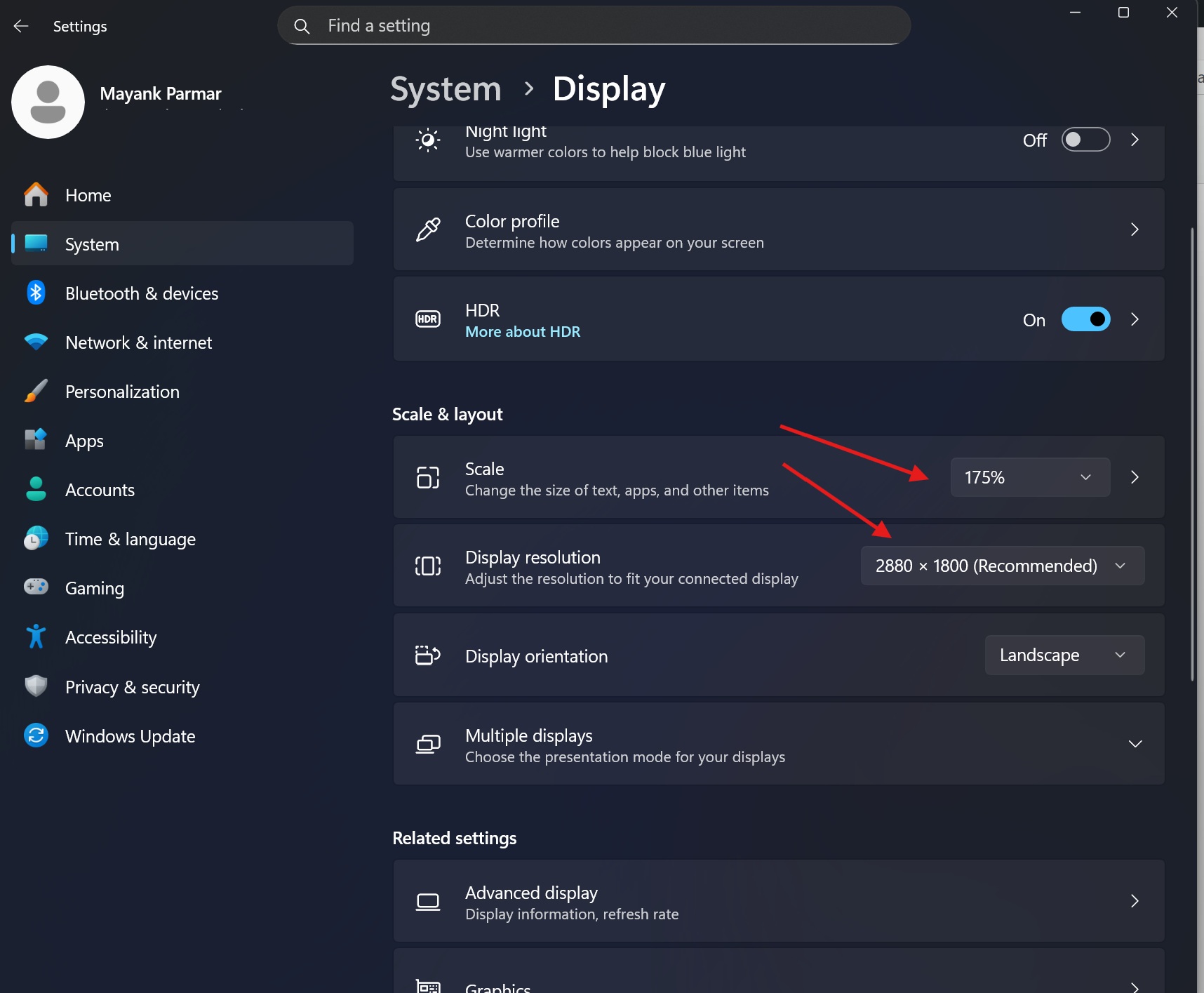
If that doesn’t help, try changing ‘Scale‘ to 150% from 175% or whatever the current setting is in your case.
2. File Explorer gets a new Recommended section UI
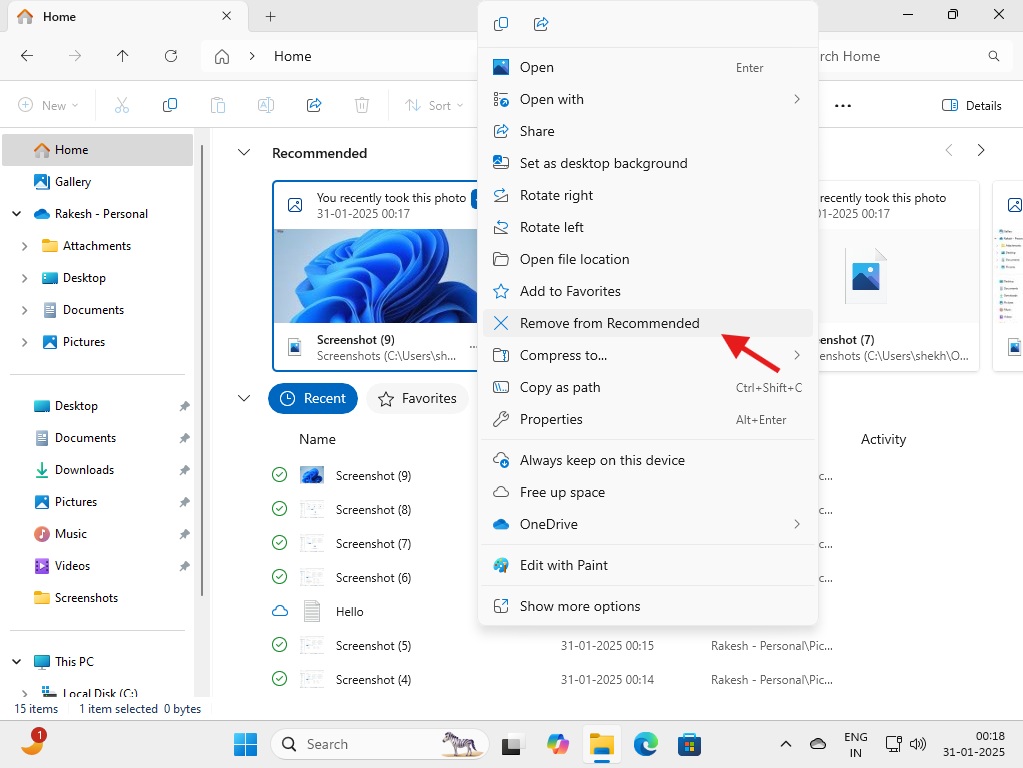
Windows 11 KB5067036 adds a new Recommended cards UI to File Explorer.
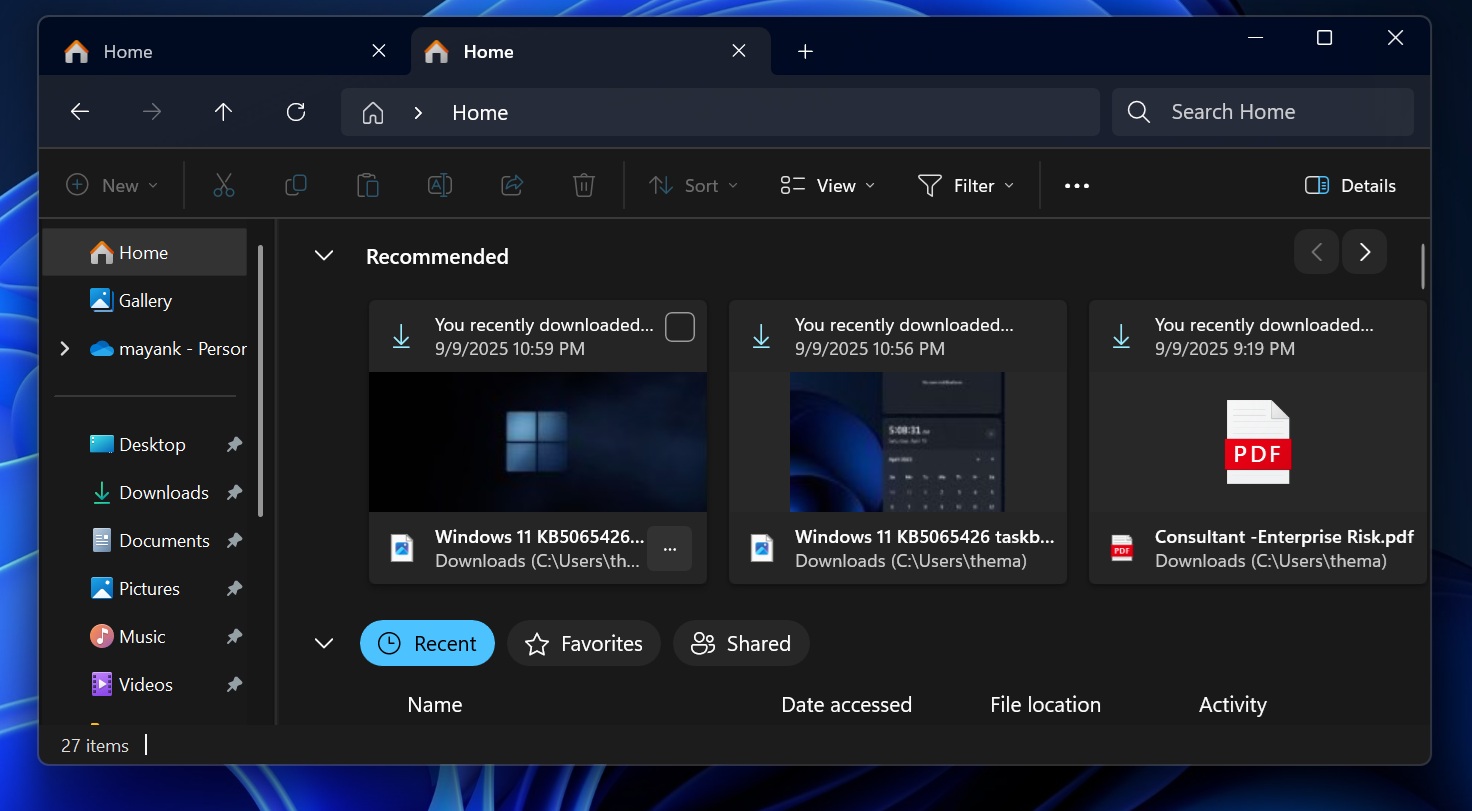
Previously, recommended cards were exclusive to Entra (enterprise accounts), but now they work with regular Microsoft accounts. This means you’ll automatically see cards related to files you frequently open.
How to turn off the recommended section in File Explorer?
If you don’t like the new Recommended section in File Explorer, which is turned on by default, open Folder options (three dots menu). Then, under ‘Privacy,’ turn off “Show recommended section.”
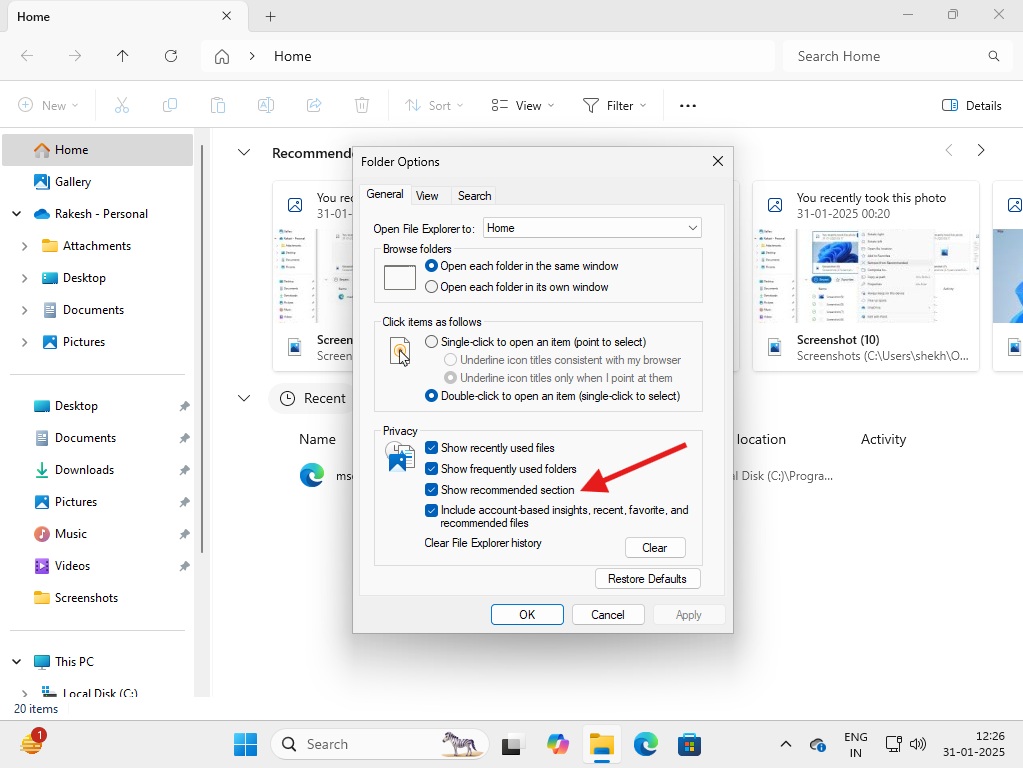
Or you can right-click any recommendation and select “Remove from recommended.”
Right now, File Explorer can only show files from OneDrive, but that will change soon, as Microsoft has quietly added a new StorageProvider API. This means cloud providers like Google and Mega.nz can now automatically integrate their apps to show up with sync support in File Explorer.
Windows 11 KB5067036 also patches the following issues in File Explorer:
- A bug has been fixed where the context menu in File Explorer automatically switches between normal view and ‘Show more options.’ This has been fixed.
- A bug has been fixed where all filters, such as name, icon size or groups, would reset in File Explorer if another app sends you to File Explorer.
- A bug has been fixed where you could not click anywhere in the File Explorer if you opened the context menu. Mouse clicks would work only inside the context menu, which was odd, but turns out it was a known issue and is now patched.
Last but not least, Microsoft argues that File Explorer is now faster and the Home tab no longer makes the window unresponsive.
However, our tests show that the top region of the File Explorer, which is built using WinUI, still takes longer than usual to load. This issue was introduced with Windows 11 in 2021, and it remains unpatched.
Ask Copilot has been added to the “Home” tab of File Explorer
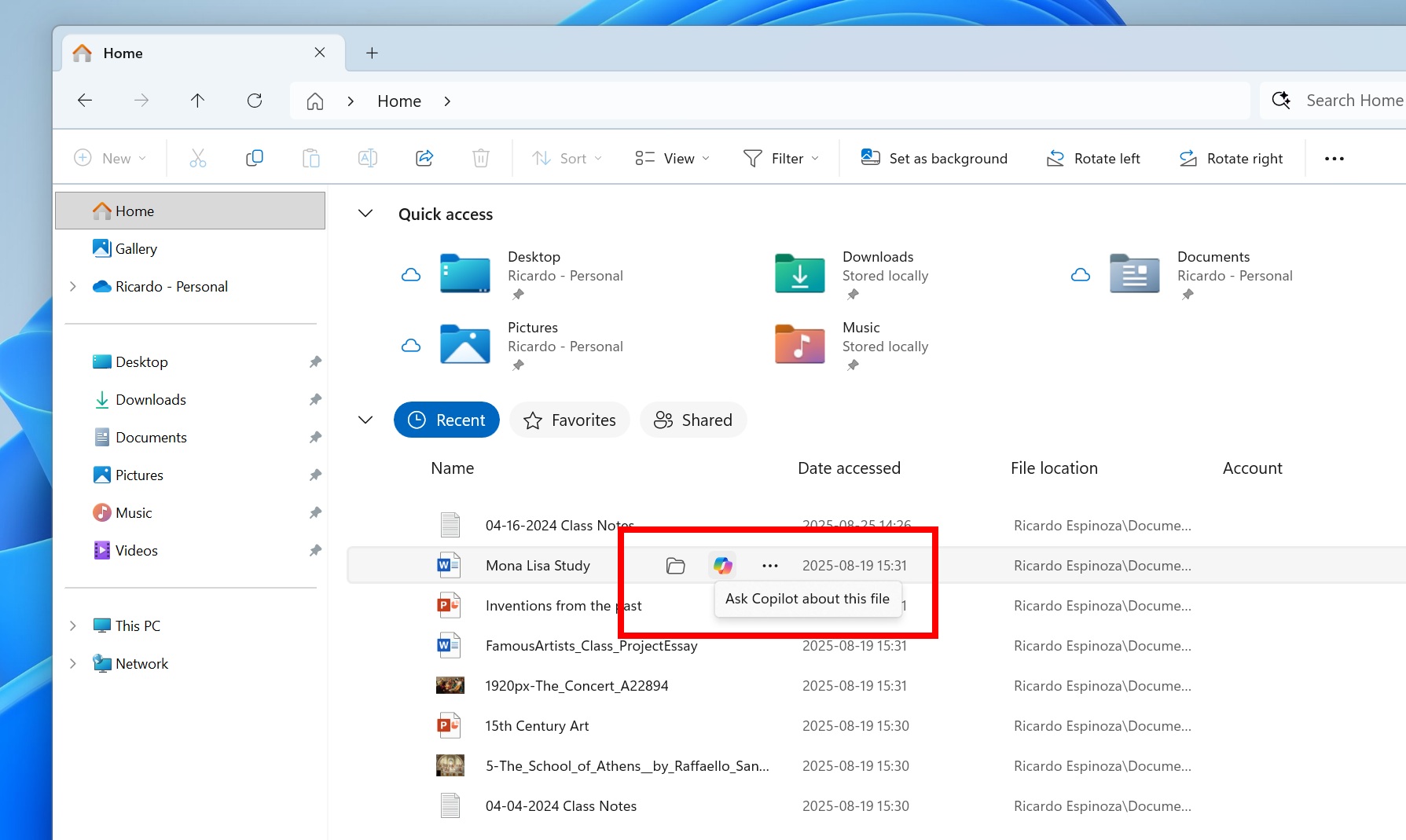
You can now hover over items on the Home tab of File Explorer to access a new feature called “Ask Copilot about this file.”
When you select the option, it just sends the file to Copilot, and you can ask any questions using the uploaded file. If you don’t see the feature, but really want to give it a try, just right-click on any file, select Ask Copilot, and it does the exact same thing.
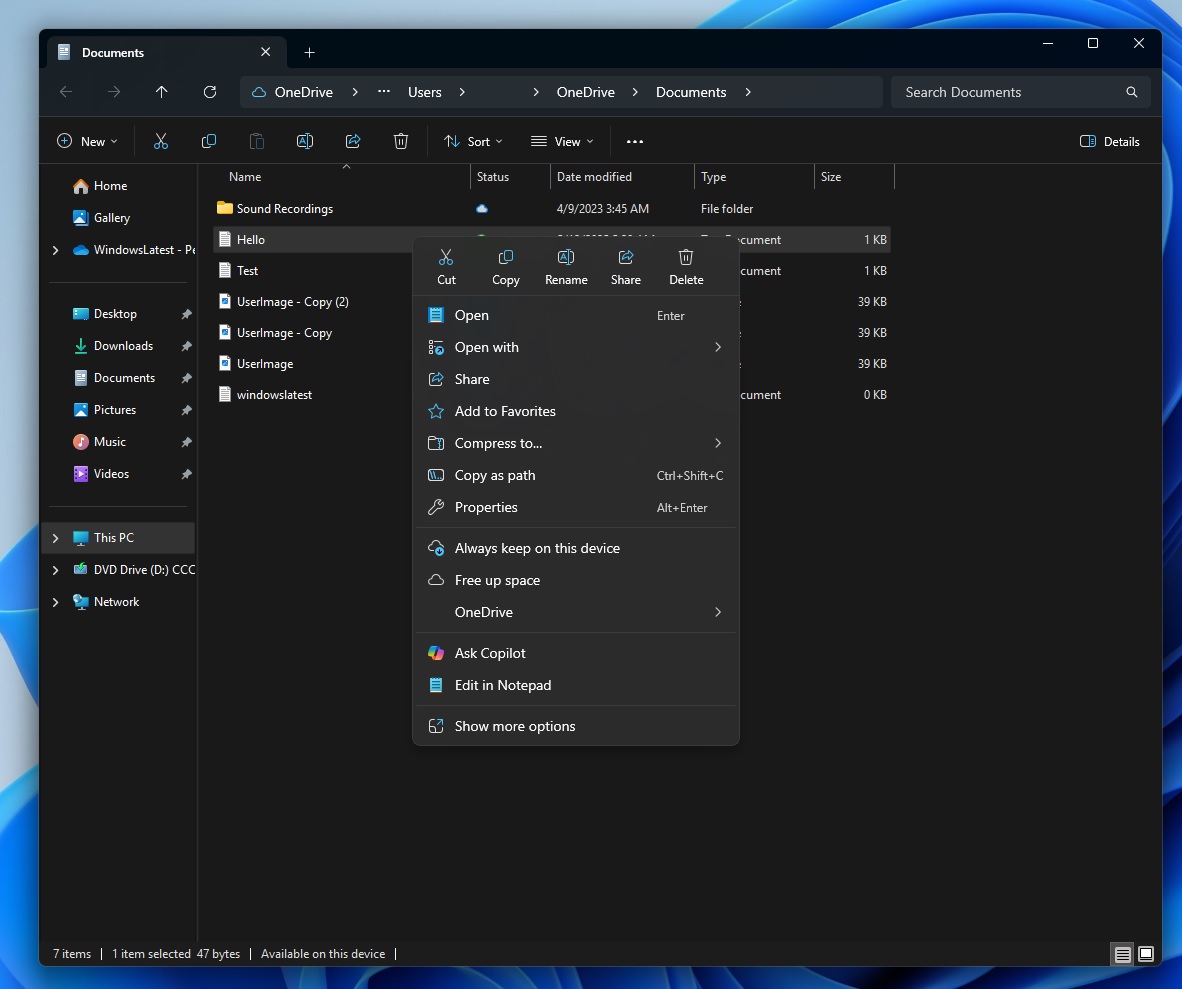
Microsoft added Ask Copilot to the context menu via a Copilot update, and it’s now adding the same toggle to the Home tab.
The File Explorer Home tab now also displays the “Open file location” shortcut when you hover over icons. Previously, this feature showed up only via right-click.
3. New battery icons on the taskbar and lock screen
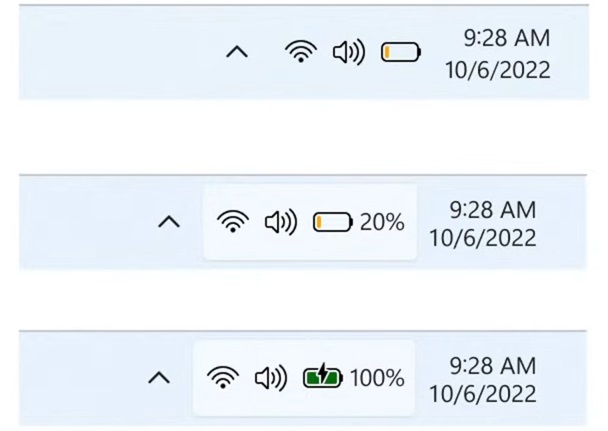
In Windows 11 KB5067036, the Taskbar now has colourful icons for battery, which makes it easier to understand the battery level.
For example, if you see a green indicator with a charging bolt, it means the PC is charging and the battery is 100%. But if the number drops below 70%, you’ll see an orange colour, which eventually shrinks in size to reflect the percentage.
You can also turn off the battery percentage if you want more space on the taskbar. To do this, open Settings > System > Power & battery and turn off Battery percentage. By default, it should be turned off. You can always tap on the battery icon or hover over it to see the percentage.
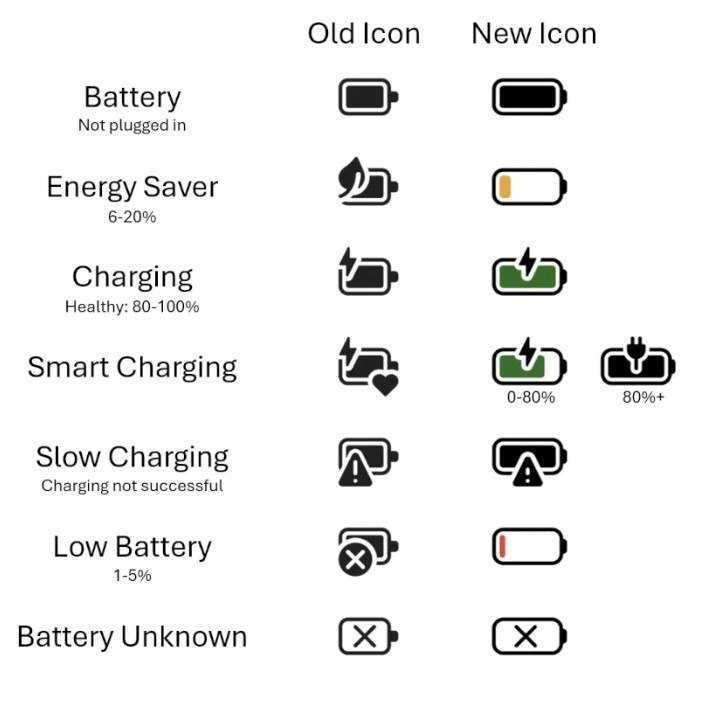
However, remember that these icons go beyond just colours. Microsoft has created unique icons to reflect different power states, such as energy saver, charging, smart charging, slow charging and low battery.
It is worth noting that these new battery icons are also rolling out to the lock screen. You’ll spot the colourful battery icons on the lock screen (bottom right side).
4. Administrator protection
Windows 11 KB5067036 rolls out the Administrator protection feature to everyone.
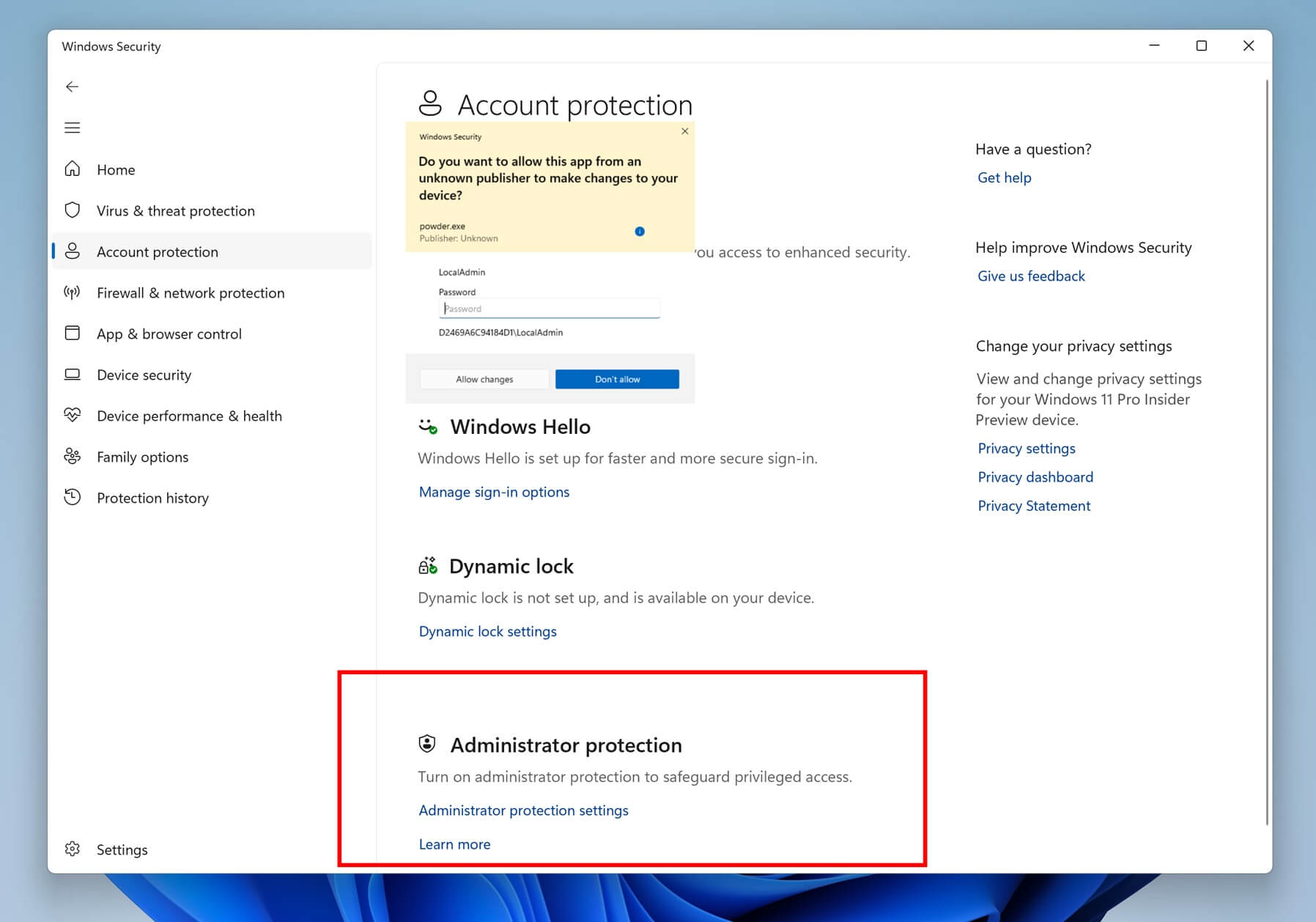
By default, Windows allows an administrator to execute critical tasks, which are blocked on regular accounts. This is by design, but do we really know if the administrator is the owner of the computer? How can we verify the authenticity? Microsoft says Administrator Protection controls how administrator privileges are used.
Windows 11 typically requires admin permissions when it needs to run an installer, modify an app or access sensitive OS information. When Administrator Protection is turned on, Windows will use Windows Hello to verify whether the request is really coming from the original owner of the computer.
You’ll be able to manage Administrator protection from Windows Security (app) > Account protection. This feature was originally supposed to debut in September, but it missed the deadlines and is now bundled with Windows 11 KB5067036.
In our tests, Windows Latest observed that the toggle doesn’t show up immediately after installing the patch, so it appears to be another staged rollout.
5. Taskbar now feels faster
In our tests, Windows Latest observed that Windows 11 KB5067036 actually makes the taskbar faster in a few specific use cases.
For example, when you unlock the PC from sleep, you might have noticed that the taskbar takes a few seconds to load. It could be longer on old or low-end hardware.
It’s not just the taskbar. Windows isn’t exactly smooth when it transitions from sleep state to regular, but today’s update finally takes care of performance, at least for the taskbar.
6. “Update and shutdown” now finally works
Right now, when you use “Update and shut down,” Windows reboots, and you’re back on the lock screen. It doesn’t shut down, and this has been the case since the early days of Windows 8.
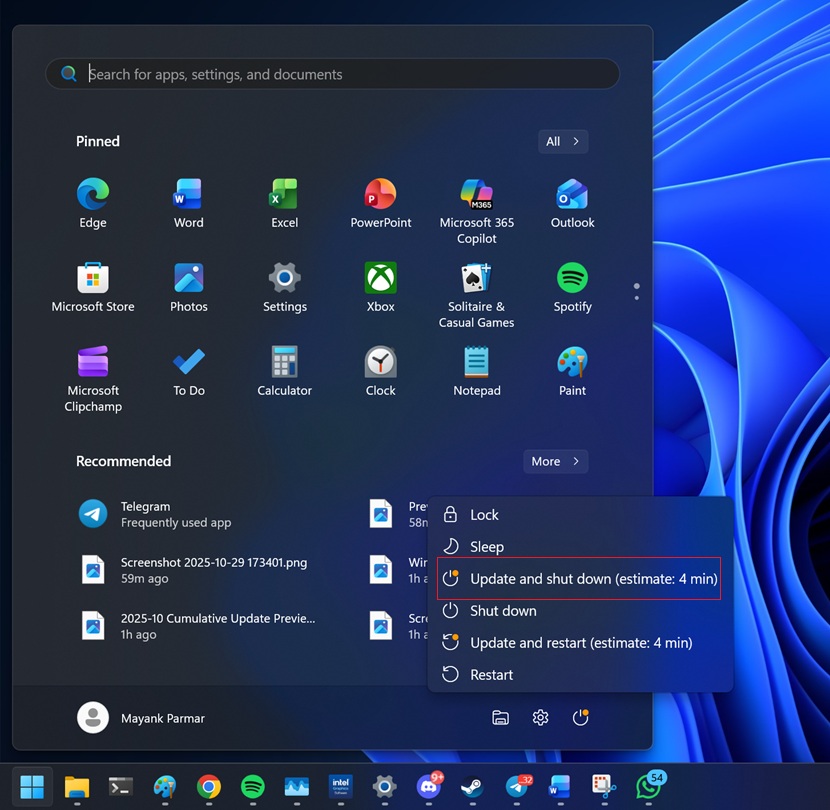
If you use the other option, “Update and restart,” it also does the exact same thing.
This raises one important question. What is the point of having the “update and shut down” button when it just reboots Windows? Microsoft says this was never the intended behaviour.
Microsoft has now confirmed that a known issue prevented the feature from shutting down the computer. Windows 11 KB5067036 now allows the PC to shut down after applying Windows updates.
Here’s the full list of new features, improvements, and fixes in Windows 11 KB5067036:
- Copilot+ PCs: If you’ve a PC with a 45 TOPs NPU chip, you’ll notice a new, improved Windows Search experience that uses AI to automatically improve the search result.
- Microsoft has fixed an issue where the Media Creation Tool would not work when you upgrade to Windows 11 25H2 and use it on an ARM PC.
- A bug has been fixed that broke LocalHost for some users. This issue particularly affected servers using HTTP.sys, which also powers Internet Information Services (IIS).
- Microsoft has fixed an issue that causes 0x8000FFFF error when extracting very large archive folders (1.5GB+).
- In settings, the “Email & accounts” section has been renamed to “Your accounts.”
- A bug that causes games or videos to turn ‘red’ has been fixed. You’ll also notice that Microsoft finally fixed an issue where apps’ onscreen content becomes unresponsive when there are other apps updating in the background.
- A bug that causes apps to become unresponsive when using Open and Save Dialogs has been fixed.
- Microsoft has fixed an issue where Task Manager won’t group processes correctly.
What about known issues in Windows 11 KB5067036?
At this point, Windows 11 KB5067036 feels like one of the best updates, but are there any rough edges? I’m still testing the update across our 100+ virtual machines and dozens of physical hardware with different configurations, but we haven’t come across any particular issue.
Microsoft is also not aware of new issues in the update. In fact, Microsoft claims that it fixed long-standing Windows update errors, such as 0x800f0983, which affected dozens of our test machines. Our tests confirmed that mandatory security updates often fail with 0x800f0983 error, but today’s patch finally puts an end to the mess.
However, if you still run into install errors, I recommend using the Media Creation Tool and performing an in-place upgrade. This will solve all your Windows Update issues without deleting files. On top of that, it can also improve performance.