






Windows 11 KB5101650 is rolling out, and it comes with several minor new features for Bluetooth and system stability, but it’s a great update nonetheless. The July 2026 Patch Tuesday update has been released via Windows Update, and Microsoft has posted direct download links for the KB5101650 offline installer (*.msu).
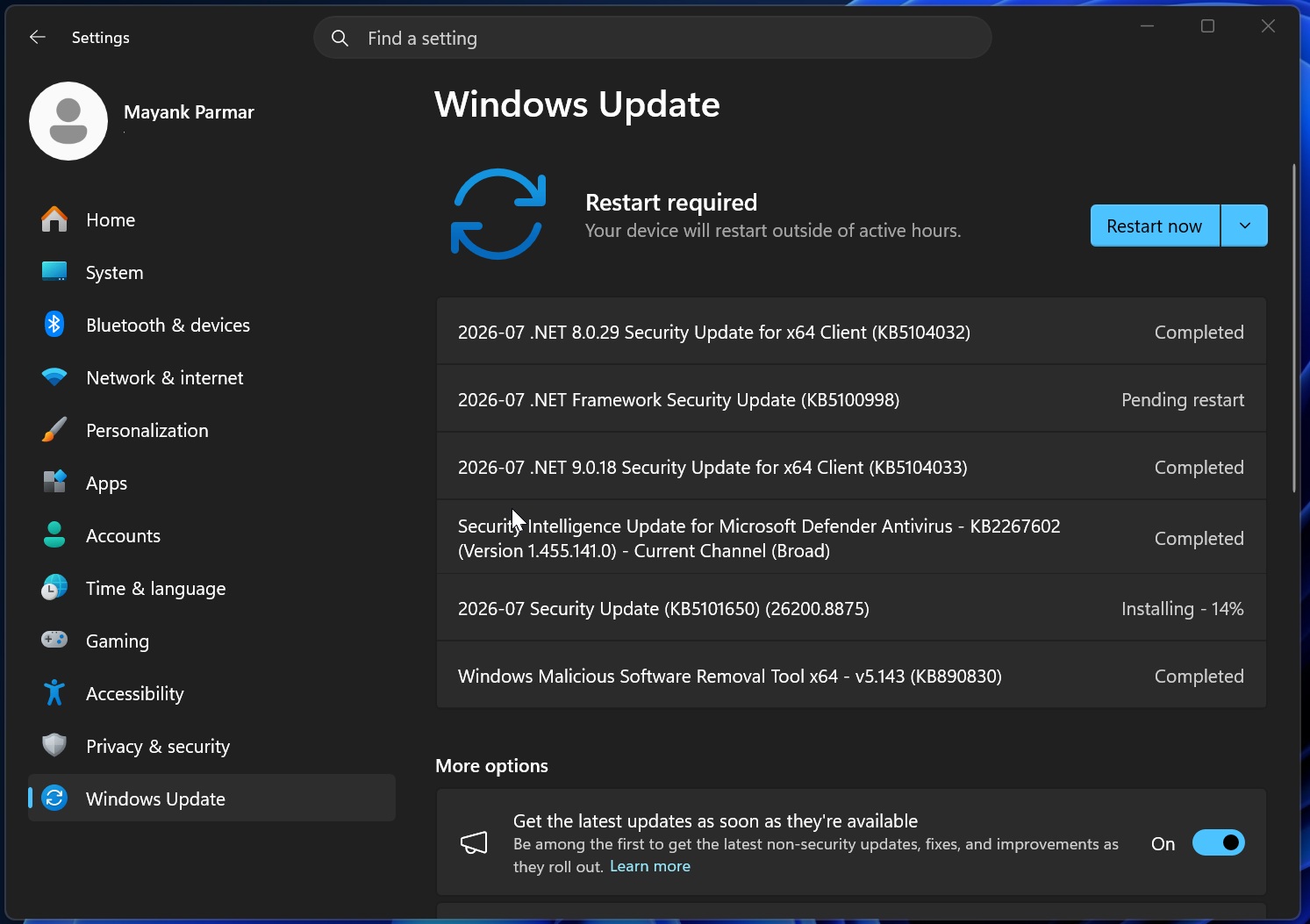
KB5101650 is a mandatory update, and it’ll automatically install on your PC whether you check for updates or not. Today’s update shows up as “2026-07 Security Update (KB5101650) (26200.8875).” This update is rolling out as part of the Windows 11 July 2026 Update (Patch Tuesday), which fixed over 500+ security issues.
If you still use Windows 11 24H2, you’ll be getting the same update, but under a different OS build number, and that is 26100.8875. Microsoft has confirmed it’s ending support for 15 products in 2026, and that includes Windows 11 24H2. It plans to release the last update in October 2026, so you hardly have two months to make a move.
I recommend installing the update as soon as possible, especially after Microsoft warned not to delay updates beyond three days due to the use of AI by bad actors.
In addition to July 2026 Patch Tuesday, Microsoft has released .NET security updates, which are required by many Windows apps, including those made by Microsoft. There are three new updates this month:
- 2026-07 .NET 8.0.29 Security Update for x64 Client (KB5104032)
- 2026-07 .NET Framework Security Update (KB5100998)
- 2026-07 .NET 9.0.18 Security Update for x64 Client (KB5104033)
You will also get a new security software update labeled as “Windows Malicious Software Removal Tool x64 – v5.143 (KB890830).”
Download Links for Windows 11 KB5101650
Windows 11 KB5101650 Direct Download Links: 64-bit and ARM-64 | You should use the linked Update Catalog only when Windows Update itself is failing, or you own multiple PCs, such as dozens or hundreds, and want to deploy the update across all devices in one go. Ideally, Windows Update is more than enough in most cases.
Also, Windows updates downloaded via the Update Catalog are huge in size. In our tests, Windows Latest found that the updates are now more than 5GB in size due to AI bundles and recent changes to how Windows updates are shipped. Here’s a table that details the current size of all Windows updates shipping today:
| Build Number | Size | OS Version | Architecture |
|---|---|---|---|
| 26200.8875 | 5383.7 MB | Windows 11 25H2 | x64-based |
| 26200.8875 | 5383.7 MB | Windows 11 25H2 | arm64-based |
| 26100.8875 | 4799.2 MB | Windows 11 24H2 | x64-based |
| 26100.8875 | 4799.2 MB | Windows 11 24H2 | arm64-based |
To download Windows 11 Build 26200.8875, open Settings > Windows Update and check for updates. This is the recommended method.
What’s new in Windows 11 Build 26200.8875 (25H2) / Build 26100.8875 (24H2)?
All features listed below are gradually rolling out and won’t show up immediately after installing the July 2026 update:
1. Windows 11 bug that could use over 500GB of your storage
Microsoft previously confirmed a bug where Windows could use over 500GB of your storage, and it was only noticeable when you opened System & Reserved in Settings > Storage > Show more categories. Affected PCs had their System reserved increase to more than 100GB, and in some cases over 500GB.
The culprit is a particular file called “CapabilityAccessManager.db-wal,” which is linked to Capability Access Manager.
This feature is used to store logs for privacy and hardware access, such as camera, microphone, and location. While it’s not supposed to use hundreds of gigabytes of storage, a bug in Windows 11 broke the feature, causing it to use all of your resources.
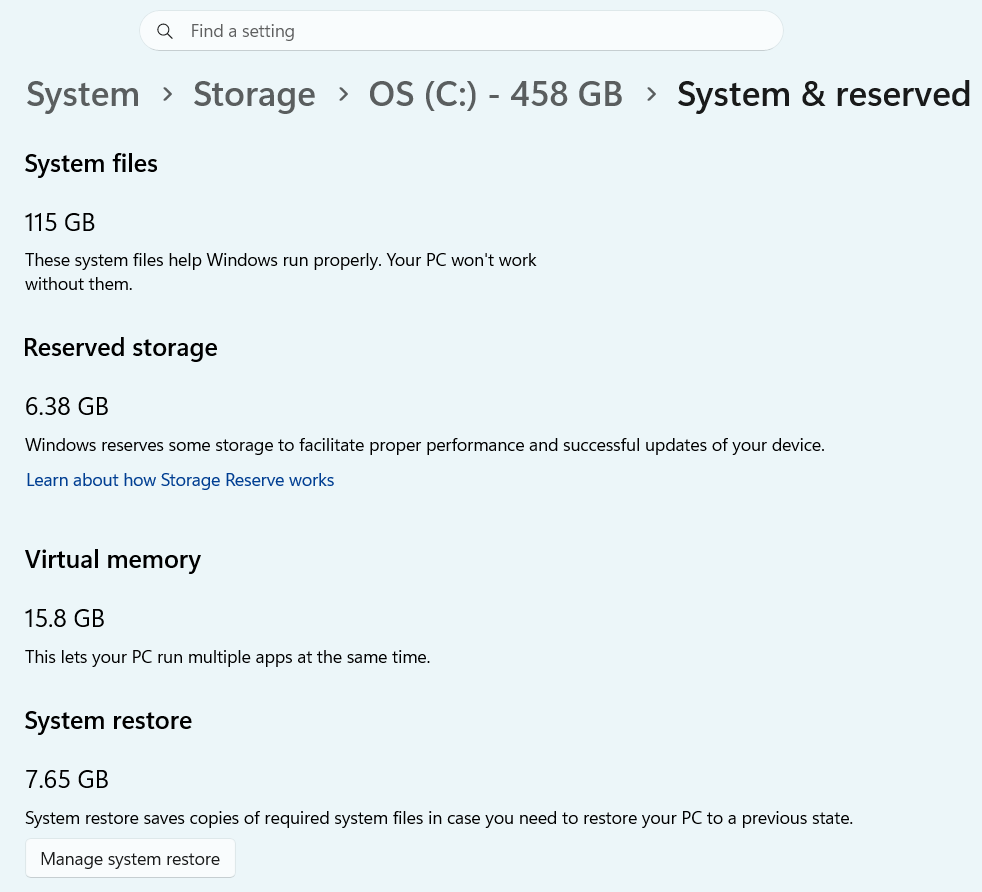
I can confirm that Windows 11 KB5101650 is fully patched, and you don’t have to worry about it anymore.
2. Point-in-time restore for Windows 11 is finally rolling out
Windows 11 KB5101650 is adding a new recovery feature called Point-in-time restore, which could be really helpful when you want to restore a previous state. I find the idea a bit similar to the Windows XP-era System Restore, but it’s far more powerful, as Windows 11 actually allows you to configure it.
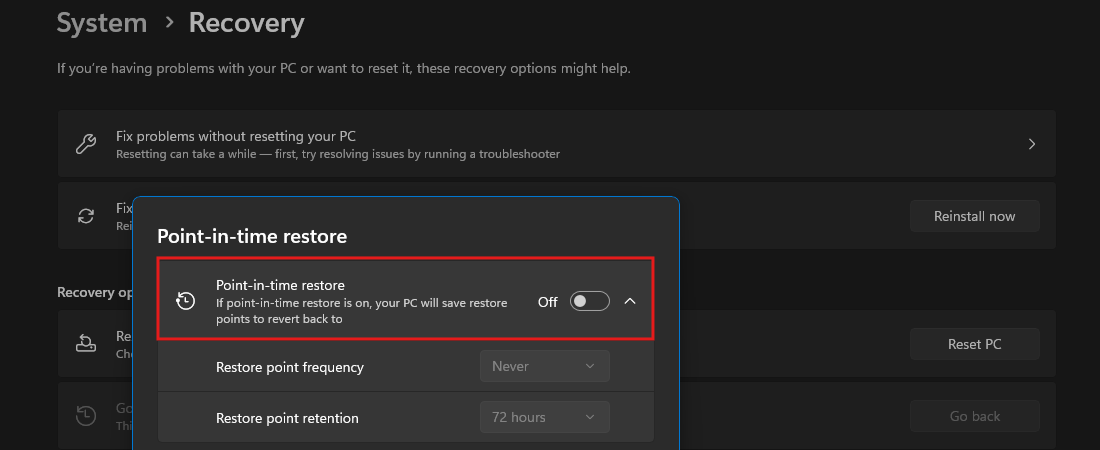
Restore points are locally stored using a feature called Volume Shadow Copy Service (VSS), which freezes your files and saves a copy in a volume that is not affected or touched by other Windows features. In short, Volume Shadow Copy Service (VSS) does not require a separate drive to save your files or settings, and your data is still fully protected.
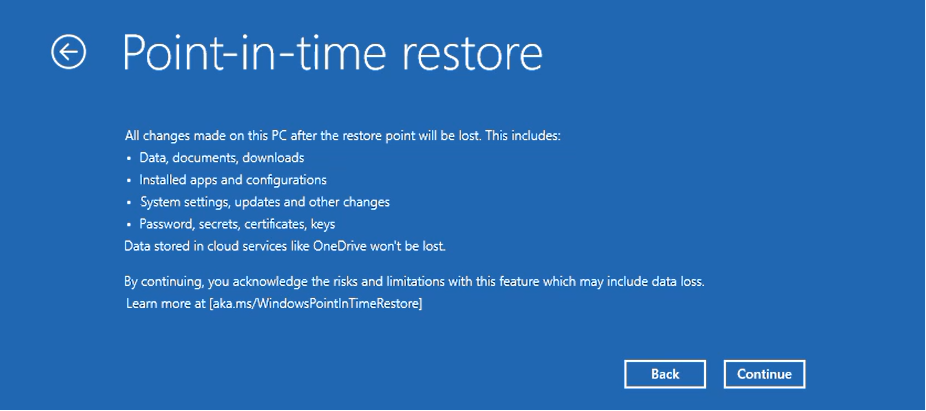
By default, the Point-in-time restore feature captures your system every 24 hours on Windows 11 Home, but if you have Windows 11 Enterprise, you can configure the backup and retention period to match your preference.
According to Microsoft, Windows 11’s Point-in-time restore could reduce system downtime, especially if you run into issues and just want to go back in time. Restore points include the following items:
- Windows 11’s current installation.
- Apps and settings.
- Local files, such as pictures, videos, etc.
Microsoft previously told Windows Latest that the Point-in-time restore feature is really powerful, and “no user data” is left out of the backup.
When this feature is turned on in Windows 11 KB5101650, you will notice that Reserved storage in Settings > Storage > Show more categories > System & reserved keeps resizing. But your storage is cleared up when older restore points are automatically purged.
If your device is already low on storage, a restore point would not be created. Right now, the minimum threshold is 20GB. You can also configure how much of your system storage can be used by Point-in-time restore. In our tests, Windows Latest observed that the upper limit is 50GB, and you can use the slider to reduce or increase it:
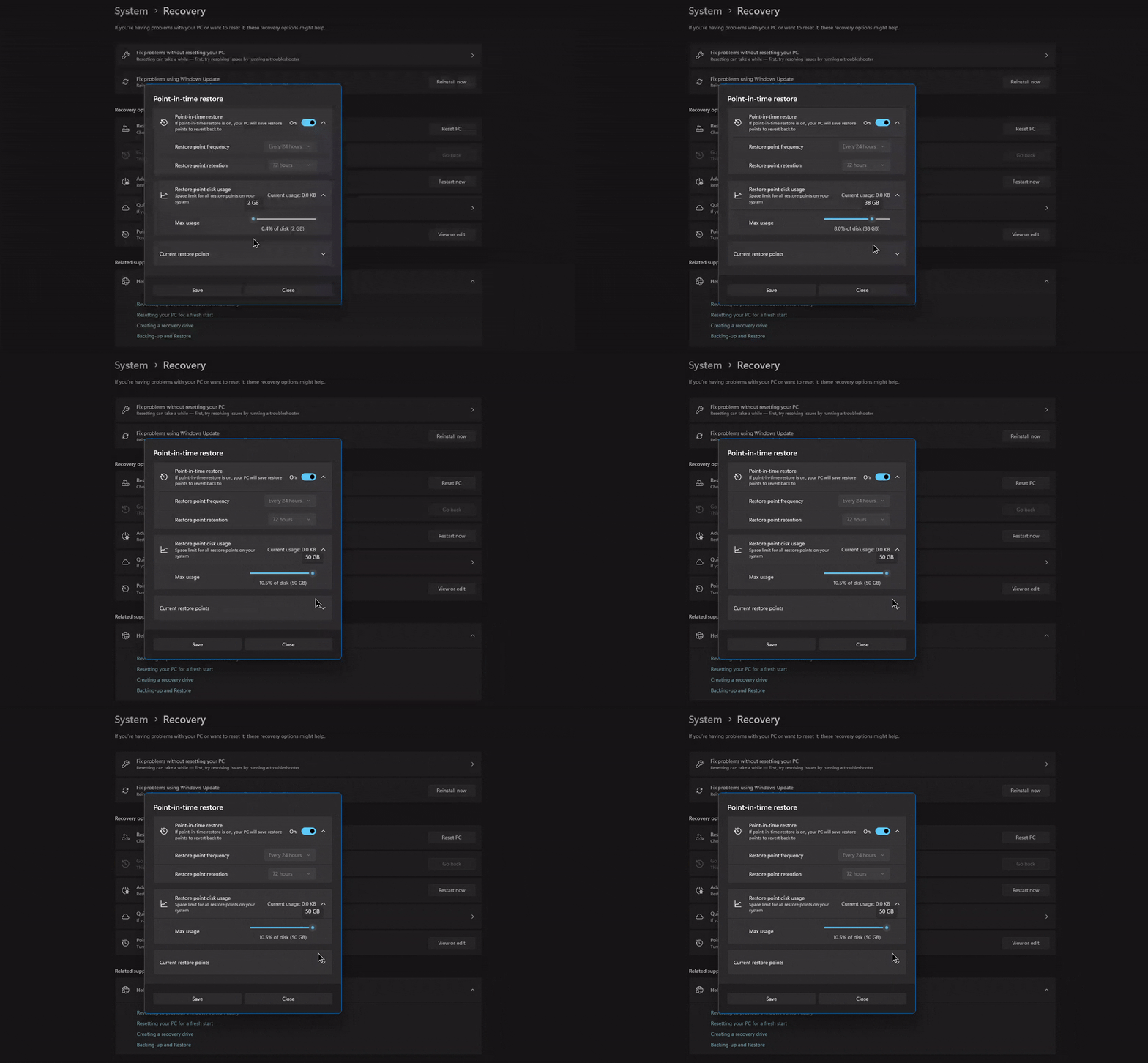
Restore points would be deleted automatically after they become older than 72 hours, and you have the choice to choose from the available points when you are on the Windows recovery/troubleshoot screen.
3. Windows Update now lets you pause updates easily
Windows 11 has always allowed you to pause updates, but the controls have been fairly limited on a PC with a Home license. While Windows 11 Pro or Enterprise has Group Policy to defer updates to a preferred day, you don’t have that feature in the Home edition. That changes today, sort of.
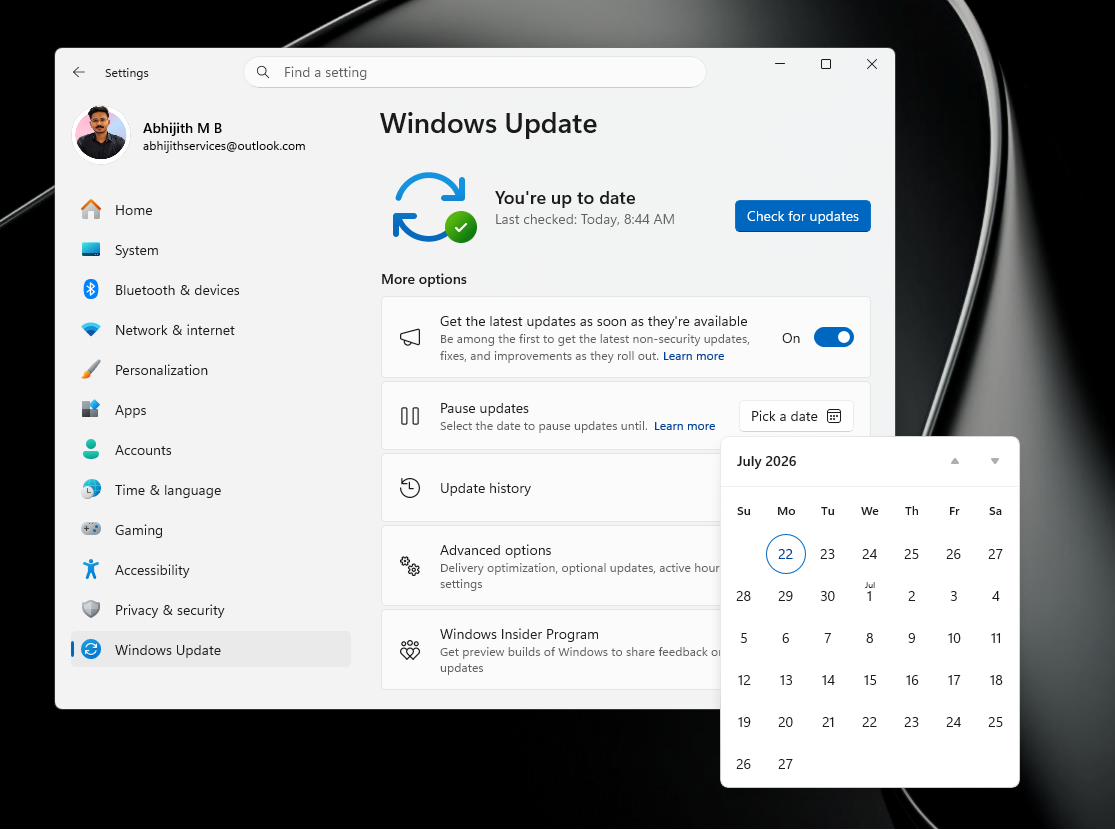
With Windows 11 KB5101650, Windows Update is getting a new feature where you can defer updates to a specific day within a 35-day range.
You still can’t pause updates for longer than 35 days, but you can now choose a specific day instead of using the current “Pause updates for up to seven days” or weeks.
Moreover, Windows Latest observed that when you pause updates and you’re approaching the resume day, you can unpause them and re-pause updates as many times as you want. In a way, it’s finally possible to defer Windows updates for as long as you want, but you just need to actively remember when the block expires.
4. Widgets board is now quieter and finally less annoying
Windows 11 KB5101650 is adding a quieter Widgets board that reduces distractions, interruptions, and ads.
Right now, if you have the Widgets board turned on and use it occasionally, you will almost always accidentally open it by hovering over the taskbar icons.
Microsoft found that the Widgets board opening on hover is annoying, and it’s actually counterproductive, which means most users choose to turn off Widgets entirely instead of accidentally opening it on hover.
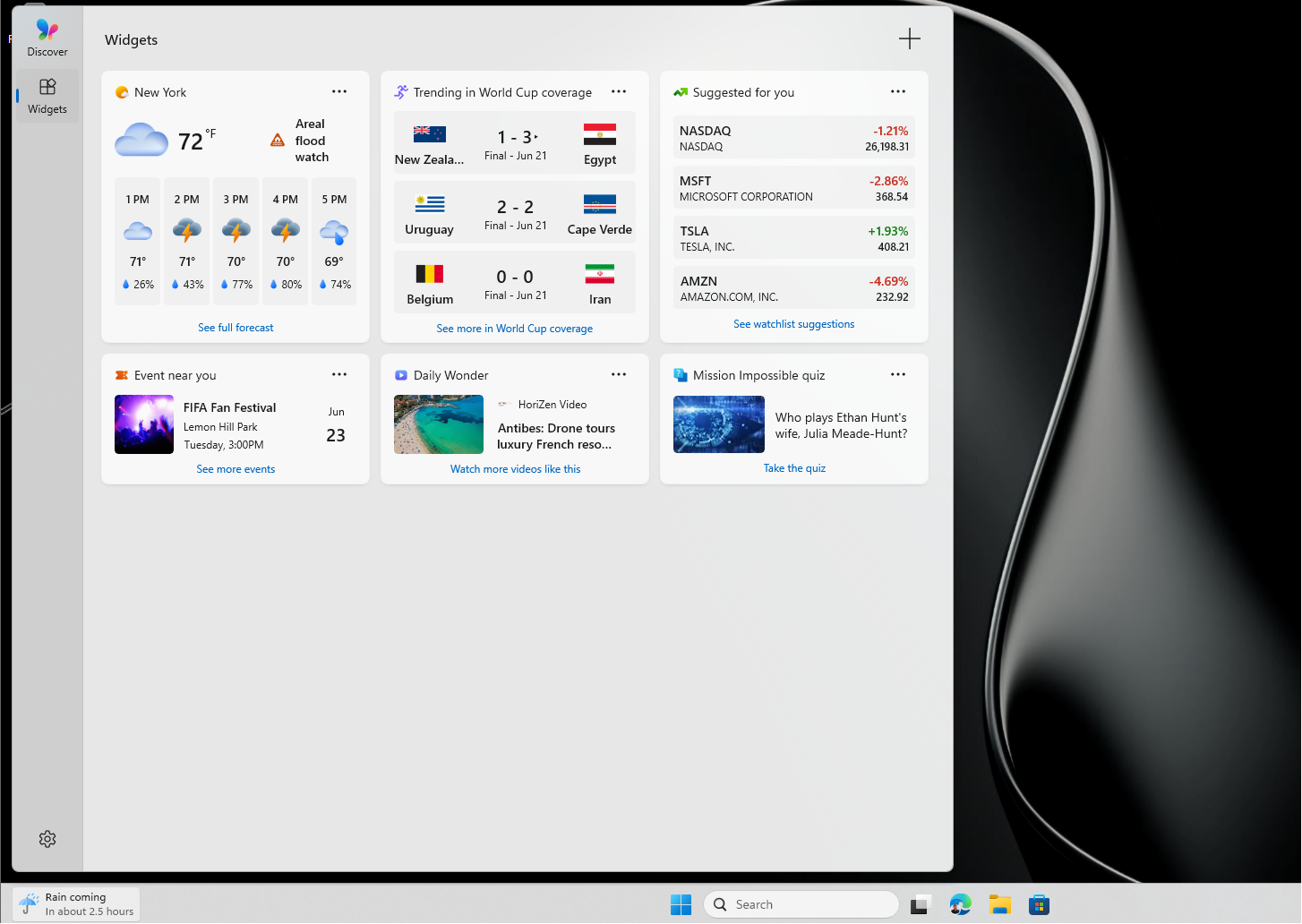
If you truly love the Widgets board, you have some nice improvements to try today. First, the Widgets board is now simpler, and Microsoft has reduced the clutter in the default experience. Second, you can now customize Widgets from a new Settings option in the navigation bar and customize features.
Last but not least, the Widgets board is now faster and more reliable, so you are less likely to run into major reliability issues.
5. Screen Tint feature gives you greater control over your accessibility needs
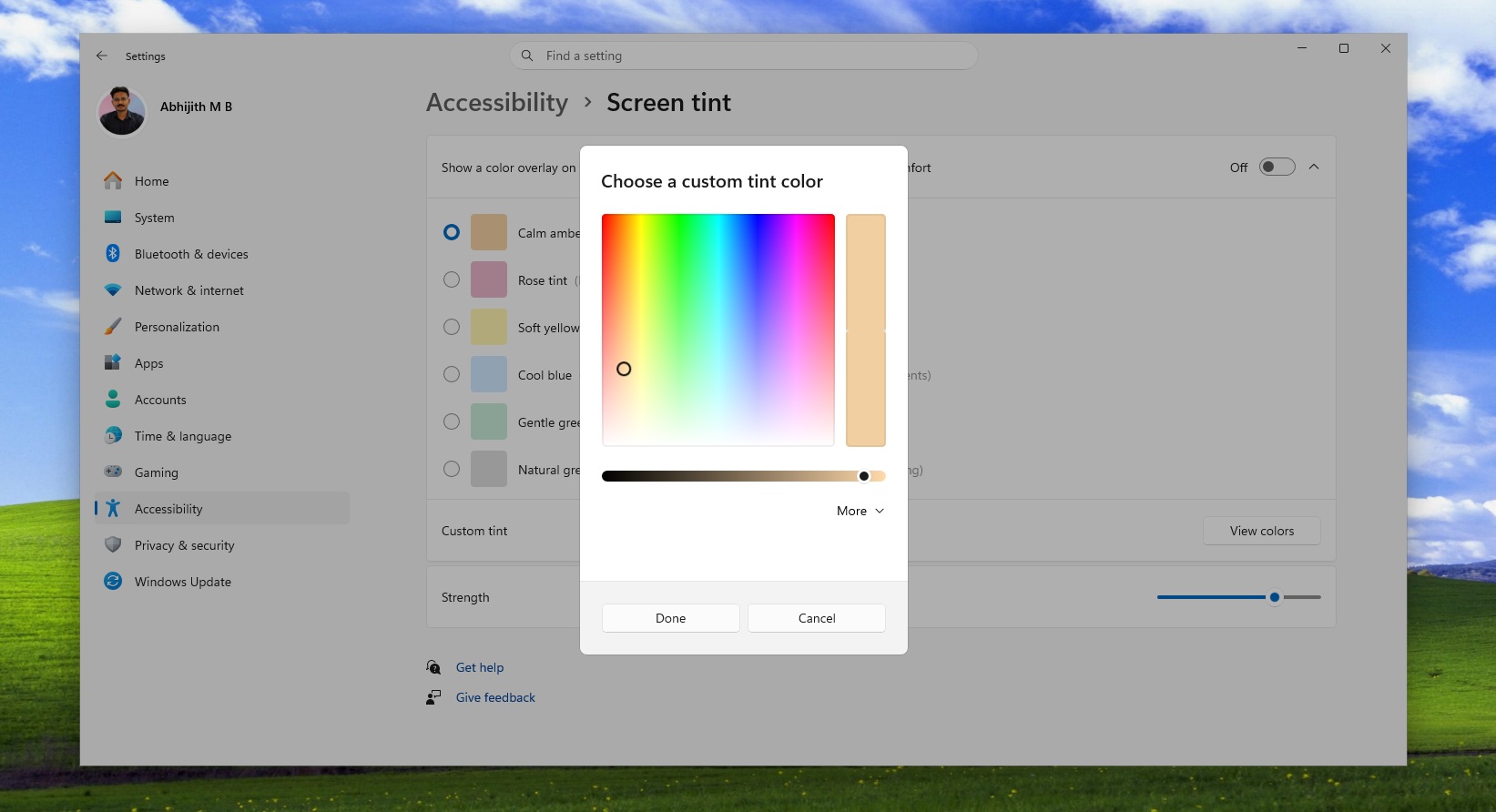
Windows 11 KB5101650 is adding a new feature called “Screen Tint,” which is an advanced version of Night mode.
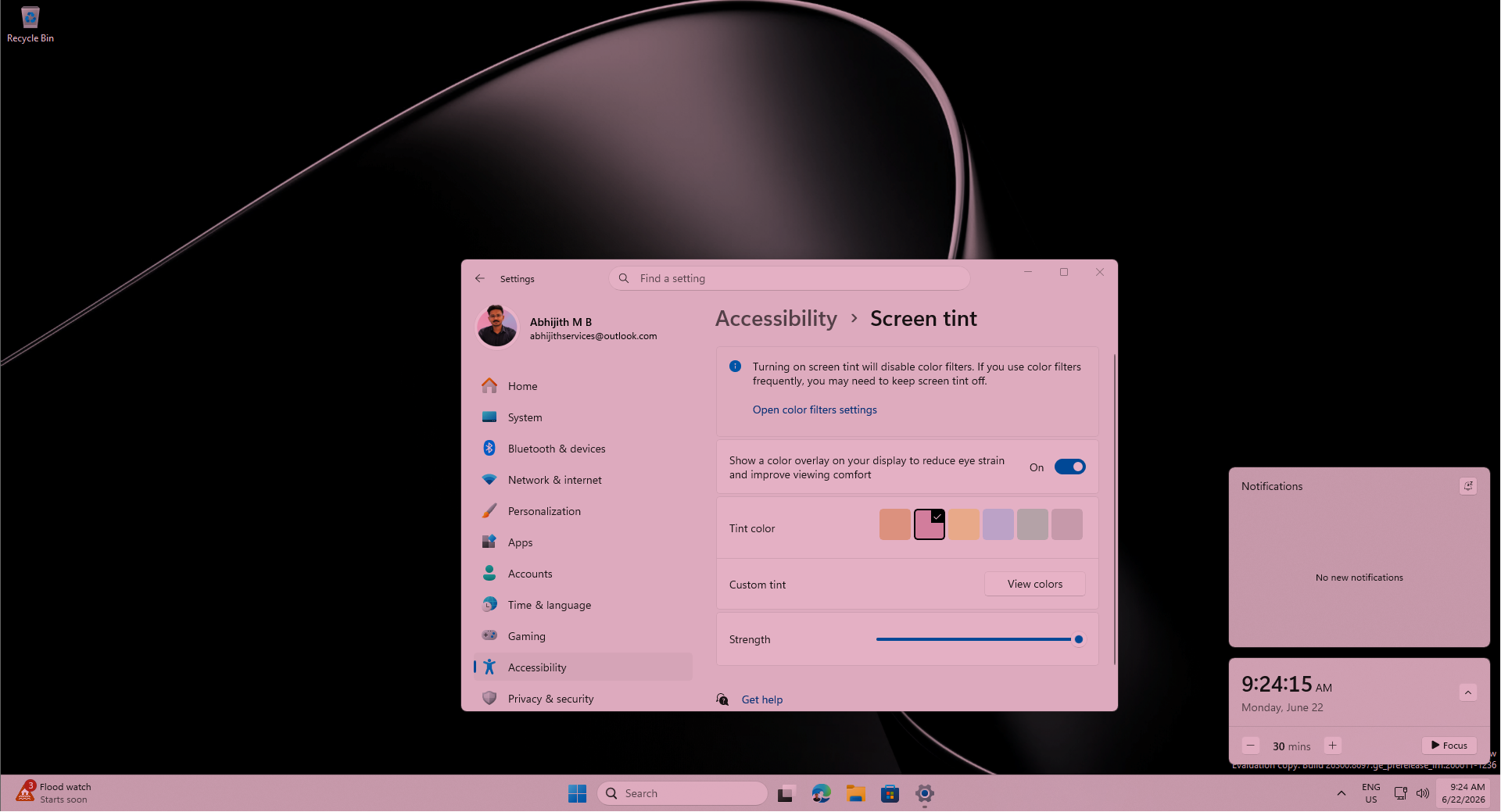
By default, Windows 11’s Night mode has a single tint effect, and while you have the ability to change the intensity, the color stays the same. On the other hand, Screen Tint is designed for advanced use cases, such as dealing with headaches or migraines.
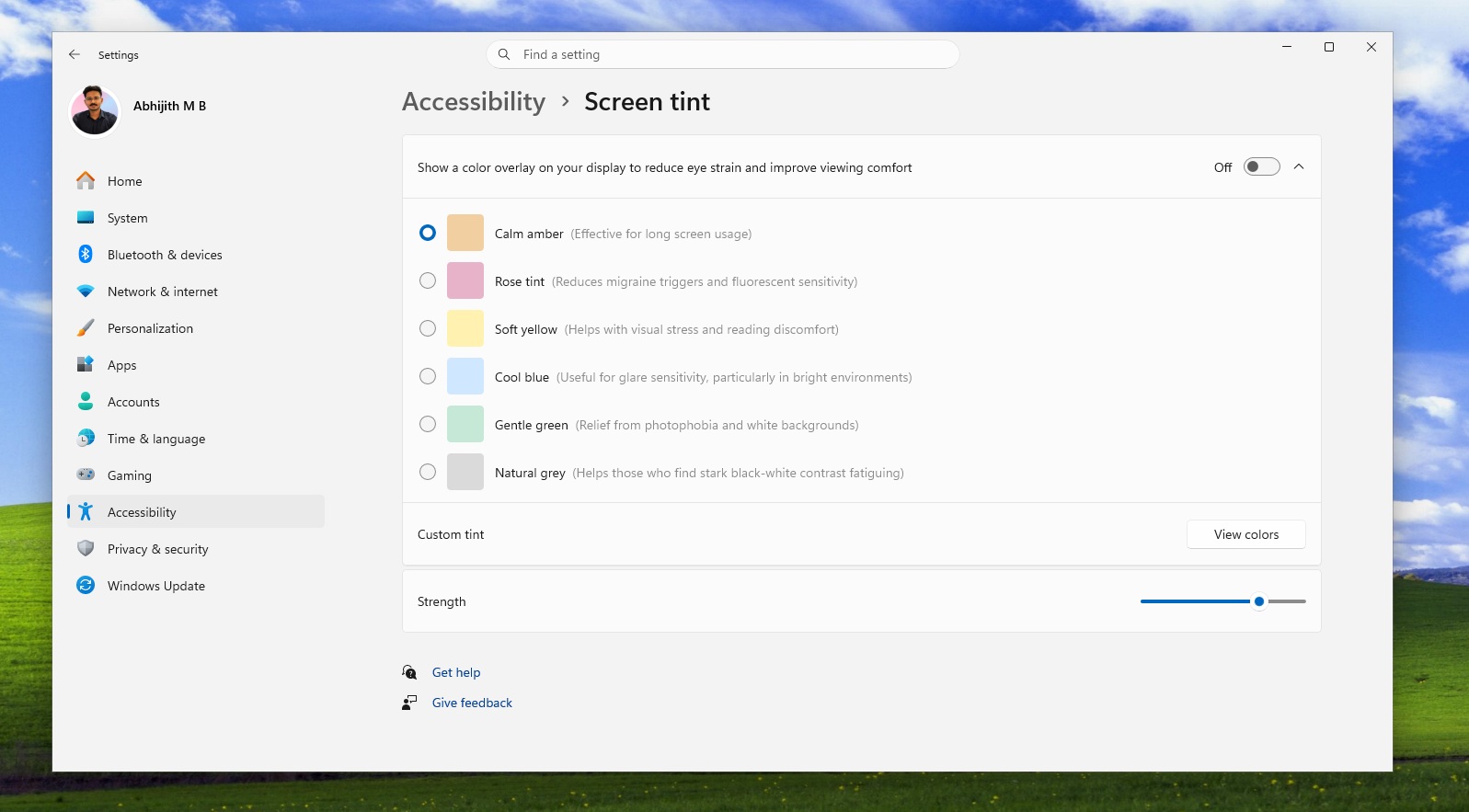
Microsoft lets you choose your preferred color for Screen Tint, and you can customize the feature under Settings > Accessibility.
6. File Explorer is becoming faster and more reliable
Windows 11 KB5101650 includes several File Explorer-related changes that most of you will eventually notice. First and foremost, if you hover over items in File Explorer’s Home tab, you will now be able to access “Open file location” and “Ask Copilot.” If you use Microsoft 365 Copilot, you will see that option instead.
Windows Latest also observed that File Explorer now launches a bit faster, and it’s not due to preloading. I’m told that Microsoft is optimizing File Explorer’s Home tab, so it loads resources faster and is noticeably more reliable.
Of course, today’s update will not make File Explorer significantly faster, as the improvement will be most noticeable when Low Latency Profile expands to File Explorer or preloading finally ships.
Here’s everything fixed in File Explorer with the July 2026 Update for Windows 11 25H2:
- A bug has been fixed where the OneDrive shortcut does not work in File Explorer if you run it using administrator rights.
- A bug has been fixed where the address bar closes after you select an item. It’s also far more reliable now, so there’s a noticeable performance improvement with how suggestions are shown in the address bar, and it also supports paths with double backslashes and quotation marks.
Last but not least, you can now rename case-sensitive files in File Explorer, and it’ll respect your choice:
7. Bluetooth finally works better on Windows
Windows has never been great with Bluetooth devices, and that includes the premium AirPods, where you’d still run into poor connectivity or longer time to connect. In worse cases, your Bluetooth could simply disappear from Windows, and you won’t see the icon next to WiFi in Quick Settings.
It’s unclear whether critical Bluetooth bugs are being patched today, but Windows Latest can confirm that Windows 11 KB5101650 delivers much-needed fixes for AirPods pairing, which now shows up for pairing more quickly.
Here’s the full list of fixes in Bluetooth:
- Windows remembers the microphone state, so if you mute it using the hardware button or touch on your headset, it’ll remember that state. This feature is powered by the Hands-Free Profile (HFP).
- Audio now plays faster while using the microphone.
- Bluetooth & devices page is now stable and will not crash or lag when you manage your Bluetooth accessories.
- Bluetooth now connects faster after you resume your PC from sleep or hibernation.
- Phone Link now offers improved call routing.
8. You can now customize the size of the right-click zone for your touchpad
If you go to Settings > Bluetooth & devices > Touchpad, you will now find a new toggle that lets you customize more of your touchpad (trackpad) settings, including the right region size. It’s a bit similar to macOS, where you can customize where you can right-click or if you can right-click at all.
In Windows 11 KB5101650, you can choose between default, small, medium, or large to decide how much of the bottom right corner should respond when you tap it.
9. New printer installs use Internet Printing Protocol (IPP)
If you install a new printer or remove an older printer after applying the update, you will notice that modern printers will automatically use Internet Printing Protocol (IPP). This change is being rolled out as Microsoft is phasing out support for third-party drivers for printers, particularly those that are old and still present on Update Catalog.
There are similar other improvements rolling out today, and our tests show that today’s update has something for everyone. Here’s the full list of fixes in Windows 11 KB5101650:
- WSL usage has now been improved in mirrored networking mode if you use VPNs.
- Scrolling is now smoother if you use multiple monitors.
- Windows now reliably applies color profiles.
- A bug where Windows takes longer than usual to shut down is now patched.
- Windows PCs with more than 32GB RAM are now better optimized to run AI models locally.
Is Microsoft aware of any known issues in the July 2026 Update?
On July 14, Microsoft said it was not aware of any major bug affecting the July 2026 cumulative update, but the next day, the company warned that some Dell PCs were shutting down and experiencing major performance issues, overheating, and battery drain.
Microsoft eventually paused the rollout of the July 2026 update on 12 affected Dell PCs, but as of July 20, the company has released a new out-of-band update (KB5121767) that finally installs on all PCs without issues.
Update: This article was updated on July 20, 2026, with new details on known issues.