




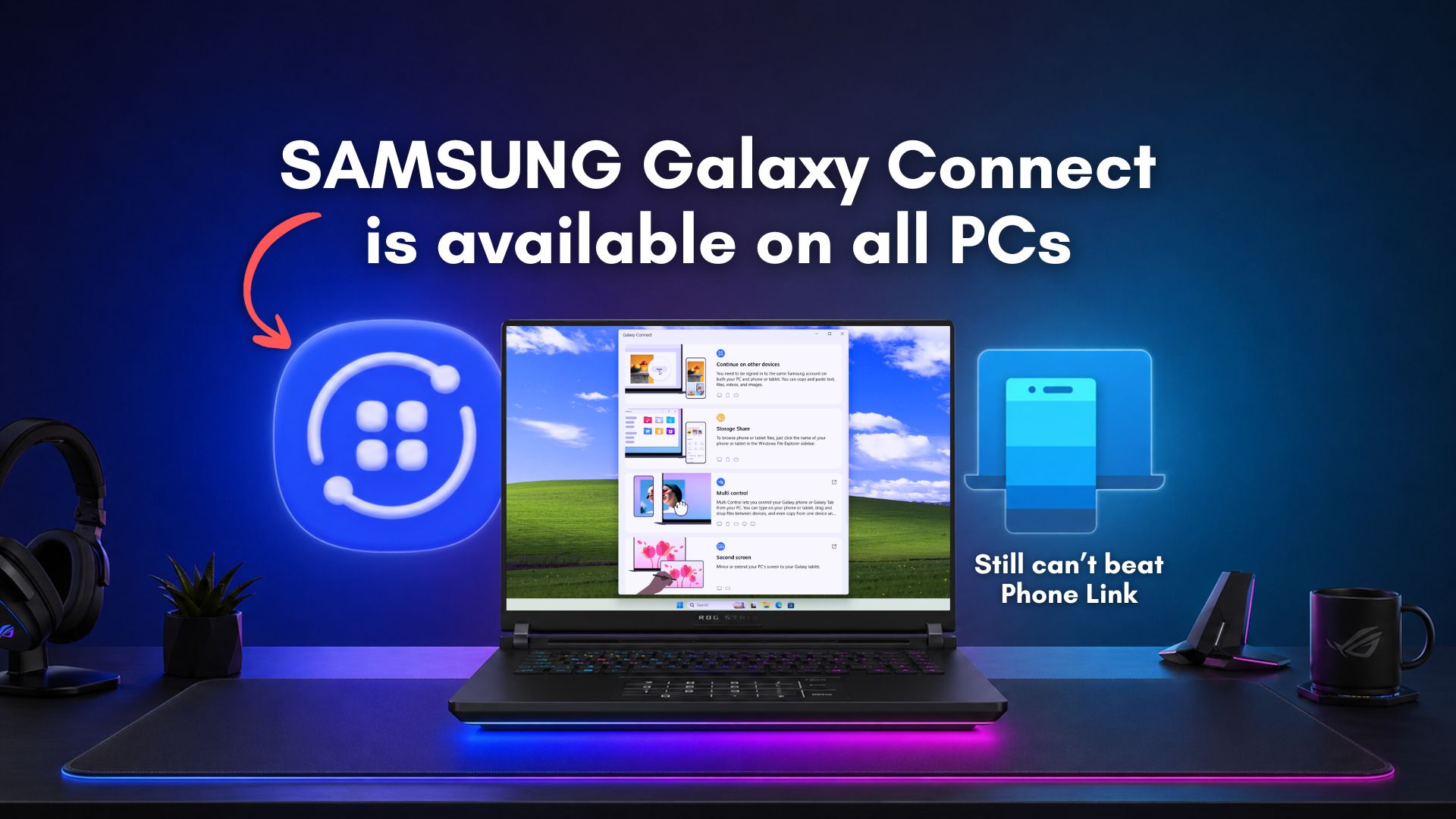
On April 1, 2026, Samsung quietly updated its Galaxy Connect app to also support all Windows 11 PCs. So, if you have a Galaxy smartphone and a PC, you can now make them work together with features like copy‑and‑paste across devices, browsing phone files in File Explorer, and cursor control, typing, dragging, and dropping seamlessly between screens. Earlier, these features worked only if you had a Samsung Galaxy Book.
While the South Korean giant’s smartphones don’t need any introduction, they couldn’t recreate the same success with their Galaxy Book series. Fortunately, most Galaxy smartphone users have a Windows PC, and getting them to work together just needs a Galaxy Connect app.
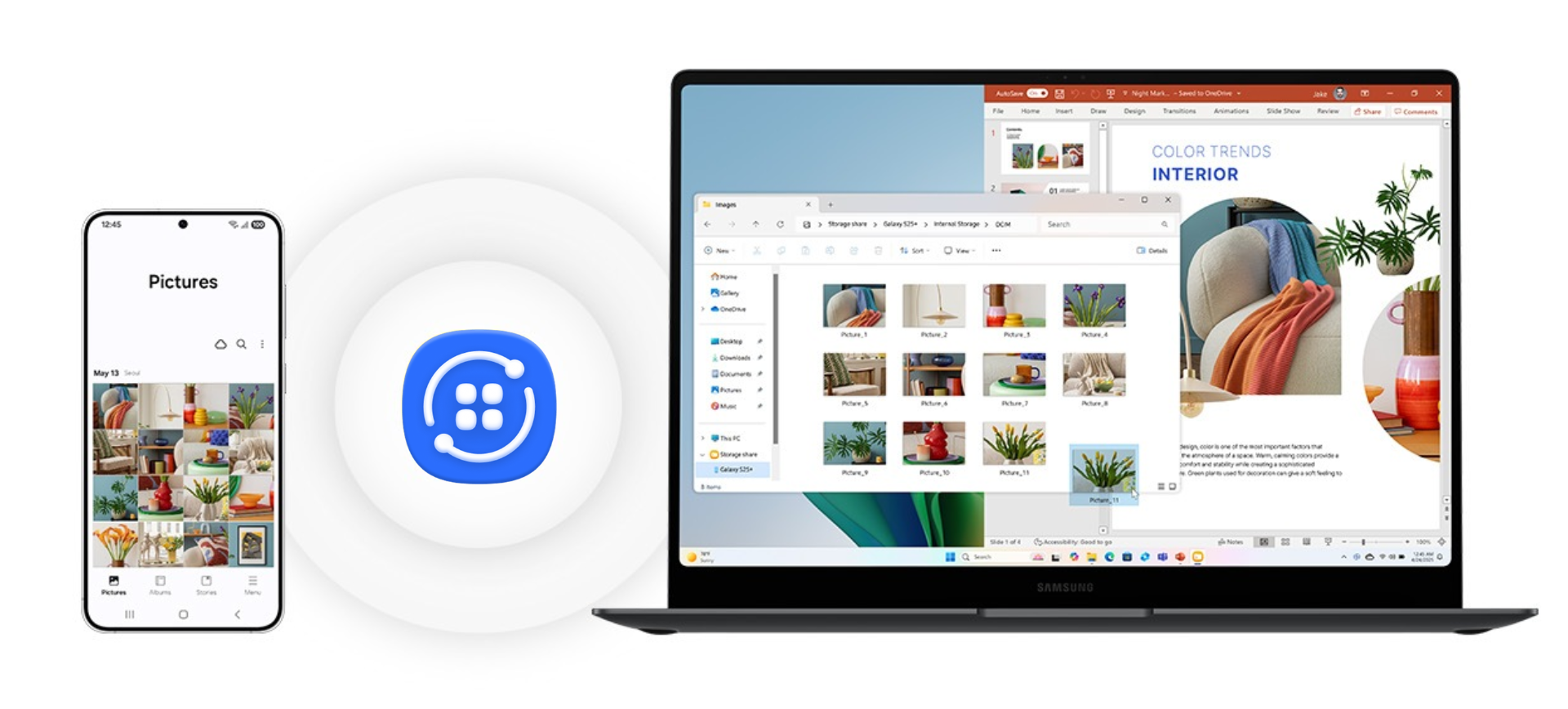
In an ideal world, or maybe in an infamous “walled garden”, you wouldn’t need a separate app to connect your phone and PC. Unfortunately, Microsoft and Google happen to be competitors, and despite Redmond’s efforts to populate the Play Store with high-quality apps, including the Office suite, there haven’t been any initiatives from Mountain View to help bridge the gap between Android and Windows.
Phone Link on Windows and Link to Windows on Android are still works of art, and interestingly, Samsung’s continued partnership with Microsoft provided Galaxy phones with enhanced features in Phone Link.
So, what’s the need for Galaxy Connect? Well, I tested Samsung’s new Windows app to see if it does everything it’s supposed to, and most importantly, if it is better than Phone Link.
How to download the Galaxy Connect app on your Windows PC?
Open the Microsoft Store, search for “Galaxy Connect”, and click Get. The approx size is 307 MB.
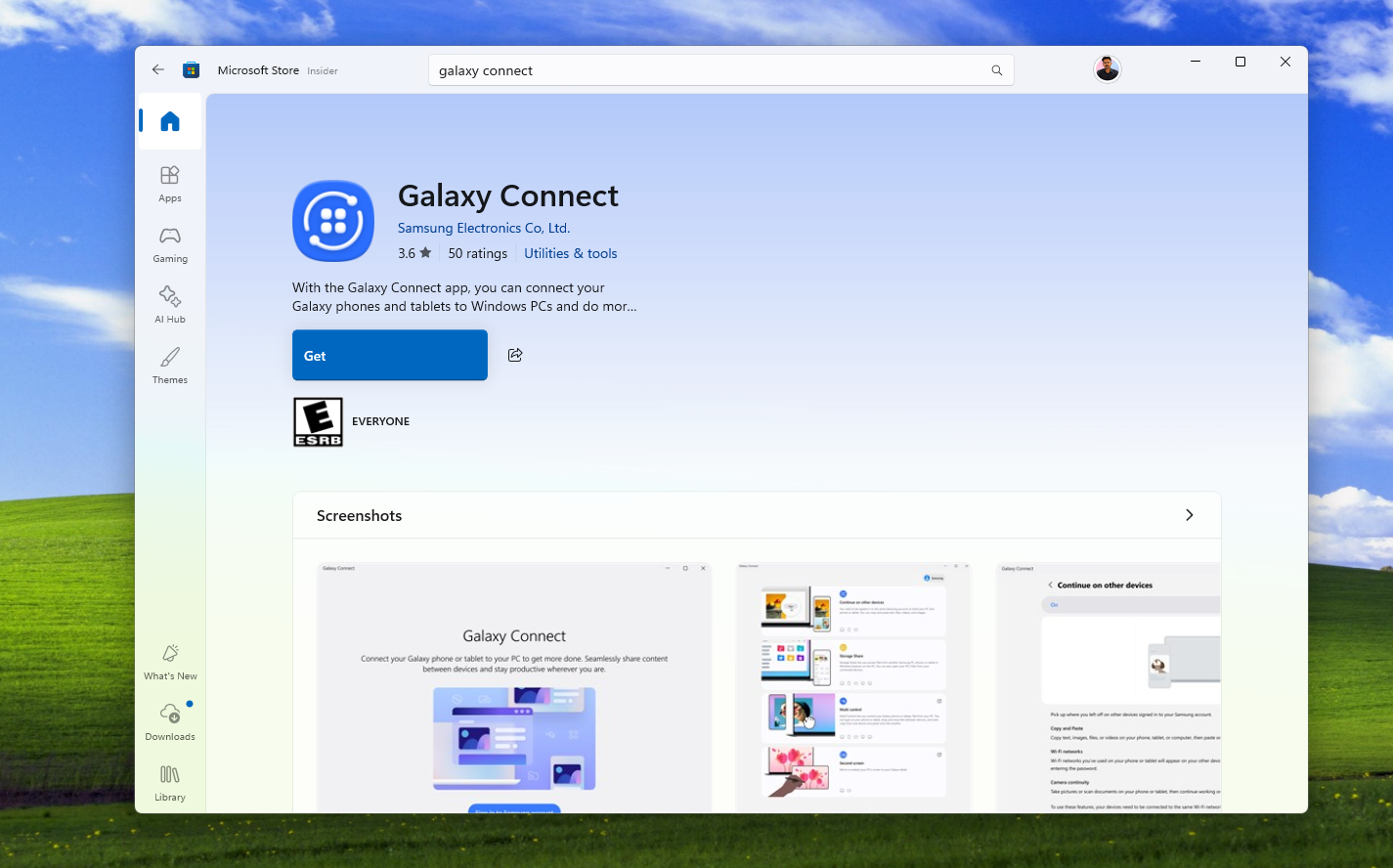
Microsoft Store already shows if your PC is compatible with the app, and I’m saying this here because Galaxy Connect refused to open on my VM. Here is the full list of supported specifications and devices:
- You’ll need to be on Windows 11. No Windows 10 support!
- Supported on Intel or AMD-based x64 PCs. No ARM support yet
- Intel Bluetooth and Wi-Fi chipset with Intel Wi-Fi driver: 22.50.07 or higher, and Intel Bluetooth driver: 22.50.02 or higher. Although Samsung says it works on AMD devices, some features may not work if you don’t have an Intel processor.
- Your PC should be signed in with the same Samsung account, which is a separate app
- Bluetooth and Wi-Fi must both be turned on, and your PC and Samsung phone must be connected to the same Wi-Fi AP.
Setting up Galaxy Connect
When you click Open, you’ll see the Galaxy Connect setup page and a prompt that asks you to install .Net desktop Runtime, which is the engine that runs .NET desktop apps on Windows.
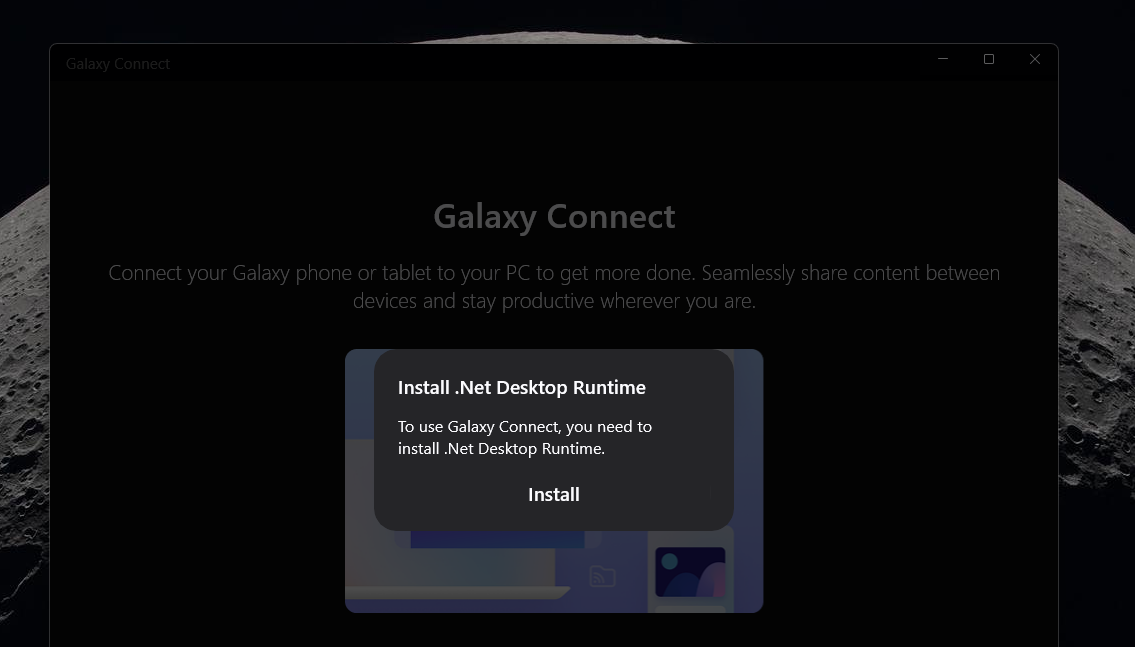
Then, you’ll be asked to Install Samsung account. At first, I thought they made a typo, but “Samsung account” is the name of an app, and you’ll be taken to the Store to download it.
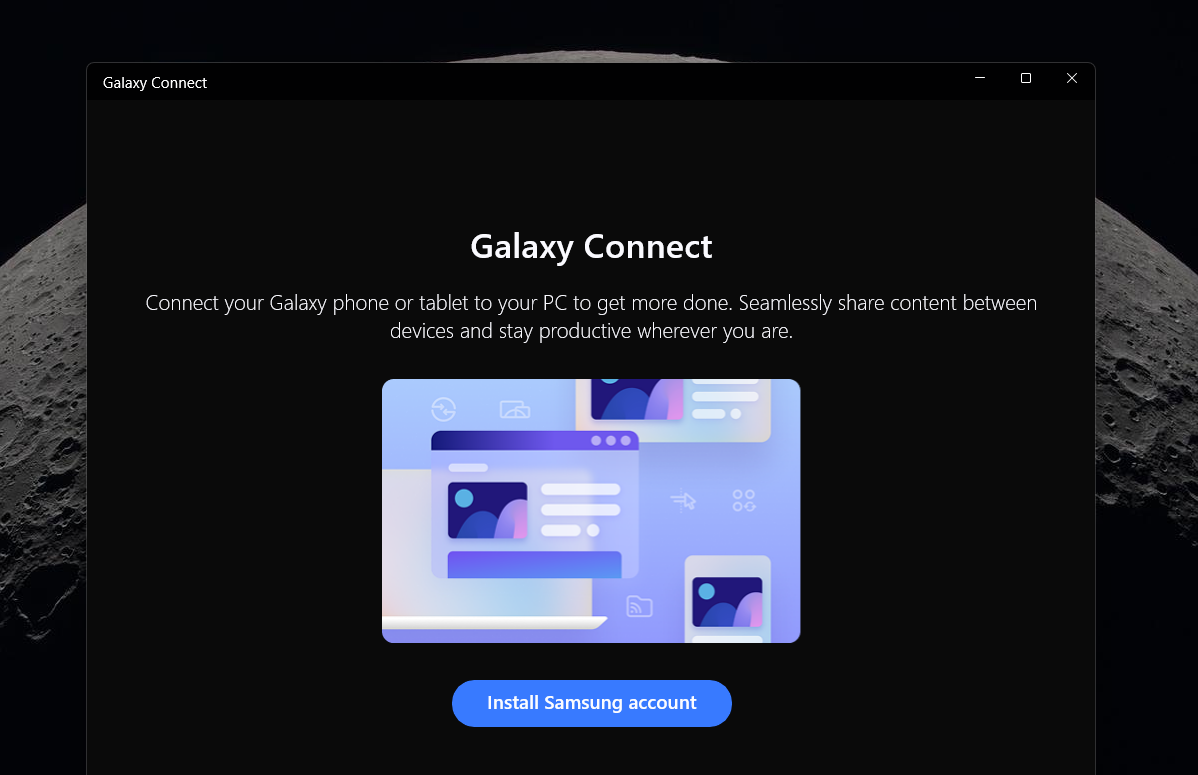
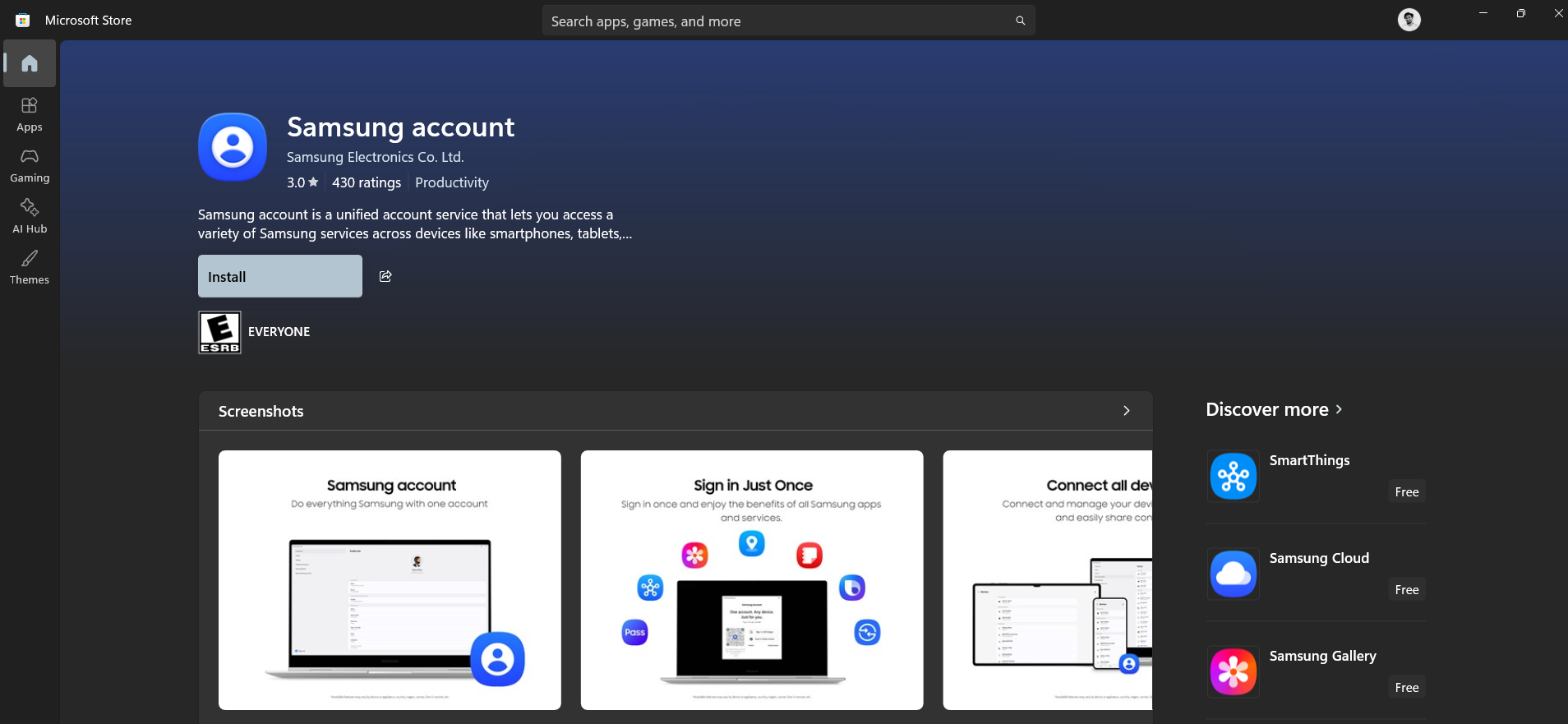
Samsung account app will ask you to allow it to run in the background. You can choose No, but in my testing, it barely uses any CPU or RAM (less than 3MB when idle).
Then you can go back to the Galaxy Connect app, and you’ll be greeted with 4 features:
- Continue on other devices, which enables multi-device copy and paste, share Wi-Fi connection from phone, and Camera continuity.
- Storage Share, which shows files from your phone on the Windows File Explorer
- Multi control requires you to download a separate app with the same name, but it opens up the ability to control your Galaxy phone with your PC mouse pointer and keyboard.
- Second screen can mirror or extend your PC’s screen, but only to a Galaxy Tab.
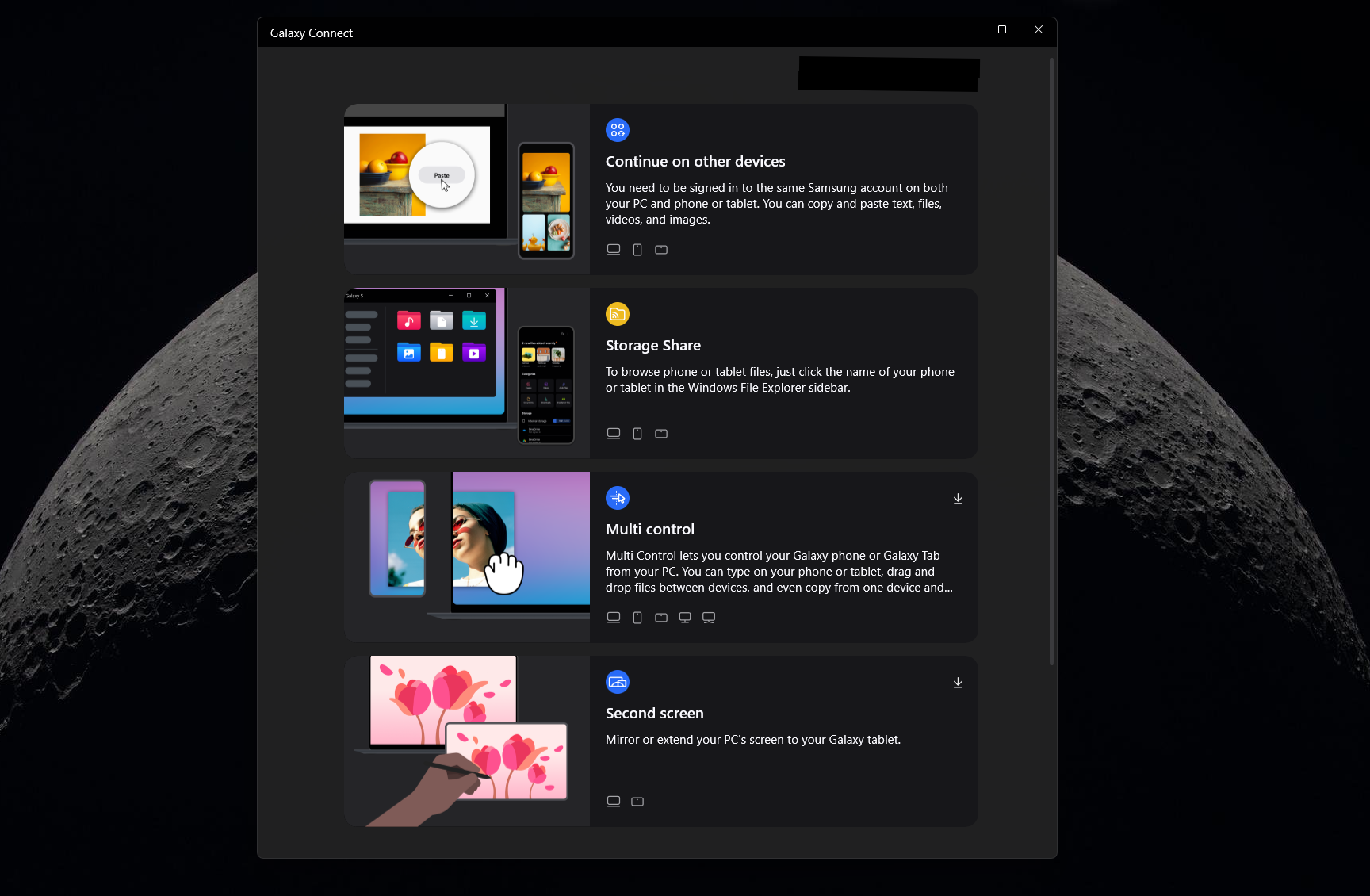
Both Multi control and Second screen require you to download separate apps from the Microsoft Store.
Testing the Galaxy Connect app
I have a Lenovo IdeaPad Slim 5i with Intel Bluetooth and Wi-Fi chips and all other requirements that Samsung mentions, a Galaxy M34 running Android 16, and yet the Galaxy Connect app is as inconsistent as the weather in April!
The Samsung account app shows that I’m connected. The Devices section lists both the phone and the PC. But I can’t say “it just works” here, because it just doesn’t.
For example, I typed a random text on the Samsung Notes app on my Galaxy phone and copied the text. A text bubble popped up saying “Copied. You can paste on this phone or on your connected devices.”
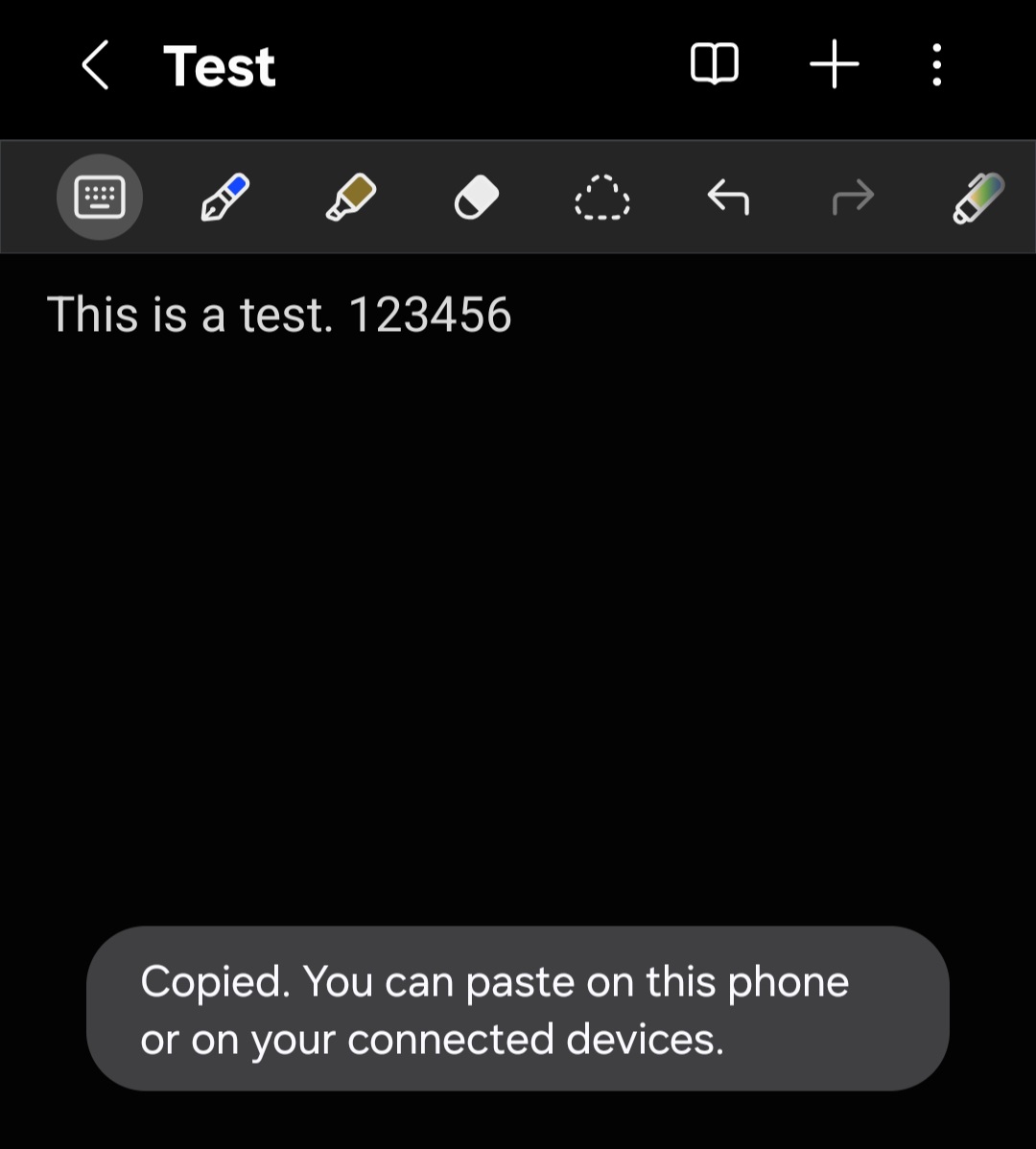
So, I pressed the paste shortcut in Microsoft Word, and an image I had copied earlier on my PC was pasted. I tried several times. Restarted both devices. Checked everything. There was no instruction on the Galaxy Connect app either.
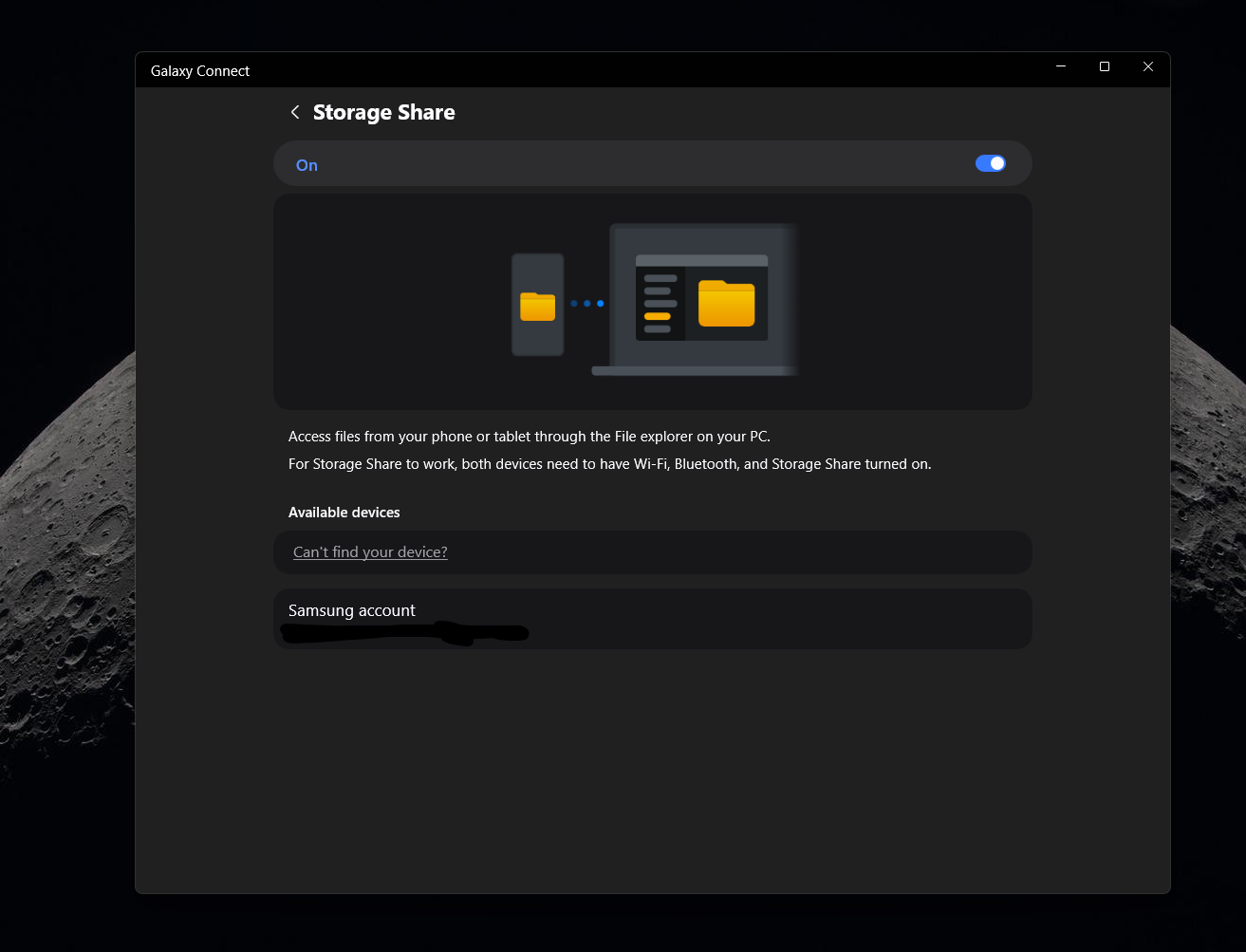
I checked the Storage Share feature by opening the feature page, but I couldn’t see my device listed. Same with Multi control.
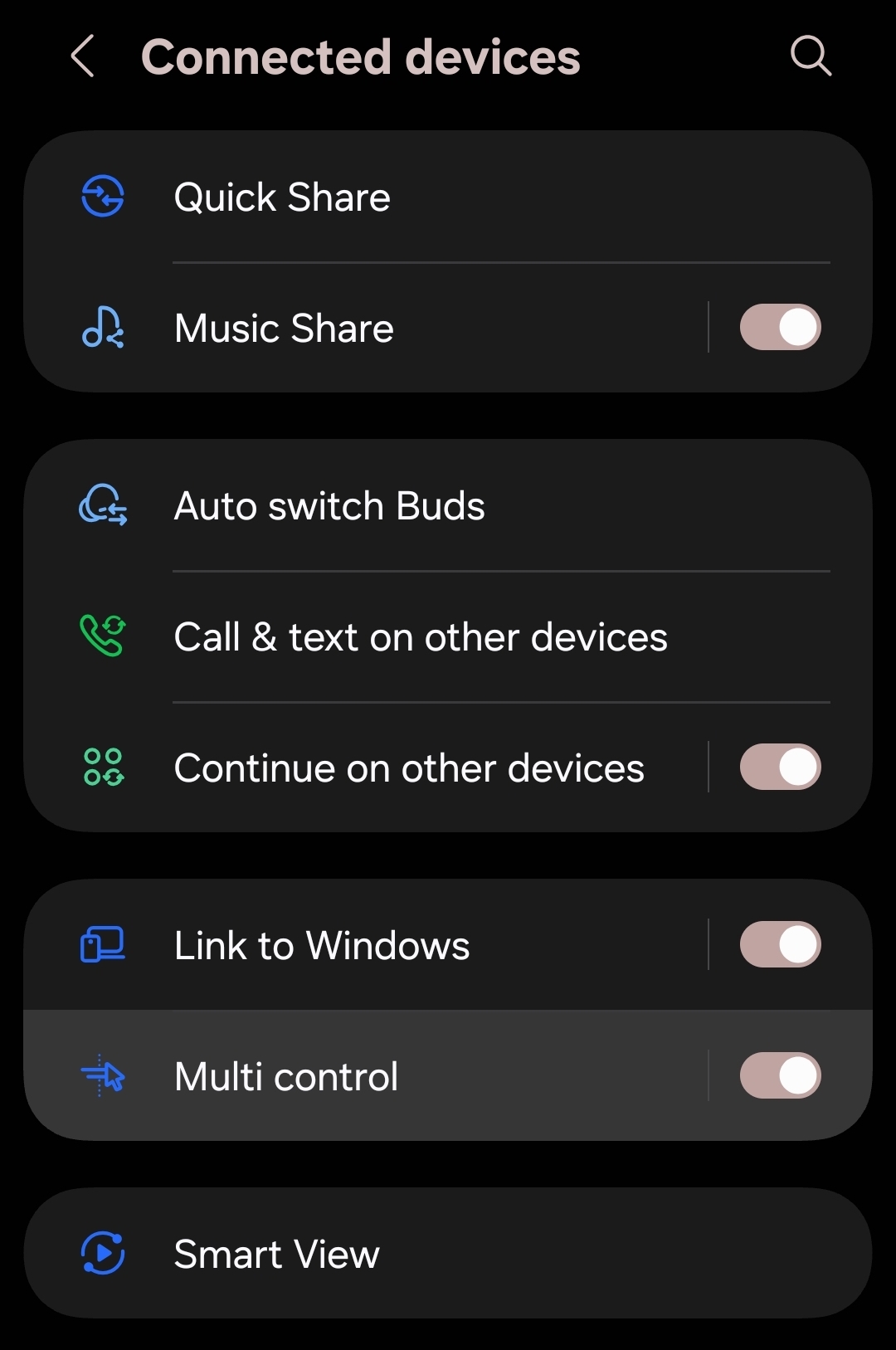
Then, a few hours later, while randomly checking the settings on the Galaxy phone, I found “Connected devices”, and it took me to a page with the toggle for Multi control.
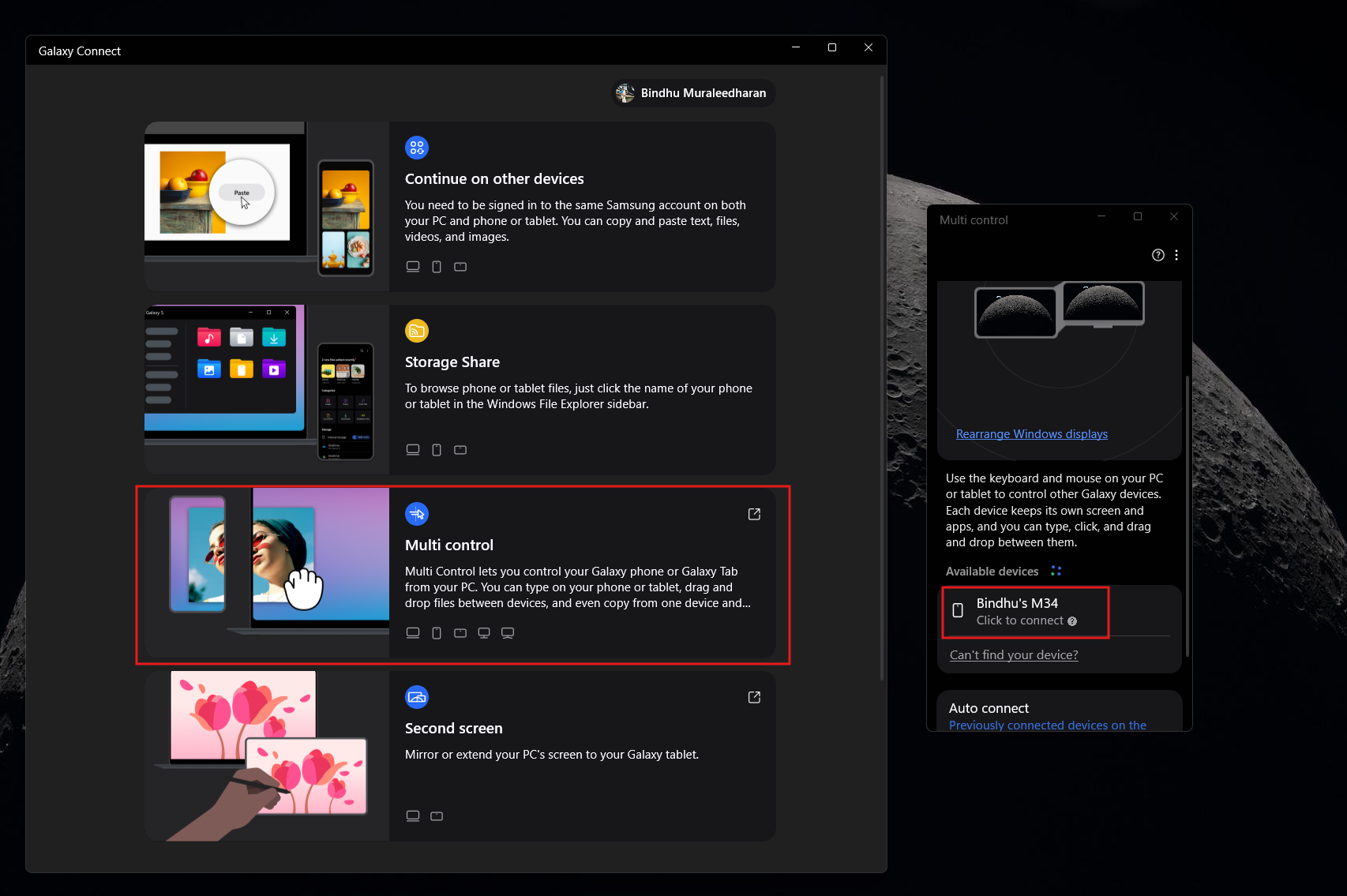
I turned the toggle on, and surely under Available devices in the Multi control page, I could see my device listed.
I just clicked it, and I got a successful connection, with the phone displayed alongside my dual-screen setup. I dragged it to the left side.
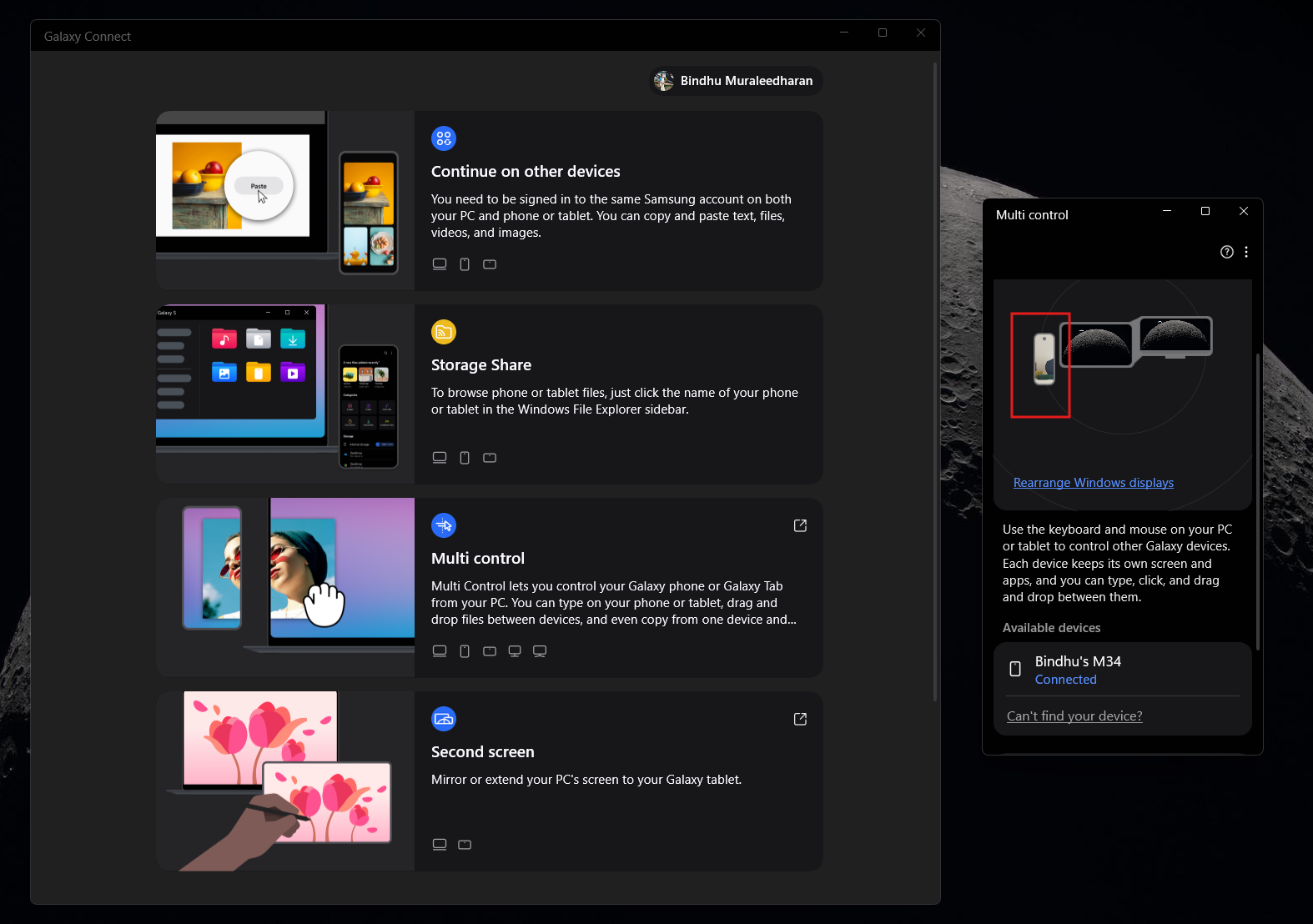
Now, moving the cursor to the left does bring it to the phone seamlessly. I could type in text fields using my laptop keyboard. There was no virtual delay. There was also a persistent “Connected to PC” banner on the notification panel. Essentially, I could control my Galaxy phone with a Windows PC’s touchpad and keypad.
However, this doesn’t mean that everything worked…
Multi control already has the capability to copy files from one device to another, and now, when I copied a text from the Galaxy Phone, I was able to paste it on my PC. I was also able to drag and drop images from the phone to my PC using the PC cursor.
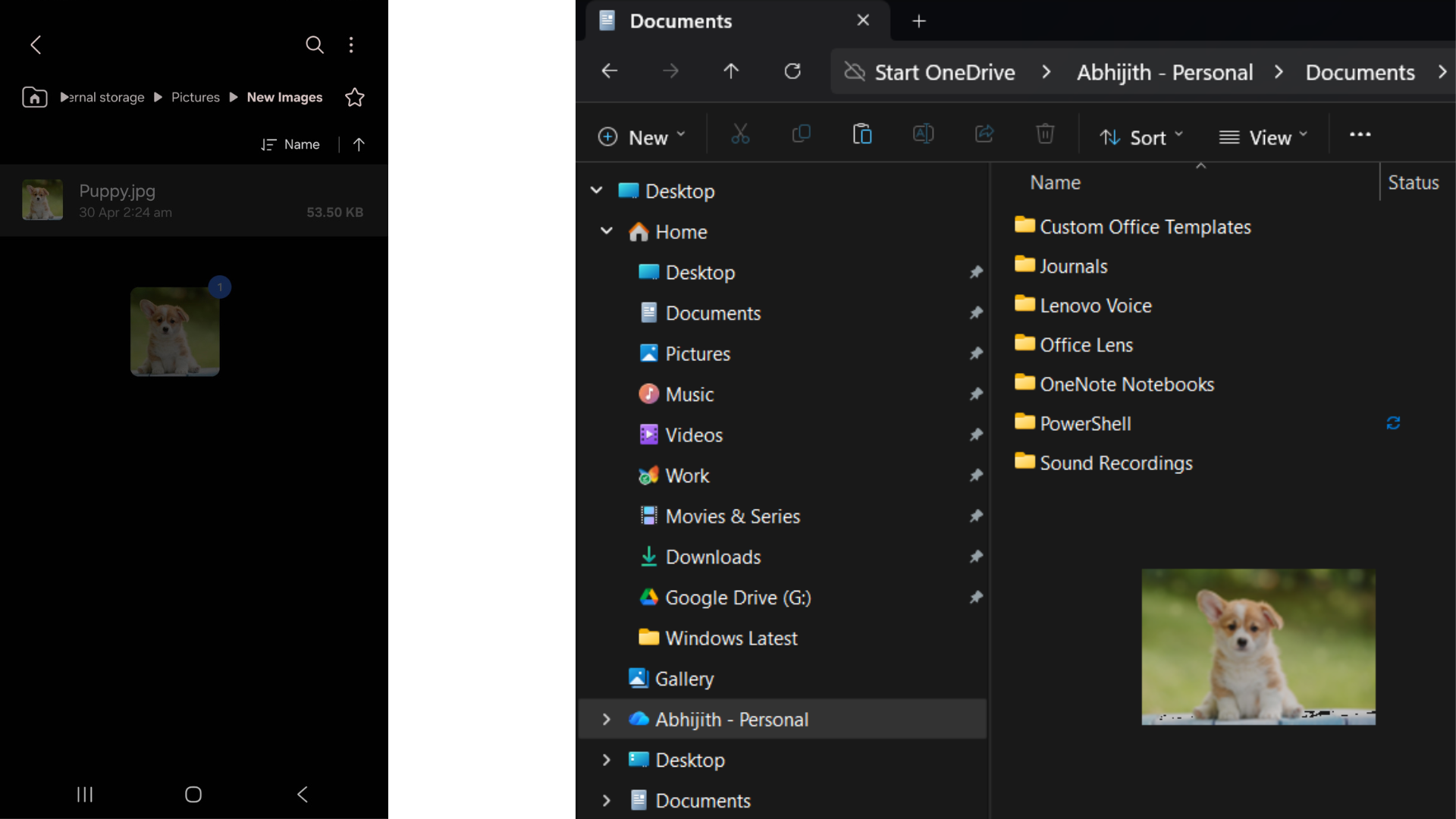
So the question is, if the device shows up in Multi control, what about the other features? Storage Share, which shows the phone files on the File Explorer, still doesn’t show my device in the Available devices section. File Explorer has a Storage Share folder view, but it shows empty.
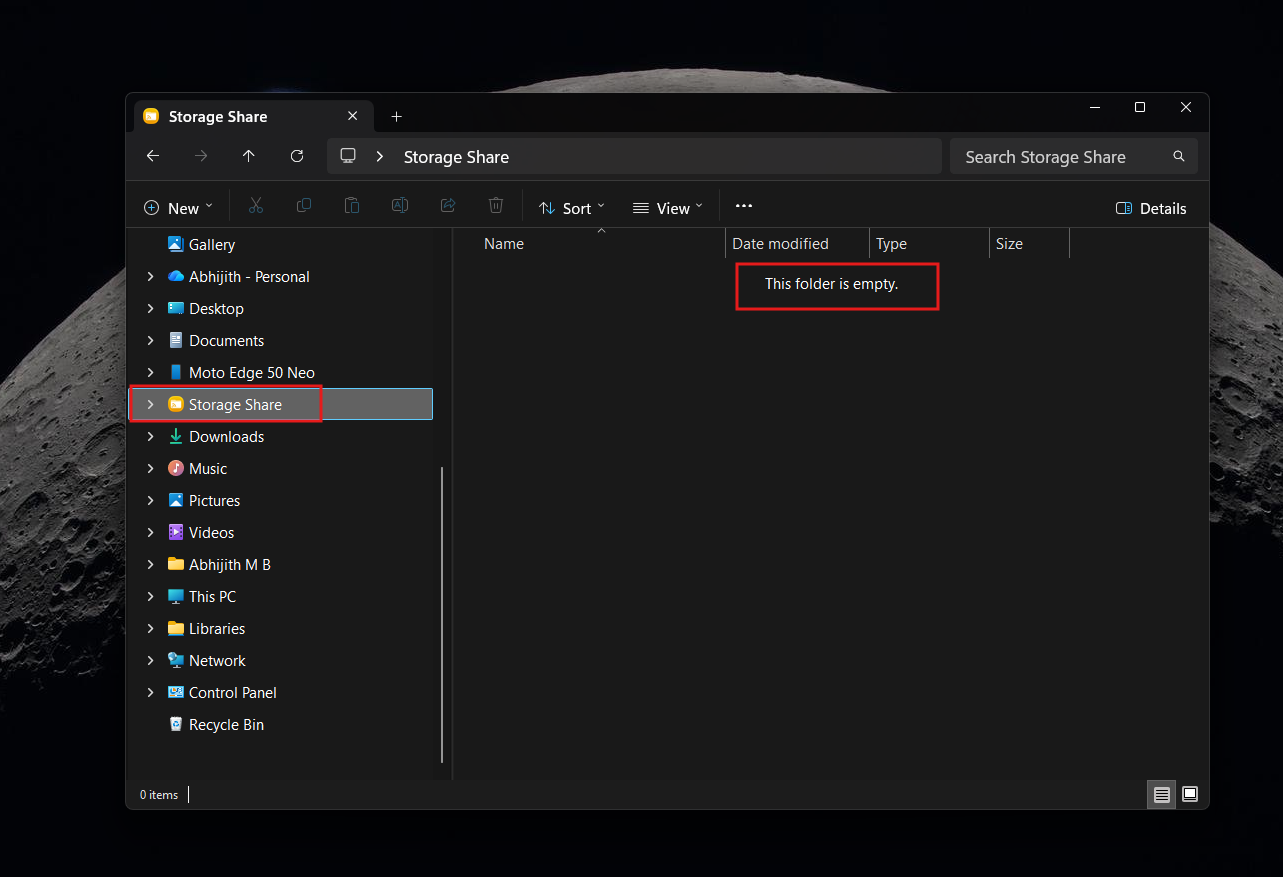
This might be me being ignorant, and it could be anecdotal, and I totally wish it is, but I checked everywhere on the phone, and I couldn’t find a way to turn this feature on.
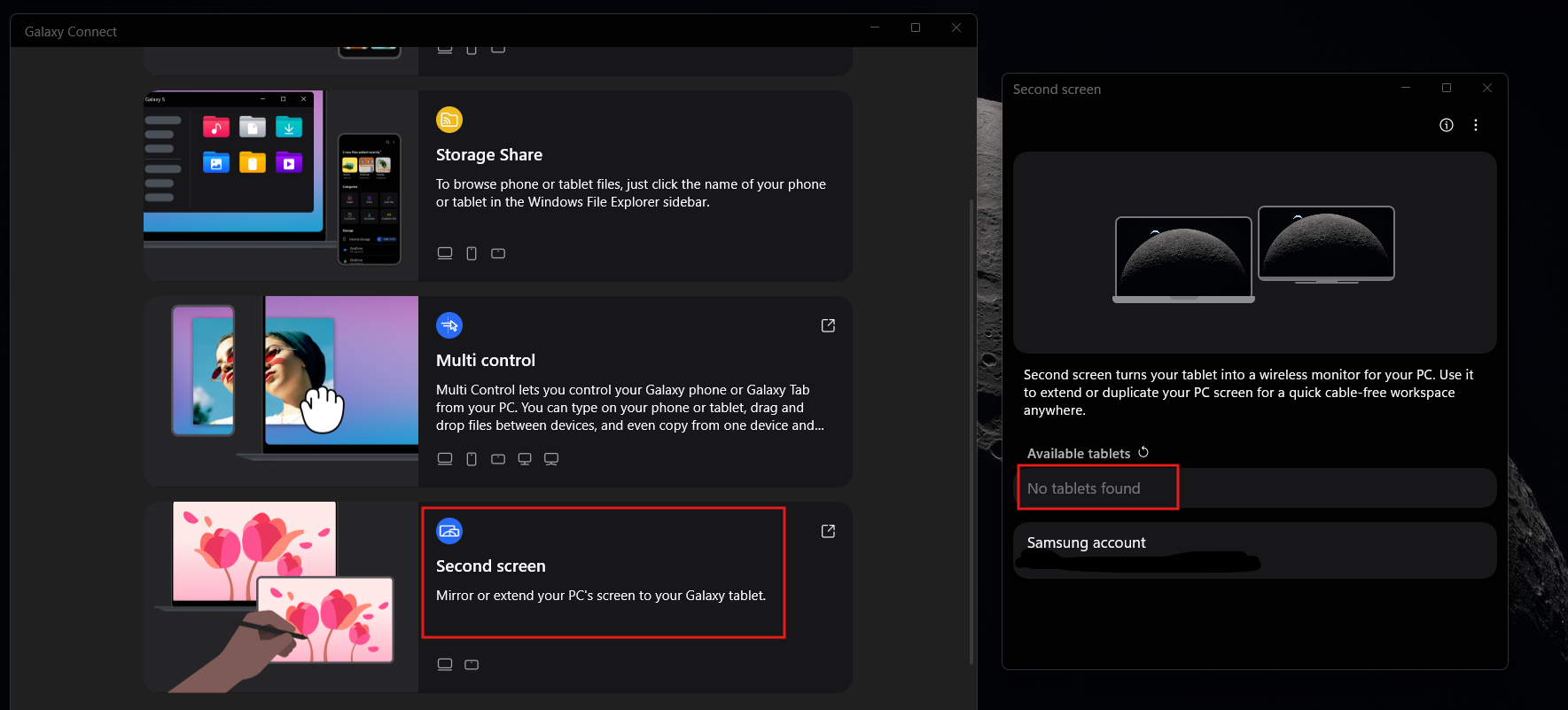
Screen screen requires a Galaxy tablet to work, so the only thing that works in Galaxy Connect, at least for me, is Multi control, and that’s because I manually enabled it on my Galaxy phone.
And that brings us to the main reason for this inconsistency. Samsung doesn’t have a separate phone app to connect to Windows PCs. It relies on an active Samsung account. Sure, the company could just incorporate app functions in the phone settings, but it’s not easy to find when they don’t give any instructions.
Microsoft’s implementation to connect Windows and Android includes the Link to Windows app for phones and the Phone Link app for Android (comes pre-loaded in Samsung phones), which makes it predictable.
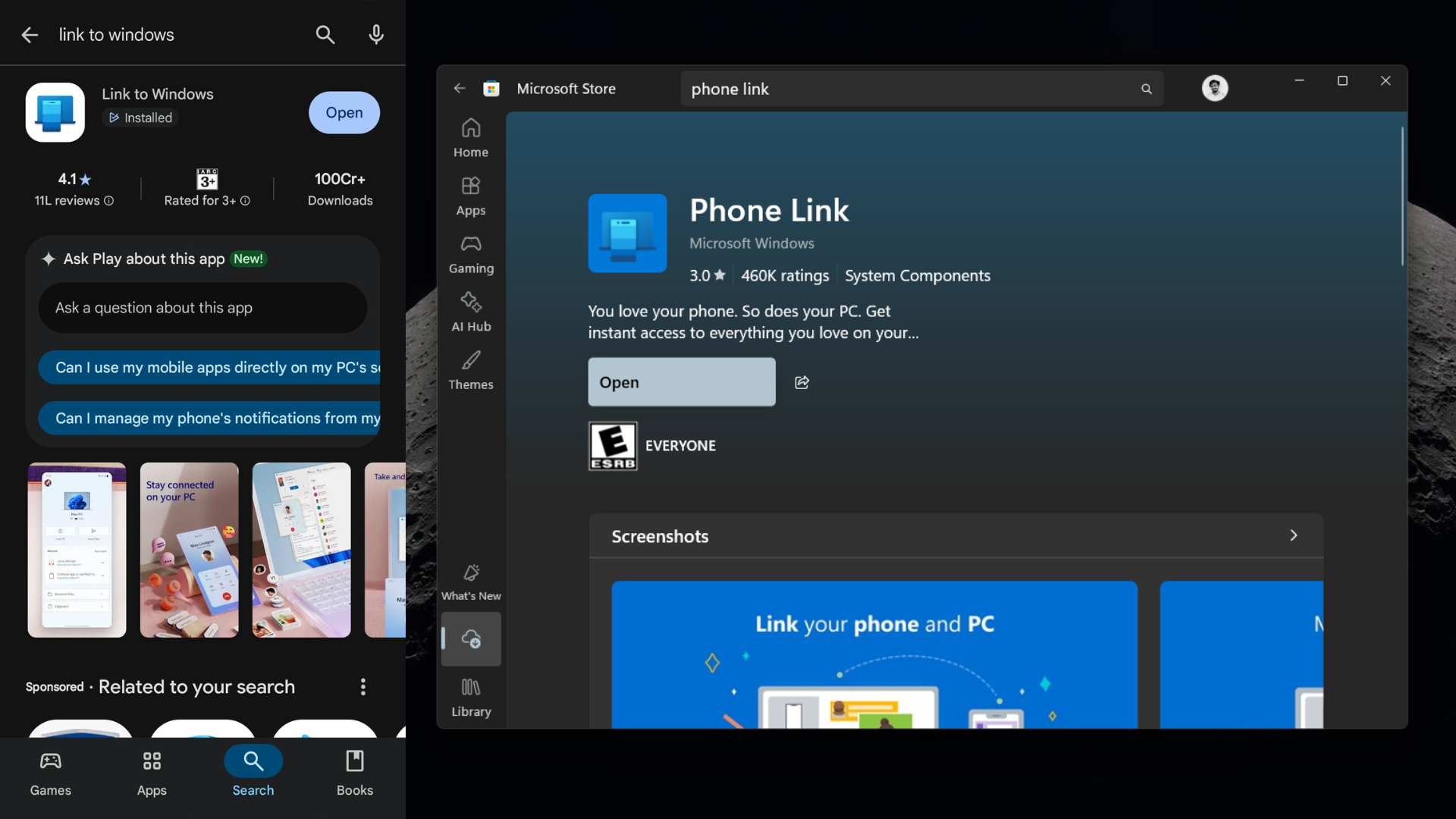
Is the Galaxy Connect app better than Phone Link?
As a regular Phone Link user, I’m very sure that Phone Link has a myriad of useful features that Galaxy Connect simply can’t match. The only thing that Galaxy Connect has that Phone Link doesn’t is Multi control, where I can control my phone using the cursor from my PC.
However, Phone Link for Samsung Galaxy phones already has the ability to mirror my phone’s screen to my PC, which is enough to control my phone using my touchpad and keyboard.
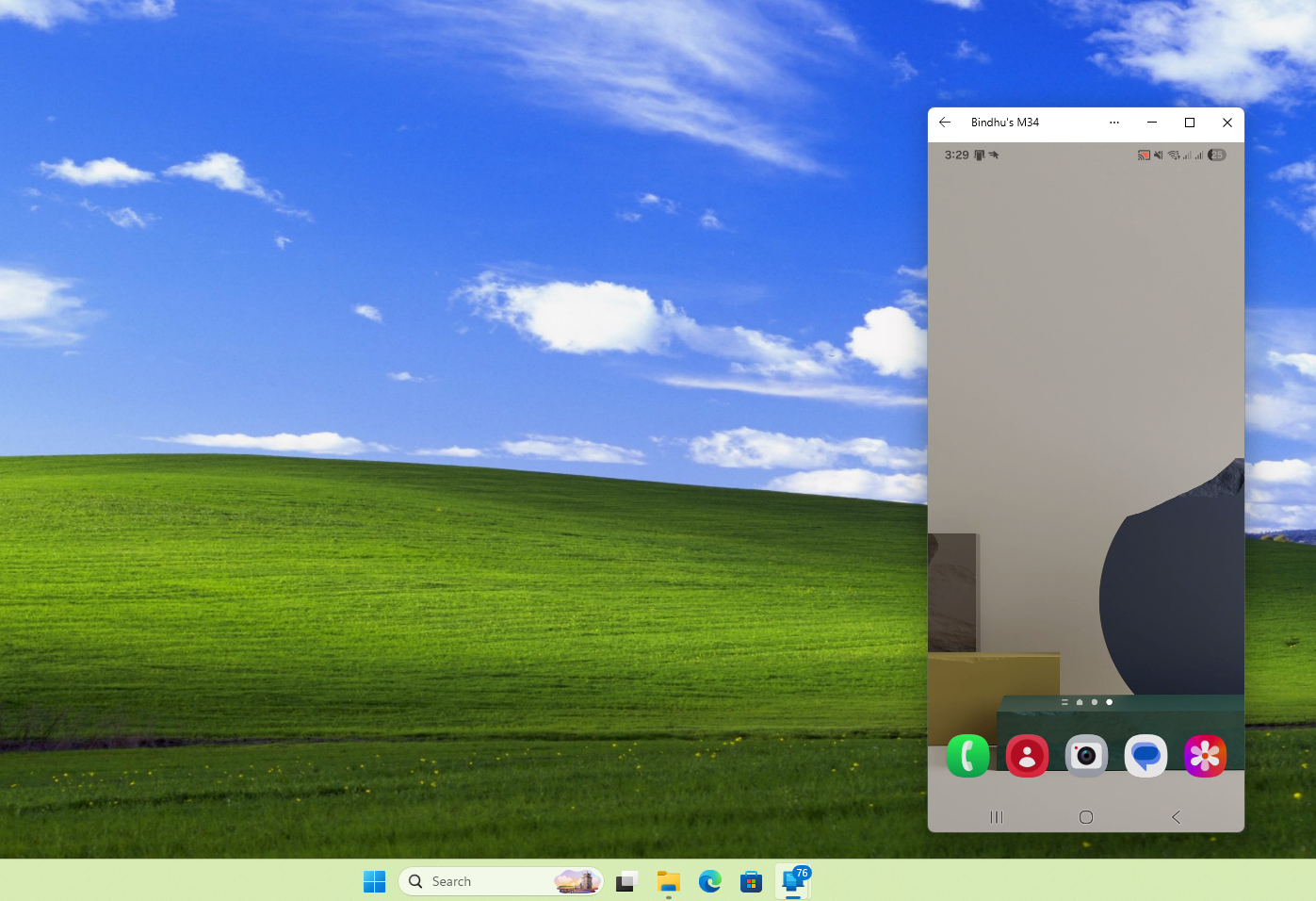
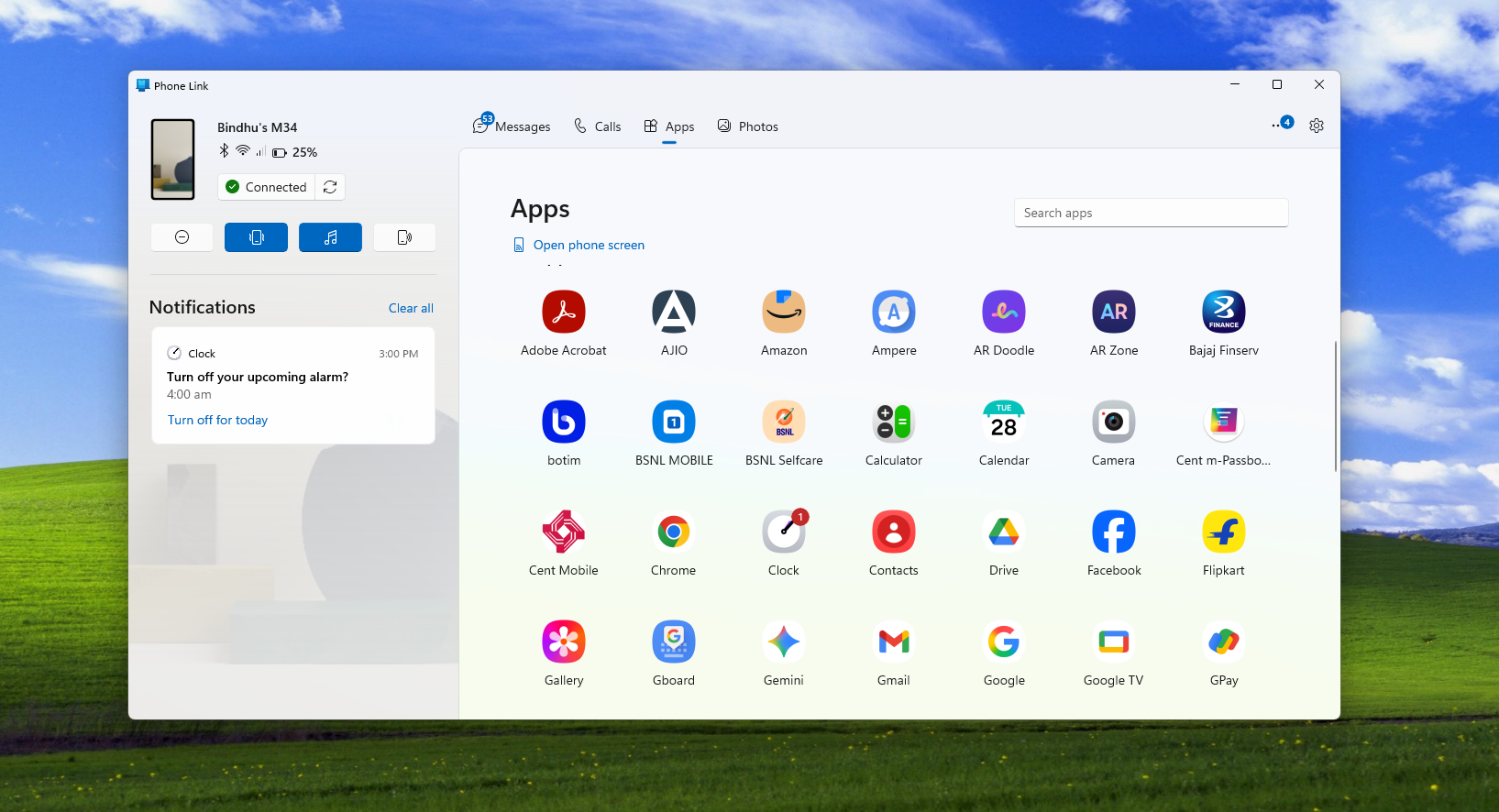
Also, if I just want to open specific apps and I don’t want to mirror the whole phone, I can do that as well in Phone Link.
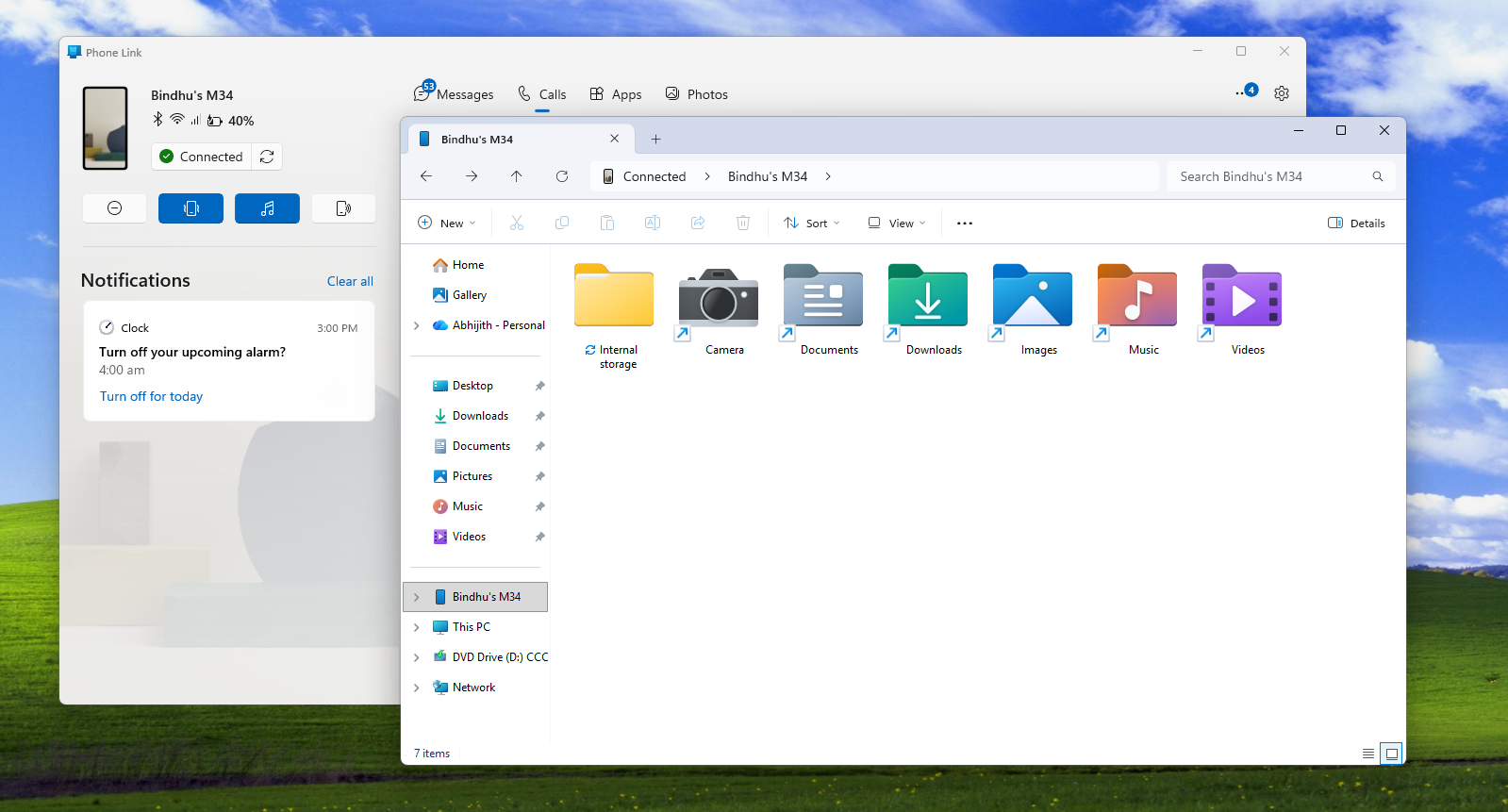
Storage Share was a feature in Galaxy Connect that didn’t work on my device. But if it did, I still wouldn’t miss it in Phone Link because that feature is already available, and I can actually see my Galaxy Phone’s entire files and folders in my File Explorer.
Truth be told, I haven’t even gotten started on the feature list of Phone Link. It shows you battery percentage, actionable notifications, and media controls. You can make calls and send messages too.
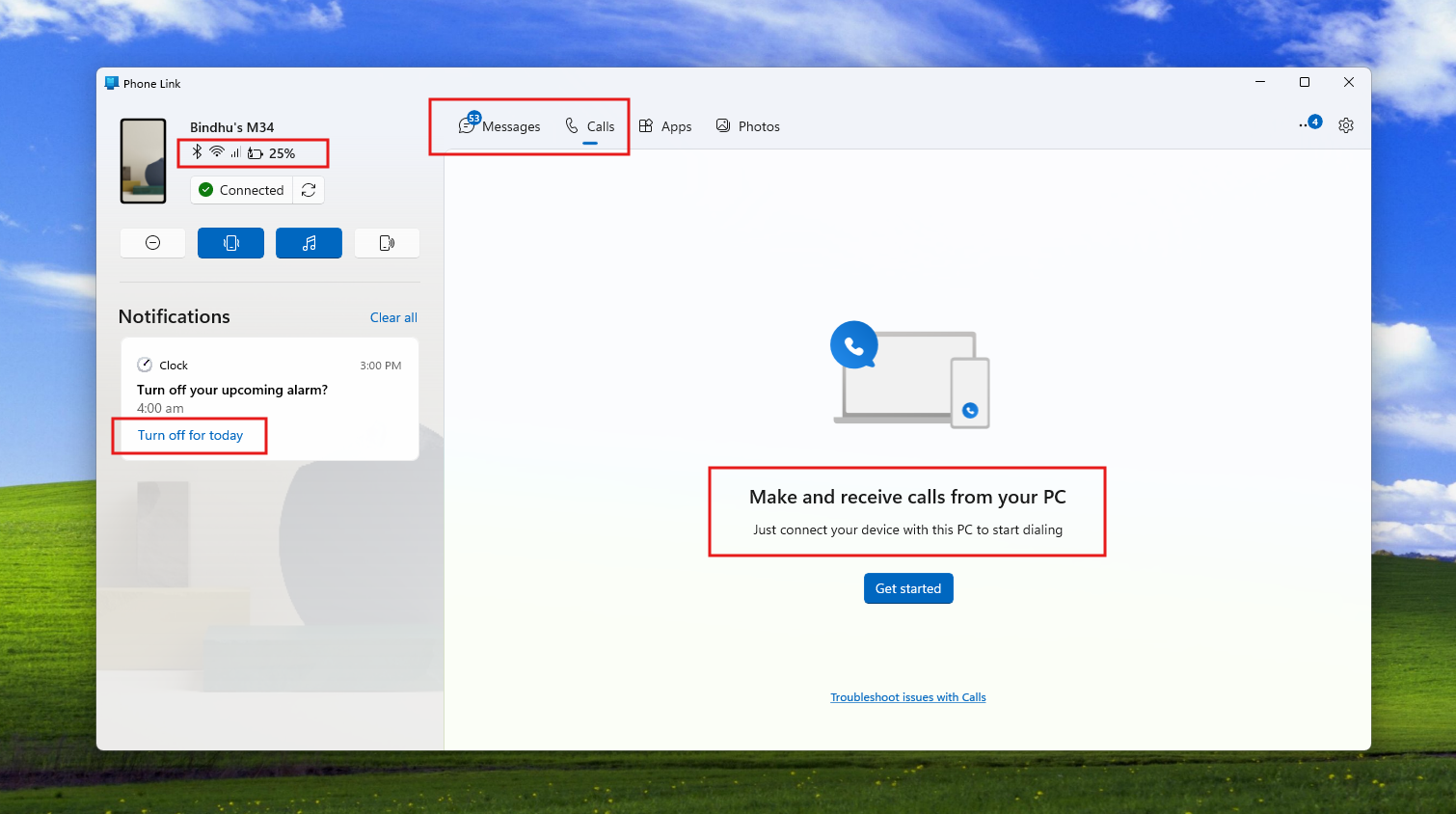
Of course, we can’t forget the fact that Phone Link can show your phone’s battery status and notifications, with the ability to send files straight from Start.
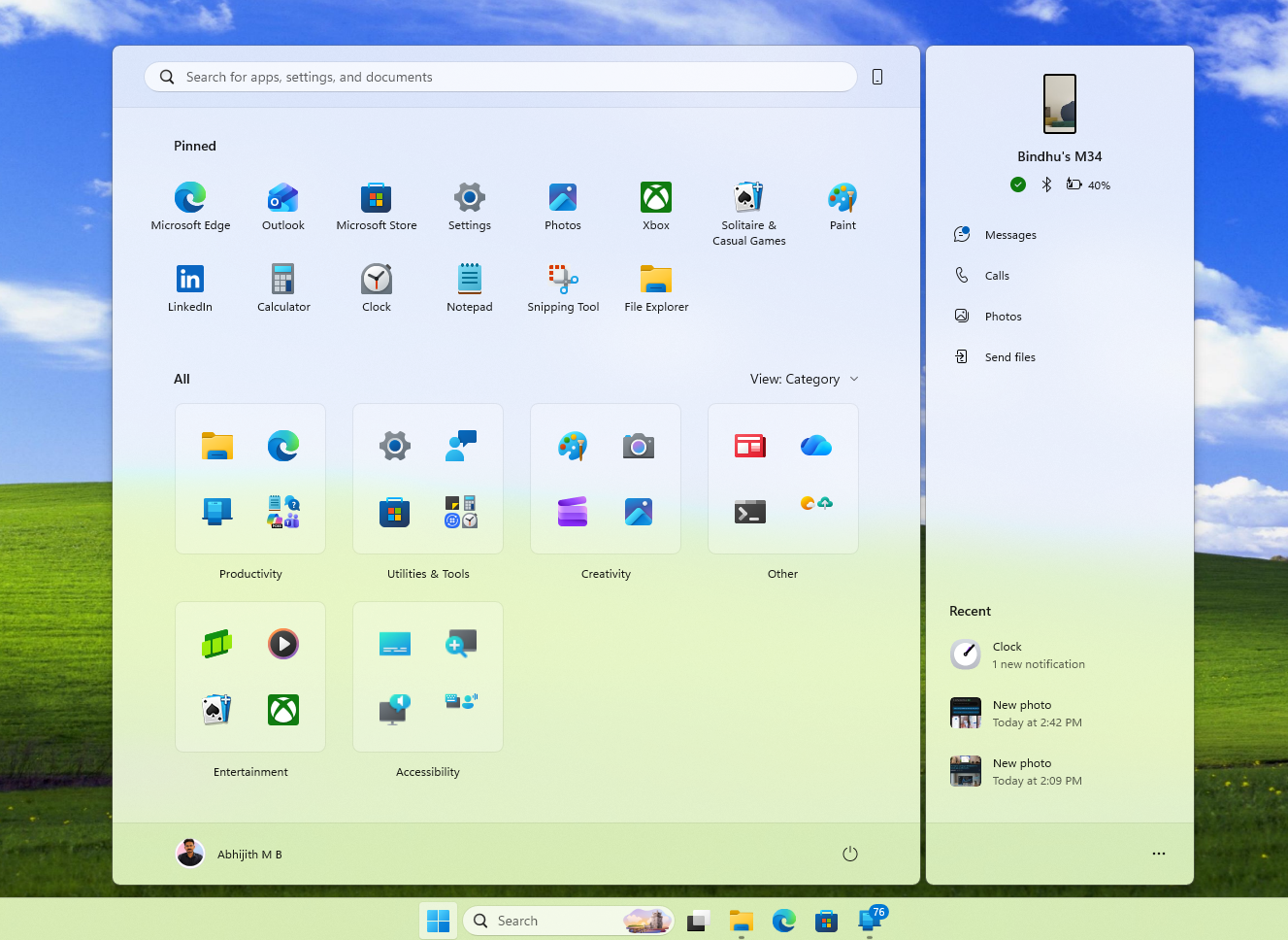
Note that, with the dedicated “Link to Windows” Android app, you can control some aspects of your PC from your Galaxy phone. If you’re away from your PC, you can remotely lock it, send files to your PC from your phone, and mirror to PC from the phone. I have used this last feature multiple times while I’m about to keep my phone for charging.
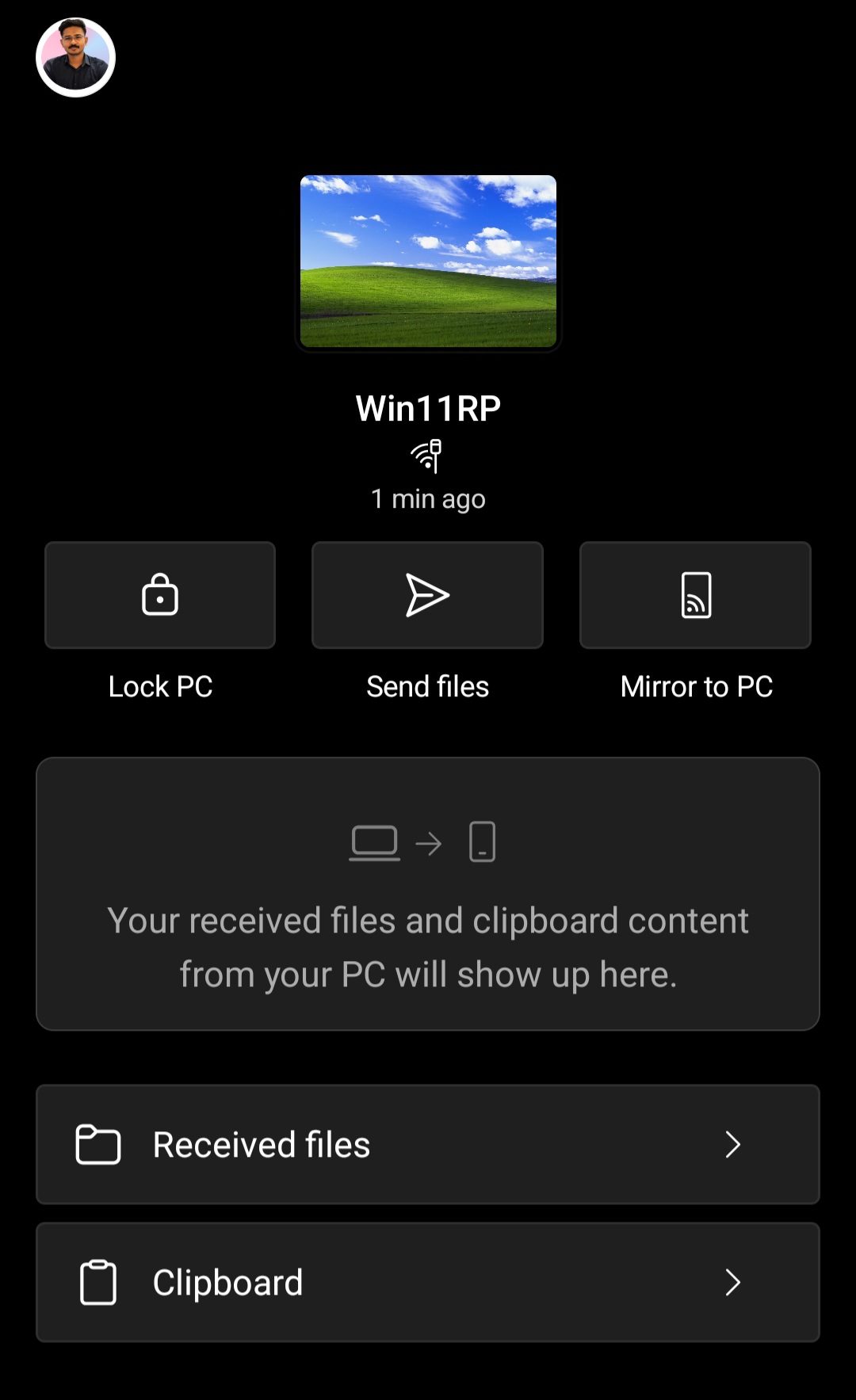
Even deeper integration with the Windows 11 Mobile devices page gives you powerful features that can make your Android phone a true companion to your PC.
You can use your Galaxy phone’s camera as a webcam for your PC, and you can resume and continue tasks and other activities from your phone to your PC. It’s called Cross Device Resume, and Microsoft is actively working to include more app support in it.
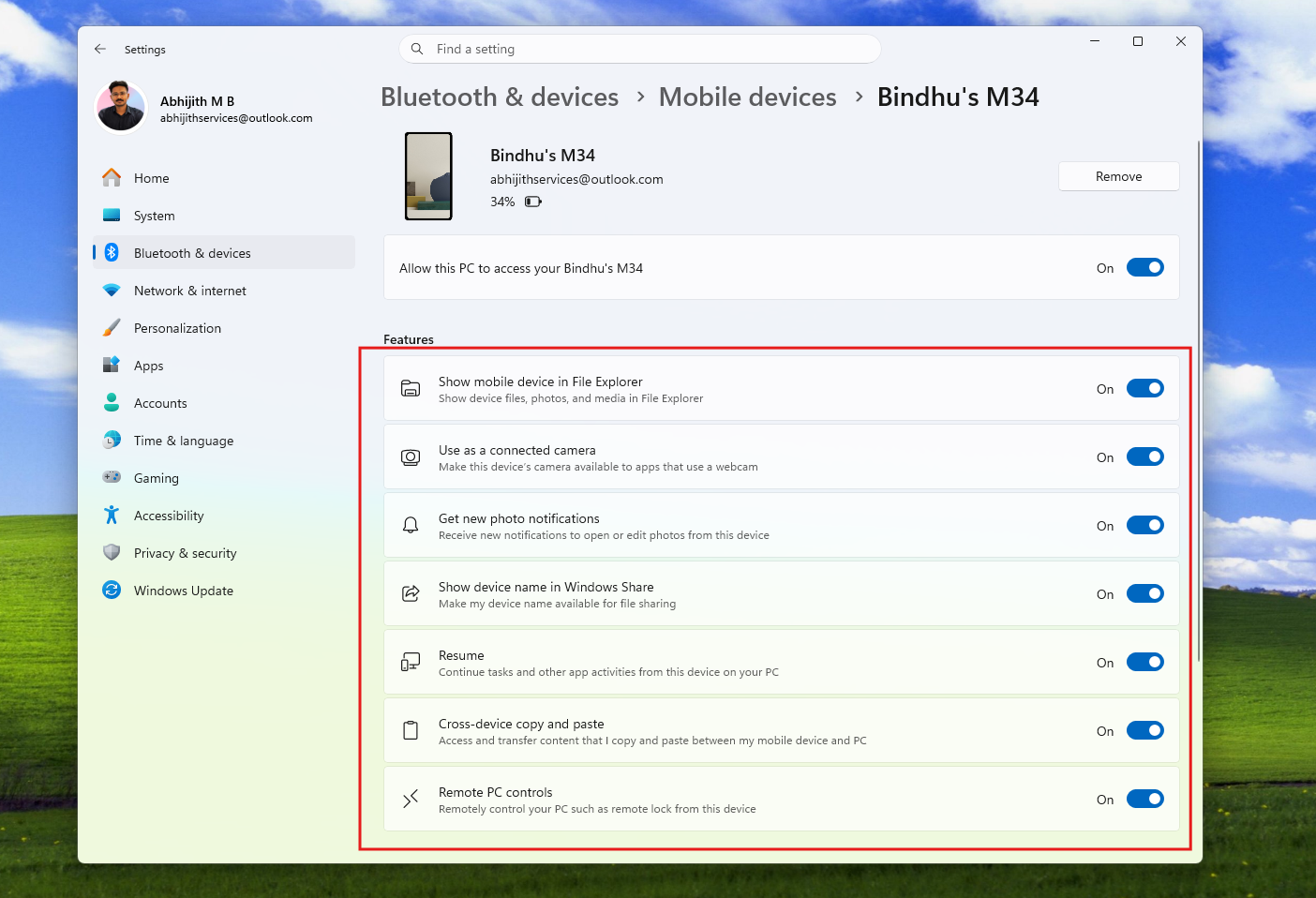
In case you are wondering, Phone Link also supports Cross-device copy and paste. As I said, the only thing you’ll miss here is Multi control.
Do you need Galaxy Connect if you already use Phone Link?
No, unless you specifically want Multi-control. But note that it is a separate app from Samsung that you have to download alongside Galaxy Connect and Samsung account.
Windows is the most popular desktop OS, and Android is the most popular smartphone OS (globally). The fact that we have things like Phone Link that enable a ton of ecosystem-level features between two completely different operating systems is commendable, especially when you don’t want to lock yourself in a particular ecosystem.
However, Samsung’s implementation of the same with Galaxy Connect seems like they didn’t put much effort into it, considering that the integration between Galaxy phones and Galaxy laptops is impressive.
Lenovo’s Smart Connect, which has separate apps for Windows PCs and Android devices, is much more powerful and feature-rich compared to Galaxy Connect. It comes pre-installed in Motorola smartphones, but you can get it on any Android device.
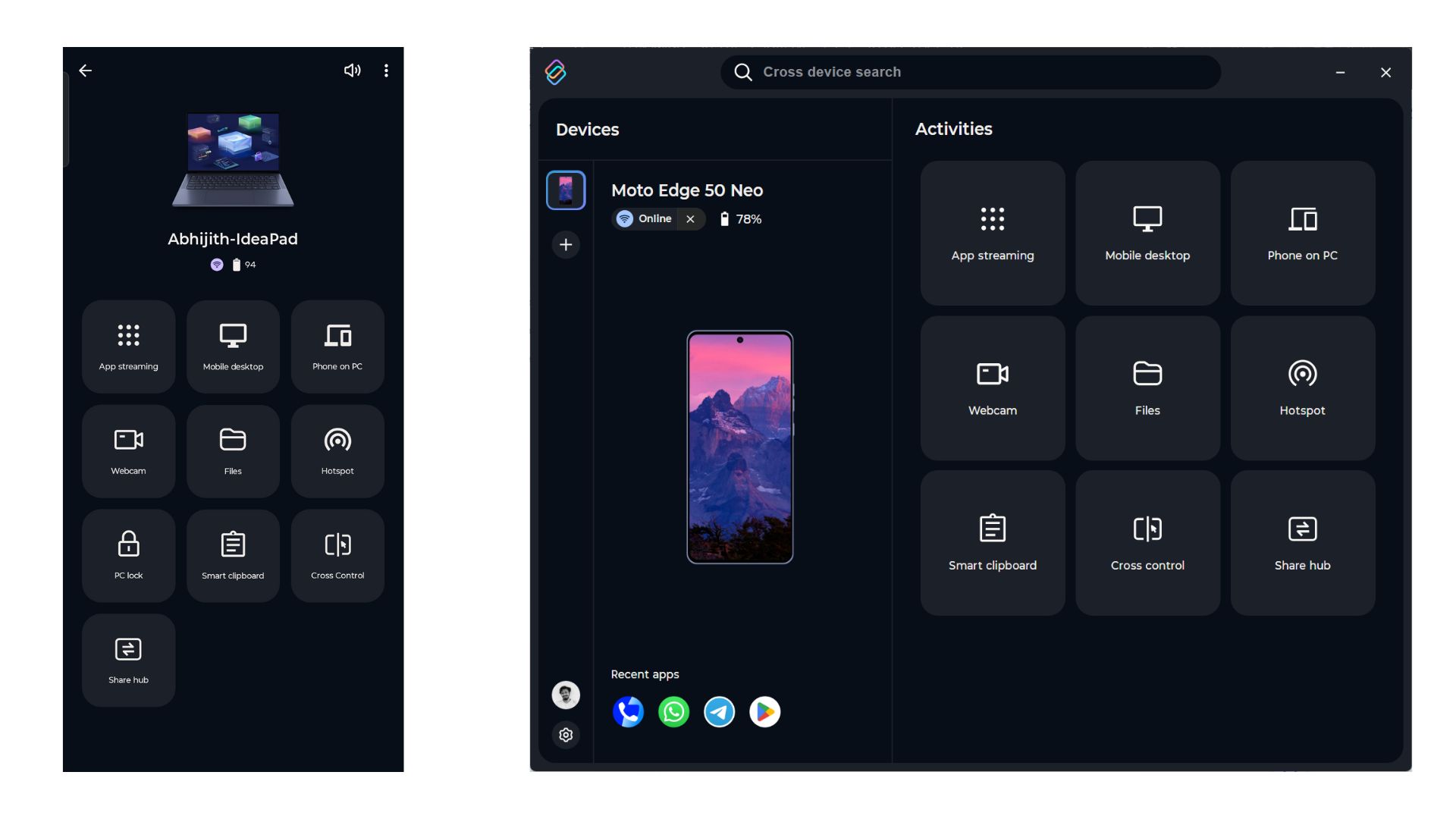
Either way, it’s fun to see OEMs experiment with such features, but Windows still has a long way to go when it comes to integration with Android.