






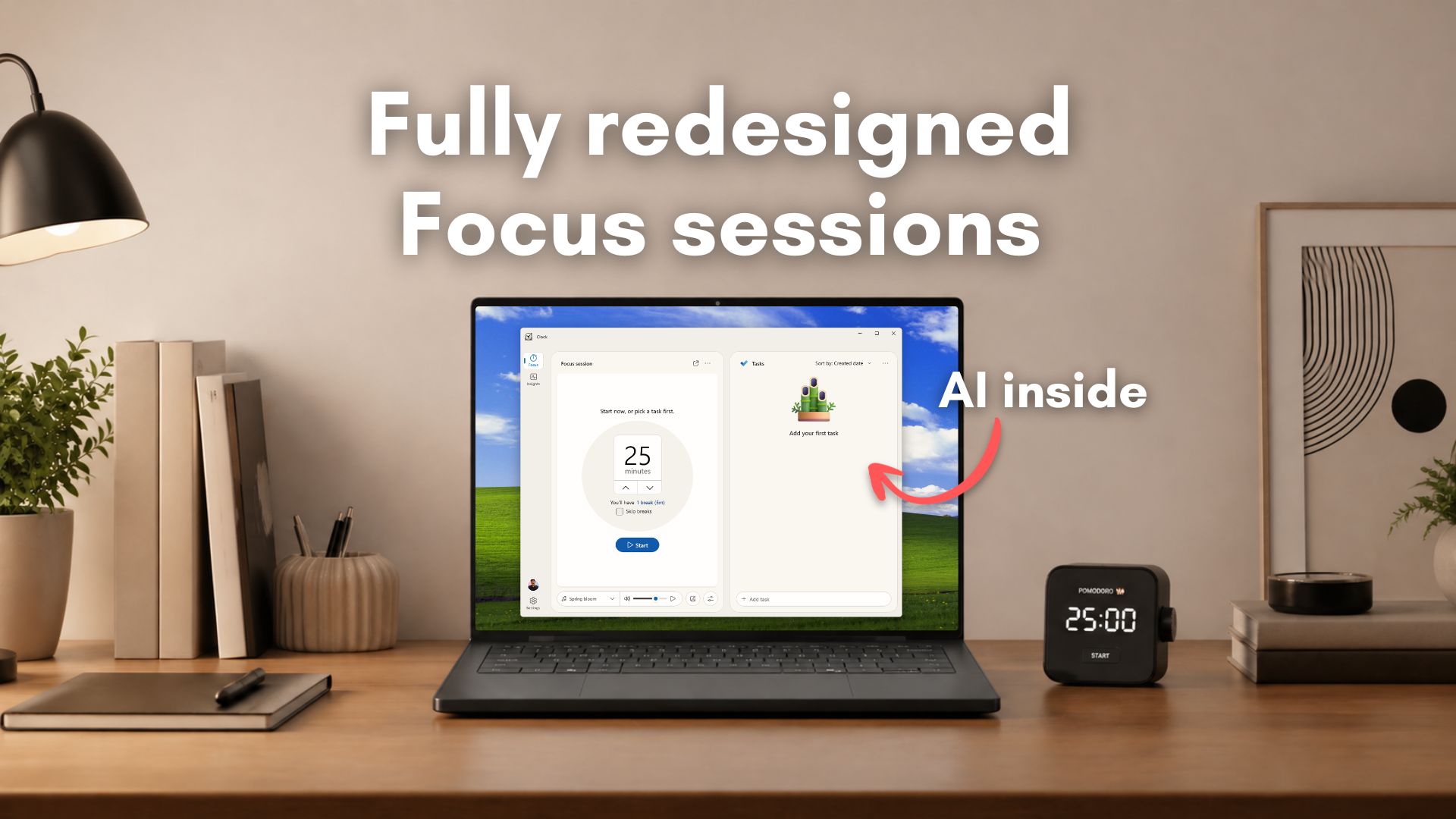
Windows Latest has gotten hands-on with the new Focus feature coming to the Windows Clock app, with deeper Tasks integration, a beautiful UI, insights into your focus sessions, and more customization options. It also appears to have references to AI features, but it’s unclear if it’ll roll out in the final version.
As spotted by developer Gustave Monce, the new Clock app will also have some AI features powered by the NPU in the newer Windows PCs, which could maybe run the new Insights feature. However, there is a dedicated NPU page in Gustave’s test version, which, as of now, is just for debugging.
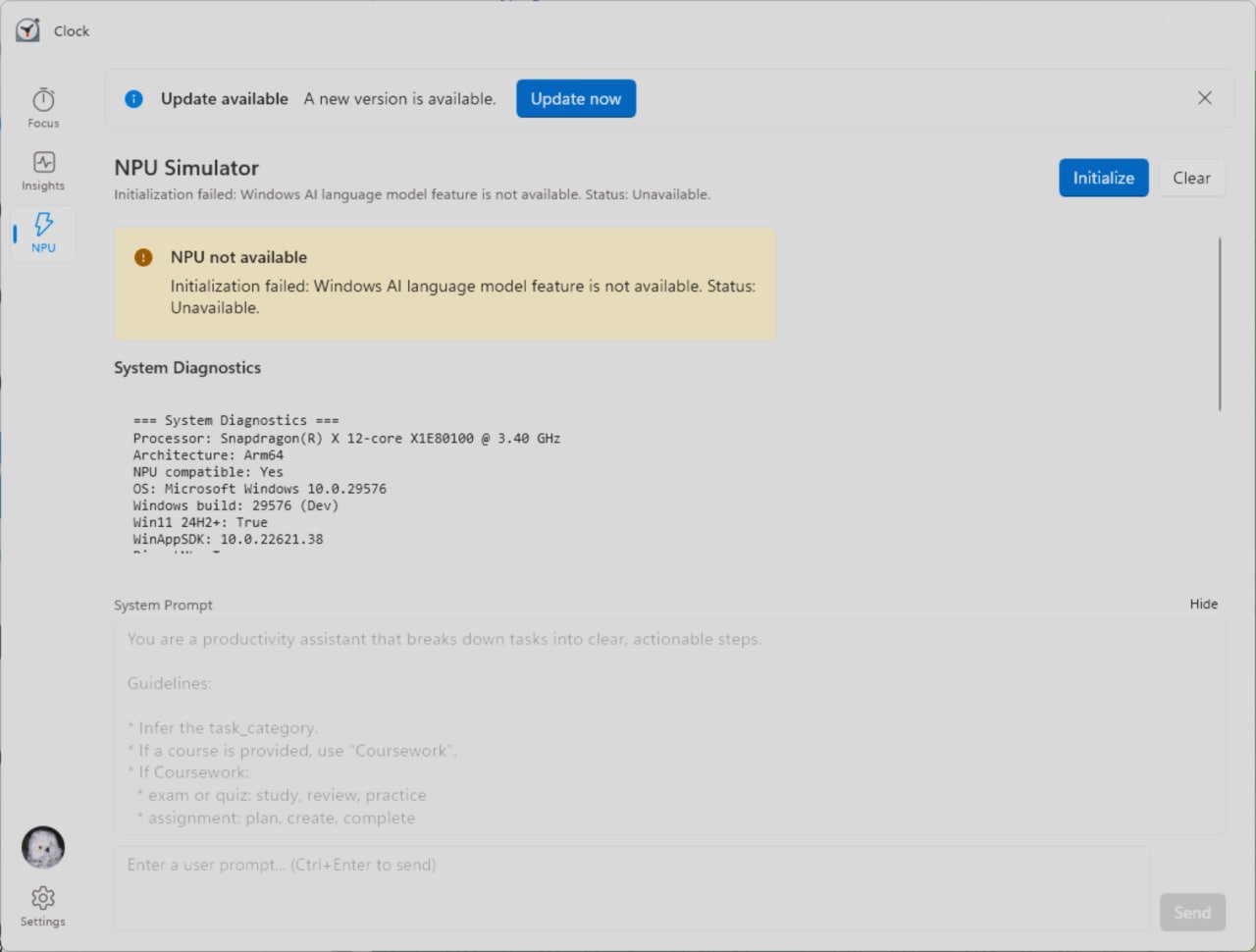
A system prompt hints at local AI-powered productivity features, specifically optimized for students. For example, the Clock app’s Focus session will act as a ‘Productivity’ assistant that breaks down tasks into clear, actionable steps, and it works by inferring the task category, then referencing the coursework of the student.
It appears the local AI integration in the Windows Clock app will be useful, but if you hate it, you don’t have to use it. It’s also locked to newer hardware for now.
Microsoft’s Clock app for Windows 11 is something that I use every day just for its Focus sessions feature, which I invoke from the Notification Center, and I’ll have the mini focus timer running on the top right of my screen.
As someone who always measures my productivity levels, or the lack of it, I’m excited that the built-in Clock app is getting a more powerful Focus feature with AI integration akin to some third-party apps. However, note that the new Focus feature is in its early stages of development, and many features are just placeholders in our test version.
Hands-on with the upcoming Focus feature in the Windows Clock app
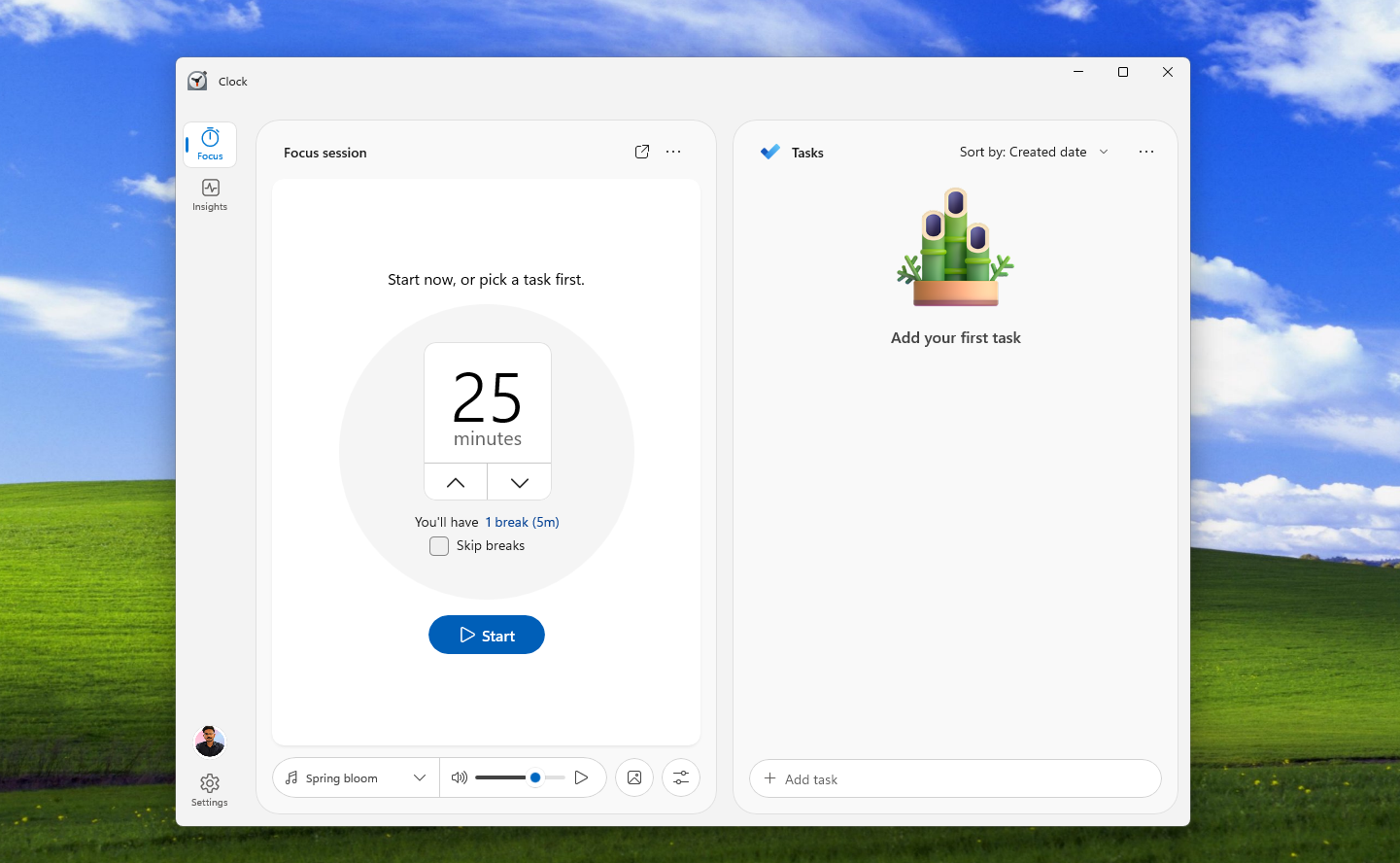
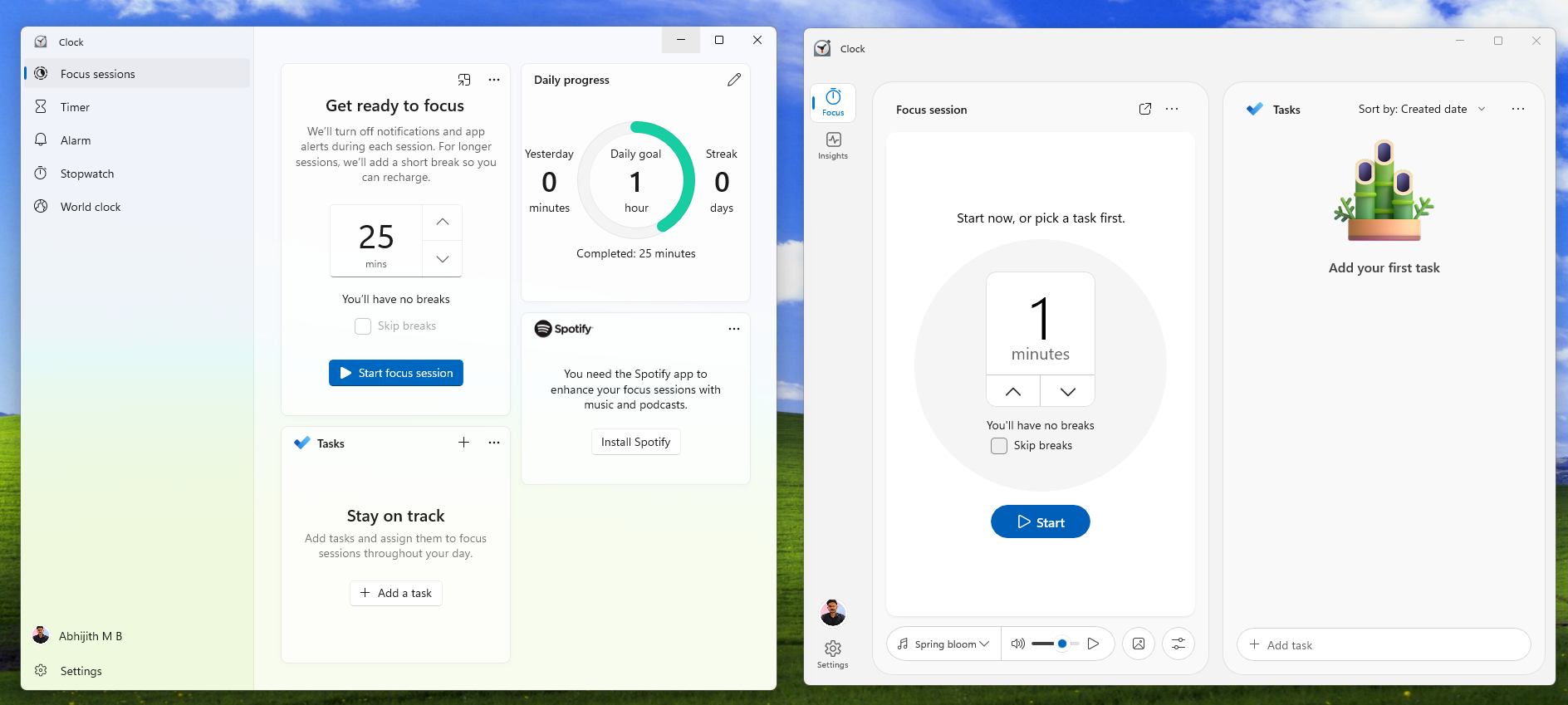
Our test version of the Clock app is missing the actual clock and everything else, like the Timer, Alarm, Stopwatch, and World clock, which is understandable. Anyway, the first thing you’ll notice here is the generous use of rounded corners and a cleaner design when compared to the old Clock, which hasn’t received any major UI updates for quite some time.
Despite the minimal design, you’ll have more customization options here, including the ability to play music, adjust its volume, and add a background image. You can play the music regardless of whether the focus session is active or not, which is a nice touch. Unfortunately, clicking the picture icon doesn’t do anything in my test version. There is also an unknown button next to it.
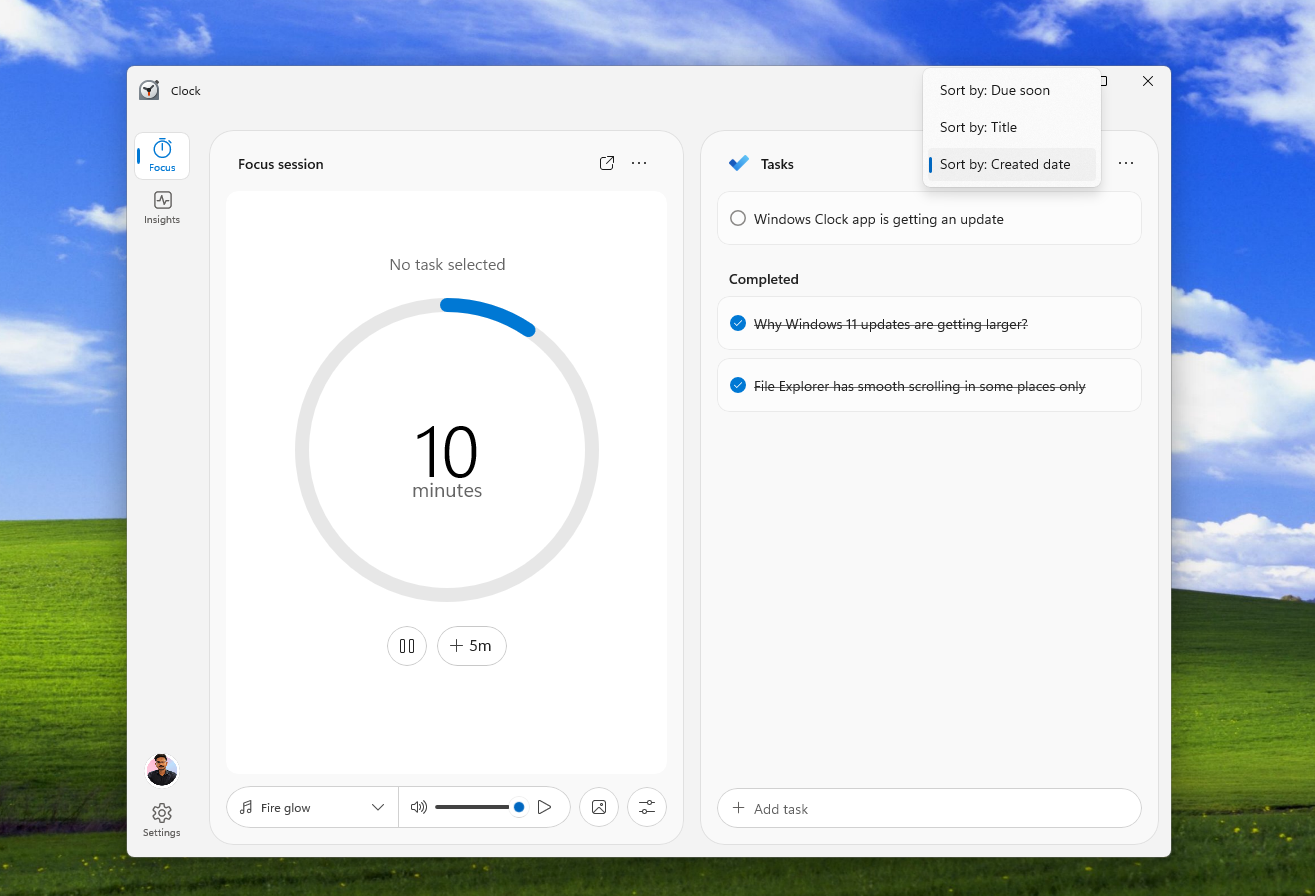
The tasks pane is now larger and takes half of the vertical screen, which is good, because we’ll get to see more tasks. You can sort tasks by title, created date, and based on due date.
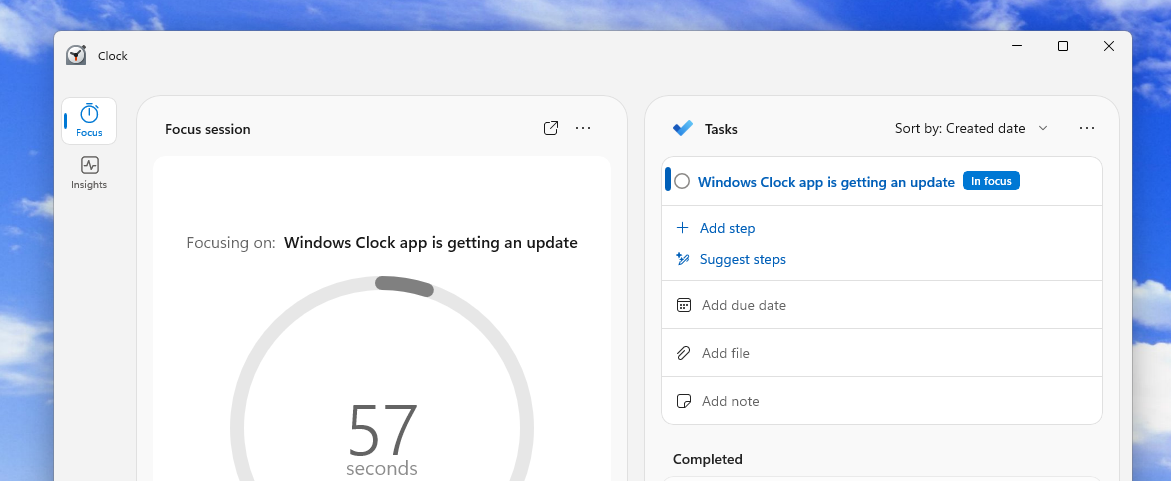
For each task, you can add steps, ask AI to suggest steps, add a due date, file, and note.
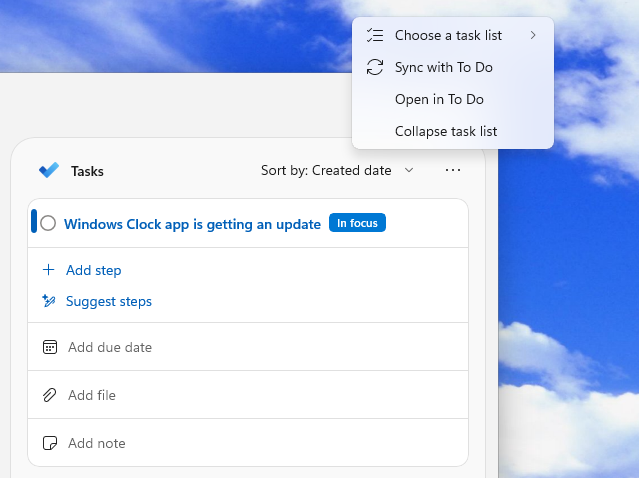
As expected, Focus Sessions is integrated well with Microsoft To Do:
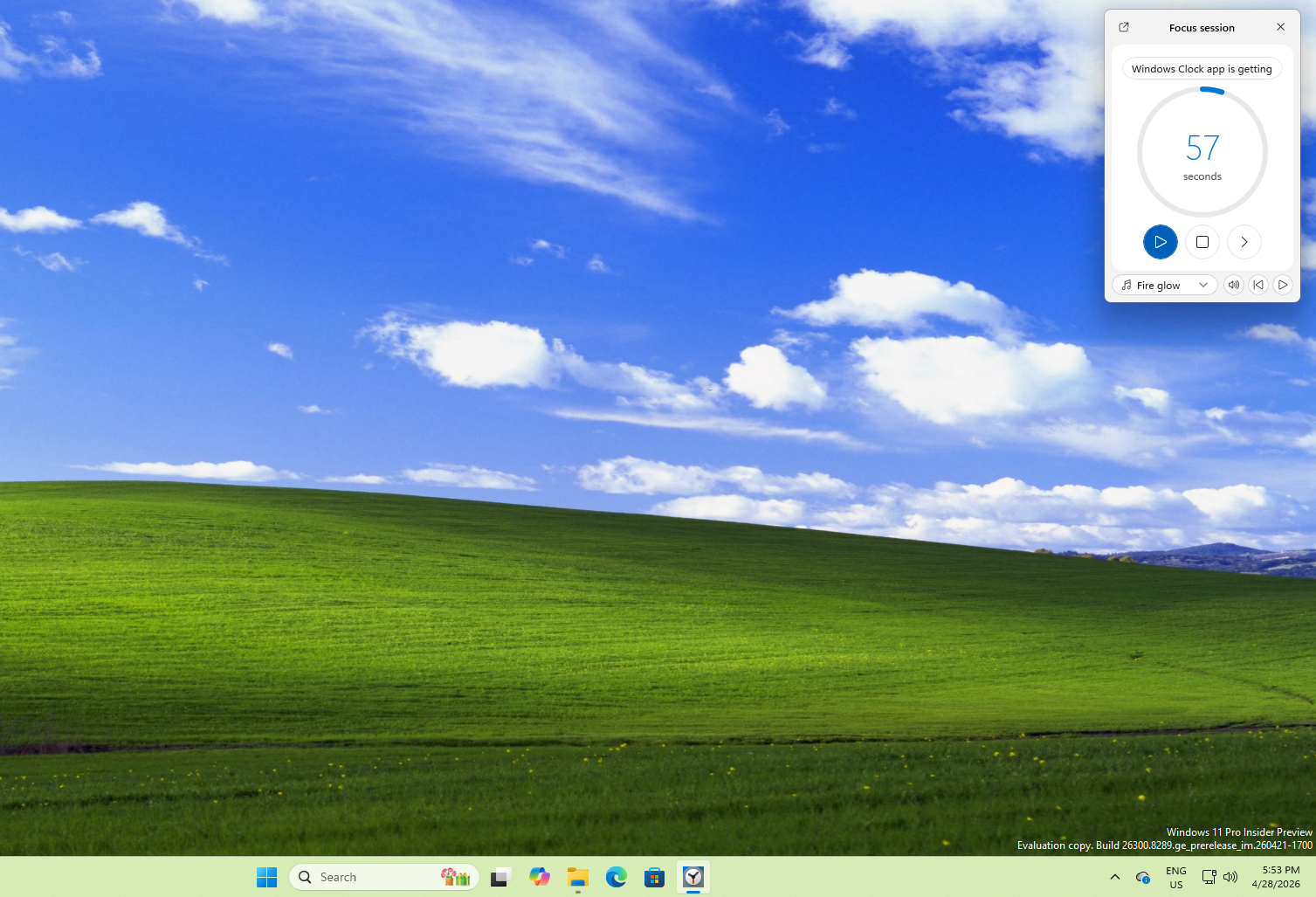
Like with the previous version, you can also minimize Focus session to run in a small window, with some of the customization options intact.
A very useful feature, which I reckon I’ll use when the update arrives on my regular PC, is called Reflection. After a Focus session is over, the app asks how that session felt for you, and you can choose from different levels like Deep focus, Focused, Steady, Drifting, and Distracted.
After saving the data, if the app is able to provide real insights about the state of productivity, this could be extremely helpful to people with ADHD. Of course, you can skip this banner. There is also an option to turn this Reflection off in the Settings.
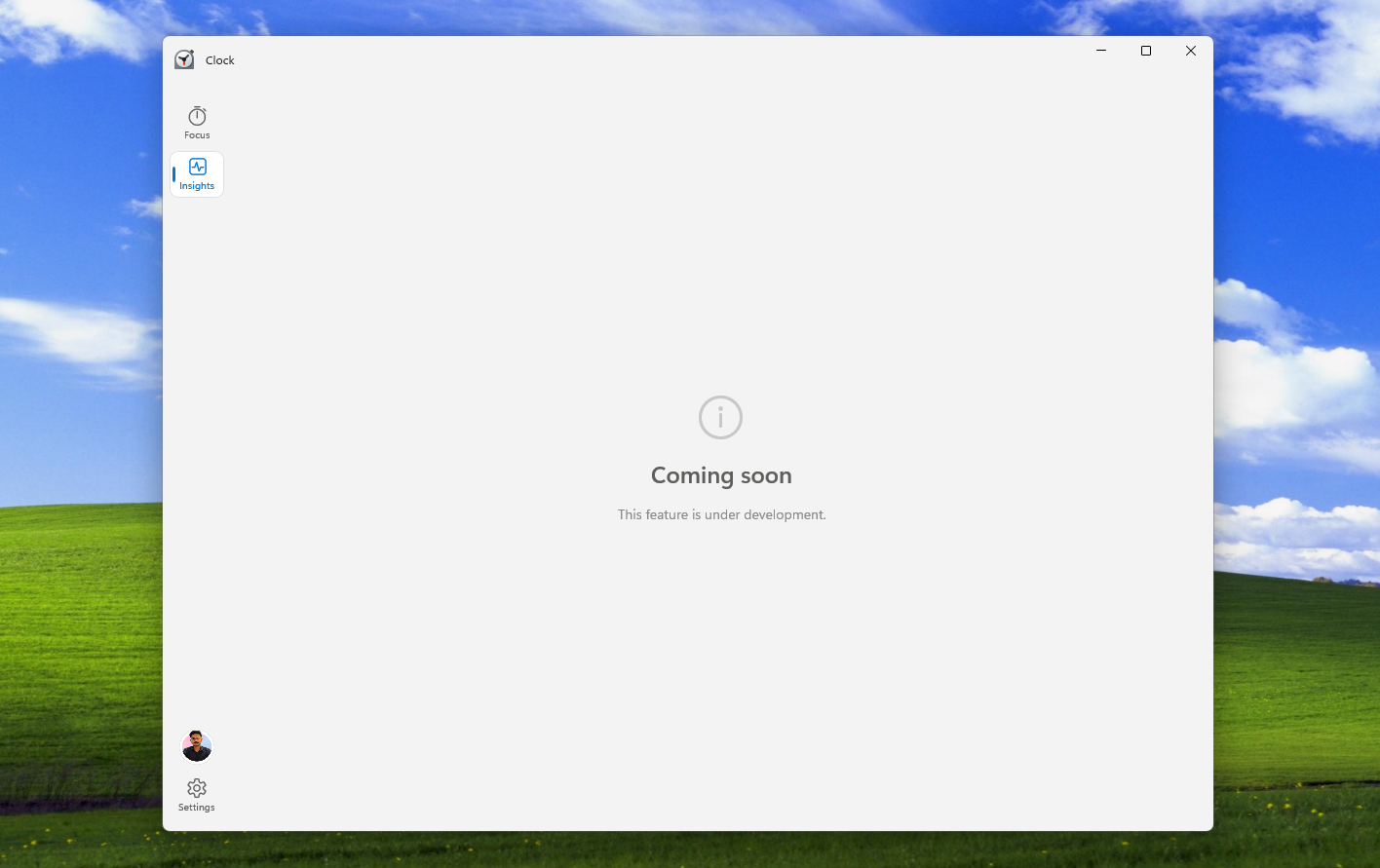
Speaking of Insights, there is a dedicated Insights page for Focus sessions, but unfortunately, clicking it shows a Coming soon page as the feature is under development.
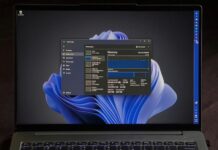
For curiosity’s sake, I checked the RAM usage while the focus session was running on both the new Clock app and the old Clock app. Interestingly, the new one uses almost double the RAM. Of course, the app is in its early stages, and there might be more optimizations on the way.
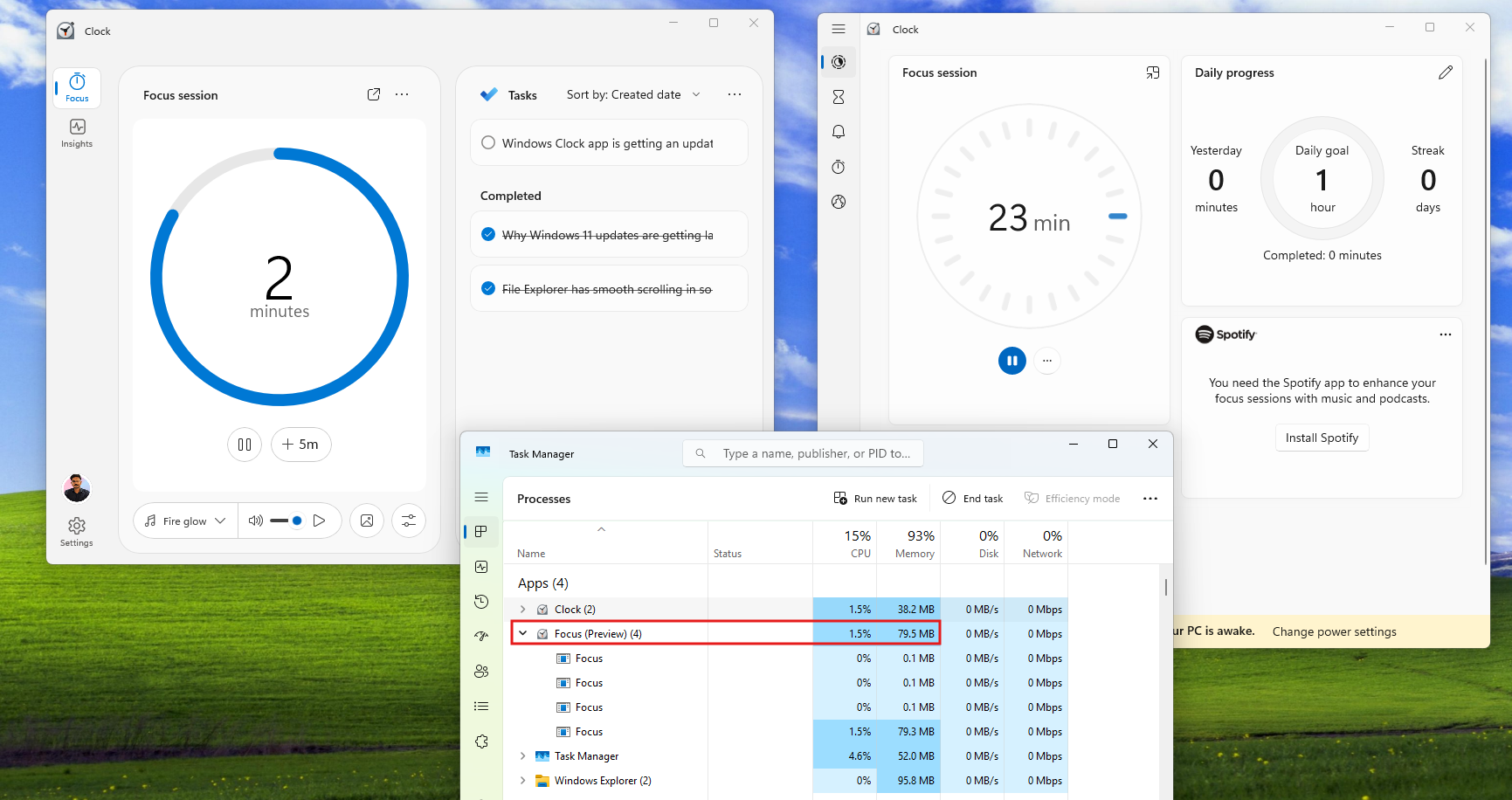
However, with Microsoft planning to make more native Windows apps, I just hope the new Clock will not have any WebView2 elements.
The Settings page for Focus sessions features a multitude of customization options. You can adjust the default focus duration and break duration, toggle on or off the Reflection feature, and turn on or off the time remaining.
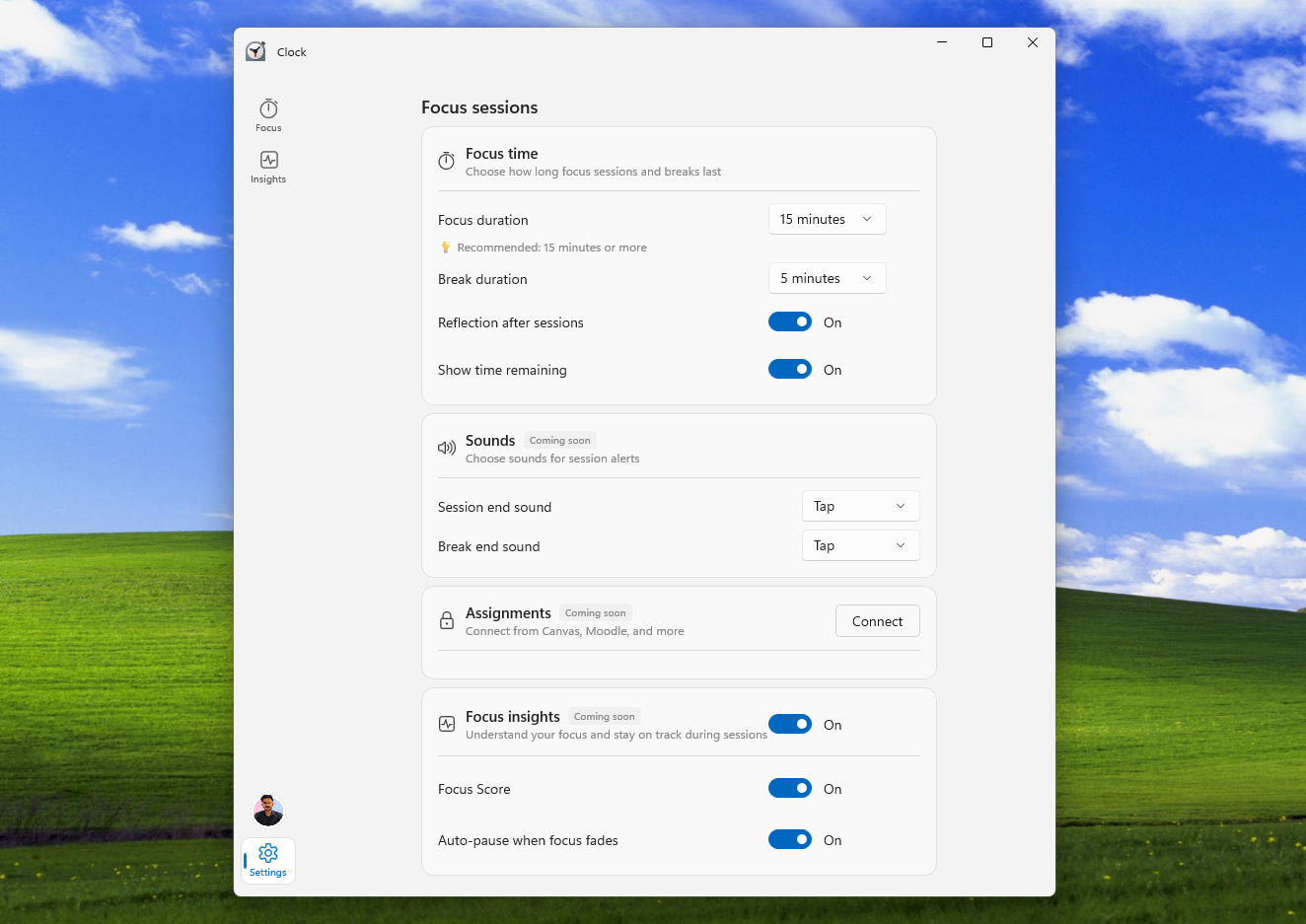
There is a Sounds section from where you can change the Session end sound and Break end sound. At the moment, there are three sounds to choose from. But our version shows a “Coming soon” tag.
Below it is an Assignments option that lets you connect from Canvas, Moodle, and other e-learning apps. So, the feature might enable timers for your assignments and tasks from courses in these learning platforms. The feature is coming soon and clicking the Connect button does nothing in our test version.
Finally, you can turn on the Focus insights feature, with further customization to turn off the Focus Score and Auto-pause when focus fades, which, if I’m not mistaken, the app will notice that you have lost focus and pause the focus session. I am waiting to know how that works!
As of now, we have no clue when the new Focus session update will come to the Windows Clock app, and judging from its current state, it could be a while, as many options are still unavailable in our test version.
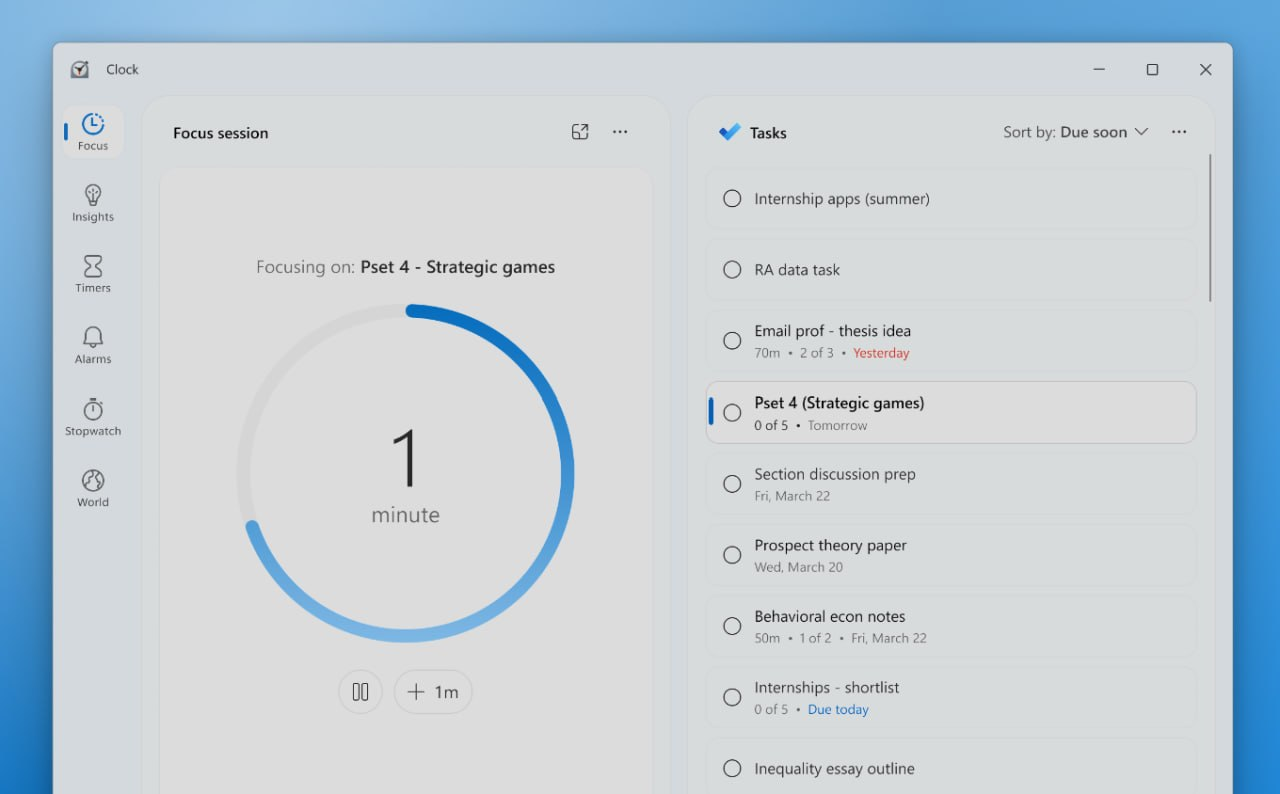
Either way, Focus sessions have been a very useful tool for me, and all of these new features would make it even better. It’s not clear if some AI features would require an NPU or not, but Insights and AI-based step suggestions are something I look forward to testing and hopefully using every day.