






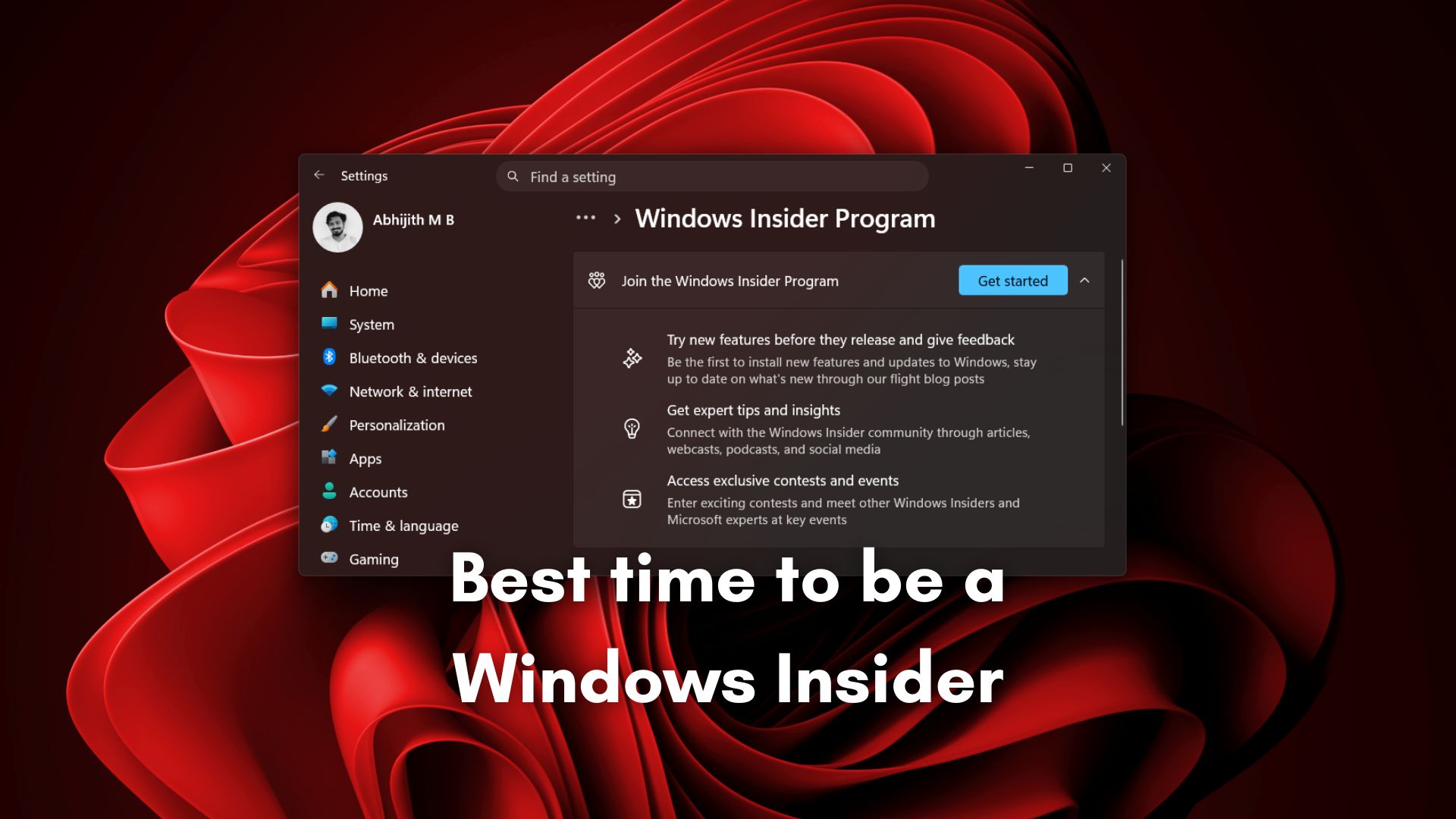
Microsoft is restructuring the Windows Insider Program with a new channel system, better feature access, and fewer restrictions on how users move between builds.
The biggest changes include reducing the program to two primary channels (Experimental and Beta), introducing a Feature Flags system to manually enable new features, and allowing users to switch between Insider channels or leave the program using in-place upgrades (IPU) instead of clean installs.
These changes directly address two long-standing issues. The Insider channel structure had become confusing, and many users were not receiving features even after installing updates due to Controlled Feature Rollouts (CFR).
Here are all the major changes to the Windows Insider Program:
Windows Insider channels are being simplified to just two
Microsoft is cutting down the complexity that has built up over the years. Instead of juggling between Canary, Dev, Beta, and Release Preview, the program is now centered around just two primary channels called Experimental and Beta.
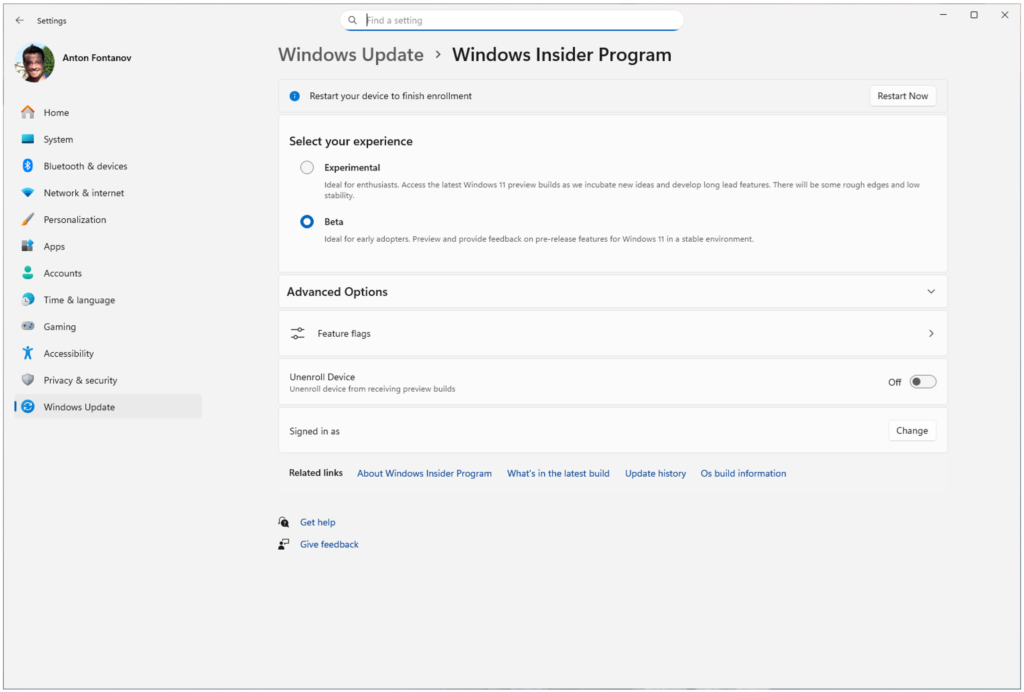
These changes are taking place after several months of Microsoft collecting inputs from Insider meetups, the Feedback Hub, and social platforms.
The Experimental channel takes over what Dev and Canary used to represent. This is where features show up first, usually in an unfinished state. These builds are meant for users who want early access and are okay with things breaking, changing, or even disappearing before release. The idea is to bring users closer to the development process.
The Beta channel, while retaining the same name, is getting far more predictable. It still previews upcoming features that are planned to roll out in the coming weeks, but the biggest change here is the removal of gradual feature rollouts. If Microsoft announces a feature in a Beta update and you install that update, the feature will be there. Small variations may still exist, but the feature itself won’t be missing.
This makes choosing a channel much clearer than before.
Experimental is for early access and direct feedback. Beta is for users who want to see what’s coming next without dealing with the issues that may arise from an unstable build.
Advanced option to pick Windows core versions
Microsoft is also adding a deeper layer of control for users who want more. Inside Advanced options, you can now pick specific Windows core versions that match your hardware. For most users, this will show up as builds like 25H2 or 26H1, which are based on actual Windows releases.
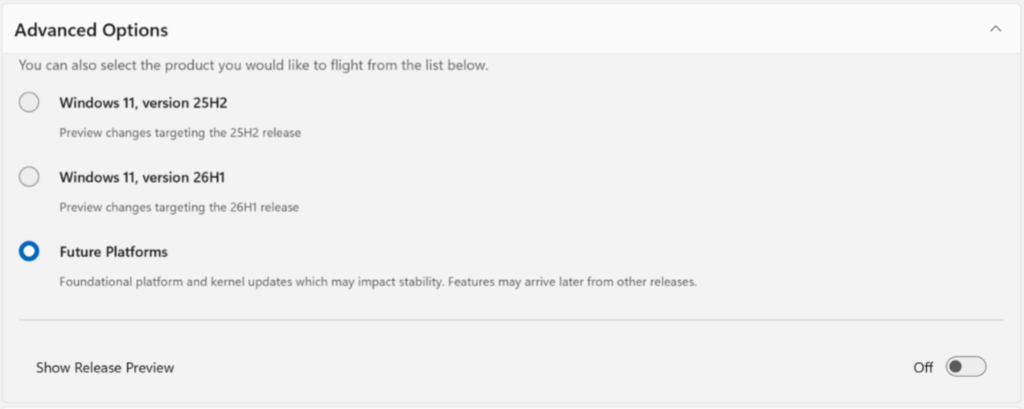
For those who want to go even further, there’s a new “Future Platforms” option under the Experimental channel. This is the earliest version of Windows available in the Insider Program, not linked to any retail release. It’s meant for users who want to test platform-level changes before they even take shape into a proper Windows version.
There’s a trade-off here. If you choose Future Platforms, you’re effectively stepping outside the normal update flow. Moving to another channel or leaving the program will still require a clean install, since these builds don’t correspond to any production version of Windows.
Experimental channel is getting Feature Flags, which give users control over new features
One of the biggest complaints about the Insider Program has been feature availability.
Microsoft uses Controlled Feature Rollouts (CFR), where features are enabled gradually across devices to test stability. While that works from an engineering standpoint, it creates a frustrating experience for users. As an Insider, with the whole point being to test features, you install an update expecting a feature, and it’s simply not there.
Microsoft is finally getting rid of this gradual feature rollouts scheme for the Beta channel and introducing a Feature Flags page inside the Windows Insider Program settings in the Experimental Channel.
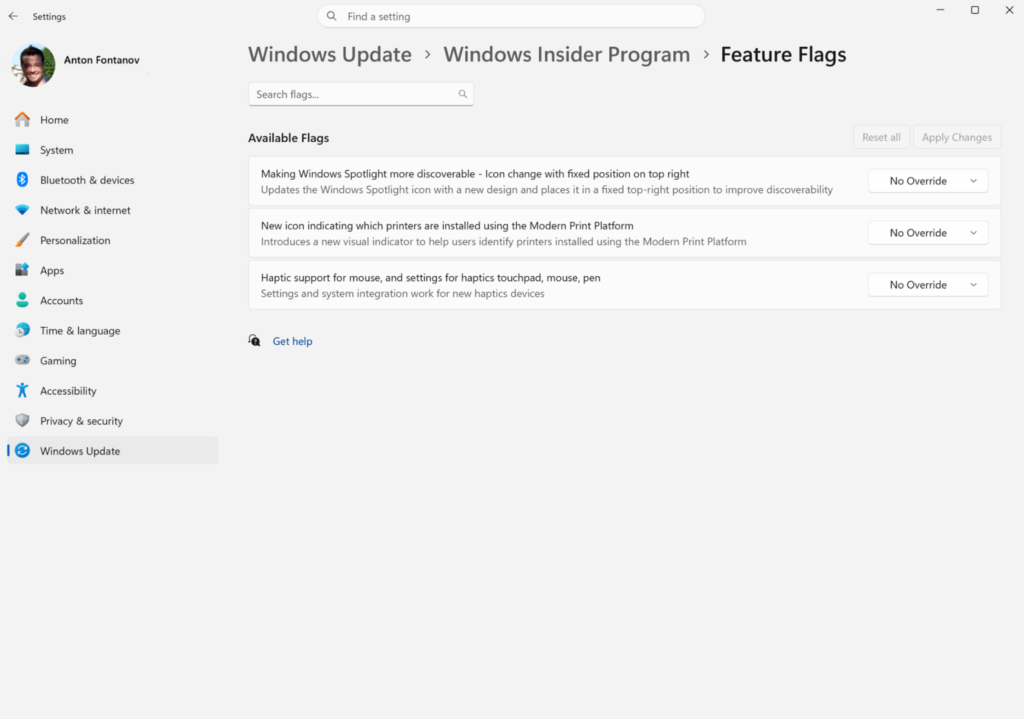
This allows users in the Experimental channel to manually enable or disable specific features that are announced in Insider builds.
There are some limits. Feature Flags will initially cover visible features mentioned in blog posts. Background changes like bug fixes or system-level improvements won’t appear here.
Even with that limitation, this is a welcome change. It removes the randomness around feature access and gives Insiders direct control over what they test.
For Beta users, there is practically no reason for Feature Flags, as only the features that are planned for regular rollouts in the coming weeks will reach Beta users.
Switching between Insider channels is finally becoming easier
In many cases, switching between channels or leaving the Insider program required wiping the system and doing a clean install. That alone was enough to keep a lot of users from experimenting with different builds.
Microsoft is now addressing this with in-place upgrades (IPU).
This allows users to move between Experimental, Beta, and Release Preview builds without losing apps, settings, or files, as long as they stay within the same Windows core version.
The process takes longer than a normal update, but it avoids the biggest pain point, which is resetting your PC.
There is one exception. If you’re on a Future Platforms build, you’re still locked into the old behavior. Switching away from those builds will require a clean install.
What happens to existing Insider users?
These changes are not optional for current users. Microsoft is automatically moving Insider devices to the new structure.
All existing Insiders, except those on Release Preview, will be reassigned to either the Experimental or Beta channel. This only affects the channel label, not the Windows version running on the device.
The transition is straightforward for most users. Devices on the current Beta channel will stay in Beta. Dev channel users will move to Experimental.
For Canary users, things depend on the build they are running. Systems on the 29500 series will move to Experimental under the Future Platforms category, while those on the 28000 series will be aligned with 26H1 builds under Experimental.
Release Preview remains unchanged and is now positioned as an advanced option, mainly for commercial users and those who want early access to near-production builds.
The Windows Insider Program for Windows Server is also not affected by these changes and will continue as it is.
The Windows Insider experience is getting improvements
The Windows Insider Program settings page is getting redesigned to load faster and make choices clearer. It now has a simpler layout, fewer steps to navigate, and reduces the number of unnecessary reboots during setup or switching.
Microsoft is also putting more focus on direct engagement with the community. The company has already started hosting in-person Insider meetups and plans to continue them, alongside feedback collection through social media and one-on-one conversations with users.
Windows Insider Program is going back to its roots
The new structure feels closer to how the Insider Program worked during the Windows 10 era.
Back then, the system was simple. You had Fast, Slow, and Release Preview channels, and each one clearly represented a trade-off between speed and stability. You knew what you were signing up for.
Over time, things became more complicated. Controlled Feature Rollouts made feature availability inconsistent, and the growing number of channels made it harder to understand what each one offered.
Microsoft is now reversing that direction.
The Insider Program is moving back to a simpler structure with clearer expectations, while also restoring a more direct feedback loop between users and the Windows team. The return of in-person meetups and more active engagement are both the icing on the cake. This is the best time to be a Windows Insider!