






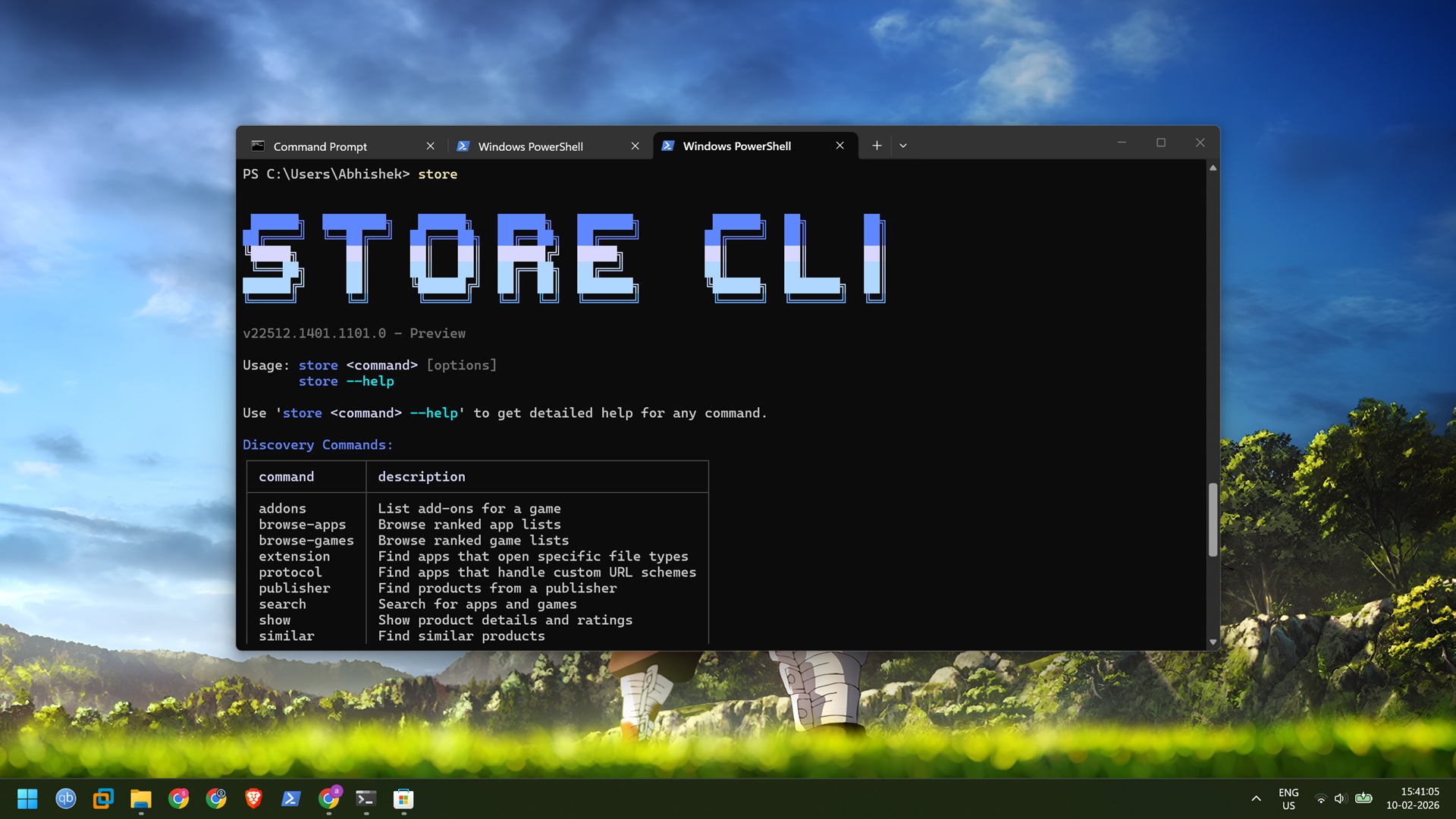
Windows 11 now has a secret “Store CLI,” and it’s not related to Winget, which is also a command-line tool to manage packages in Windows 11. Store CLI is a natively available tool to download, install, and remove packages available on the Microsoft Store.
If you don’t like the Microsoft Store, but you still need to download apps or games from there, Store CLI is for you. It lets you control the store packages on Windows 11 via the Store CLI tool from the terminal. It requires no additional installation, is lightweight, and more visually pleasing than Winget.
Why do you need Store CLI?
The obvious question is, why did even Microsoft bother with a terminal-based tool when Winget is already available? I think that Microsoft wants to make a distinction from Winget-based app installs.
Winget can download apps from the store and its personal repository and presents you with numerous versions. Store CLI only lists a single, most recent version of the app and makes it easy to download it.
Another distinction I noticed is the ability to install both paid and free apps. When you do a search in Winget, it only lists the free apps, but Store CLI can search for and install paid apps and the available extensions and plugins. So, if you want to pick something from the Microsoft Store exclusive catalog, there is now a CLI way to do it.
My Store CLI experience
Winget is bleak and simple, which is what you mostly expect from a package manager. However, Store CLI tries to ditch the monotonous look of a terminal interface and presents it with eye-catching colors and tables.
I checked out the first basic trait of a CLI package manager, which is to search for something. The command syntax is quite similar, as both winget and Store CLI use “search” for finding something.
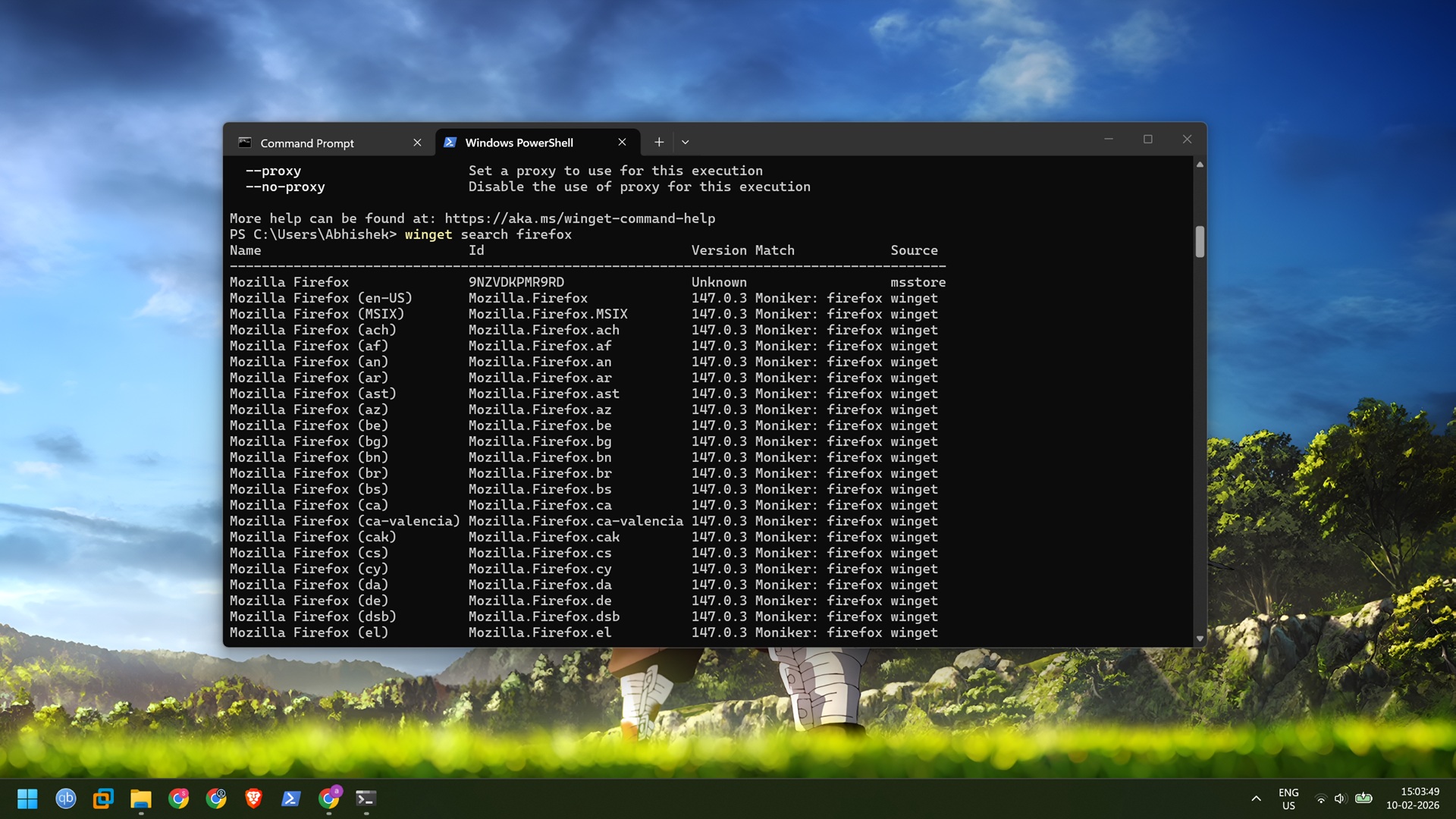
The winget search firefox command produces a huge list of available Firefox versions. The first result is from the Microsoft Store, while the rest show all the new, slightly old, and older versions of the browser maintained by the Winget repository.
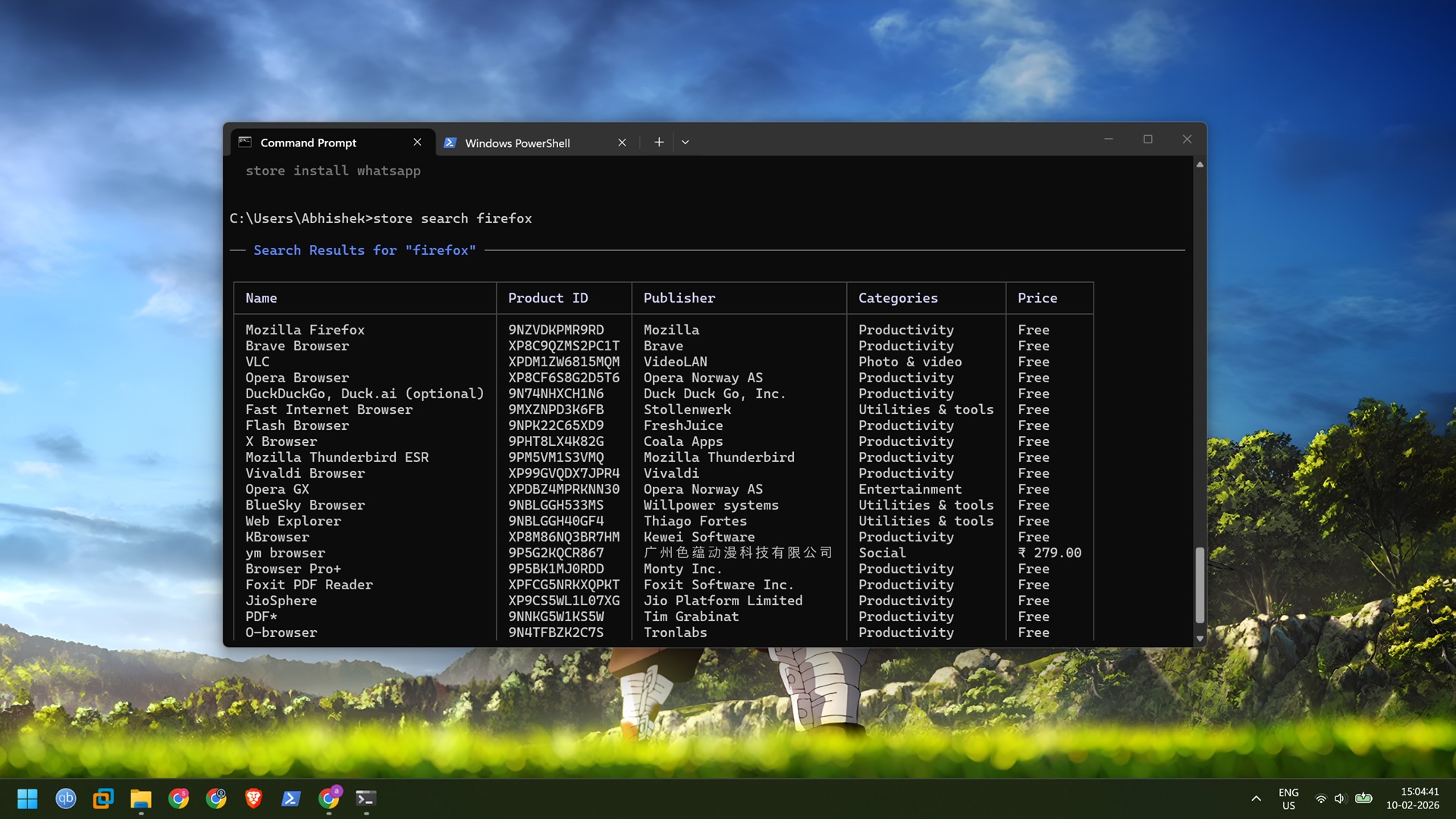
On the other hand, Store CLI doesn’t produce such a huge list because it only fetches the result from the Microsoft Store. So, the store search firefox command produces the latest available installer file on the Store, along with a bunch of similar apps below it. You can see names like Brave and Opera, along with a few paid tools and VLC.
If you compare both the results, Winget’s version is difficult to read and understand, while Store CLI is much easier to comprehend and even shows the price of the paid tools.
Out of curiosity, I searched for Firefox inside the Microsoft Store app, and it listed the apps in the same order as Store CLI. So, it uses the same search feature and algorithm.
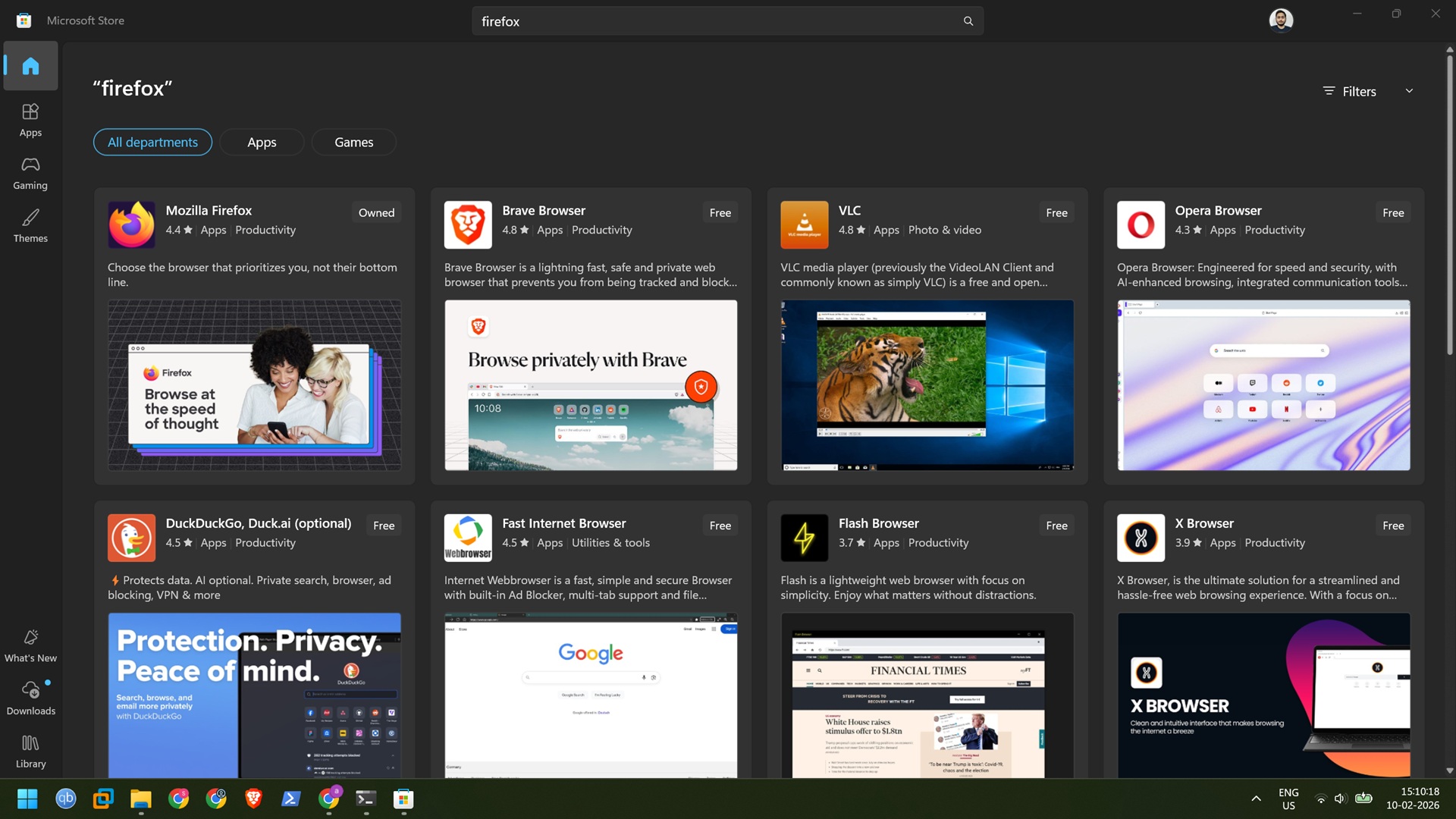
That means you’ll always see the search results as Microsoft wants. But that’s not a bad thing because the performance is blazing fast. You don’t need to wait for the app icons and UI to load, and can get down to business instantly.
It’s one of the pain points of using the Store app for app updates. I hate the occasional slow-loading pages inside the Microsoft Store, and the Downloads page seems stuck. In my first run, I tried the store updates commands that find and auto-install new updates. It showed that a Paint update was pending, and began installing it after a confirmation.
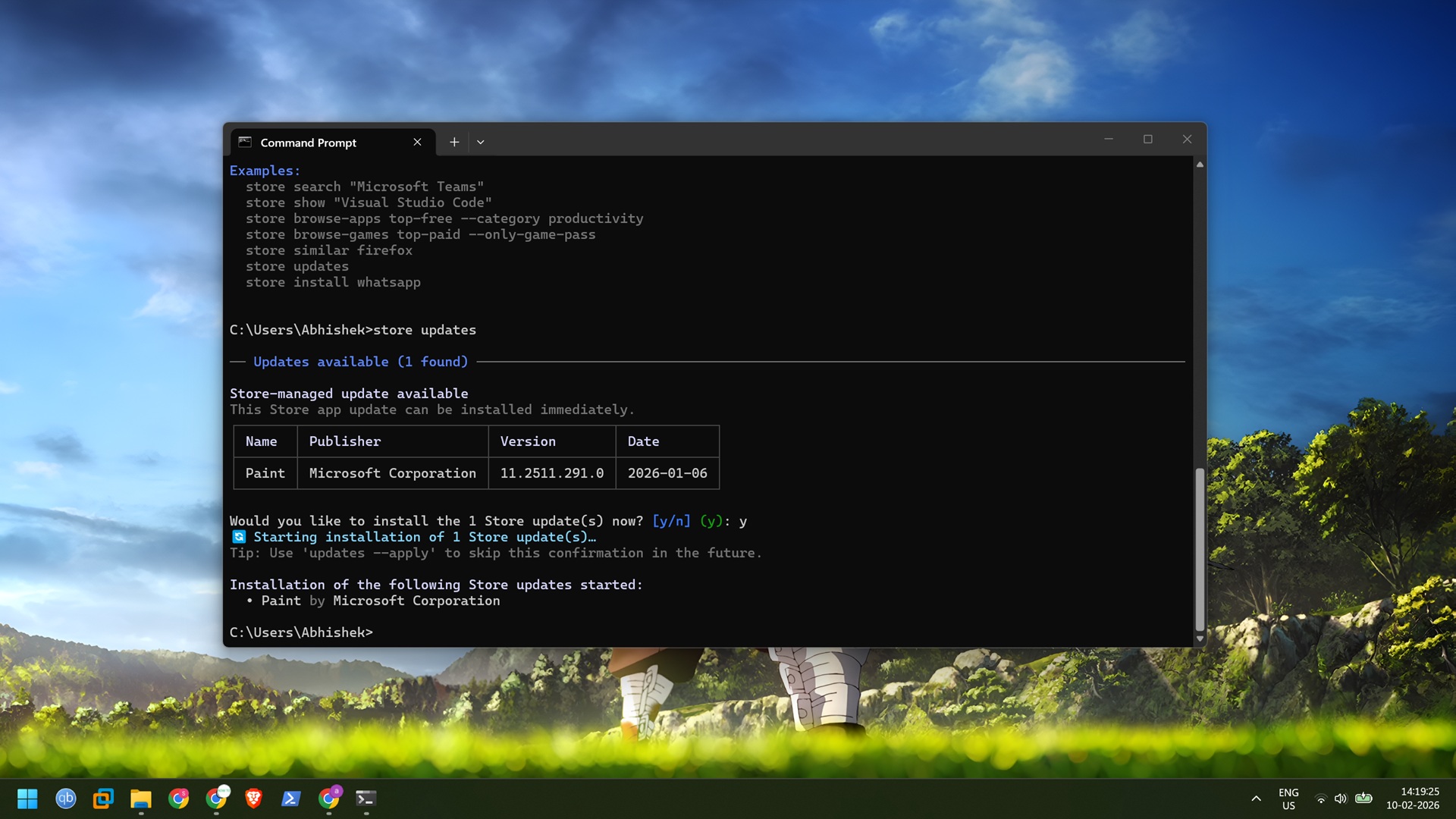
There’s no progress bar for the update installation, and the tool doesn’t show and completion message, which is not good. I should get a terminal message or a system notification about it, but that might happen as the tool matures.
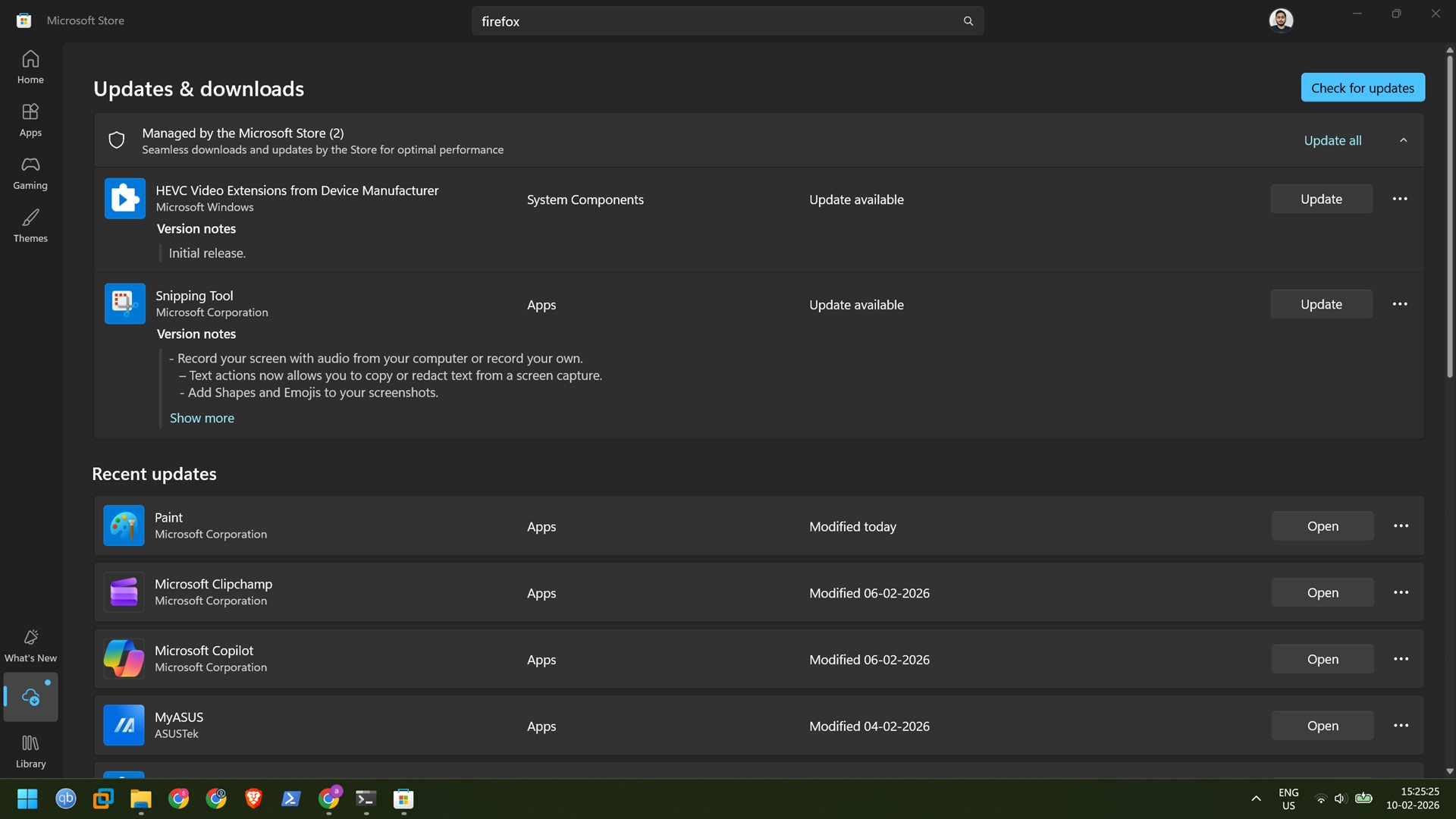
Another thing I found was the incorrect listing of available updates in Store CLI. Microsoft Store showed two available updates for Snipping Tool and HEVC, but neither Winget nor Store CLI listed them, even after repeated search commands.
Installing paid apps is not what you think
I mentioned that Store CLI can list paid apps, but Winget cannot. Winget cannot even find the paid app package if you try to search for it. However, Store CLI can only list the paid app and cannot install it.
When I tried to install “YM browser”, a paid app available on Microsoft Store, the tool showed a selection option, but I couldn’t install it. The reason behind it is that Store CLI cannot help you purchase an app. It makes sense because Microsoft Store is a GUI app with payment merchant integration that’s not possible with CLI.
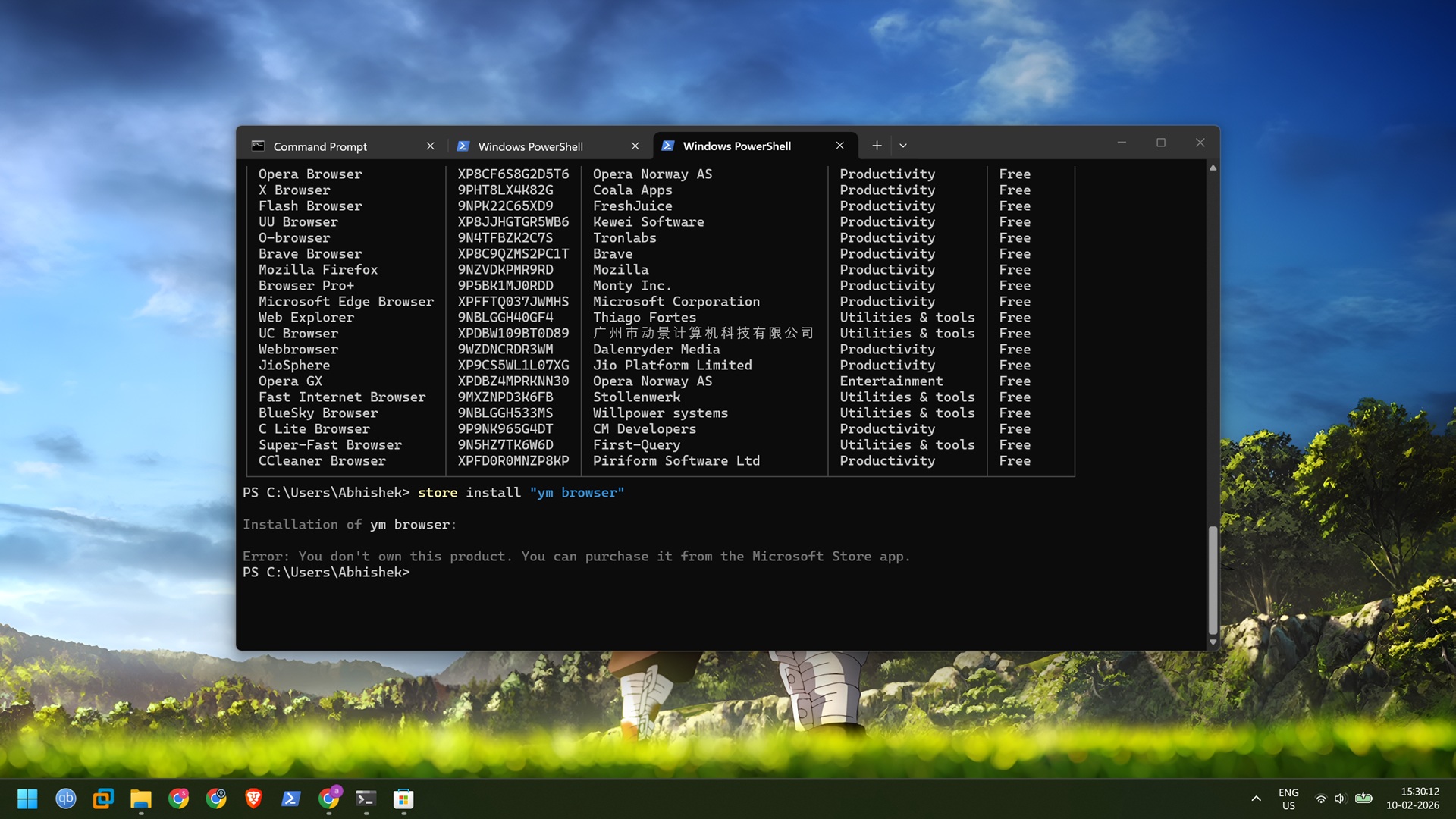
However, it should redirect me to the correct app page or payment page if I want to buy the app. Currently, Store CLI shows an error message and suggests purchasing the app from the store before trying to install it via CLI.
Store CLI vs Winget
Winget is a general-purpose package manager, while Store CLI is a specialized tool for the Microsoft Store. I might use it for updating store apps and not anything else. The current implementation is visually appealing but not functional or powerful to my taste.
I need to purchase the app first and then install it via terminal, which defeats the purpose. However, you can use it if the Store app GUI experience feels sluggish.
Winget still has an upper hand if you like old package versions, want to import or export apps on your PC, or upgrade third-party apps on your PC.