






You’re not alone if you’ve noticed that the Windows 11 Clipboard History sometimes fails to capture what you’ve copied. This does not happen all the time, but you might run into the issue if you’re copying too many things in quick succession or if you use apps like Excel with large amounts of data.
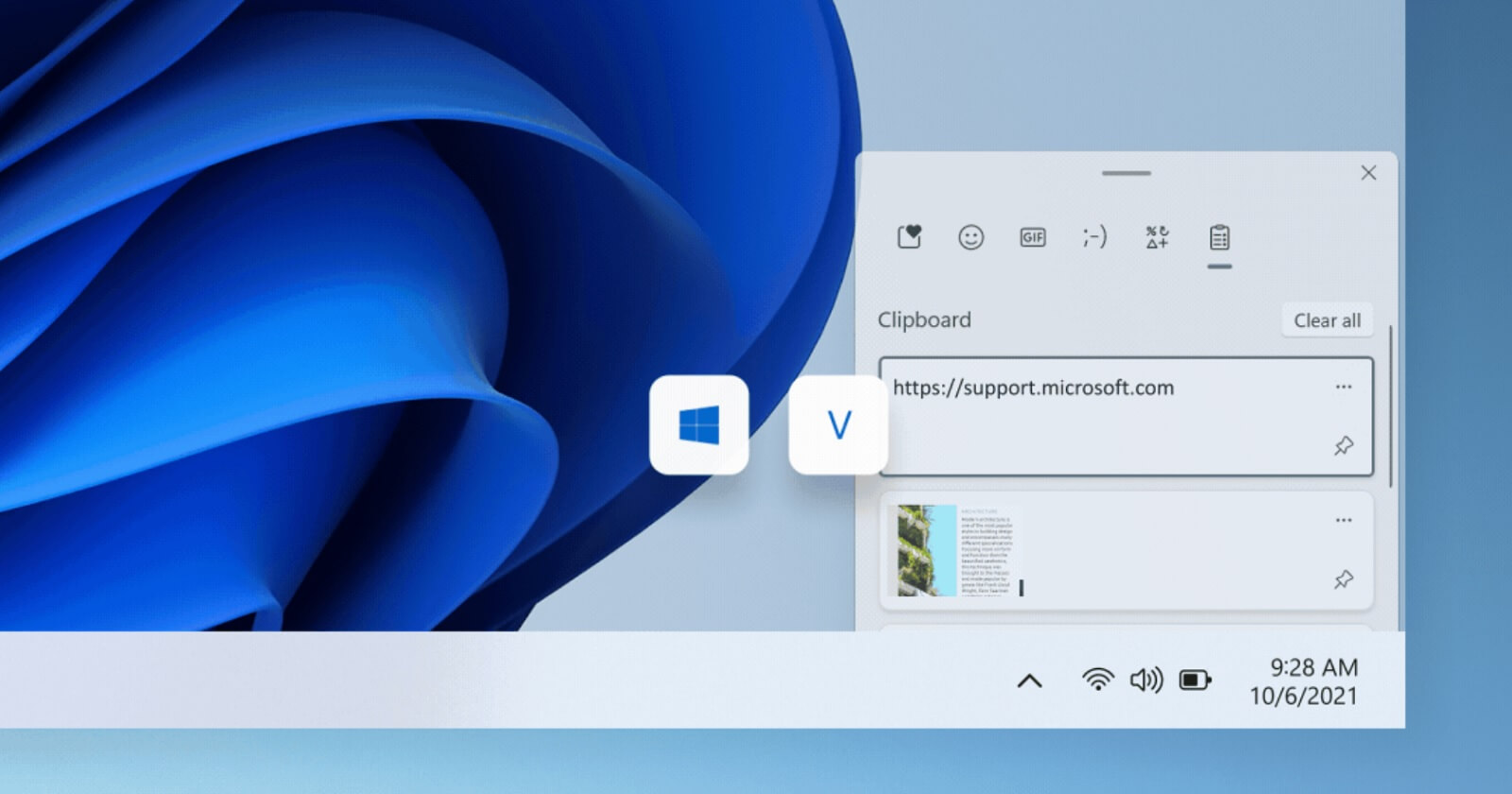
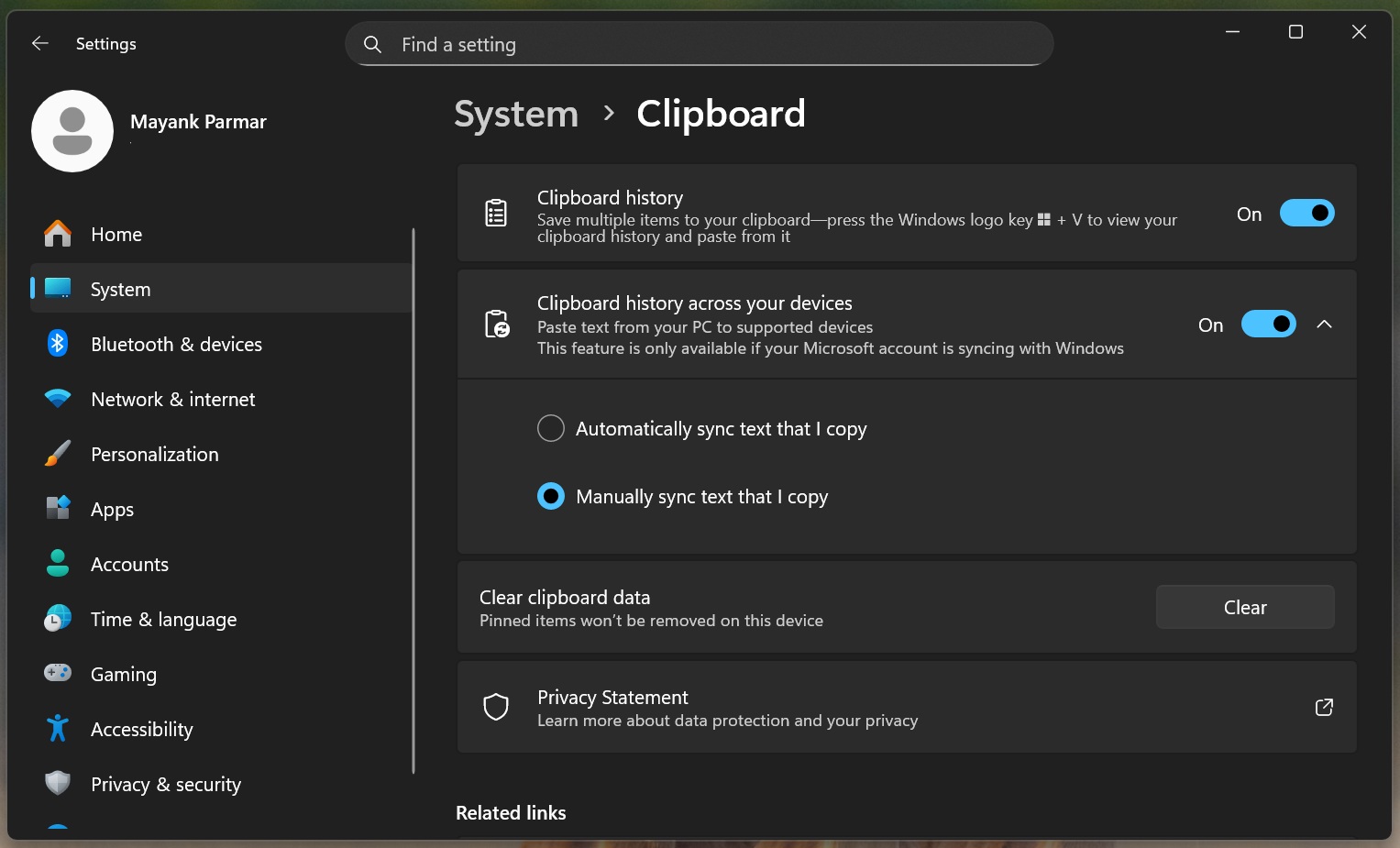
For those unaware, Windows 11 comes with a full-fledged Clipboard history, and it can be accessed using the Win + V keyboard shortcut. You can manage Clipboard sync in Settings > System > Clipboard, and even turn on sync across your devices, including Android phones.
I always use Windows Clipboard history feature because it’s powerful and gets the job done most of the time. When I use the Phone Link app to quickly copy images from my Android phone to the clipboard, I can easily pull them from the clipboard history and edit them in MS Paint.
It works until you hit a roadblock. I have noticed that sometimes the clipboard history does not show what I copied earlier. And I question myself, did I really copy the image?
I’ve observed similar behavior when working in Excel.
It turns out that this can be explained by how the Windows clipboard history service works and how some apps provide clipboard data.
I found multiple Microsoft documents and even patents that help explain why the clipboard can feel like a “hit or miss.”
Why does Windows 11’s Clipboard history not always save everything?
First and foremost, if you change the clipboard data multiple times very fast, Clipboard History may not record all items, and this happens because Windows listens to clipboard-change notifications asynchronously.
What is asynchronous?
“The clipboard history service operates asynchronously. It registers for clipboard changes via AddClipboardFormatListener, and when it receives a change notification, it updates the clipboard history,” Raymond Chen, who is a top-level engineer at Microsoft, explained. “The listener is notified asynchronously, however, so by the time the listener receives the WM_CLIPBOARDUPDATE message, the clipboard may have changed a second time.”
If you still don’t understand why asynchronous causes problems for the clipboard history, hear me out.
If you copy something, Windows sends a signal that the clipboard changed, but if the clipboard changes again before the history service processes the earlier change, the earlier item might never get saved into history.
For example, if you copied an image from the Phone Link app or another app, then immediately copied a cell from Excel, and open the Clipboard history (Windows + V), you might not even see the image.
The history service of the clipboard is a separate process, and while it tries to record clipboard changes, it can miss very rapid back-to-back updates. This is largely by design for performance, and if something only stays on the clipboard for a split second, you (as a human) realistically can’t paste it anyway.
I copied something, but it never gets copied to the Windows 11 Clipboard. Why?
I’ve run into this issue myself. I am again using the Phone Link app, and I copied an image, but it didn’t get copied. I do it again, and it still doesn’t get copied. That’s also the case sometimes when Word is loading content within a document, and I try to copy an excerpt. It doesn’t get copied.
On Windows 11, some apps don’t immediately place the final data on the clipboard. Instead, they use delayed rendering, where the app promises it can provide the data, and then Windows waits (up to 30 seconds) for the app to generate that data when it’s actually requested.
That’s not an issue unless the app is hung, busy, or fails to respond properly. In that case, you can end up with nothing (or missing formats).
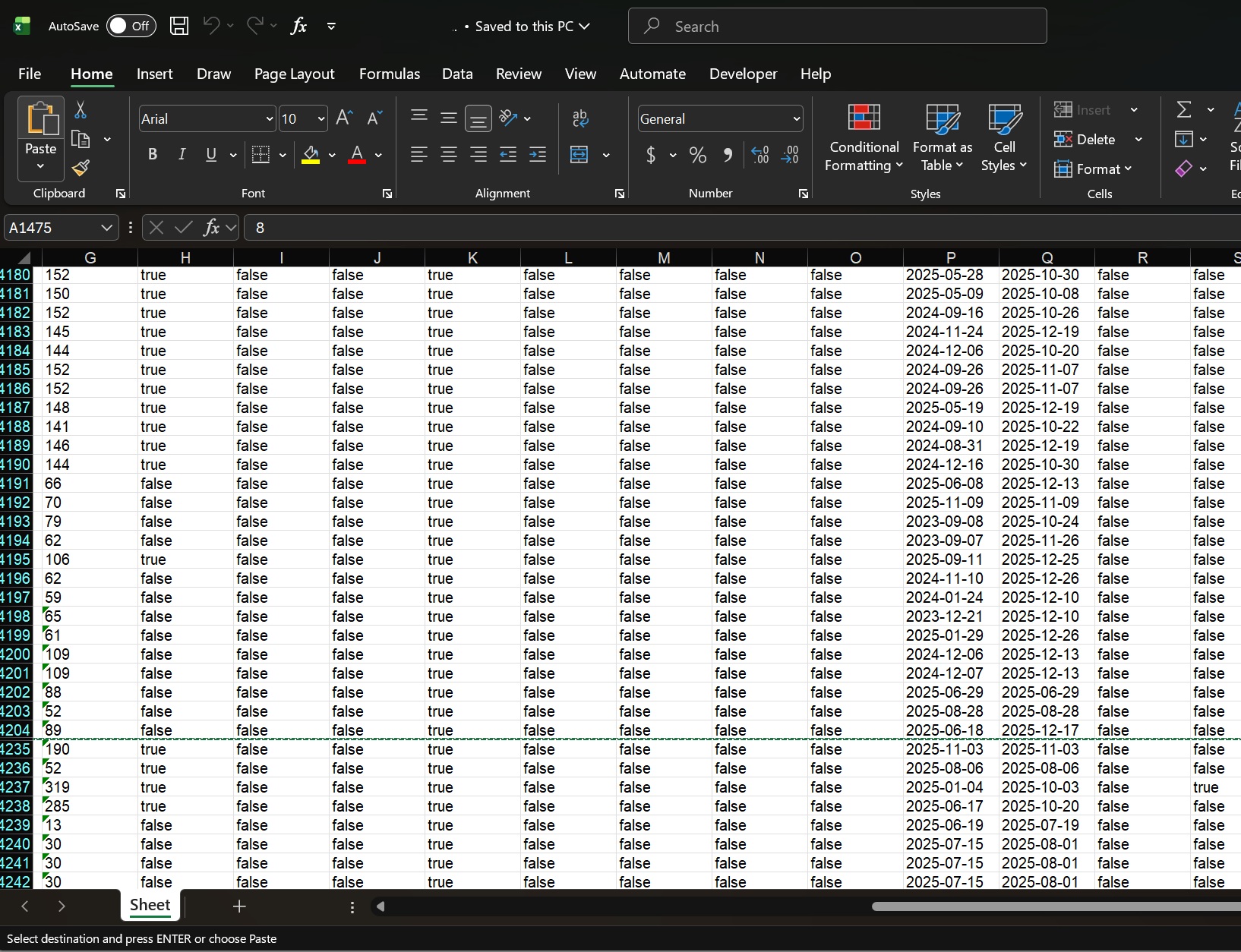
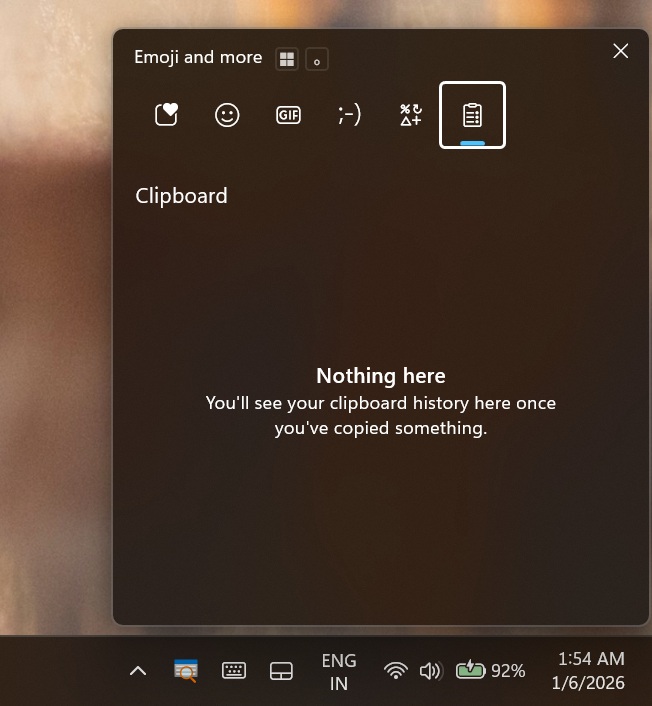
For example, if you go to Excel and copy a large chunk of data, especially the Rich Text Format table. Excel has about 30 seconds or more to copy rich data to the clipboard, but it does not, and the Windows clipboard has nothing to show. It’s empty or outdated, like the screenshot below:
The 30-second timeout is not an issue unless the app is hung, busy, or fails to respond properly.
In the above Excel example, the data was not copied to Windows 11 Clipboard history because Excel was taking more than 30 seconds, and the “GetClipboardData” feature timed out.
Most of the time, Windows Clipboard works very well. What about you? Have you experienced similar issues with Windows Clipboard? Let me know in the comments below.