








Microsoft has admitted that turning on BitLocker on PCs with NVMe SSDs can have a noticeable performance impact, but it does not necessarily mean that every PC with BitLocker is hurting the performance of your apps or games. In fact, in most cases, performance cost is barely visible.
According to Microsoft, historically, BitLocker’s overhead was “single digit” % most of the time, and only in certain conditions.
We care about these numbers because BitLocker used to be an optional feature, but when Windows 11 24H2 shipped, Microsoft made BitLocker a default feature on newer PCs or clean installs. BitLocker is not turned on when you upgrade from Windows 11 23H2 to 24H2.
In a support document, Microsoft argues that BitLocker is a “valuable” feature if your device is lost or stolen. That’s because BitLocker encrypts your drives and protects your data.
Does Windows 11 BitLocker have a performance impact?
According to Microsoft, BitLocker comes at the cost of performance, especially when you have one of those newer, powerful NVMe SSDs with higher I/O cycles, as it results in increased CPU usage for decryption.
Microsoft argues that NVMe drives have significantly improved, and drives now have higher I/O per second. While it’s a good thing for performance, higher I/O per second also means that the CPU needs to spend a noticeable chunk of time just doing BitLocker’s AES (Advanced Encryption Standard) crypto to keep up with all those reads or writes.
All of that leads to a higher proportion of CPU cycles when BitLocker is turned on, and it’s more noticeable in heavy I/O situations, such as gaming.
“While this is a major benefit for users, it also means that any additional processing — such as real-time encryption and decryption by BitLocker — can become a bottleneck if not properly optimized,” Microsoft noted in a support document.
To put it simply, there’ll be higher CPU cycles automatically when you’re performing drive-intensive tasks that require higher read and write. For example, you’ll notice increased CPU usage when:
- You’re playing games
- Compiling large codebases
- Editing large videos.
Or similar “resource-intensive” activities on NVMe drives when BitLocker is turned on. However, there’s a workaround, which requires newer PCs that support the “hardware-accelerated BitLocker” feature.
Microsoft says hardware-accelerated BitLocker solves performance concerns
In Windows 11 KB5065426 (26100.6584 26200.6584) or newer, Microsoft turned on the hardware-accelerated BitLocker feature in Windows 11. With this feature, Microsoft states that the crypto work is offloaded from the CPU to a dedicated crypto engine on the SoC CPU, and keys can be hardware-protected.
It’s unclear if existing CPUs support hardware-accelerated BitLocker, but Microsoft specifically says the feature requires “upcoming” SoC/CPU capabilities for NVMe and then says Core Ultra Series 3 (Panther Lake) will be the first to support it, with other vendors planned.
This feature results in reduced CPU usage and improved battery life, but the only catch is that it requires hardware that is supported.
“BitLocker will take advantage of upcoming system on chip (SoC) and central processing unit (CPU) capabilities to achieve better performance and security for current and future NVMe drives,” Microsoft noted.
Performance Comparison (CrystalDiskMark Benchmark)
Microsoft shared some benchmarks to compare the before and after performance using CrystalDiskMark. This is the most critical part of the test, showing the impact of encryption on drive speed. While sequential read or write speeds remain largely unaffected, the difference in random input/output operations is significant.
Device A: Software BitLocker
- BitLocker on: TRUE
- Algorithm: XTS-AES256
- HwCryptoOffloadingSupported: FALSE
- HwCryptoOffloadingUsed: FALSE
- HwWrappingSupported: FALSE
- HwWrappingUsed: FALSE
- HwOffloadType: UNRECOGNIZED
Device B: Hardware-Accelerated BitLocker
- BitLocker on: TRUE
- Algorithm: XTS-AES256
- HwCryptoOffloadingSupported: TRUE
- HwCryptoOffloadingUsed: TRUE
- HwWrappingSupported: TRUE
- HwWrappingUsed: TRUE
- HwOffloadType: NVMe
Now, let’s take a look at how hardware-based BitLocker compares against software-based BitLocker when the device is running Windows 11:
| Metric | Device A (MB/s) | Device B (MB/s) | Difference |
| SEQ1M Q8T1 (Read) | 6598.58 | 6637.36 | Negligible (+0.6%) |
| SEQ1M Q8T1 (Write) | 4925.73 | 4956.20 | Negligible (+0.6%) |
| RND4K Q32T1 (Read) | 1632.52 | 3746.55 | Device B is 2.3x Faster |
| RND4K Q32T1 (Write) | 1513.43 | 3530.82 | Device B is 2.3x Faster |
| RND4K Q1T1 (Read) | 513.95 | 714.39 | Device B is 40% Faster |
| RND4K Q1T1 (Write) | 304.89 | 652.45 | Device B is 2.1x Faster |
While large file transfers remain similar between the two configurations, Hardware Acceleration significantly improves Random 4K performance (small file operations).
Device B doubled the speed in most random write or read scenarios compared to software encryption.
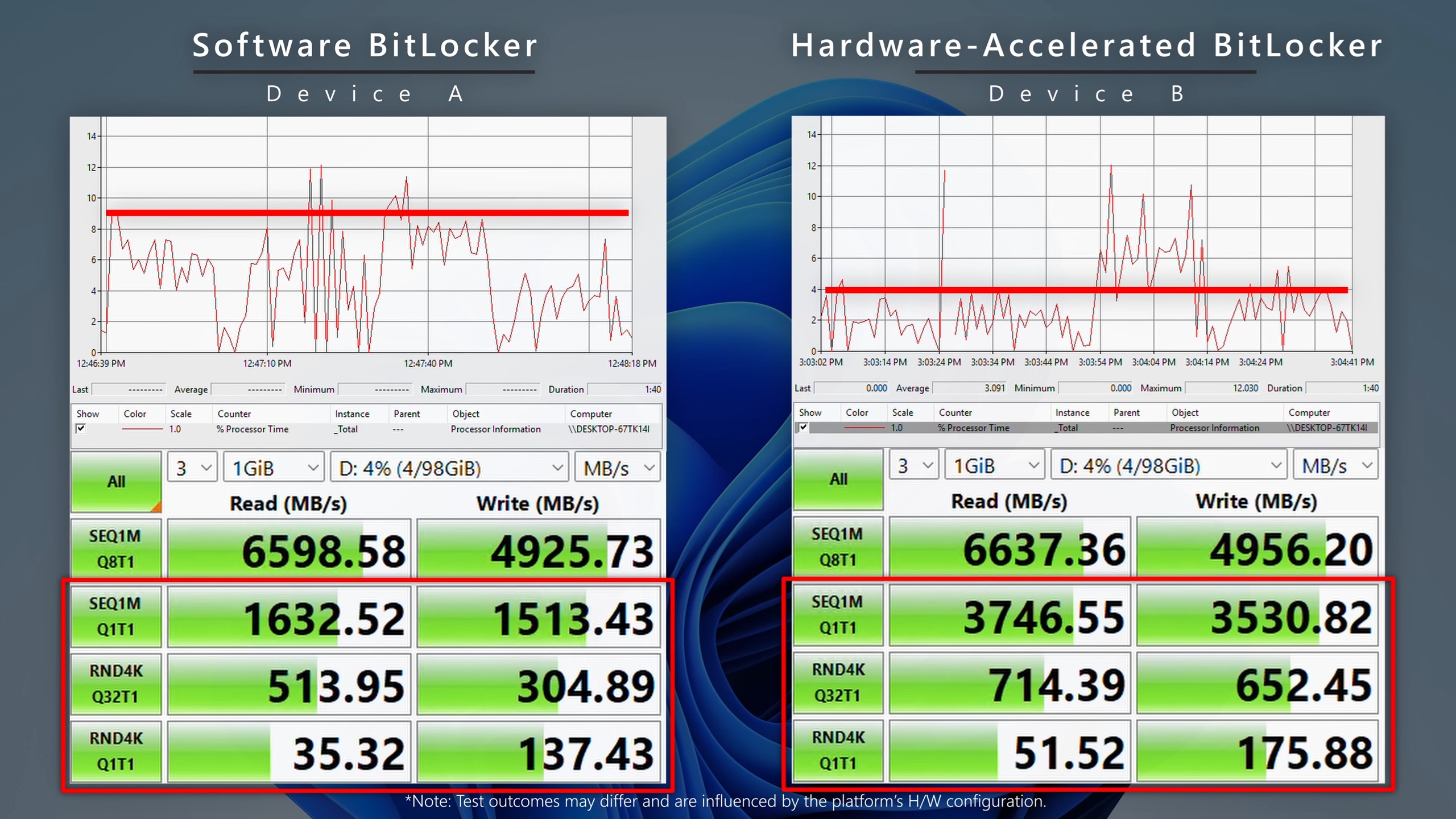
In this test, Microsoft has two PCs with the exact same hardware specs. Device A uses the existing software-based BitLocker, and Device B uses hardware-based BitLocker. Microsoft shared a video that shows the benchmark in action:
Microsoft also found that storage performance improves, including I/O metrics, when you use hardware-accelerated BitLocker over software-accelerated.
After turning on hardware-accelerated BitLocker, early tests showed that CPU cycles were reduced by over 70%, which also helps with longer battery life.
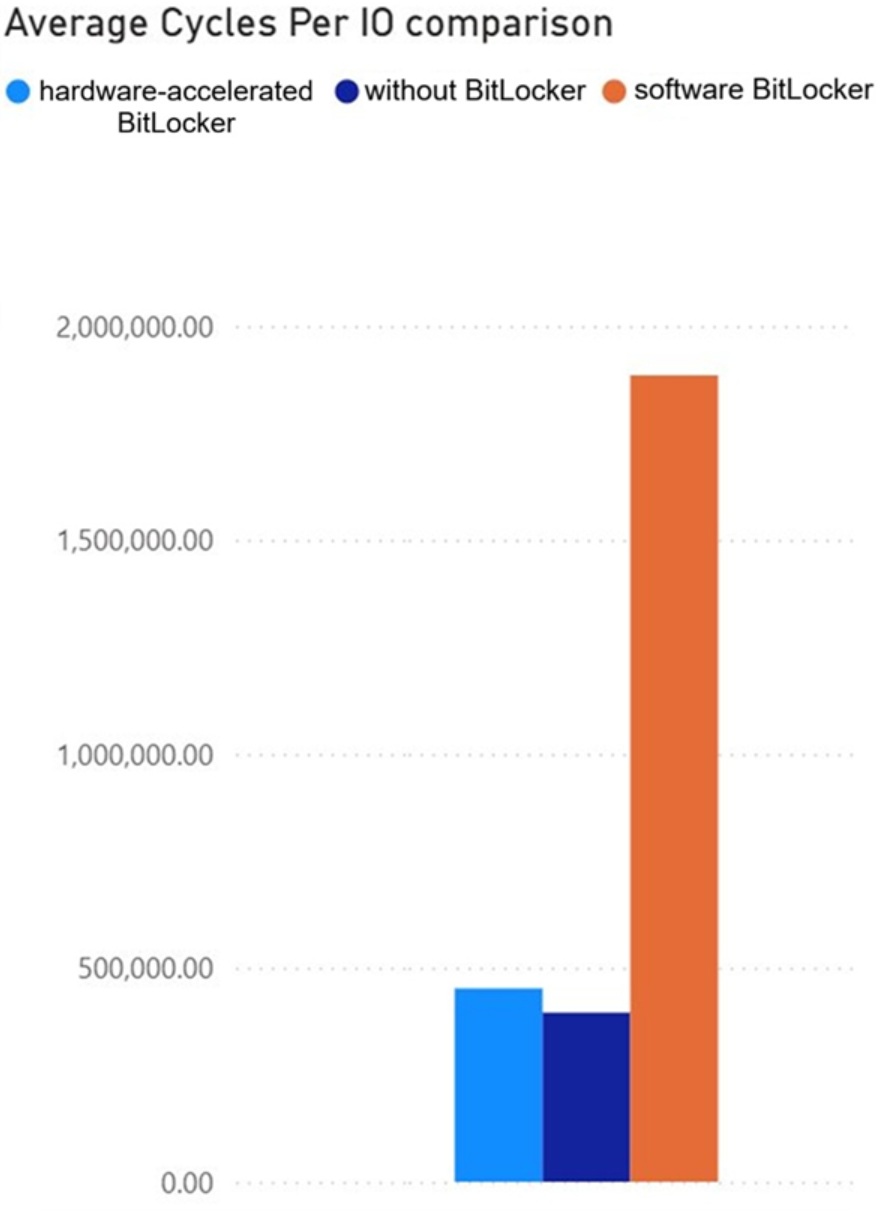
Windows 11 performance is still marginally better when BitLocker is completely disabled, but when you switch to a hardware-based approach, BitLocker is not going to be a performance cost for the majority of users.
How to verify if your PC supports hardware-accelerated BitLocker?
You need to run manage-bde -status in Command Prompt (admin) to verify the underlying technology being used on your PCs.
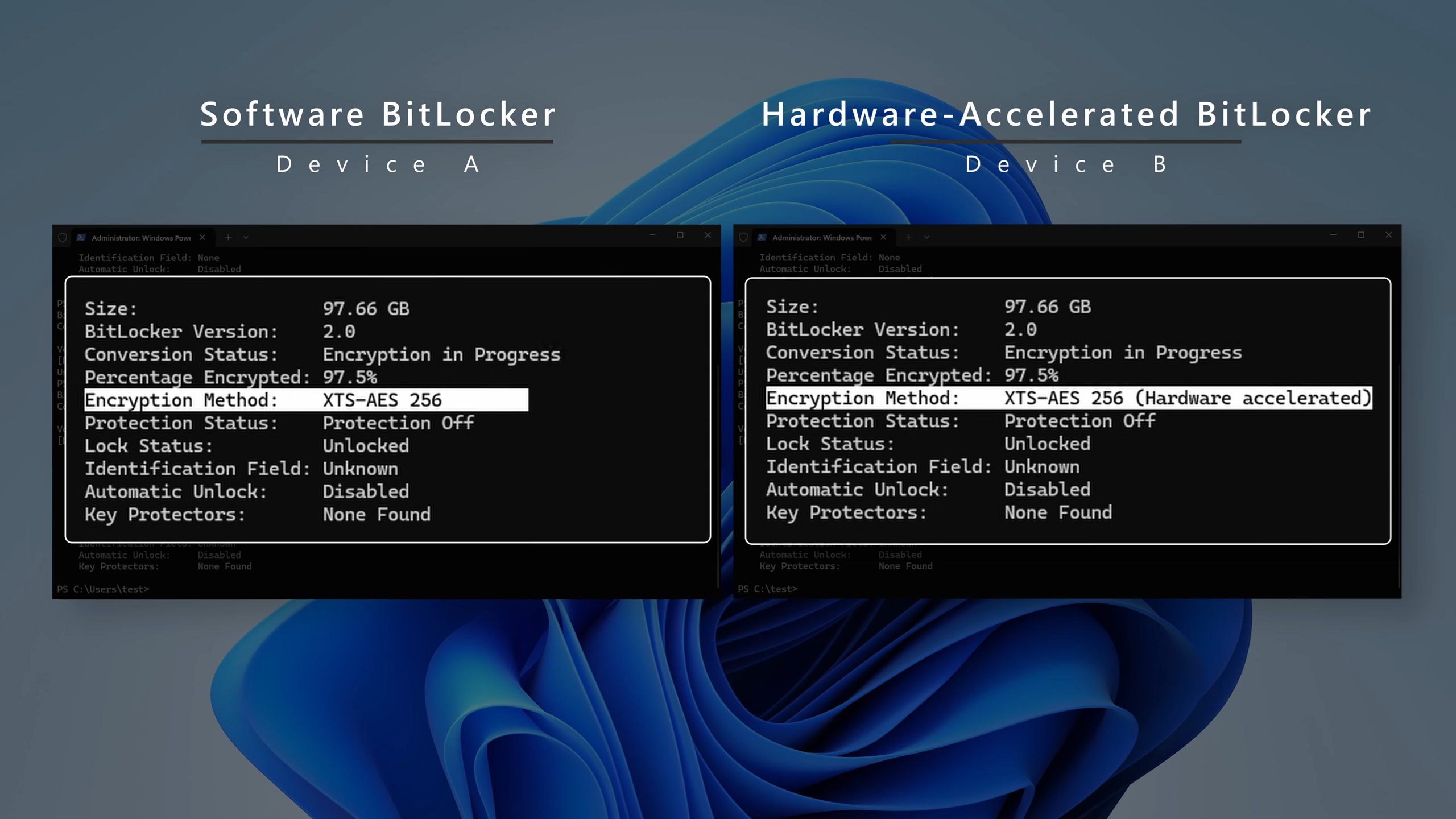
As observed in the manage-bde -status command output:
| Feature | Device A (Software BitLocker) | Device B (Hardware-Accelerated) |
| BitLocker Version | 2.0 | 2.0 |
| Conversion Status | Encryption in Progress | Encryption in Progress |
| Percentage Encrypted | 97.5% | 97.5% |
| Encryption Method | XTS-AES 256 | XTS-AES 256 (Hardware accelerated) |
| Protection Status | Protection Off | Protection Off |
In this case, Device A utilizes standard Software BitLocker, while Device B utilizes the new Hardware-Accelerated BitLocker.
I use BitLocker. Can I enable hardware-accelerated BitLocker?
Windows 11 doesn’t give you a toggle that flips the encryption to hardware-based technology from the current software-based approach. If your computer supports this feature, and you’ve installed recent Windows updates released after September 2025, hardware-accelerated BitLocker will be used automatically.
You can verify the status using manage-bde -status command.
Possible hardware requirements for hardware-accelerated BitLocker:
- NVMe drive plus a crypto offload capable SoC/CPU platform (with the needed support/drivers).
- Intel vPro devices with Intel Core Ultra Series 3 (“Panther Lake”) are the first to support it, with other vendors planned.
Microsoft plans to share more details in the future.