





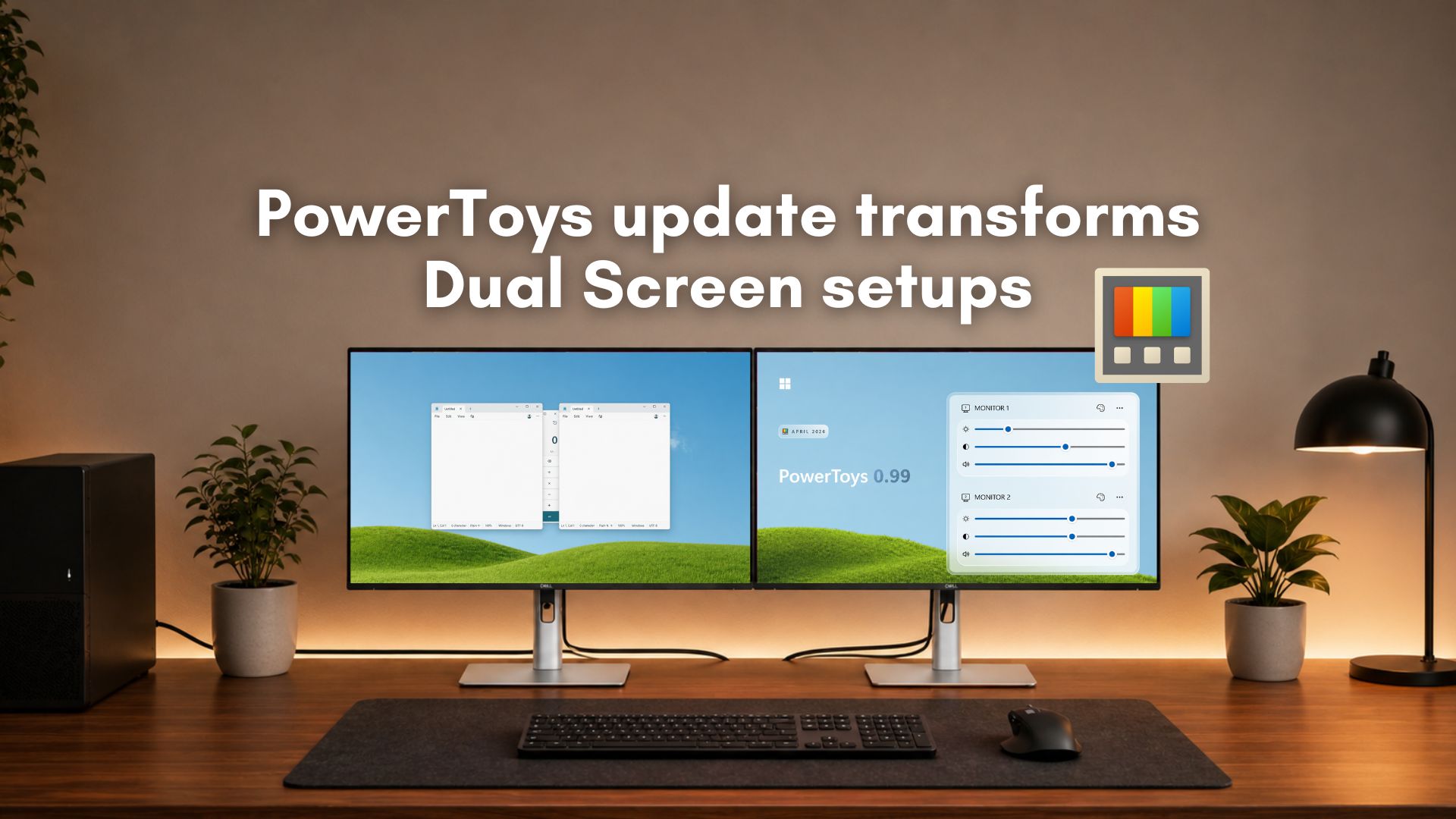
Microsoft’s PowerToys development team has a habit of bringing features to Windows that I never thought I needed, but once I use them, I just can’t seem to go on without them. The latest v0.99 release of PowerToys introduces a couple of such features called Grab And Move and Power Display, along with some improvements to the brilliant Command Palette Dock.
Grab And Move is a tool in PowerToys that lets you move and resize windows from any part of the window. As a long-time Windows user, I’m used to the inconvenience of looking for the title bar to move an app window and the edge of a window to resize it.
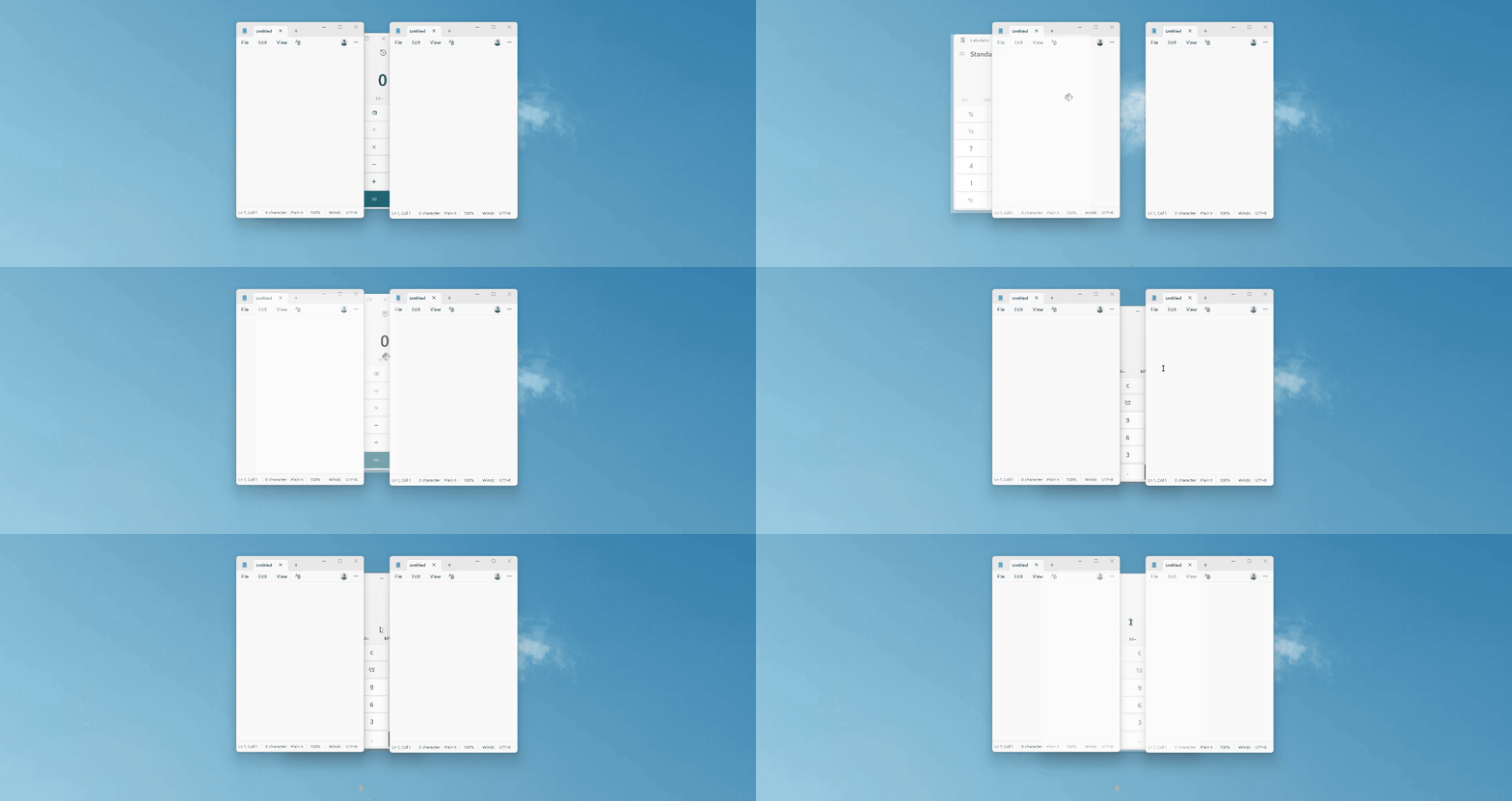
But if you’re in the Linux desktop environments (like GNOME, KDE Plasma, and Xfce), this might be second nature for you. And the lack of it in Windows would likely make you frustrated if you have to use the OS again. Fortunately, PowerToys was kind enough to bring over that feature to Windows 11.
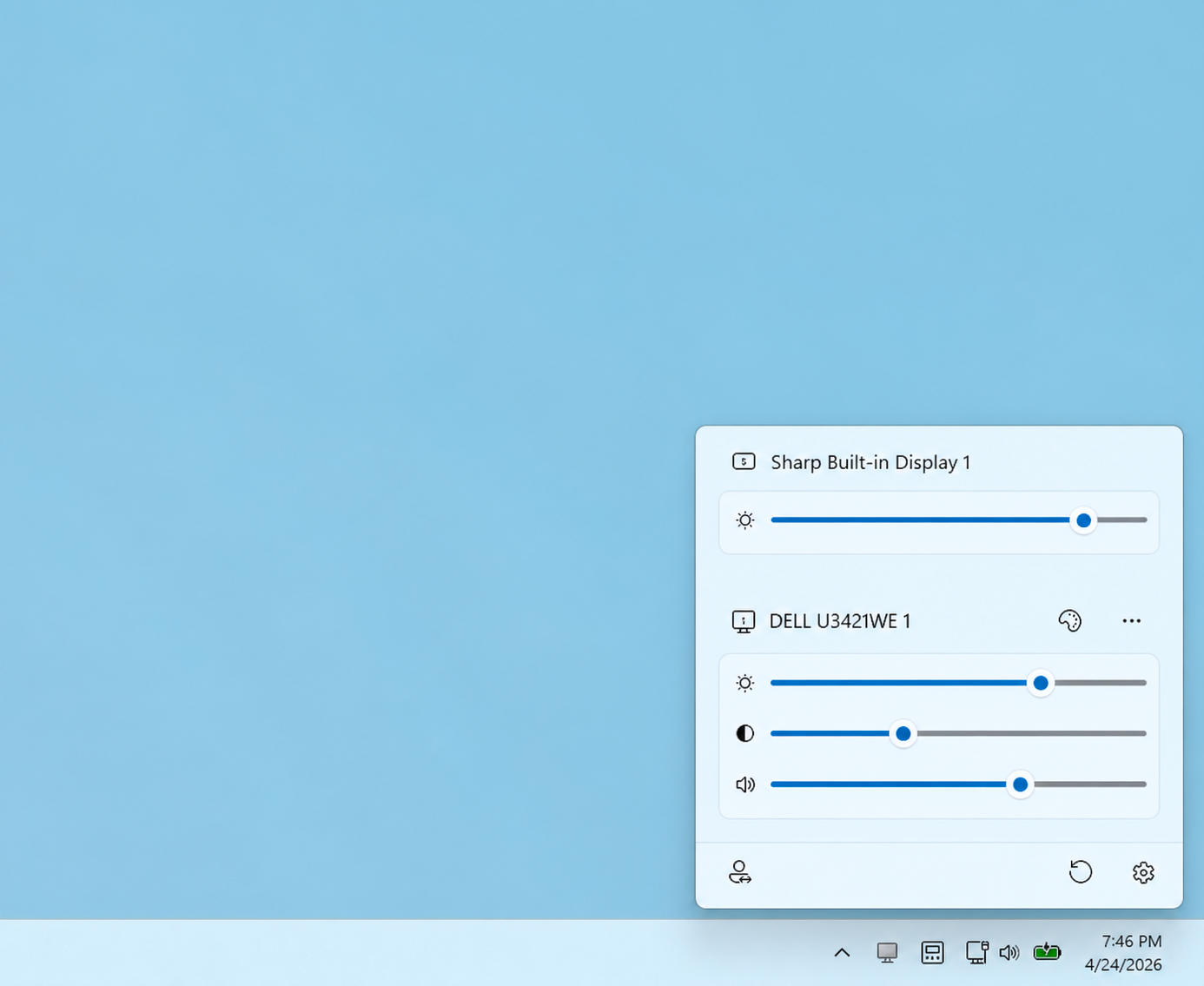
Another new feature in PowerToys, which I don’t know why I was alright not having it already, is Power Display, which provides a single interface to control display settings, like brightness, across multiple monitors. It launches at the same place as Quick Settings and has the same UI.
After testing both these features, I feel there is no reason for Windows not to have them by default.
Grab And Move utility in PowerToys makes window management a breeze
Grab And Move works by letting you move a window by holding Alt and simply dragging anywhere on the window. No need to take the pointer to the title bar every time you want to move a window.
Right off the bat, in the Grab and Move settings page, there is a warning that says the feature won’t work reliably with some touchpads, which is fine since regular resizing and moving windows is better with a mouse than with touchpads.
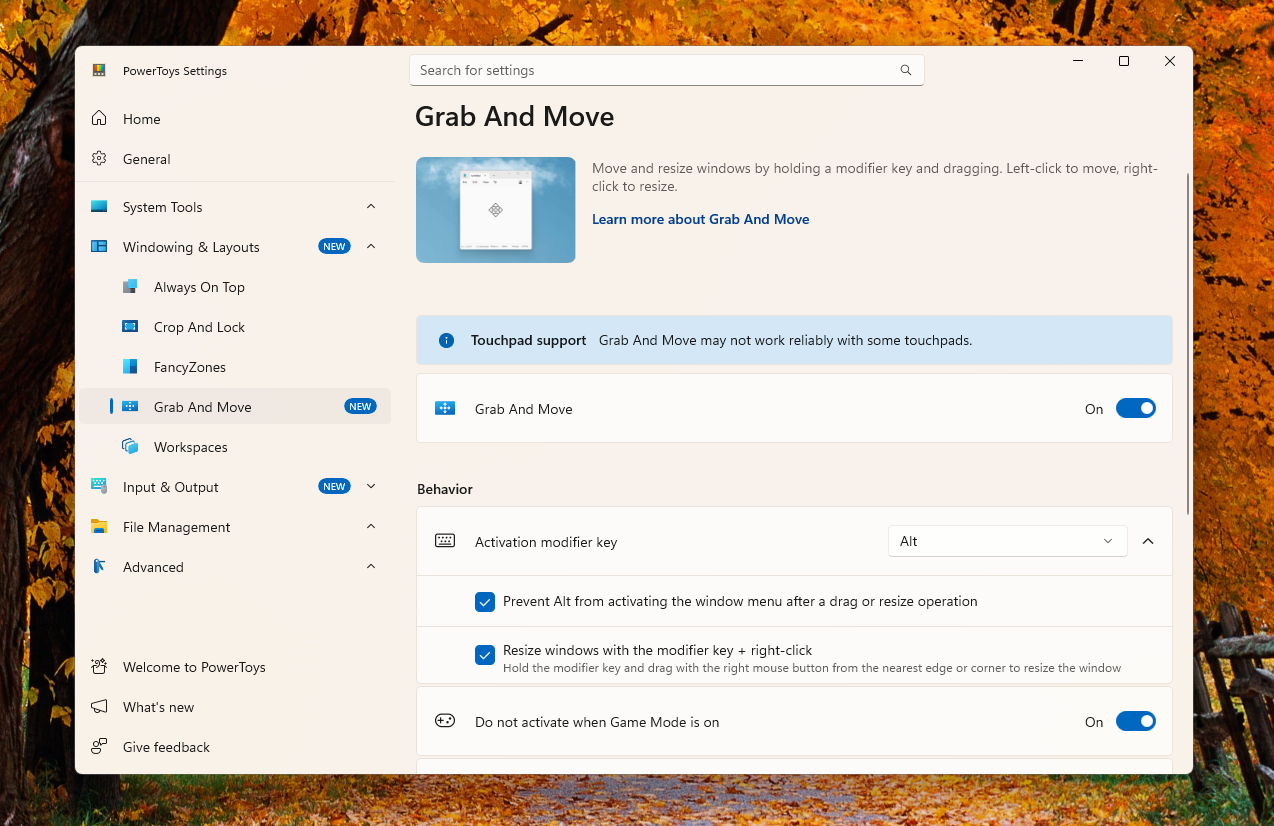
However, I tried Grab And Move with both my mouse and touchpad, and it seems to work fine on my PC. Left-clicking on a window while pressing the Alt key and dragging it would move the window.
Right-clicking and dragging the window while keeping the Alt key pressed would resize the window. Just drag up, down, left, or right to resize accordingly.
The animation here is jittery, partly because I’m using a VM, but I checked on my regular PC, and it is much smoother. Your mileage may vary while resizing some windows due to scaling.
You can change the Activation modifier key from Alt to the Windows key, which is the default if you’re using Linux.
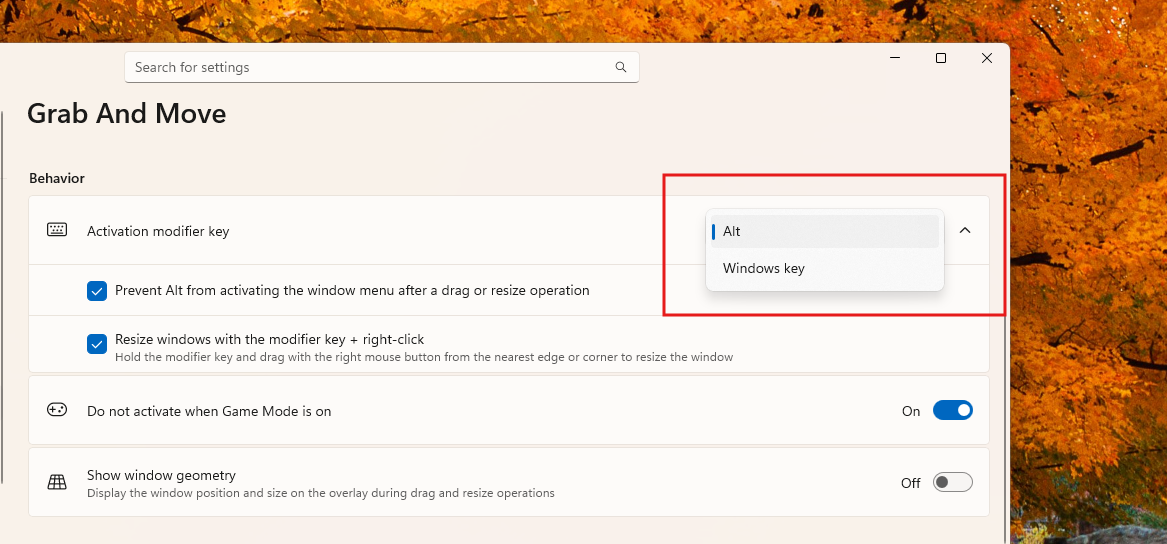
Also, while gaming, the feature would be disabled by default. But you can choose to enable it by turning off the toggle to deactivate it when Game Mode is on.
You can further customize the feature by excluding apps. All you have to do is type the name of the app in the Excluded apps section and press Enter. I tested it on the Microsoft Store, and it works as intended.
I do not plan on turning off Grab And Drop, and funnily enough, going to the title bar and edges to move or resize windows feels overly difficult.
Power Display feature should have come to Windows a long time ago
Power Display lets you control your monitor settings right from the system tray. Honestly, this feature is exceptionally handy because you can now adjust monitor settings like brightness, contrast, volume, rotation, and even color temperature and power state without having to reach for the buttons at the bottom or back of your monitors.
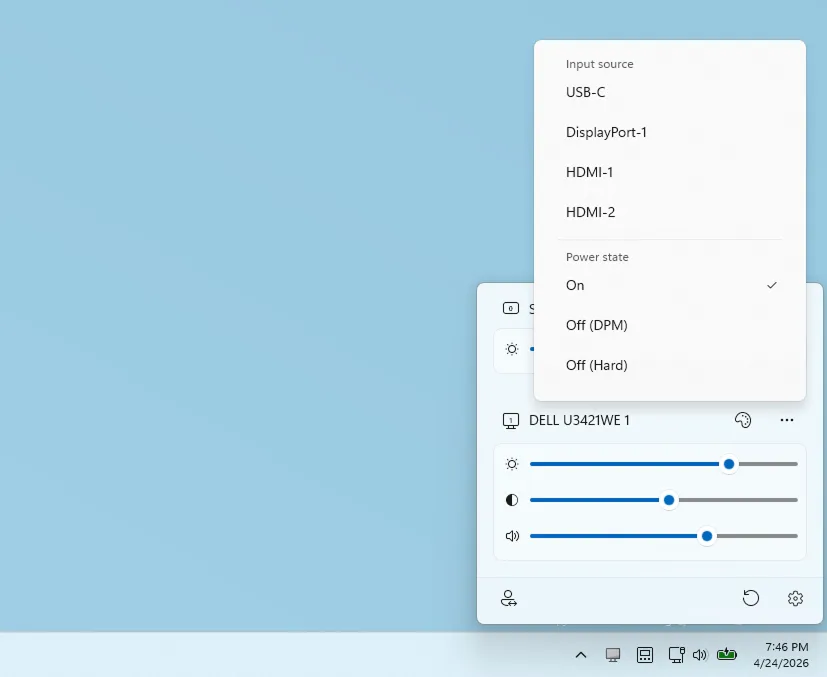
Power Display has an activation shortcut, but it is also available on the system tray, which is right next to Quick Actions.
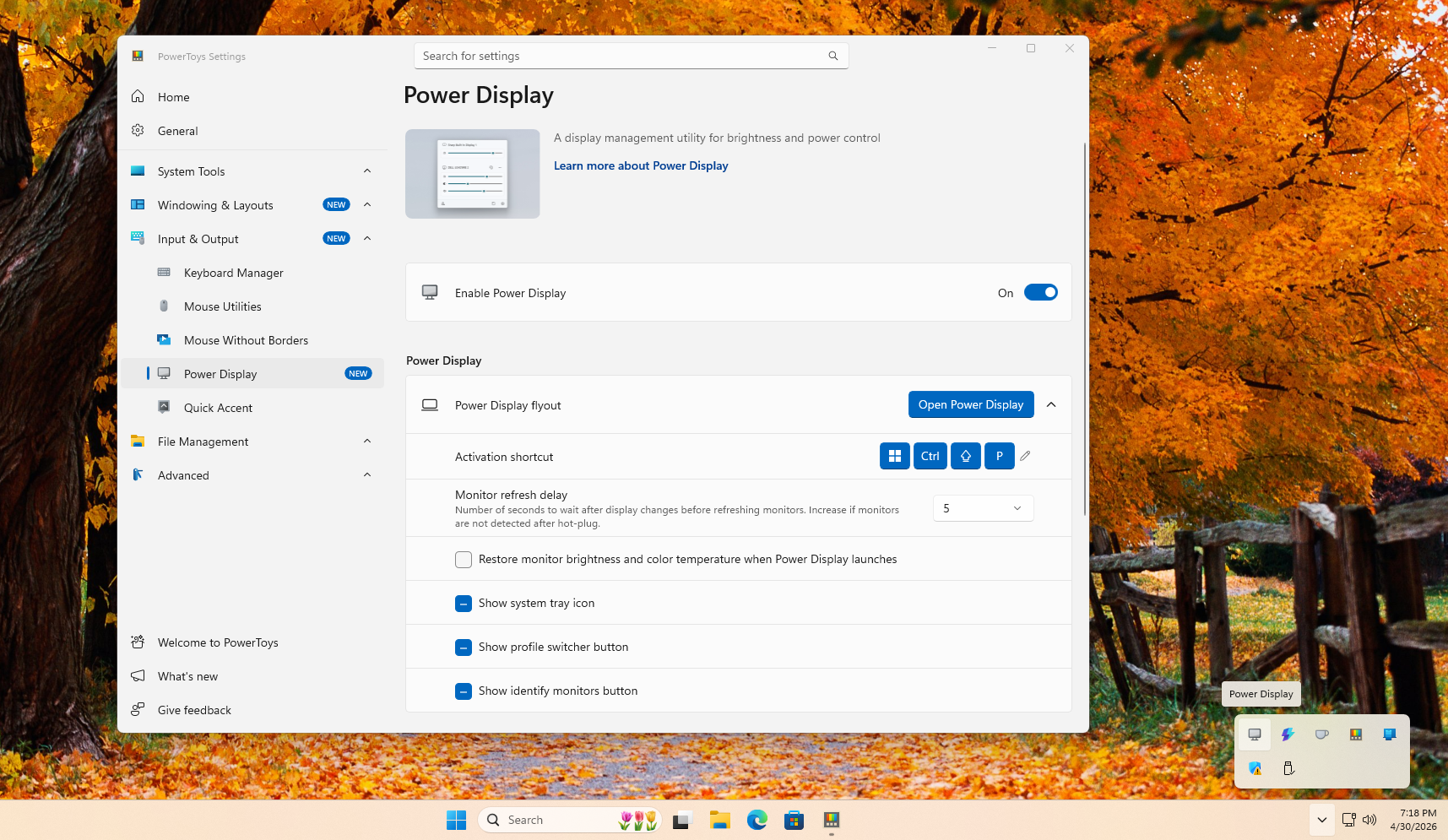
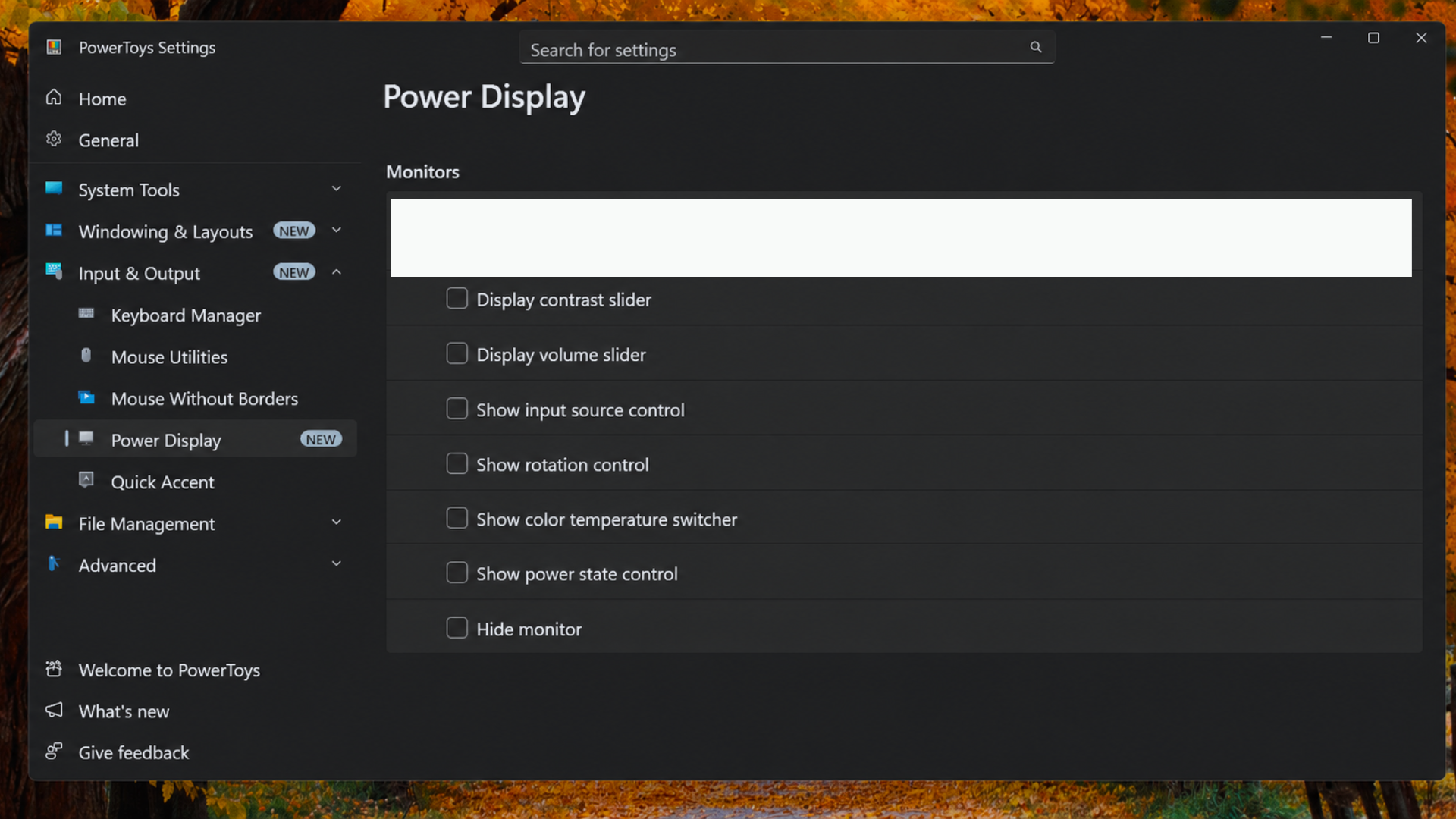
Depending on your monitor, Power Display gives you the following controls:
- Brightness slider
- Contrast slider
- Volume slider
- Input source control
- Rotation control
- Color temperature switcher
- Power state control
You can individually turn on or off these features.
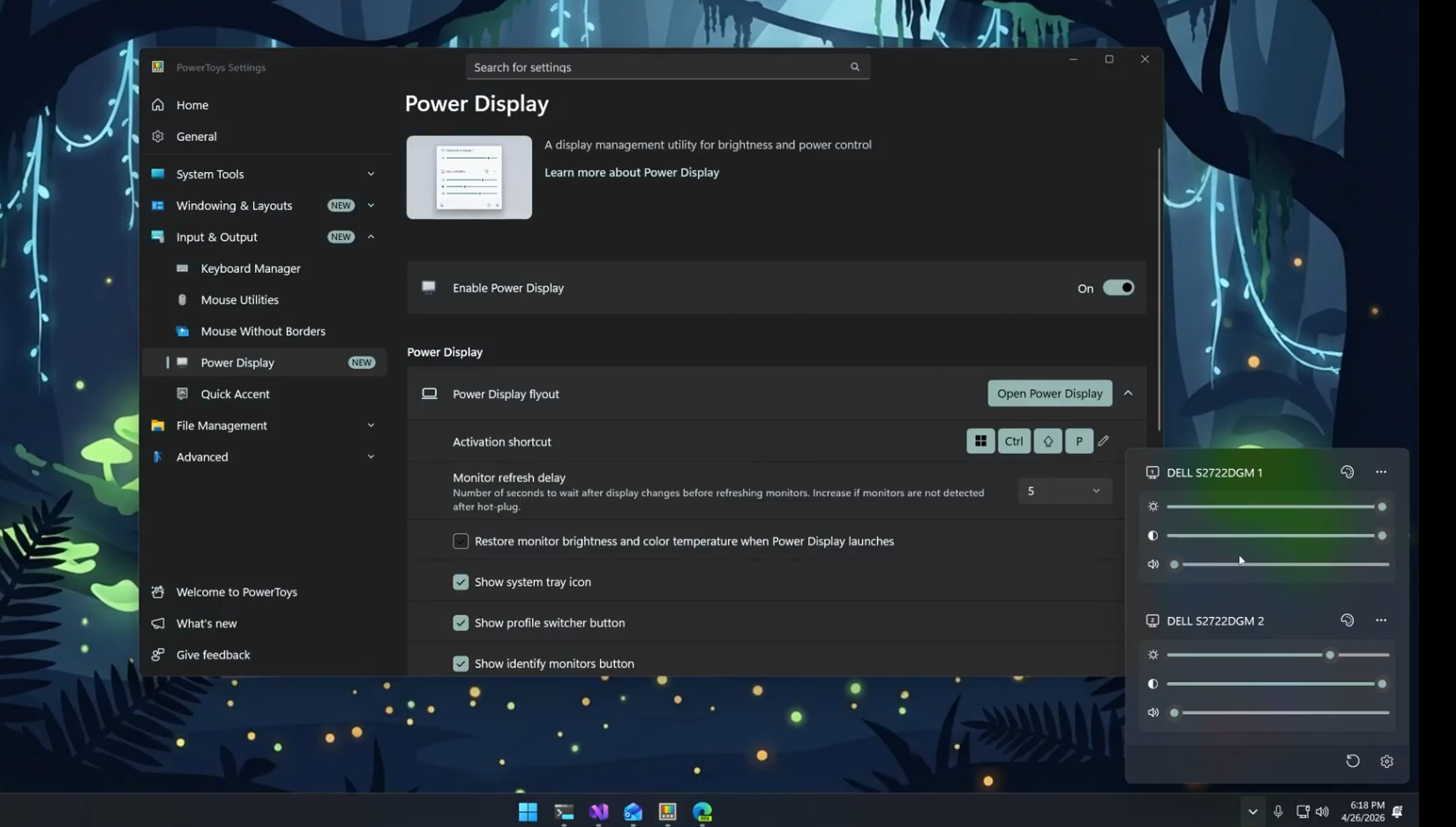
The absolute best use of Power Displays is if you have a multi-monitor setup.
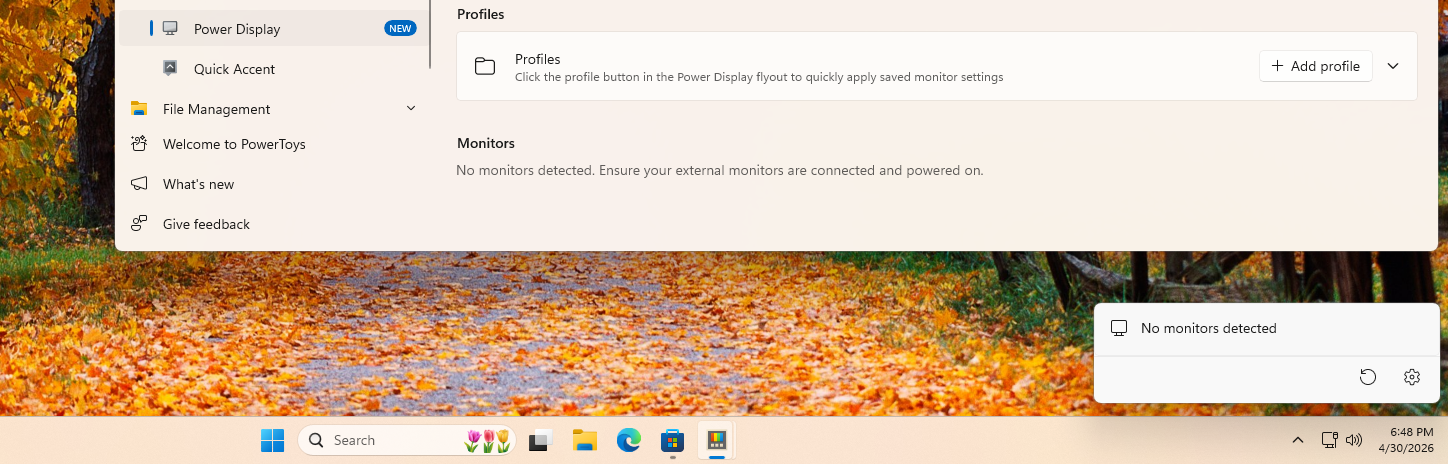
Of course, monitors would require DDC/CI support in order to use these features. Display Data Channel / Command Interface is the standard for controlling external monitors through the video cable itself (HDMI, DisplayPort, or VGA). Most modern monitors support this. If you have an older one that doesn’t support it, you’ll see “No monitors detected” in the flyout.
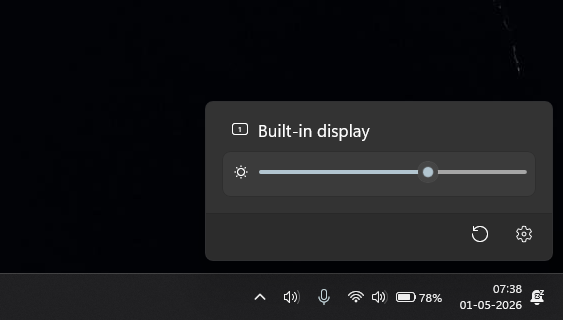
Laptop screens use WMI (Windows Management Instrumentation), which is a Microsoft-proprietary management framework used for integrated laptop displays, so you’ll only be able to control its brightness using Power Display.
If you don’t use an external monitor with your laptop, or if your external monitor doesn’t support DDC/CI, there is no point in turning on Power Display.
There are several customization options in Power Display settings page.
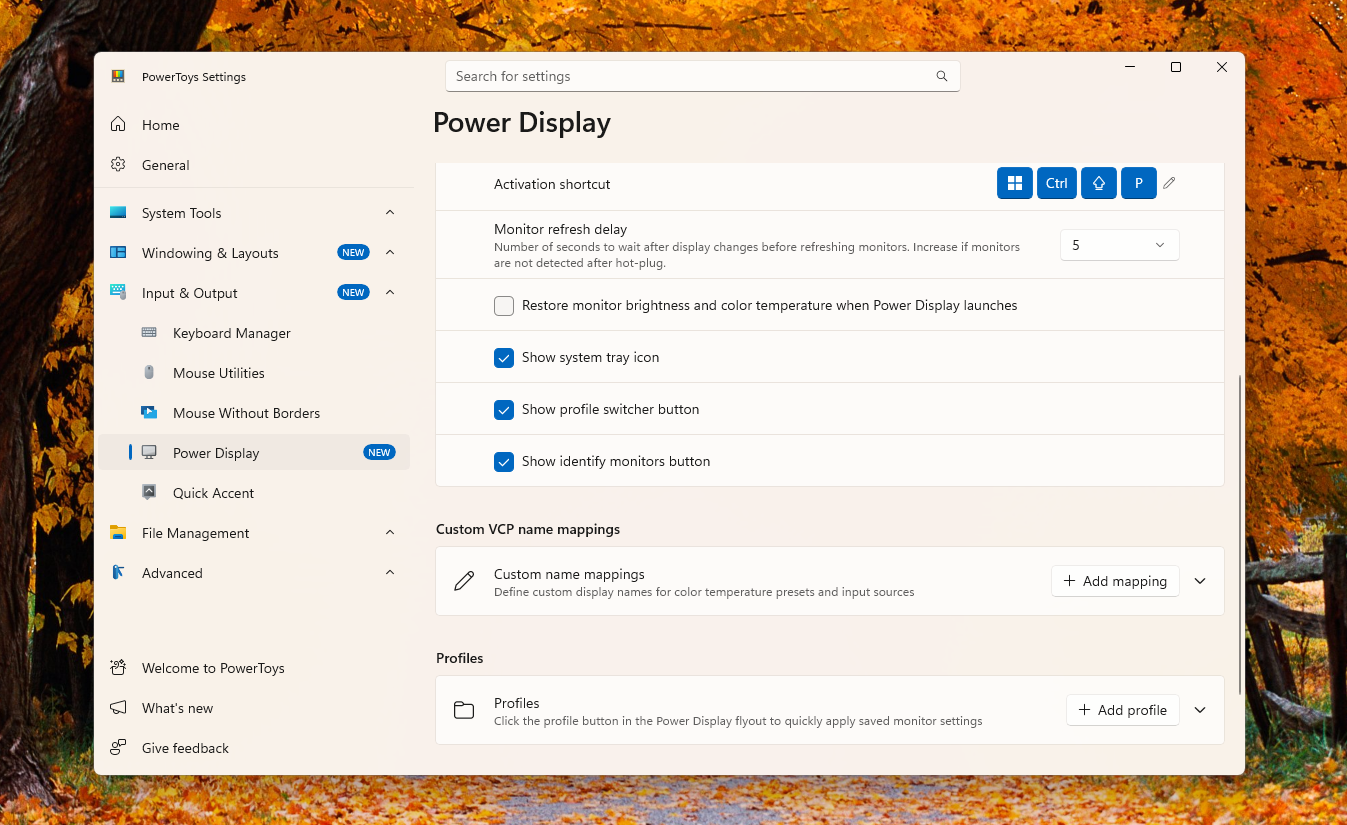
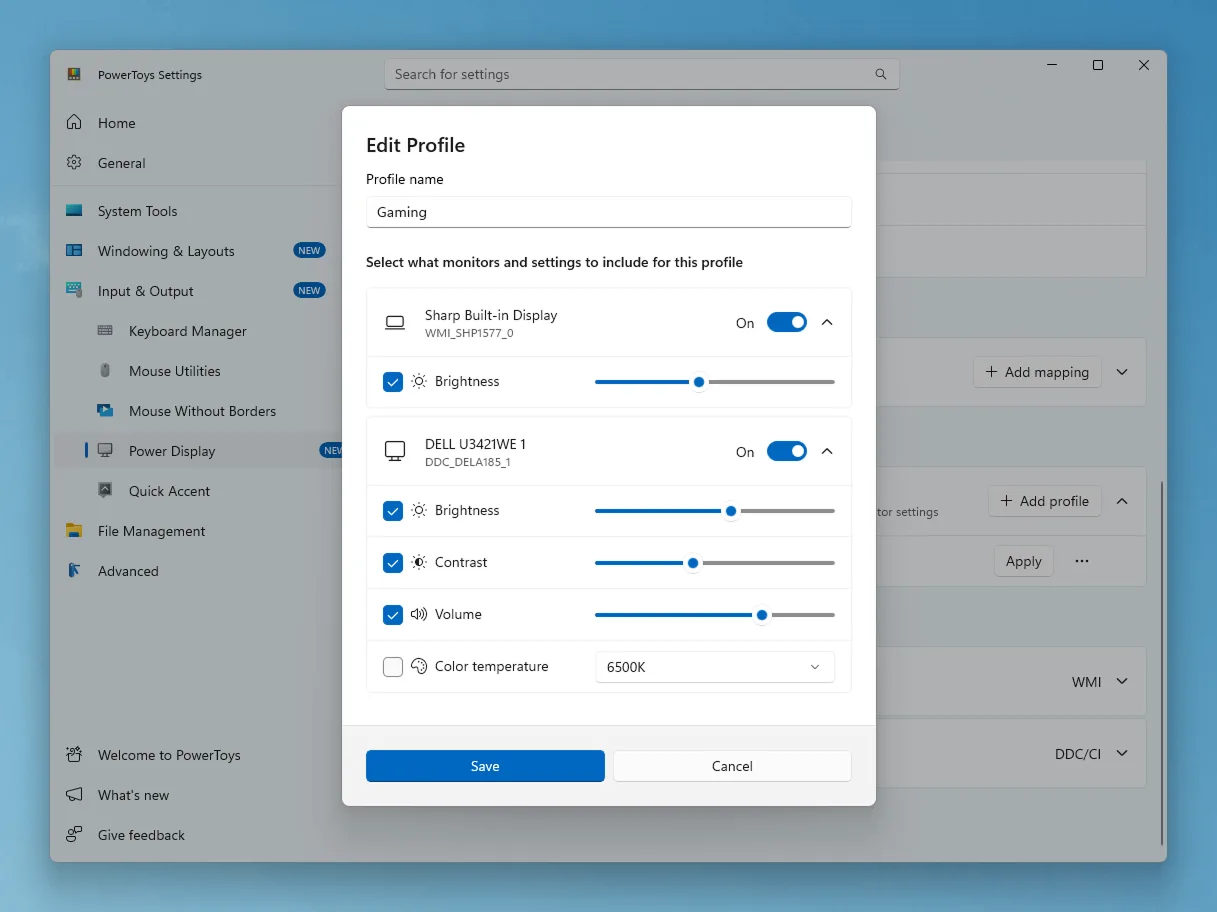
Perhaps the best feature is the Profiles option, where you can apply saved monitor settings, like a night mode profile with lower brightness and warmer color tones for all your monitors.
Command Palette Dock now has a compact mode
The Command Palette Dock quickly became a fan-favorite feature ever since it dropped about one and a half months ago. But I felt it was a little too big for my liking.
It now received an update where you can activate a compact mode, making it almost half its size, giving you more screen real estate.

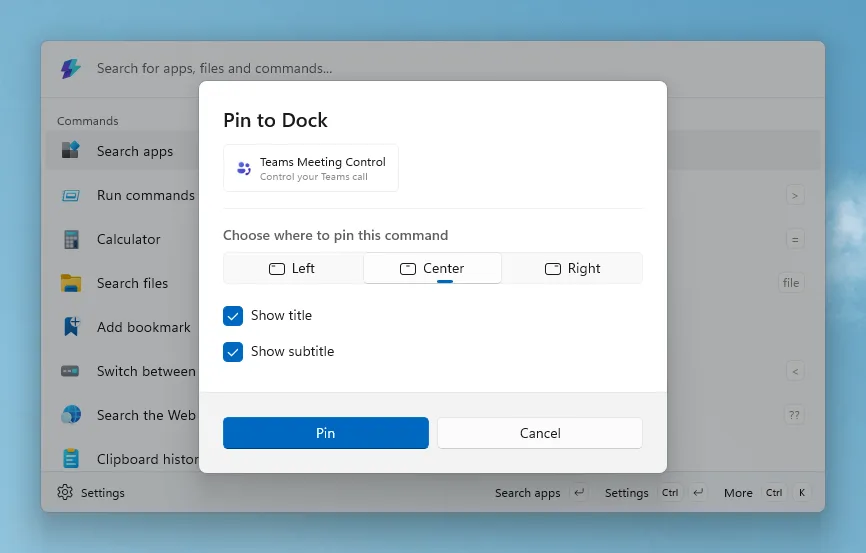
Also, while pinning a command to the Dock, you can now choose where it appears in the Dock and whether you want to show or hide the title and subtitle.
Features like Grab and Move and Power Display feel like things Windows should have had years ago. Microsoft is finally focusing on fixing core parts of the OS, and once that groundwork is done, bringing features like this into Windows itself would be the right next step, and if you’re concerned about PowerToys using more system resources, the tool may also get a new memory-saving feature.