







There’s a new version of Copilot rolling out on Windows 11, and it dumps native code (WinUI) in favor of web components. This was expected based on our previous findings, but to our surprise, it actually ships with a full-blown version of Microsoft Edge.
I can’t tell if Microsoft is really losing the AI race, but at this point, it’s quite obvious that the company hasn’t managed to build a solid Copilot experience for Windows or stick with one approach for more than a quarter.
This latest version replaces the native app, which itself replaced the WebView version, which replaced the PWA, which replaced the Copilot that once lived in a sidebar.
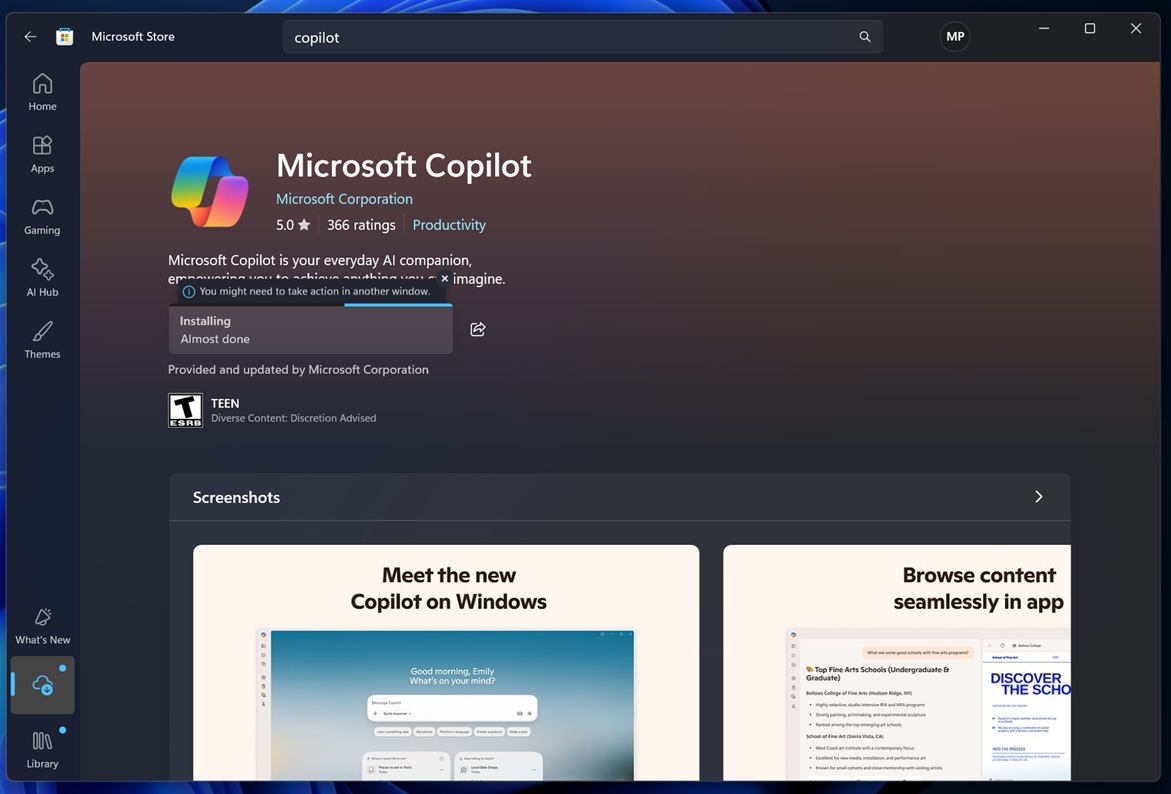
If you don’t have the new Copilot yet, go to the Microsoft Store and search for Copilot. You’ll find a new listing called “Microsoft Copilot,” and it shows a download button even when Copilot is already installed on your PC.
If you hit the Download button, you’ll notice it completes almost instantly. That’s because it isn’t downloading the Copilot app itself. Instead, it’s downloading a Copilot installer, similar to how the Microsoft Edge installer works.
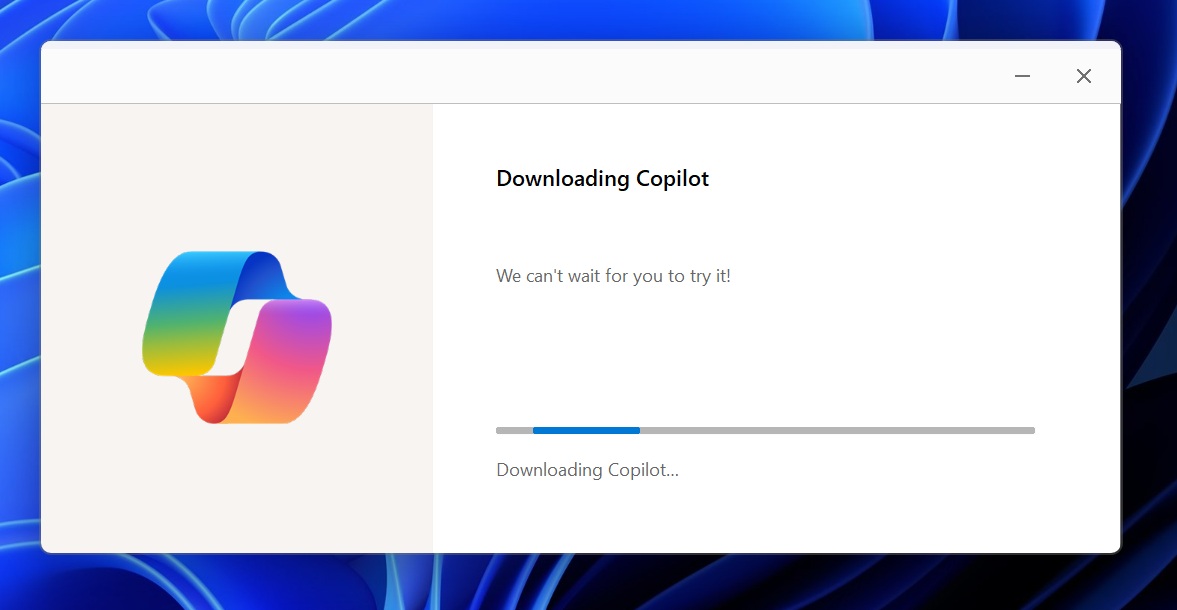
The Store even warns that you need to take action in another window, which makes it clear that the Copilot download is no longer handled directly by the Microsoft Store. You might have noticed a similar pattern for Microsoft Teams.
After the update is installed, the old native Copilot app, built on the WinUI framework, automatically disappears from the Start menu and other places, as the new Copilot takes over.
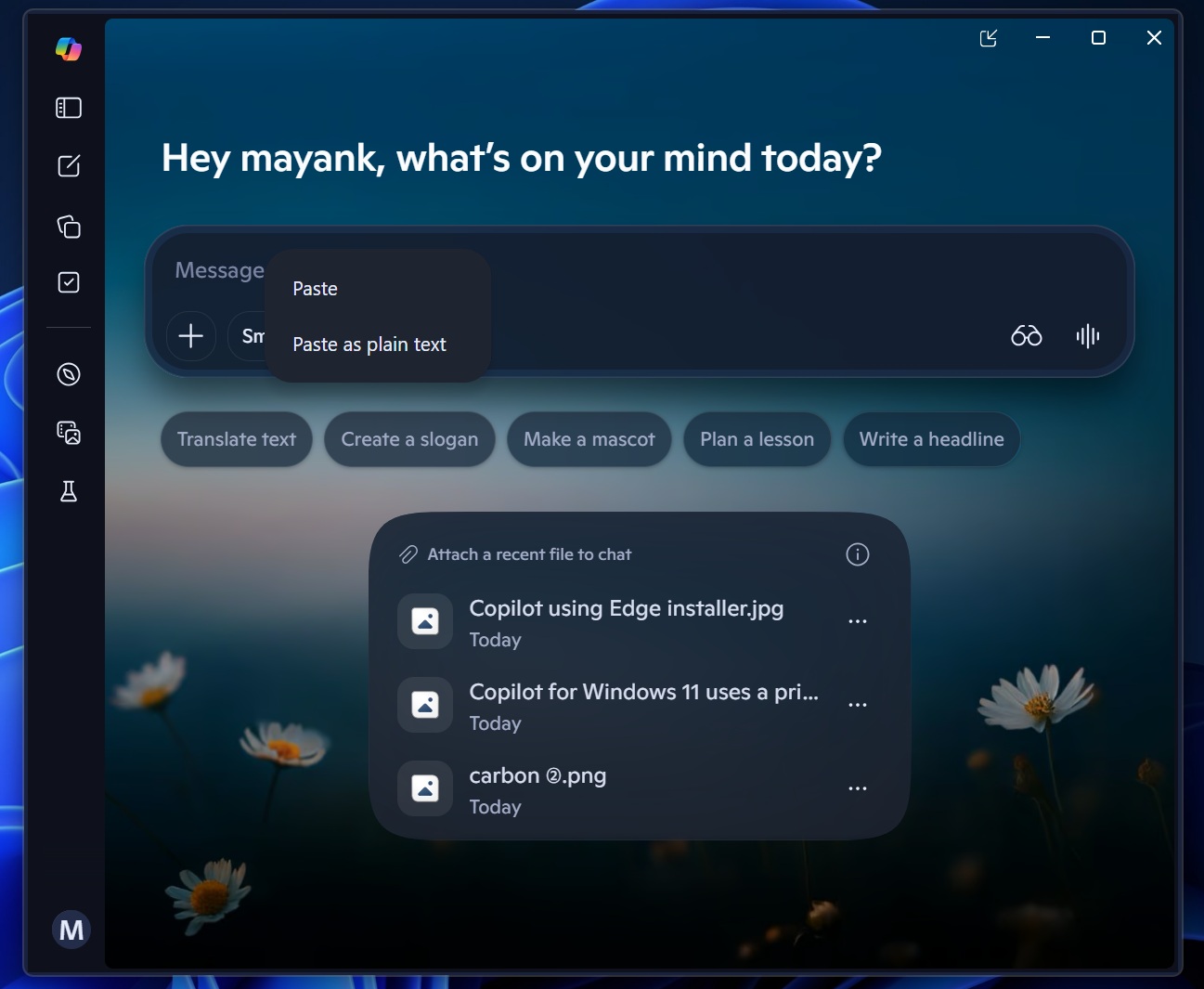
I opened this new Copilot, and it looks exactly like the web version (web.copilot.com). It’s actually a lot smoother and almost feels native. However, there are some caveats, such as high RAM usage, which is quite upsetting as it undermines Microsoft’s recent efforts to revive Windows.
Copilot’s new version is a resource hog, a hybrid version that ships with its own Edge browser
In our tests, Windows Latest observed that Copilot uses up to 500MB of RAM in the background, and it also reaches up to 1GB of RAM when you begin to interact with it. On the other hand, native Copilot used to have less than 100MB of RAM usage.
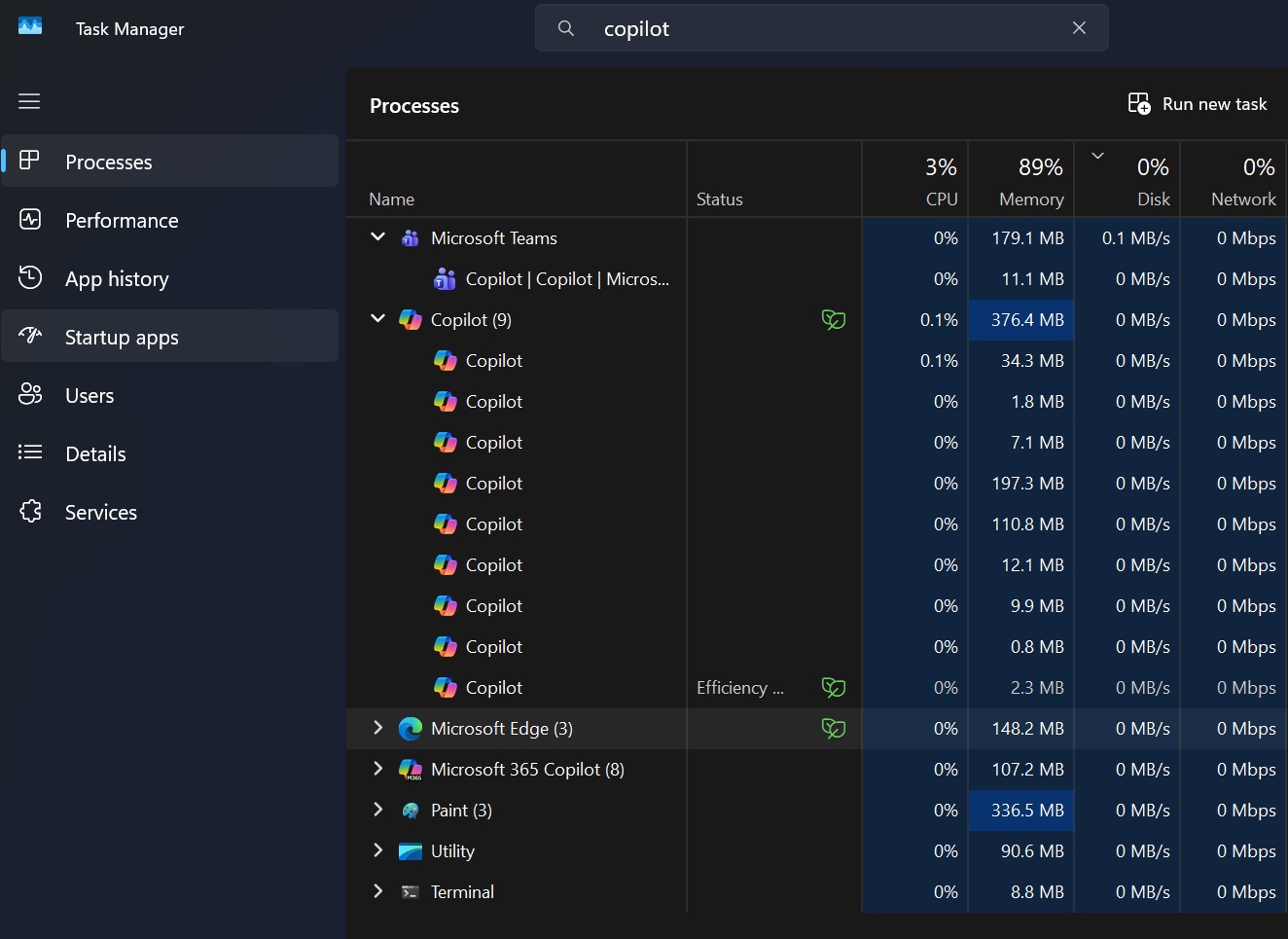
This made me curious , so I looked into how the new “web-based” Copilot app is different, and it turns out that it is a hybrid web app with a rebranded/forked Edge instance running as a dedicated app in a WebView2 container.
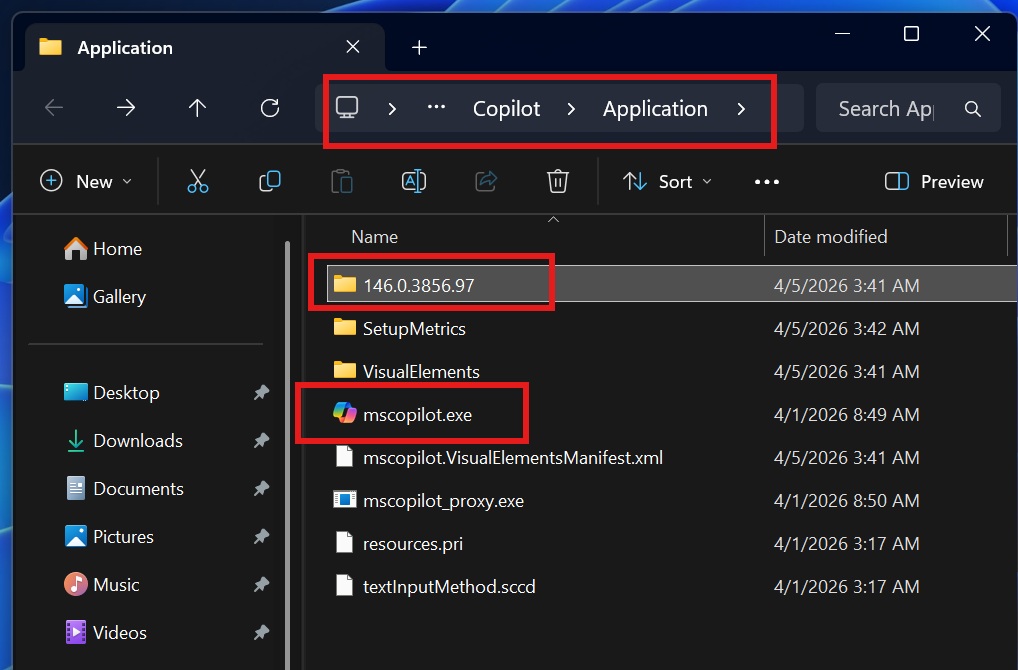
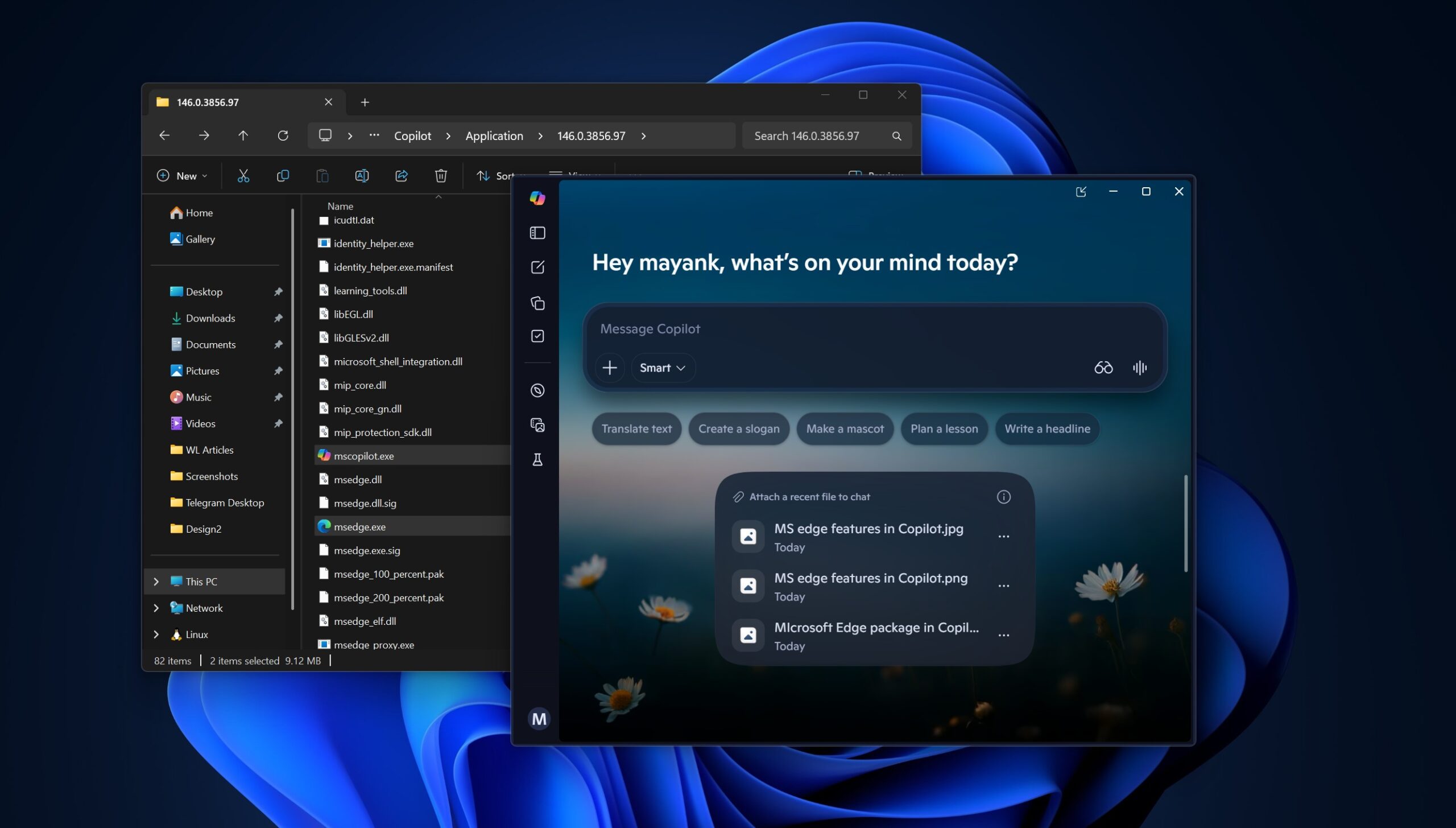
As you can see in the above screenshot, Copilot’s installation folder literally has a 146.0.3856.97 folder, which is a complete Microsoft Edge installation. The size of the Edge folder is approx 850 MB.
It contains all Edge binaries, including msedge.exe, msedge.dll, msedge_elf.dll, ffmpeg.dll, libGLESv2.dll, Vulkan/SwiftShader, WidevineCDM, etc. Also, Windows Latest observed that msedge.dll inside the new Copilot app package is 315 MB, which confirms it’s a full Chromium browser engine.
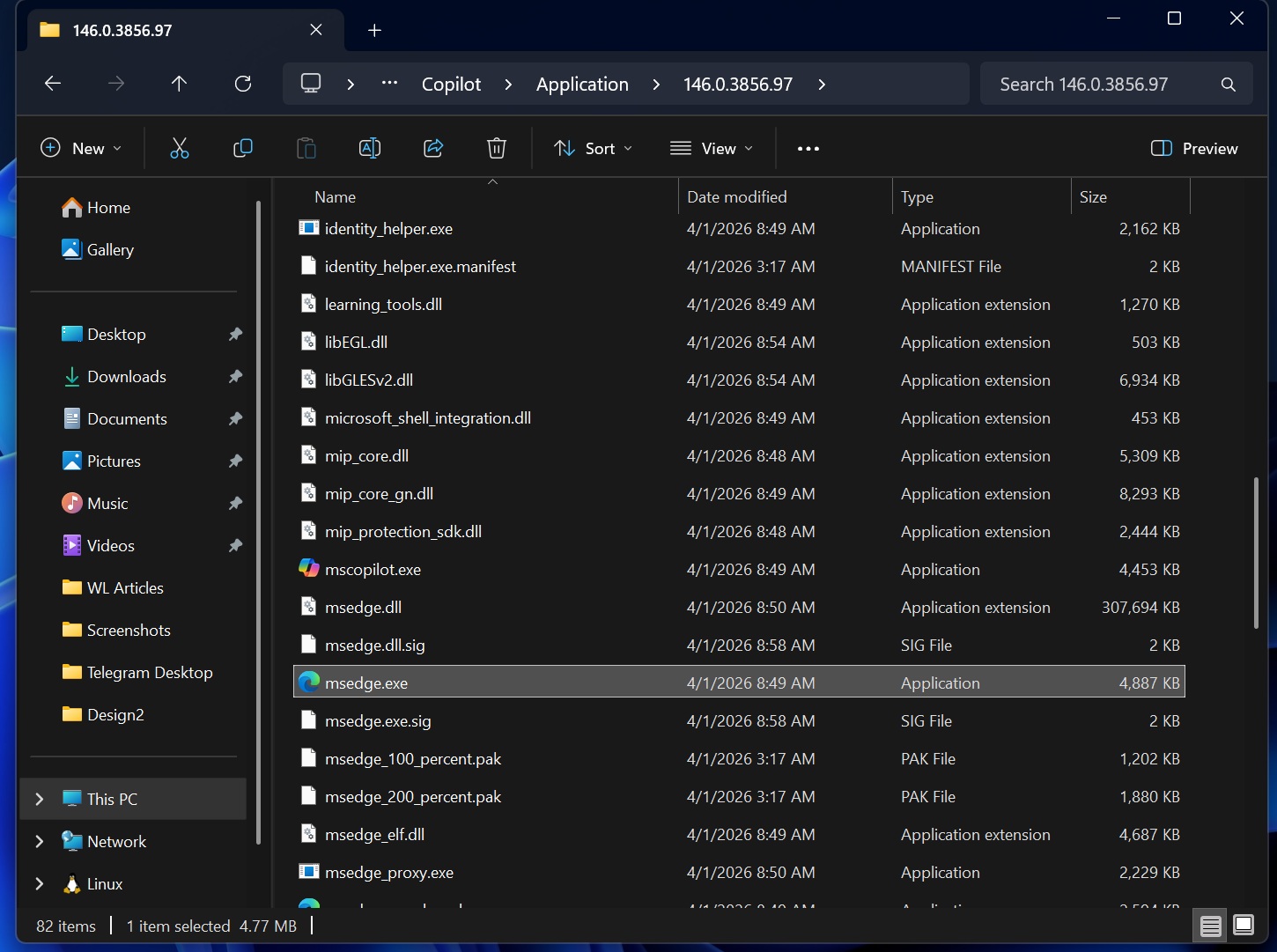
If it were a standard WebView2 or Progressive Web App, it would have relied on the existing Edge integration in Windows 11 instead of shipping with its own Edge fork.
I also found Edge subsystems in Copilot’s package, including Browser Helper Objects, Trust Protection Lists/, PdfPreview/, Extensions/, edge_feedback/, edge_game_assist/, and DRM.
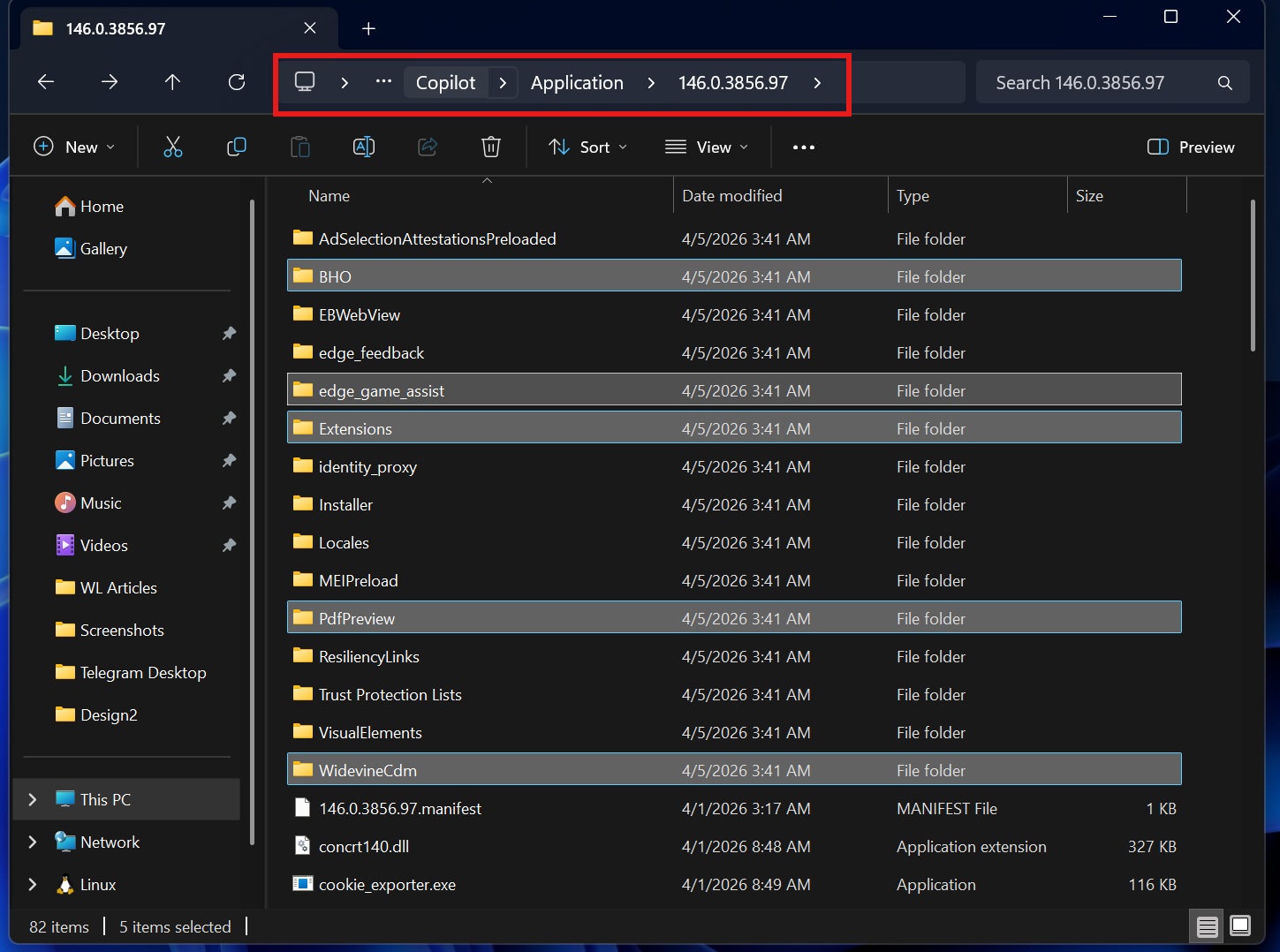
Interestingly, Windows 11’s new Copilot app has both WebView2 and full browser capabilities. My source is an msedgewebview2.exe in the package, along with multiple .dll files, including EmbeddedBrowserWebView.dll, which means there’s a bundled WebView2 runtime with Microsoft Edge.
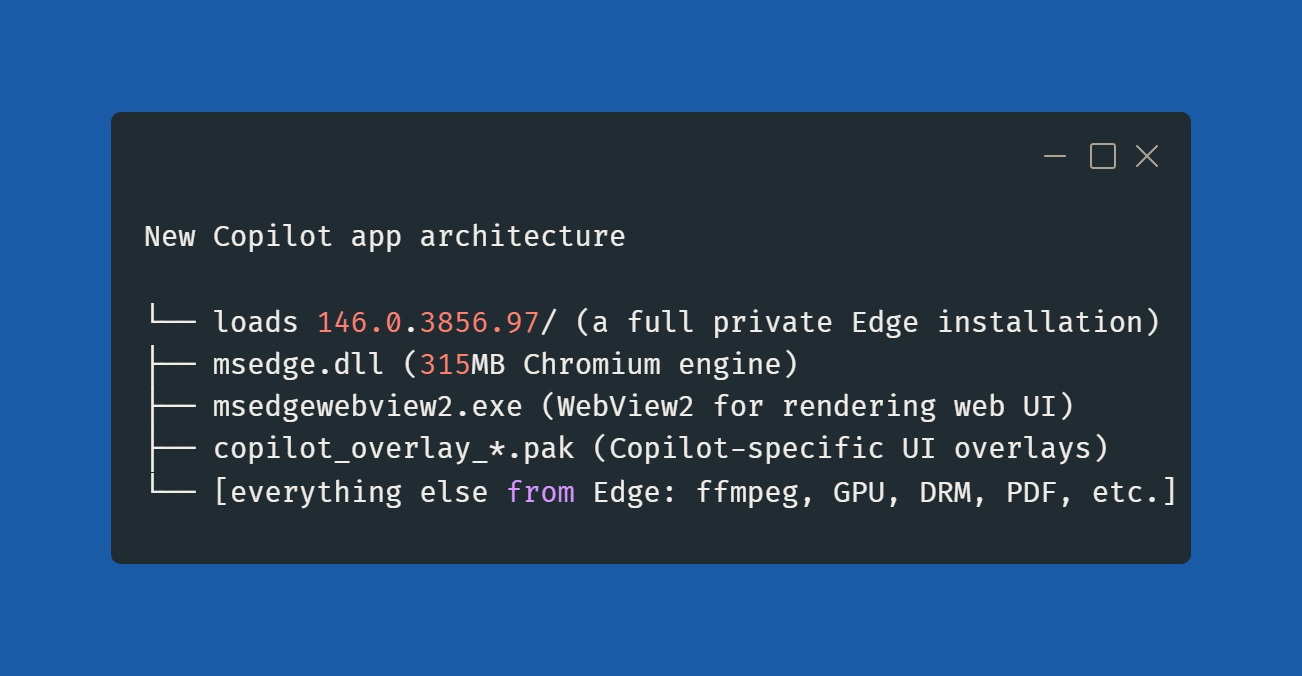
This new Copilot is an interesting app, and that might also explain why it feels faster than typical web apps or PWAs. It’s because Microsoft ships a private copy of Edge inside the Copilot app, includes a custom launcher (mscopilot.exe), and the Copilot UI itself is a web app rendered via WebView2.
Regardless, even if it passes as a good web app, we don’t need any of those on Windows 11 at this point. Windows 11 is already bloated with web apps, PWAs, and Electron. What do you think? Let me know in the comments below.