








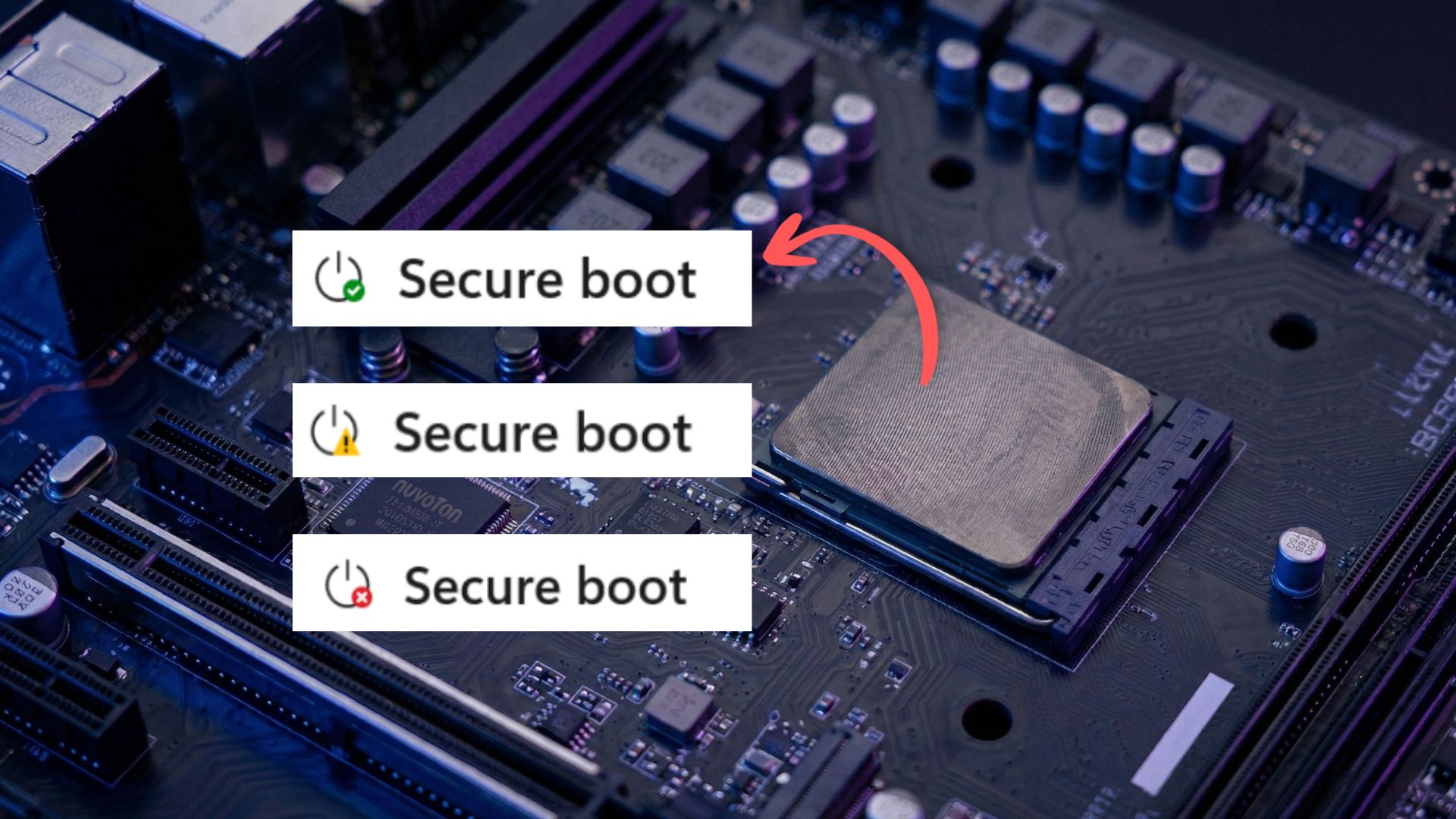
Microsoft is updating the Windows Security app to include detailed information about the Secure Boot certificate updates, giving users a clearer view of their device’s boot security status ahead of the 2026 certificate expiration.
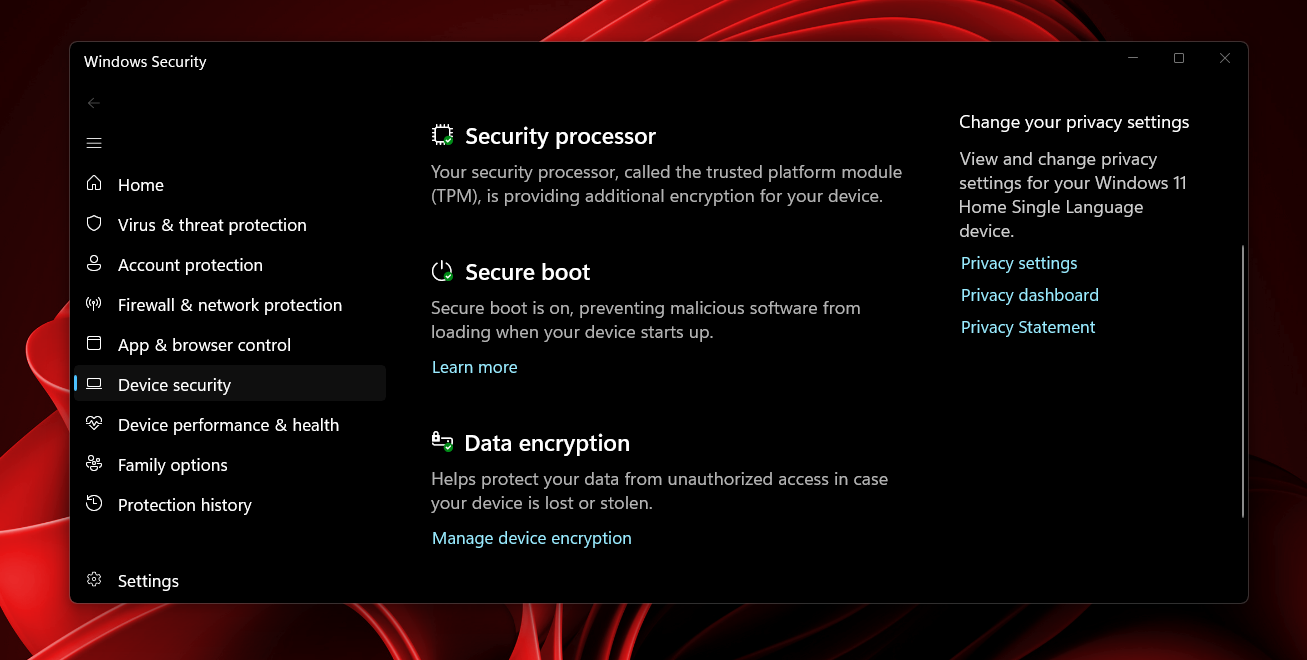
Alongside the rollout, Microsoft has published two separate guides, one for Windows Home and Pro users and another for IT administrators managing enterprise devices. The update shows Secure Boot status under Windows Security > Device security > Secure Boot, where you can check if your PC has received the newer 2023 certificates, if it still uses older ones, or requires attention due to compatibility limitations.
These certificates, originally issued in 2011, are set to expire in 2026, and updates are being delivered automatically through Windows Update.
Status indicators begin rolling out in April 2026, with additional notifications and controls arriving in May to guide users more clearly if or when intervention is required.
Some systems have already faced issues applying the newer Secure Boot certificates due to firmware limitations, and until now, verification required manual checks or command-line methods. Fortunately, the Windows Security app now shows that information directly.
The experience, however, is not identical across all devices, as Home and Pro users get this visibility by default, while enterprise-managed systems handle Secure Boot status differently under IT control.
What Windows Home and Pro users will now see in Windows Security
Microsoft is adding Secure Boot certificate status directly inside the Windows Security app under Device security > Secure Boot. The section now shows a clear status badge along with a short explanation of what’s happening on your device.
Different indicators of the current Secure Boot certificate update status:
- Green means everything is up to date
- Yellow means there’s a limitation or recommendation
- Red means action is required
The same status will also be shown on the Windows Security icon in the system tray, based on the overall security state of the device.
Who is affected and when this rolls out
These changes apply to Windows Home and Pro devices by default. The rollout begins in April 2026, when users start seeing the Secure Boot status inside the app.
From May 2026, Microsoft will add system-level notifications and clearer guidance inside the Windows Security app, especially for devices that need attention or cannot receive updates.
What each Secure Boot status means
A green checkmark icon confirms that the device has received all required Secure Boot certificate updates along with the updated Boot Manager. No action is needed.
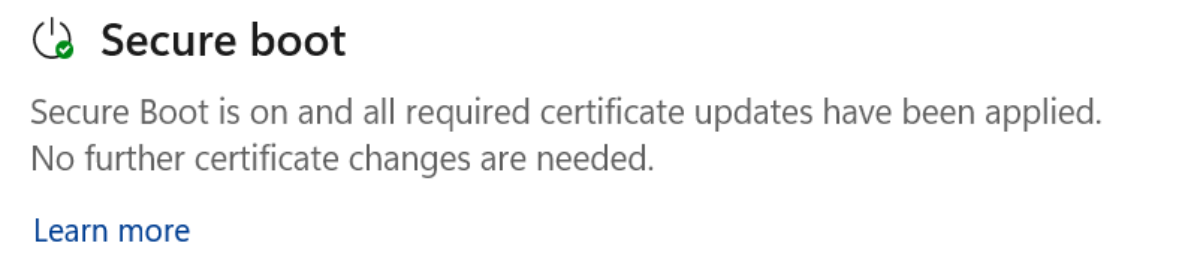
A yellow warning icon usually means a limitation. In most cases, the device is still running older certificates, and Windows expects to update them automatically. If the update is blocked due to firmware or hardware constraints, the warning remains until the limitation is resolved.
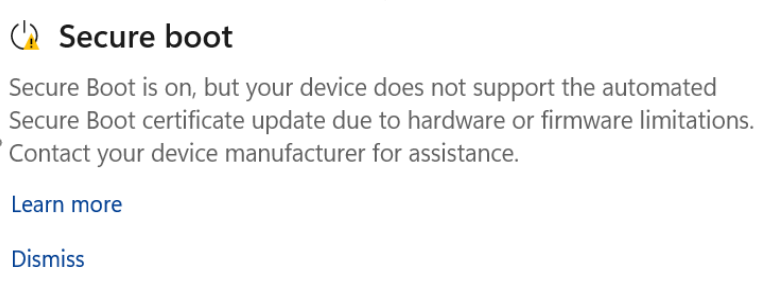
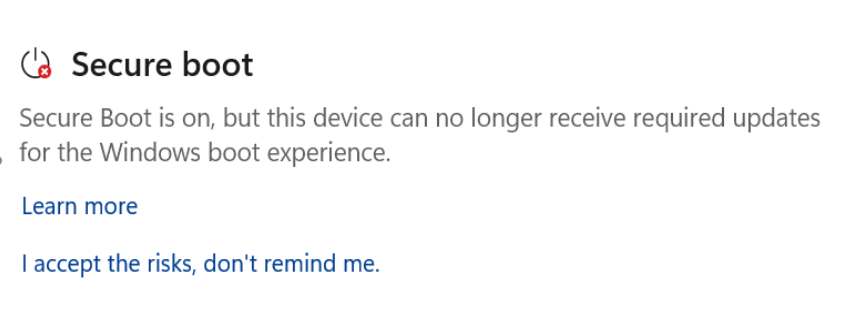
A red stop icon indicates a more serious issue. The device cannot receive the required Secure Boot updates for the Windows boot process, which becomes more relevant as older certificates approach expiration, and systems without updates may face security and compatibility risks.
What you need to do (based on your situation)
- If the app shows that Secure Boot is using an older configuration, installing the latest Windows updates and restarting the device usually resolves it.
- If updates are temporarily paused due to compatibility issues, there’s nothing to do. Microsoft resumes the update automatically once the issue is fixed.
- If the message points to hardware or firmware limitations, the update cannot be applied automatically, and the only option is to check with the device manufacturer.
- If the device has already moved into a state where it cannot receive required updates, it means your device is still using an old certificate even after the expiration dates, and you need to check this for guidance.
Notifications, warnings, and system behavior
Secure Boot status now affects how Windows reports security issues across the system. If the status changes to yellow or red, it can heighten the general security warning shown in the system tray icon.
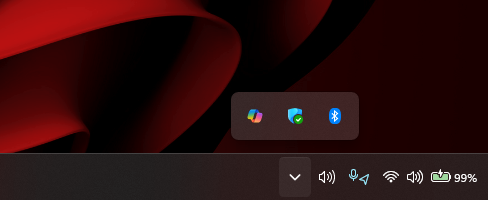
Notifications also expand beyond the app starting May 2026, making sure users are aware when attention is required.
Dismissing warnings (and what that does)
Warnings can be dismissed, but that only hides the alert.
- For yellow states, selecting dismiss removes notifications temporarily while keeping the issue visible inside the app.
- For red states, dismissing requires admin approval through an “accept risk” option. Even then, the system continues running without the required updates, and the limitation remains unchanged.
Devices that stay in this state may eventually lose access to future boot-related security updates.
What most users should expect
Most devices will update automatically through Windows Update, and users won’t need to do anything. A green status confirms everything is working as expected.
Yellow warnings typically mean compatibility limitations, while red warnings indicate a security gap that cannot be resolved automatically.
Systems that never receive the updated certificates will continue to work for some time, but may run into issues with future updates, firmware, or Secure Boot-dependent features.
However, enterprise devices follow a different path, where these indicators and notifications are controlled by IT policies instead of being shown directly to users.
What IT admins need to know about Secure Boot certificate update status
On enterprise-managed Windows devices and Windows Server, Secure Boot certificate status indicators are disabled by default.
Admins manage updates centrally, so Microsoft avoids adding user-facing warnings that could create confusion. The expectation is that certificate rollout, validation, and monitoring happen through IT workflows, not through alerts shown to end users.
How it differs on Server and enterprise PCs
Windows Server handles this very differently. The Windows Security app is available, but the notification service does not run automatically. That means Secure Boot status checks do not happen in the background, and nothing appears unless someone manually opens the app.
On enterprise-managed Windows 10 and Windows 11 devices, the app and services run normally, and status data is still generated. However, indicators, badges, and notifications remain hidden unless explicitly enabled.
How to enable Secure Boot status visibility
Admins can turn this experience on using a registry policy:
Path:
HKEY_LOCAL_MACHINE\SOFTWARE\Policies\Microsoft\Windows Defender Security Center\Device security
Key:
HideSecureBootStates
- 0 – Show Secure Boot status
- 1 – Hide Secure Boot status
Not present – Enabled for Home/Pro, disabled for Enterprise/Server by default
Once enabled, the same indicators, messages, and notifications become visible to users, similar to consumer devices.
Rollout phases and supported versions
The rollout follows the same two-phase approach, but availability depends on OS versions.
Phase 1 (April 2026):
Secure Boot status appears inside Windows Security with green and yellow badges, along with guidance links.
Phase 2 (May 2026):
Notifications, dismissal options, and red (critical) states are introduced, along with stricter handling for unsupported systems.
These changes apply across Windows 11, Windows 10, and supported Windows Server versions, with timing tied to app updates and cumulative updates.
How Microsoft expects enterprises to handle this
Enterprise environments are expected to track Secure Boot certificate rollout centrally. Microsoft points admins toward structured deployment and monitoring approaches, including Secure Boot playbooks for validation and compliance.
The focus is on policy-driven rollout rather than relying on user awareness or manual intervention.
What this means in practice for organizations
Without proper monitoring, devices can remain on older certificates without any visible warning to end users, which creates a gap where systems appear fine but fail to meet future security requirements.
Admins need to validate firmware compatibility, track certificate deployment status, and make sure updates are actually applied across the fleet. Otherwise, issues only show up later when systems fail to receive boot-related updates or run into compatibility problems.
Secure Boot warnings may seem alarming, especially when they show up with a red or yellow badge, but they’re not random alerts. They exist because Microsoft is trying to prepare devices for a real deadline as older certificates approach expiration.
If you see one of these notifications, it’s not something to get frustrated about. It’s Windows telling you exactly where your device stands and what needs attention before it becomes a real problem.