






On Windows 11, if you want to switch between dark and light themes, you need to open Settings > Personalization > Colours and flip the toggle. While it’s quite straightforward, it’s still a chore to go all the way to Settings to change themes. Now, just like Android or iOS, you’ll be able to change themes on Windows 11 from Quick Settings.
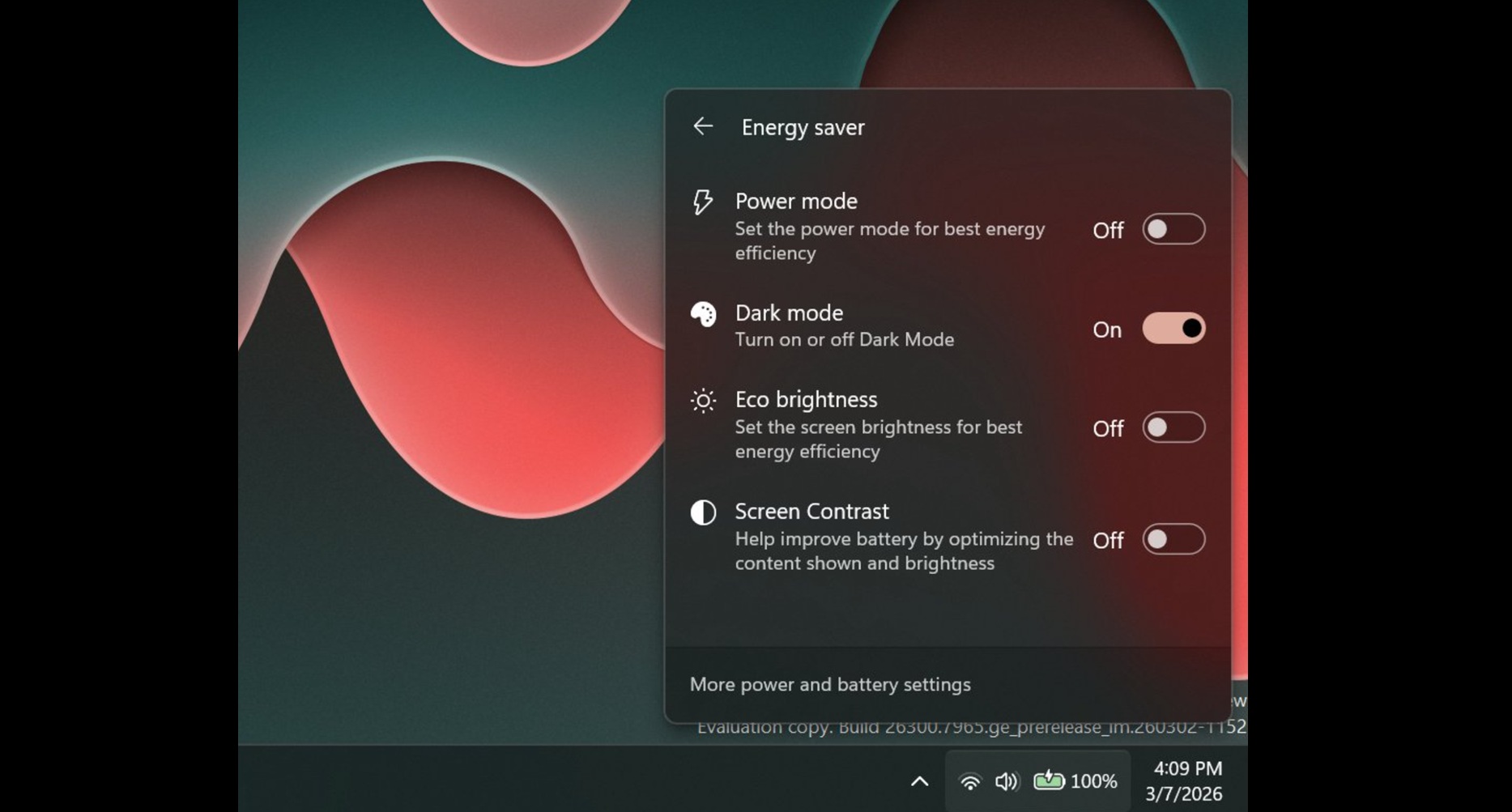
Oddly enough, this new ‘Dark mode’ toggle is placed inside a new Energy Saver page in Quick Settings.
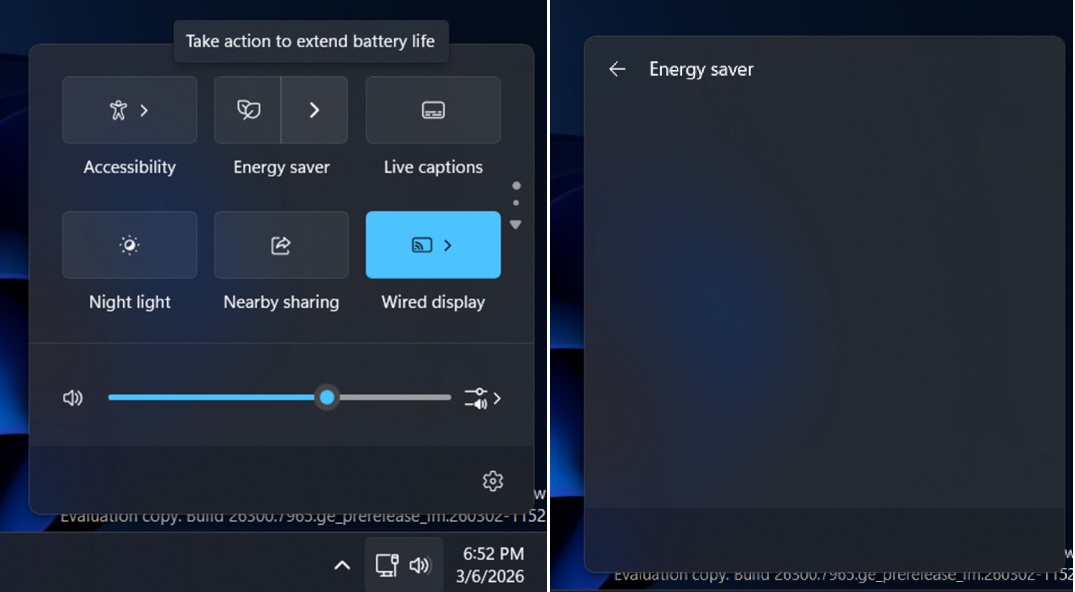
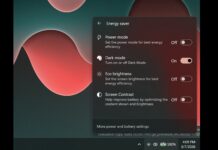
As you can see in the above screenshot, Microsoft is testing a new subpage for Energy Saver in Quick Settings.
When you tap on Energy Saver and open its subpage, you will come across multiple toggles to reduce power consumption. This new panel is similar to the Wi-Fi subpage, but to our surprise, the Energy Saver subpage has a toggle to change themes.
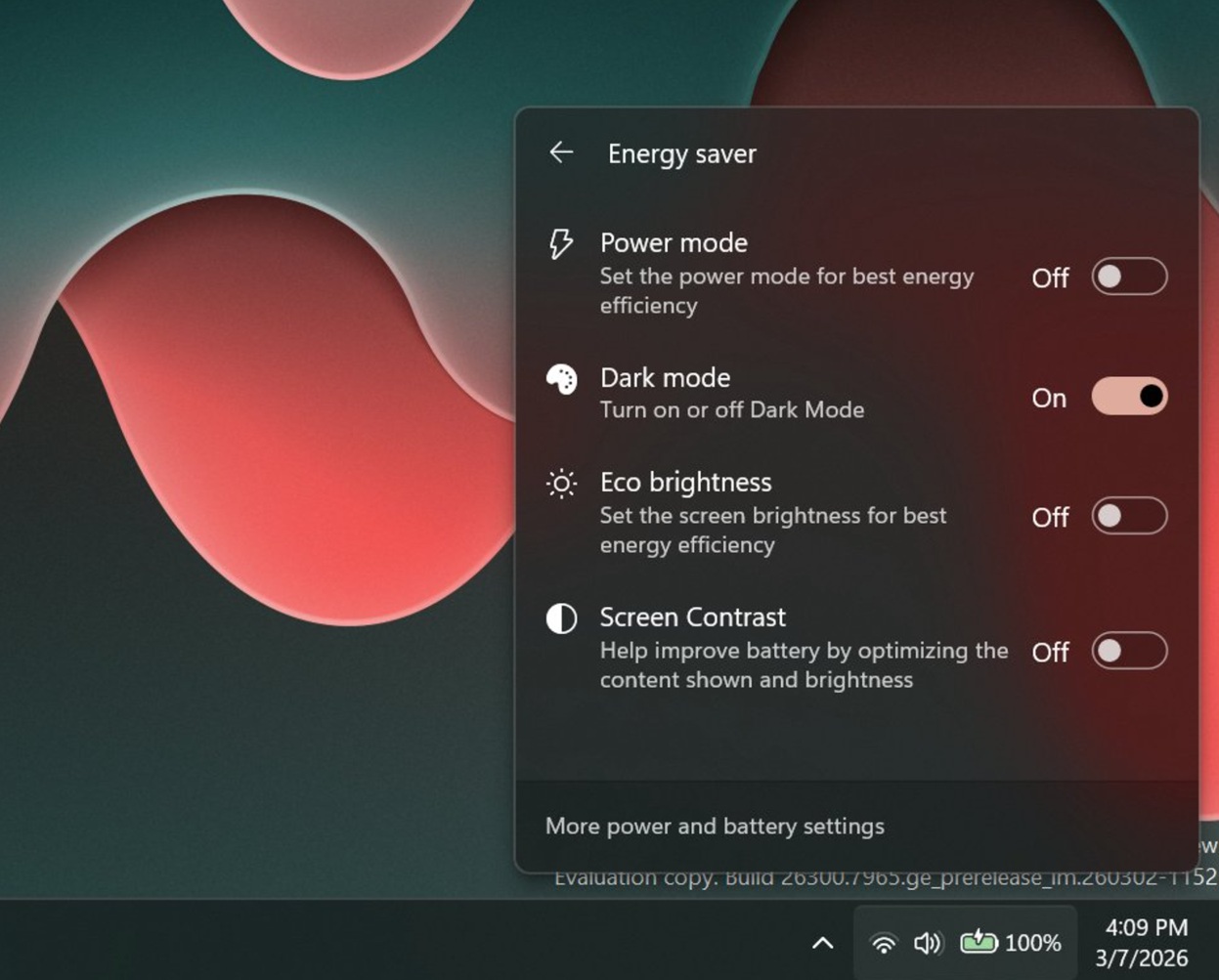
You can select the “Dark mode” toggle to turn on the dark theme or go back to the light theme, which is a nice quality-of-life improvement, but the catch is that you need to tap twice to find the Dark mode toggle. Second, it’s grouped with the other three energy-saving options, including “Power mode.”
Quick Settings’ new Energy Saver subpage has the following three other toggles:
- Power mode: This lets you set the power mode for best energy efficiency.
- Eco brightness: This lets you set the screen brightness for best energy efficiency.
- Screen Contrast: This helps you improve battery life by optimizing the content shown and brightness.
As spotted by PhantomOfEarth, Microsoft will also let you organize your Quick Settings, including removing quick actions you don’t need directly from the panel. This means you can right-click or press and hold on a touchscreen to manually unpin a quick setting.
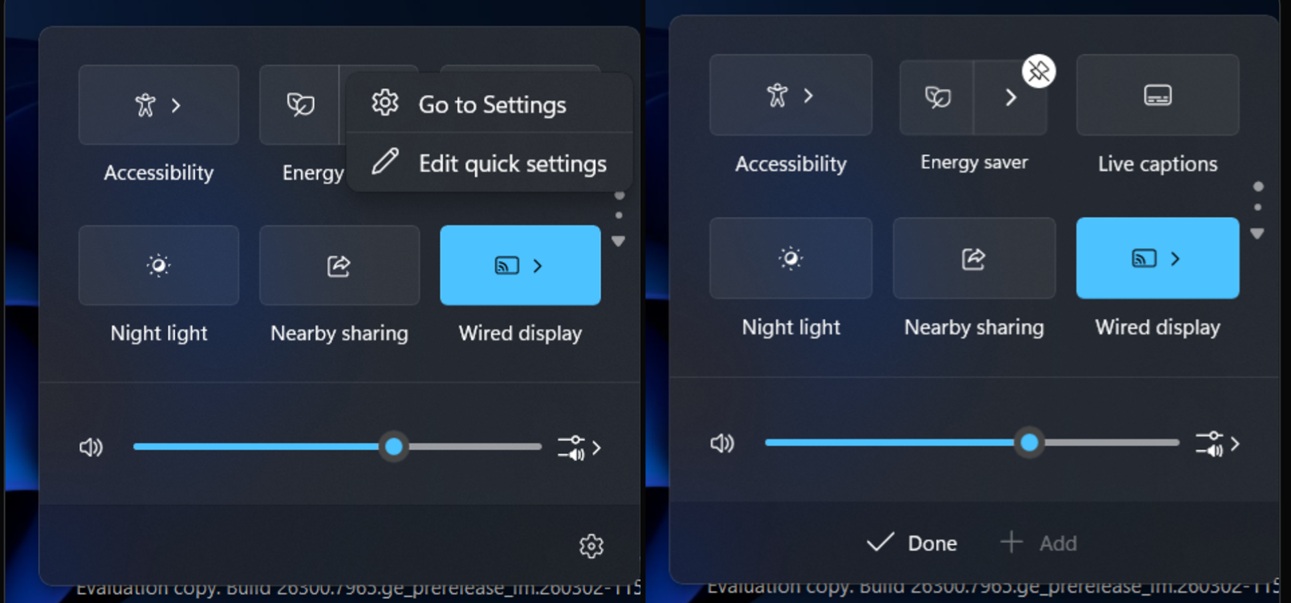
Quick Settings improvements showed up in Windows 11 Build 26300.796, and it’s unclear when they’ll begin rolling out to consumers.
It’s also worth noting that Microsoft previously experimented with Quick Settings customization options last year, but the feature never made it to the production channels.
What else is improving in Windows 11? The Drag Tray (yes, finally!)
Speaking of quality-of-life improvements in Windows 11, Microsoft confirmed that it’s aware of annoying issues with the Drag tray.
For those unaware, Windows has a Drag tray, which appears when you select a file and drag it to the top of the screen. With Drag Tray, you can easily send files to one of your most used apps, such as WhatsApp.
I’ve been using Drag Tray when I remember the feature exists on Windows 11, and while I don’t really dislike it, it’s a bummer when you’re trying to customize your desktop. It’s because the Drag tray often gets in the way when you drag a file to one of the folders close to the top region of the screen.
Thankfully, Microsoft heard our feedback, and it’s now making the Drag Tray less annoying by using a smaller peek view, so it doesn’t get in the way.
These are some really nice improvements, and Windows Latest understands that it’s part of Microsoft’s efforts to make Windows a better operating system.
What are some of the other “nifty” tweaks you’d like to see on Windows? Let me know in the comments below.