






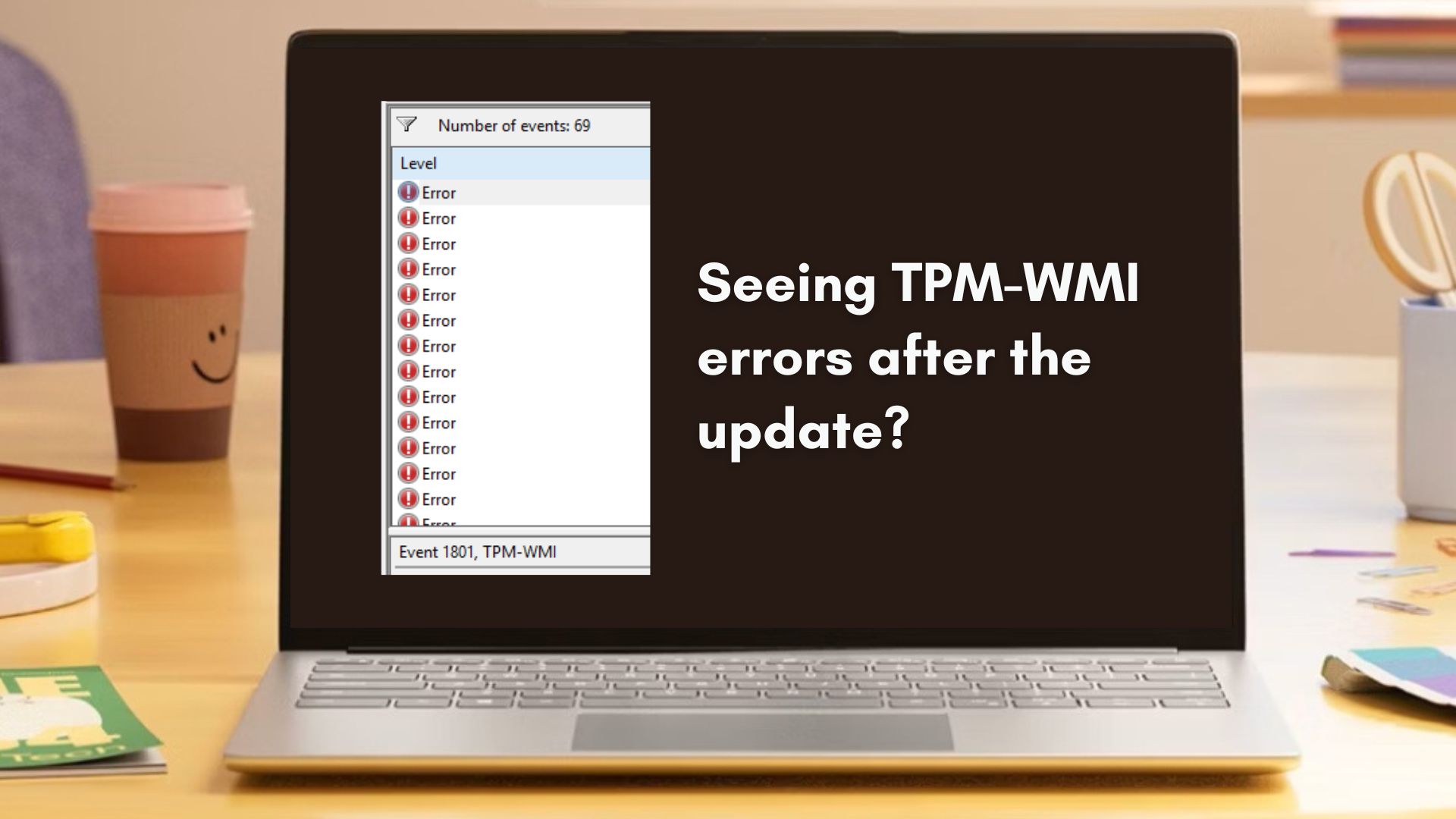
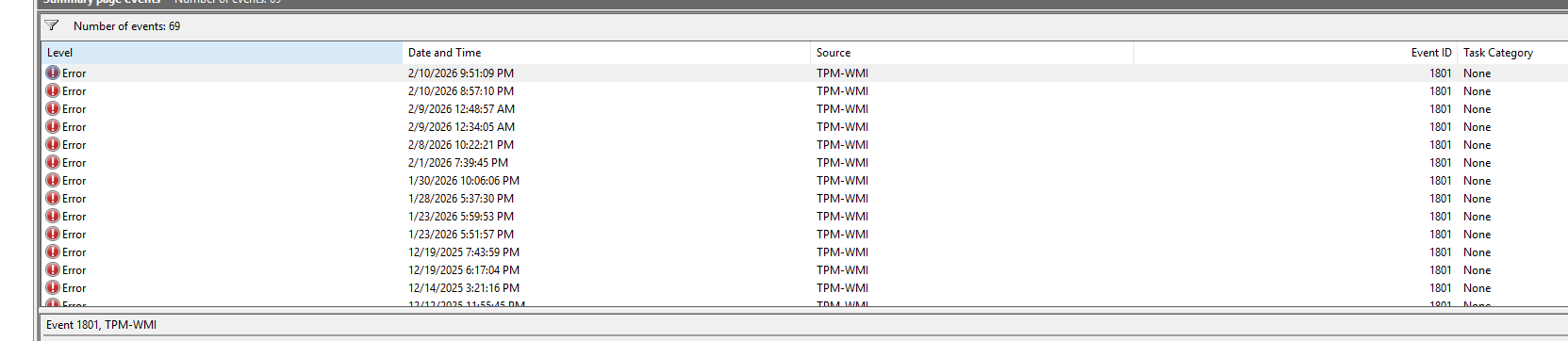
If you’ve checked Event Viewer recently, some new TPM-WMI errors about Secure Boot certificates might have popped up. Don’t worry, you’re not alone. Many Windows 11 users are seeing these logs appear out of nowhere, especially after installing the February 2026 Patch Tuesday update.
Fortunately, this isn’t a bug. Microsoft is in the middle of refreshing Secure Boot certificates that date all the way back to 2011. Those older keys are reaching the end of their usable life, and Windows is now transitioning devices to a newer certificate authority called Windows UEFI CA 2023.
Secure Boot is the feature that protects your PC during startup by allowing only trusted firmware, bootloaders, and system components to run before Windows loads. Naturally, if those certificates expire or fall out of trust, it would leave Secure Boot ineffective.
Microsoft bundled the certificate refresh with the February 2026 Windows 11 update (KB5077181), and in typical fashion, this is a phased, device-specific rollout, and would likely use telemetry and confidence checks before pushing the new keys to your PC’s firmware.
As a consequence, many users are seeing Event Viewer logs mentioning things like “updated certificates available” or “under observation,” even though nothing has changed yet on their system.
Note that these logs don’t mean something is wrong. In most cases, Windows is likely preparing your device and checking compatibility for the right moment to apply the new Secure Boot keys safely.
Why you might be seeing TPM-WMI errors in Event Viewer
A lot of Windows 11 users have noticed Event ID 1801, along with messages like:
“BucketConfidenceLevel: Under Observation – More Data Needed”
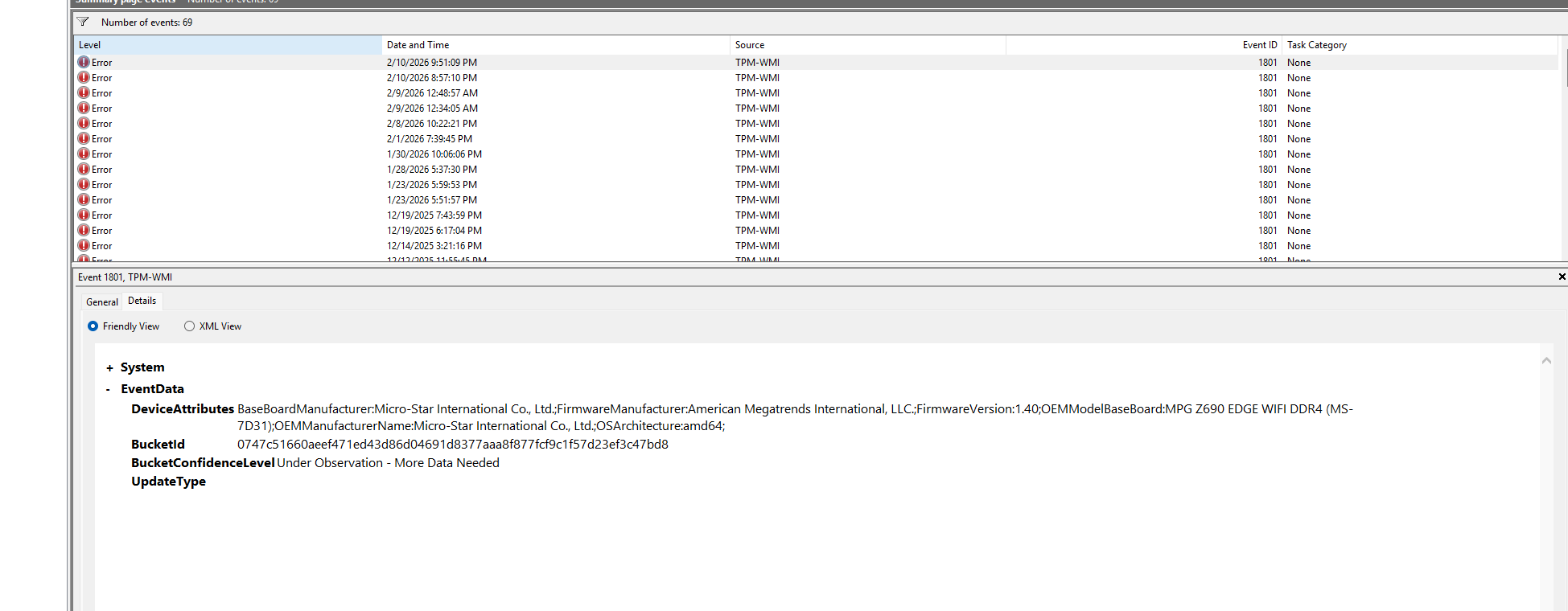
Rest assured, your PC is safe and nothing is broken. What Windows is logging here is a status check, and not an error or failure.
Secure Boot keys are present at the firmware level and are shared across the entire PC ecosystem, including OEM firmware, motherboard vendors, and Windows. Because of that, the change has to be coordinated carefully to avoid devices becoming unbootable if something goes wrong.
There are two separate steps involved in this process:
- The new Secure Boot certificate becomes available to Windows
- That certificate is later applied to the system firmware
Most systems sit in between these two steps for a while.
When Event Viewer says updated Secure Boot certificates are available but not yet applied, it means your device has been detected, evaluated, and queued for the next stage. The “Under Observation” confidence level indicates Microsoft is still collecting update reliability signals from your device before pushing the firmware-level change. These are things where telemetry makes sense.
Also, Windows can download and stage the new certificates inside the OS long before firmware adopts them. Until firmware accepts and records the new keys, Event Viewer may continue to log status messages indicating the transition is pending.
This is why the logs appear as errors, even though they are informational staging logs, and it doesn’t mean broken TPM, failed Secure Boot, or a corrupted BIOS. Note that many systems will remain in this state temporarily, especially during a phased rollout like this one.
How to check if the new Secure Boot certificate has already applied on your PC
Windows has a simple way to check whether the Windows UEFI CA 2023 certificate is already present on your system. This method does not modify anything and is completely safe.
Step 1: Open PowerShell as administrator
Right-click the Start button and choose Windows PowerShell (Admin) or Terminal (Admin).
Step 2: Run this command exactly as shown
([System.Text.Encoding]::ASCII.GetString((Get-SecureBootUEFI db).bytes) -match ‘Windows UEFI CA 2023’)
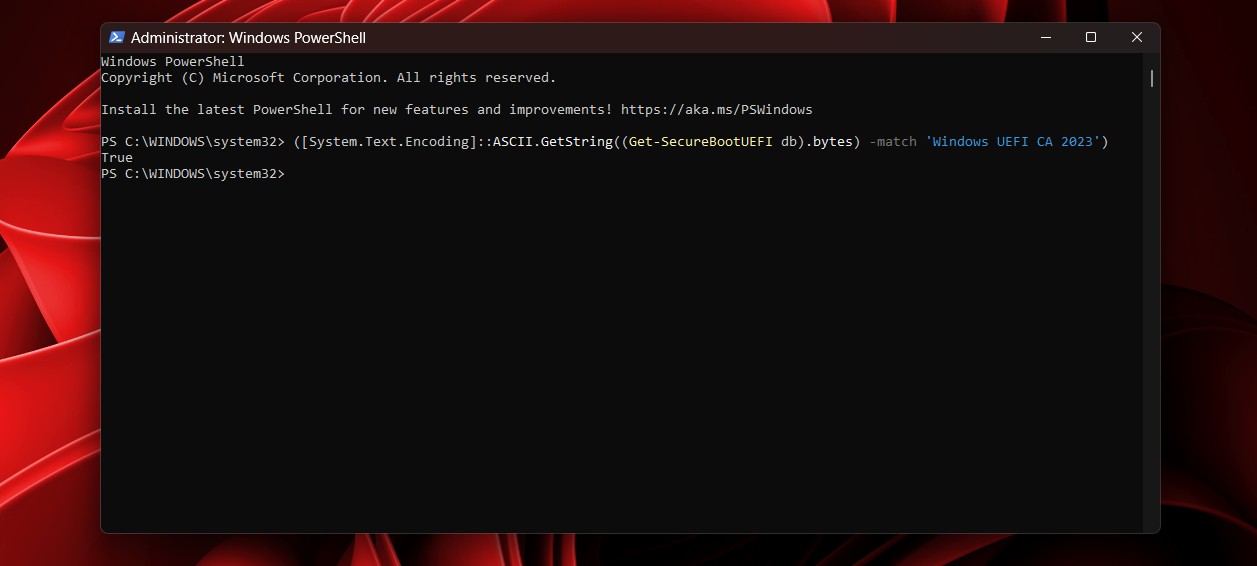
Step 3: Check the result
- True: This means the Windows UEFI CA 2023 certificate is already present in your Secure Boot database. Your system is ready, even if Event Viewer still shows staging or observation messages.
- False: This means your device has not received the certificate yet. This is not an error and does not require any action. Your PC is simply waiting for its turn in the rollout.
How to verify the update in Event Viewer
If the PowerShell command returns True and you want to see the official logs for peace of mind, you can find them in the System log. Here is the easiest way to track them down without scrolling through thousands of events:
- Open Event Viewer (search for it in the Start menu).
- Navigate to Windows Logs > System.
- On the right-hand pane, click Filter Current Log….
- In the Event sources dropdown, scroll down and check the box for TPM-WMI (it might be listed as Microsoft-Windows-TPM-WMI).
- Click OK.
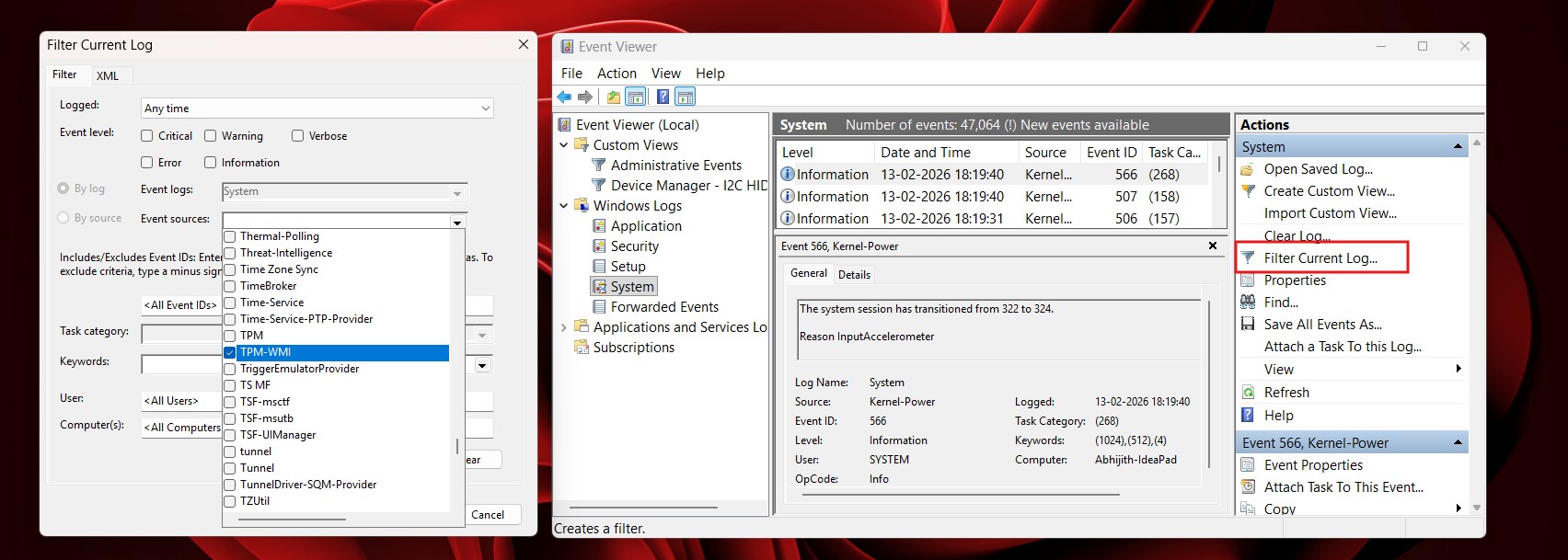
Once filtered, look for Event ID 1808. If you see it, it means the new Secure Boot certificate was successfully applied. You might also see Event ID 1034, which confirms the DBX (revocation list) update was also processed.
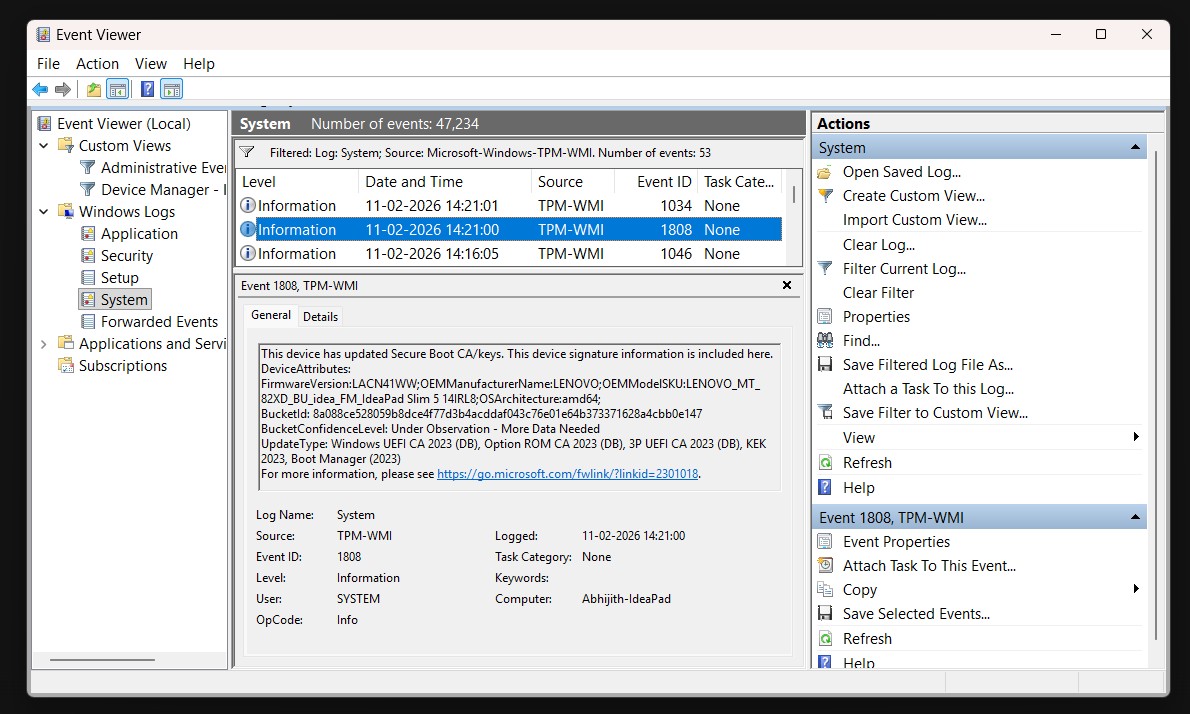
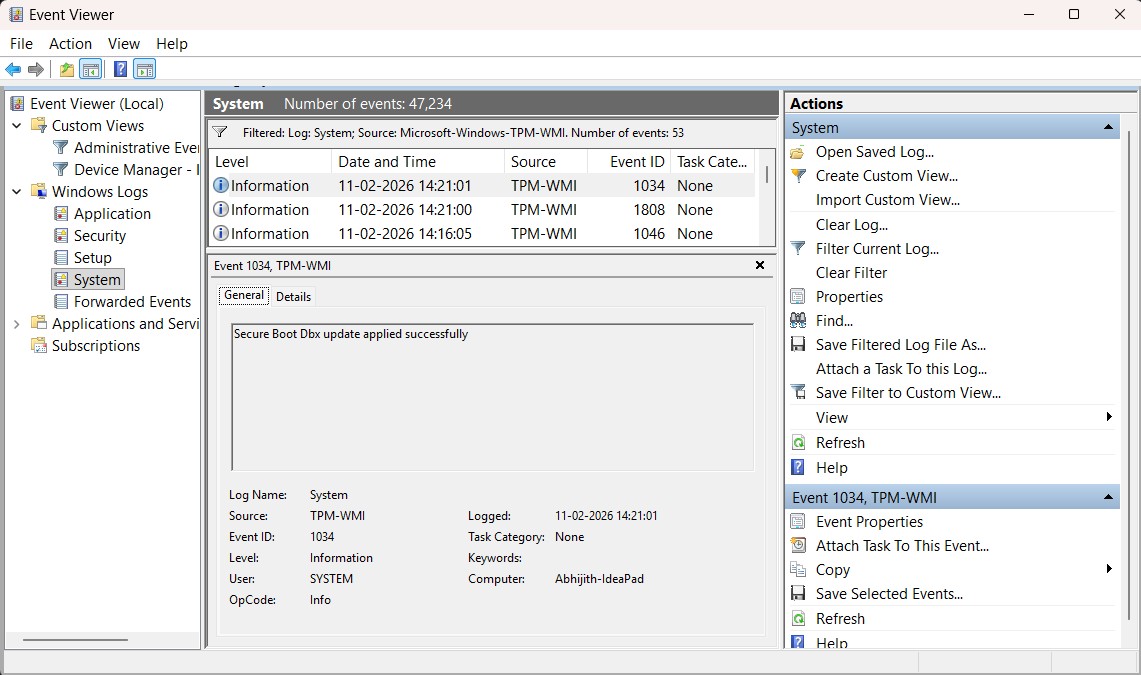
Note that these two checks can appear out of sync. Some users will see True in PowerShell while Event Viewer still logs warnings about certificates not being applied to firmware. That’s normal.
The OS-level update can come first, while the firmware application happens later, sometimes after restarts or updates.
If PowerShell returns True, your system already has what it needs. At that point, the Event Viewer entries can safely be ignored.
Do you need to update your BIOS right now?
No, you do not need to rush into a BIOS update.
One of the biggest misunderstandings around this rollout is assuming that Microsoft is pushing firmware changes directly. It isn’t. BIOS and UEFI firmware are controlled by your device manufacturer, not by Windows Update. That means Microsoft cannot blindly update Secure Boot keys at the firmware level across every PC without coordination from OEMs like Dell, Lenovo, HP, ASUS, Acer, and others.

Firmware changes are far more delicate than OS updates. You can roll back a failed Windows update but a failed firmware update can make your PC unable to boot. So, OEMs have to validate Secure Boot key transitions carefully and release them only when they are confident the update will not interfere with platform-specific configurations.
You should only consider updating your BIOS if:
- Your device manufacturer explicitly instructs you to do so
- The update documentation mentions Secure Boot certificate changes
- You are comfortable performing firmware updates and understand the risks
We also recommend that you avoid workarounds like clearing Secure Boot keys, enabling Setup Mode, or manually modifying firmware settings. These are intended for enterprise and can reduce security if done incorrectly.
If this all feels like Microsoft is doing more work behind the scenes lately, that’s because they are. Although, the Secure Boot certificate update was inevitable, since the previous one is 15 years old, the company is on a mission to make Windows secure by default.