





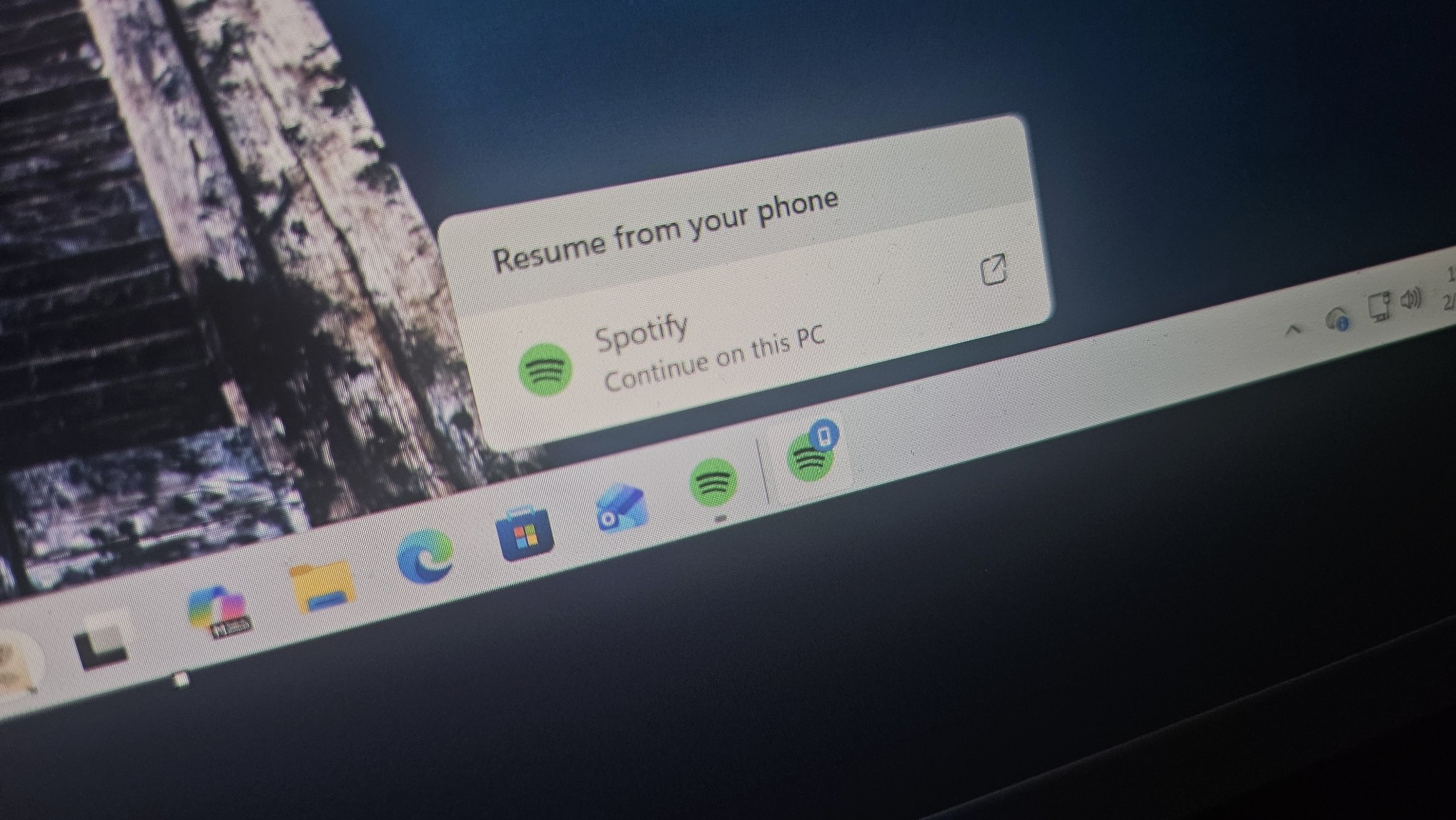
The Windows 11 Resume feature is now integrating with Spotify for cross-device playback. Once enabled, you can transfer the music playback session from your Android phone to Windows 11 by clicking the “Resume” icon on the taskbar. This idea is similar to Apple’s Handoff for iOS and macOS, and it actually works well.
“Resume” has been around for almost a year now, but it’s been limited to OneDrive-synced documents. If you use OneDrive on your phone to edit synced documents and then switch to your PC, Windows 11’s Resume feature lets you continue editing the same document on the desktop.
Now, the same idea is expanding to Spotify, allowing you to resume a song on your PC if it was already playing on Android.
How to enable Spotify Resume on Windows 11
In Windows, cross-device features work via the managed mobile devices in Settings. If you use features such as using your phone camera as a webcam on your PC, you might have already connected your phone to the PC. On the phone side, the Link to Windows app enables the connection and pairing.
But if you have not configured Windows 11’s Android integration, you need to install the Link to Windows app on your phone and sign in with the same Microsoft account you use on your PC. Finally, on your PC, repeat the following steps:
- Press the Win key, type mobile devices, and press Enter.
- Click the Add device button, and a window will pop up.
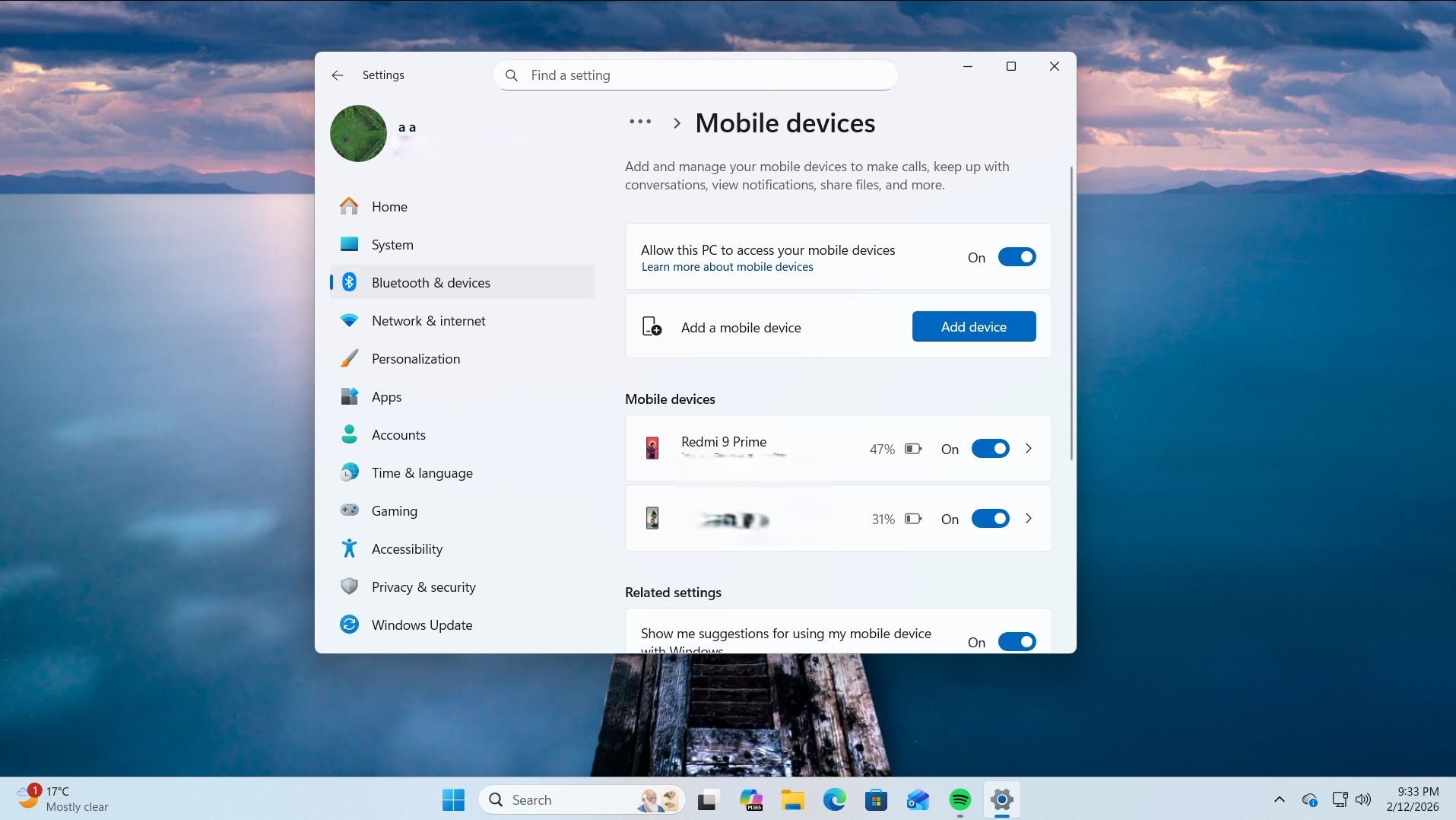
- Select a Microsoft account and scan the QR code on your phone to pair it.
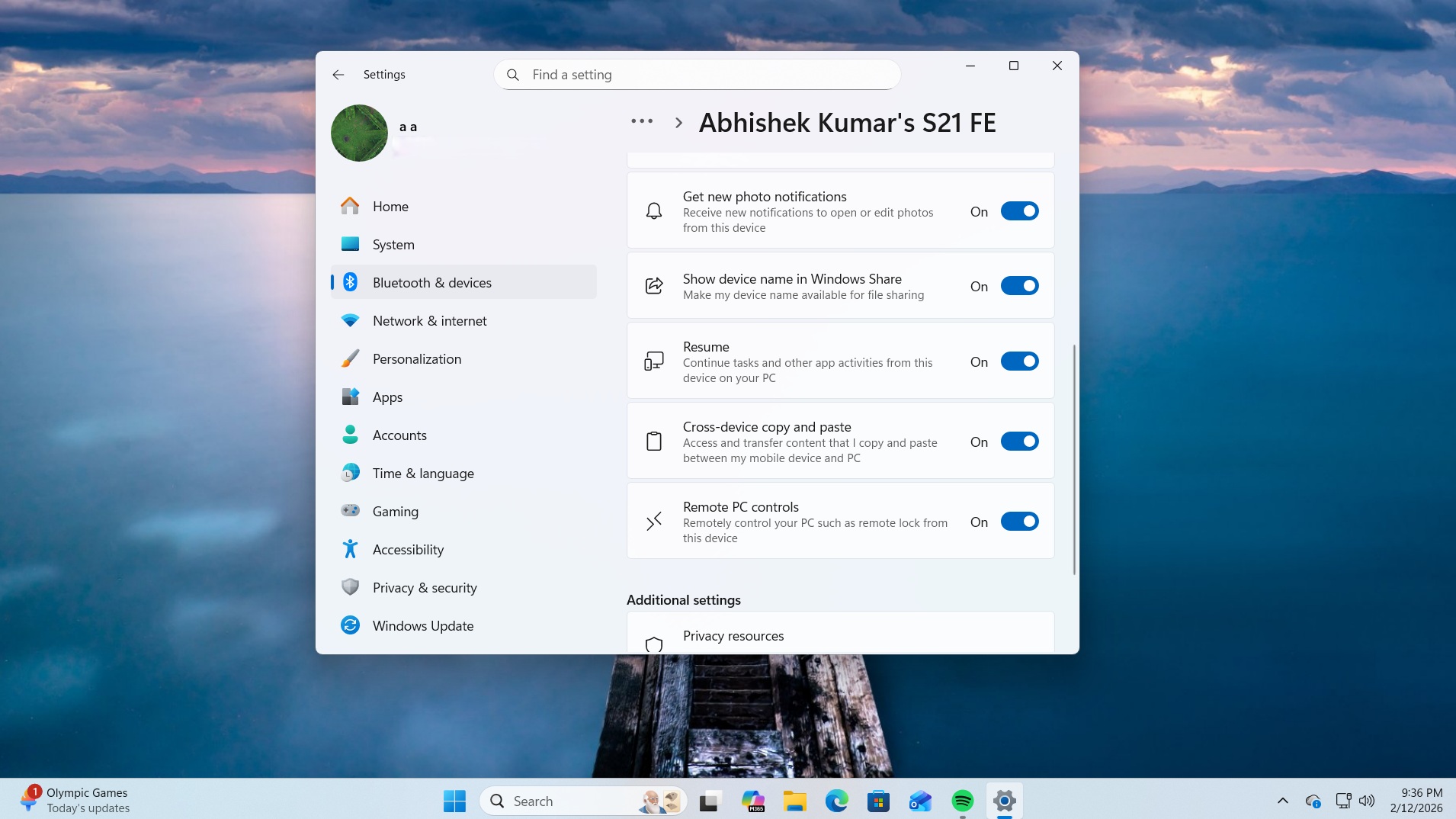
- Enable the Resume feature in the list.
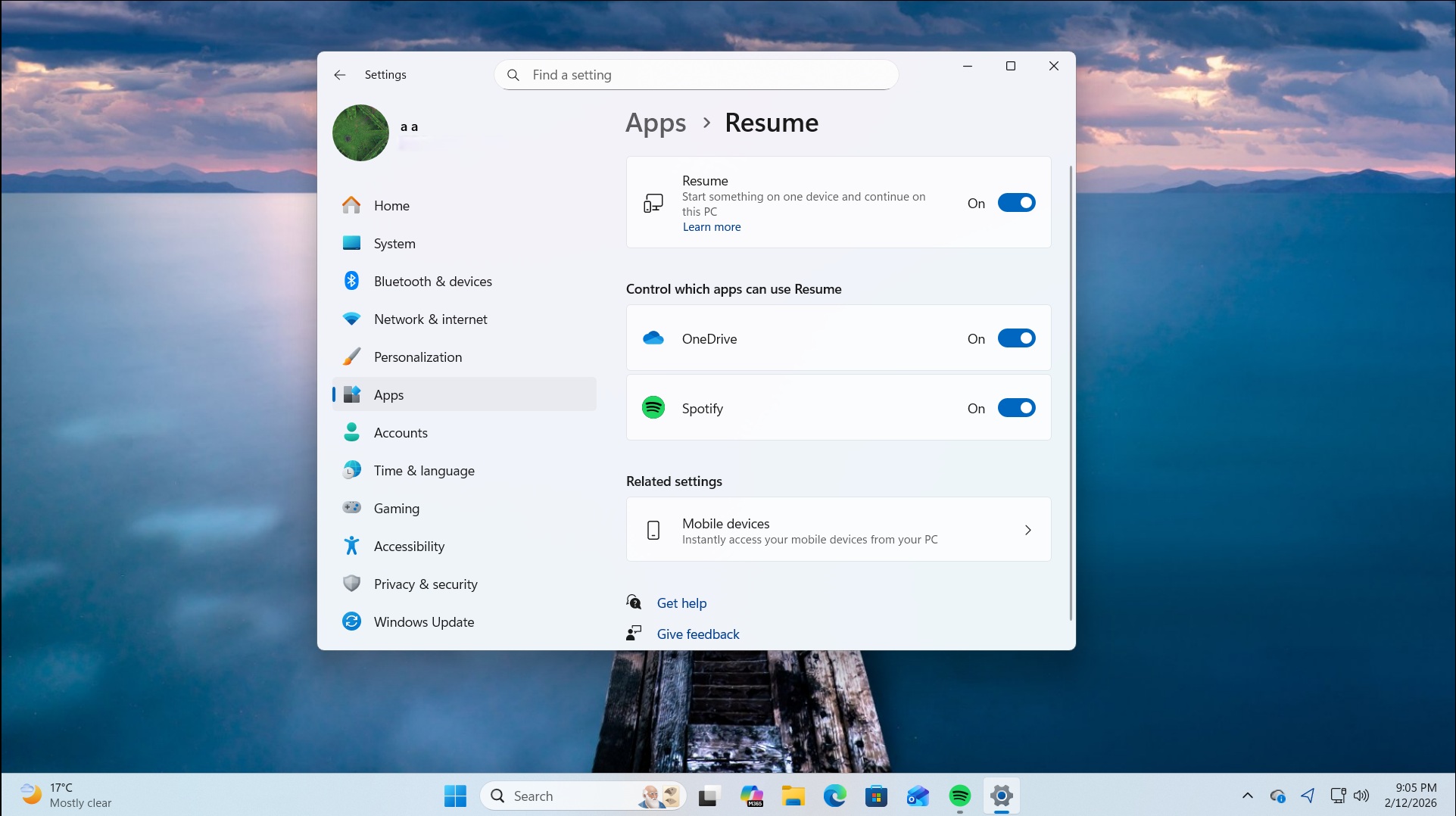
Once you’ve turned on Resume, you can now open Settings > Apps > Resume, and enable ‘Spotify‘ under ‘Control which apps can use Resume.’
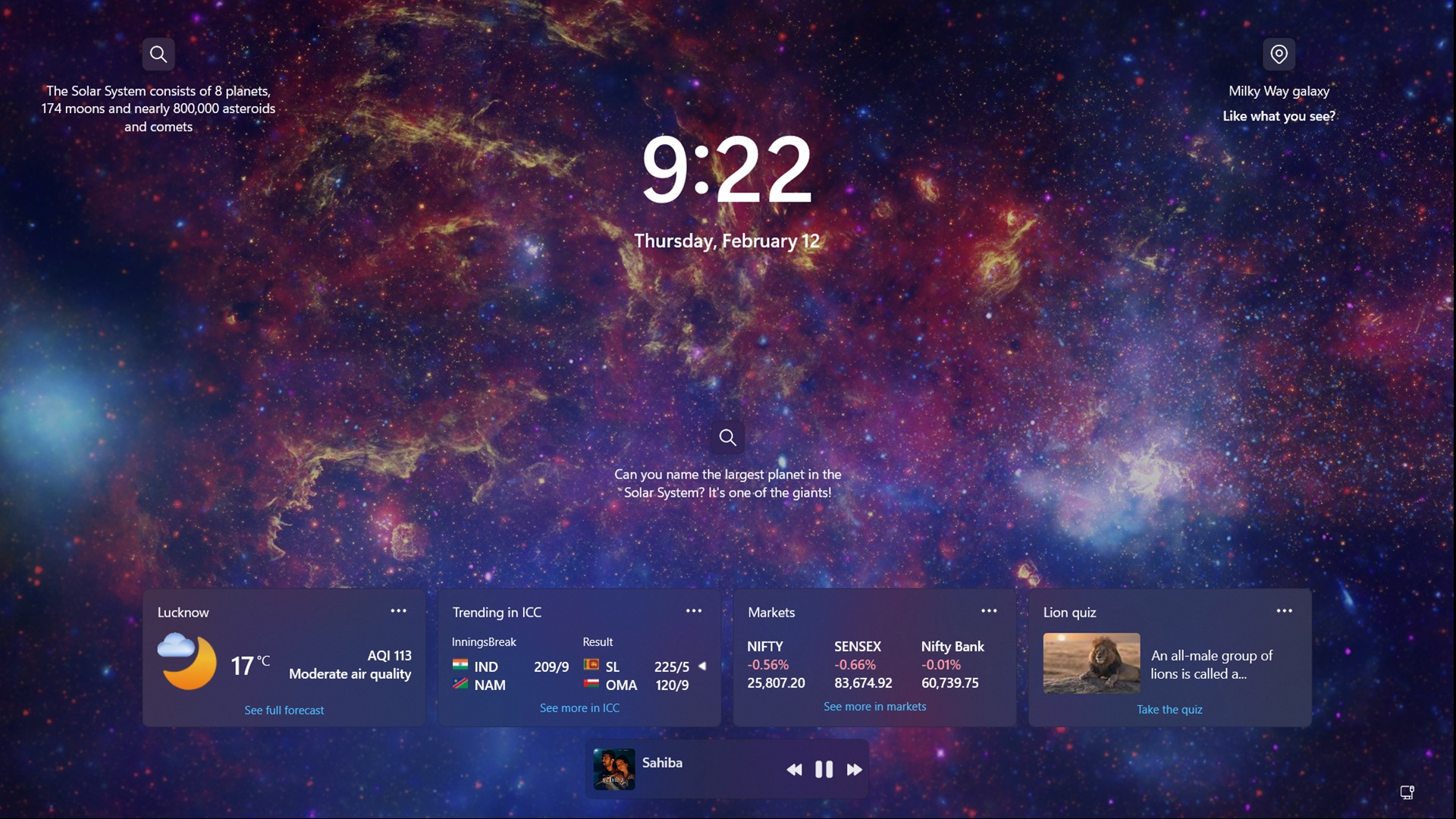
Now, to verify how Spotify integrates with Windows 11’s Resume, open the app on your phone, play a track, and then turn on your PC. You will see a Spotify widget on the lock screen.
 Finally, sign in, and you’ll notice a new Spotify icon on your taskbar with a phone icon. This is the “Resume” instance on the taskbar.
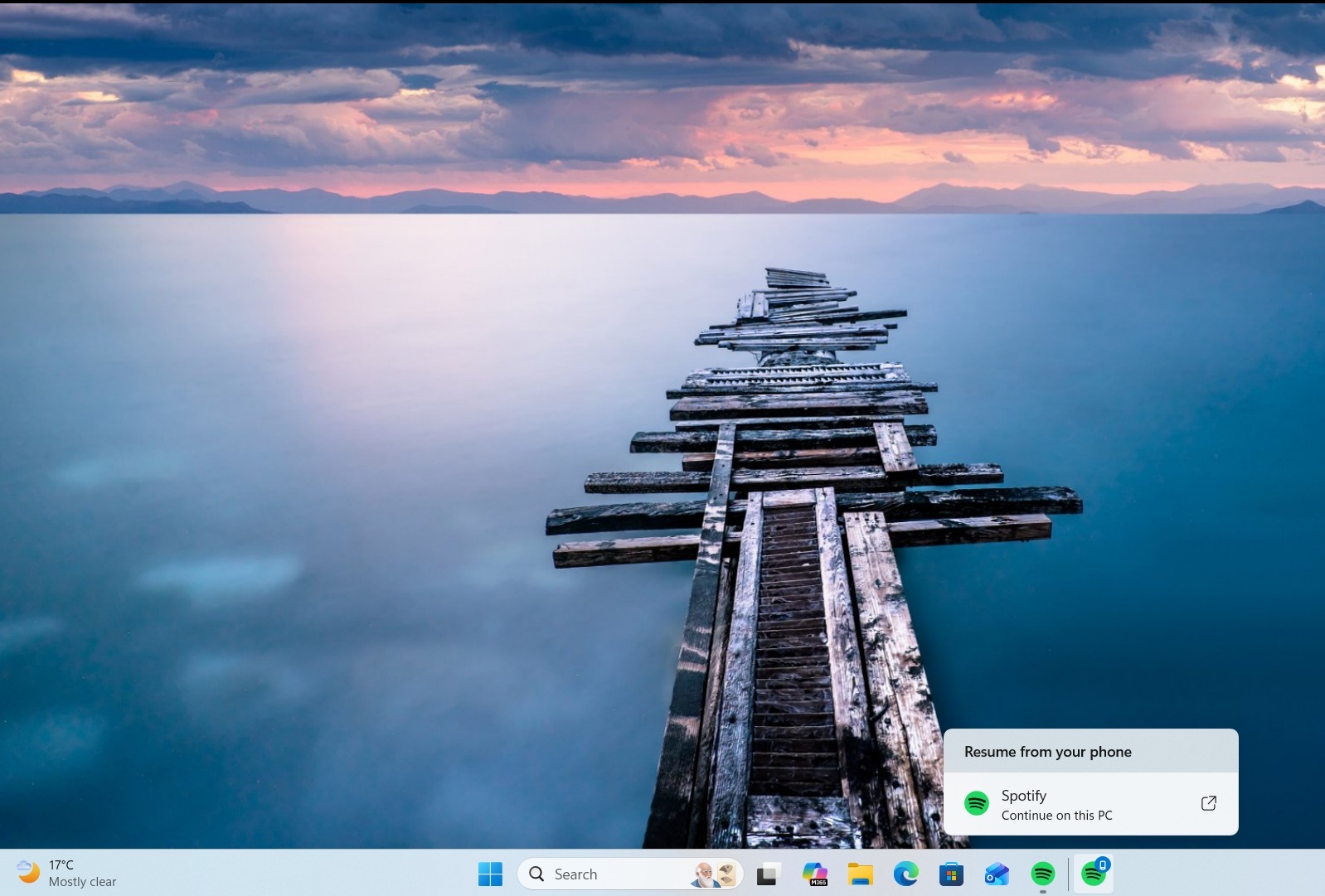
My Spotify Resume experience
Windows Resume should be instantaneous. Otherwise, it loses its purpose.
In my testing, the feature worked promptly every time I played a track and then logged in to my PC. The Spotify icon appeared after a few seconds, and clicking the Resume from your phone option played the same track.
If you close the app, it will not prompt you to resume unless you sign out. This is better than restarting the system. All apps that use Resume try to encourage you to use them again. There is no significant delay after boot. As soon as the taskbar elements load, the Spotify icon appears.
One thing I noticed is that even if you do not use Resume, Spotify is smart enough to detect that you are playing something on your phone. I disabled Resume, restarted the PC, and waited on the lock screen for a few seconds. The Spotify widget still appeared. This happens because Spotify automatically adds itself to the Startup apps list and checks whether you are playing something on your phone.
If you do not see the feature immediately, do not worry. Microsoft has placed Spotify Resume in the global rollout phase, and it will arrive later.