








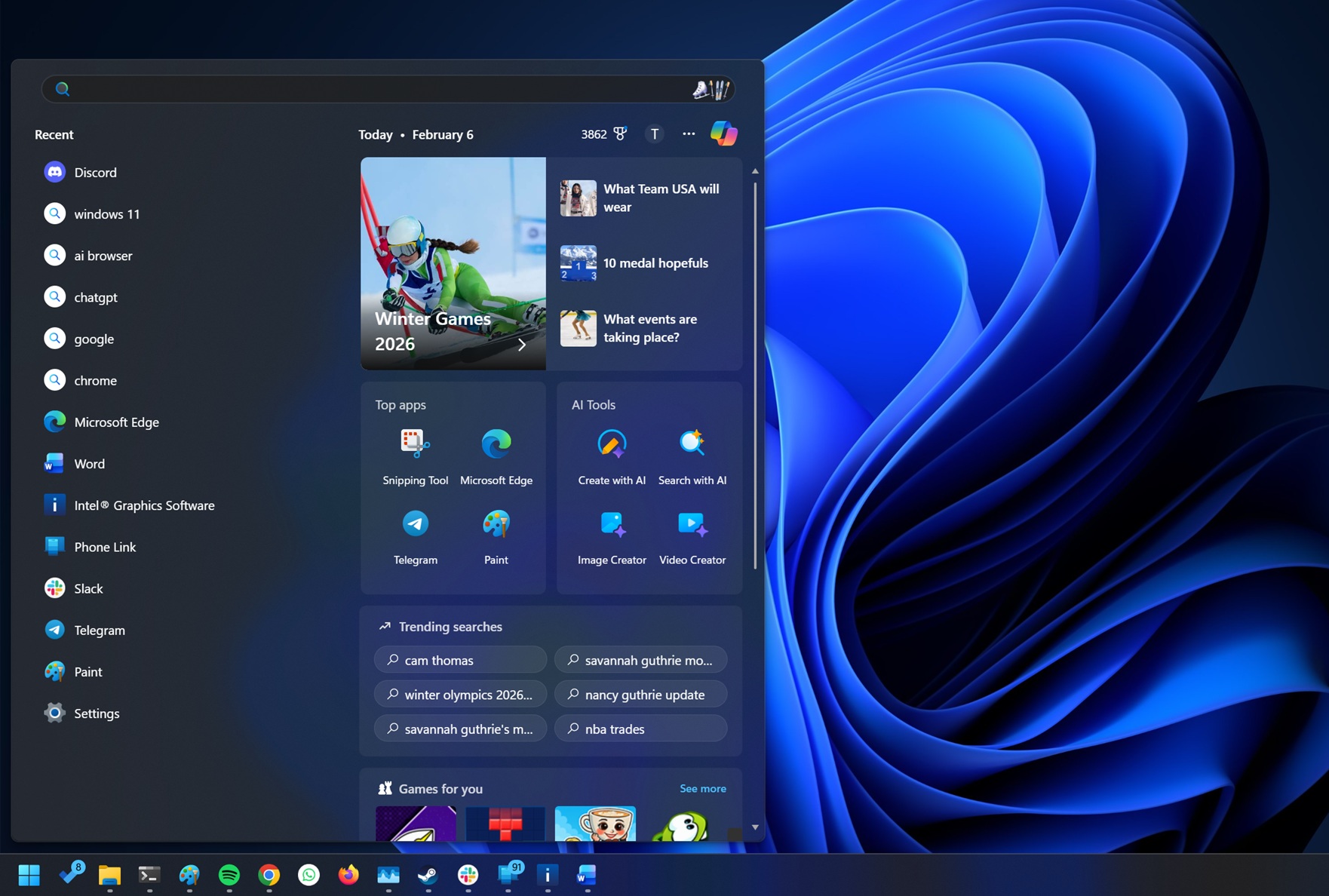
Windows Search is not exactly straight-up horrible. It does work, at least for me most of the time, but the catch is that it’s now a cluttered mess. I recently noticed that the Windows Search homepage now even highlights “AI” tools, which open Bing.com in your default browser.
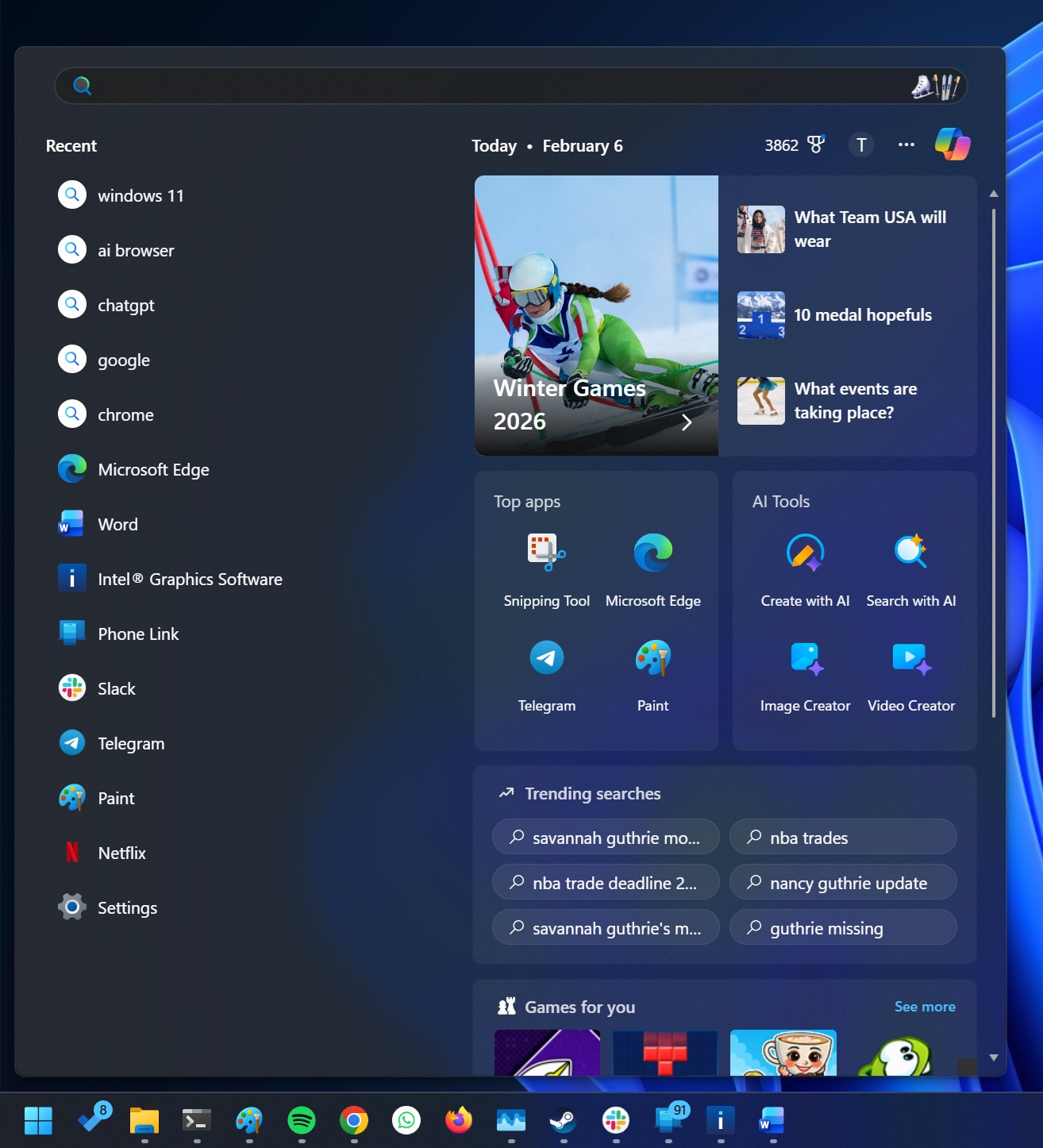
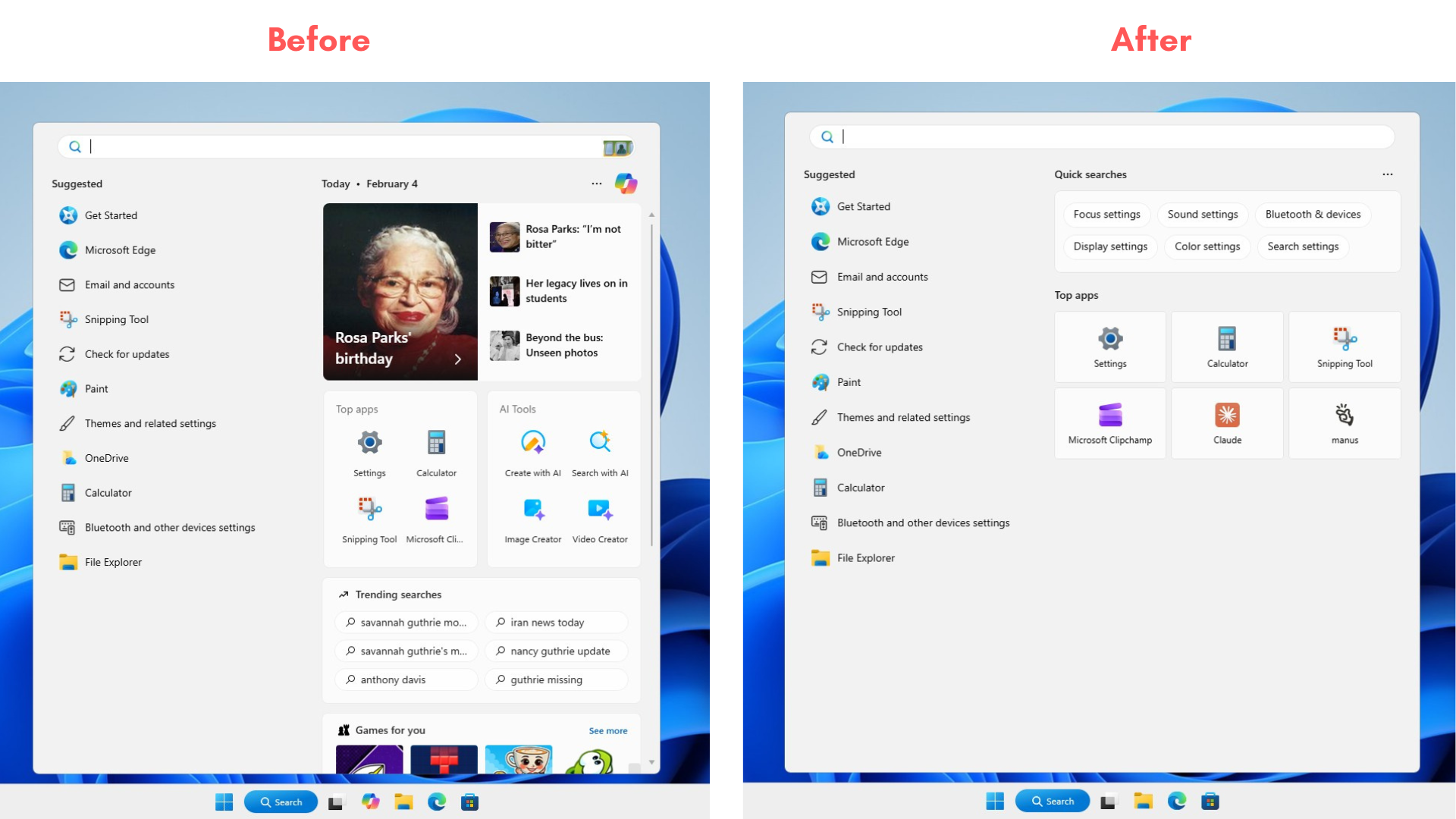
For example, if you open Windows Search and stay on the homepage, you’d realize that it’s less like a search engine for Windows 11 and more like a social media feed tailored for Bing. There’s a big card at the top, with more related links stacked on the right. These have been around for a while now, but there are even more sections as you scroll.
Windows Latest noticed that Microsoft recently added “AI Tools” to Windows Search, which is basically a shortcut shelf with four tiles: Create with AI, Search with AI, Image Creator, and Video Creator. The placement is deliberate, as it’s in the main grid, not buried in settings, so you’re going to notice it even if you opened Search just to find a file or an app.
Microsoft doesn’t allow you to disable any of these grid-recommended AI tools. In fact, if you click on one of the AI tools, it just redirects you to Bing.com, so they do not add any value to the Windows Search experience.
How to remove “AI tools” and other suggestions/clutter from Windows Search
You can’t expect Microsoft to clean up its own mess, but thankfully, Windows 11 remains the most open commercial operating system, so you can modify the Search UI and delete “AI tools” or other grids.
To remove “AI tools” and suggestions from Windows Search, you need to follow these steps:
- In Windows Search, search for Registry Editor and open it with elevated privileges.
- In Registry Editor, open: HKEY_LOCAL_MACHINE\SOFTWARE\Policies\Microsoft\Windows

- On the left side, look for a key called “Explorer.” It’s inside the Windows Folder, which is inside Microsoft.
- In most cases, you won’t have an “Explorer” key, but don’t worry, you can create one easily. Just right-click on the Windows folder/key, select New > Key. Make the new key “Explorer.” Now you’ll have a new “Explorer” key inside Windows.
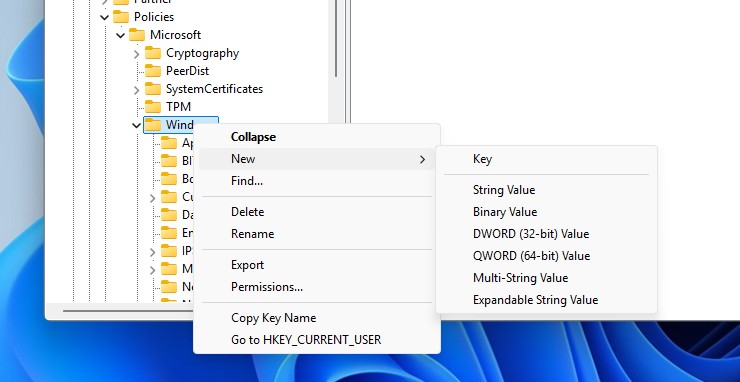
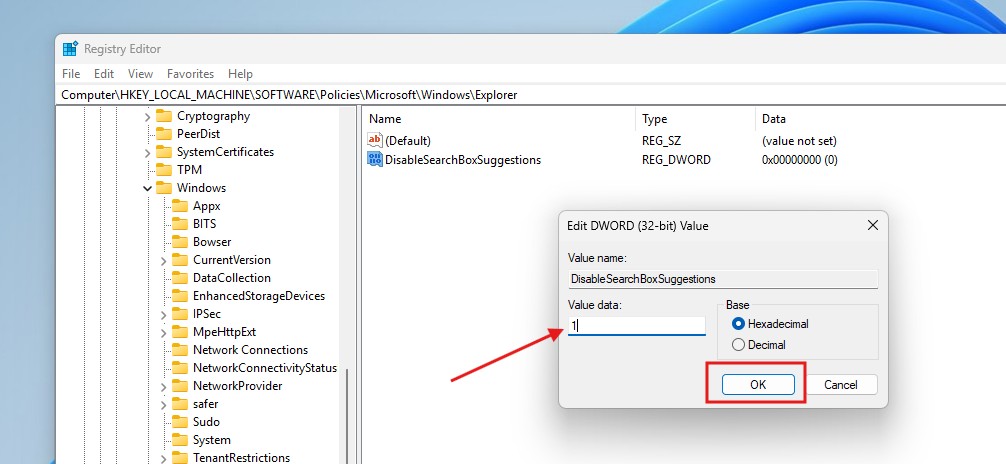
- Open the Explorer key, right-click on the right side of the Registry editor, and create a new DWORD (32-bit) value inside the Explorer key.
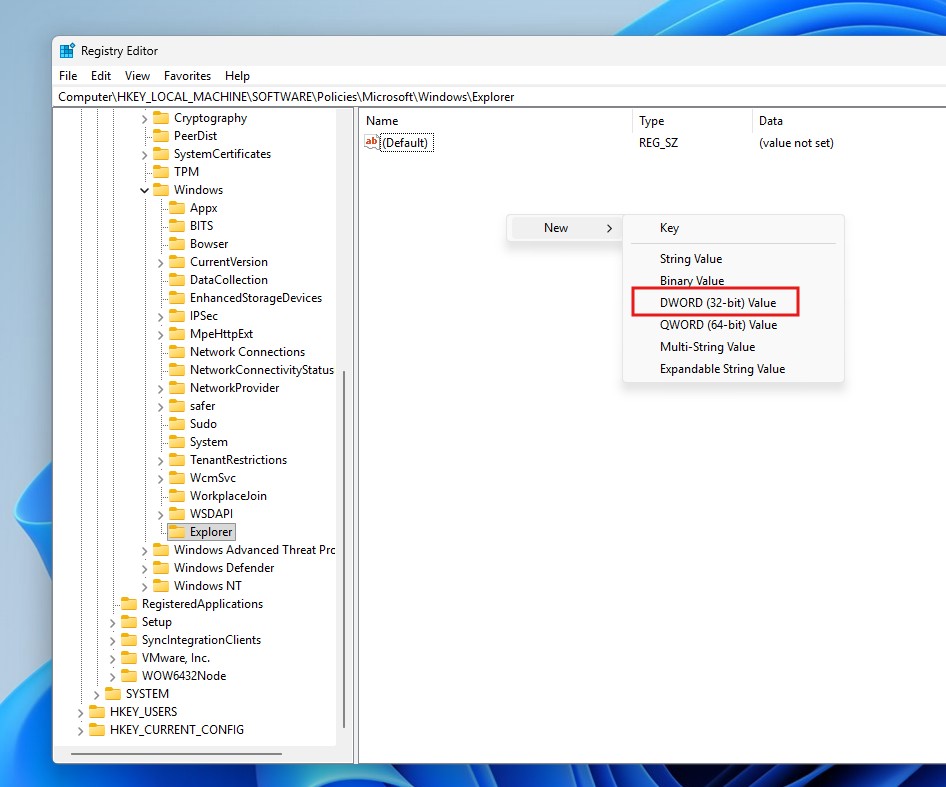
- The name of the new key inside Explorer should be DisableSearchBoxSuggestions.

- Double-click the value and change it from 0 to 1. Press OK. When you create DisableSearchBoxSuggestions, you’re instructing Windows to stop showing suggestions in Search, including AI tools.
- Restart your PC.
As you can see in the screenshot below, you’ll no longer see the Copilot icon or the suggestions for AI tools in the Windows Search interface.
You can also disable as many as 13 AI features in Windows 11 by modifying the Registry, Group Policy, or Windows Settings.
Ask Copilot is actually better than Windows Search
Microsoft doesn’t plan to improve or declutter Windows Search. Instead, it’s testing a new Copilot-powered search experience called “Ask Copilot,” and it’s one of the upcoming Windows 11 features in 2026.
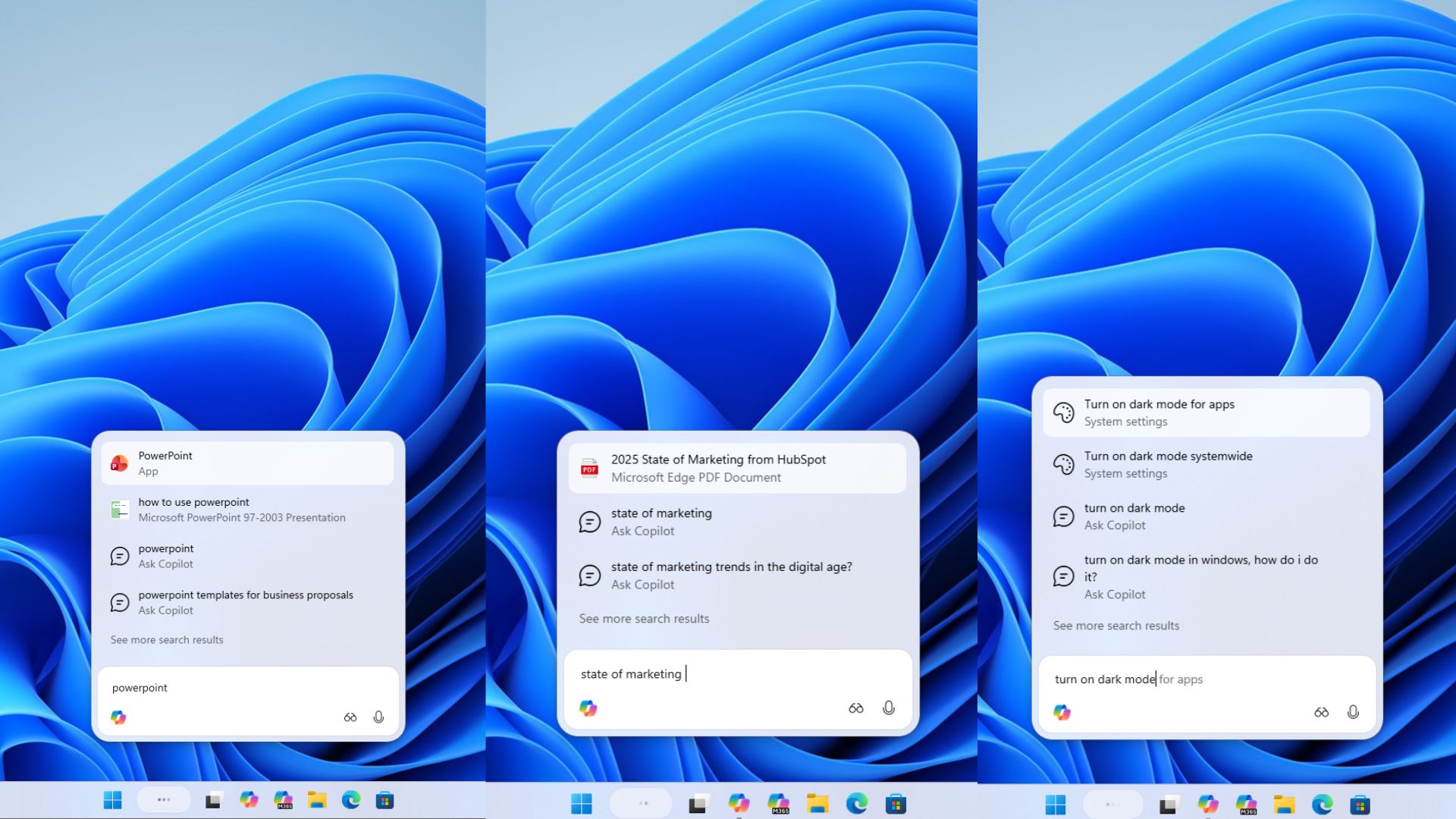
Unlike Windows Search, Ask Copilot is not cluttered, and it’s probably difficult to convince you to use pick AI search over traditional search. It’s smaller and focuses on finding apps, files, or settings with Copilot-based AI suggestions.
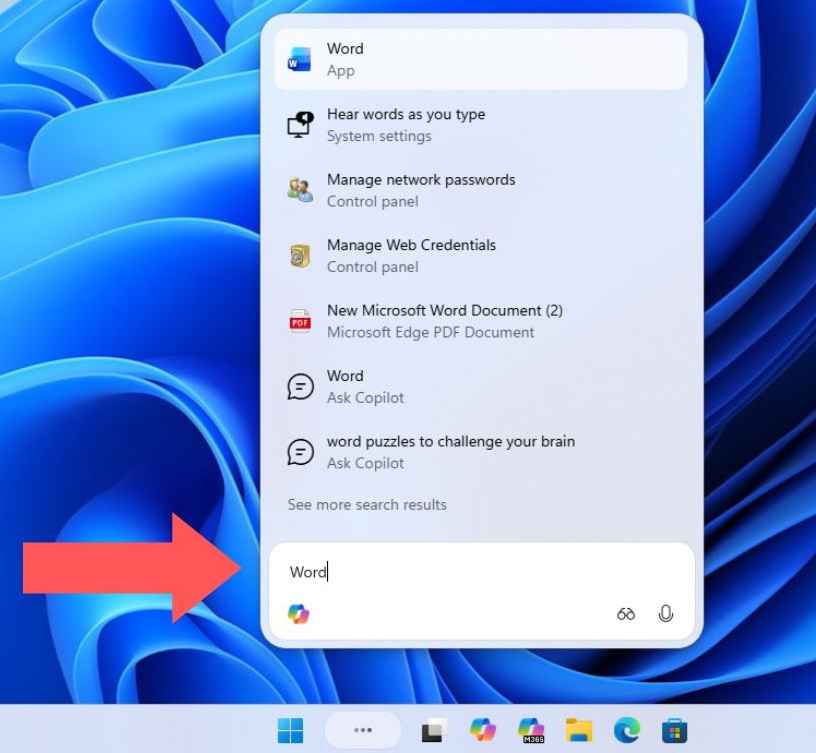
While Ask Copilot also uses the same Windows Search index, it’s smarter, and it can understand your search intent. For example, if you search for how to make my screen brighter instead of the “brightness” setting, Copilot will understand your intent and automatically find the appropriate setting.
This new Ask Copilot experience feels smoother than the existing Windows Search, but it boils down to whether you like to use Copilot at all.
What about you? Do you use Windows Search or a third-party alternative? Let me know in the comments below.