




Windows 11, as a “service,” is always getting better, and a major update is planned for later this year with several features. This includes a new Windows Search experience powered by Copilot, a new dark-themed Properties tab in File Explorer, a less cluttered right-click menu, and even a modern Windows Run.
Windows Latest tested the updates, and here’s what we know so far about the upcoming features in Windows 11.
Ask Copilot on the Taskbar replaces Windows Search, but it’s optional
On Windows 11, search is part of the Start menu. Windows Search is not only the most used feature but also heavily criticized because it often feels slow, cluttered, and ironically bad at search. With Copilot, Microsoft is hoping it can make search better on Windows, but is that something you’d like?
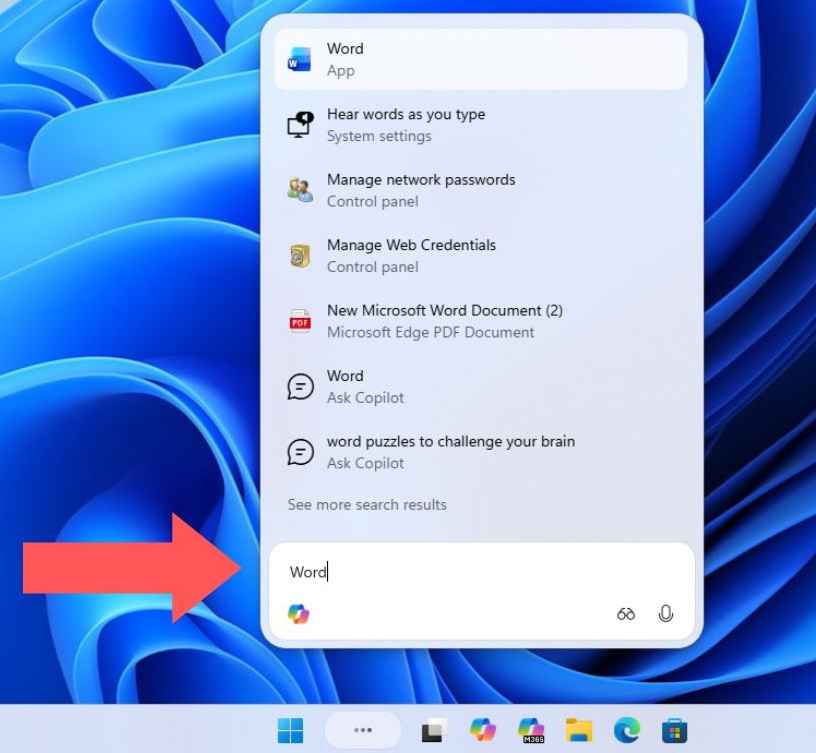
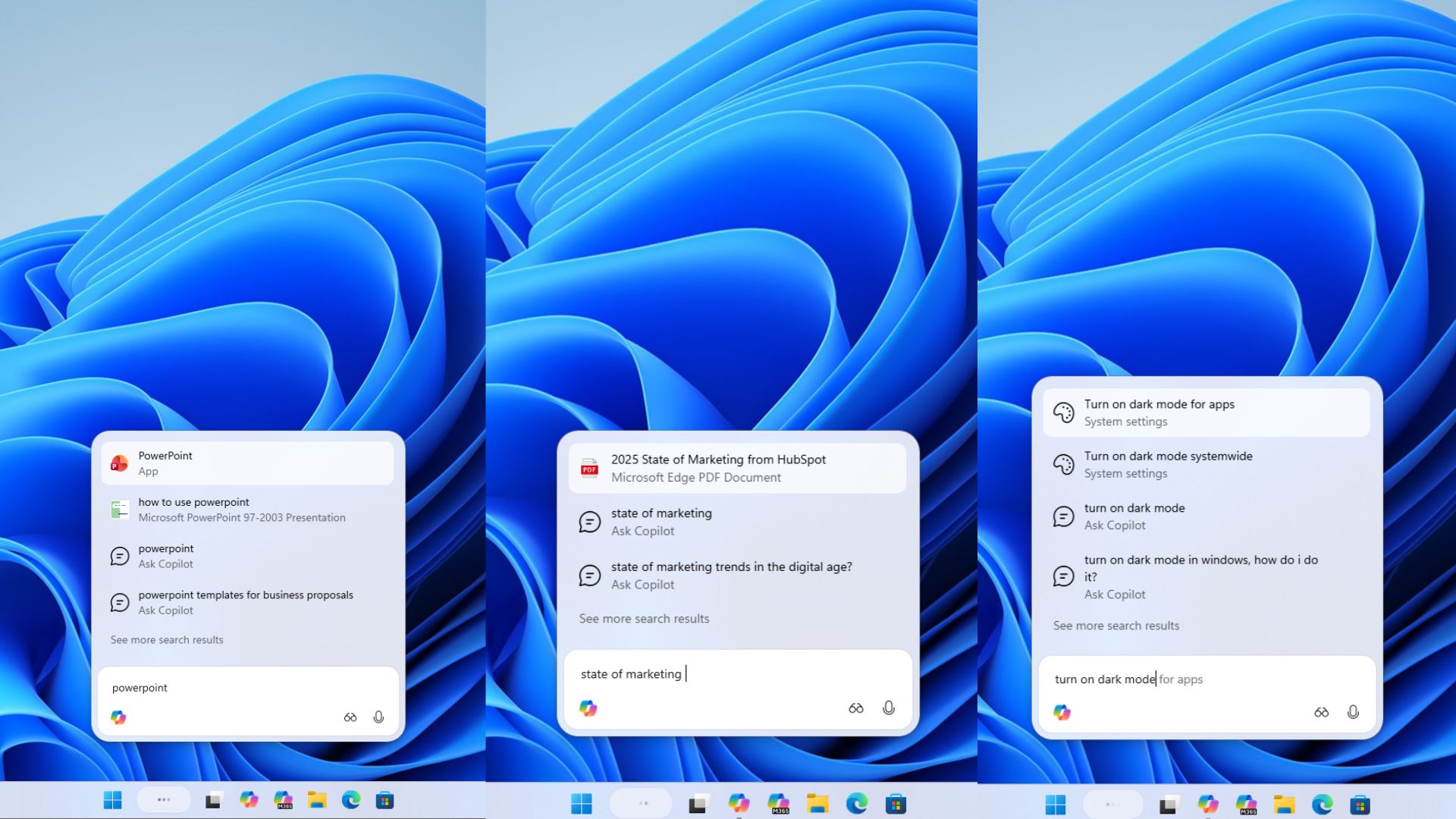
Unlike traditional Windows Search, Ask Copilot can understand what you mean. When you use “Ask Copilot” on the taskbar, Windows opens a small floating search window, which is smaller than Windows Search but works similarly. In fact, it’s actually better because Ask Copilot feels faster and isn’t cluttered with Bing data, at least not yet.
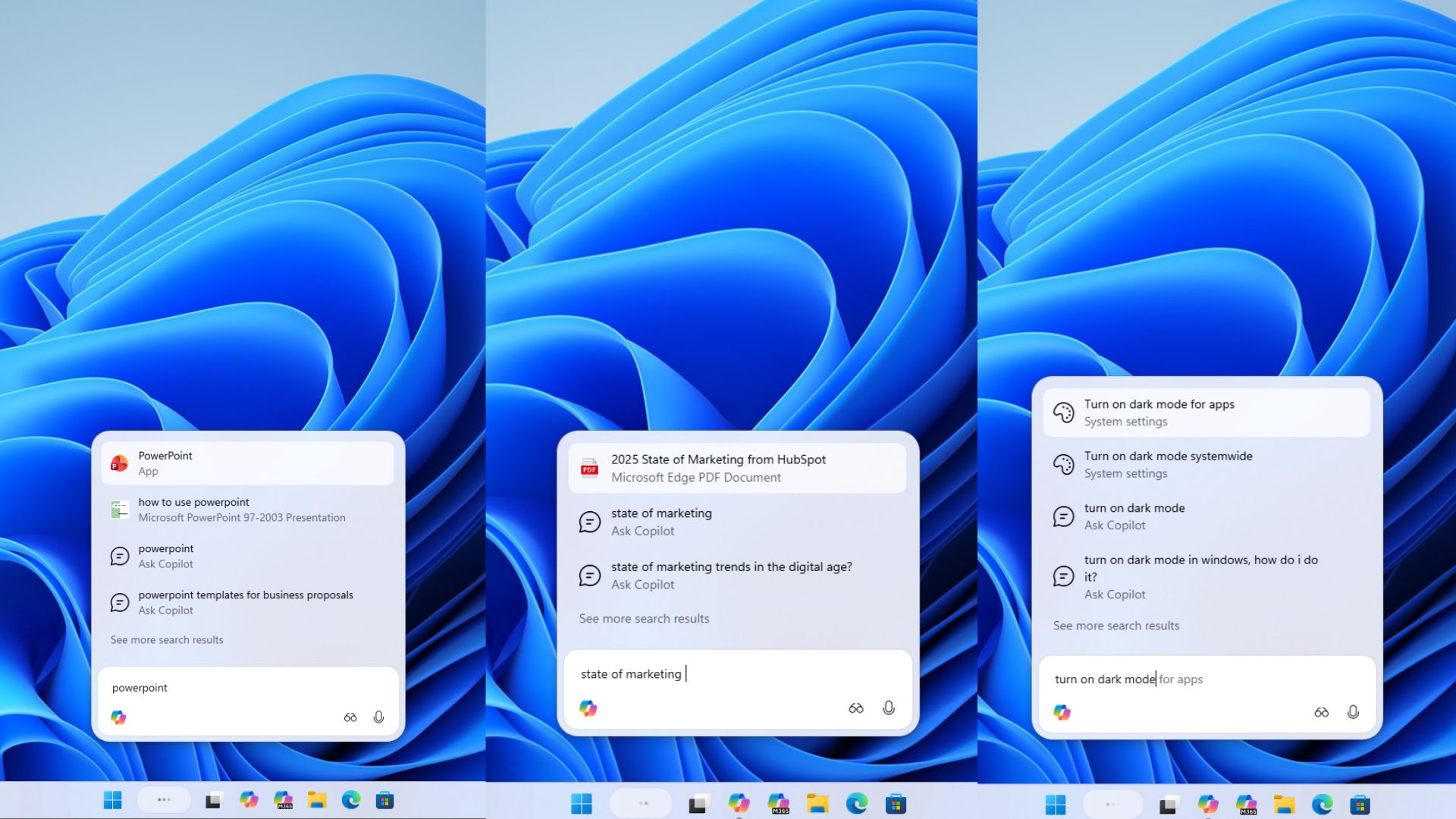
You can still find your files, apps, settings, and everything else on your PC. That’s because “Ask Copilot” is powered by the same Windows Search indexer, so it’s not dramatically different under the hood.
But you’re going to come across some intelligent features. For example, if you ask Copilot to increase brightness, this new Copilot Search will show relevant settings related to display and brightness
This works because Copilot understands user intent, which isn’t possible with the traditional Windows Search experience. You’ll also be able to upload files and images to Copilot-powered Search to perform certain actions or start tasks, but those features aren’t yet available.
One potential use case is Copilot Vision, where Copilot begins seeing the content of any open app. You’ll be able to trigger Copilot Vision from the Ask Copilot panel.
Finally, Ask Copilot is optional. It needs to be enabled manually from Settings under Personalization and Taskbar, and when it’s off, you’ll go back to the standard Windows Search box.
Windows Latest also noticed that Copilot cannot read your local storage unless you specifically upload a file and ask AI questions.
Decluttered File Explorer context menu
The right-click menu in Windows 11 is nothing short of a mess. It’s cluttered, often stuck at “loading,” and options are repeated twice or even thrice in the worst-case scenario. Microsoft really wants to fix it this time.
I don’t know how the context menu looks on your PC, but it’s super tall on all of mine. It’s partly my fault since I have too many apps, but it’s also by design, especially on 16:9 screens with higher display scaling. Microsoft won’t let you pick what appears in the context menu, but it will hide some options in a submenu.
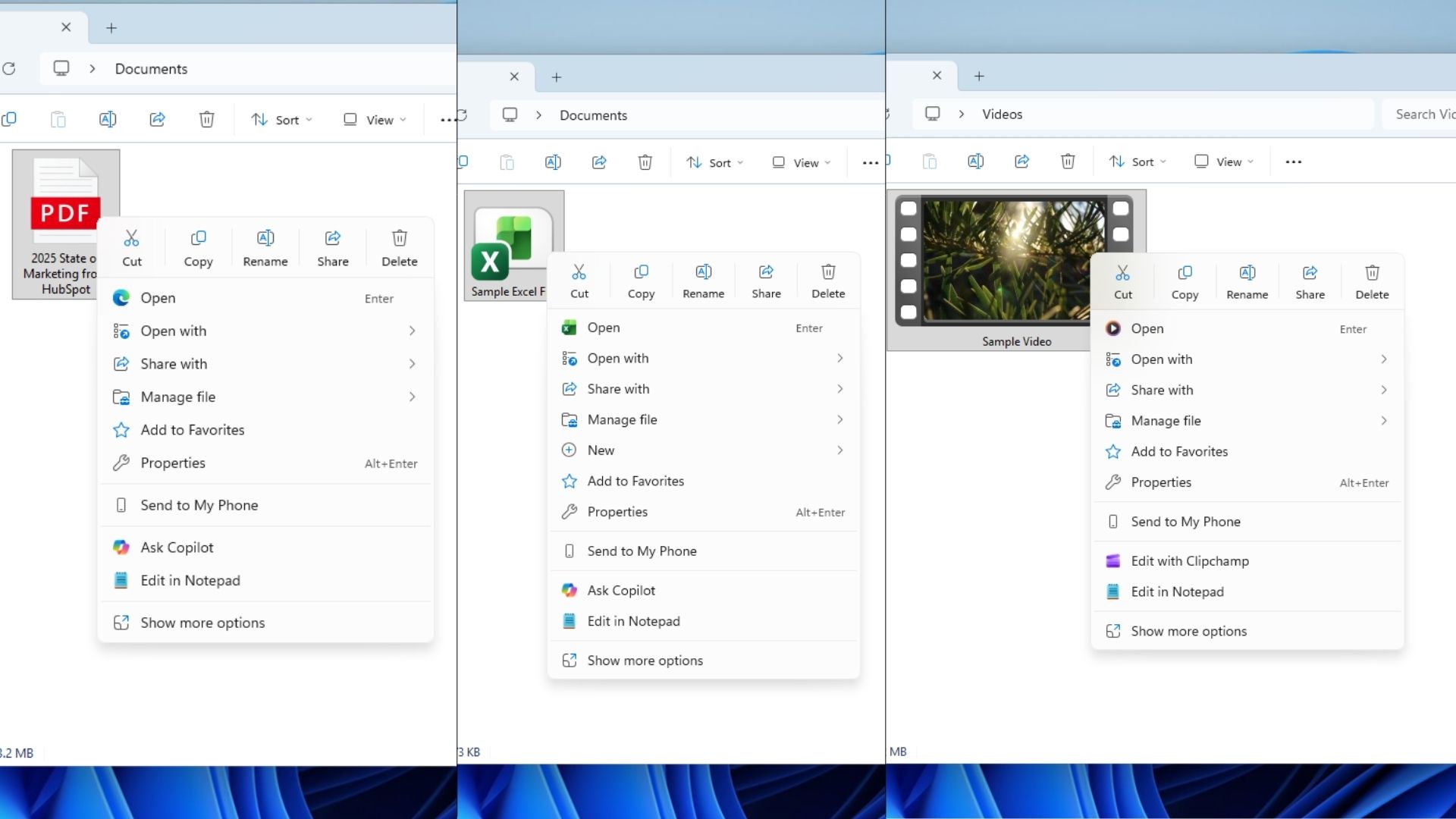
For example, Windows Latest spotted a new “Manage file” option, which groups similar options together, such as “Compress to” or “Copy as path.”
Some users might want to see “Copy as path” when right-clicking files, while others don’t. For those users, Microsoft is hiding these options inside “Manage file.”
Also, if you right-click on an image, you’ll see options like “Set as desktop background” and “Rotate left” or “Rotate right” inside “Manage file.”
When you pick Compress inside the Manage file, you’ll see format options like ZIP, 7z, and TAR in another submenu.
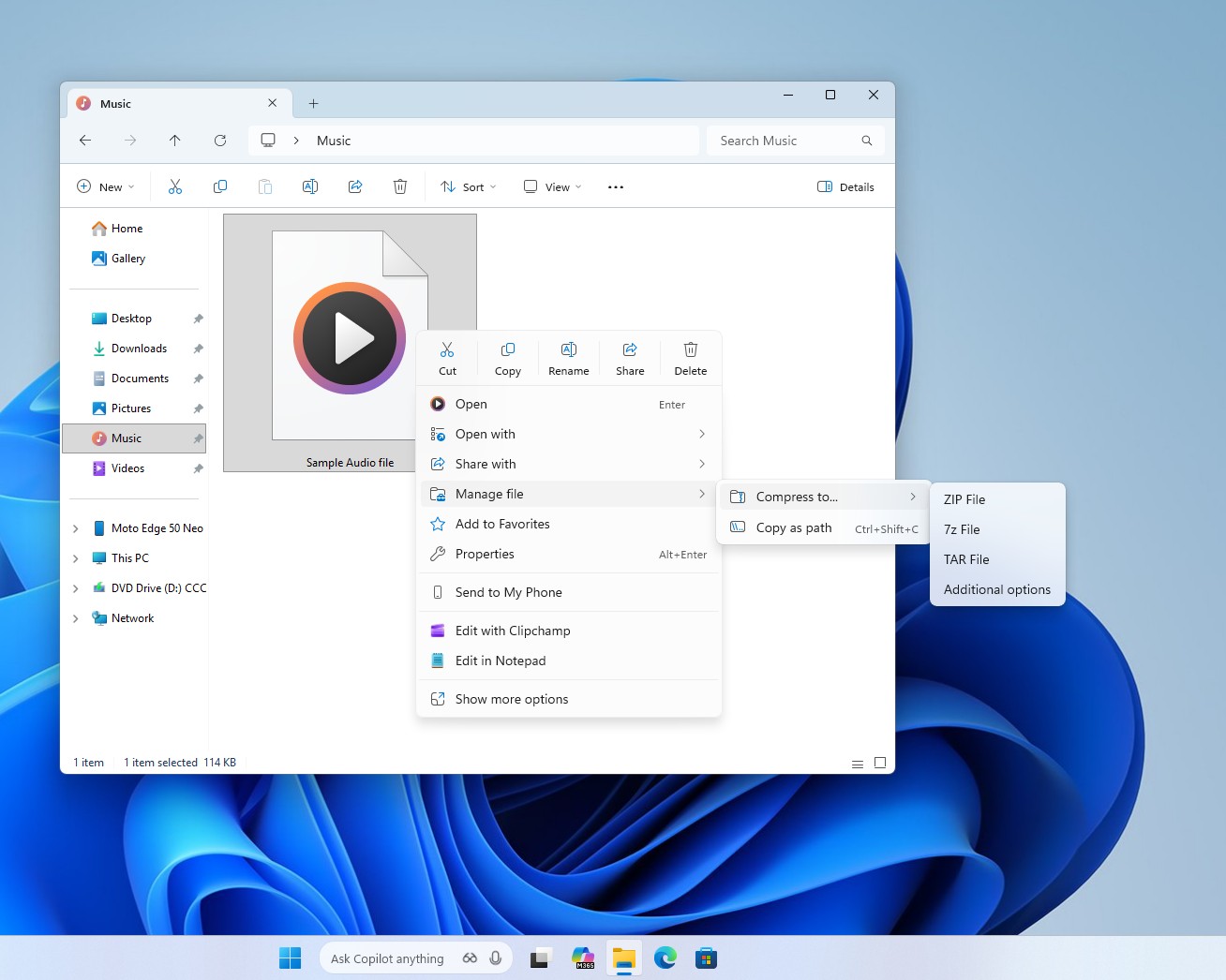
This means Windows is creating multiple sub-menus to keep the primary menu short and clean. It saves space, but it’s annoying if one of the items that you use frequently is hidden in the second or third menu. The context menu is not powered by ML model, so it’ll not understand what you want.
Some entries, like Ask Copilot, Edit with Clipchamp, Edit in Notepad, Edit in Paint, and Microsoft Photos, still remain visible in two places.
Modern Windows Run
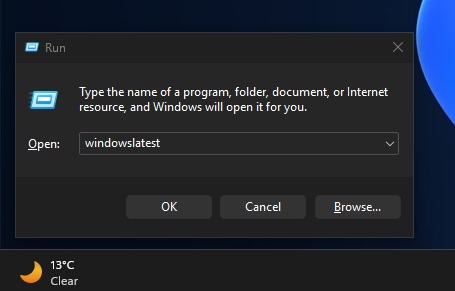
Windows 11 modernized the Task Manager, taskbar, and Start menu, but one of the most used shortcuts (Win+R) retained the legacy Win32 window. Windows Run does not have a modern look on Windows 11 and lacks new features, but that might change soon, at least for those who prefer a modern variant.
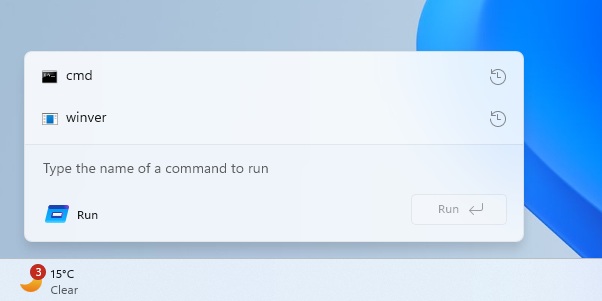
In our tests, Windows Latest confirmed that Windows Run is getting a modern version, which can be turned on from Settings > System > Advanced Settings. When you turn on modern Run, the legacy Run hides.
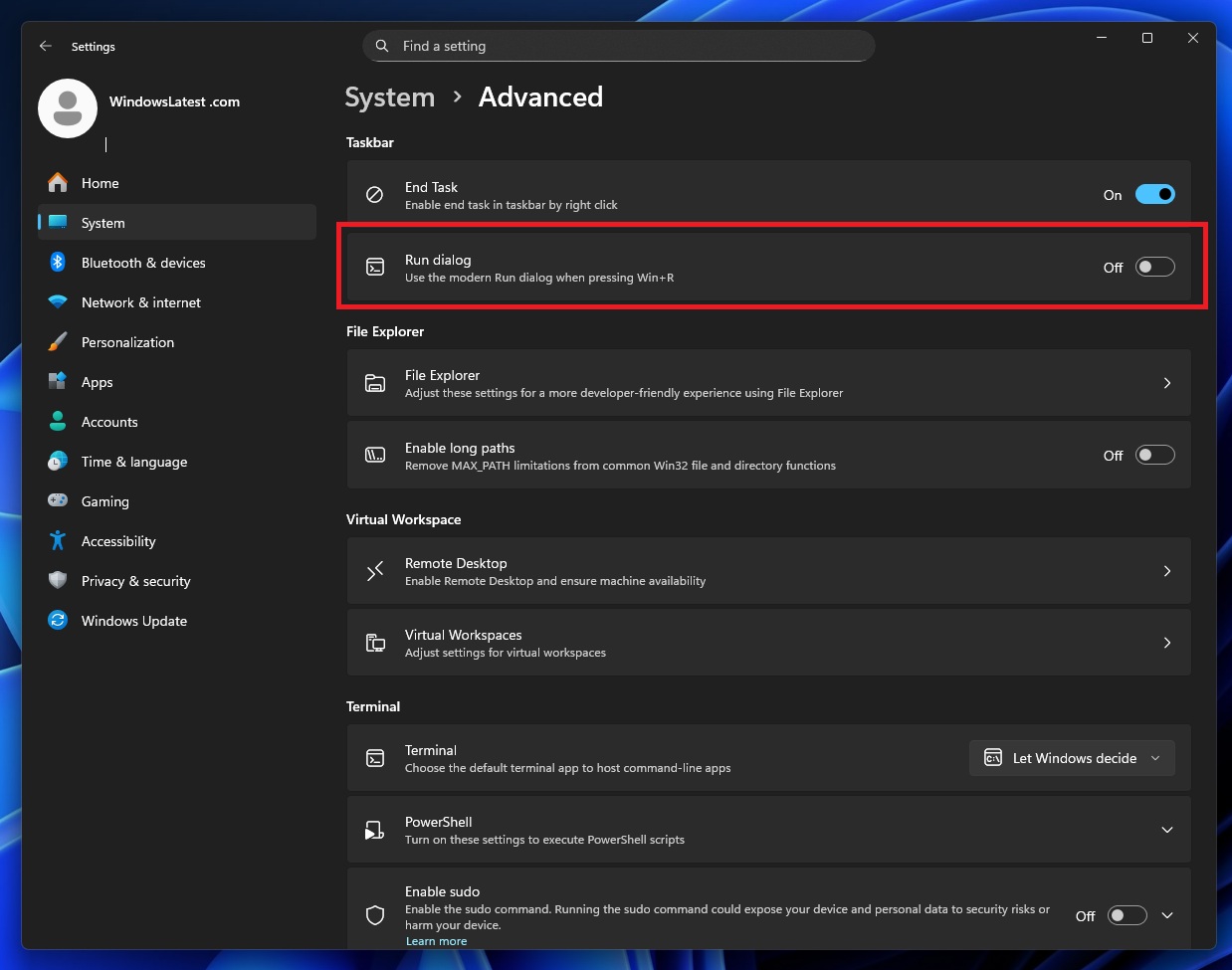
Unlike the legacy Run, modern Run is based on WinUI and respects Windows 11’s modern aesthetic, including the Mica background, which allows the wallpaper to be visible.
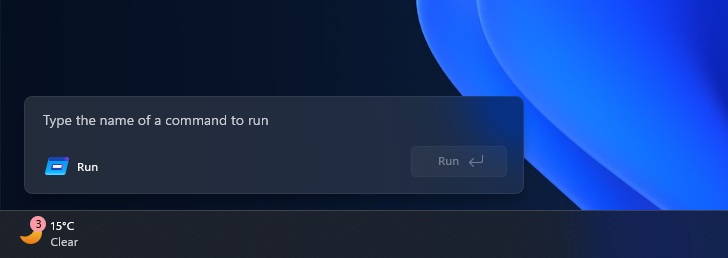
Modern Run is completely optional and not turned on by default, but that suggests it could get new features. There’s a high chance Microsoft is looking to upgrade Run with new functionality while still keeping the legacy version for power users.
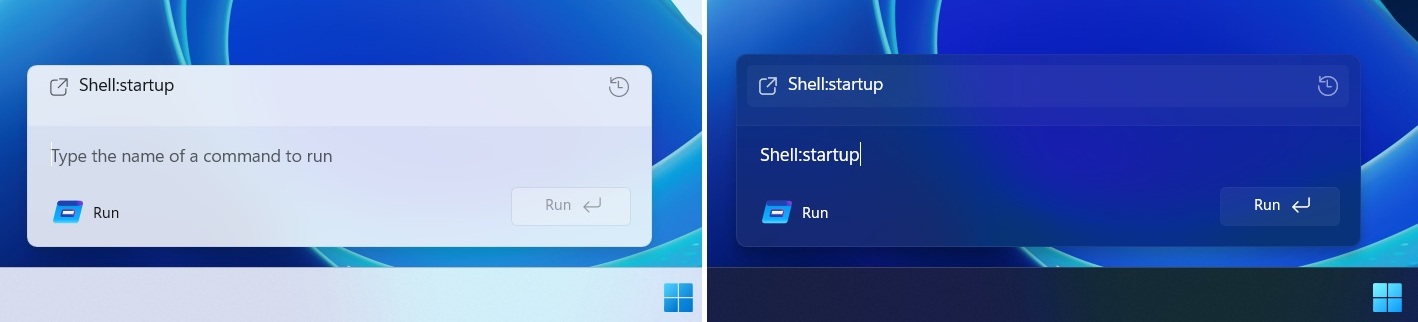
Microsoft is also testing dark mode for the legacy Windows Run, so you aren’t left out if you prefer the old-school design.
Properties tab in File Explorer with dark theme
Windows Latest also understands that there’s a Properties tab with a dark theme in File Explorer, but it’s not yet confirmed. It was spotted in internal builds.
Agenda view is returning to Windows 11
You can finally view your Outlook agenda in the Windows 11 Notifications Center (Win + N).
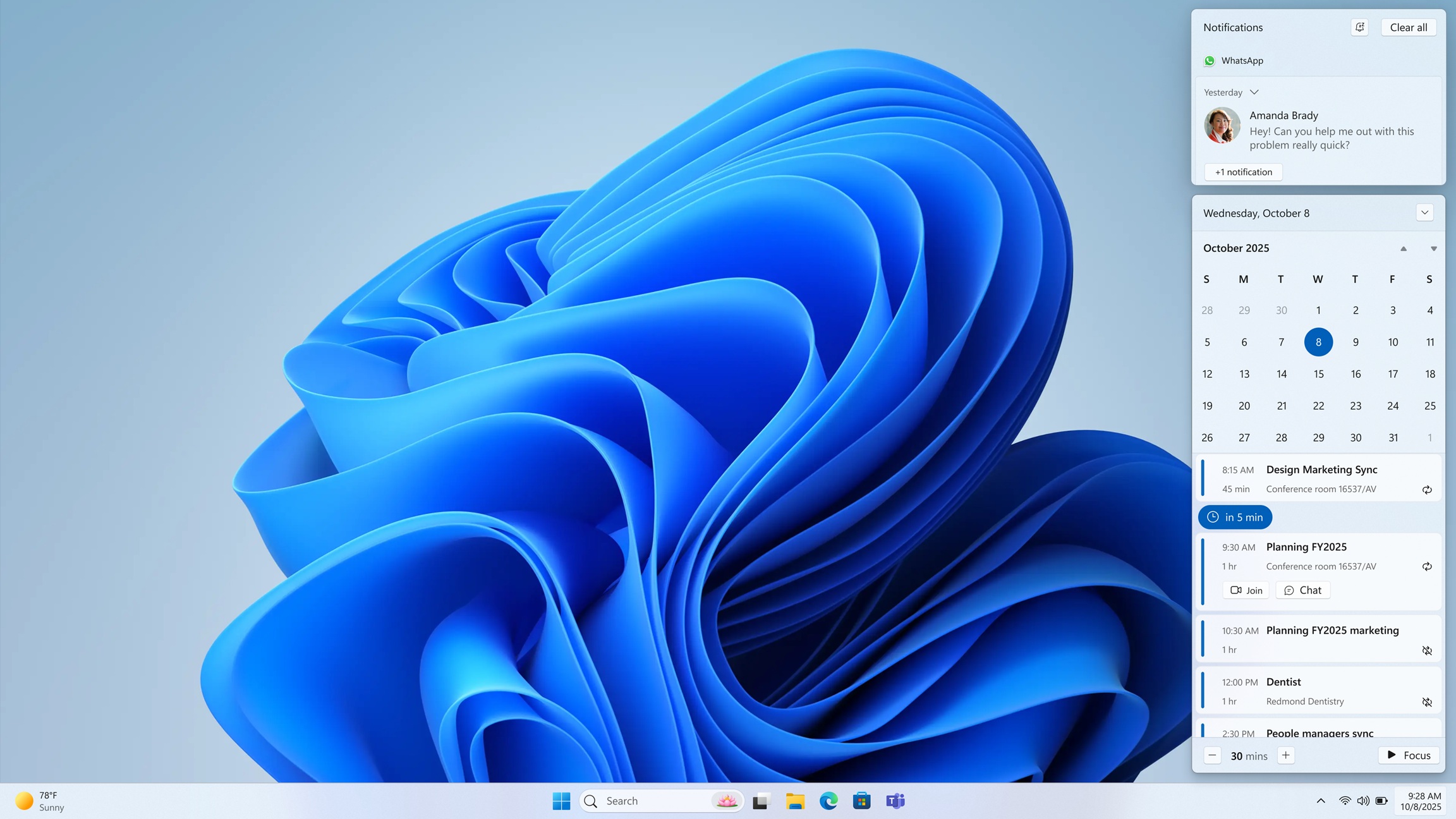
This feature is not exactly new, which is why I say “returning.” Windows 10’s Action Center already had support for Outlook Agendas, and the same feature is coming back to Windows 11, but with Copilot integration.
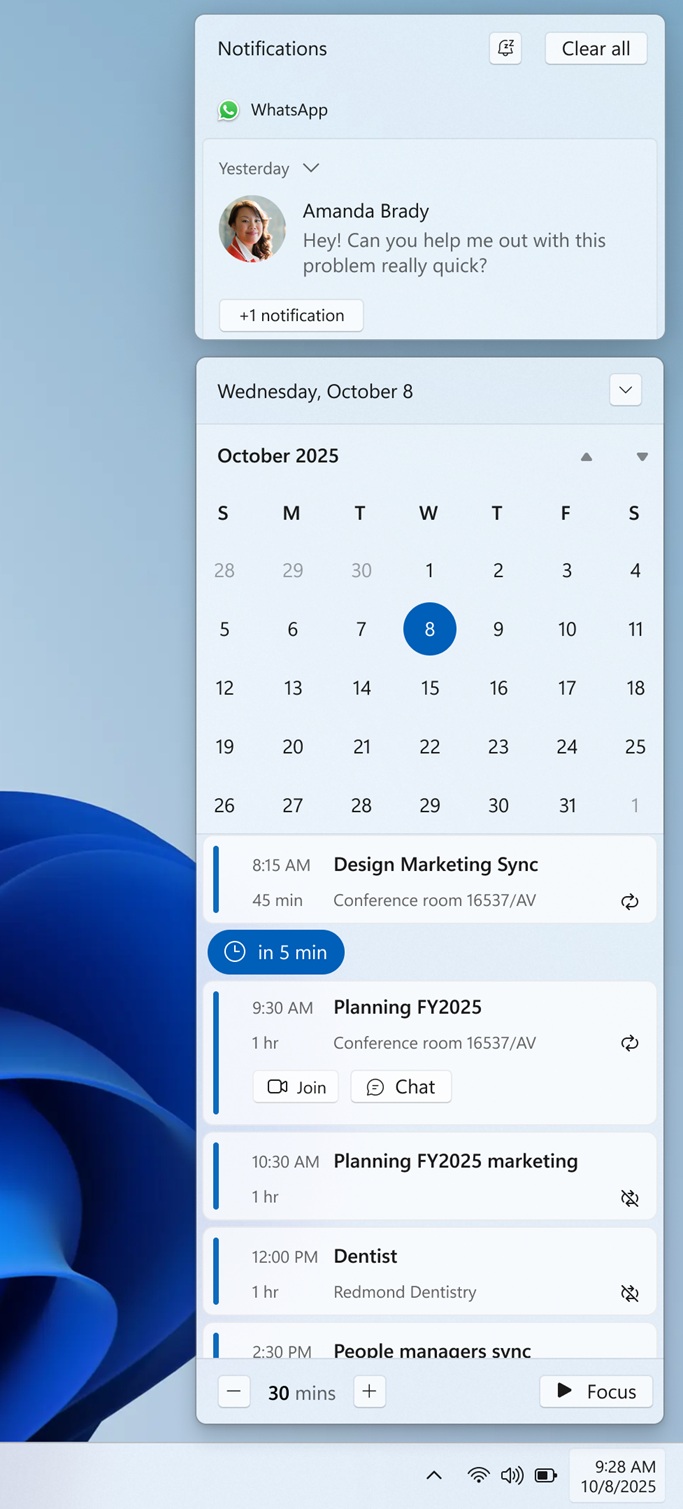
The new Agenda view in Windows 11 is WebView2-based, which means it uses more than 100MB of RAM to show your agendas.
If you don’t care about a small Copilot button and 100MB of extra RAM usage, this Agenda view in Windows 11 is as good as the Windows 10 version.
You can still easily join meetings, view agendas, and sync everything in real time with your Outlook Calendar.
Copilot in File Explorer
Copilot could soon live inside File Explorer if a leaked feature ends up in the final production build.
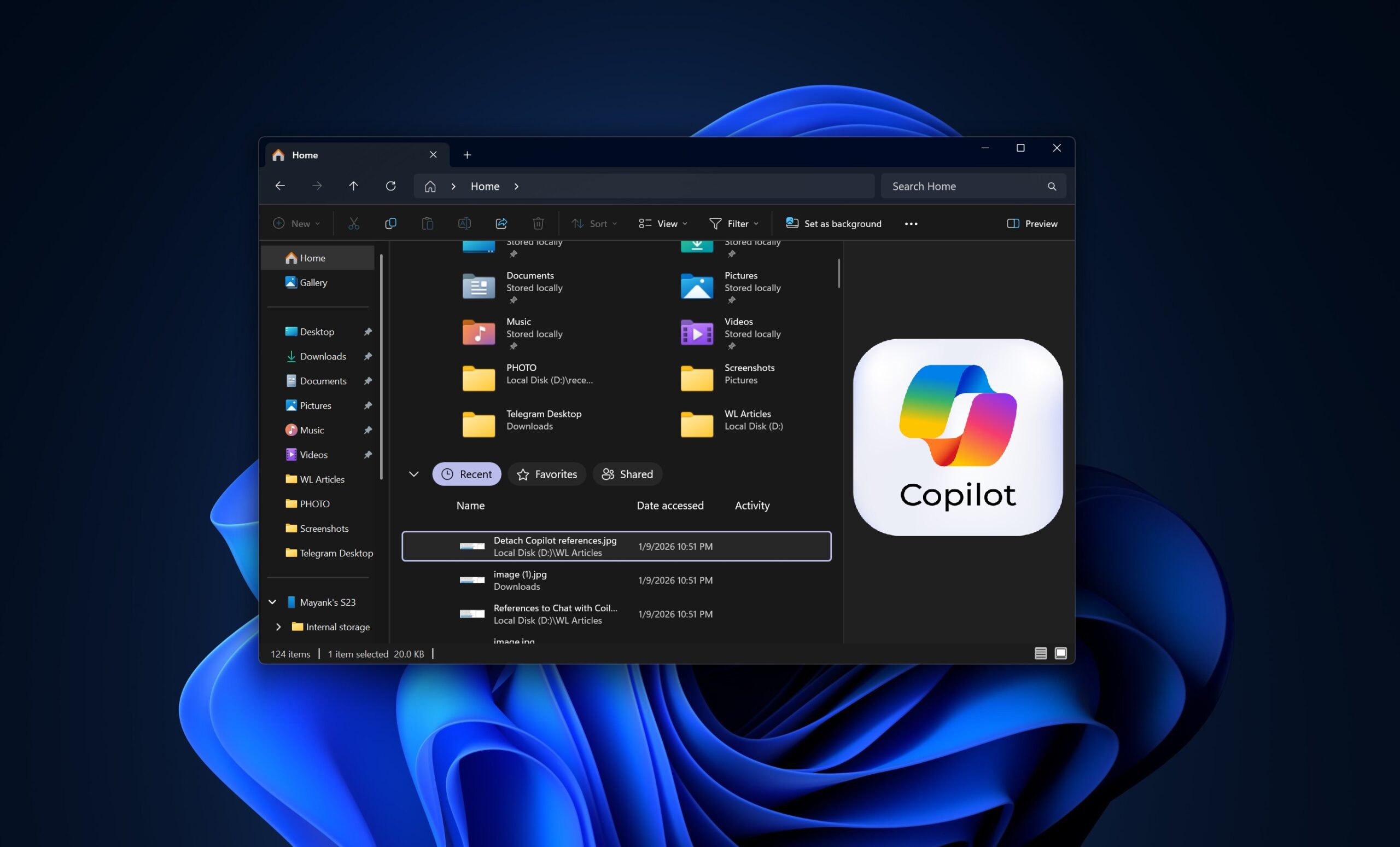
Right now, Copilot integration in File Explorer is fairly limited. You’ll only see it when you right-click a file or on the Home tab if apps like Copilot or Microsoft 365 Copilot are installed. When you remove either of these apps, Copilot disappears from File Explorer.
Also, the current Copilot in File Explorer merely sends files to the Copilot app. On the other hand, the upcoming update could add Copilot directly to the right sidebar, similar to how the Details and Preview panes appear.
There appears to be a hidden control near the Details pane that looks like it would open a Copilot panel within Explorer. Internal references linked to it point to a chat-style experience that can be docked and “detached” into its own window.
That wording matters because it suggests Copilot could first live in Explorer’s sidebar, then optionally pop out, instead of simply launching the standalone Copilot app.
It’s unclear if the feature will be added to production builds.
What do you think about the upcoming features in Windows 11? Let me know in the comments below.